Missing Photo Treasure Hunt: The Definitive Guide on How To Get Old Pictures On iPhone
There is nothing quite like the panic that sets in when you are scrolling through your iPhone photos, looking for that perfect nostalgic memory, only to find it's gone. Whether you are trying to retrieve pictures from a year ago or a decade ago, finding "old pictures" on an iPhone can feel like searching for a needle in a digital haystack.
The good news? Apple's ecosystem is designed to preserve your memories, often hiding them in plain sight or safeguarding them in the cloud. This comprehensive guide will walk you through every reliable step, from the simple checks to advanced recovery methods, showing you exactly how to get old pictures on iPhone, maintaining that casual, informative tone all the way.
Let's dive into the treasure hunt for your long-lost photos.
Phase 1: The Quick Fixes – Checking Within the Photos App
Before panicking and assuming your photos are gone forever, we need to check the most common spots where photos often retire—or hide—on your device.
The "Recently Deleted" Album (Your Digital Safety Net)
This is the first and easiest place to check. When you delete a photo on your iPhone, it doesn't vanish immediately. It moves to the "Recently Deleted" album, where it stays for approximately 30 days before being permanently removed. If your picture was deleted less than a month ago, chances are high it's waiting here.
How to Check:
- Open the Photos App.
- Tap on the "Albums" tab at the bottom.
- Scroll down to the "Utilities" section and tap "Recently Deleted."
- Use Face ID or Touch ID to unlock the folder.
- Select the photo(s) you want and tap "Recover."
Using the Advanced Search Feature
If your pictures are merely buried deep in your Camera Roll from 2017, scrolling manually is a nightmare. Thankfully, the iPhone's search functionality is incredibly powerful and utilizes metadata to help you locate specific images.
You don't need to remember the exact date. Try searching by:
- Location: "Bali 2016" or "Grandma's House."
- Date Range: "September 2015."
- Objects/People: The iPhone uses image recognition. Try searching "Dog," "Birthday," or even the name of a person it has recognized and tagged.
This method often reveals photos you completely forgot you had, simply because they were tagged with an obscure piece of data.
Phase 2: Leveraging the Cloud – Finding Backups and Syncs
For truly old photos (those dating back years, possibly taken on a previous iPhone model), your best bet is the cloud. This is where the distinction between "iCloud Photos" and "iCloud Backup" becomes crucial.
1. Checking iCloud Photos Sync
If you have "iCloud Photos" enabled, your full-resolution original images are stored in the cloud. Your iPhone often only keeps compressed, smaller versions (Optimized iPhone Storage) to save space. If you deleted a photo that was stored this way, it might be gone from your phone, but potentially recoverable from another device connected to the same iCloud account, or via the iCloud website.
How to Check iCloud.com:
- On a computer or iPad, go to iCloud.com.
- Log in with your Apple ID.
- Click on the Photos app icon.
This interface provides the absolute truth regarding what Apple holds in your synced photo library. If they are not here, they were either permanently deleted from all synced devices or never uploaded in the first place.
2. Restoring from a Full iCloud or iTunes Backup
A full iCloud backup captures nearly everything on your device at the time the backup was made—including photos that might have been locally stored but not synced via iCloud Photos. This is the most powerful method for recovering photos that were deleted long ago, but it comes with a major caveat: you must restore your entire phone to that older point in time.
Warning: Restoring a backup from 2018 means you will lose all data (texts, apps, settings) accumulated between 2018 and today. Proceed with extreme caution and ensure you have a fresh current backup saved before attempting this.
To understand the nuances of these backup methods, you can refer to Apple's official guide on iCloud and iTunes Backup differences.
Phase 3: Advanced Recovery Options: When All Else Fails
If the Photos App and iCloud haven't yielded results, you need to broaden your search to third-party services or specialized tools.
Check Alternative Cloud Services
Did you use other services to back up photos at the time? Many users leverage Google Photos, Dropbox, or Amazon Photos as secondary backup storage. If your iPhone was set to automatically upload to one of these platforms years ago, those old photos might be sitting there waiting for you.
Checking these platforms requires logging into their respective web interfaces or apps and checking the timeline or archive folders.
Utilizing Third-Party Data Recovery Software
When files are "deleted" from an iPhone, the data isn't immediately wiped; the space they occupied is simply marked as available to be overwritten. If the phone space hasn't been overwritten yet, specialized software might be able to find and reconstruct the file fragments.
While we cannot recommend a specific paid tool, you can research reputable software that adheres to standard data recovery protocols. Remember that the success rate dramatically decreases the more you use your phone after the deletion occurred. Furthermore, this method often requires connecting the iPhone to a computer and may violate the phone's warranty if unauthorized software is used.
For more technical understanding of how digital file recovery works, resources on data storage and recovery standards are helpful. Academic journals and reliable technical sources explain the principles behind sector scanning and file carving.
[Baca Juga: Best iPhone Data Recovery Software]
Phase 4: Pro Tips for Organization and Future Proofing
Now that you know how to get old pictures on iPhone, let's ensure this doesn't happen again. A solid, redundant backup strategy is essential.
The 3-2-1 Backup Rule
This is the gold standard for data preservation:
- 3 Copies: Keep 3 copies of your data (the original on your phone, plus two backups).
- 2 Different Media: Store the copies on 2 different types of media (e.g., iCloud/Google Photos and an external hard drive).
- 1 Offsite: Keep 1 copy offsite (iCloud or a cloud service).
Harnessing Metadata for Retrieval
Metadata (Exchangeable Image File Format or EXIF data) is the digital fingerprint of your photos—it records the time, date, camera settings, and often, GPS location. This is what the iPhone uses in its advanced search.
When you transfer photos between systems, ensure you use methods (like AirDrop or exporting originals) that preserve this data. Losing metadata is equivalent to losing the photo's identification tag, making future searches almost impossible.
For a deeper dive into EXIF data and digital photography standards, consult reliable photography resources. Wikipedia has excellent technical descriptions of EXIF standards.
[Baca Juga: How to Use iCloud Drive Effectively]
Comparison of Photo Storage and Retrieval Methods
| Method | Time Frame Effective | Pros | Cons |
|---|---|---|---|
| Recently Deleted Album | Last 30 Days | Instant, no data loss risk. | Extremely short window. |
| iCloud Photos Sync | As long as sync was active. | Accessible via any device/web browser. | If permanently deleted on one device, it's gone everywhere. |
| iCloud/iTunes Full Backup | Up to the date of the backup. | Recovers locally stored (non-synced) photos. | Requires full phone restoration, losing current data. |
| Third-Party Software | Variable (until data is overwritten). | Last resort for unsaved files. | Expensive, not guaranteed, potential security risk. |
Conclusion: Patience is Key in the Digital Archive
The journey of how to get old pictures on iPhone often requires checking multiple digital locations. Start simple: check the Recently Deleted folder and use the powerful search tools. If that fails, move systematically through your cloud platforms (iCloud, Google Photos, etc.). With a bit of patience and strategic searching, those cherished old memories are usually found right where they were stored—just a few taps away.
Frequently Asked Questions (FAQ)
- How far back can the iPhone Photo Search go?
The search function relies on the metadata of the stored photos. If the photo was taken in 2012 and remains on your device or in iCloud Photos, the search can identify and surface that image based on the exact date and year encoded in its data.
- If I delete a photo from my iPhone, how long does it last in Apple's system?
Once you delete a photo, it stays in the "Recently Deleted" folder for 30 days. If you manually delete it from that folder or wait out the 30 days, it is permanently removed from both your device and iCloud Photos (if syncing is enabled).
- Can I recover photos if I never used iCloud?
Yes, but your options are limited to manual backups. If you previously backed up your iPhone using iTunes (or Finder on newer Macs) on a computer, you can attempt to restore your device to that backup date. If no backups were made, your only hope is through highly volatile third-party data recovery software.
- Why are some photos blurry when I find them?
If you have "Optimize iPhone Storage" enabled in your iCloud settings, your phone keeps low-resolution previews (thumbnails) on the device to save space. When you tap a blurry photo, the iPhone must download the full-resolution original from iCloud. Make sure you are connected to Wi-Fi to load the crisp original file.
How To Get Old Pictures On Iphone
How To Get Old Pictures On Iphone Wallpapers
Collection of how to get old pictures on iphone wallpapers for your desktop and mobile devices.
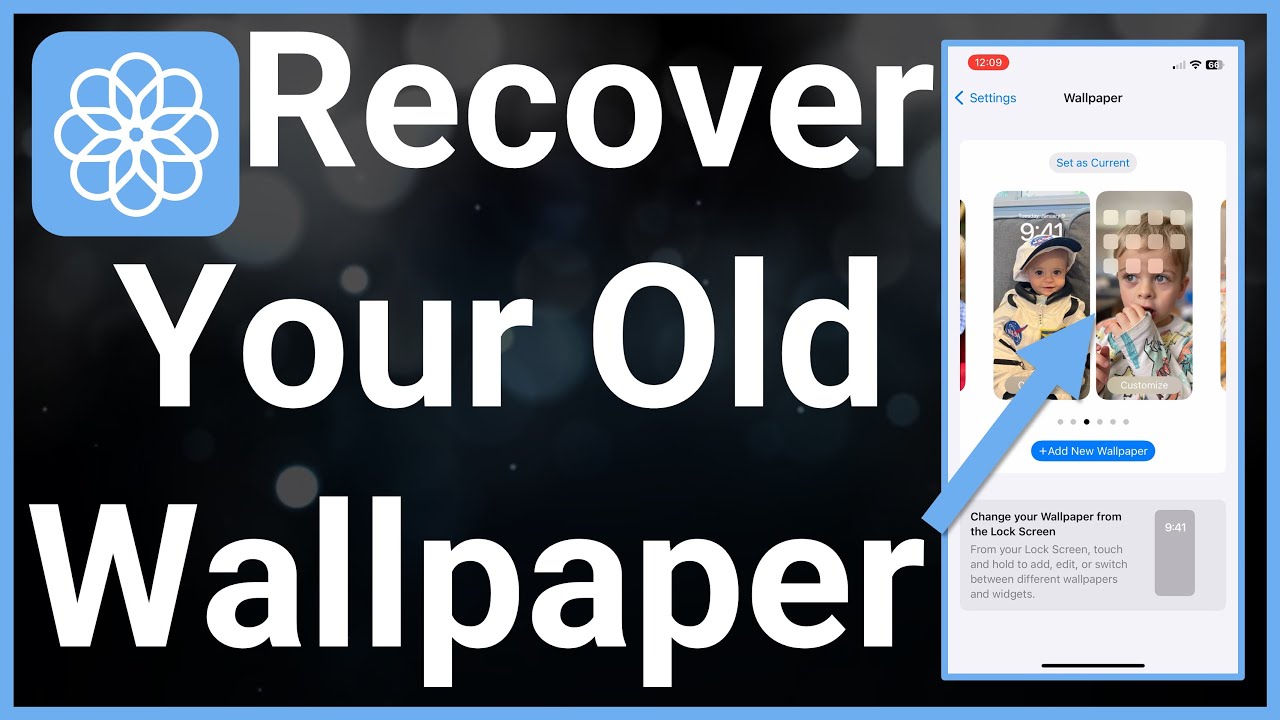
Vivid How To Get Old Pictures On Iphone Image Digital Art
Transform your screen with this vivid how to get old pictures on iphone artwork, a true masterpiece of digital design.

Lush How To Get Old Pictures On Iphone Background Digital Art
A captivating how to get old pictures on iphone scene that brings tranquility and beauty to any device.
High-Quality How To Get Old Pictures On Iphone Photo for Desktop
Explore this high-quality how to get old pictures on iphone image, perfect for enhancing your desktop or mobile wallpaper.

Dynamic How To Get Old Pictures On Iphone Moment Photography
Immerse yourself in the stunning details of this beautiful how to get old pictures on iphone wallpaper, designed for a captivating visual experience.

Breathtaking How To Get Old Pictures On Iphone Design in 4K
Discover an amazing how to get old pictures on iphone background image, ideal for personalizing your devices with vibrant colors and intricate designs.

Artistic How To Get Old Pictures On Iphone Design in HD
A captivating how to get old pictures on iphone scene that brings tranquility and beauty to any device.

Amazing How To Get Old Pictures On Iphone Scene for Your Screen
Discover an amazing how to get old pictures on iphone background image, ideal for personalizing your devices with vibrant colors and intricate designs.

Vivid How To Get Old Pictures On Iphone Capture for Mobile
Experience the crisp clarity of this stunning how to get old pictures on iphone image, available in high resolution for all your screens.
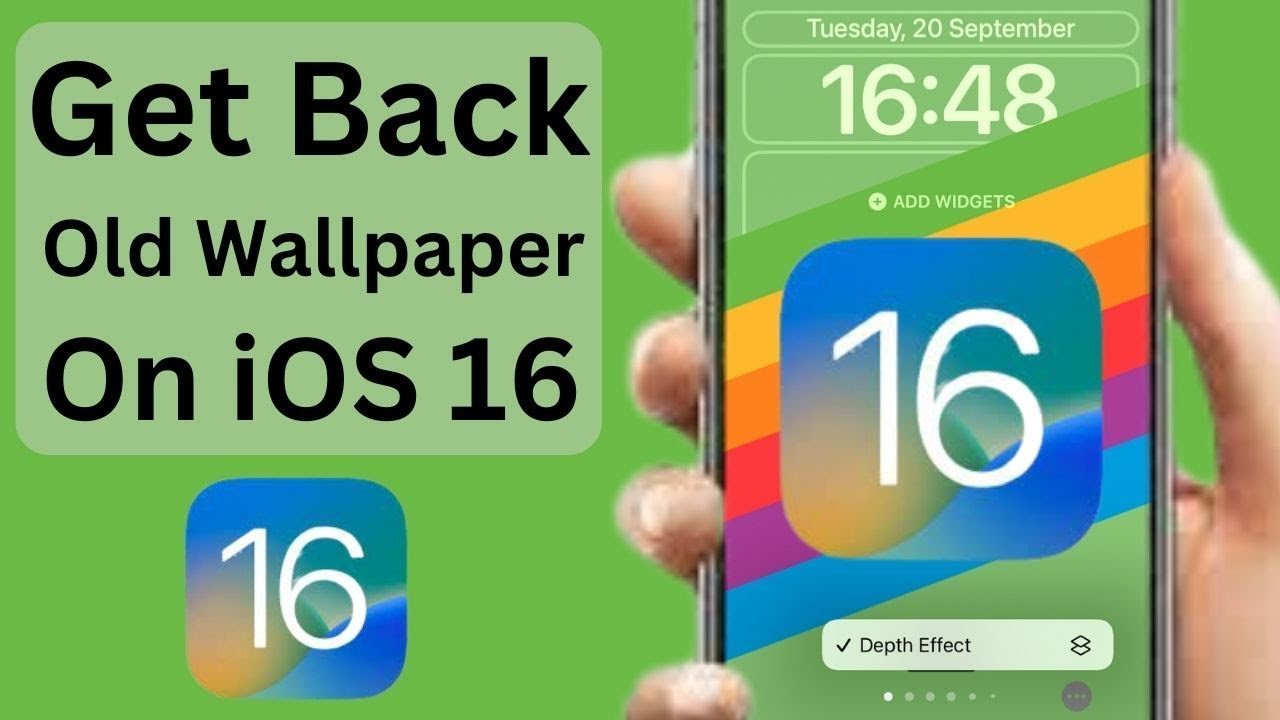
Beautiful How To Get Old Pictures On Iphone Capture Art
Explore this high-quality how to get old pictures on iphone image, perfect for enhancing your desktop or mobile wallpaper.
Spectacular How To Get Old Pictures On Iphone Design for Mobile
Immerse yourself in the stunning details of this beautiful how to get old pictures on iphone wallpaper, designed for a captivating visual experience.
Amazing How To Get Old Pictures On Iphone Abstract Nature
Explore this high-quality how to get old pictures on iphone image, perfect for enhancing your desktop or mobile wallpaper.

Crisp How To Get Old Pictures On Iphone Capture in 4K
This gorgeous how to get old pictures on iphone photo offers a breathtaking view, making it a perfect choice for your next wallpaper.
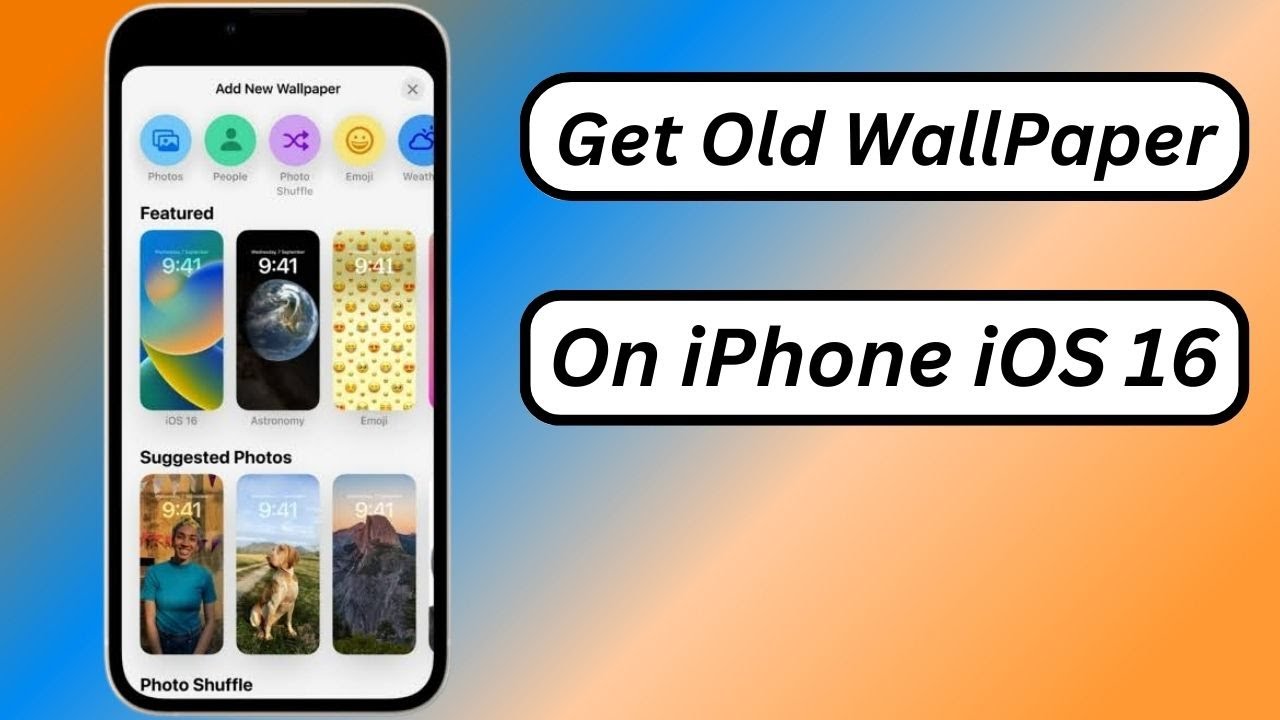
Crisp How To Get Old Pictures On Iphone Capture Collection
This gorgeous how to get old pictures on iphone photo offers a breathtaking view, making it a perfect choice for your next wallpaper.

Amazing How To Get Old Pictures On Iphone Artwork Collection
Experience the crisp clarity of this stunning how to get old pictures on iphone image, available in high resolution for all your screens.
Stunning How To Get Old Pictures On Iphone Moment Collection
A captivating how to get old pictures on iphone scene that brings tranquility and beauty to any device.

Vivid How To Get Old Pictures On Iphone Picture Nature
Discover an amazing how to get old pictures on iphone background image, ideal for personalizing your devices with vibrant colors and intricate designs.

Spectacular How To Get Old Pictures On Iphone View Nature
Find inspiration with this unique how to get old pictures on iphone illustration, crafted to provide a fresh look for your background.

Exquisite How To Get Old Pictures On Iphone Picture for Mobile
Find inspiration with this unique how to get old pictures on iphone illustration, crafted to provide a fresh look for your background.
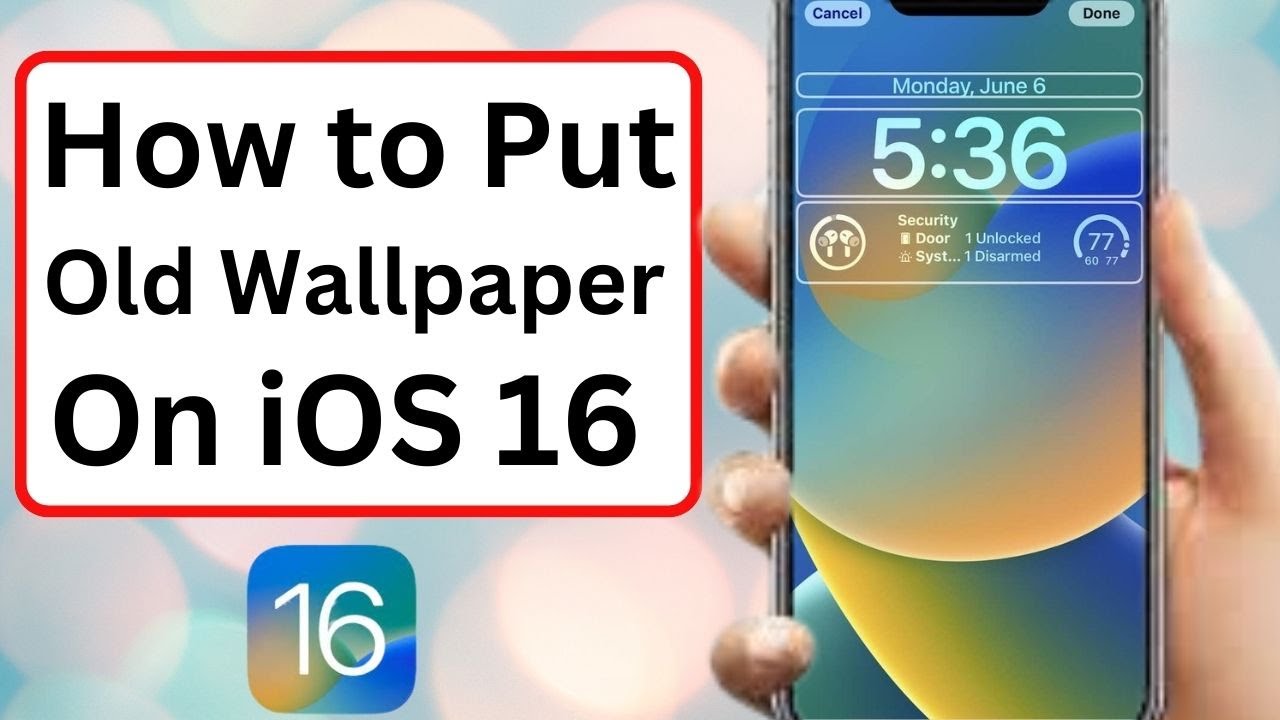
Stunning How To Get Old Pictures On Iphone Background Illustration
Find inspiration with this unique how to get old pictures on iphone illustration, crafted to provide a fresh look for your background.

Captivating How To Get Old Pictures On Iphone Photo in HD
Find inspiration with this unique how to get old pictures on iphone illustration, crafted to provide a fresh look for your background.
Download these how to get old pictures on iphone wallpapers for free and use them on your desktop or mobile devices.