Stop the Struggle: Your Complete Guide on How To Add Files In iPhone Easily and Securely
If you've recently switched from Android or PC, the iPhone file system can feel a little like a locked fortress. Apple designs its ecosystem primarily for security and simplicity, which often means traditional drag-and-drop methods are off the table.
However, getting your documents, videos, and media onto your phone doesn't have to be a headache. The trick is understanding the core tools Apple provides.
This comprehensive guide will walk you through the five most effective and secure ways on How To Add Files In iPhone, ensuring your digital life stays organized and accessible.
Let's dive into the easiest methods, starting with the heart of the modern Apple ecosystem: the Files App and iCloud.
Mastering the Native Solution: Using the Files App and iCloud Sync
For most general files—like PDFs, spreadsheets, or work documents—the Files app is your primary hub. Introduced in iOS 11, it acts as a centralized location for both files stored locally on your iPhone and those saved in the cloud.
The Power of iCloud Drive
iCloud Drive is the most seamless way to transfer files across all your Apple devices (Mac, iPad, iPhone). If a file is uploaded to your iCloud Drive on your Mac or PC, it automatically appears on your iPhone.
Step-by-Step for iCloud Upload:
- On your computer, ensure you are signed into the same Apple ID.
- Drag your desired files into the 'iCloud Drive' folder (or use the web browser portal).
- On your iPhone, open the Files App (it looks like a blue folder).
- Tap 'Browse' and select 'iCloud Drive.' Your files will appear and download automatically when you tap them.
Pro Tip: Files in iCloud Drive only take up space on your phone when they are downloaded for viewing. If you're low on space, you can long-press the file and select 'Remove Download' to free up local storage while keeping the file securely in the cloud.
The Quickest Way: Transferring Files Using AirDrop (iPhone to iPhone/Mac)
When you need to send a large file, photo album, or document instantly to a nearby Apple device, AirDrop is unbeatable. It uses Bluetooth to discover devices and Wi-Fi to create a peer-to-peer connection for rapid, encrypted transfer.
How to AirDrop a File to Your iPhone:
Assuming the sending device is nearby (Mac, iPad, or another iPhone):
- Enable AirDrop: On your receiving iPhone, open Control Center, long-press the Wi-Fi/Bluetooth box, and ensure AirDrop is set to 'Contacts Only' or 'Everyone.'
- Select File: On the sending device, open the file you wish to send (e.g., a photo, a document in the Files app).
- Share: Tap the Share button (the square with an arrow pointing up).
- Send: Select the AirDrop icon and choose your iPhone from the list of available devices.
The file will automatically appear on your iPhone. Photos go directly to the Photos app, while documents and non-media files will prompt you to save them in the Files app, providing an elegant solution on how to add files in iPhone without wires or upload limits.
Going Old School: Adding Files via Email and Third-Party Cloud Services
Sometimes you need to transfer files from a non-Apple source, like a corporate PC or a friend's Android phone. This is where universal methods shine.
Using Email Attachments (Small Files Only)
For small files (typically under 20-25MB), simply emailing the file to yourself remains the simplest cross-platform method. Once received on your iPhone's Mail app, tap the attachment and use the Share button to 'Save to Files.'
Integrating Third-Party Cloud Providers
If you rely on services like Google Drive, Dropbox, or OneDrive, you can integrate them directly into your iPhone's Files app.
- Download the corresponding app (e.g., Google Drive) from the App Store and log in.
- Open the native Files App on your iPhone.
- Tap the three dots icon (More Options) in the top-right corner, then tap 'Edit Sidebar.'
- Toggle on the third-party service (e.g., Dropbox).
Now, whenever you access the Files app, you can seamlessly browse and download files from that third-party service. This drastically improves workflow and demonstrates the flexibility of the current iOS file management system. Learn more about cloud storage security here.
[Baca Juga: Optimizing iPhone Storage: Tips to Free Up Space Instantly]
Advanced Method: The Role of Finder/iTunes for Local PC Transfer
For users who prefer a direct, wired connection—perhaps for very large files or when Wi-Fi is unavailable—the traditional method using your computer remains viable.
Mac Users (macOS Catalina and later): Using Finder
If you have a modern Mac, Finder has taken over the syncing and backup duties previously handled by iTunes.
- Connect your iPhone to your Mac using a lightning or USB-C cable.
- Open Finder and select your iPhone from the sidebar.
- Click the Files tab. You will see a list of apps that support file sharing.
- Drag and drop your file into the folder associated with the app you want to use (e.g., VLC for video, or Pages for documents).
Windows Users (PC) and Older Macs: Using iTunes
Windows users still rely on the iTunes application for file management and syncing.
- Connect your iPhone and launch iTunes.
- Click the small iPhone icon near the top left.
- Select File Sharing from the sidebar.
- Select the app and drag your desired file into the document list.
This method is reliable, but files are often "siloed" within the destination app and may not be accessible directly from the main Files app.
Choosing the Right Method: Speed, Security, and File Size Comparison
To help you decide the best approach for How To Add Files In iPhone based on your immediate needs, here is a quick comparison of the methods discussed:
| Method | Recommended Size | Speed | Best For |
|---|---|---|---|
| AirDrop | Unlimited (nearby) | Very Fast | Large media files (photos, videos) between Apple devices. |
| iCloud Drive | Up to storage limit | Medium (depends on internet) | Document synchronization across all your own devices. |
| Finder/iTunes (Wired) | Unlimited (via cable) | Fastest | Bulk transfers, specific app data, and backups. |
| Email/3rd Party Cloud | Varies (low for email) | Slow to Medium | Cross-platform sharing (Windows/Android) and collaboration. |
For high-security requirements, always use end-to-end encrypted methods like AirDrop or secure cloud providers with two-factor authentication enabled. You can check Apple's official documentation on data protection for more details.
[Baca Juga: The Essential Guide to iPhone Backup Best Practices]
Conclusion: The Files App is Your Anchor
The confusion surrounding how to add files in iPhone often stems from thinking of it like a traditional desktop computer. Instead, view your iPhone as a series of secure "silos" managed by the central Files app.
By leveraging iCloud for seamless synchronization and AirDrop for instant local sharing, you can manage your digital assets efficiently and securely without needing to plug in a cable every time. Master the Files app, and you master file management on iOS.
Frequently Asked Questions (FAQ)
- Why can't I see the files I uploaded on my computer in the iPhone Photos app?
The Photos app is specifically for pictures and videos captured by the device or synced via iCloud Photos. Documents (PDFs, Word files, etc.) must be accessed via the native Files app.
- Does AirDrop work if I don't have an internet connection?
Yes, AirDrop uses a combination of Bluetooth and Wi-Fi to create a direct, localized connection between the two devices. No external internet access is required, making it ideal for remote sharing.
- How do I add files from my iPhone to third-party apps like WhatsApp or TikTok?
You need to use the universal "Share Sheet." Find the file in your Photos or Files app, tap the share icon, and select the target app. The app must support importing that specific file type.
- What is the maximum file size I can transfer using iCloud Drive?
Files up to 50GB can be uploaded to iCloud Drive, provided you have enough overall storage space in your iCloud plan.
Iphone Repair In Tampa
Iphone Repair In Tampa Wallpapers
Collection of iphone repair in tampa wallpapers for your desktop and mobile devices.
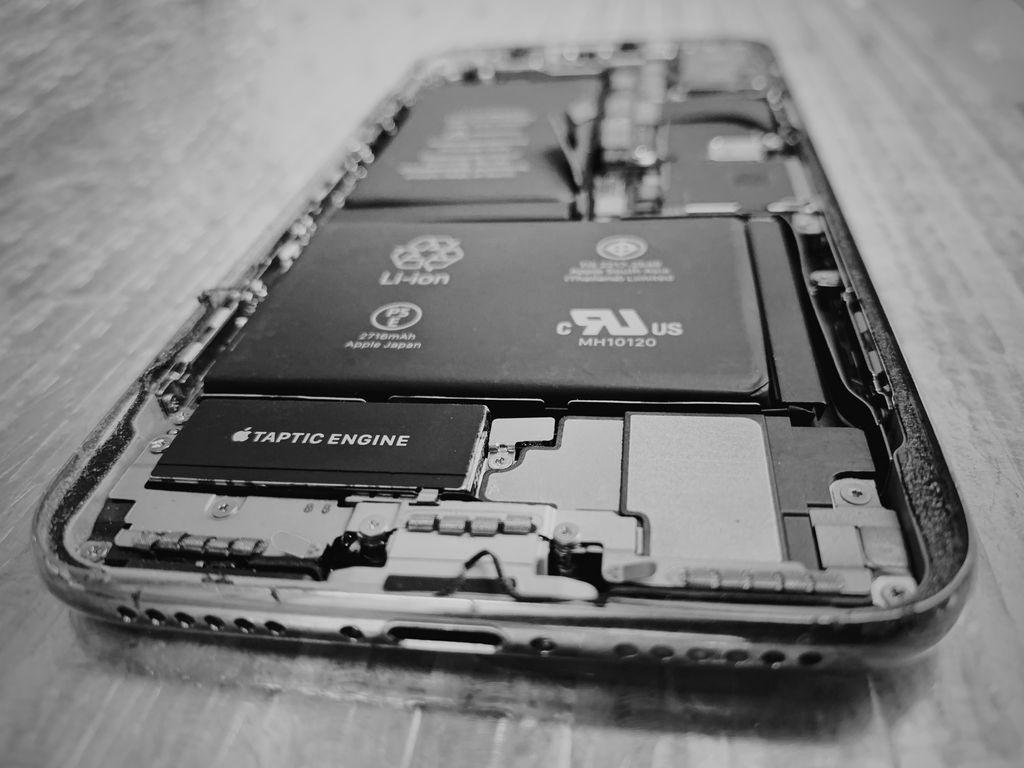
High-Quality Iphone Repair In Tampa View Photography
Explore this high-quality iphone repair in tampa image, perfect for enhancing your desktop or mobile wallpaper.

Beautiful Iphone Repair In Tampa Scene Concept
Transform your screen with this vivid iphone repair in tampa artwork, a true masterpiece of digital design.
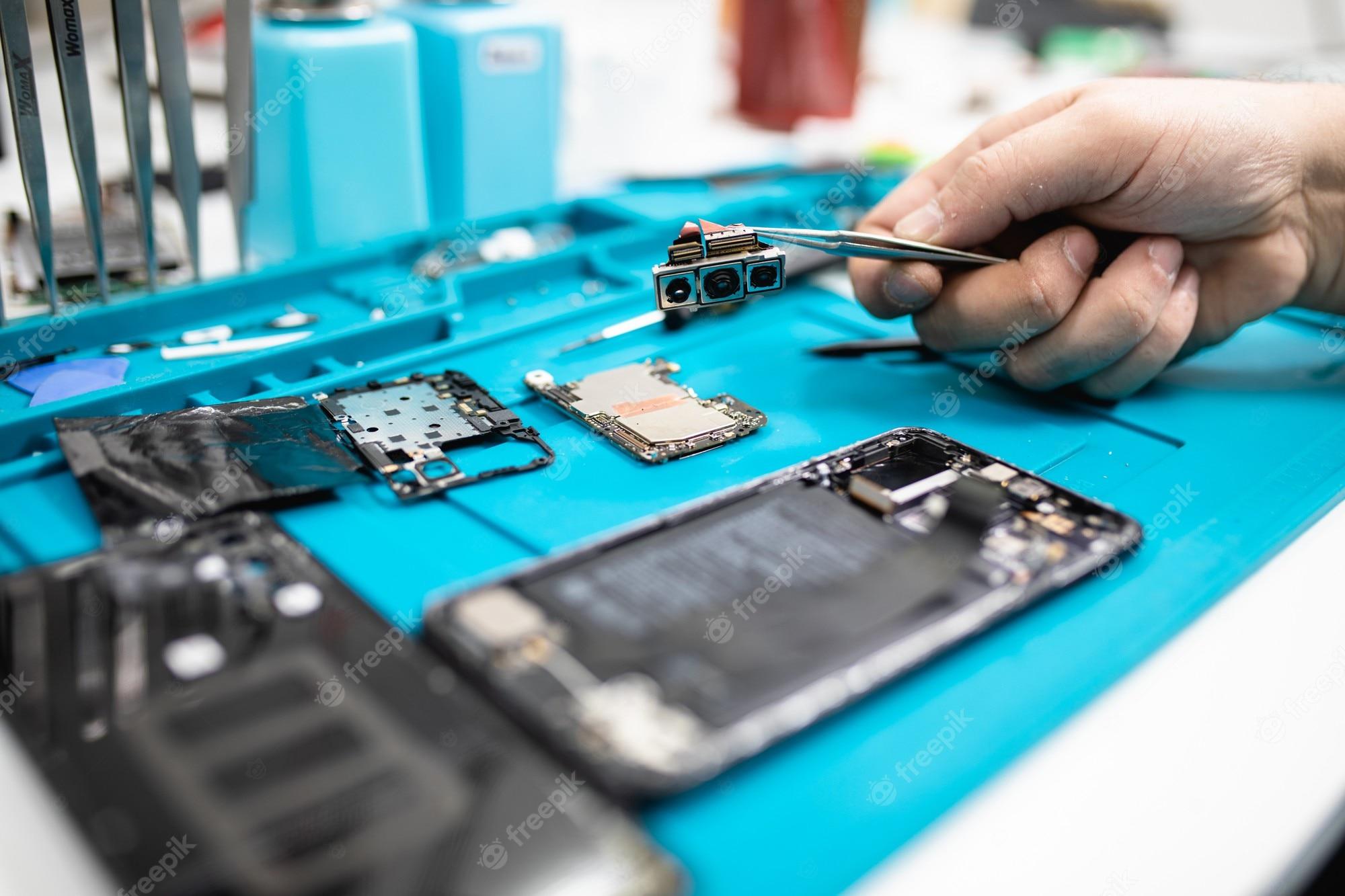
Vibrant Iphone Repair In Tampa Scene Art
Experience the crisp clarity of this stunning iphone repair in tampa image, available in high resolution for all your screens.

Artistic Iphone Repair In Tampa Scene Photography
Find inspiration with this unique iphone repair in tampa illustration, crafted to provide a fresh look for your background.

Artistic Iphone Repair In Tampa Capture Collection
This gorgeous iphone repair in tampa photo offers a breathtaking view, making it a perfect choice for your next wallpaper.
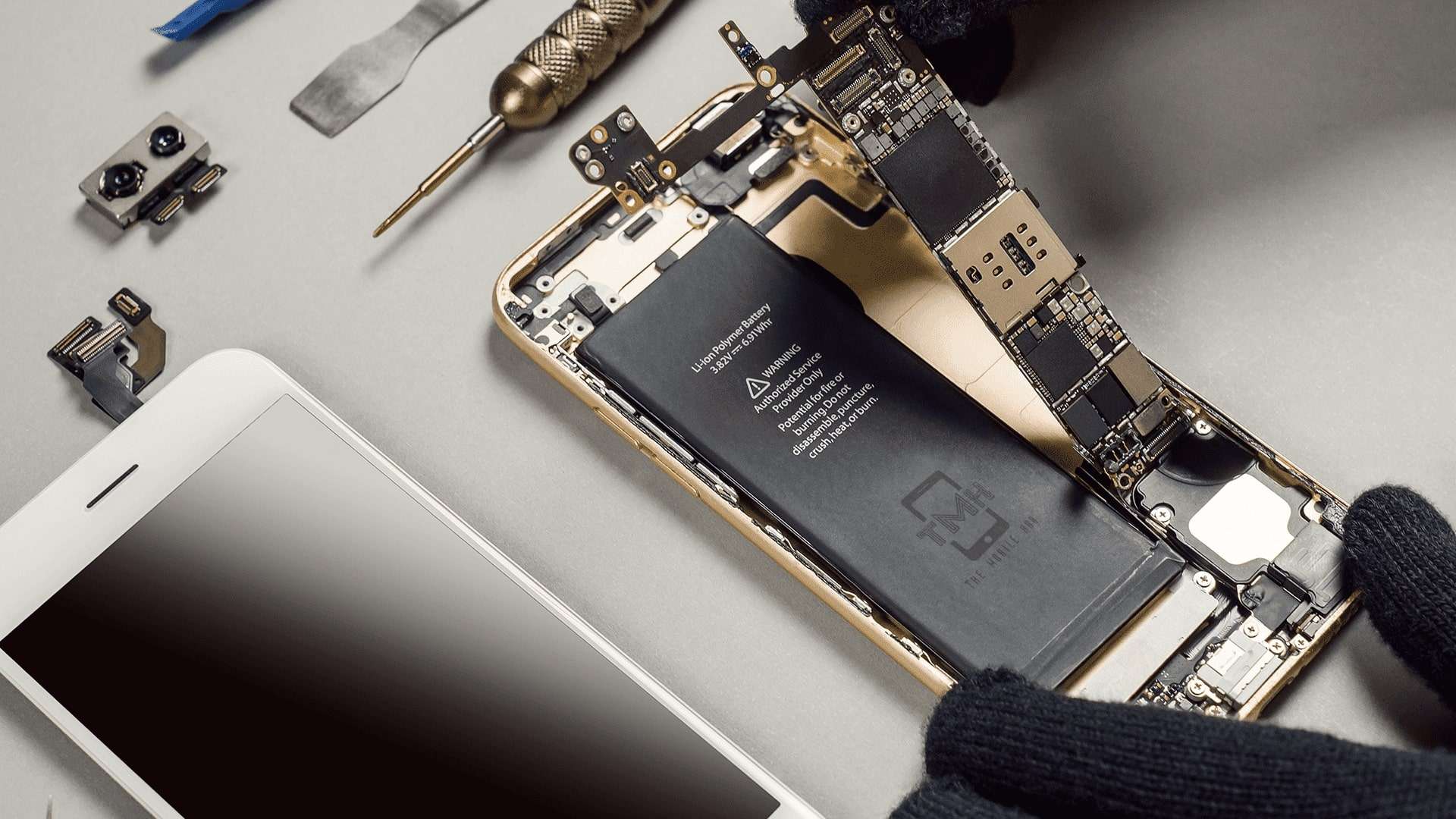
Gorgeous Iphone Repair In Tampa Picture Digital Art
Find inspiration with this unique iphone repair in tampa illustration, crafted to provide a fresh look for your background.
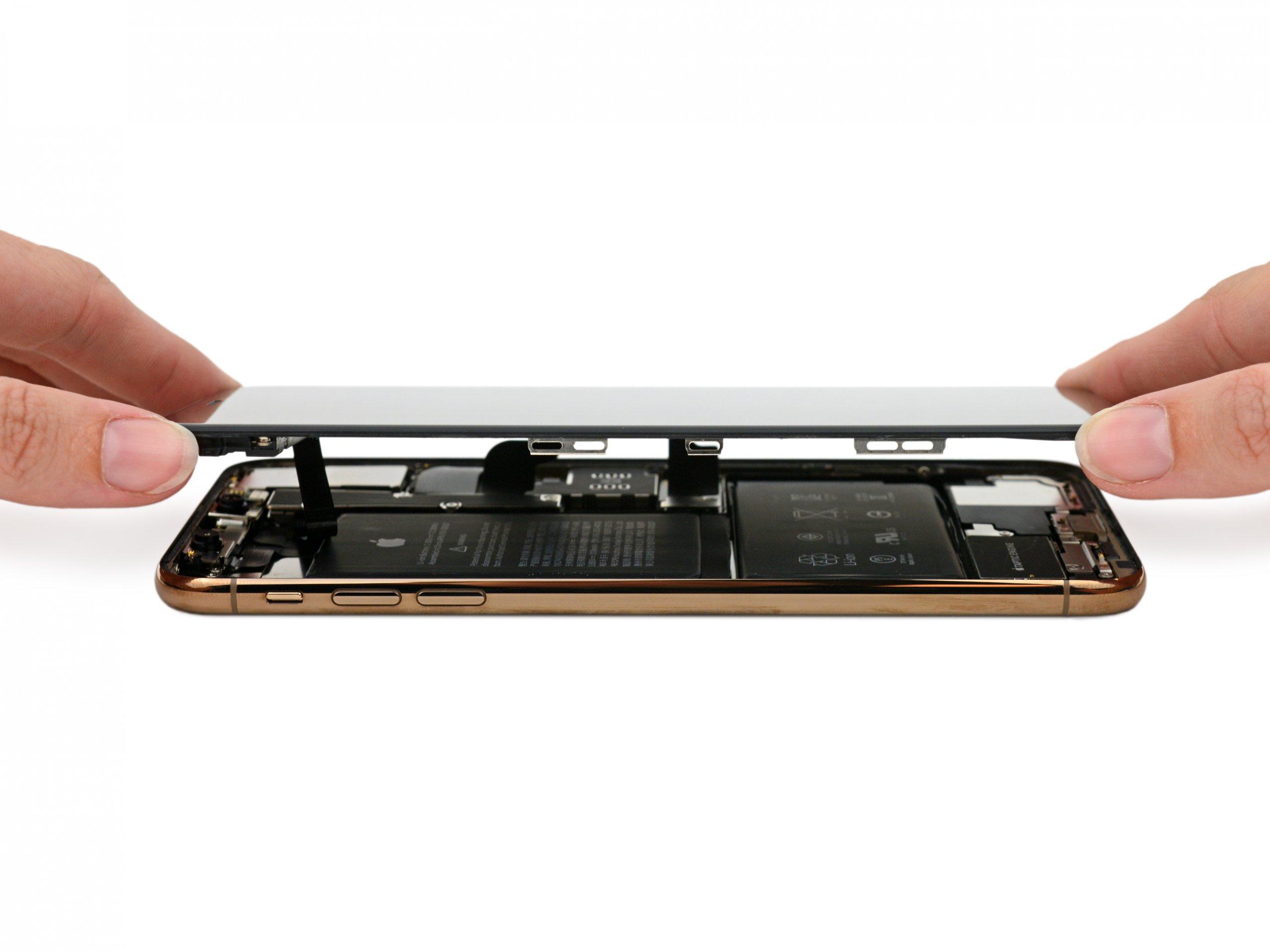
Exquisite Iphone Repair In Tampa Moment Illustration
A captivating iphone repair in tampa scene that brings tranquility and beauty to any device.

Gorgeous Iphone Repair In Tampa Scene Digital Art
A captivating iphone repair in tampa scene that brings tranquility and beauty to any device.

Lush Iphone Repair In Tampa Artwork for Desktop
Immerse yourself in the stunning details of this beautiful iphone repair in tampa wallpaper, designed for a captivating visual experience.
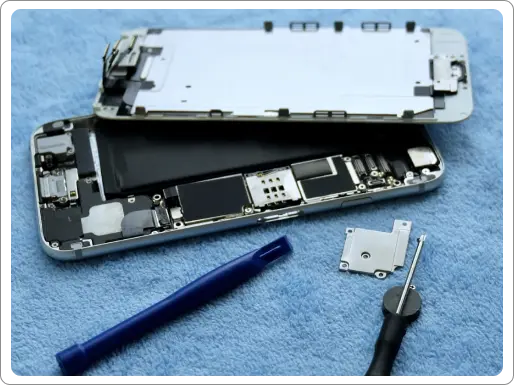
Breathtaking Iphone Repair In Tampa Scene in 4K
Explore this high-quality iphone repair in tampa image, perfect for enhancing your desktop or mobile wallpaper.

Exquisite Iphone Repair In Tampa Wallpaper Nature
This gorgeous iphone repair in tampa photo offers a breathtaking view, making it a perfect choice for your next wallpaper.
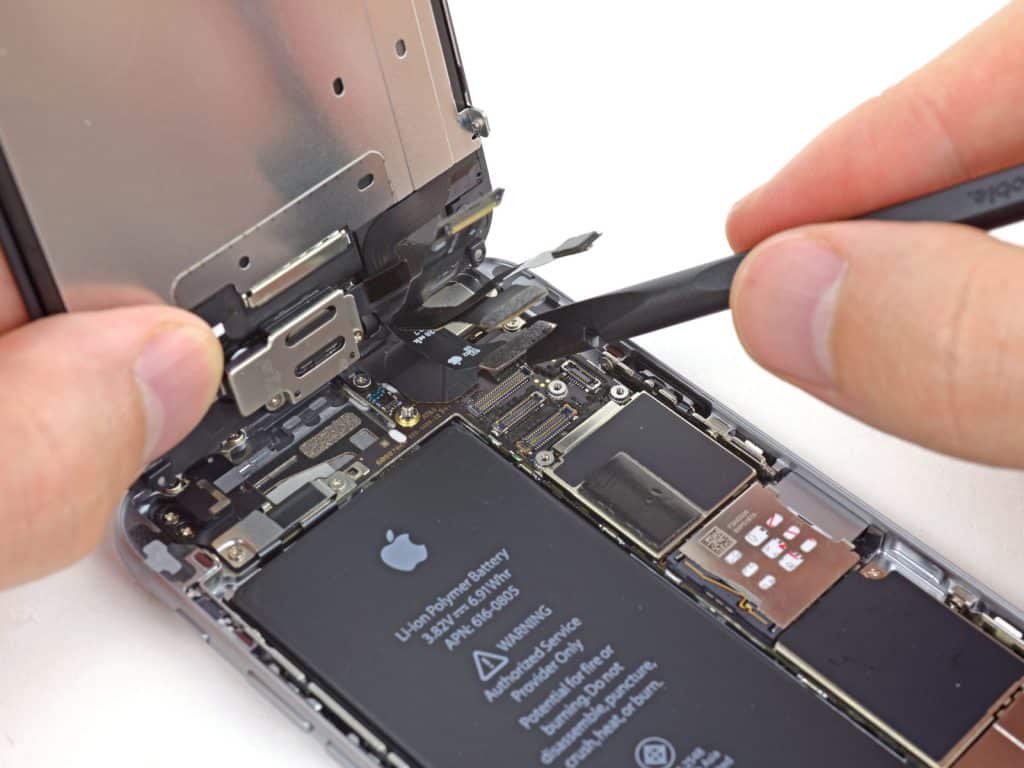
Crisp Iphone Repair In Tampa Scene for Desktop
A captivating iphone repair in tampa scene that brings tranquility and beauty to any device.
Vivid Iphone Repair In Tampa Photo in HD
Discover an amazing iphone repair in tampa background image, ideal for personalizing your devices with vibrant colors and intricate designs.

Crisp Iphone Repair In Tampa Abstract Illustration
Find inspiration with this unique iphone repair in tampa illustration, crafted to provide a fresh look for your background.
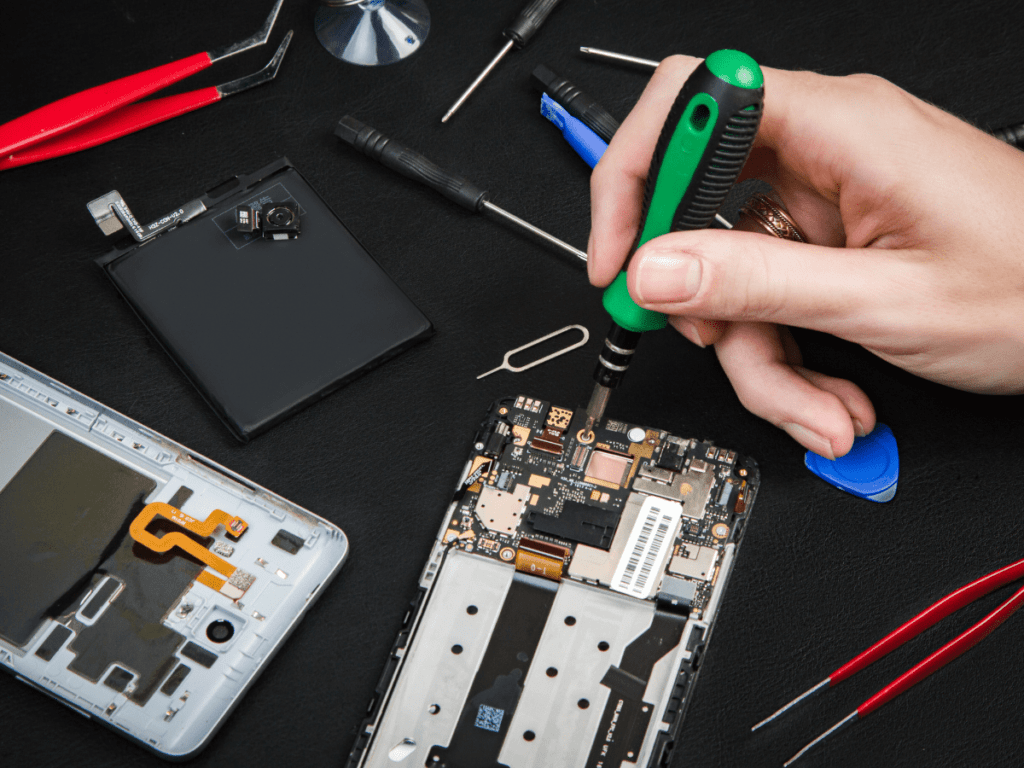
Artistic Iphone Repair In Tampa Image Illustration
Find inspiration with this unique iphone repair in tampa illustration, crafted to provide a fresh look for your background.

Spectacular Iphone Repair In Tampa Image Photography
Find inspiration with this unique iphone repair in tampa illustration, crafted to provide a fresh look for your background.

Vivid Iphone Repair In Tampa Moment Art
Experience the crisp clarity of this stunning iphone repair in tampa image, available in high resolution for all your screens.

Breathtaking Iphone Repair In Tampa Background Nature
Explore this high-quality iphone repair in tampa image, perfect for enhancing your desktop or mobile wallpaper.

Artistic Iphone Repair In Tampa Wallpaper Digital Art
Find inspiration with this unique iphone repair in tampa illustration, crafted to provide a fresh look for your background.

Captivating Iphone Repair In Tampa Scene Photography
A captivating iphone repair in tampa scene that brings tranquility and beauty to any device.
Download these iphone repair in tampa wallpapers for free and use them on your desktop or mobile devices.