Stop Guessing: The Ultimate Step-by-Step Guide On How To Share Files On iPhone
If you're an iPhone user, you probably love the simplicity and security that comes with the Apple ecosystem. But sometimes, sharing a document, a massive video, or a collection of photos can feel like navigating a maze. It shouldn't be that complicated!
Whether you need to beam a photo to a friend standing right next to you or send a 5GB video project across the country, knowing the best tool for the job is crucial. This comprehensive guide will show you exactly How To Share Files On iPhone using every available method—from the lightning-fast to the highly secure.
We're going to dive deep, ensuring you not only know the steps but also understand the pros and cons of each file-sharing method, saving you time and frustration.
Method 1: The Apple Ecosystem Advantage – Mastering AirDrop
For file sharing between two Apple devices (iPhone to iPhone, iPhone to Mac, etc.), AirDrop is the undisputed champion. It's fast, secure, and uses a combination of Bluetooth and Wi-Fi to transfer files instantly without needing an internet connection.
Setting Up AirDrop for Success
Before you can successfully beam files, make sure both devices meet these criteria:
- Both devices must have Wi-Fi and Bluetooth turned on (they don't need to be connected to the same Wi-Fi network, but the radio must be active).
- Both devices should be within Bluetooth range (about 30 feet).
- The receiving device must be set to receive files.
Step-by-Step: Sending via AirDrop
- Open the file you wish to send (e.g., a photo in the Photos app, a PDF in Files).
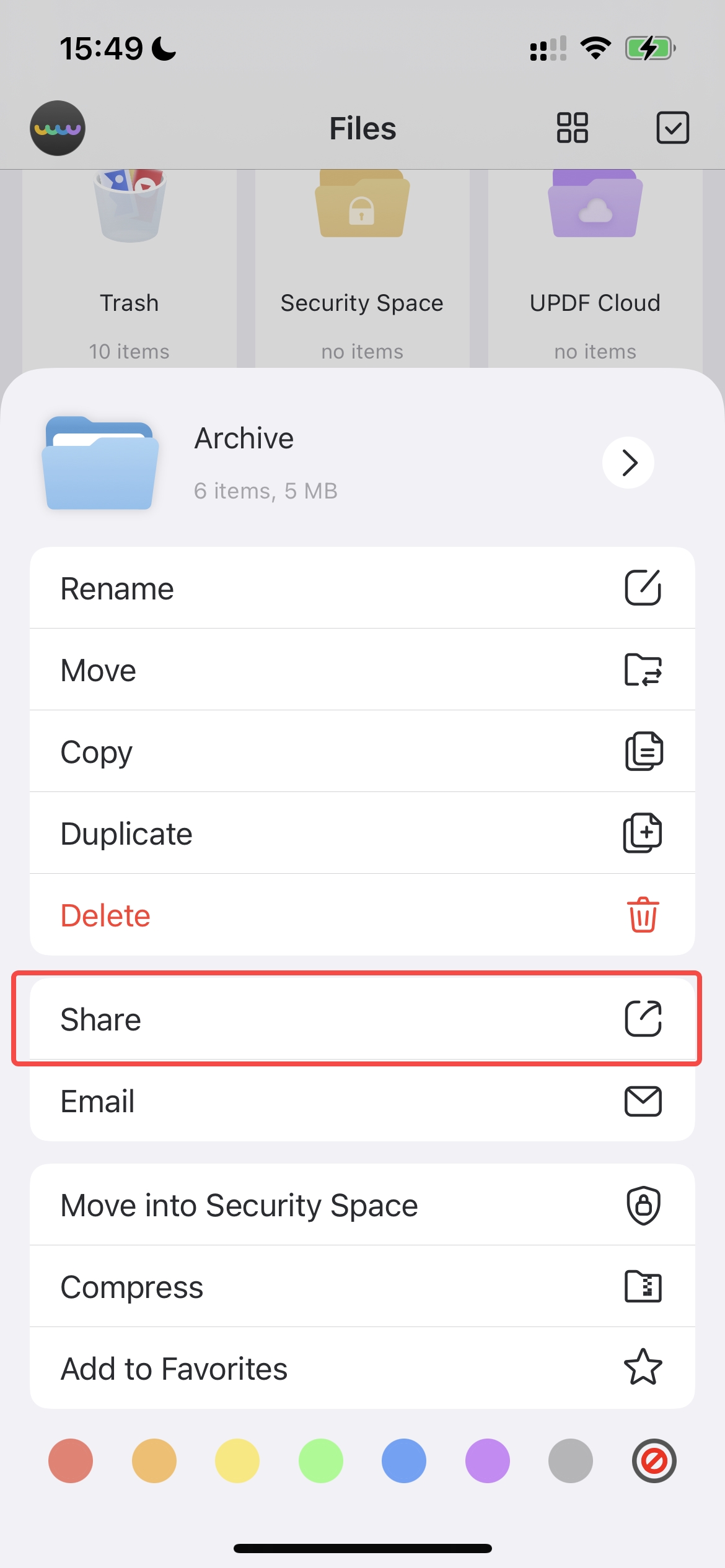
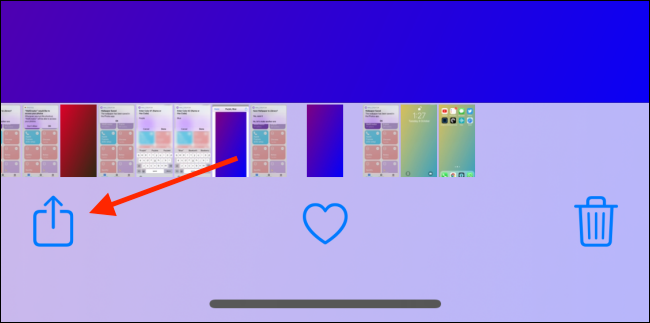
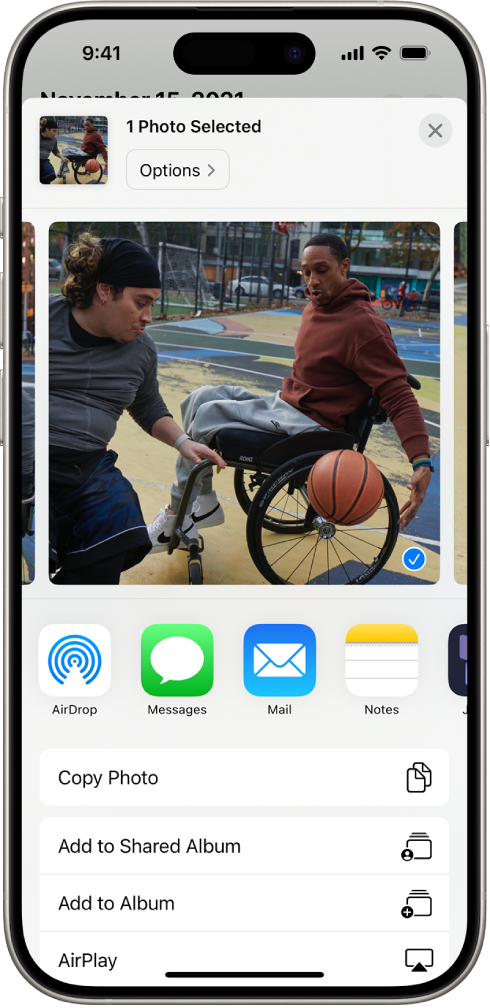
- Tap the Share button (the square with the upward arrow).
- Tap the AirDrop icon.
- Select the name of the recipient's device.
If the recipient is not in your contacts, they must set their AirDrop receiving preference to "Everyone."
Troubleshooting AirDrop Connection Issues
AirDrop can sometimes be finicky. Here are the most common reasons your device isn't showing up:
- Check Contact Settings: If the receiver is set to "Contacts Only," ensure both devices have each other's email address or phone number saved in their contact card.
- Personal Hotspot: Make sure neither device is currently using Personal Hotspot, as this can interfere with the Wi-Fi direct connection needed for AirDrop.
- Restart Radios: Try toggling Wi-Fi and Bluetooth off and back on again from the Control Center.
If you need deeper insight into AirDrop security, check out this trusted source on how AirDrop uses encrypted transfer protocols.
Method 2: Sharing Files Over Distance – Cloud and Messaging Apps
When the person you need to share files with is not physically near you—or if they aren't using an Apple device—you need a reliable, internet-based solution. This is where cloud services shine.
The Cloud Sync Method (iCloud Drive vs. Google Drive)
Cloud storage is the professional standard for sharing files across platforms (iOS to Android, iPhone to PC). Instead of sending the actual file, you send a secure link to the file stored in the cloud.
Using iCloud Drive:
If you share frequently with other Apple users, iCloud Drive is integrated directly into the iPhone's native Files app, making it seamless.
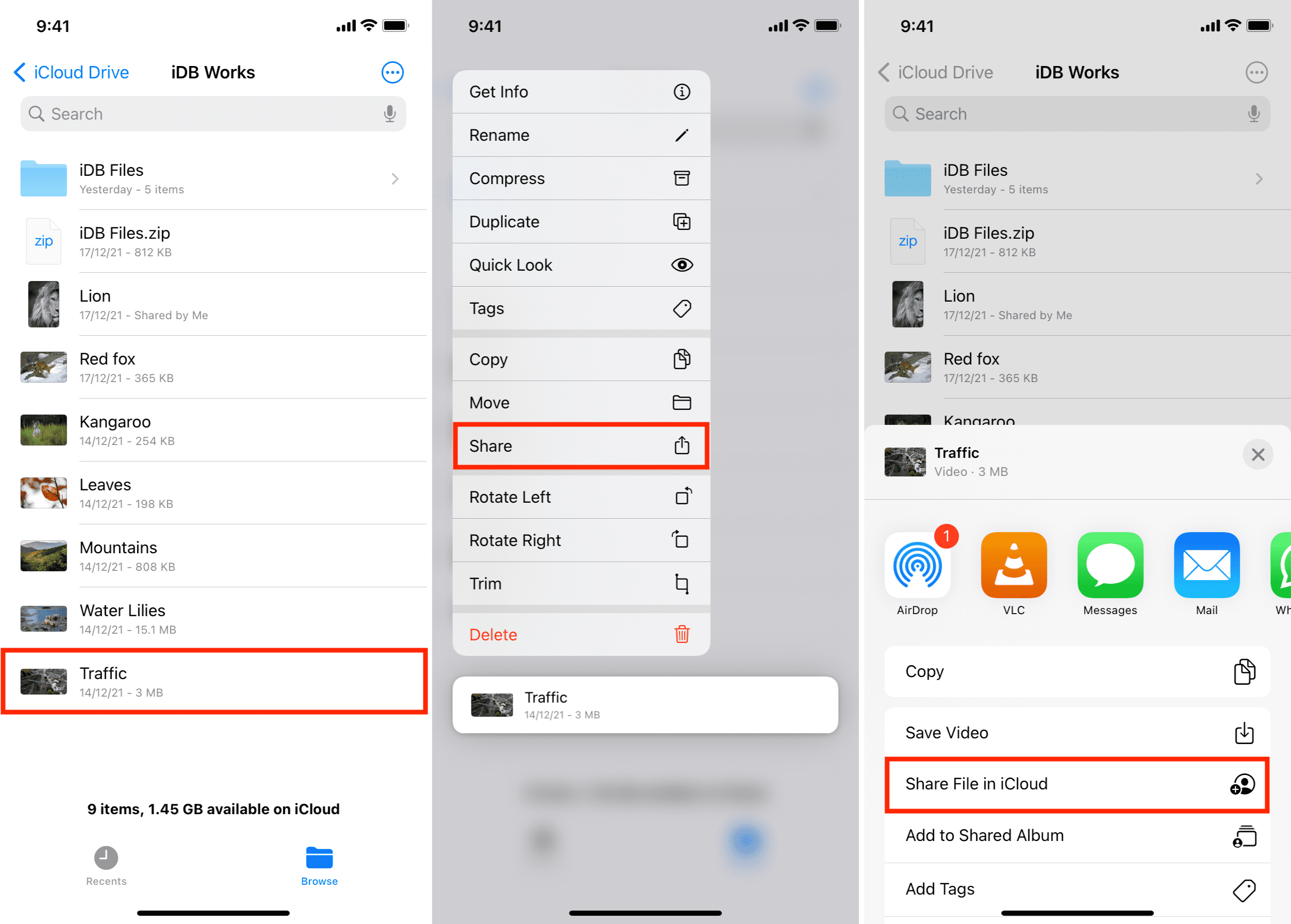
- In the Files app, tap and hold the file you want to share.
- Tap Share, then choose "Add People" (or "Collaborate" in iOS 16+).
- Select the sharing permission (e.g., "View Only" or "Can Make Changes").
- Send the link via Messages, Mail, or a third-party app.
If you're dealing with cross-platform sharing (e.g., sending files to a Windows or Android user), services like Google Drive or Dropbox are generally easier as they don't require an Apple ID.
| Method | Max File Size (Approx.) | Platform Compatibility | Speed |
|---|---|---|---|
| AirDrop | No limit (device storage is the cap) | Apple Only | Excellent (Local Wi-Fi) |
| iCloud Drive Link | 50 GB | Universal (Via Web Browser) | Varies (Internet Speed) |
| Email Attachment (Standard) | 10–25 MB | Universal | Slow (If large) |
Leveraging Messaging Apps (WhatsApp, Telegram, iMessage)
For smaller documents, short voice notes, or compressed photos, messaging applications are the quickest fix. They are optimized for convenience, but beware of compression.
iMessage: Best for photos and short videos shared with other iPhone users. Files are shared quickly, but videos sent over iMessage are typically compressed unless they are very short.
WhatsApp/Telegram: Excellent for cross-platform sharing. WhatsApp limits file attachments to 100 MB, while Telegram is incredibly generous, allowing files up to 2 GB per transfer, making it a powerful contender for mid-sized files.
If you are frequently dealing with highly sensitive documents, you might want to consider messaging apps that prioritize end-to-end encryption. Learn more about encryption standards here.
Method 3: The Traditional Routes – Email and SMS
While often overlooked in the age of cloud storage, the traditional methods of email and SMS still have their place, especially for small, simple attachments.
Using the Mail App for Sharing
The native Mail app on your iPhone is perfect for sending documents and low-resolution photos. However, keep the size limitations of email providers in mind (typically 20-25 MB).
If your file exceeds the standard limit, the iPhone automatically uses "Mail Drop," which uploads the file to iCloud and sends the recipient a secure link that expires after 30 days. This is a brilliant way How To Share Files On Iphone without worrying about size limitations on the recipient's side.
When to Use SMS/MMS:
SMS (standard text message) and MMS (multimedia message service) are generally only suitable for very low-resolution images or extremely short video clips, primarily because of carrier bandwidth restrictions and high compression rates. Avoid using this method for anything you need to retain quality for.
Method 4: Sharing Large Files Securely (When All Else Fails)
Sometimes you have massive files—like 4K video footage or large design files—that neither email nor standard cloud services handle gracefully, especially if you need advanced features like password protection.
Dedicated File Transfer Services
For truly enormous files (5 GB or more), dedicated file transfer services are the solution. Apps like WeTransfer, Dropbox Professional, or dedicated FTP clients offer superior security, higher upload ceilings, and tracking features.
These services operate much like the cloud, but are optimized for one-off transfers rather than long-term storage or collaboration. Many offer an iOS app that integrates directly into the iPhone's Share Sheet, streamlining the process.
The Wired Transfer Option (iMazing or iTunes/Finder)
For the fastest possible transfer, particularly for backing up large amounts of data to your personal computer, nothing beats a wired connection. Using a Lightning or USB-C cable and software like iMazing or Apple's native Finder (on Mac) or iTunes (on PC) allows you to bypass internet bottlenecks entirely.
While this method isn't "sharing" with a third party, it is essential for safely moving large media collections off your phone quickly.
Ready to organize your photo library before sharing? [Baca Juga: iPhone Photo Management Tips]
Conclusion: Choosing the Right Tool for File Sharing
Mastering How To Share Files On Iphone comes down to understanding the context of the transfer. For instant, local sharing with another iPhone, AirDrop is king.
For long-distance, cross-platform professional documents, utilizing a cloud service like iCloud or Google Drive provides the best balance of size capacity and security.
By using the native Share Sheet effectively and choosing the appropriate method outlined above, you can ensure your files get where they need to go quickly, securely, and without losing critical quality.
Frequently Asked Questions (FAQ)
Why do my videos look blurry when I send them via text message?
Text messages (MMS) have severe file size limitations set by cellular carriers. Your iPhone automatically compresses videos heavily to fit these limits, resulting in a significant loss of quality. Always use AirDrop, a cloud link, or a high-capacity messaging app like Telegram for sending videos where quality matters.
Can I AirDrop files from my iPhone to an Android phone?
No. AirDrop is a proprietary technology exclusive to the Apple ecosystem (iPhone, iPad, Mac). To share files with an Android user, you must use a universal platform, such as email, a cloud storage link (Dropbox, Google Drive), or a third-party messaging app like WhatsApp.
What is the easiest way to share a folder of documents?
The easiest way is using a cloud service (iCloud Drive or Google Drive). You can upload the entire folder, right-click (or tap and hold on iPhone) the folder name, and generate a single secure link to share, preserving the folder structure.
Does using Mail Drop take up space on my iCloud?
Mail Drop uses temporary space in iCloud for up to 30 days, but this space does not count against your primary iCloud storage quota. It's an excellent free service for sending large email attachments.
[Baca Juga: Best Cloud Storage For iPhone]
How To Share Files On Iphone
How To Share Files On Iphone Wallpapers
Collection of how to share files on iphone wallpapers for your desktop and mobile devices.
Artistic How To Share Files On Iphone Design for Your Screen
A captivating how to share files on iphone scene that brings tranquility and beauty to any device.
Beautiful How To Share Files On Iphone Picture for Mobile
Transform your screen with this vivid how to share files on iphone artwork, a true masterpiece of digital design.

Lush How To Share Files On Iphone Wallpaper in 4K
Immerse yourself in the stunning details of this beautiful how to share files on iphone wallpaper, designed for a captivating visual experience.
Vivid How To Share Files On Iphone View in HD
Experience the crisp clarity of this stunning how to share files on iphone image, available in high resolution for all your screens.
Artistic How To Share Files On Iphone Artwork Photography
Find inspiration with this unique how to share files on iphone illustration, crafted to provide a fresh look for your background.

Spectacular How To Share Files On Iphone Abstract in HD
This gorgeous how to share files on iphone photo offers a breathtaking view, making it a perfect choice for your next wallpaper.
Captivating How To Share Files On Iphone Photo for Your Screen
A captivating how to share files on iphone scene that brings tranquility and beauty to any device.

Dynamic How To Share Files On Iphone Landscape Photography
Immerse yourself in the stunning details of this beautiful how to share files on iphone wallpaper, designed for a captivating visual experience.
Crisp How To Share Files On Iphone Wallpaper Art
Immerse yourself in the stunning details of this beautiful how to share files on iphone wallpaper, designed for a captivating visual experience.
Artistic How To Share Files On Iphone Moment Digital Art
Find inspiration with this unique how to share files on iphone illustration, crafted to provide a fresh look for your background.
Gorgeous How To Share Files On Iphone Picture in 4K
A captivating how to share files on iphone scene that brings tranquility and beauty to any device.
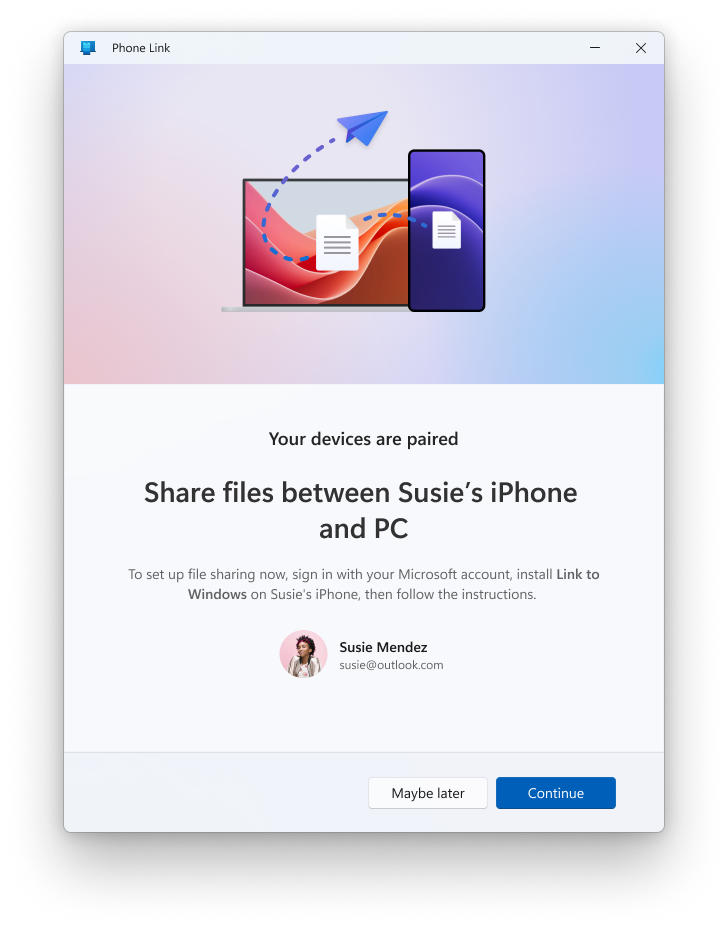
Artistic How To Share Files On Iphone Abstract Illustration
Find inspiration with this unique how to share files on iphone illustration, crafted to provide a fresh look for your background.
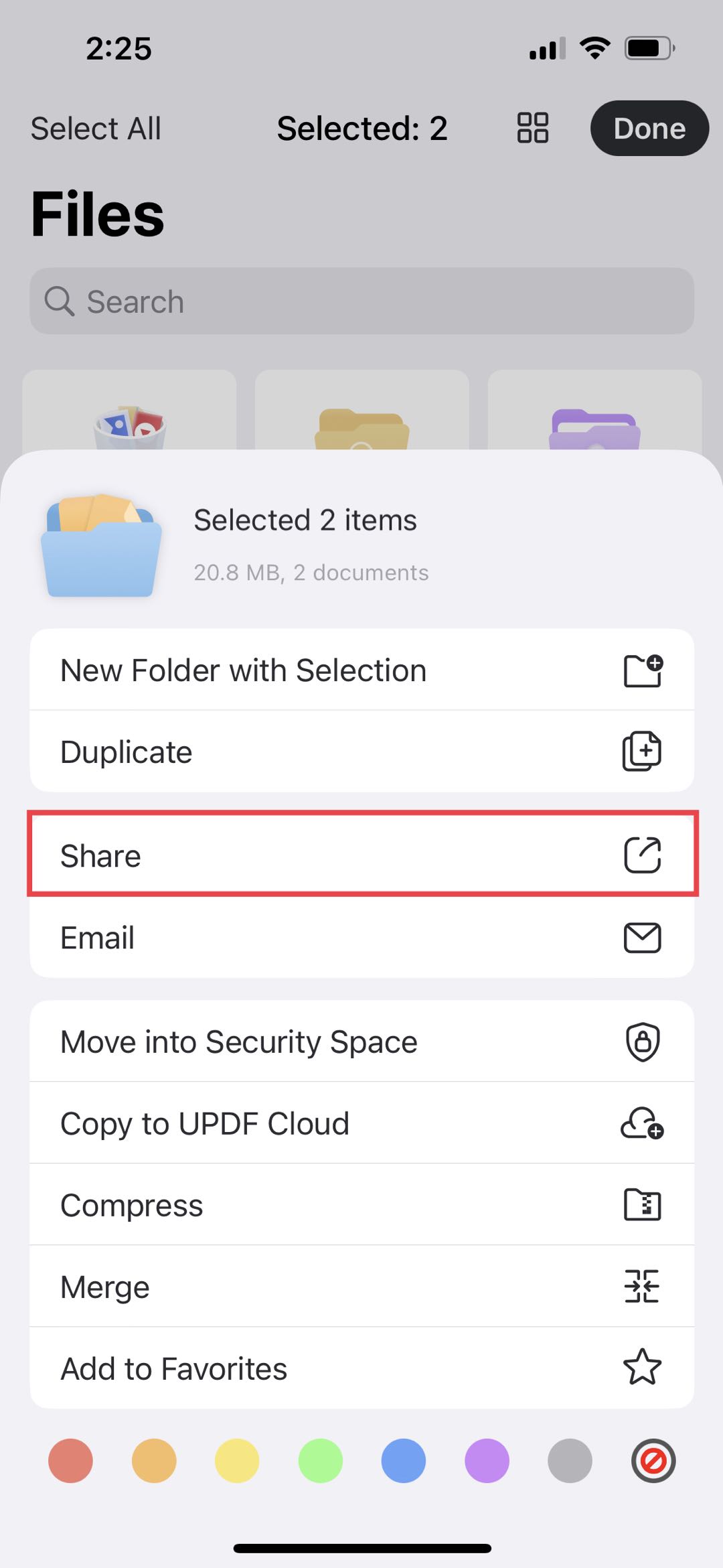
High-Quality How To Share Files On Iphone View Nature
Discover an amazing how to share files on iphone background image, ideal for personalizing your devices with vibrant colors and intricate designs.

Vivid How To Share Files On Iphone Wallpaper Digital Art
Explore this high-quality how to share files on iphone image, perfect for enhancing your desktop or mobile wallpaper.

Exquisite How To Share Files On Iphone Picture Photography
Immerse yourself in the stunning details of this beautiful how to share files on iphone wallpaper, designed for a captivating visual experience.
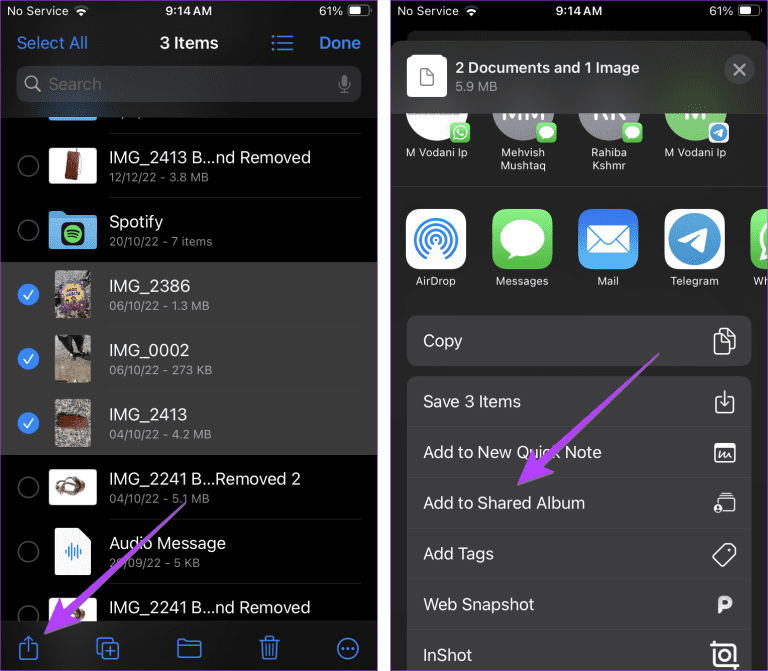
Spectacular How To Share Files On Iphone Scene Photography
Immerse yourself in the stunning details of this beautiful how to share files on iphone wallpaper, designed for a captivating visual experience.
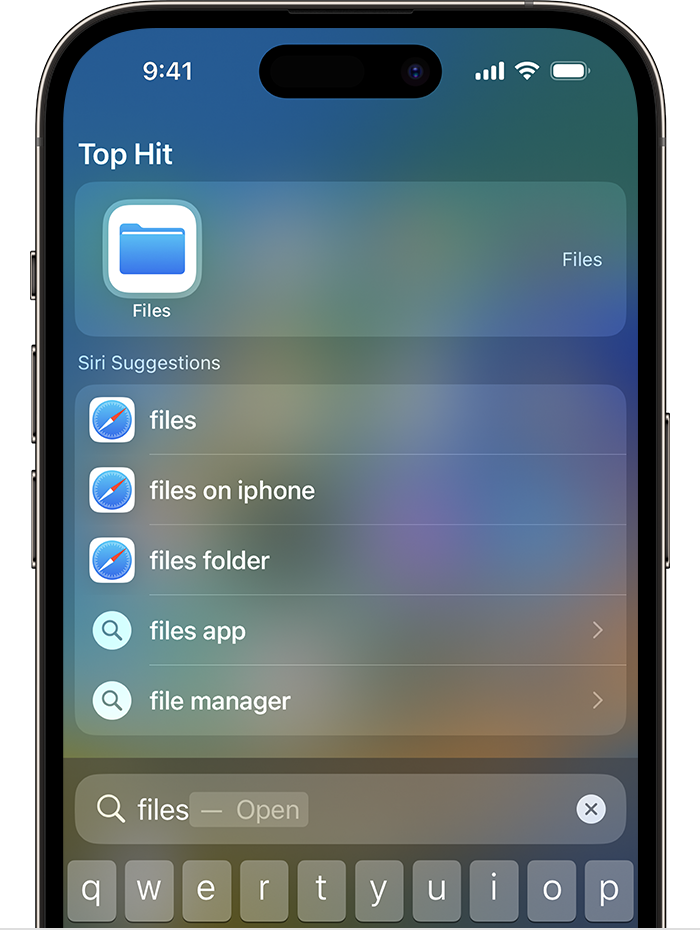
Exquisite How To Share Files On Iphone Wallpaper for Mobile
A captivating how to share files on iphone scene that brings tranquility and beauty to any device.
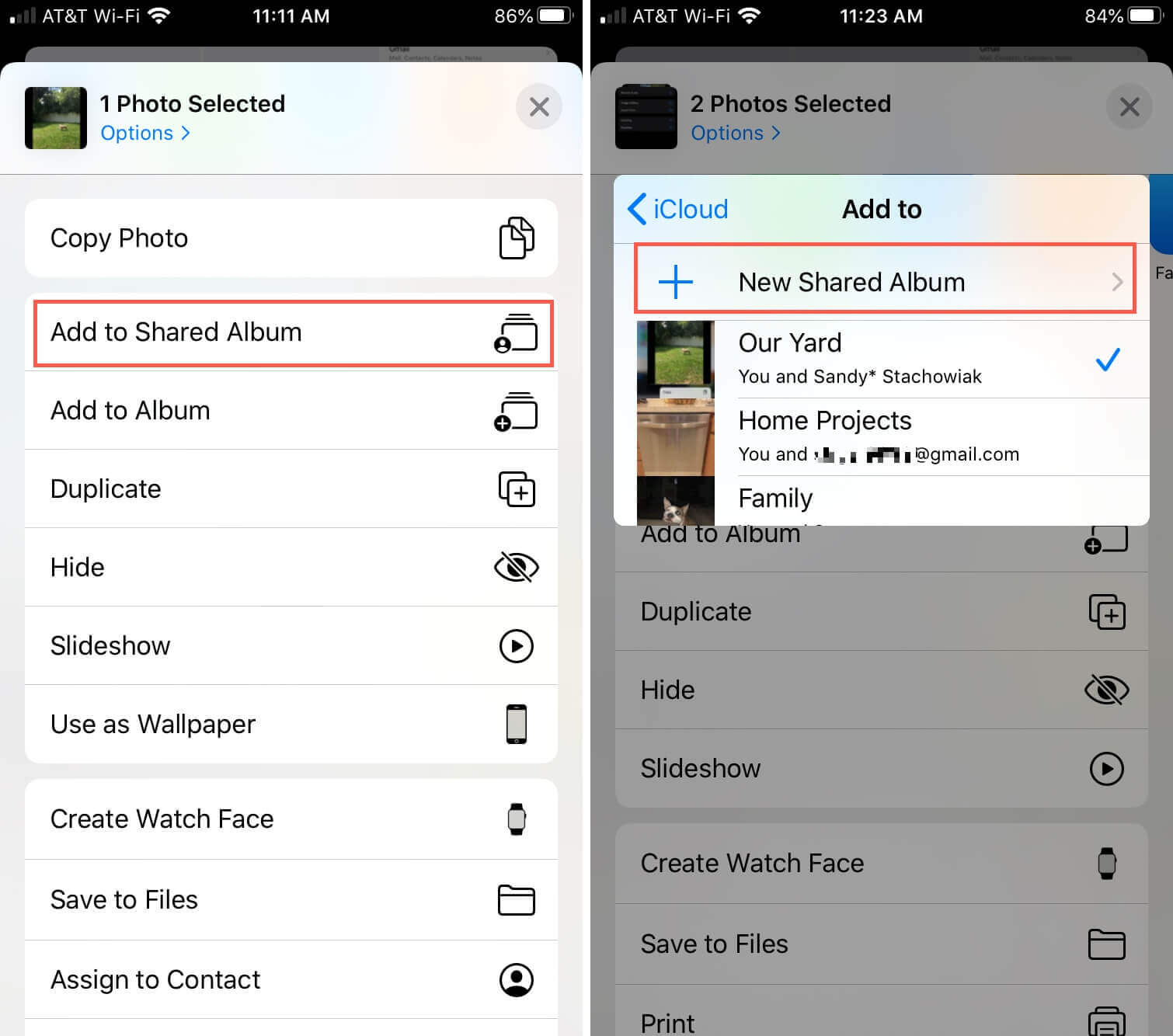
Crisp How To Share Files On Iphone Photo Collection
This gorgeous how to share files on iphone photo offers a breathtaking view, making it a perfect choice for your next wallpaper.
Crisp How To Share Files On Iphone Background Concept
A captivating how to share files on iphone scene that brings tranquility and beauty to any device.

Beautiful How To Share Files On Iphone Moment Art
Experience the crisp clarity of this stunning how to share files on iphone image, available in high resolution for all your screens.
Download these how to share files on iphone wallpapers for free and use them on your desktop or mobile devices.