How To Make A Pdf File From Iphone: The Ultimate Guide
If you've ever needed to quickly send a school assignment, save a web receipt, or combine multiple photos into one neat document, you know how crucial it is to figure out How To Make A Pdf File From Iphone. Luckily, modern iPhones are powerful enough that you usually don't need complicated third-party apps to get the job done.
Creating PDFs on your iPhone is actually incredibly easy, whether you are dealing with text, images, or physical paper documents. This comprehensive guide will walk you through the simplest, built-in methods Apple provides, ensuring you can convert virtually anything into a professional PDF format right from your pocket.
Method 1: Using the Print Feature (The Universal Converter)
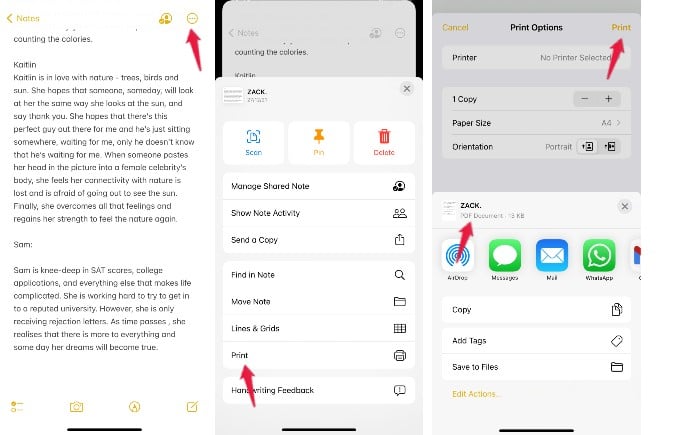
Did you know that the "Print" option on your iPhone is secretly the most powerful PDF creator? This method works for nearly any shareable content, including web pages from Safari, emails, documents in Pages or Keynote, and even text messages.
It's essentially a virtual printer that saves the output file rather than sending it to a physical machine. This is your go-to method for instant conversion.
Step-by-Step: Converting Any Document via Print
Follow these quick steps, and you will have your PDF ready to share in moments. We will use a web page example, but the process is almost identical across all apps that support the Share Sheet.
- Open the Document/Page: Navigate to the item you wish to turn into a PDF (e.g., a website in Safari or an email).
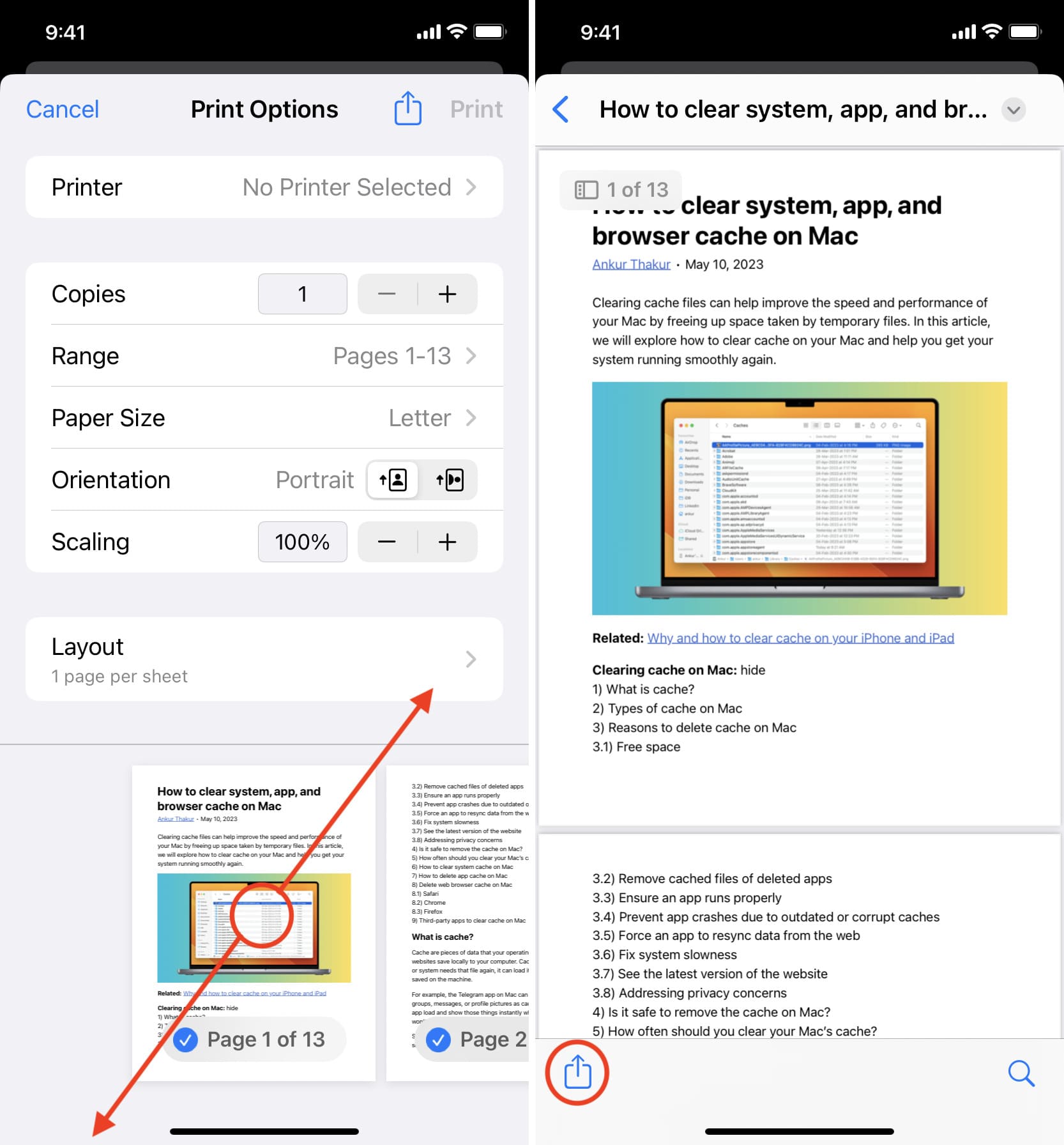
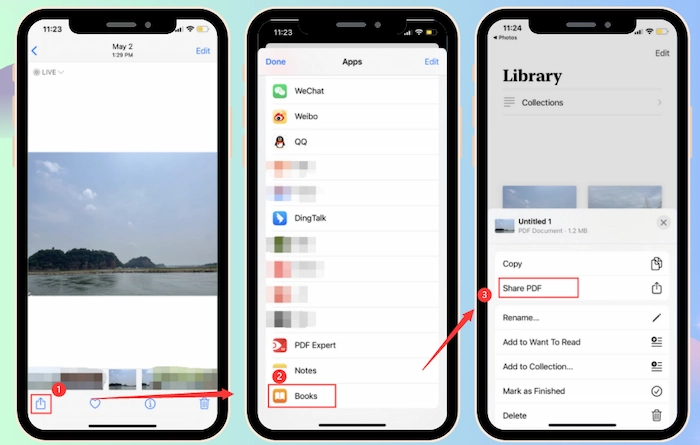
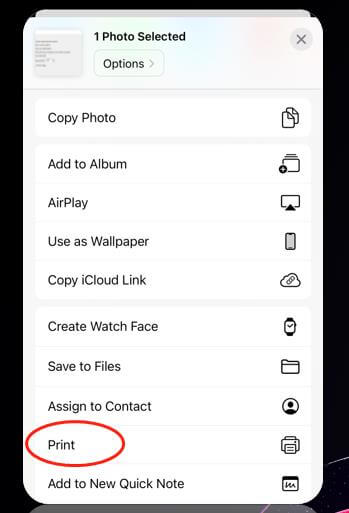
- Tap the Share Icon: Look for the square icon with an upward-pointing arrow. This opens the Share Sheet.
- Select 'Print': Scroll down the list of options until you find 'Print' and tap it.
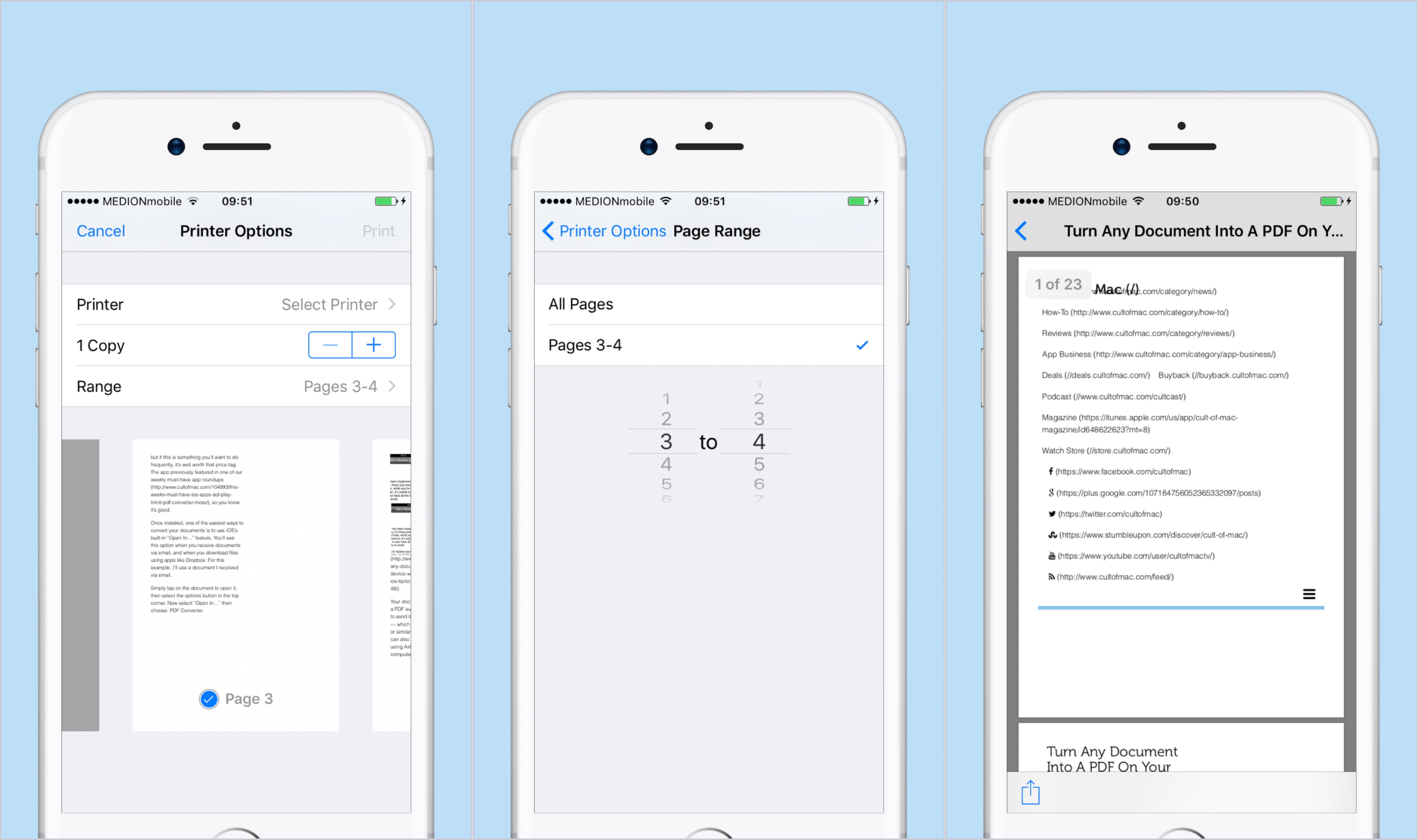
- The PDF Trick (Pinch Out): When the Print Options menu appears, you will see a preview of the document. Instead of choosing a printer, use two fingers to "pinch out" or zoom in on the preview thumbnail.
- The Final Share: This action instantly converts the preview into a full-sized PDF document. A new Share Sheet will pop up with the PDF ready to go.
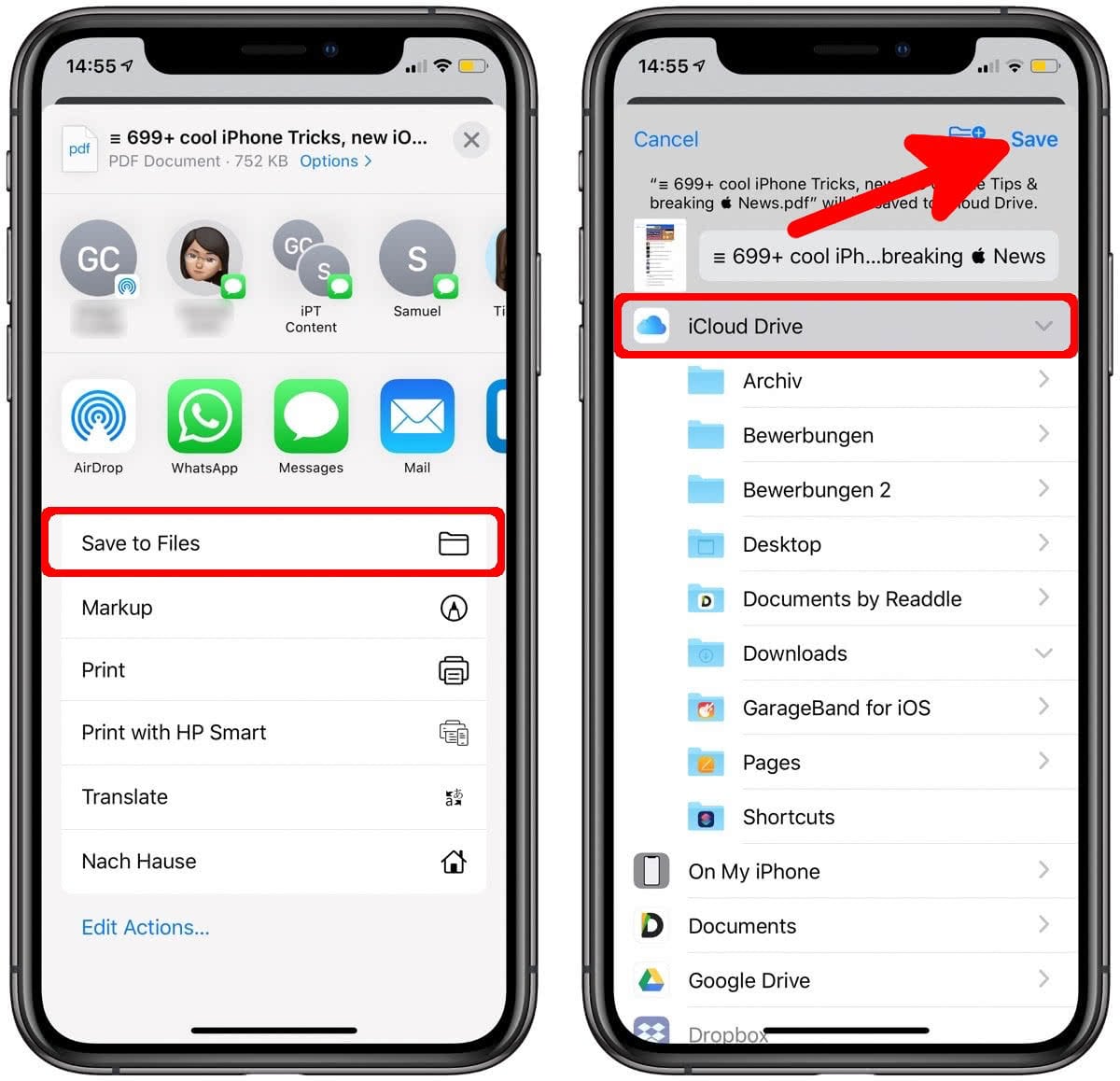
- Save Your PDF: From this second Share Sheet, you can choose 'Save to Files' to store it locally, or immediately send it via email, Messages, or AirDrop.
This process is the fastest way when you need to quickly learn How To Make A Pdf File From Iphone without downloading new applications.
Method 2: Converting Images to PDF
Often, you might need to turn a series of screenshots or photos into a single PDF document. This is incredibly common when submitting receipts or documentation. Fortunately, the native 'Files' app on your iPhone makes this process seamless.
The Files app allows you to combine multiple JPEGs or PNGs into one multi-page PDF document, keeping everything organized.
Combining Multiple Photos into a Single PDF
Using the Files App
First, ensure all the images you want to convert are saved in a single folder within the Files app (either on iCloud Drive or "On My iPhone"). If they are only in the Photos app, you need to save them to Files first.
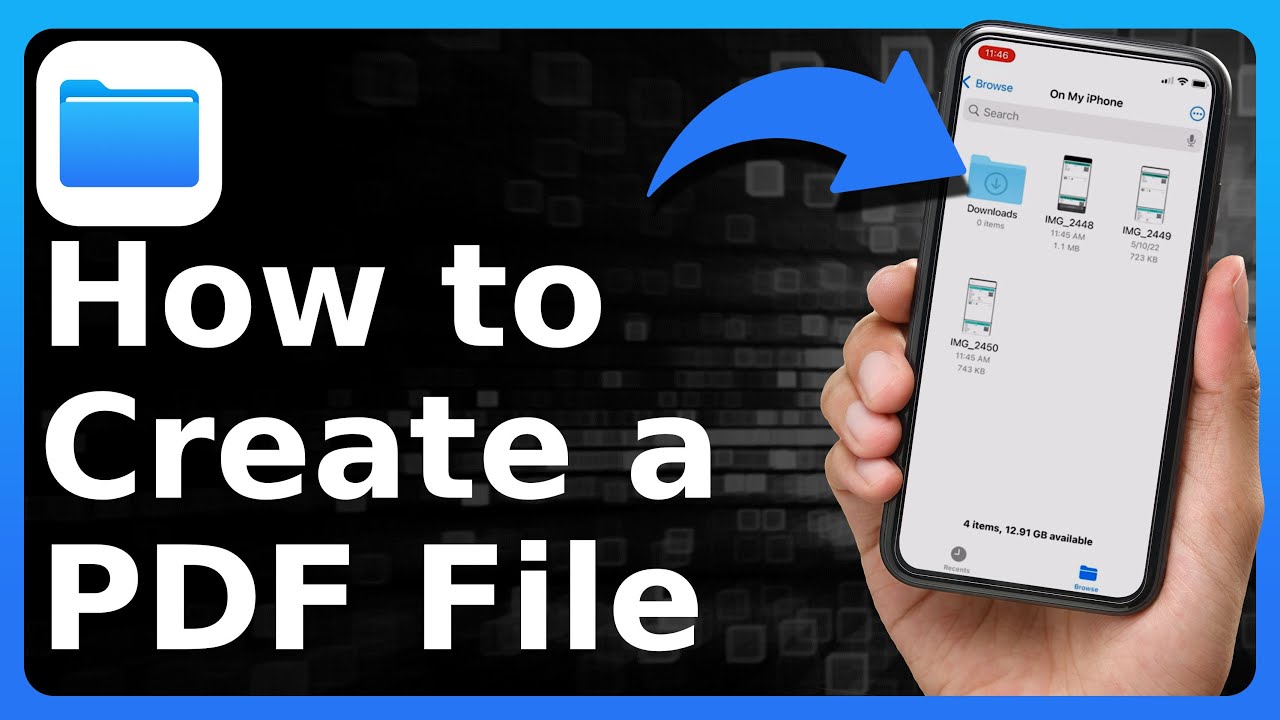
- Open the Files App: Locate and launch the blue folder icon.
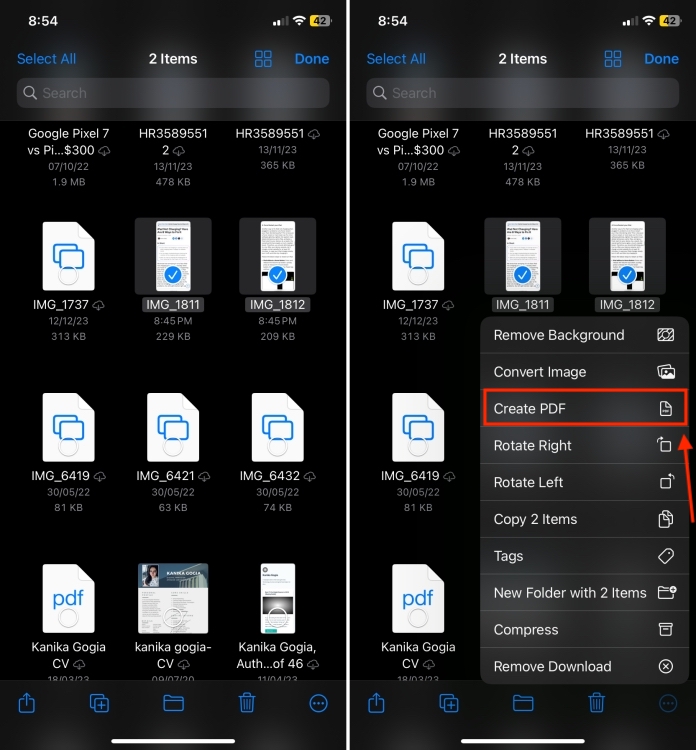
- Select Your Images: Tap the three-dot menu icon in the top right corner and choose 'Select.'
- Highlight Files: Tap on all the images you want to include in your PDF, ensuring they are highlighted in blue.
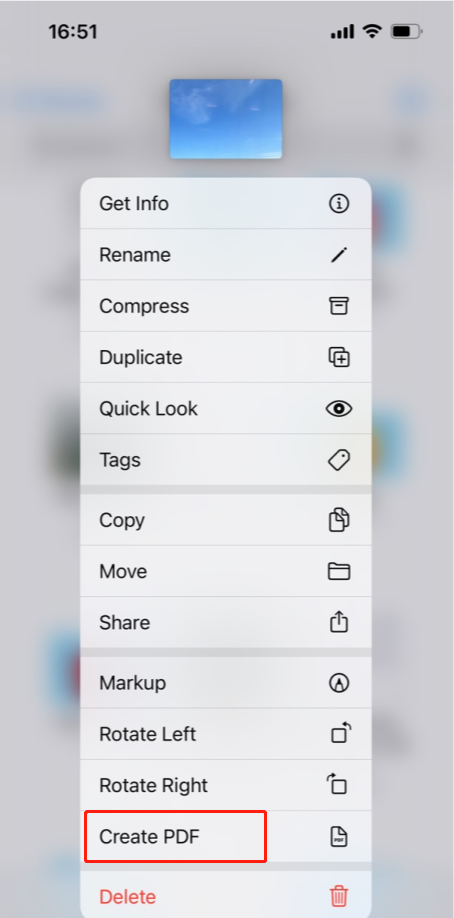
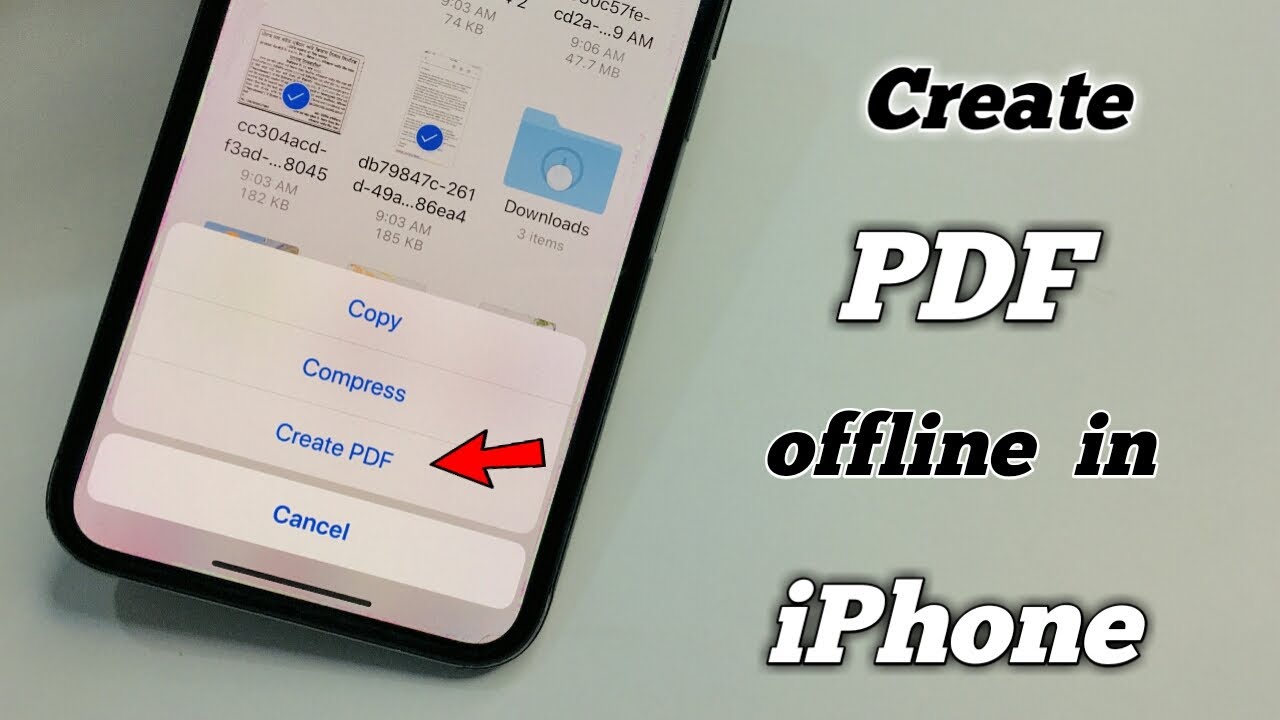
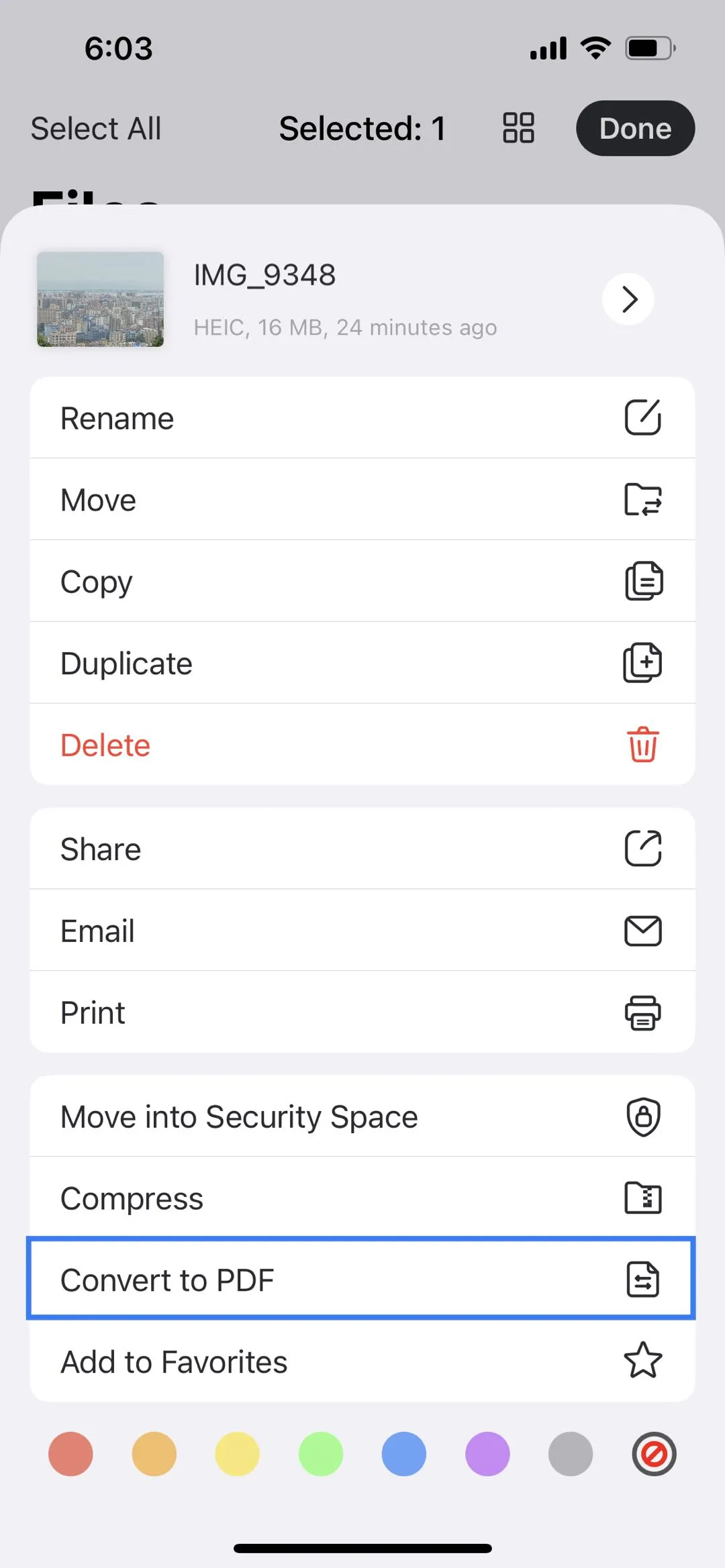
- Create PDF: Tap the three-dot menu in the bottom right corner (or the circle with three dots).
- Tap 'Create PDF': The Files app will instantly combine the selected images in the order they were highlighted, creating a single PDF file right next to your original images.
- Rename and Share: You can then long-press the new PDF file to rename it or tap the Share icon to send it wherever it needs to go.
This method truly simplifies the process of creating professional, multi-page documents from basic image files when figuring out How To Make A Pdf File From Iphone.
Method 3: Utilizing the Notes App for Scanning
The Notes app isn't just for typing quick reminders; it has a fantastic, built-in document scanner. If you need to turn a physical piece of paper—like a signed contract, an invoice, or a textbook page—into a clean PDF, this is the easiest solution.
The Notes scanner automatically crops the page, corrects perspective, and enhances the lighting, making the resulting document look far better than a standard photograph.
Scanning Physical Documents Directly to PDF
- Open Notes: Start a new note or open an existing one.
- Access the Scanner: Tap the camera icon located above the keyboard or just below the text area.
- Choose 'Scan Documents': This will open the iPhone's camera interface optimized for scanning.
- Capture the Page: Place the document on a flat surface. Your iPhone will automatically detect the edges and capture the scan (or you can press the shutter button).
- Add More Pages: You can continue scanning multiple pages one after another; the Notes app will combine them into one file. Tap 'Save' when finished.
- Convert to PDF: Once the scanned document is saved inside the Note, tap the three-dot menu in the top right corner of the note.
- Select 'Send a Copy': In the Share Sheet that appears, choose 'Markup' or simply select 'Save to Files.' The document is exported as a clean PDF by default.
The quality of the PDFs created this way is often superior to dedicated scanning apps, making it a powerful native tool for anyone asking How To Make A Pdf File From Iphone.
Method 4: Utilizing Third-Party Apps (When Native Isn't Enough)
While Apple's native tools cover 95% of your needs, sometimes you require advanced features. If you need to edit PDFs, compress file sizes, fill out forms, or use Optical Character Recognition (OCR) to convert scanned text into editable text, a dedicated app might be necessary.
These apps typically offer greater control over file properties and specialized tools for complex PDF management.
Popular PDF Apps for Advanced Control
If you find yourself needing more than just creation, consider downloading one of these top-rated options:
- Adobe Acrobat Reader: Ideal for filling forms, signing documents, and viewing PDFs reliably.
- Microsoft Lens: Excellent for scanning documents, whiteboards, and business cards, integrating seamlessly with Microsoft Office products.
- PDF Expert: A powerful tool designed specifically for deep PDF editing, annotation, and manipulation.
While these apps certainly provide advanced features, remember that for simple conversion tasks—like turning a photo or a website into a PDF—the built-in iPhone tools discussed above are usually faster and more convenient.
Conclusion
You now have four excellent, easy-to-use methods for creating PDF files directly on your iPhone. Whether you leverage the hidden "Pinch to PDF" trick in the Print menu, combine photos using the Files app, or use the robust document scanner in the Notes app, creating PDFs on the go has never been simpler.
Knowing How To Make A Pdf File From Iphone is an essential skill for productivity in the digital age. By utilizing these native iOS functions, you can save time and keep your documents organized without relying on unnecessary software downloads.
Start experimenting with these methods today and streamline your document management!
Frequently Asked Questions (FAQ) About PDF Creation on iPhone
- Can I edit a PDF file after I create it on my iPhone?
- While native iOS features allow for basic markup (drawing, highlighting) on PDFs using the Files app, comprehensive editing (changing text or rearranging pages) usually requires a third-party application like PDF Expert or Adobe Acrobat.
- Where does my PDF file save after I create it?
- When you use the 'Save to Files' option after converting a document, you can choose where it saves. It is recommended to save to the 'iCloud Drive' or 'On My iPhone' location within the Files app for easy access later.
- How do I combine two separate PDF files on my iPhone?
- Combining existing PDF files is not a standard feature in native iOS apps. You will need a specialized third-party app, such as PDF Expert, or a dedicated online merging tool accessed via Safari to combine pre-existing PDF documents.
- Is there a limit to the number of photos I can combine into one PDF?
- While there isn't a hard, documented limit, the maximum size and number of pages you can combine is restricted by your iPhone's processing power and memory. For extremely large files (over 50 pages), it is best to use a computer or a specialized compression app.
How To Make A Pdf File From Iphone
How To Make A Pdf File From Iphone Wallpapers
Collection of how to make a pdf file from iphone wallpapers for your desktop and mobile devices.
Vibrant How To Make A Pdf File From Iphone Picture Illustration
Explore this high-quality how to make a pdf file from iphone image, perfect for enhancing your desktop or mobile wallpaper.
Amazing How To Make A Pdf File From Iphone View for Your Screen
Experience the crisp clarity of this stunning how to make a pdf file from iphone image, available in high resolution for all your screens.
Crisp How To Make A Pdf File From Iphone Artwork Collection
A captivating how to make a pdf file from iphone scene that brings tranquility and beauty to any device.

Crisp How To Make A Pdf File From Iphone Photo Illustration
Find inspiration with this unique how to make a pdf file from iphone illustration, crafted to provide a fresh look for your background.
Serene How To Make A Pdf File From Iphone Wallpaper for Desktop
Discover an amazing how to make a pdf file from iphone background image, ideal for personalizing your devices with vibrant colors and intricate designs.

Amazing How To Make A Pdf File From Iphone Background Digital Art
Transform your screen with this vivid how to make a pdf file from iphone artwork, a true masterpiece of digital design.
Vibrant How To Make A Pdf File From Iphone Moment Illustration
Discover an amazing how to make a pdf file from iphone background image, ideal for personalizing your devices with vibrant colors and intricate designs.
High-Quality How To Make A Pdf File From Iphone View for Your Screen
Transform your screen with this vivid how to make a pdf file from iphone artwork, a true masterpiece of digital design.
Amazing How To Make A Pdf File From Iphone Image Concept
Transform your screen with this vivid how to make a pdf file from iphone artwork, a true masterpiece of digital design.
Captivating How To Make A Pdf File From Iphone Background in HD
Immerse yourself in the stunning details of this beautiful how to make a pdf file from iphone wallpaper, designed for a captivating visual experience.

Gorgeous How To Make A Pdf File From Iphone View Nature
Immerse yourself in the stunning details of this beautiful how to make a pdf file from iphone wallpaper, designed for a captivating visual experience.

High-Quality How To Make A Pdf File From Iphone Artwork for Your Screen
Discover an amazing how to make a pdf file from iphone background image, ideal for personalizing your devices with vibrant colors and intricate designs.

Vibrant How To Make A Pdf File From Iphone Picture for Desktop
Experience the crisp clarity of this stunning how to make a pdf file from iphone image, available in high resolution for all your screens.

Vibrant How To Make A Pdf File From Iphone Capture for Your Screen
Discover an amazing how to make a pdf file from iphone background image, ideal for personalizing your devices with vibrant colors and intricate designs.
Vivid How To Make A Pdf File From Iphone Design Photography
Explore this high-quality how to make a pdf file from iphone image, perfect for enhancing your desktop or mobile wallpaper.
Vivid How To Make A Pdf File From Iphone Design Nature
Transform your screen with this vivid how to make a pdf file from iphone artwork, a true masterpiece of digital design.
Stunning How To Make A Pdf File From Iphone Picture for Your Screen
Find inspiration with this unique how to make a pdf file from iphone illustration, crafted to provide a fresh look for your background.
Detailed How To Make A Pdf File From Iphone Abstract Photography
Discover an amazing how to make a pdf file from iphone background image, ideal for personalizing your devices with vibrant colors and intricate designs.
Dynamic How To Make A Pdf File From Iphone Landscape Photography
This gorgeous how to make a pdf file from iphone photo offers a breathtaking view, making it a perfect choice for your next wallpaper.
Crisp How To Make A Pdf File From Iphone Abstract in HD
Immerse yourself in the stunning details of this beautiful how to make a pdf file from iphone wallpaper, designed for a captivating visual experience.
Download these how to make a pdf file from iphone wallpapers for free and use them on your desktop or mobile devices.