How To Copy Contact From Iphone To Pc: Your Ultimate Guide
Hey there! Have you ever needed to back up your precious contacts or move them from your iPhone onto your Windows PC or laptop? It sounds complicated, especially when dealing with Apple's closed ecosystem, but trust us, it's much simpler than you think. You definitely want a secure backup of all those numbers, just in case!
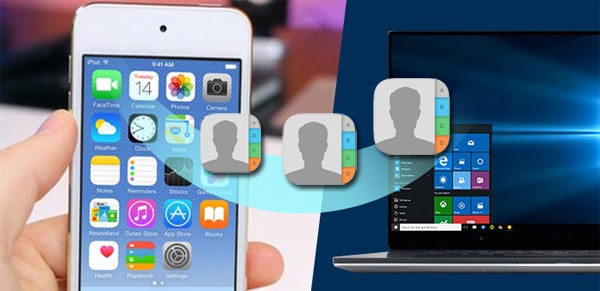
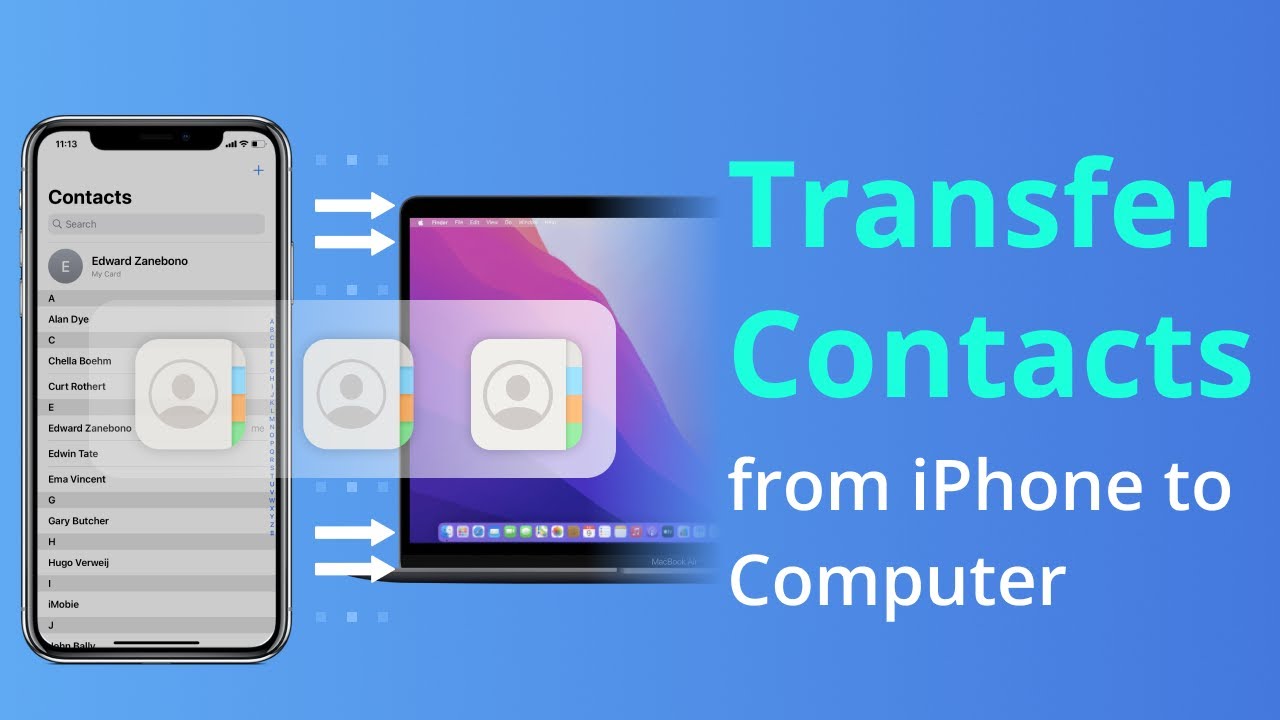
Whether you're switching phones, setting up a new device, or just want a local copy, knowing exactly how to copy contact from iPhone to PC is essential. We've broken down the three most effective and easiest methods for you, ranging from using cloud services to traditional backup tools.
Let's dive right in and get your contacts safely transferred!
The iCloud Sync Method: Easiest Way to Copy Contacts
For most iPhone users, iCloud is the fastest and most convenient method. Since your Apple ID is already linked to your phone, transferring contacts is basically a two-step process: ensure they are synced to the cloud, then download them from the cloud onto your PC.
Step 1: Making Sure Your Contacts are Synced to iCloud
First things first, grab your iPhone. We need to confirm that your Contacts app is set to synchronize with iCloud. If this is already enabled, you can skip this step, but it's always good to check!
- Go to Settings on your iPhone.
- Tap on your name/Apple ID banner at the very top.
- Select "iCloud."
- Scroll down and find "Contacts." Ensure the toggle switch next to Contacts is turned ON (green).
- If prompted, choose "Merge." This ensures all locally saved contacts are uploaded to the cloud.
Wait a minute or two for the synchronization process to complete, especially if you have thousands of contacts. Once they are uploaded, they are ready to be accessed by your PC.
Step 2: How to Export Contacts from iCloud.com (VCF/vCard)
Now, move over to your PC. This is where you actually download the files. The great thing about this method is that Apple lets you export contacts in a universal format called VCF (vCard), which is compatible with almost all contact management software, including Microsoft Outlook and Google Contacts.
- Open a web browser on your PC (Chrome, Edge, Firefox).
- Navigate to iCloud.com.
- Log in using your Apple ID and password (the same one you use on your iPhone).
- Click on the "Contacts" icon. You should see a list of all your contacts populating the screen.
- To select all contacts, click the gear icon (Settings) in the bottom-left corner of the screen.
- Choose "Select All."
- Click the gear icon again, and this time select "Export vCard..."
Your PC will download a single VCF file (often named something like All Contacts.vcf) containing every single contact from your iPhone. That's it! You have successfully learned how to copy contact from iPhone to PC using the cloud.
Using iTunes or Finder to Back Up Contacts (The Old Reliable)
Before iCloud became the default, connecting your iPhone directly to your computer using a cable was the only way to manage backups. While this method creates a full backup of your device (including contacts), it doesn't easily let you pull out a separate contact file like the VCF we got from iCloud.
However, if your primary goal is to have a secure, complete, local backup of everything, including contacts, this method works perfectly. Note that you must have iTunes installed on your Windows PC.
The Backup Process with iTunes/Finder
Make sure you have a reliable lightning cable ready. Always use the original Apple cable if possible to avoid connection issues.
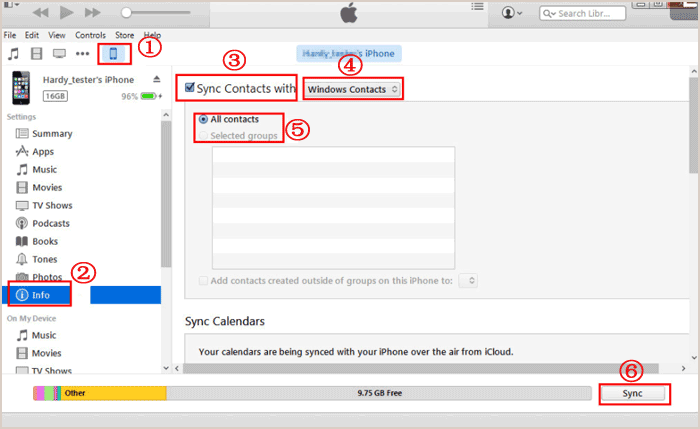
- Connect your iPhone to your PC using the USB cable.
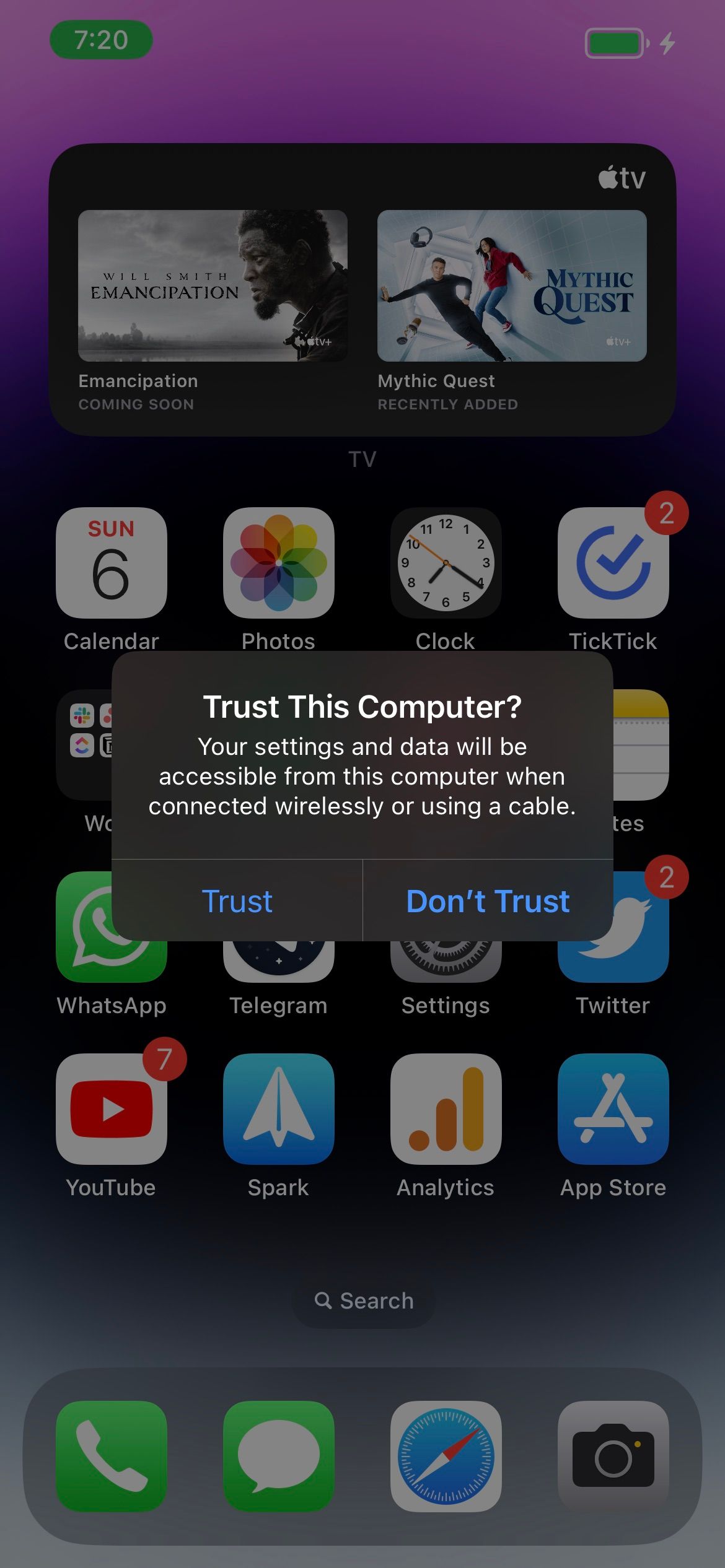
- If prompted on your iPhone, tap "Trust This Computer" and enter your passcode.
- Open iTunes (or Finder if you were using a Mac, though this guide focuses on PC).
- Click the small iPhone icon that appears in the top-left corner of the iTunes window.
- Under the Summary section, look for the "Backups" heading.
- Select "This Computer" under the "Automatically Back Up" section.
- Click the "Back Up Now" button.
iTunes will then create a complete, encrypted backup of your entire phone, including all messages, photos, app data, and most importantly, your contacts. This method ensures you have a full snapshot of your phone data saved locally on your PC. If you ever need those contacts, you can restore them by restoring the entire backup to an iPhone.
Third-Party Tools: When You Need More Control
Sometimes, neither iCloud nor a full iTunes backup gives you exactly what you need. What if you only want to move specific contacts? Or maybe you want to export your contacts into a more PC-friendly format like CSV (Comma Separated Values) for easy viewing in Excel?
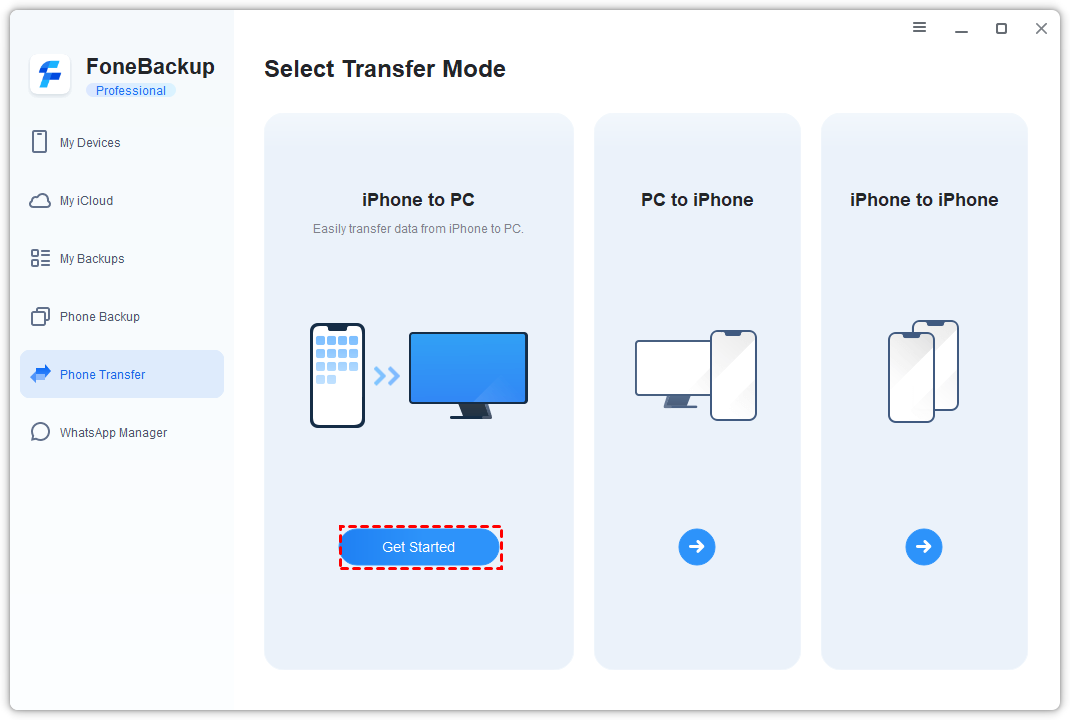
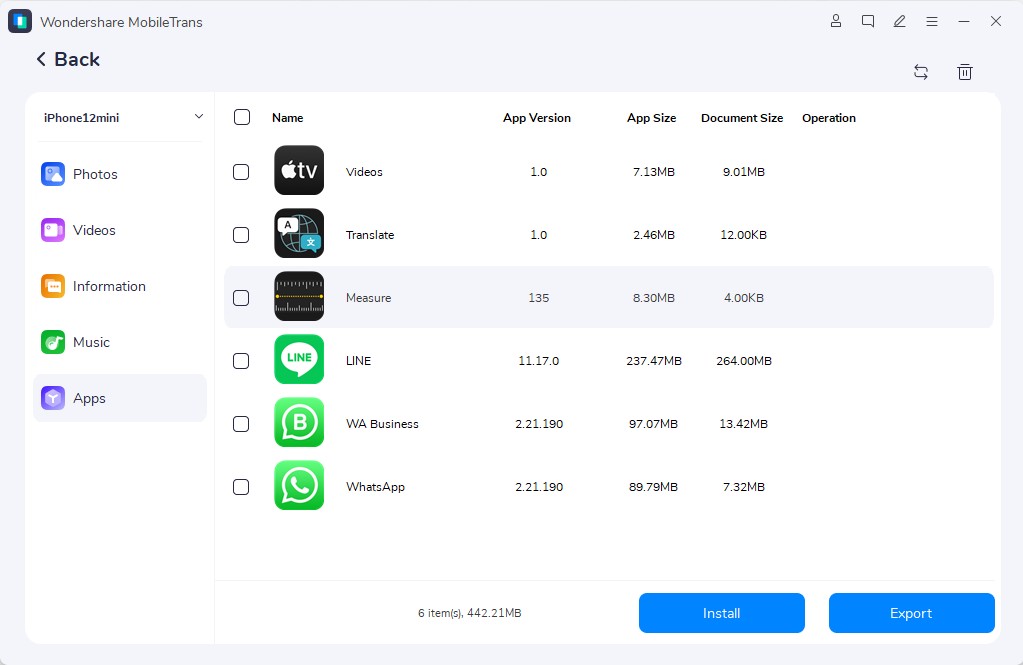
That's where specialized third-party software comes in handy. Tools like iMazing, dr.fone, or AnyTrans are designed to manage iPhone data selectively.
Key Advantages of Using Dedicated Transfer Software
These applications give you the ability to manage your data with granularity that Apple's native tools often lack. If you are struggling with how to copy contact from iPhone to PC without using the internet, these applications are your best bet.
- Selective Transfer: You can choose individual contacts or groups to transfer, rather than exporting everything.
- Multiple Export Formats: Export to VCF, CSV, or even directly to Outlook.
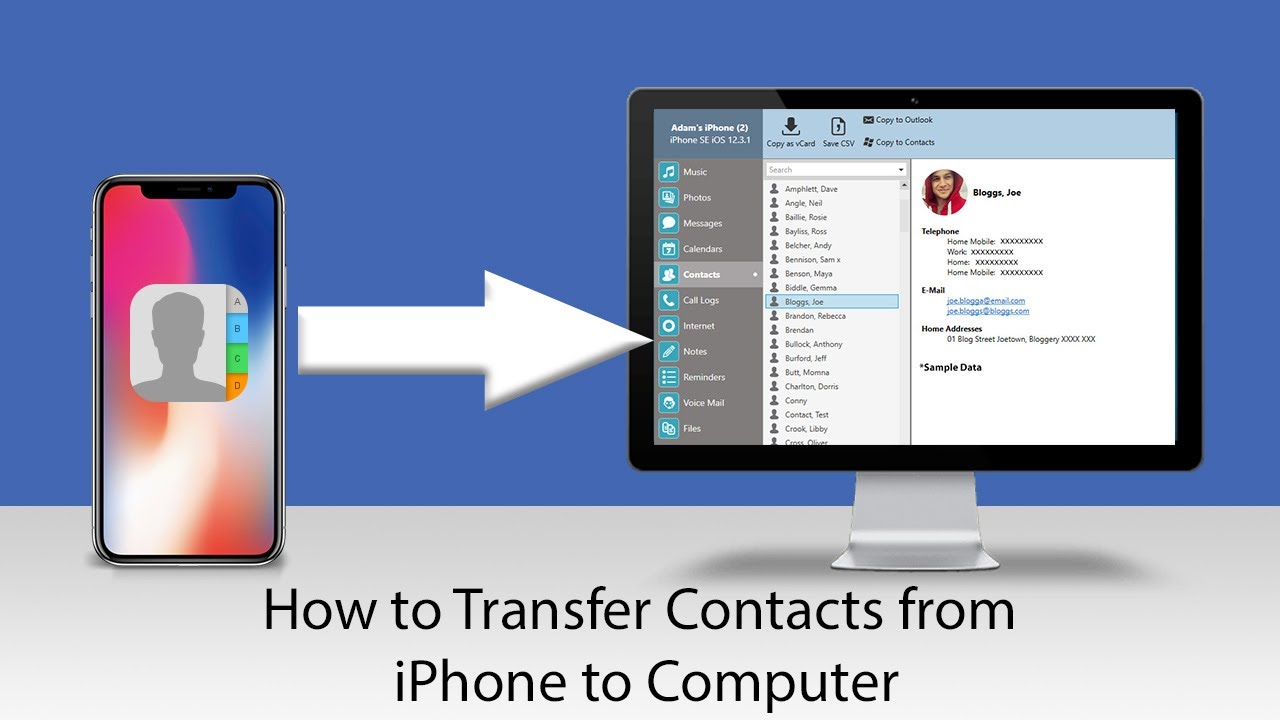
- Direct PC Access: The software reads the contacts directly from your iPhone when connected via USB cable.
- Merge and Edit: Some tools allow you to edit contact information directly on your PC before exporting.
General Steps for Third-Party Transfer
While the exact interface varies between tools, the basic procedure remains consistent:
- Download and install your chosen software on your PC.
- Connect your iPhone to the PC via USB cable.
- Launch the software and wait for it to recognize your device.
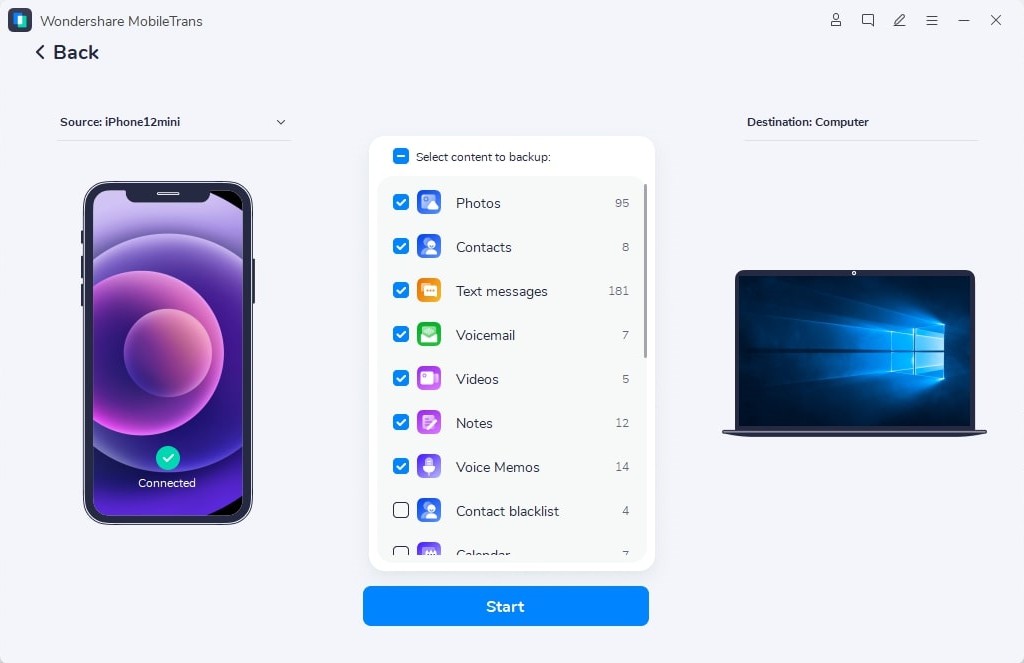
- Navigate to the "Contacts" section.
- Select the contacts you wish to transfer.
- Click the "Export" or "Transfer to PC" button and choose your desired file format (VCF or CSV).
Conclusion: Safely Storing Your iPhone Contacts on PC
Congratulations, you now know three powerful ways to ensure your contact list is safely backed up on your personal computer! Learning how to copy contact from iPhone to PC is a critical step in good digital hygiene. If you're looking for the quickest method, the iCloud Sync and VCF export is generally the winner—it requires no special software and delivers a universally readable file.
For those who need a full, local copy of everything, including contacts embedded within the data, the traditional iTunes backup works well. And for ultimate flexibility and selective transfers, third-party software provides a fantastic solution. Choose the method that best fits your needs and rest easy knowing your contacts are secure!
Frequently Asked Questions (FAQ)
- What file format are iPhone contacts saved in when copied to a PC?
- The standard file format when exporting from iCloud is VCF (Virtual Contact File, or vCard). This format is widely supported by operating systems and email clients like Outlook and Gmail. Some third-party tools also offer CSV format.
- Can I copy contacts from iPhone to PC without using the internet?
- Yes, you can. The iTunes/Finder backup method works entirely locally once the software is installed. Alternatively, dedicated third-party software connects directly to your phone via USB to perform the transfer without relying on iCloud servers.
- What is the difference between VCF and CSV formats for contacts?
- VCF (vCard) is the dedicated standard for sharing contact information, and it can store complex data like contact pictures and multiple addresses. CSV (Comma Separated Values) is a simpler spreadsheet format often used for mass importing or viewing data in programs like Excel, but it may not retain all the rich details of a contact card.
- Do I need to turn off iCloud sync before using iTunes to back up contacts?
- No, but it's important to understand the hierarchy. If iCloud Contacts sync is ON, iTunes will often not give you the option to specifically sync contacts to Outlook. It assumes iCloud handles the primary storage. However, an encrypted full device backup made via iTunes will include all data, regardless of iCloud settings.
- I copied my contacts, but they look messy on my PC. What happened?
- If you exported as VCF, they should be fine. If you exported as CSV, you might have encoding issues or columns may be misaligned. Ensure you select the proper import format when adding them to your PC program (like Outlook or Excel) to ensure data mapping is correct.
How To Copy Contact From Iphone To Pc
How To Copy Contact From Iphone To Pc Wallpapers
Collection of how to copy contact from iphone to pc wallpapers for your desktop and mobile devices.
Vivid How To Copy Contact From Iphone To Pc Capture Digital Art
Explore this high-quality how to copy contact from iphone to pc image, perfect for enhancing your desktop or mobile wallpaper.
Captivating How To Copy Contact From Iphone To Pc View Photography
A captivating how to copy contact from iphone to pc scene that brings tranquility and beauty to any device.
Gorgeous How To Copy Contact From Iphone To Pc Design Collection
Find inspiration with this unique how to copy contact from iphone to pc illustration, crafted to provide a fresh look for your background.

Vibrant How To Copy Contact From Iphone To Pc Design for Desktop
Experience the crisp clarity of this stunning how to copy contact from iphone to pc image, available in high resolution for all your screens.

Gorgeous How To Copy Contact From Iphone To Pc Scene in 4K
Find inspiration with this unique how to copy contact from iphone to pc illustration, crafted to provide a fresh look for your background.
Serene How To Copy Contact From Iphone To Pc Artwork Collection
Transform your screen with this vivid how to copy contact from iphone to pc artwork, a true masterpiece of digital design.
Vibrant How To Copy Contact From Iphone To Pc View in 4K
Discover an amazing how to copy contact from iphone to pc background image, ideal for personalizing your devices with vibrant colors and intricate designs.

Serene How To Copy Contact From Iphone To Pc Image for Your Screen
Experience the crisp clarity of this stunning how to copy contact from iphone to pc image, available in high resolution for all your screens.

Amazing How To Copy Contact From Iphone To Pc Wallpaper in 4K
Explore this high-quality how to copy contact from iphone to pc image, perfect for enhancing your desktop or mobile wallpaper.
Stunning How To Copy Contact From Iphone To Pc Landscape in HD
Find inspiration with this unique how to copy contact from iphone to pc illustration, crafted to provide a fresh look for your background.

Lush How To Copy Contact From Iphone To Pc Picture Digital Art
Immerse yourself in the stunning details of this beautiful how to copy contact from iphone to pc wallpaper, designed for a captivating visual experience.
Serene How To Copy Contact From Iphone To Pc Capture for Your Screen
Discover an amazing how to copy contact from iphone to pc background image, ideal for personalizing your devices with vibrant colors and intricate designs.

Mesmerizing How To Copy Contact From Iphone To Pc Image in 4K
Discover an amazing how to copy contact from iphone to pc background image, ideal for personalizing your devices with vibrant colors and intricate designs.

Captivating How To Copy Contact From Iphone To Pc Landscape for Desktop
Immerse yourself in the stunning details of this beautiful how to copy contact from iphone to pc wallpaper, designed for a captivating visual experience.
Vibrant How To Copy Contact From Iphone To Pc Design for Your Screen
Explore this high-quality how to copy contact from iphone to pc image, perfect for enhancing your desktop or mobile wallpaper.
Captivating How To Copy Contact From Iphone To Pc Artwork for Mobile
A captivating how to copy contact from iphone to pc scene that brings tranquility and beauty to any device.
Lush How To Copy Contact From Iphone To Pc Abstract Concept
Find inspiration with this unique how to copy contact from iphone to pc illustration, crafted to provide a fresh look for your background.

Exquisite How To Copy Contact From Iphone To Pc Artwork Collection
Immerse yourself in the stunning details of this beautiful how to copy contact from iphone to pc wallpaper, designed for a captivating visual experience.

Gorgeous How To Copy Contact From Iphone To Pc View Concept
Immerse yourself in the stunning details of this beautiful how to copy contact from iphone to pc wallpaper, designed for a captivating visual experience.
Exquisite How To Copy Contact From Iphone To Pc Background Nature
This gorgeous how to copy contact from iphone to pc photo offers a breathtaking view, making it a perfect choice for your next wallpaper.
Download these how to copy contact from iphone to pc wallpapers for free and use them on your desktop or mobile devices.