Tired of Constant Interruptions? The Definitive Guide to Stop Ads iPhone Today
If you feel like every time you open an app or browse the web on your iPhone, there's a new ad waiting to ambush you, you are definitely not alone. The digital advertising ecosystem is aggressive, intrusive, and frankly, a major drain on battery life and focus.
The good news is that taking control of your device is entirely possible. This guide, written by a fellow iPhone user who values speed and privacy, will walk you through the essential—and sometimes hidden—steps you need to master to effectively stop ads iPhone.
We're moving beyond simple surface fixes to implement a multi-layered defense that ensures a cleaner, faster, and more private mobile experience.
Understanding the Ad Landscape: Why Are You Seeing So Many Ads?
Before we block them, let's understand the enemy. Ads on modern iPhones fall into two main categories: browser-based ads (which often rely on cookies) and in-app ads (which historically relied on the Identifier for Advertisers, or IDFA).
Apple's App Tracking Transparency (ATT) Framework
Since iOS 14.5, Apple introduced the game-changing App Tracking Transparency (ATT). This framework requires apps to explicitly ask for your permission before tracking you across other apps and websites. This was a huge win for privacy, but it didn't eliminate ads entirely; it just made them harder to personalize.
When you constantly see highly relevant ads, it means one of two things: either you explicitly allowed tracking for that app, or the ad network is using contextual data (like your general location or the topic of the article you are reading) rather than specific tracking identifiers.
To deepen your understanding of how modern mobile advertising works, you can read Apple's official stance on user privacy and data handling: Apple Privacy Overview.
The First Line of Defense: Using Apple's Built-in Privacy Tools
The simplest way to start the process to stop ads iPhone is by tweaking the system settings designed specifically for this purpose. These controls don't block all ads, but they stop Apple itself from targeting you with personalized promotions within the App Store, Apple News, and Stocks.
Disabling Personalized Ads
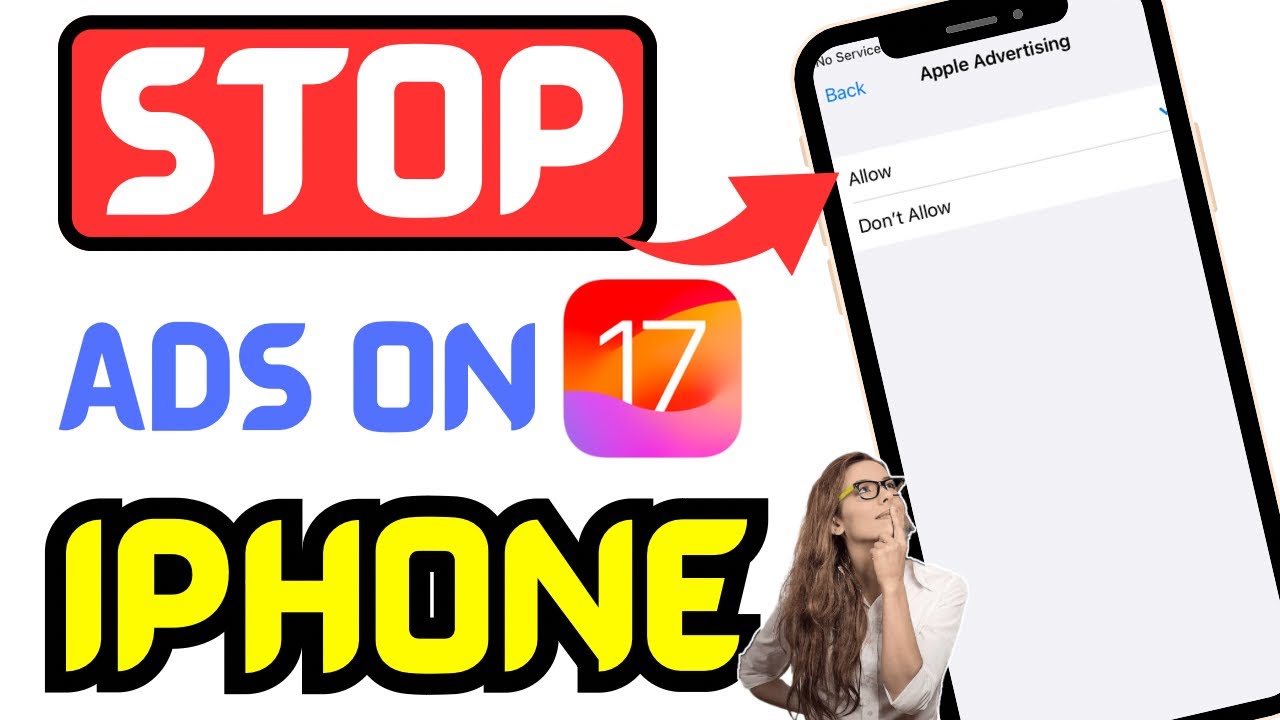
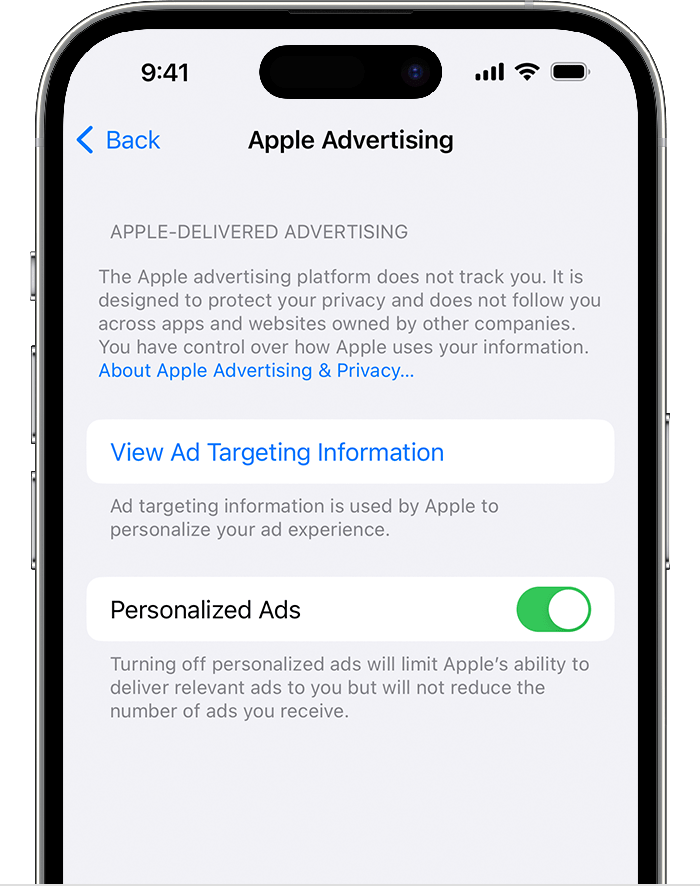
This critical step ensures Apple cannot use your activities to deliver targeted ads across its platforms. While this doesn't affect Facebook or Google ads, it's a crucial foundational step.
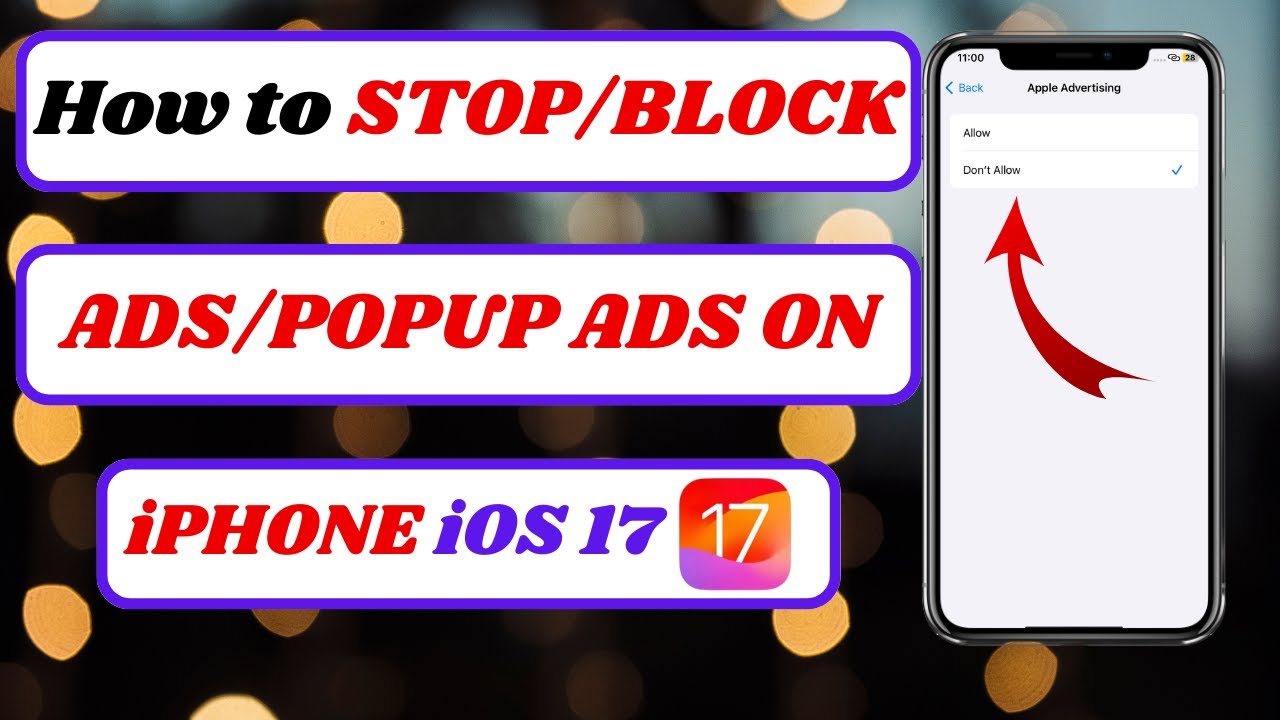
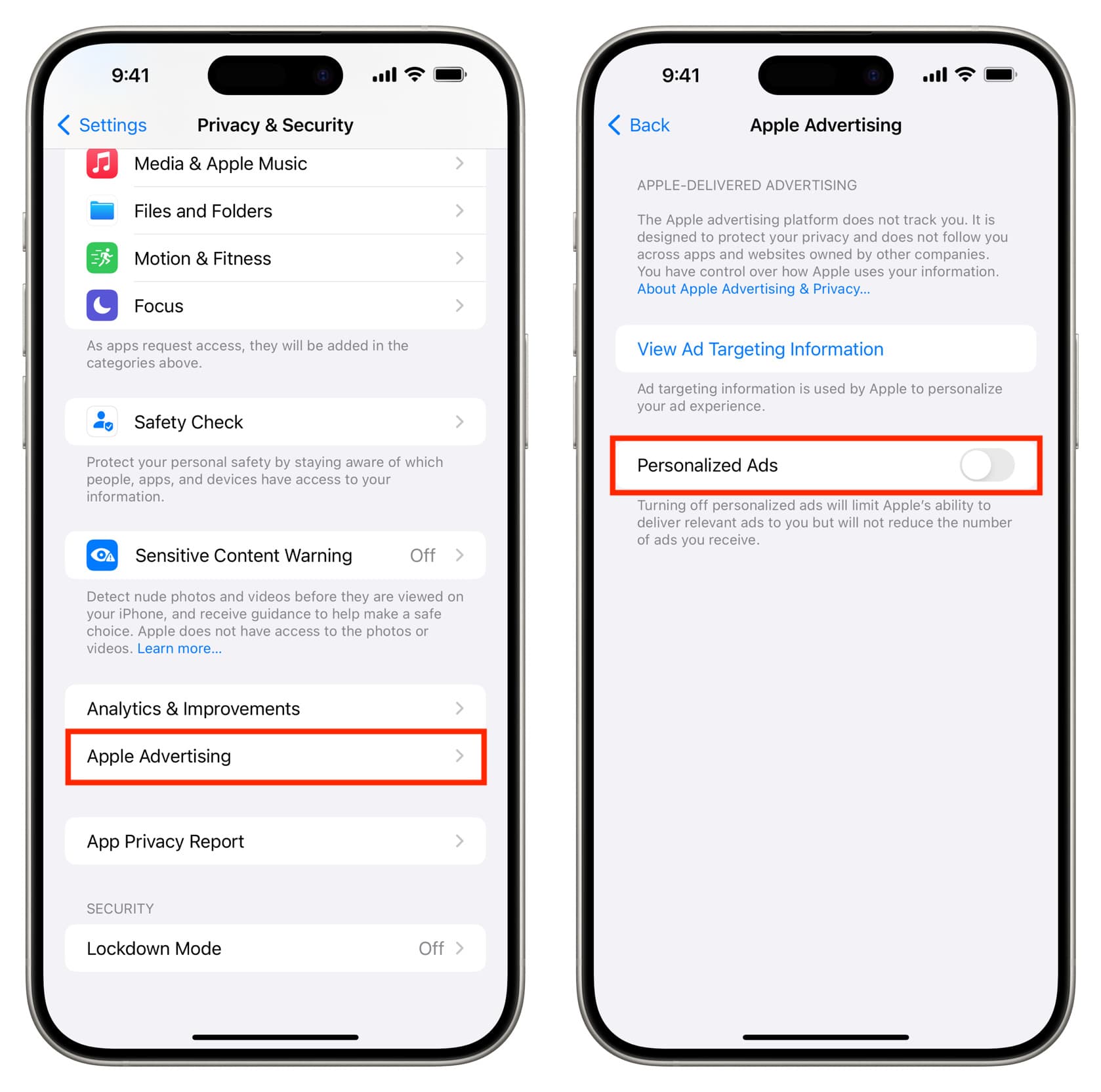
- Go to Settings.
- Scroll down and tap Privacy & Security.
- Scroll to the bottom and tap Apple Advertising.
- Toggle Personalized Ads OFF.
It's important to note that disabling this only limits personalization; you will still see the same *number* of ads, but they will be less relevant to your interests.
Additionally, you must regularly review your app permissions. Head back to Privacy & Security and tap Tracking. Ensure that "Allow Apps to Request to Track" is off, or manually deny tracking permission to all apps listed.
The Nuclear Option: Blocking Ads in Safari and Beyond
For most users, the most frustrating ads appear while browsing. Pop-ups, auto-playing videos, and massive banner ads slow down page loading times significantly. This is where dedicated Content Blockers come into play.
Utilizing Safari Content Blockers
iOS allows Safari extensions (Content Blockers) to use filtering rules to block specific types of content—including ads and trackers—before they even load. This is far more efficient than relying on internal browser features alone.
Popular, highly-rated options often include Wipr, 1Blocker, and AdGuard. While many are paid, the speed and data savings often justify the small investment.
Steps to Activate a Content Blocker:
- Download your chosen Content Blocker app from the App Store.
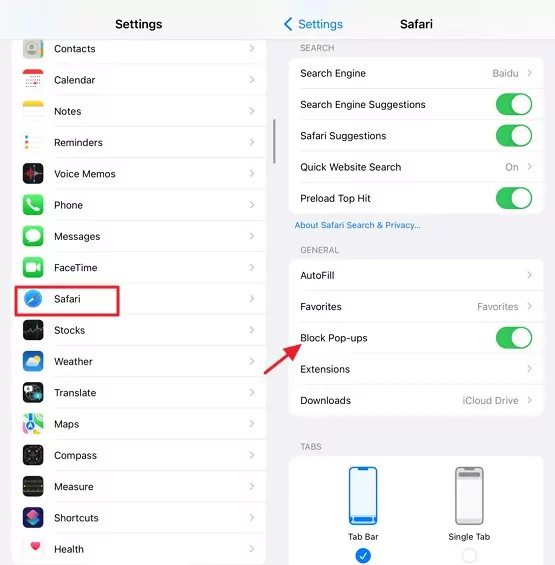
- Go to Settings > Safari > Extensions.
- Find the Content Blocker you installed and toggle it ON.
- Grant it permissions (this usually involves tapping "Allow" under Content Blockers).
Once activated, simply clear your Safari history and cache, and enjoy browsing the web without intrusive ads.
Comparison: Free vs. Premium Ad Blockers
Choosing the right ad-blocking tool requires understanding the differences in capability:
| Feature | Free Blockers (e.g., Basic AdGuard) | Premium Blockers (e.g., 1Blocker, Wipr) |
|---|---|---|
| Scope | Primarily Safari; basic tracker blocking. | System-wide DNS filtering; advanced list management; in-app protection (via VPNs). |
| Customization | Limited (usually only ON/OFF). | High (allowing specific sites, custom block rules). |
| Maintenance | Updates can be slow or inconsistent. | Regular, dedicated filter list updates. |
The premium route offers the most robust solution if your primary goal is to completely stop ads iPhone across all browsing activity.
[Baca Juga: Top 5 iOS Content Blockers Reviewed]
Advanced Settings: How to Stop Personalized Ads on iPhone (DNS Filtering)
If you want a solution that works across Safari, Chrome, and even many in-app activities without needing a full VPN, DNS filtering is your friend. This technique redirects requests for known ad servers to nowhere, effectively stopping the ad from loading at the network level.
Using a Private DNS Solution
Services like Cloudflare's 1.1.1.1 for Families (specifically the malware and ad-blocking option) or applications like NextDNS allow you to change how your iPhone resolves internet addresses. By connecting to a DNS server pre-configured to block ad domains, you get system-wide ad protection.
This is highly effective because it intercepts tracking and ad requests before the data reaches your device, conserving bandwidth and battery life. This method works across Wi-Fi and Cellular data, providing consistent protection.
For more on the technical side of DNS filtering and its security benefits, see the authoritative reference on domain name systems: Wikipedia: Domain Name System.
Beyond the Browser: Dealing with In-App Ads
In-app ads—those annoying video spots you have to watch to get an extra life in a game or the banners at the bottom of a free utility app—are the hardest to block completely.
Ad blockers installed in Safari have no jurisdiction inside a third-party application. The ads are served directly from the app's internal code connecting to the developer's ad network (like Google AdMob or Unity Ads).
The Two Primary Solutions for In-App Ads:
1. System-Wide DNS/VPN: If you implemented a high-level DNS filter (as discussed in the previous section) or a full VPN with ad-blocking features, you will see a reduction in in-app ads. These network-level filters are your only true defense against in-app advertising, provided they maintain updated lists of ad domains.
2. Pay the Developer: While unsatisfying, the most reliable way to eliminate in-app ads is often to purchase the "Pro" or "Ad-Free" version of the app. Developers rely on ad revenue to support free applications; paying a small fee often removes the ads permanently while supporting the creation of useful tools.
Conclusion: Achieving a Cleaner iPhone Experience
Achieving a truly ad-free iPhone experience requires effort and a layered strategy. You cannot simply flip one switch to stop ads iPhone completely. You must tackle personalized tracking, block web trackers via content blockers, and deploy network-level solutions like DNS filtering.
By implementing these steps—especially activating a robust Safari content blocker and disabling Apple's personalized ads—you will significantly reduce annoyance, increase loading speeds, and dramatically improve your mobile privacy posture.
Frequently Asked Questions (FAQ)
- Does simply turning off Safari pop-ups stop all ads?
No. While turning off pop-ups (Settings > Safari > Block Pop-ups) stops one specific form of annoyance, it does nothing to block invasive banner ads, auto-play videos, or tracking scripts that slow down pages.
- Will using an ad blocker drain my iPhone battery faster?
Generally, the opposite is true. Ad blockers save battery because they prevent your iPhone from downloading and rendering large, complex ad scripts and video files. Less data processing equals better battery life.
- Is it safe to use a third-party ad blocker or DNS?
Yes, provided you choose reputable providers (like those mentioned: Wipr, AdGuard, Cloudflare). Always ensure the app has strong reviews and a clear privacy policy, confirming they do not log your browsing data. You can verify privacy practices through consumer protection resources: Federal Trade Commission (FTC).
- Why do I still see ads on Google search results even with a content blocker?
Google search ads are often displayed contextually as part of the search results page structure, making them difficult for basic content blockers to differentiate from organic results. Advanced blockers or DNS filtering are sometimes more successful at removing these, but they can occasionally break site functionality.
[Baca Juga: Panduan Lengkap Pengaturan Privasi iPhone Tingkat Lanjut]
Happy browsing!
Stop Ads Iphone
Stop Ads Iphone Wallpapers
Collection of stop ads iphone wallpapers for your desktop and mobile devices.

Captivating Stop Ads Iphone Abstract for Desktop
Find inspiration with this unique stop ads iphone illustration, crafted to provide a fresh look for your background.

Vibrant Stop Ads Iphone Picture Nature
Discover an amazing stop ads iphone background image, ideal for personalizing your devices with vibrant colors and intricate designs.

Vivid Stop Ads Iphone Artwork for Mobile
Explore this high-quality stop ads iphone image, perfect for enhancing your desktop or mobile wallpaper.
Spectacular Stop Ads Iphone View Photography
Find inspiration with this unique stop ads iphone illustration, crafted to provide a fresh look for your background.
Vivid Stop Ads Iphone Photo Concept
Experience the crisp clarity of this stunning stop ads iphone image, available in high resolution for all your screens.
Vivid Stop Ads Iphone Capture in 4K
Explore this high-quality stop ads iphone image, perfect for enhancing your desktop or mobile wallpaper.
Exquisite Stop Ads Iphone Scene Illustration
Immerse yourself in the stunning details of this beautiful stop ads iphone wallpaper, designed for a captivating visual experience.
Crisp Stop Ads Iphone Abstract for Mobile
This gorgeous stop ads iphone photo offers a breathtaking view, making it a perfect choice for your next wallpaper.

Stunning Stop Ads Iphone Photo in HD
Immerse yourself in the stunning details of this beautiful stop ads iphone wallpaper, designed for a captivating visual experience.

Vivid Stop Ads Iphone Artwork Photography
Explore this high-quality stop ads iphone image, perfect for enhancing your desktop or mobile wallpaper.

Spectacular Stop Ads Iphone Artwork Nature
This gorgeous stop ads iphone photo offers a breathtaking view, making it a perfect choice for your next wallpaper.

Serene Stop Ads Iphone Scene for Mobile
Experience the crisp clarity of this stunning stop ads iphone image, available in high resolution for all your screens.

Lush Stop Ads Iphone Capture Photography
A captivating stop ads iphone scene that brings tranquility and beauty to any device.
Vivid Stop Ads Iphone Design in 4K
Explore this high-quality stop ads iphone image, perfect for enhancing your desktop or mobile wallpaper.
Captivating Stop Ads Iphone View Illustration
A captivating stop ads iphone scene that brings tranquility and beauty to any device.

Beautiful Stop Ads Iphone Scene Concept
Experience the crisp clarity of this stunning stop ads iphone image, available in high resolution for all your screens.
Beautiful Stop Ads Iphone Image Photography
Explore this high-quality stop ads iphone image, perfect for enhancing your desktop or mobile wallpaper.
Detailed Stop Ads Iphone Image Collection
Transform your screen with this vivid stop ads iphone artwork, a true masterpiece of digital design.
Vibrant Stop Ads Iphone Capture Digital Art
Discover an amazing stop ads iphone background image, ideal for personalizing your devices with vibrant colors and intricate designs.
Detailed Stop Ads Iphone Moment Digital Art
Experience the crisp clarity of this stunning stop ads iphone image, available in high resolution for all your screens.
Download these stop ads iphone wallpapers for free and use them on your desktop or mobile devices.