Stop Using Default: The Ultimate Guide to Essential iPhone 15 Pro Max Settings
So, you've finally unboxed the behemoth—the iPhone 15 Pro Max. Congratulations! It's an incredible piece of technology, but out of the box, it's only running at about 70% of its capability. The real power is hidden deep within the settings menu.
If you want to truly maximize performance, lengthen battery life, and take advantage of the Pro-exclusive features (like the Action Button and advanced camera modes), simply scrolling through the default setup won't cut it. This deep dive into your essential Iphone 15 Pro Max Settings will transform your device from a high-end phone into a professional productivity tool.
We're going to cover the Pro-specific adjustments—the ones that separate the Max from the standard models. Get ready to tweak!
Mastering the Display and ProMotion Settings
The Pro Max display is phenomenal, hitting 120Hz refresh rates thanks to ProMotion technology. While fantastic for scrolling and gaming, sometimes we need to balance beauty with endurance.
Optimizing Refresh Rate for Battery
ProMotion dynamically adjusts the refresh rate from 1Hz to 120Hz. For the best user experience, you usually want to leave this alone. However, if you are expecting a long day away from a charger, you can technically force the phone to use a lower frame rate.
Go to: Settings > Accessibility > Motion > Limit Frame Rate.
Enabling this will cap your display at 60Hz. While it saves some juice, be aware that scrolling won't feel quite as smooth. Use this as an emergency option, not a daily driver setting.
Always-On Display (AOD) Customization
The Always-On Display is great, but did you know you can reduce how much information it shows to save battery?
By default, AOD shows your Lock Screen wallpaper in a dimmed state. To make it truly minimal (like the Apple Watch), which conserves power, you need to turn off the wallpaper view:
- Go to: Settings > Display & Brightness > Always On Display.
- Toggle off Show Wallpaper.
Now, your AOD will only show the time, widgets, and notifications, resulting in less pixel draw and better battery efficiency. This small adjustment makes a huge difference in optimizing your Iphone 15 Pro Max Settings for longevity.
Crucial Camera and Photography Settings
This is where the Pro Max truly shines. The 48MP main sensor, improved stabilization, and the new 5x optical zoom are incredible. But they are worthless if your software settings aren't configured correctly.
Default Camera Resolution (24MP vs 48MP)
By default, your phone shoots 24MP images, which uses "pixel binning" for excellent low-light performance while keeping file sizes manageable. However, for maximum detail, you need to enable the 48MP ProRAW/HEIF Max modes.
Setup path: Settings > Camera > Formats > Photo Capture.
- Choose HEIF Max (smaller file size, high detail).
- Choose ProRAW Max (largest file size, maximum editing flexibility).
Remember that shooting in these high-resolution modes will consume storage rapidly—a single ProRAW photo can easily hit 70-80MB. Use a cloud backup solution if you plan on shooting 48MP consistently. Apple's official specs page confirms the massive file output capabilities.
Shooting Log/ProRes Video
If you are serious about video, you must change your video format to enable Log encoding. Log footage is flat and desaturated, but it holds significantly more dynamic range, making it essential for professional color grading post-production.
Go to: Settings > Camera > Formats > Video Capture and enable ProRes. Then, under ProRes Encoding, switch to Log.
Pro Tip: Shooting Log requires external storage (like an SSD connected via the USB-C port) if you want to record at 4K 60fps, due to the immense data throughput required by these advanced Iphone 15 Pro Max Settings.
The Game-Changer: Customizing the Action Button
The Action Button, replacing the classic mute switch, is arguably the most personalized feature on the 15 Pro Max. If you are still using it just for Silent Mode, you are missing out on its true potential.
Access its customization via Settings > Action Button.
Popular Action Button Shortcuts
While Apple provides simple default actions (Camera, Flashlight, Voice Memo), the true power comes from linking it to a Shortcut. This allows the button to perform complex, multi-step actions with a single press.
Here are a few high-utility ideas:
- Open ChatGPT: Instantly launch the AI app for quick queries.
- Focus Mode Changer: Toggle between "Work" and "Personal" Focus Modes depending on your context.
- Deepfake Call Blocker: A shortcut that instantly turns on low power mode, mutes volume, and enables "Do Not Disturb" simultaneously (The nuclear option).
Experimenting with the Shortcuts app is key to making this button indispensable. [Baca Juga: The Best iPhone 15 Pro Max Shortcuts]
Maximizing Battery Life and Charging Settings
Battery longevity (the health, not the daily charge) is critical. Apple introduced new options specifically for the iPhone 15 series to prolong the life of the battery chemistry.
The 80% Charge Limit Feature
Charging lithium-ion batteries to 100% daily degrades them faster. The 15 series introduces a new setting to cap the charge at 80%, reducing strain on the battery. This is separate from Optimized Battery Charging, which learns your habits.
Access this setting: Settings > Battery > Battery Health & Charging > Charging Optimization.
Here is a comparison of the three options:
| Optimization Mode | Description | Benefit |
|---|---|---|
| Optimized Battery Charging | Charges quickly to 80%, then slows down to hit 100% just before you wake up. | Good overall health and ensures 100% readiness. |
| 80% Limit | Never charges past 80%. (New in 15 series) | Maximum long-term battery health preservation. |
| None | Charges to 100% as fast as possible. | Quickest charge time, but lowest battery longevity. |
For best results, if you charge overnight, use Optimized Battery Charging. If you charge sporadically throughout the day, enabling the 80% Limit is the superior choice for preserving your battery cycle count over years of use. For deeper technical insights into battery degradation, consult sources like Wikipedia on Lithium-ion battery performance.
Essential Accessibility and Quality-of-Life Settings
Don't overlook the accessibility menu—it contains features that benefit everyone, not just those needing assistance. These are often the hidden gems in the Iphone 15 Pro Max Settings.
Back Tap and Focus Modes
Back Tap: Found under Settings > Accessibility > Touch > Back Tap. This feature allows you to double or triple-tap the back of your phone to trigger a specific action. Common uses include taking a screenshot, locking the screen, or instantly opening your Control Center.
Focus Modes: If you find notifications overwhelming, setting up custom Focus Modes is essential. You can tailor which apps and people are allowed to interrupt you based on location or time of day (e.g., automatically engaging "Driving Focus" when you connect to your car's Bluetooth). [Baca Juga: Advanced iPhone Focus Mode Tips]
Conclusion: Your iPhone, Optimized
Taking the time to adjust these core Iphone 15 Pro Max Settings moves your device from a default tool to a finely tuned instrument. Whether you prioritize professional-grade video output, maximum battery health, or lightning-fast access via the Action Button, these tweaks ensure you are getting the true "Pro Max" experience.
Remember that the best setup is the one that fits your life. Don't be afraid to experiment, especially with the versatile Shortcuts app and the Action Button.
Frequently Asked Questions (FAQ)
- Should I use 48MP ProRAW or HEIF Max for photos?
If you plan on editing the photos in software like Lightroom or Photoshop, use ProRAW Max. It offers maximum data retention. If you want high detail but smaller, easily shareable files, use HEIF Max.
- How do I change the default zoom levels in the camera app?
Unfortunately, you cannot permanently change the default labeled zoom levels (like the 0.5x, 1x, 2x, 5x buttons). However, you can use the pinch gesture to fine-tune the zoom to any point between 0.5x and 25x digital zoom.
- Is the 80% Charge Limit worth using?
Yes, absolutely, if you intend to keep the phone for three years or more. It significantly slows down the chemical degradation of the battery, maintaining a higher "Battery Health" percentage for a much longer period.
- Where can I check the battery cycle count?
On the iPhone 15 Pro Max, Apple has made the cycle count visible directly. Go to: Settings > General > About. Scroll down, and you will see the Battery Cycle Count listed there.
- Why does my phone get warm when shooting 4K 60fps ProRes Log?
Shooting in these highly demanding formats requires the A17 Pro chip to work at maximum capacity, generating significant heat. This is normal behavior for extremely high-bitrate video capture. Using an external SSD helps mitigate this slightly by offloading data processing from the phone's internal storage controller.
Iphone 15 Pro Max Settings
Iphone 15 Pro Max Settings Wallpapers
Collection of iphone 15 pro max settings wallpapers for your desktop and mobile devices.

Crisp Iphone 15 Pro Max Settings View Collection
A captivating iphone 15 pro max settings scene that brings tranquility and beauty to any device.

Vivid Iphone 15 Pro Max Settings Abstract for Mobile
Transform your screen with this vivid iphone 15 pro max settings artwork, a true masterpiece of digital design.

Artistic Iphone 15 Pro Max Settings Scene Collection
This gorgeous iphone 15 pro max settings photo offers a breathtaking view, making it a perfect choice for your next wallpaper.

Crisp Iphone 15 Pro Max Settings Capture in HD
A captivating iphone 15 pro max settings scene that brings tranquility and beauty to any device.
Vibrant Iphone 15 Pro Max Settings Photo Nature
Discover an amazing iphone 15 pro max settings background image, ideal for personalizing your devices with vibrant colors and intricate designs.

Vivid Iphone 15 Pro Max Settings View for Your Screen
Explore this high-quality iphone 15 pro max settings image, perfect for enhancing your desktop or mobile wallpaper.

Spectacular Iphone 15 Pro Max Settings Abstract Concept
This gorgeous iphone 15 pro max settings photo offers a breathtaking view, making it a perfect choice for your next wallpaper.

Breathtaking Iphone 15 Pro Max Settings Image for Mobile
Experience the crisp clarity of this stunning iphone 15 pro max settings image, available in high resolution for all your screens.

Spectacular Iphone 15 Pro Max Settings Picture in HD
This gorgeous iphone 15 pro max settings photo offers a breathtaking view, making it a perfect choice for your next wallpaper.
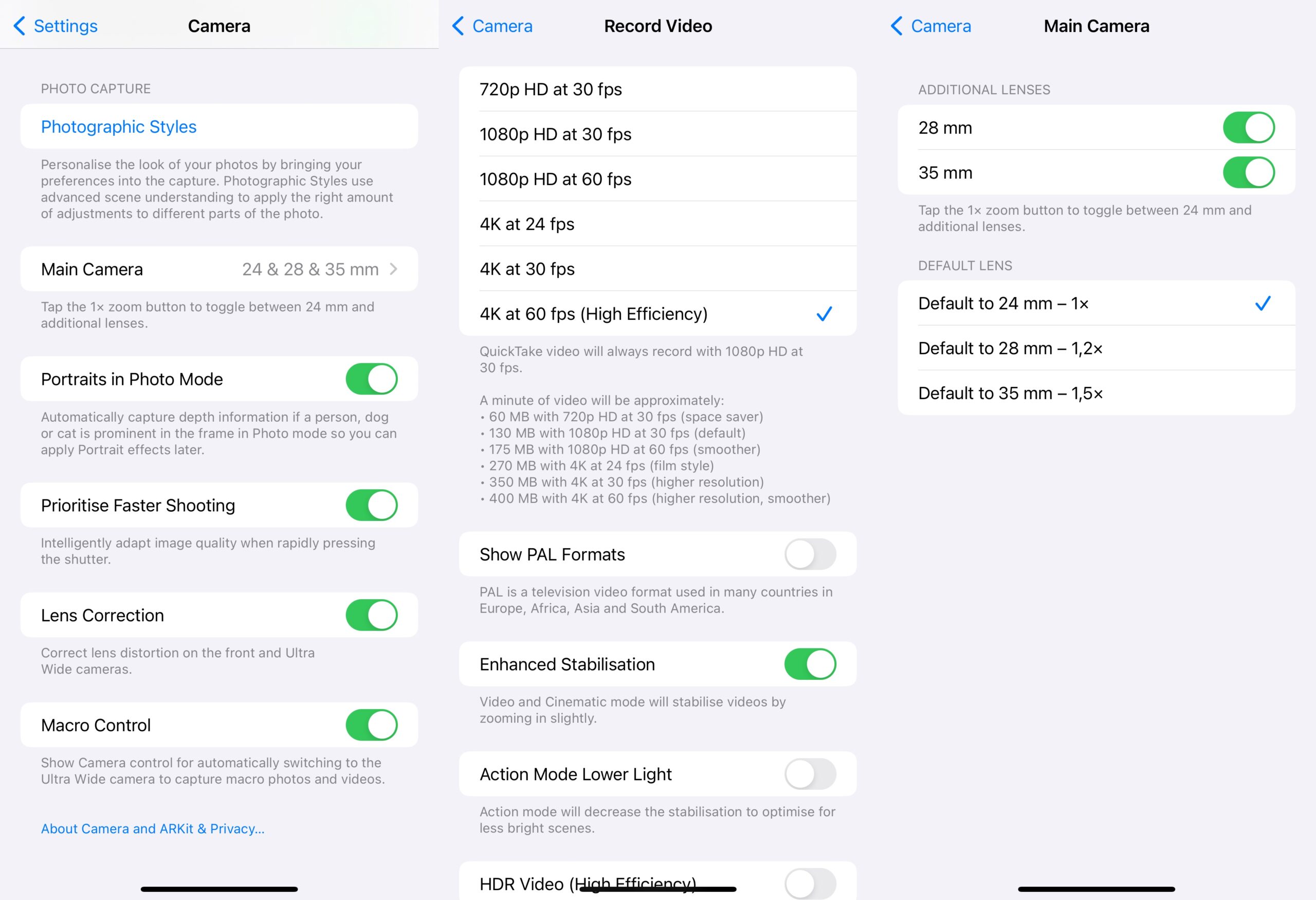
Vivid Iphone 15 Pro Max Settings Abstract Collection
Transform your screen with this vivid iphone 15 pro max settings artwork, a true masterpiece of digital design.
Amazing Iphone 15 Pro Max Settings Scene Concept
Explore this high-quality iphone 15 pro max settings image, perfect for enhancing your desktop or mobile wallpaper.
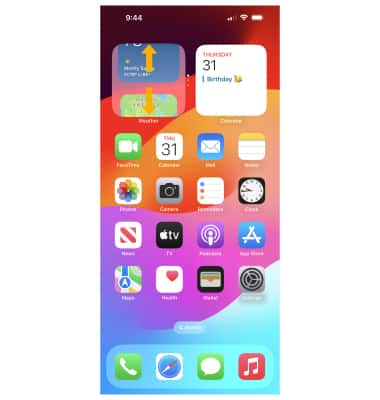
Crisp Iphone 15 Pro Max Settings Moment for Your Screen
Find inspiration with this unique iphone 15 pro max settings illustration, crafted to provide a fresh look for your background.

High-Quality Iphone 15 Pro Max Settings Scene Collection
Discover an amazing iphone 15 pro max settings background image, ideal for personalizing your devices with vibrant colors and intricate designs.
Gorgeous Iphone 15 Pro Max Settings Scene in HD
Find inspiration with this unique iphone 15 pro max settings illustration, crafted to provide a fresh look for your background.

Serene Iphone 15 Pro Max Settings Image Nature
Experience the crisp clarity of this stunning iphone 15 pro max settings image, available in high resolution for all your screens.

Exquisite Iphone 15 Pro Max Settings Moment Concept
This gorgeous iphone 15 pro max settings photo offers a breathtaking view, making it a perfect choice for your next wallpaper.

Spectacular Iphone 15 Pro Max Settings Abstract Illustration
Find inspiration with this unique iphone 15 pro max settings illustration, crafted to provide a fresh look for your background.

Artistic Iphone 15 Pro Max Settings Background for Mobile
Immerse yourself in the stunning details of this beautiful iphone 15 pro max settings wallpaper, designed for a captivating visual experience.

Mesmerizing Iphone 15 Pro Max Settings Background Nature
Explore this high-quality iphone 15 pro max settings image, perfect for enhancing your desktop or mobile wallpaper.
Vivid Iphone 15 Pro Max Settings Wallpaper in 4K
Transform your screen with this vivid iphone 15 pro max settings artwork, a true masterpiece of digital design.
Download these iphone 15 pro max settings wallpapers for free and use them on your desktop or mobile devices.