The Ultimate Guide: How To Transfer Photos From Windows To iPhone Seamlessly
If you've recently switched operating systems or simply need to move your precious memories from your PC to your pocket, you've hit a common roadblock. Windows and iOS are not exactly best friends when it comes to file sharing.
The good news? The process of learning How To Transfer Photos From Windows To iPhone is much easier than it used to be. You just need the right map—and the right method—for the job.
In this comprehensive guide, we'll walk you through the absolute best, fastest, and most reliable ways to transfer your images, whether you prefer the old-school cable method, the official Apple route (iTunes), or the freedom of the cloud.
Method 1: The Official Route - Using iTunes (or Finder on Newer PCs)
Apple's dedicated software, iTunes (or the newer Apple Devices app on Windows 11), is the official gateway for synchronization. While it's powerful, it can also be a bit finicky and sometimes slow. This method involves a synchronization process, meaning photos copied this way can only be deleted by deselecting the sync folder later.
Step-by-Step Sync with iTunes
- Organize Your Photos: Create a single, easy-to-find folder on your Windows PC containing only the photos you want to transfer.
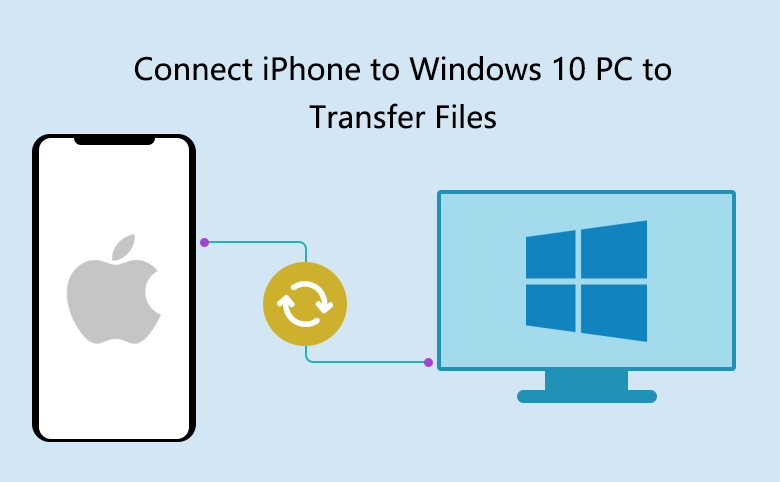
- Connect and Launch: Connect your iPhone to your PC using a Lightning cable. Open iTunes (or Apple Devices). If prompted, tap "Trust This Computer" on your iPhone.
- Select Your Device: Click the small iPhone icon near the top left corner of the iTunes window.
- Find the Photos Tab: In the sidebar menu, click on "Photos."
- Enable Syncing: Check the box labeled "Sync Photos."
- Choose Your Source: From the dropdown menu, select "Choose Folder..." and navigate to the organized photo folder you created in Step 1.
- Sync: Click "Apply" or "Sync" in the bottom right corner. Wait for the process to complete.
Expert Tip: Always make sure your iTunes software is updated to the latest version. Older versions often struggle with connectivity and compatibility, especially after iOS updates. For further details on compatibility, check the official Apple support documentation.
Method 2: The Easiest Wireless Way - Cloud Services
For large batches or ongoing, automatic transfers, cloud services are unbeatable. They bypass the cable entirely, leveraging the internet to handle the heavy lifting. The most popular options are Google Photos and Microsoft OneDrive.
Using Microsoft OneDrive for Quick Transfers
Since you are coming from Windows, OneDrive is often the most seamless. It's pre-installed on many PCs and integrates deeply with the Windows File Explorer.
- Upload from PC: Drag and drop your desired photo folders into your OneDrive folder on your Windows PC. They will automatically upload to the cloud.
- Download the App: On your iPhone, download and sign into the Microsoft OneDrive app.
- Access Photos: Navigate to the uploaded folders within the app.
- Save to Camera Roll: Select the photos you want and tap the option to "Download" or "Save to Camera Roll."
This method is excellent for maintaining control over which specific photos end up on your iPhone's local storage, keeping your iCloud space free while utilizing your PC's storage capacity.
Method 3: The Direct Cable Method (No Software Needed)
Wait, didn't we say Windows and iPhone don't play well? They don't, but there's a loophole. While Windows can't easily *push* photos *to* the iPhone's Camera Roll without iTunes, the iPhone is designed to be recognized as a standard digital camera for *pulling* files off.
We can use this "pulling" method in reverse, but only if your iPhone's settings allow it, usually achieved via a third-party bridge app, or for very specific older file types.
However, the primary utility of the basic cable connection is to facilitate the use of third-party software, which bridges the operating system gaps effectively. Using a reliable file manager software offers the fastest, most granular control.
If you require advanced control over metadata or want to transfer RAW files, consider dedicated software like iMazing or AnyTrans. These tools treat your iPhone like an external hard drive, making the How To Transfer Photos From Windows To iPhone process a simple drag-and-drop affair.
[Baca Juga: Best iPhone File Transfer Software 2024]
Choosing Your Best Transfer Method: Comparison Table
To help you decide which method fits your current need, here is a quick overview:
| Method | Speed | Requires Cable? | Pros | Cons |
|---|---|---|---|---|
| iTunes Sync | Medium | Yes | Official, reliable for large folders. | Synchronized (hard to delete individually); slow setup. |
| Cloud Services (OneDrive/Google Photos) | Slow (depends on internet) | No | Truly wireless; works anywhere; automatic backup. | Requires free cloud storage space; internet required. |
| Third-Party Software | Fast | Yes (usually) | Drag-and-drop ease; transfers straight to Camera Roll. | Requires purchasing or installing software. |
Troubleshooting Common Transfer Issues
Even the simplest tasks can sometimes go awry. If your transfer is failing or your PC isn't recognizing your iPhone, try these quick fixes:
1. The "Trust This Computer" Prompt
If you plug in your phone and nothing happens, disconnect and reconnect. Watch your iPhone screen carefully—you must tap "Trust" when the prompt appears and enter your passcode. If you previously tapped "Don't Trust," you might need to reset your Location & Privacy settings on the iPhone.
2. Check Your Cable and Port
Believe it or not, generic or damaged cables are the number one cause of failed transfers. Always use an MFi-certified cable (ideally the one that came with your iPhone) and ensure the USB port on your PC is working correctly. Avoid using unpowered USB hubs.
3. Turn Off iCloud Photo Library Temporarily
If you use iTunes to sync photos, iTunes cannot sync photos if iCloud Photo Library is enabled and set to "Optimize iPhone Storage." For best results, temporarily switch your iCloud Photo settings to "Download and Keep Originals" or turn off iCloud Photos entirely during the sync process.
For deep dives into device connection protocols and drivers, you might want to reference technical resources on USB MTP protocols, often discussed on forums or Wikipedia's entry on Media Transfer Protocol.
Conclusion: Finding Your Photo Workflow
Transferring photos from Windows to iPhone doesn't have to be a confusing ordeal. The key is understanding the limitations of each OS and choosing the tool best suited for your habits.
For weekly, large-volume backups, dedicated third-party software offers speed and simplicity. If you value automation and work across multiple devices, the set-it-and-forget-it nature of cloud services like OneDrive or Google Photos is the clear winner. And if you need total control without installing extra apps, stick with the proven, albeit rigid, iTunes sync method.
No matter your choice, following these steps ensures your cherished photos make the journey safely from your Windows machine to your iPhone's camera roll.
Frequently Asked Questions (FAQ)
- Can I transfer photos from Windows to iPhone without iTunes?
Yes, absolutely. Cloud services (like OneDrive or Dropbox) and third-party file transfer software are excellent alternatives that bypass the need for iTunes entirely.
- Why are the photos I transferred using iTunes disappearing?
Photos synced via iTunes are not treated as photos you took yourself; they are "synced albums." If you deselect the sync folder in iTunes and sync again, those photos will be removed from your iPhone. Ensure the "Sync Photos" box remains checked if you want them to stay.
- Does transferring photos via cable reduce image quality?
No. When transferring digital files, whether via cable or cloud, the original image quality (resolution, metadata) is preserved unless the transfer service explicitly applies compression (e.g., if you upload to Google Photos using the 'Standard Quality' setting).
- How do I transfer photos from Windows to iPhone if my PC is very old?
If your PC struggles to run the latest versions of iTunes or third-party software, the most reliable method is often using a web-based cloud service (like Google Photos via a web browser) and then downloading the app on your iPhone. This minimizes the processing load on your aging PC.
[Baca Juga: How to backup iPhone before transfer]
How To Transfer Photos From Windows To Iphone
How To Transfer Photos From Windows To Iphone Wallpapers
Collection of how to transfer photos from windows to iphone wallpapers for your desktop and mobile devices.

Stunning How To Transfer Photos From Windows To Iphone Abstract in 4K
A captivating how to transfer photos from windows to iphone scene that brings tranquility and beauty to any device.
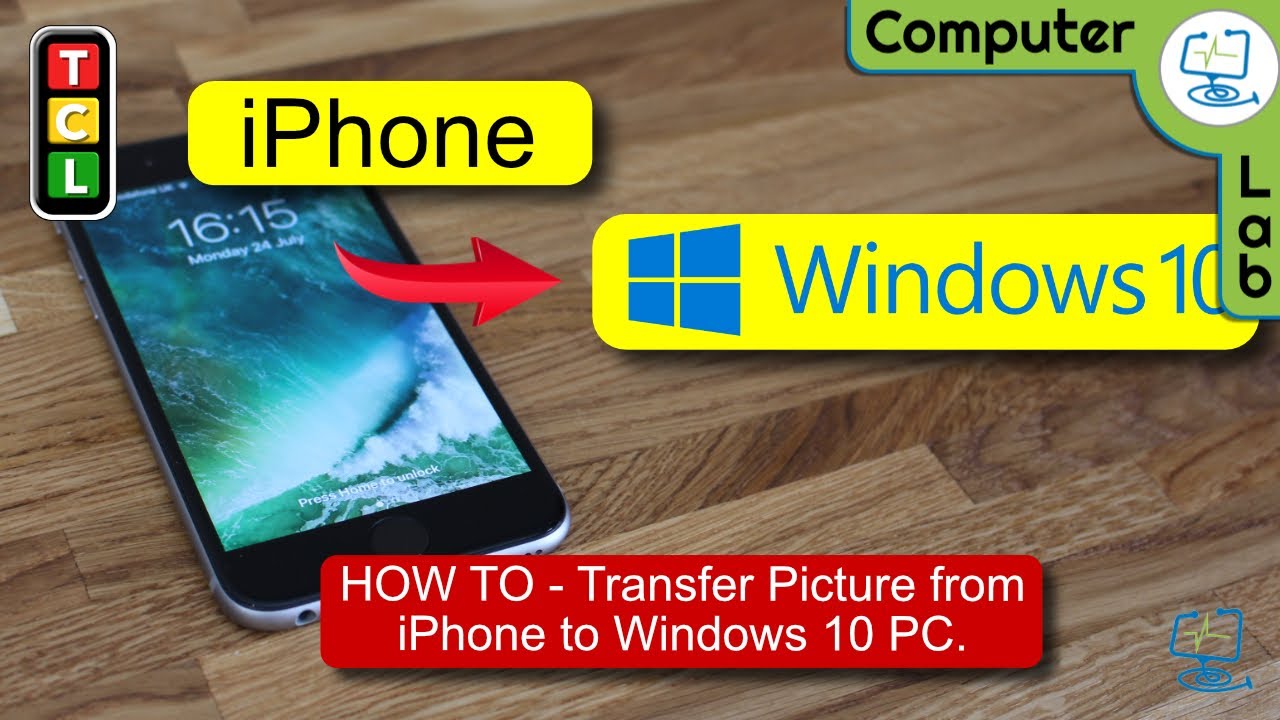
Vibrant How To Transfer Photos From Windows To Iphone Capture for Desktop
Experience the crisp clarity of this stunning how to transfer photos from windows to iphone image, available in high resolution for all your screens.

Vivid How To Transfer Photos From Windows To Iphone Background for Your Screen
Transform your screen with this vivid how to transfer photos from windows to iphone artwork, a true masterpiece of digital design.
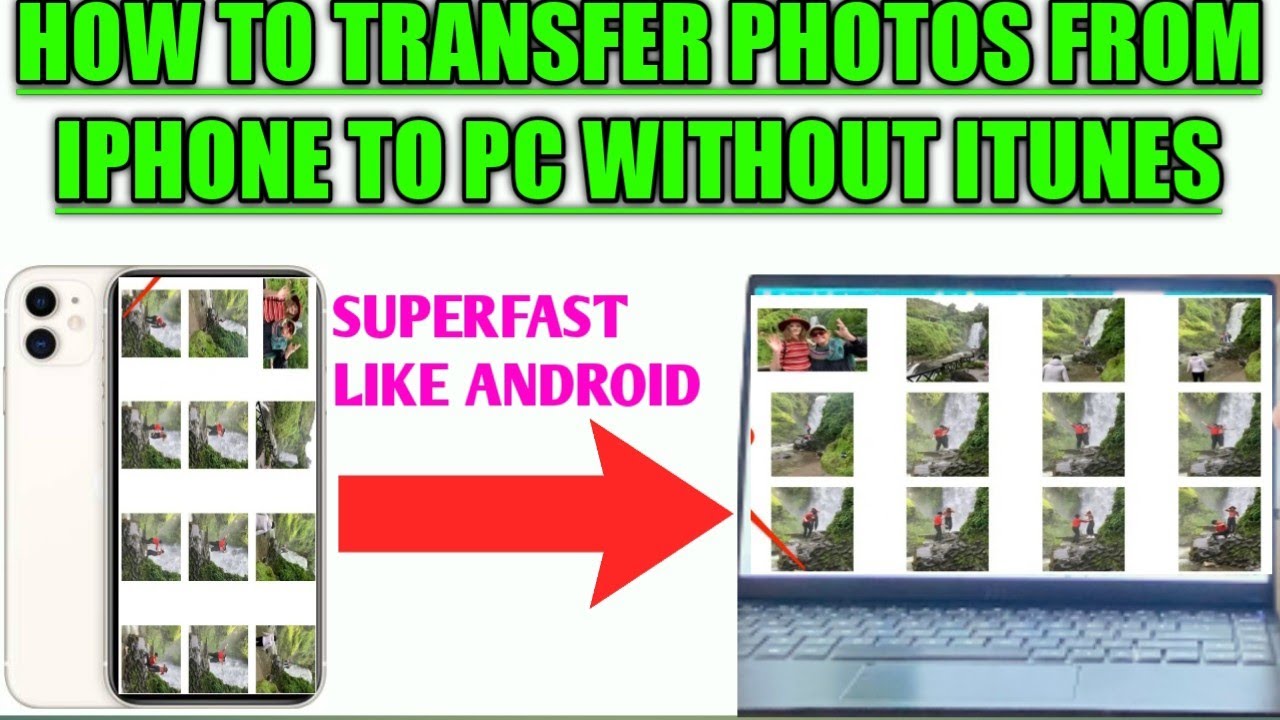
Spectacular How To Transfer Photos From Windows To Iphone Wallpaper for Mobile
Immerse yourself in the stunning details of this beautiful how to transfer photos from windows to iphone wallpaper, designed for a captivating visual experience.
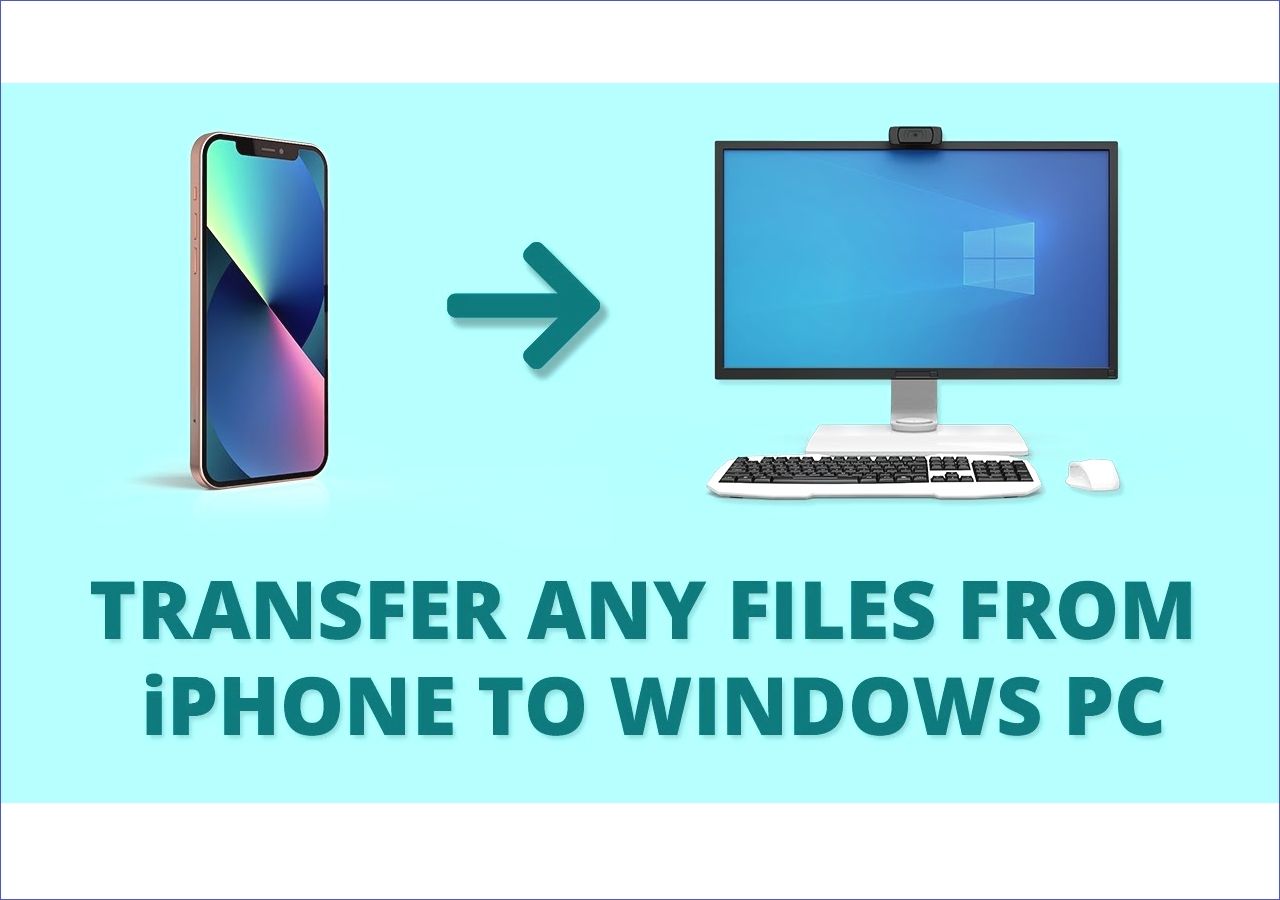
Amazing How To Transfer Photos From Windows To Iphone Photo Concept
Discover an amazing how to transfer photos from windows to iphone background image, ideal for personalizing your devices with vibrant colors and intricate designs.

Crisp How To Transfer Photos From Windows To Iphone Scene Photography
Immerse yourself in the stunning details of this beautiful how to transfer photos from windows to iphone wallpaper, designed for a captivating visual experience.
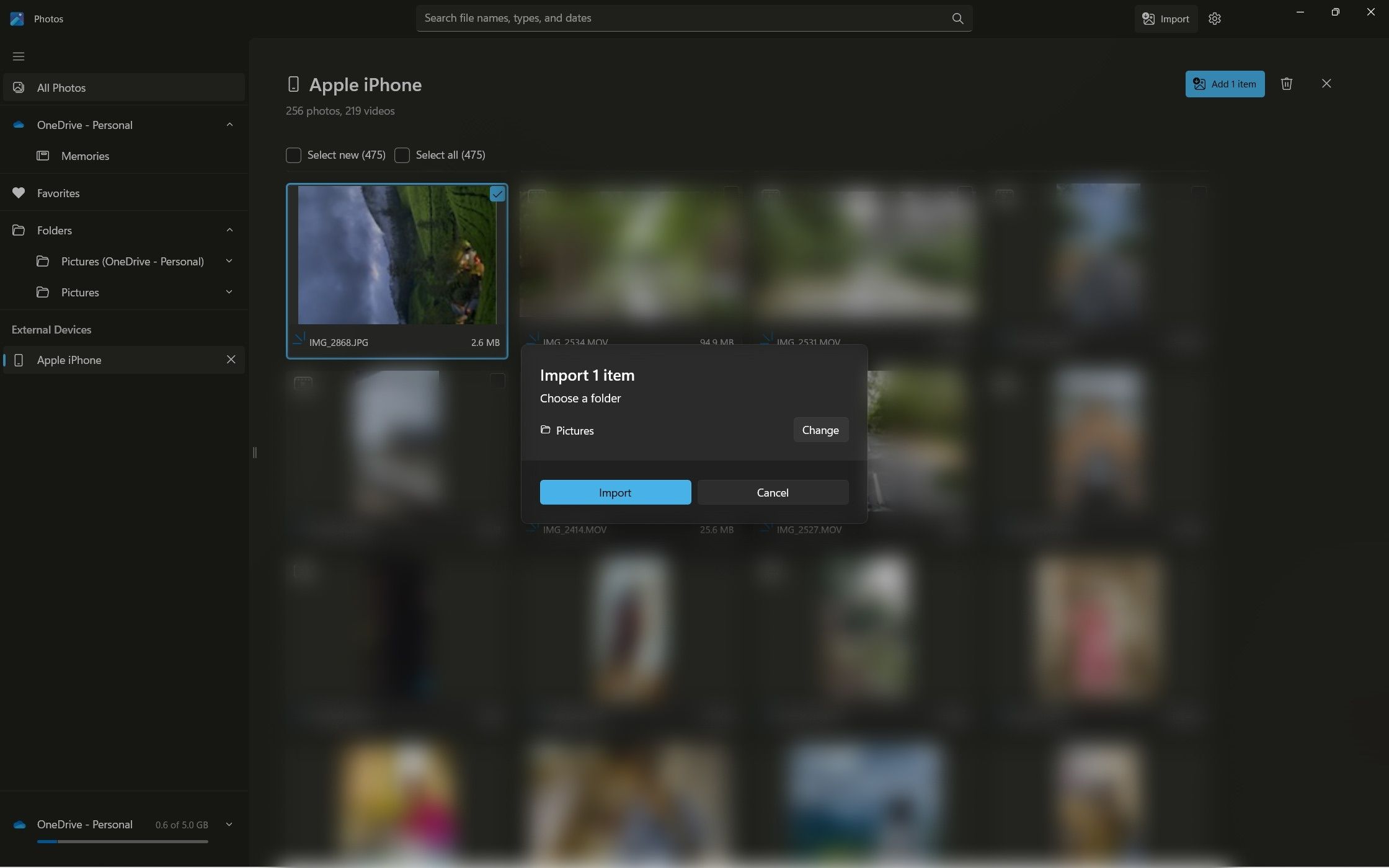
Beautiful How To Transfer Photos From Windows To Iphone Landscape Illustration
Transform your screen with this vivid how to transfer photos from windows to iphone artwork, a true masterpiece of digital design.

Detailed How To Transfer Photos From Windows To Iphone Capture Photography
Discover an amazing how to transfer photos from windows to iphone background image, ideal for personalizing your devices with vibrant colors and intricate designs.
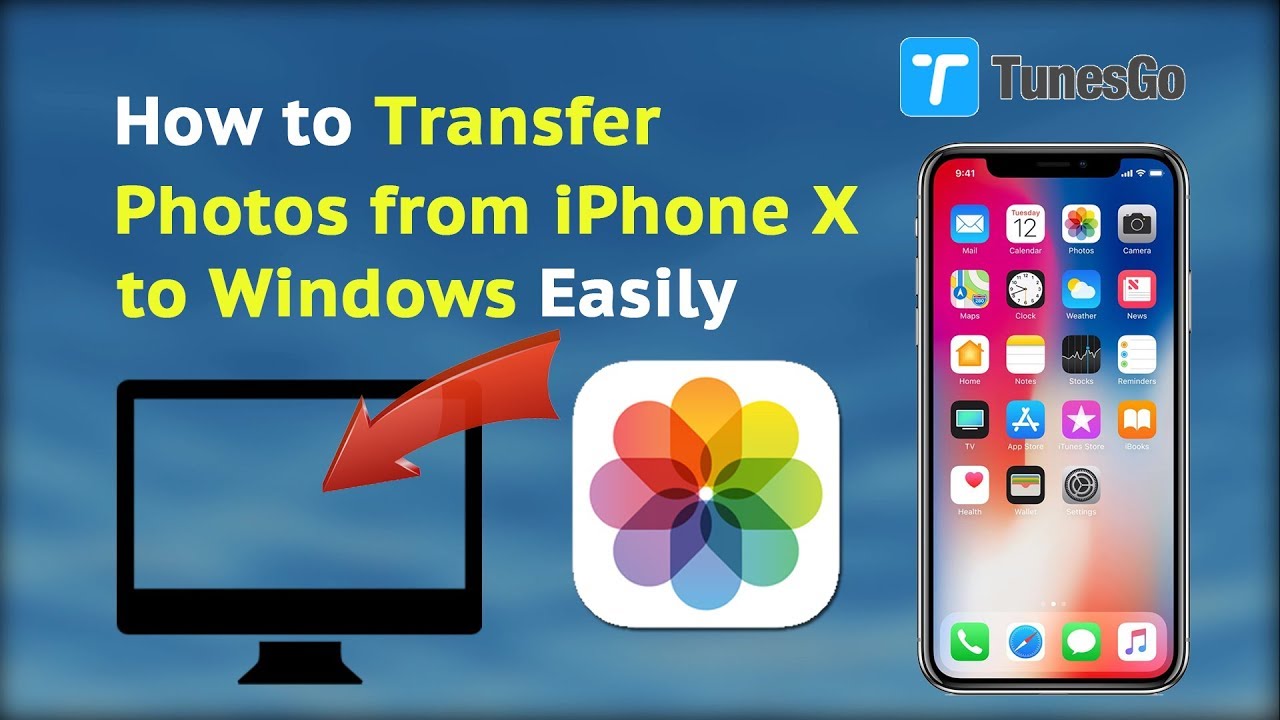
Vivid How To Transfer Photos From Windows To Iphone Wallpaper Concept
Discover an amazing how to transfer photos from windows to iphone background image, ideal for personalizing your devices with vibrant colors and intricate designs.

Spectacular How To Transfer Photos From Windows To Iphone Design for Mobile
A captivating how to transfer photos from windows to iphone scene that brings tranquility and beauty to any device.
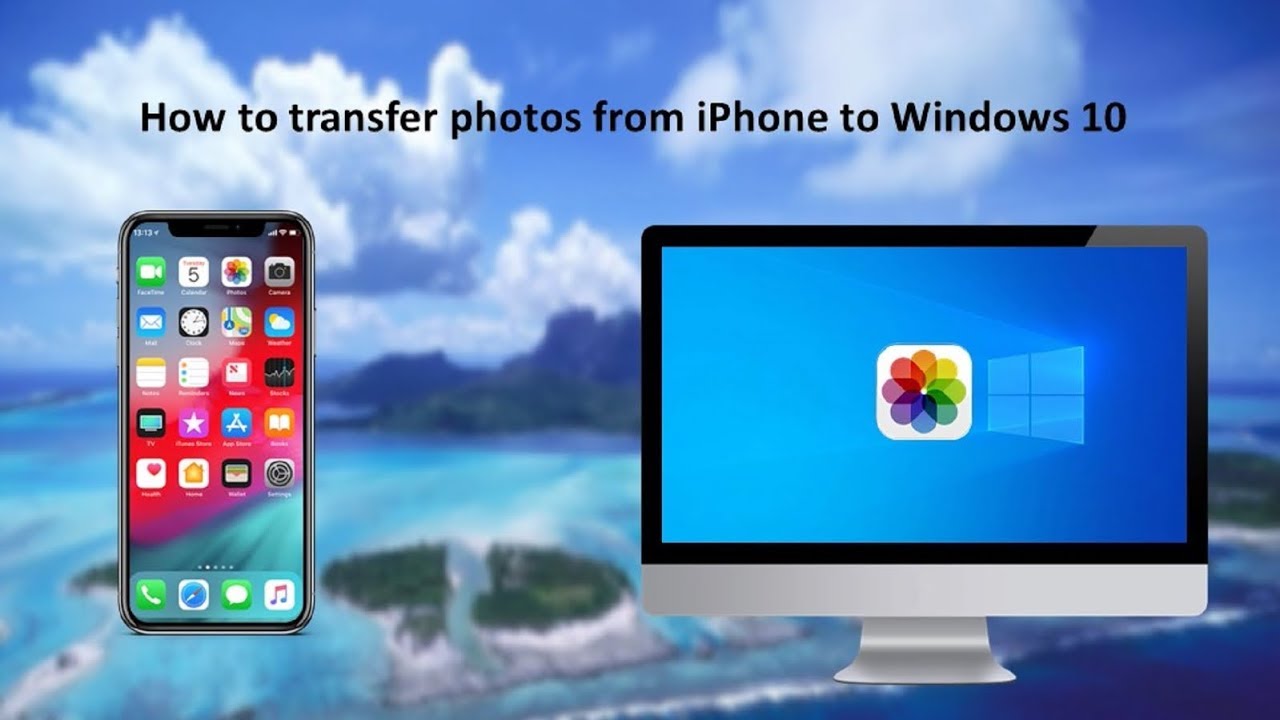
Amazing How To Transfer Photos From Windows To Iphone Design in HD
Discover an amazing how to transfer photos from windows to iphone background image, ideal for personalizing your devices with vibrant colors and intricate designs.

Amazing How To Transfer Photos From Windows To Iphone Scene Collection
Transform your screen with this vivid how to transfer photos from windows to iphone artwork, a true masterpiece of digital design.

Mesmerizing How To Transfer Photos From Windows To Iphone Artwork Nature
Explore this high-quality how to transfer photos from windows to iphone image, perfect for enhancing your desktop or mobile wallpaper.

High-Quality How To Transfer Photos From Windows To Iphone Wallpaper in HD
Transform your screen with this vivid how to transfer photos from windows to iphone artwork, a true masterpiece of digital design.

Crisp How To Transfer Photos From Windows To Iphone Artwork for Desktop
Find inspiration with this unique how to transfer photos from windows to iphone illustration, crafted to provide a fresh look for your background.

Captivating How To Transfer Photos From Windows To Iphone Moment for Desktop
Find inspiration with this unique how to transfer photos from windows to iphone illustration, crafted to provide a fresh look for your background.
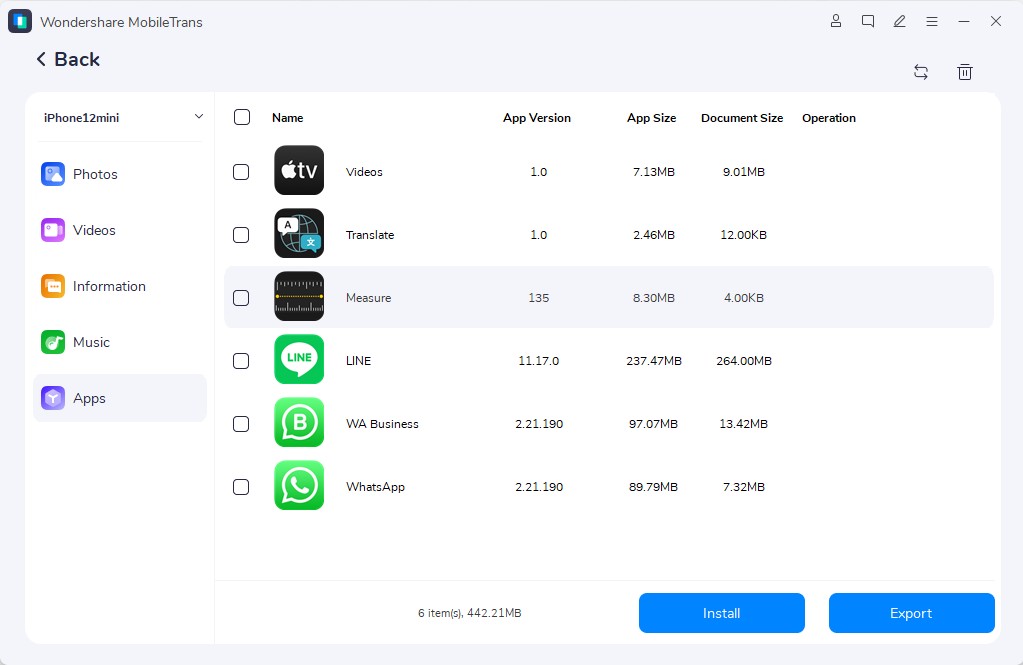
Gorgeous How To Transfer Photos From Windows To Iphone Design Collection
Find inspiration with this unique how to transfer photos from windows to iphone illustration, crafted to provide a fresh look for your background.
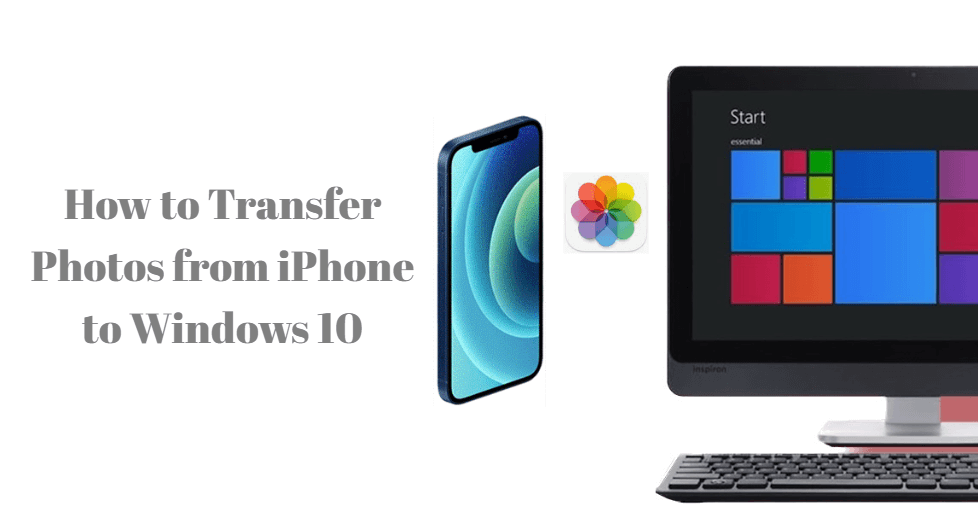
High-Quality How To Transfer Photos From Windows To Iphone Landscape in 4K
Experience the crisp clarity of this stunning how to transfer photos from windows to iphone image, available in high resolution for all your screens.

Crisp How To Transfer Photos From Windows To Iphone Background Concept
Immerse yourself in the stunning details of this beautiful how to transfer photos from windows to iphone wallpaper, designed for a captivating visual experience.
Captivating How To Transfer Photos From Windows To Iphone Landscape Photography
This gorgeous how to transfer photos from windows to iphone photo offers a breathtaking view, making it a perfect choice for your next wallpaper.
Download these how to transfer photos from windows to iphone wallpapers for free and use them on your desktop or mobile devices.