Are Your iPhone Payments a Mess? Here's How to Effortlessly Manage Payments on iPhone
In the digital age, your iPhone isn't just a communication device; it's a powerful pocket wallet. From tapping to pay for your morning coffee to subscribing to the latest streaming service, nearly all your transactions flow through this device. But sometimes, juggling multiple cards, updating expired details, or tracking down that recurring subscription can feel overwhelming.
This comprehensive guide is designed to empower you. We'll show you exactly how to cleanly and securely manage payments on iPhone, ensuring your financial life stays organized, fast, and protected. We're covering everything from Apple Pay to the nitty-gritty of App Store billing.
Ready to gain total control? Let's dive in.
Understanding the Ecosystem: Where Do iPhone Payments Live?
Before managing your methods, it's crucial to understand that your iPhone handles payments in two primary, yet separate, spheres:
1. Apple Wallet (Apple Pay)
This is where your physical debit and credit cards are digitized for secure, contactless purchases in stores, within apps, and on the web (using Safari). The Wallet app is focused purely on transactional speed and security, using technology called NFC (Near Field Communication).
2. Apple ID Payment Method
This is the primary method used for all purchases tied directly to your Apple account. This includes App Store purchases, iTunes movies, iCloud storage upgrades, and—most importantly—all recurring subscriptions (like Netflix, Spotify, or premium apps). This method is managed under your Settings app.
Managing your payments successfully requires addressing both areas. Often, users forget to update their Apple ID method after replacing a credit card, leading to annoying subscription hiccups.
Step-by-Step: How to Add, Edit, and Remove Cards in Apple Wallet
The Wallet app is your command center for Apple Pay. It's designed to be intuitive, but here are the exact steps for seamless management.
Adding a New Card
- Open the Wallet app on your iPhone.
- Tap the Plus (+) icon in the top-right corner.
- Select 'Debit or Credit Card'.
- Use your iPhone camera to automatically scan the card numbers, or tap 'Enter Card Details Manually'.
- Follow the verification steps required by your bank (this usually involves a text message or a call).
- Once approved, your card is ready for Apple Pay.
Remember that Apple Pay uses a unique, encrypted Device Account Number (tokenization), meaning your actual card number is never stored on the device or shared with the merchant. This is a massive security feature! Learn more about tokenization.
Setting a Default Payment Method
When you double-click the side button (or Home button) to activate Apple Pay, the first card presented is your default card. Changing it is simple:
- Go to Settings.
- Scroll down and tap Wallet & Apple Pay.
- Under the "Transaction Defaults" section, tap Default Card.
- Select the card you wish to use as your primary payment source.
Removing an Old Card
Did a card expire, or did you switch banks? Keeping old cards in your Wallet can lead to confusion. Here is the safest way to remove them:
- Open the Wallet app.
- Tap on the card you want to remove.
- Tap the three-dot menu (...) in the top-right corner.
- Scroll down and tap Remove Card.
- Confirm the action.
Pro Tip: Removing a card from the Wallet does *not* automatically update your Apple ID payment method. You must update that separately if you use that card for App Store purchases!
Taking Control of App Store and Subscription Payments
Managing the method tied to your Apple ID is critical for managing recurring charges. This method is the fallback for almost everything digital you purchase from Apple.
Viewing and Changing Your Primary App Store Payment
This is how you manage payments on iPhone for subscriptions and apps:
- Go to Settings.
- Tap your Name/Apple ID at the very top.
- Tap Payment & Shipping. (You may need to authenticate with Face ID or Passcode.)
- To change the primary card, tap the existing card, edit the details (like the expiration date), or tap Add Payment Method to input a new one.
- To remove an old payment method, tap Edit and then tap the red minus sign next to the method you want to delete.
If you rely heavily on your family's payment methods, ensure you understand the rules of Family Sharing. [Baca Juga: Understanding Apple Family Sharing Payment Rules]
Managing Recurring Subscriptions
A failed payment often means a canceled subscription. Regularly checking your active subscriptions prevents unexpected charges or service interruptions.
- Go to Settings, tap your Name/Apple ID.
- Tap Subscriptions.
- Here you will see all Active and Expired subscriptions billed through Apple.
- Tap on any subscription to view the renewal date, change the subscription tier, or tap Cancel Subscription.
Even if you download an app like Hulu or Netflix from the App Store, if you subscribe directly through their website, that charge will *not* show up in this Apple Subscriptions list. You must manage those payments directly on the service provider's site.
Boosting Security: Tips for Managing Payments Safely
Security is the cornerstone of trust (T in E-E-A-T). The beauty of using Apple Pay is the security tokenization, but user errors are still the biggest threat. Here's how to minimize risk:
- Enable Two-Factor Authentication (2FA): This is non-negotiable for your Apple ID. It ensures that even if someone steals your password, they cannot access your Payment & Shipping information without access to one of your trusted devices.
- Use Strong Passcodes/Biometrics: Ensure Face ID or Touch ID is enabled for purchases and for accessing your Wallet.
- Monitor Purchase History: Regularly check your email for receipts from Apple, and check your bank statements. Quick detection is key to preventing fraudulent charges from snowballing. For detailed history, you can access past purchases in the App Store app under your profile.
- Limit Card Use: Only keep the cards you actively use in your Wallet. Removing unused cards reduces the attack surface if your phone were ever compromised.
For official guidance on secure digital payment practices, always refer to reputable financial regulators. The Consumer Financial Protection Bureau offers excellent resources on digital wallet security.
Quick Reference: Apple Wallet vs. Apple ID Payment Methods
To summarize the difference, this table breaks down the function and location of your two main iPhone payment centers.
| Payment System | Primary Use | Management Location | Security Feature |
|---|---|---|---|
| Apple Wallet (Apple Pay) | In-store contactless payments, supported apps/websites. | Wallet App & Settings > Wallet & Apple Pay. | Tokenization (no actual card number shared). |
| Apple ID Payment Method | App Store purchases, iTunes, iCloud storage, recurring Apple-billed subscriptions. | Settings > [Your Name] > Payment & Shipping. | Managed by Apple ID 2FA security. |
[Baca Juga: Ultimate Guide to Setting Up and Using Apple Cash]
Conclusion: Mastering Your Financial Flow
Learning how to effectively manage payments on iPhone is a key step toward digital financial maturity. By routinely checking both your Apple Wallet and your Apple ID Payment & Shipping settings, you ensure that every transaction—from a quick tap-to-pay to a monthly subscription renewal—runs smoothly and securely. Take the time today to clean up any expired cards and double-check those recurring charges. Your future self (and your bank account) will thank you.
Frequently Asked Questions (FAQ)
Why did my card decline for an App Store purchase but work fine with Apple Pay?
This is a very common issue! Apple Pay uses the Apple Wallet card, but App Store purchases and subscriptions pull from your Apple ID Payment Method list. If the App Store card is expired, the purchase will fail even if your Wallet card is current. You must update the card in Settings > [Your Name] > Payment & Shipping.
Can I use PayPal as my Apple ID payment method?
Yes, Apple supports various payment types, including PayPal, for your Apple ID purchases (App Store, subscriptions, etc.). You can add it via the Payment & Shipping settings.
How do I know which apps are charging me monthly?
All subscriptions billed directly through Apple are listed in Settings > [Your Name] > Subscriptions. If the charge isn't there, it means the app is billing you directly (via a credit card you provided outside of Apple's system), and you must manage it through their specific app or website.
Is Apple Pay truly more secure than using my physical card?
Generally, yes. Since Apple Pay uses tokenization—replacing your actual card number with a unique Device Account Number—merchants never receive your sensitive data. If a merchant's system is hacked, your actual card information remains secure. The Federal Reserve acknowledges this cryptographic security advantage.
Parent Monitor Text Messages Iphone
Parent Monitor Text Messages Iphone Wallpapers
Collection of parent monitor text messages iphone wallpapers for your desktop and mobile devices.
Crisp Parent Monitor Text Messages Iphone Design Illustration
This gorgeous parent monitor text messages iphone photo offers a breathtaking view, making it a perfect choice for your next wallpaper.
Artistic Parent Monitor Text Messages Iphone Photo for Your Screen
A captivating parent monitor text messages iphone scene that brings tranquility and beauty to any device.
Lush Parent Monitor Text Messages Iphone Scene Digital Art
Find inspiration with this unique parent monitor text messages iphone illustration, crafted to provide a fresh look for your background.
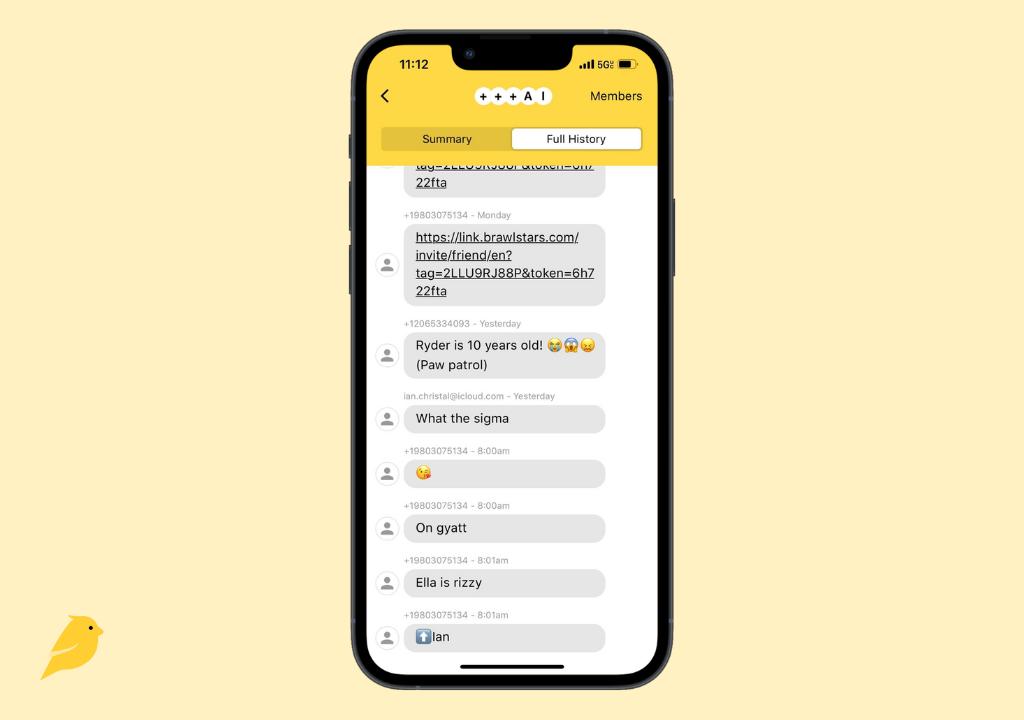
Breathtaking Parent Monitor Text Messages Iphone Scene for Mobile
Experience the crisp clarity of this stunning parent monitor text messages iphone image, available in high resolution for all your screens.

Breathtaking Parent Monitor Text Messages Iphone Picture Collection
Discover an amazing parent monitor text messages iphone background image, ideal for personalizing your devices with vibrant colors and intricate designs.

Stunning Parent Monitor Text Messages Iphone Abstract Illustration
Immerse yourself in the stunning details of this beautiful parent monitor text messages iphone wallpaper, designed for a captivating visual experience.
Gorgeous Parent Monitor Text Messages Iphone Scene Concept
Find inspiration with this unique parent monitor text messages iphone illustration, crafted to provide a fresh look for your background.
Detailed Parent Monitor Text Messages Iphone Scene Digital Art
Experience the crisp clarity of this stunning parent monitor text messages iphone image, available in high resolution for all your screens.

High-Quality Parent Monitor Text Messages Iphone View Photography
Transform your screen with this vivid parent monitor text messages iphone artwork, a true masterpiece of digital design.
Vibrant Parent Monitor Text Messages Iphone Wallpaper in 4K
Discover an amazing parent monitor text messages iphone background image, ideal for personalizing your devices with vibrant colors and intricate designs.
Lush Parent Monitor Text Messages Iphone Artwork Photography
A captivating parent monitor text messages iphone scene that brings tranquility and beauty to any device.
Crisp Parent Monitor Text Messages Iphone Artwork for Mobile
Find inspiration with this unique parent monitor text messages iphone illustration, crafted to provide a fresh look for your background.

Serene Parent Monitor Text Messages Iphone View Collection
Experience the crisp clarity of this stunning parent monitor text messages iphone image, available in high resolution for all your screens.
High-Quality Parent Monitor Text Messages Iphone Capture in HD
Transform your screen with this vivid parent monitor text messages iphone artwork, a true masterpiece of digital design.

Lush Parent Monitor Text Messages Iphone Abstract Art
Find inspiration with this unique parent monitor text messages iphone illustration, crafted to provide a fresh look for your background.

Exquisite Parent Monitor Text Messages Iphone Picture Collection
This gorgeous parent monitor text messages iphone photo offers a breathtaking view, making it a perfect choice for your next wallpaper.
Stunning Parent Monitor Text Messages Iphone Abstract for Desktop
Find inspiration with this unique parent monitor text messages iphone illustration, crafted to provide a fresh look for your background.

Serene Parent Monitor Text Messages Iphone Photo Collection
Transform your screen with this vivid parent monitor text messages iphone artwork, a true masterpiece of digital design.
Mesmerizing Parent Monitor Text Messages Iphone Image Art
Experience the crisp clarity of this stunning parent monitor text messages iphone image, available in high resolution for all your screens.

Vibrant Parent Monitor Text Messages Iphone Design for Your Screen
Discover an amazing parent monitor text messages iphone background image, ideal for personalizing your devices with vibrant colors and intricate d