Stop Missing Texts: The Ultimate Guide on How To Sync iPhone Text Messages To Mac
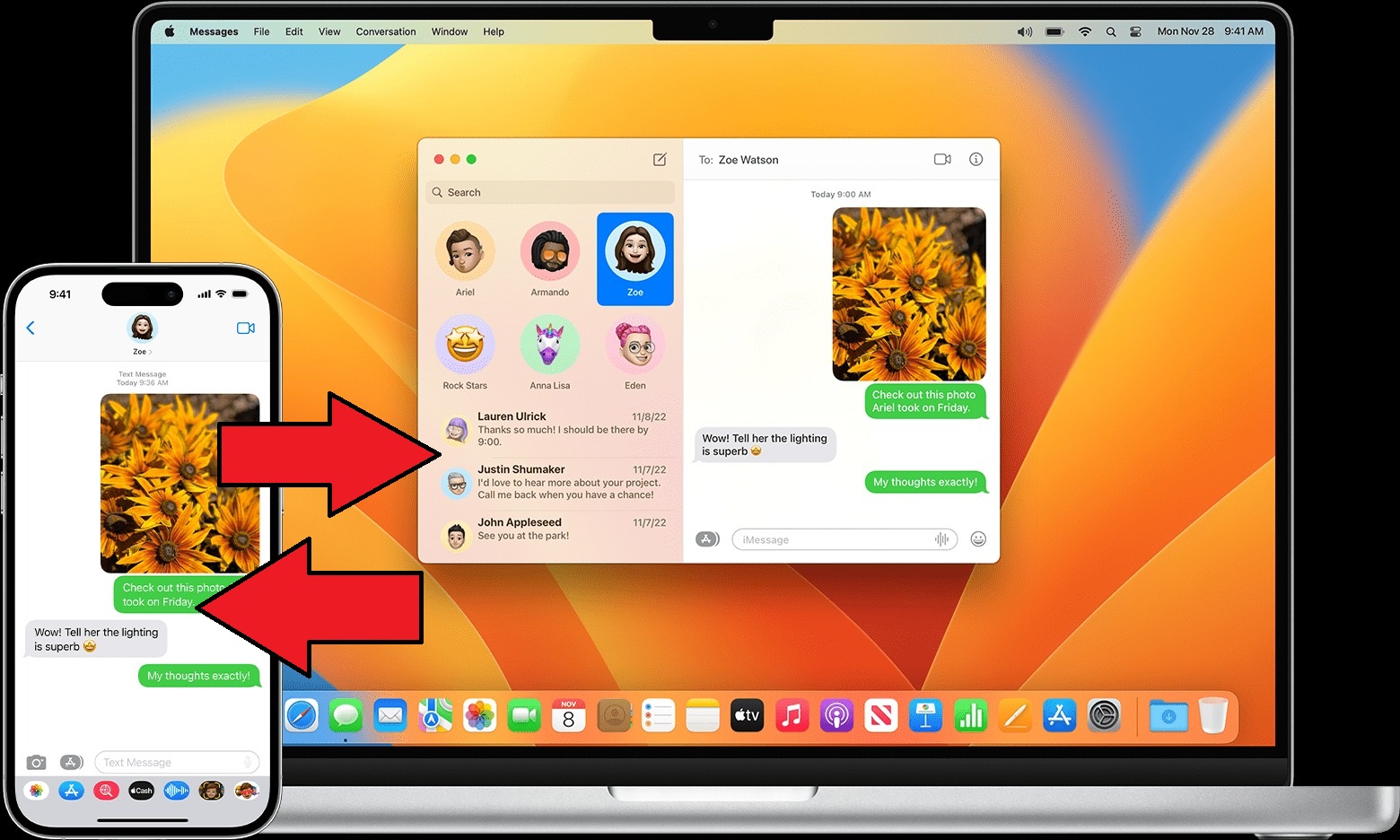
There are few things more frustrating than being chained to your iPhone just to reply to a simple text message while you're deep in concentration on your Mac. Fortunately, Apple built an entire ecosystem feature—dubbed "Continuity"—specifically to solve this modern problem.
If you've been struggling to figure out exactly how to sync iPhone Text Messages to Mac, you've come to the right place. This isn't just about iMessages (the blue bubbles); we'll cover how to get those crucial green-bubble SMS messages flowing seamlessly across your desktop, ensuring you maintain a clean, uninterrupted workflow. Let's dive deep.
The Foundation: Checking Prerequisites & Essential Settings
Before we jump into the sync process, we need to ensure your devices are speaking the same language. Most syncing problems arise because one of these fundamental prerequisites is missed. Think of this as the essential checklist before takeoff.
The entire Continuity system hinges on your Apple ID. If your iPhone is logged into 'appleid_A' and your Mac is logged into 'appleid_B', nothing will work.
Checklist 1: Apple ID and OS Compatibility
First, verify these simple steps:
- **Same Apple ID:** Ensure both your iPhone and your Mac are signed into the exact same Apple ID for both iMessage and iCloud.
- **Minimum OS Requirements:** Your Mac needs to be running OS X Yosemite (10.10) or later, and your iPhone needs iOS 8.1 or later. If you're running anything recent (Mojave, Ventura, or Sonoma), you're definitely covered, but it's always smart to keep everything updated.
- **Network:** Both devices must be connected to the same Wi-Fi network. While they don't *always* need to be on the same network for iMessage syncing (which uses iCloud), they absolutely do for the crucial SMS forwarding feature (more on that later).
If all these basic checks pass, you are ready to move on to the core synchronization setup.
Step-by-Step Guide: Syncing Your iMessage Conversations
iMessages (the blue bubbles) are the easiest part of the process because they rely heavily on your Apple ID and iCloud services. When someone sends an iMessage, it hits Apple's server and then broadcasts to every device associated with your Apple ID.
Setup on iPhone: Activating iMessage and Send & Receive
On your iPhone, we need to confirm which numbers and emails are active for messaging:
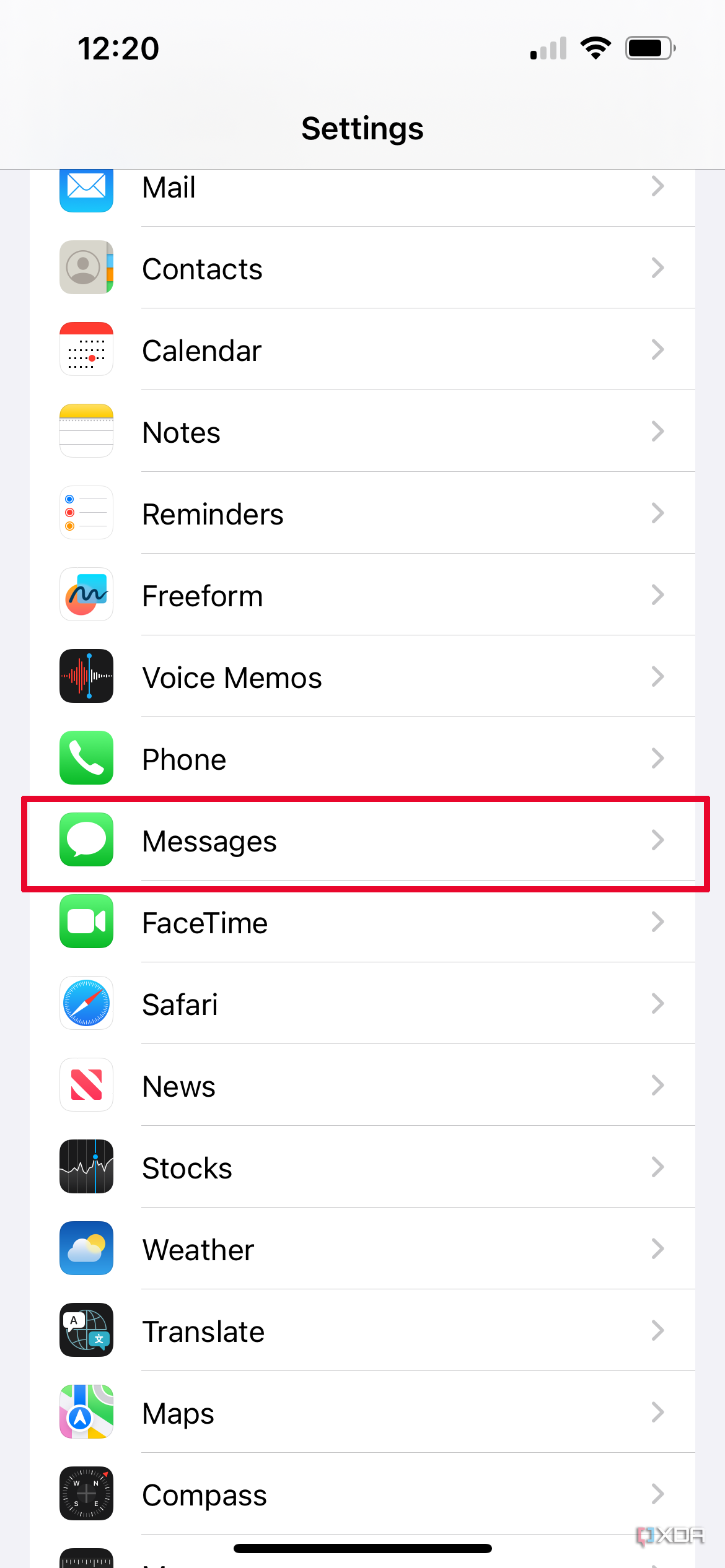
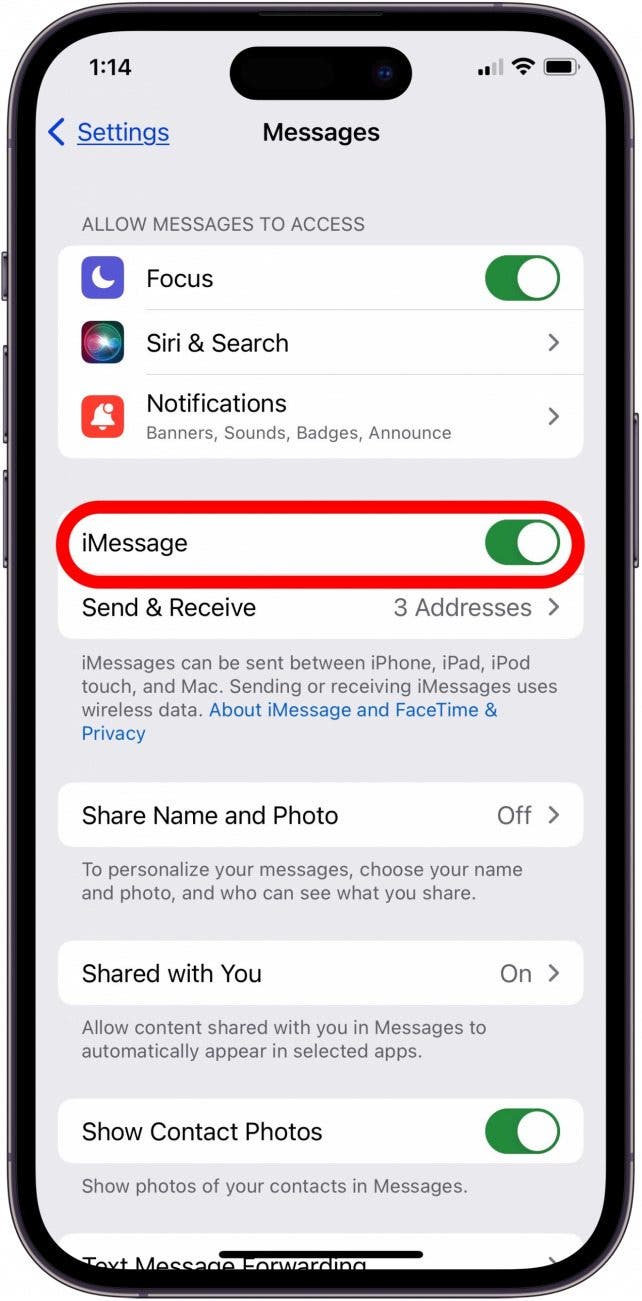
- Go to **Settings** > **Messages**.
- Tap on **Send & Receive**.
- Under the section labeled "YOU CAN RECEIVE IMESSAGES TO AND REPLY FROM," ensure that your phone number and your primary Apple ID email address are both checked.
- Crucially, scroll down and verify the email and number listed under "START NEW CONVERSATIONS FROM." Typically, you want your phone number selected here, as that is your primary identity.
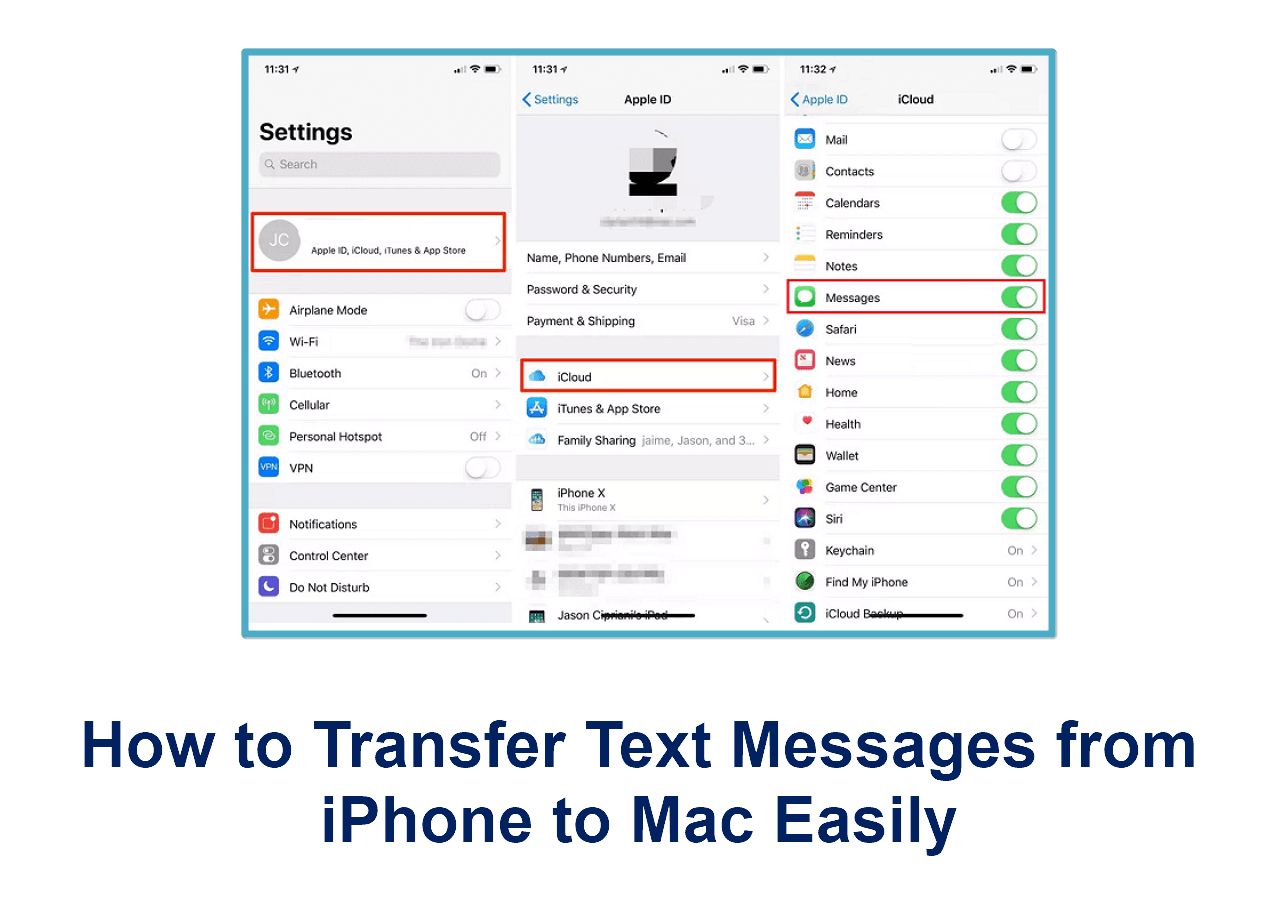
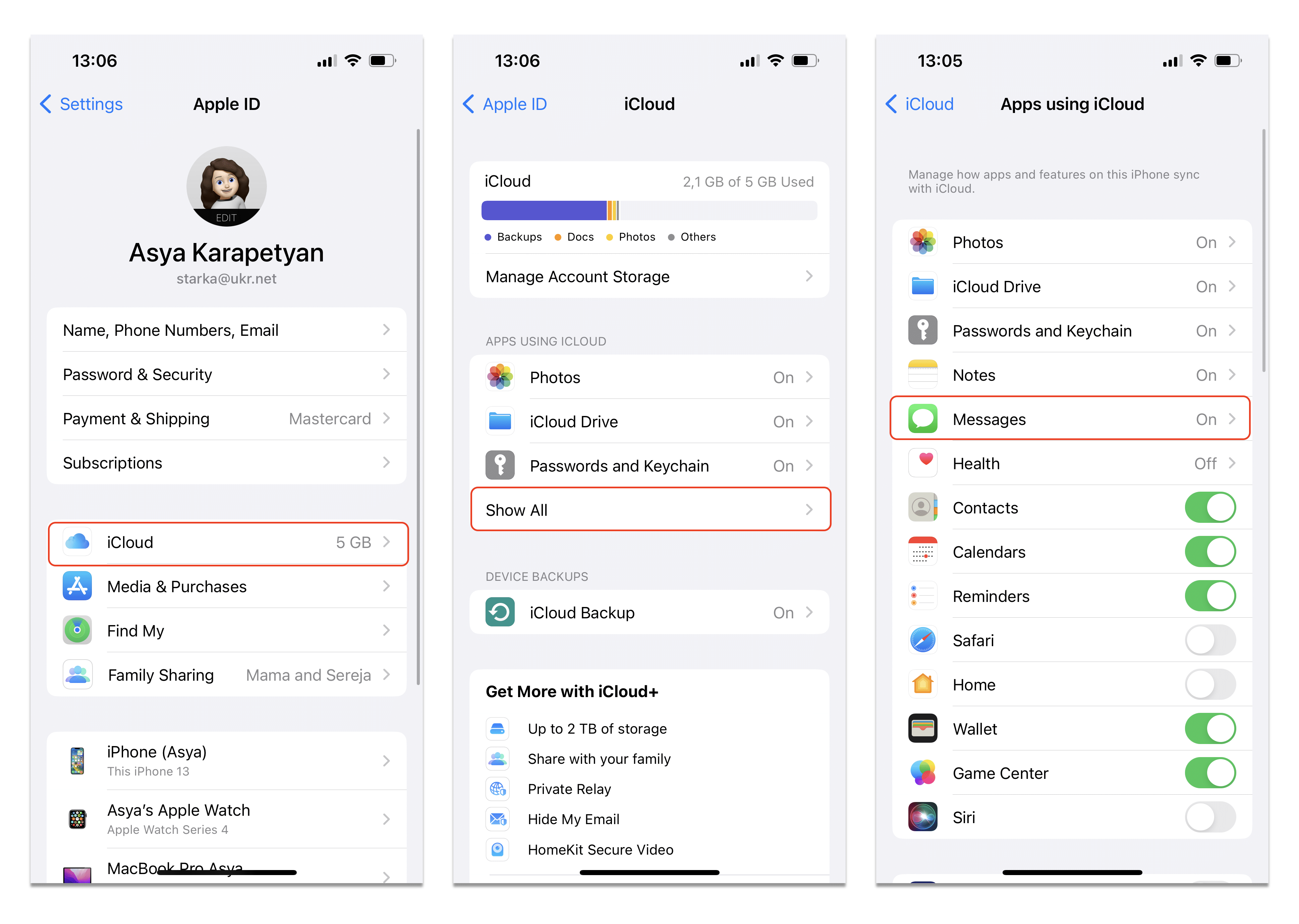
For more seamless data management, especially with older messages, you should also ensure **Messages in iCloud** is turned on. Go back to **Settings > [Your Name/Apple ID] > iCloud > Messages**. Toggle this switch ON. This ensures your message history syncs across all devices, rather than just new messages.
If you need deeper insight into how iCloud manages your data, you can consult this resource on data security: Apple Support: About security and privacy.
Setup on Mac: Confirming Your Messages App Identity
Now, let's configure your Mac:
- Open the **Messages** application on your Mac.
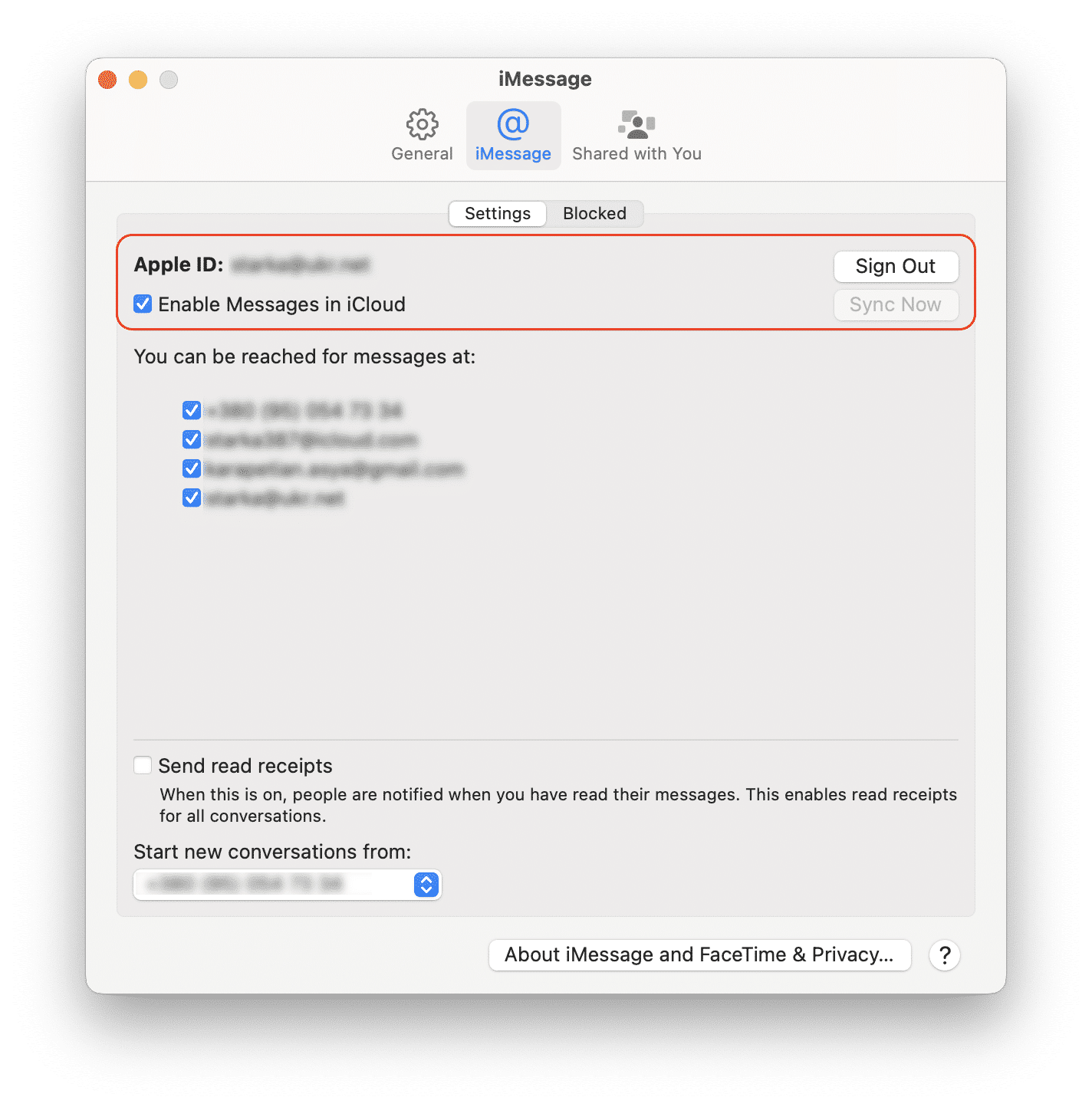
- In the menu bar, click **Messages** > **Settings** (or Preferences, depending on your OS version).
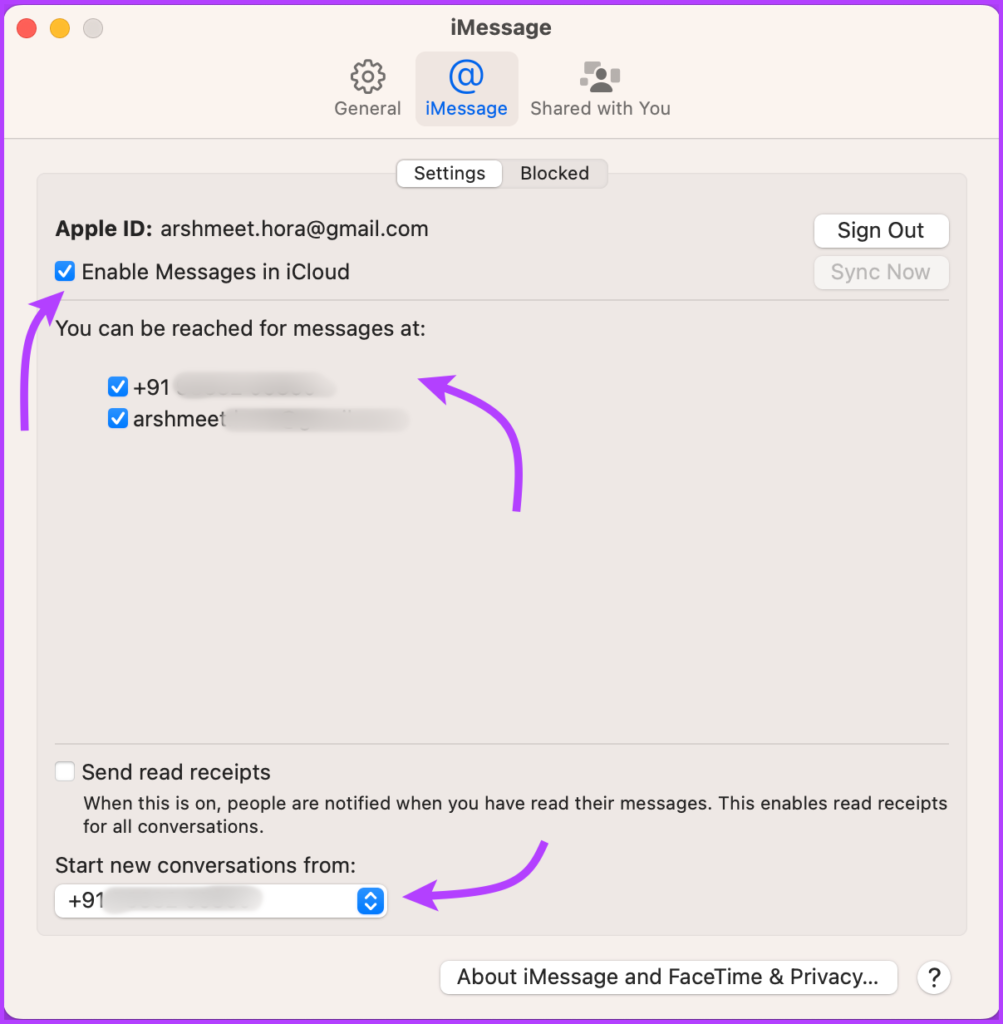
- Click the **iMessage** tab.
- Verify that your Apple ID is signed in.
- Similar to the iPhone, check the boxes next to the phone number and email addresses you want to use under "You can be reached for messages at." These should mirror the list you checked on your iPhone.
- Confirm the correct phone number or email is selected in the "Start new conversations from" dropdown.
After completing these steps, your blue-bubble iMessages should instantly start syncing between devices. But what about everyone who doesn't use an iPhone?
[Baca Juga: Mastering iCloud Backup Management]
Bridging the Gap: Enabling SMS/MMS Text Message Forwarding
This is where many users stumble. Syncing standard SMS/MMS messages (the green bubbles) requires an extra step, known as Text Message Forwarding. Unlike iMessages, which use Apple's servers, SMS messages are delivered via your cellular carrier. Your Mac can't access your carrier directly; it needs your iPhone to act as a secure relay.
For this feature to work, your iPhone must be powered on, signed into iMessage, and connected to the same Wi-Fi network as your Mac (or at least nearby via Bluetooth and Continuity capabilities).
The SMS Forwarding Switch (The Crucial Step)
This setting must be activated on your iPhone:
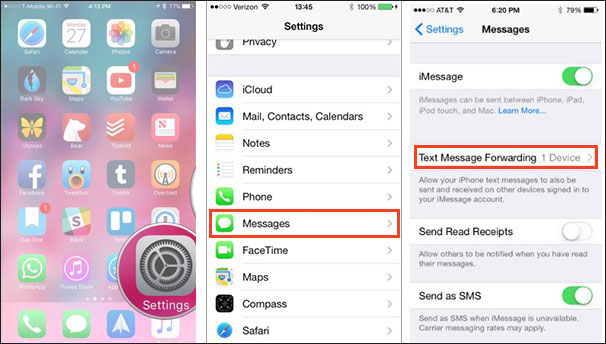
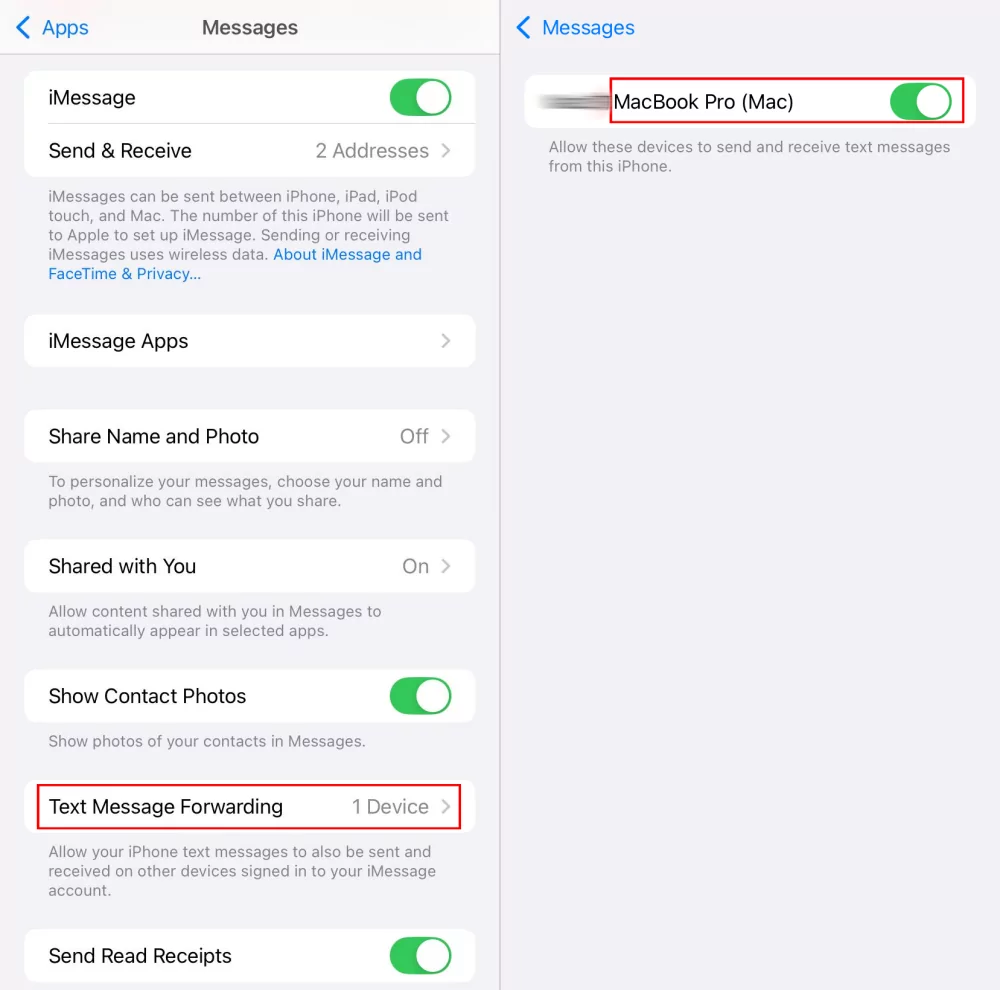
- On your iPhone, go to **Settings** > **Messages**.
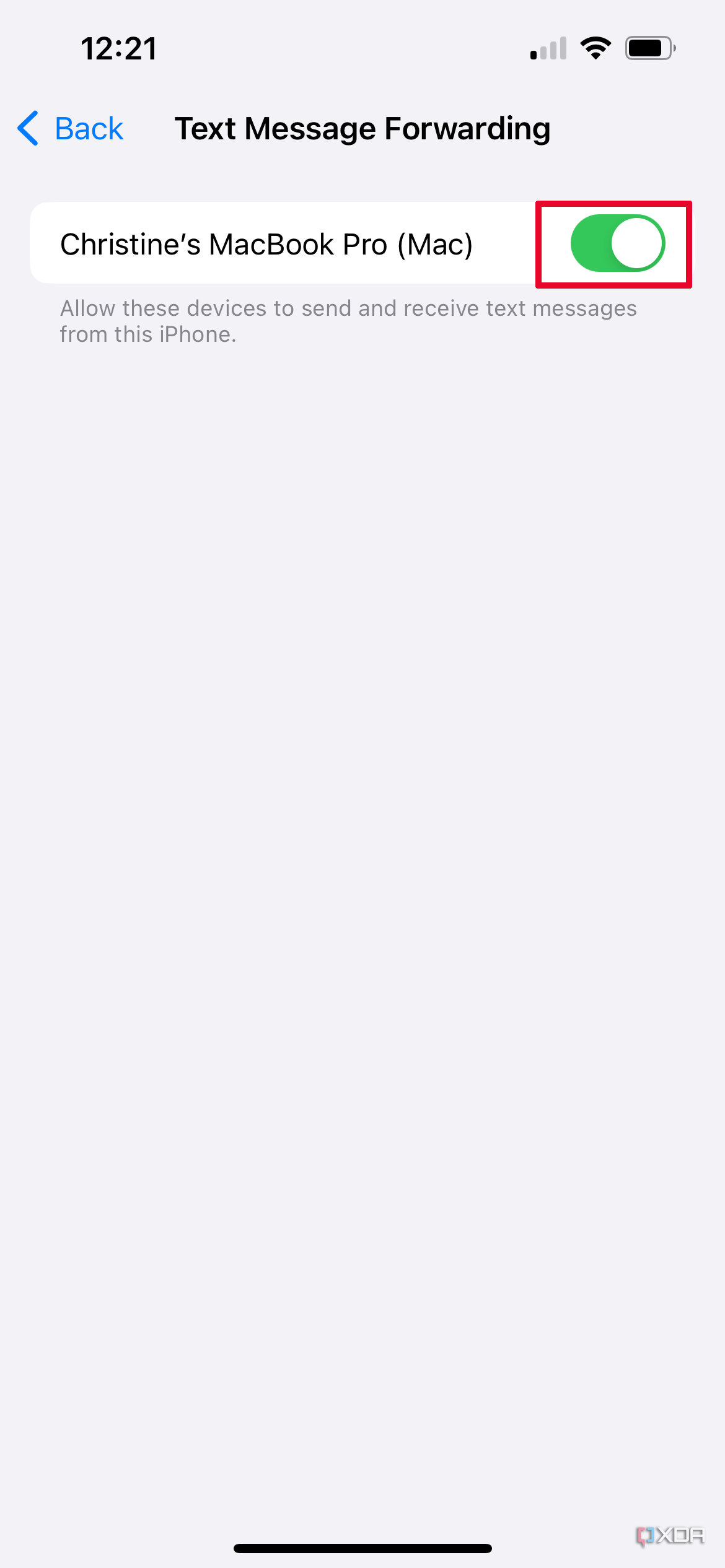
- Tap on **Text Message Forwarding**.
- You should see a list of devices (iPads, Macs) associated with your Apple ID. Find your Mac's name and toggle the switch ON.
- **Verification Code:** A security popup will likely appear on your Mac displaying a unique 6-digit code. You must input this code back into the popup on your iPhone to finalize the link.
Once verified, your Mac is now authenticated to send and receive standard text messages relayed through your iPhone's cellular connection. This means you can finally reply to those pesky customer service texts or Android friends right from your desktop.
Troubleshooting Common Sync Issues (E-E-A-T Focus)
Even after following the steps, sometimes the sync just refuses to cooperate. Here are the most common culprits and how Senior SEO Content Writers recommend you fix them, adding value beyond the basic instructions.
The primary reason for failure often relates to the Apple ID login state, which can sometimes appear fine on the surface but be corrupted in the background. If one device isn't syncing, try the nuclear option below.
Advanced Fixes for Stubborn Syncing
- **Toggle iMessage Off/On:** On both your iPhone (Settings > Messages) and Mac (Messages > Settings > iMessage), toggle the "iMessage" switch OFF, wait 30 seconds, and turn it back ON. This forces a fresh authentication with Apple's servers.
- **Sign Out and Back In:** The definitive fix. Completely sign out of your Apple ID in the Messages app on your Mac. Restart the Mac, and then sign back in. Do the same on your iPhone if necessary, but start with the Mac first.
- **Check Date and Time:** Believe it or not, if your Mac or iPhone has an incorrect date and time setting, security certificates can fail, blocking communication. Ensure both devices are set to "Set Automatically." For deeper technical context on device trust, see this technical paper: IEEE Xplore: Device Authentication and Trust in IoT.
[Baca Juga: Troubleshooting Advanced Continuity Issues]
Settings Comparison Checklist: iPhone vs. Mac
Use this quick-reference table to ensure your settings are properly mirrored on both devices, which is critical for a smooth sync experience.
| Setting/Feature | iPhone Requirement | Mac Requirement | Sync Dependency |
|---|---|---|---|
| Apple ID | Must be signed in (iCloud & Messages) | Must be signed in (Messages) | ALL Sync (iMessage & SMS) |
| Messages in iCloud | ON (Settings > iCloud > Messages) | ON (Messages Settings > iMessage Tab) | Message History Sync |
| Text Message Forwarding | Enabled for the specific Mac device | Device must be listed on iPhone | SMS/MMS (Green Bubbles) |
If you've checked every box above, your text messages should now be flowing freely across your ecosystem, allowing you to maintain peak productivity without constantly glancing at your pocket.
Conclusion: Achieving True Continuity
Mastering how to sync iPhone Text Messages to Mac transforms your Apple ecosystem from two separate devices into one unified productivity machine. The key takeaway is recognizing the difference between syncing iMessages (which use iCloud) and syncing SMS/MMS (which require the specific "Text Message Forwarding" relay).
By ensuring all devices share the same Apple ID, maintain current OS versions, and have the crucial forwarding switch activated, you secure a truly continuous experience. Happy texting!
Frequently Asked Questions (FAQ)
Here are some quick answers to the most common questions about syncing text messages to Mac.
- **Does syncing messages use my cellular data plan?**
iMessages (blue bubbles) primarily use Wi-Fi or cellular data for transmission, but they transmit via Apple's servers. SMS messages (green bubbles) are sent using your iPhone's cellular service, but the forwarding signal between your iPhone and Mac uses local Wi-Fi, not your data plan, assuming they are connected to the same network.
- **Why are my old text messages not appearing on my Mac?**
This usually happens if you did not enable "Messages in iCloud." Messages in iCloud is required to pull historical message data from the cloud and load it onto new or newly authenticated devices. If it was off, only messages received *after* you enabled the Mac sync will appear.
- **Do I need my iPhone nearby for the Mac to receive messages?**
For iMessages, no. As long as your Mac is connected to the internet, it will receive iMessages directly from Apple's servers. However, for SMS/MMS (green bubbles), **yes, your iPhone must be powered on and relatively close to your Mac** (within Wi-Fi or Bluetooth range) to relay the message.
- **What if I don't see the 'Text Message Forwarding' option on my iPhone?**
This typically means that iMessage itself is not properly activated or signed in on the Mac. Go back and ensure your Mac's Messages app is signed in with the correct Apple ID and that iMessage is toggled ON. Sometimes, restarting your iPhone after confirming the Mac sign-in resolves this.
- **Can I stop certain conversations from syncing to my Mac?**
No, not directly through settings. Once Text Message Forwarding or Messages in iCloud is enabled, all conversations associated with your primary number/email will sync. To prevent a specific conversation from appearing, you would need to delete or hide it on the iPhone, or sign out of your Mac entirely.
How To Sync Iphone Text Messages To Mac
How To Sync Iphone Text Messages To Mac Wallpapers
Collection of how to sync iphone text messages to mac wallpapers for your desktop and mobile devices.
Stunning How To Sync Iphone Text Messages To Mac Moment in HD
Immerse yourself in the stunning details of this beautiful how to sync iphone text messages to mac wallpaper, designed for a captivating visual experience.
Lush How To Sync Iphone Text Messages To Mac Image Concept
Immerse yourself in the stunning details of this beautiful how to sync iphone text messages to mac wallpaper, designed for a captivating visual experience.

Amazing How To Sync Iphone Text Messages To Mac Wallpaper for Desktop
Explore this high-quality how to sync iphone text messages to mac image, perfect for enhancing your desktop or mobile wallpaper.
Gorgeous How To Sync Iphone Text Messages To Mac Image for Mobile
A captivating how to sync iphone text messages to mac scene that brings tranquility and beauty to any device.
Gorgeous How To Sync Iphone Text Messages To Mac Background in 4K
A captivating how to sync iphone text messages to mac scene that brings tranquility and beauty to any device.

Dynamic How To Sync Iphone Text Messages To Mac Abstract for Mobile
Immerse yourself in the stunning details of this beautiful how to sync iphone text messages to mac wallpaper, designed for a captivating visual experience.
Lush How To Sync Iphone Text Messages To Mac View Concept
This gorgeous how to sync iphone text messages to mac photo offers a breathtaking view, making it a perfect choice for your next wallpaper.
Stunning How To Sync Iphone Text Messages To Mac Abstract for Your Screen
Find inspiration with this unique how to sync iphone text messages to mac illustration, crafted to provide a fresh look for your background.
Mesmerizing How To Sync Iphone Text Messages To Mac Picture Concept
Discover an amazing how to sync iphone text messages to mac background image, ideal for personalizing your devices with vibrant colors and intricate designs.
Vivid How To Sync Iphone Text Messages To Mac Landscape in 4K
Explore this high-quality how to sync iphone text messages to mac image, perfect for enhancing your desktop or mobile wallpaper.
Dynamic How To Sync Iphone Text Messages To Mac Scene Nature
This gorgeous how to sync iphone text messages to mac photo offers a breathtaking view, making it a perfect choice for your next wallpaper.
Dynamic How To Sync Iphone Text Messages To Mac Picture for Your Screen
Find inspiration with this unique how to sync iphone text messages to mac illustration, crafted to provide a fresh look for your background.

Lush How To Sync Iphone Text Messages To Mac Design Illustration
A captivating how to sync iphone text messages to mac scene that brings tranquility and beauty to any device.
Vivid How To Sync Iphone Text Messages To Mac Landscape Photography
Transform your screen with this vivid how to sync iphone text messages to mac artwork, a true masterpiece of digital design.
Serene How To Sync Iphone Text Messages To Mac Moment in 4K
Transform your screen with this vivid how to sync iphone text messages to mac artwork, a true masterpiece of digital design.
Gorgeous How To Sync Iphone Text Messages To Mac Photo in 4K
Immerse yourself in the stunning details of this beautiful how to sync iphone text messages to mac wallpaper, designed for a captivating visual experience.

Spectacular How To Sync Iphone Text Messages To Mac View Digital Art
Immerse yourself in the stunning details of this beautiful how to sync iphone text messages to mac wallpaper, designed for a captivating visual experience.
Dynamic How To Sync Iphone Text Messages To Mac Wallpaper Illustration
Immerse yourself in the stunning details of this beautiful how to sync iphone text messages to mac wallpaper, designed for a captivating visual experience.

Lush How To Sync Iphone Text Messages To Mac View in HD
Immerse yourself in the stunning details of this beautiful how to sync iphone text messages to mac wallpaper, designed for a captivating visual experience.
