Stop Worrying About Lost Chats: The Complete Guide on How To Save iPhone Messages To PC
Hey there, digital memory keeper! We've all been there: scrolling through old texts and realizing that some conversations—whether they contain cherished memories, crucial business details, or even legal evidence—are simply too important to leave unsecured on a single device. What if your iPhone dies? What if you accidentally delete a thread?
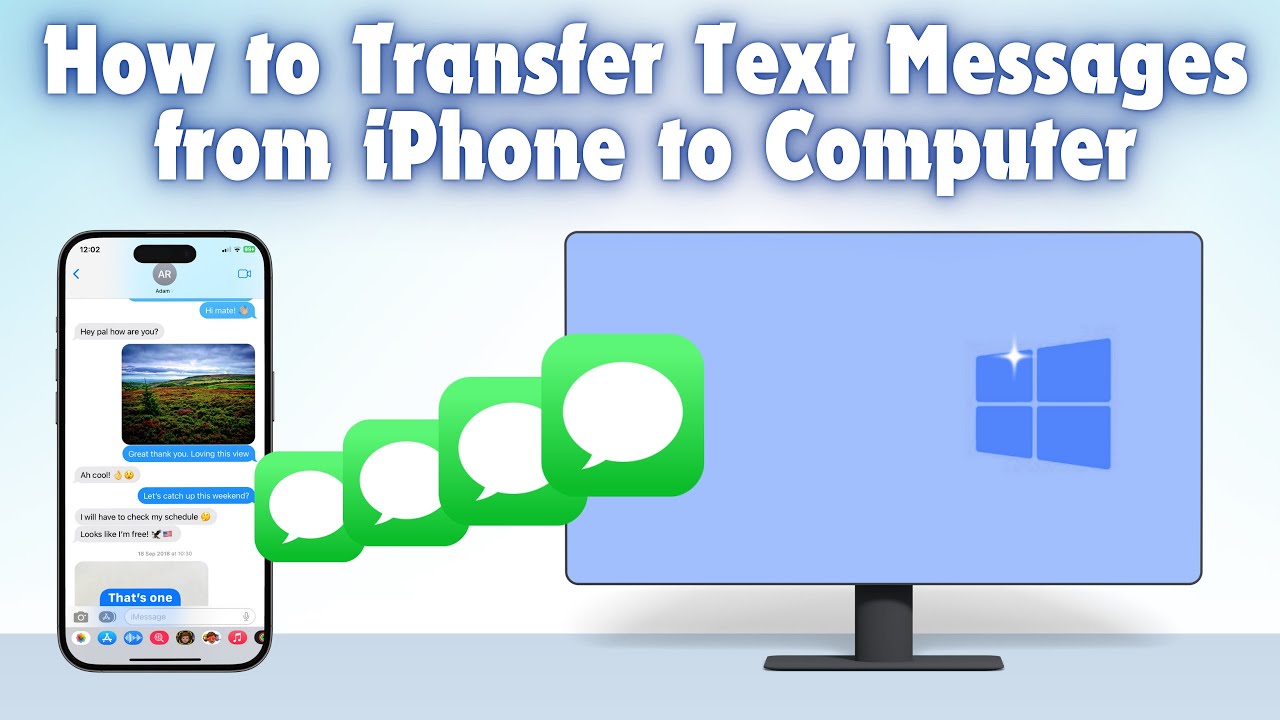
The solution is simple: learning exactly **How To Save iPhone Messages To PC**.
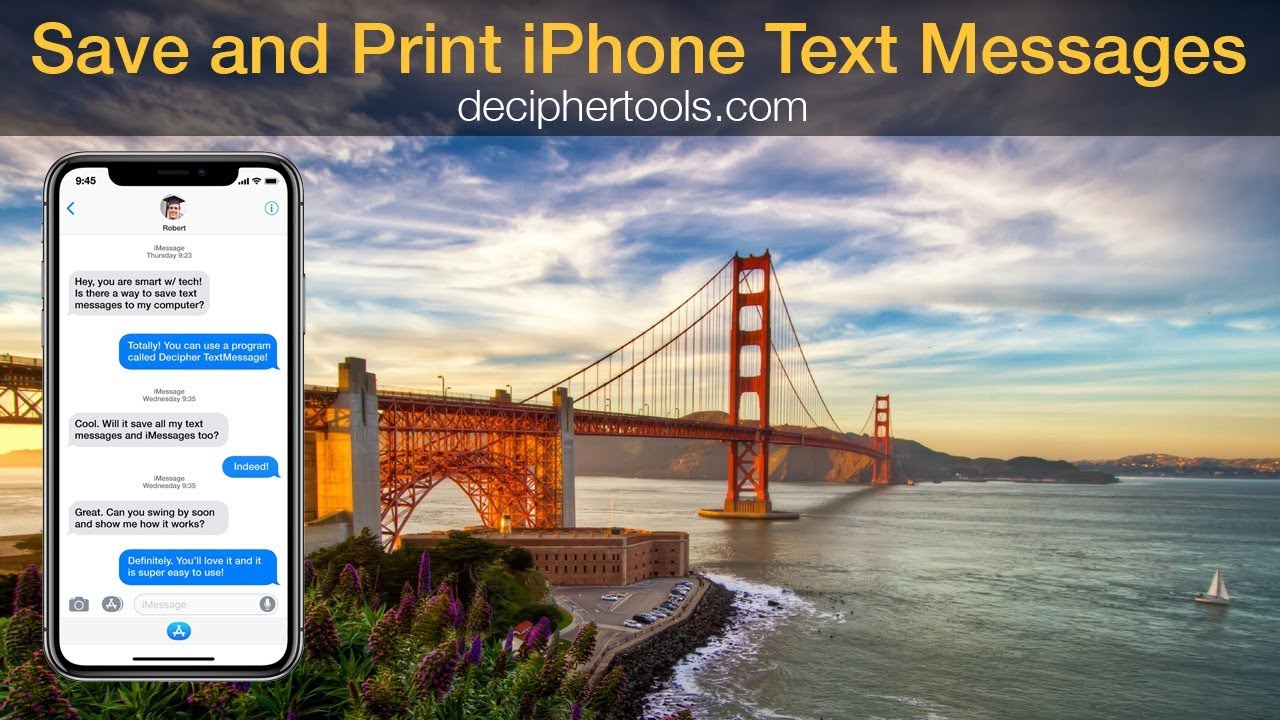
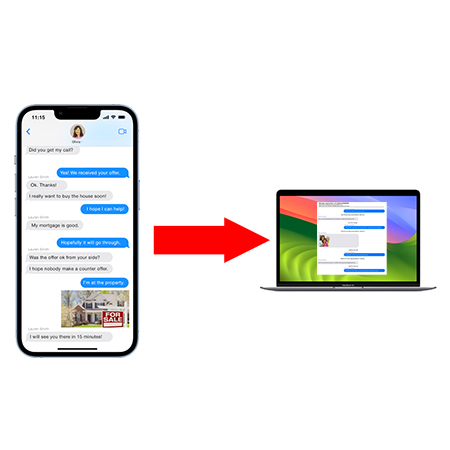
This isn't just about backing up; it's about digital preservation. Whether you're dealing with standard SMS, vibrant iMessages, or even attachments, getting them safely onto your Windows or Mac machine provides peace of mind and flexibility. We're going to dive deep into three primary methods, ranging from Apple's official approach to advanced third-party solutions that give you readable export formats.
Ready to secure those chats? Let's dive right in!
The Official Way — Using iTunes (Local Backup)
The most fundamental and, arguably, the most trustworthy method (because it comes directly from Apple) is using iTunes or Finder (if you're on macOS Catalina or newer). When you create a full backup of your iPhone, your messages are included in that backup file saved on your computer.
However, here's the crucial piece of E-E-A-T expertise: an iTunes backup is an encrypted, monolithic file. You won't be able to open the backup file and read your messages directly in a text document. You'll need a separate extractor tool if you want readable files later.
Step-by-Step Guide to iTunes Backup
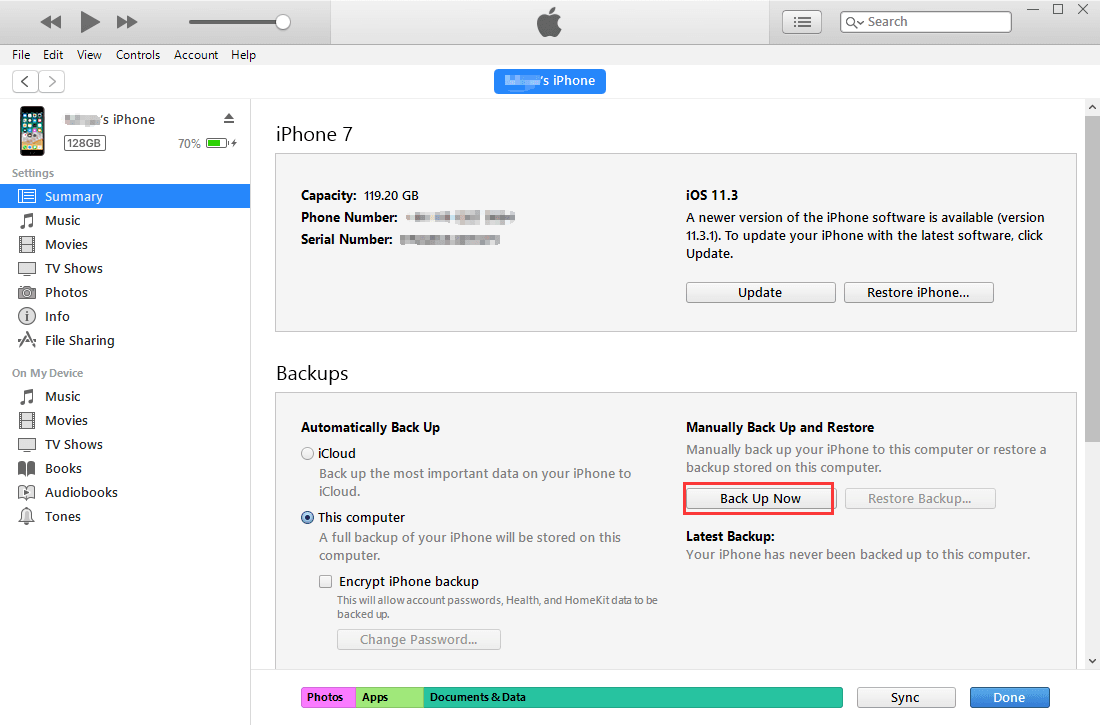
- Connect Your Device: Plug your iPhone into your PC or Mac using a USB cable.
- Open iTunes/Finder: Launch the application. If prompted, unlock your iPhone and tap "Trust This Computer."
- Select Your Device: Click the small iPhone icon (or your device name in Finder's sidebar).
- Choose Local Backup: Under the "Backups" section, select "This Computer."
- Encrypt the Backup (Crucial!): Tick the box that says "Encrypt local backup." While optional, encryption ensures that sensitive data like Health data, saved passwords, and crucially, ALL Message attachments are included. You must remember this password!
- Start the Backup: Click "Back Up Now." Wait for the process to complete.
Once finished, the entire backup, including your message database (which lives deep within a file called 3d0d7e5fb2ce288813306e4a4d463895e6f21223, for the technically curious), is stored locally on your hard drive.
Expert Insight: For security and integrity, Apple frequently updates its backup formats. Always ensure your iTunes or operating system is fully updated before backing up. For more details on what's included in an iTunes backup, refer to Apple's official documentation.
The Easiest Way — Third-Party Software Solutions
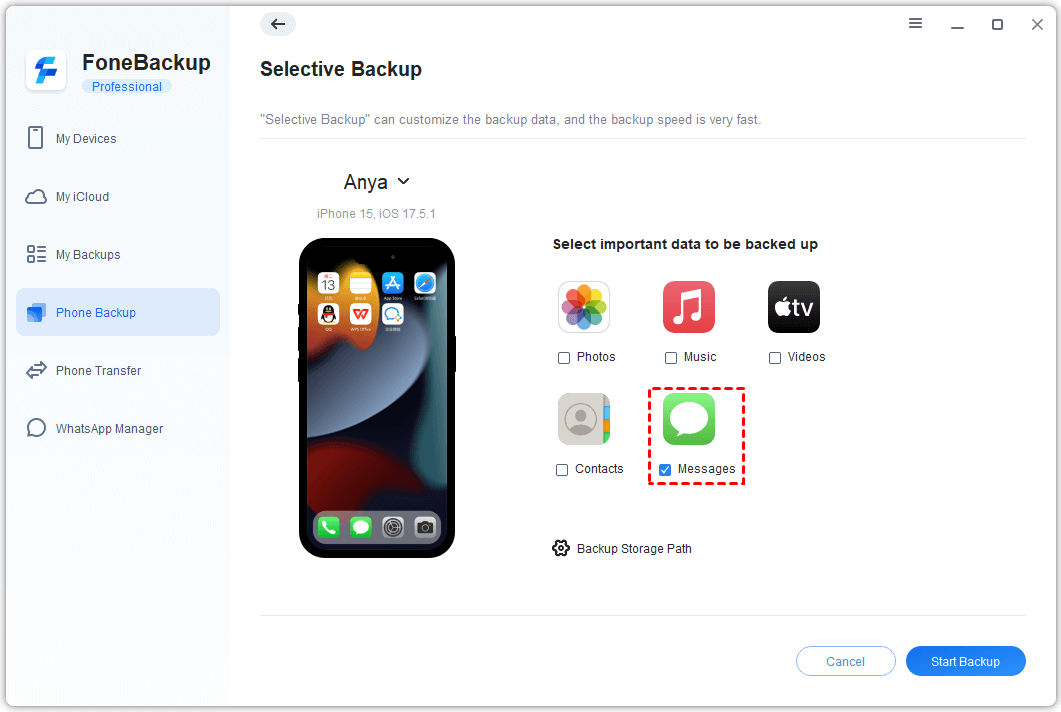
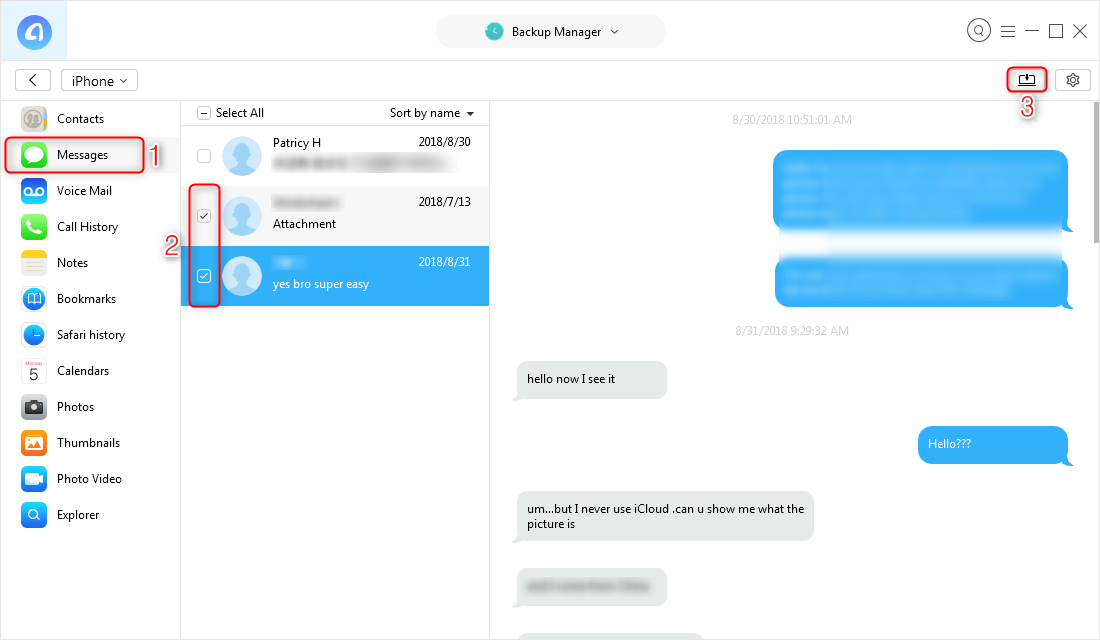
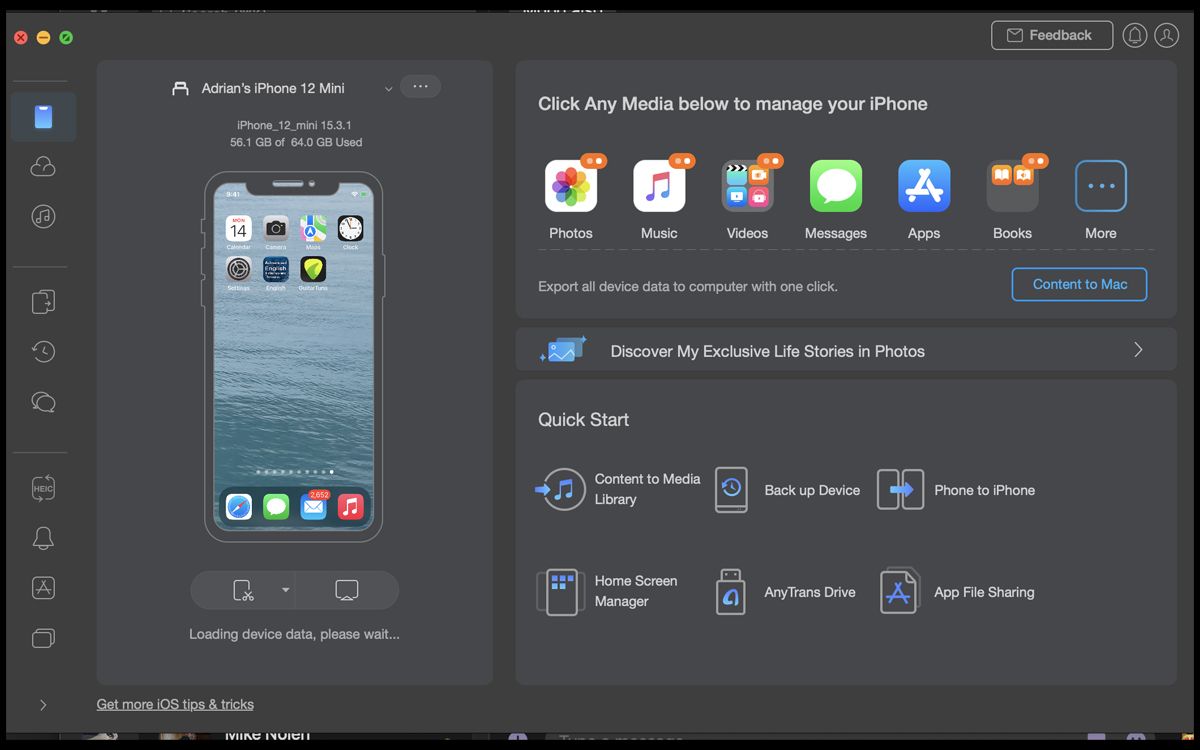
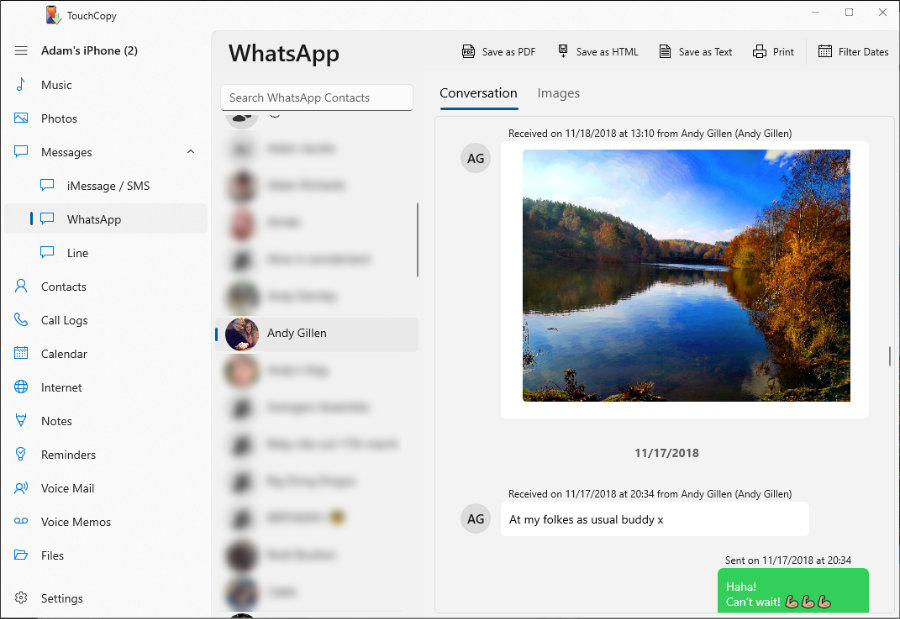
If your search intent is to retrieve messages in a *readable format* (like PDF, HTML, or CSV) for easy archiving, presentation, or printing, third-party software is the undisputed champion.
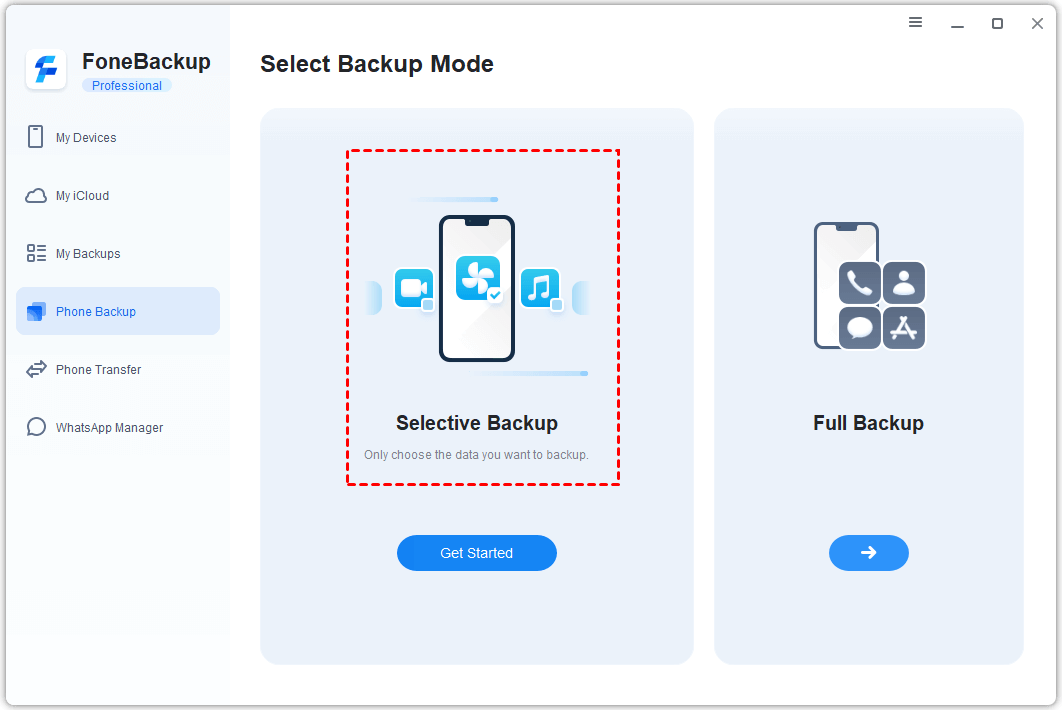
These tools act as message extractors. They either use a pre-existing iTunes backup or perform a direct, non-encrypted scan of your iPhone, allowing you to selectively pull messages and attachments in a usable format.
Why Third-Party Tools Are Popular (The Export Format Benefit)
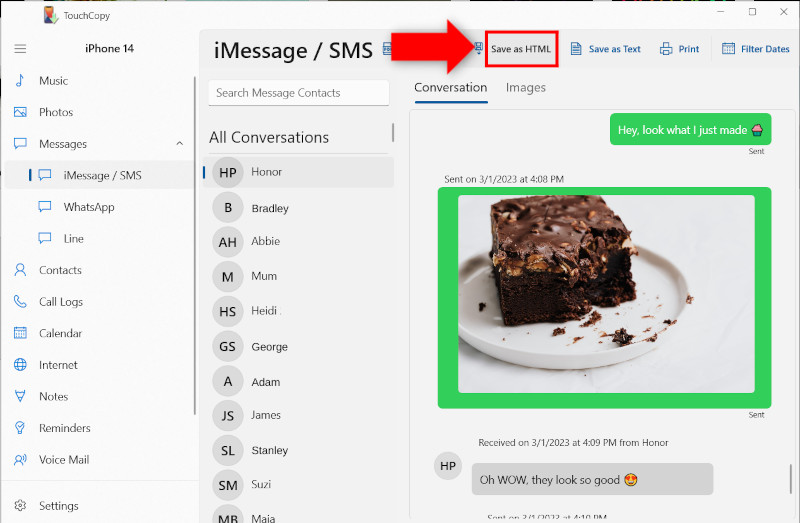
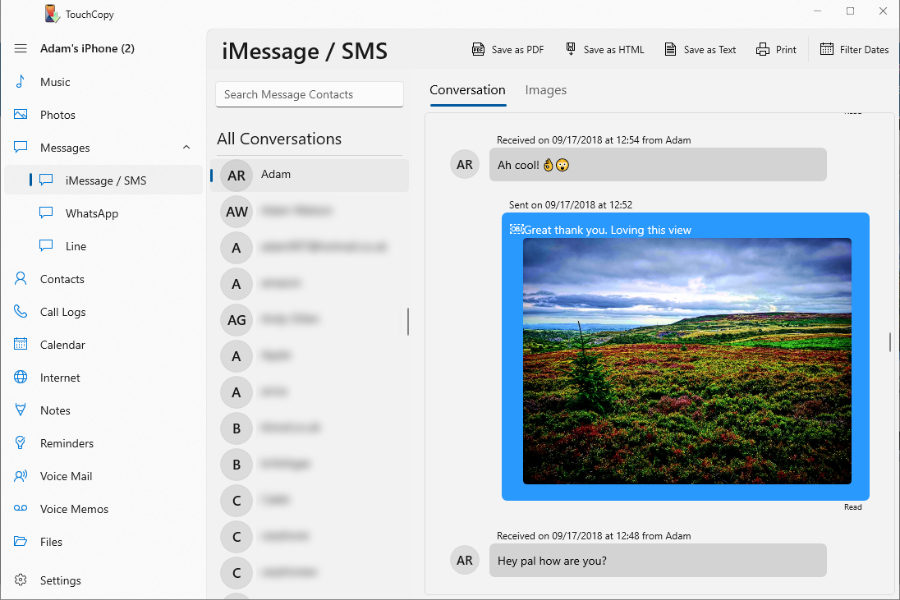
The core advantage here is utility. You don't just want a blob of data; you want conversations saved in a format that anyone can open and read years down the line. A properly formatted HTML file ensures that message timestamps, contact information, and even embedded images are displayed chronologically, making the archive functional and verifiable.
When selecting a tool (and there are many—iExplorer, iMazing, dr.fone, etc.), always look for ones that are regularly updated to support the latest iOS versions. Reading recent reviews is essential for trustworthiness (T in E-E-A-T).
Key Features to Look For:
- Export Format Variety: Must support HTML, PDF, and possibly CSV/TXT.
- Selective Export: The ability to select just one conversation thread, rather than backing up everything.
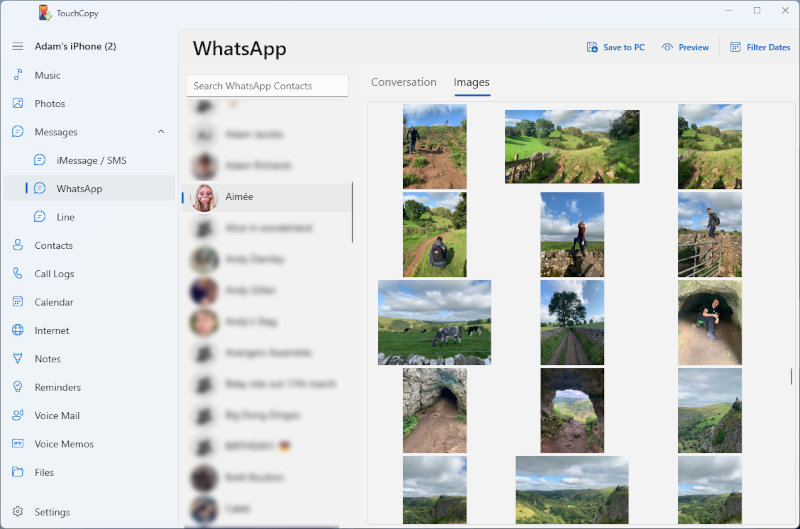
- Attachment Handling: Must correctly extract and link photos, videos, and audio files within the exported chat file.
- Customer Support: Good technical support is vital, especially when dealing with proprietary data structures.
[Baca Juga: Guide to Extracting Specific SMS Threads from iPhone Backups]
The Cloud Approach — Archiving via iCloud Backup
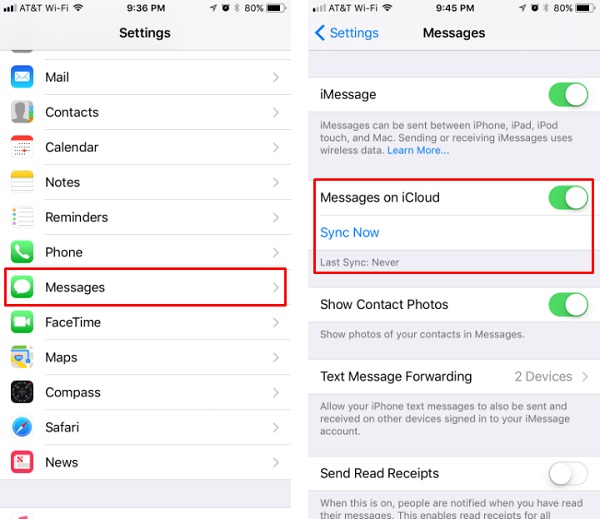
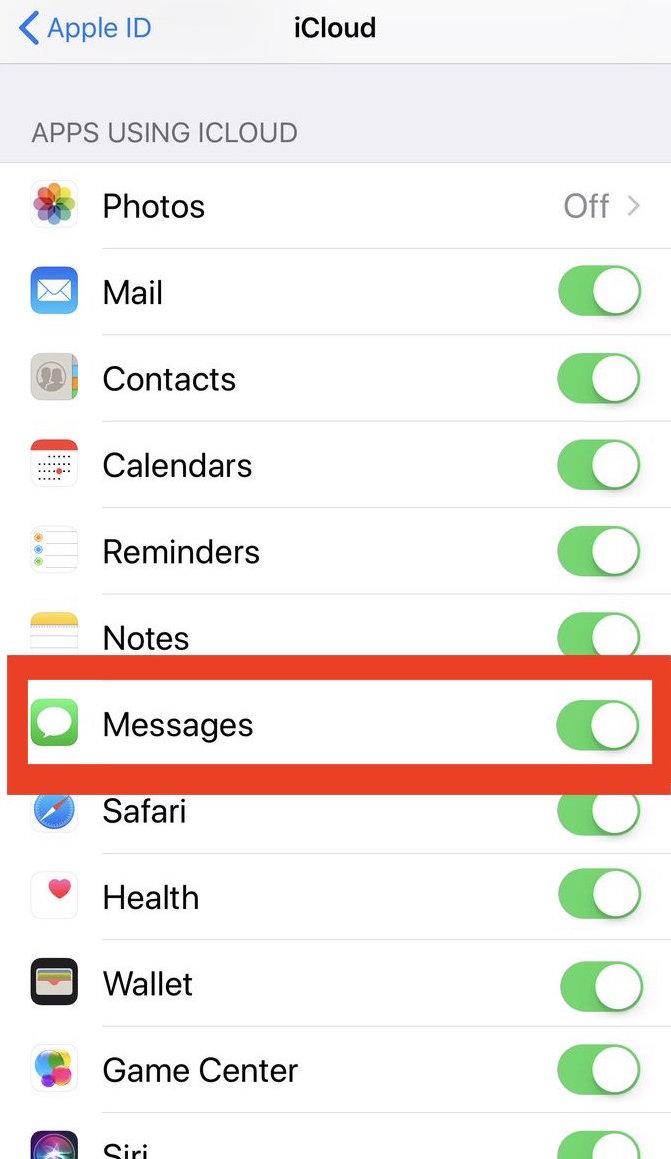
If you have "Messages in iCloud" enabled (Settings > [Your Name] > iCloud > Messages), your entire message history is synced across all your Apple devices and stored on Apple's servers. While this is fantastic for device restoration, it presents a challenge for PC archiving.
The Hidden Caveat: Not a Direct Export
iCloud backs up your messages, but it does not offer a direct download link to save those messages onto your PC in a readable format. The messages are archived deep within the iCloud ecosystem.
If you want to leverage iCloud to save messages to your PC, you must pair it with a third-party extractor tool. Many advanced tools can now download your iCloud message backup first and then perform the extraction, bypassing the need for a physical wired backup.
This method requires trust in a third-party tool's ability to securely access your iCloud data, so caution is advised. Always ensure you are using reputable, well-reviewed software. For best practices regarding cloud data security, review guidelines set by reputable digital preservation organizations, such as the Library of Congress's Digital Preservation initiative.
Comparison of iPhone Message Saving Methods
Choosing the right method depends entirely on your end goal: do you need a full restore point, or readable evidence?
| Method | Readability on PC | Cost | Complexity |
|---|---|---|---|
| iTunes/Finder Backup | No (Requires extraction) | Free | Low |
| Third-Party Software | Yes (HTML, PDF, etc.) | Varies (Usually Paid) | Medium |
| iCloud Archiving | No (Requires third-party extraction) | Free (But may require iCloud storage purchase) | Medium |
Troubleshooting & Best Practices When Saving Messages
Saving complex data like SMS/iMessage history can sometimes run into snags. Here are a few expert tips to ensure a smooth process:
A. Dealing with Encrypted Backups
If you encrypted your iTunes backup and forgot the password, you are effectively locked out of that data. Apple does not store or retrieve iTunes backup passwords. If you use a password manager, ensure the backup password is saved immediately. If you need a more in-depth understanding of Apple's security protocols, it's beneficial to consult authoritative sources on cryptography and data security practices, like academic papers accessible via IEEE Xplore.
B. Storage Space is Key
iPhone backups can be massive. Before starting an iTunes backup, make sure your PC has adequate free storage. A 256GB iPhone full of photos and videos might require 150GB+ of local storage space for the backup file.
C. Turn Off Find My iPhone
Some third-party tools require you to temporarily disable "Find My iPhone" before they can access the message database for extraction. This is a common security requirement.
[Baca Juga: Common iPhone Backup Errors and How to Fix Them]
Conclusion: Choose Your Method Wisely
Learning **How To Save iPhone Messages To PC** is a necessary step in digital life management. For simple recovery and restoration, stick to the free and official iTunes backup method. For archiving specific, readable conversations—perhaps for professional needs or sentimental value—investing in a high-quality, reputable third-party extraction tool is the clear winner.
The goal is accessibility and security. By taking the time now to archive your chats, you ensure those valuable digital memories and data points are protected for years to come.
Frequently Asked Questions (FAQ)
- Can I just screenshot my entire conversation thread?
While you can, screenshots are inefficient for long threads. They lack searchability and proper data validation (timestamps are often cut off). Third-party extraction into formats like PDF or HTML is always superior for comprehensive archiving.
- Where are iPhone messages stored on my PC after an iTunes backup?
The location varies slightly by operating system. On Windows, they are usually found in
\Users\[Your Username]\AppData\Roaming\Apple Computer\MobileSync\Backup\. On Mac, check~/Library/Application Support/MobileSync/Backup/. Remember, these are encrypted files and not readable without specialized software. - Does saving messages transfer only the text, or attachments too?
If you use an Encrypted iTunes backup, all attachments (photos, videos, audio messages) are included in the backup file. If you use third-party software, most tools will automatically extract and embed these attachments into the final HTML or PDF export.
- Is it safe to use third-party software to save my messages?
Safety depends on the developer. Always choose established software with strong encryption standards and a clear privacy policy. Avoid using tools that require you to jailbreak your phone or that have poor user reviews regarding data handling.
How To Save Iphone Messages To Pc
How To Save Iphone Messages To Pc Wallpapers
Collection of how to save iphone messages to pc wallpapers for your desktop and mobile devices.
Mesmerizing How To Save Iphone Messages To Pc Wallpaper in 4K
Explore this high-quality how to save iphone messages to pc image, perfect for enhancing your desktop or mobile wallpaper.
Amazing How To Save Iphone Messages To Pc Scene in HD
Explore this high-quality how to save iphone messages to pc image, perfect for enhancing your desktop or mobile wallpaper.
Gorgeous How To Save Iphone Messages To Pc Artwork in HD
This gorgeous how to save iphone messages to pc photo offers a breathtaking view, making it a perfect choice for your next wallpaper.
Artistic How To Save Iphone Messages To Pc Background Nature
This gorgeous how to save iphone messages to pc photo offers a breathtaking view, making it a perfect choice for your next wallpaper.
Exquisite How To Save Iphone Messages To Pc Wallpaper for Your Screen
A captivating how to save iphone messages to pc scene that brings tranquility and beauty to any device.
Beautiful How To Save Iphone Messages To Pc Background for Mobile
Discover an amazing how to save iphone messages to pc background image, ideal for personalizing your devices with vibrant colors and intricate designs.
Vibrant How To Save Iphone Messages To Pc Picture Illustration
Explore this high-quality how to save iphone messages to pc image, perfect for enhancing your desktop or mobile wallpaper.
Crisp How To Save Iphone Messages To Pc Moment Art
A captivating how to save iphone messages to pc scene that brings tranquility and beauty to any device.
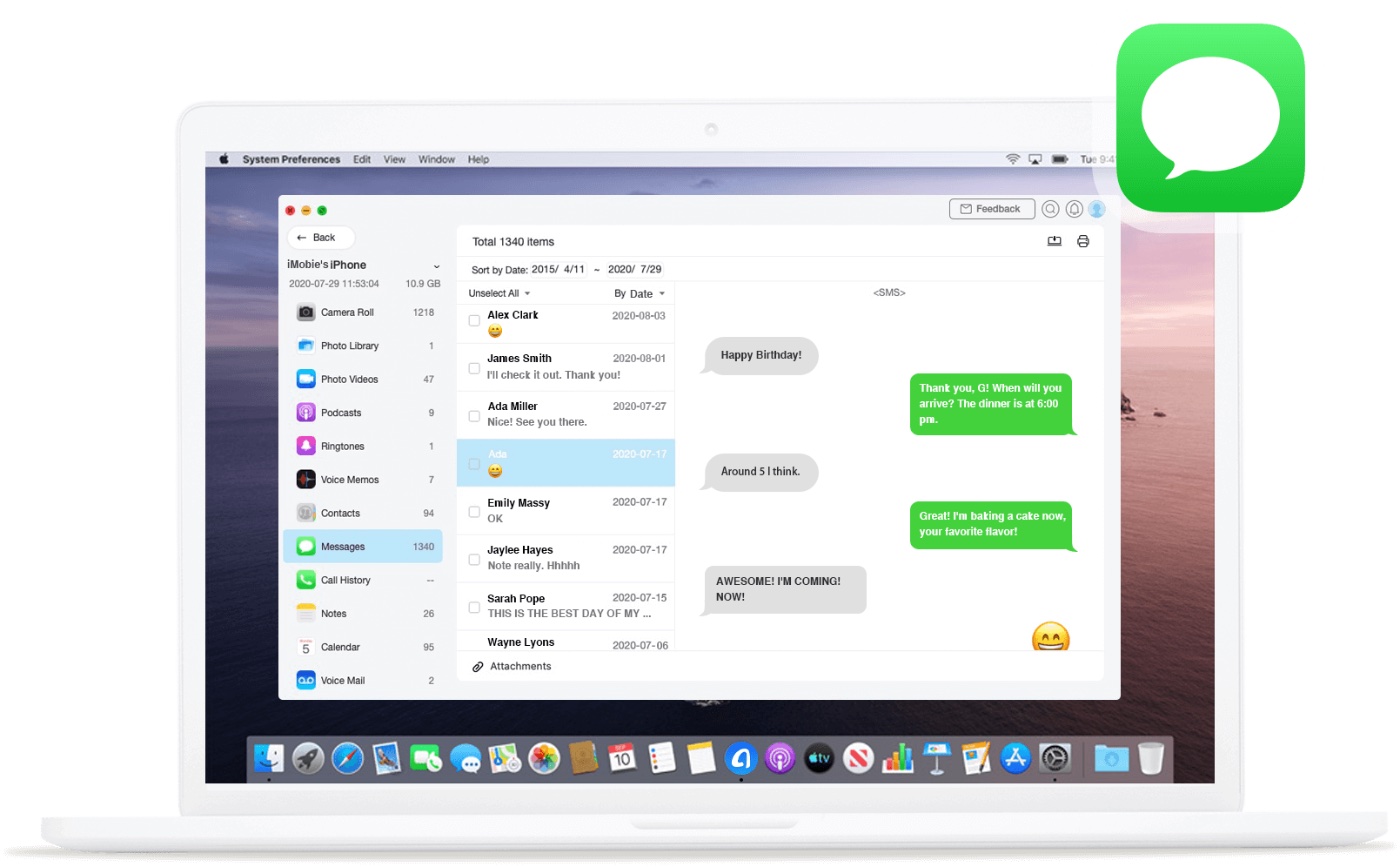
High-Quality How To Save Iphone Messages To Pc Photo Nature
Experience the crisp clarity of this stunning how to save iphone messages to pc image, available in high resolution for all your screens.
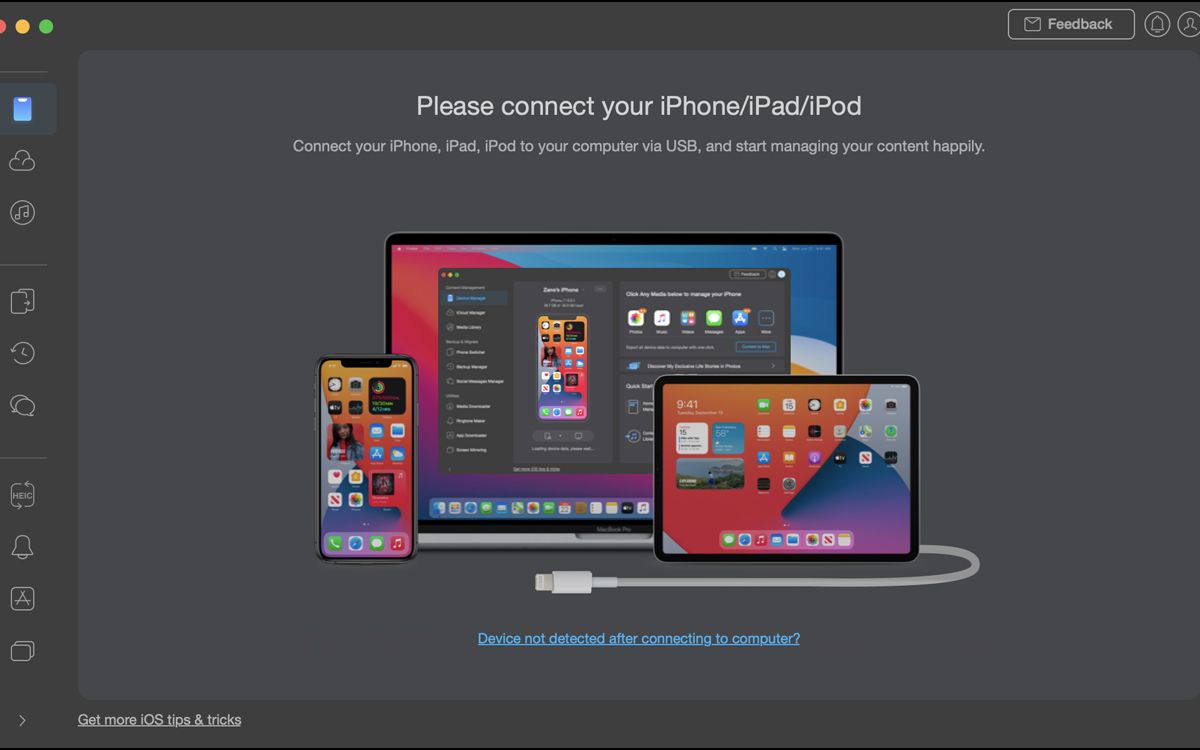
Detailed How To Save Iphone Messages To Pc Moment for Mobile
Discover an amazing how to save iphone messages to pc background image, ideal for personalizing your devices with vibrant colors and intricate designs.

Vibrant How To Save Iphone Messages To Pc Background Photography
Discover an amazing how to save iphone messages to pc background image, ideal for personalizing your devices with vibrant colors and intricate designs.
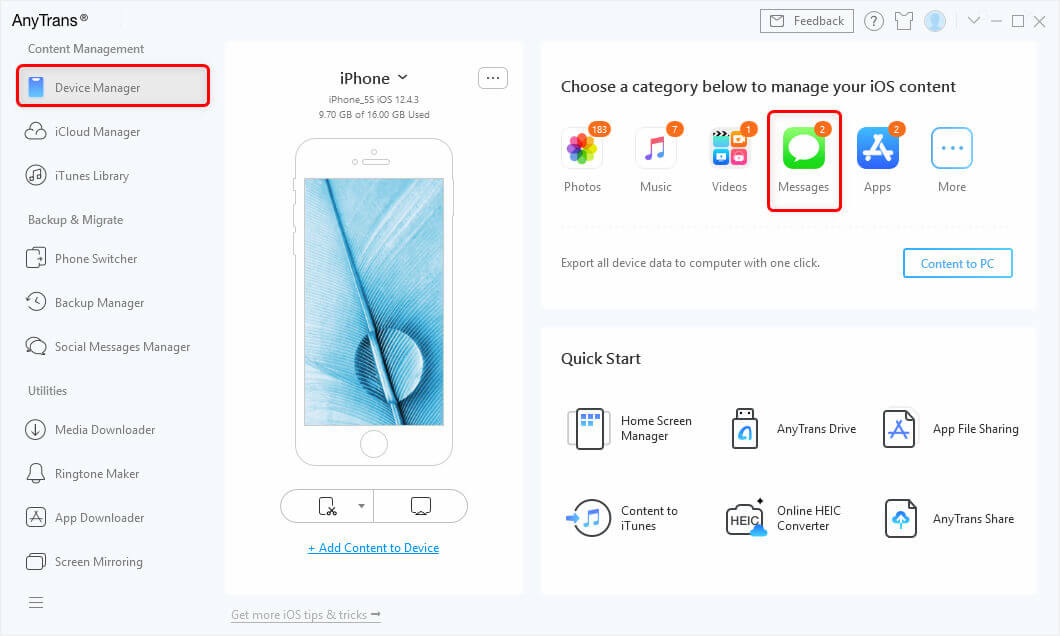
Dynamic How To Save Iphone Messages To Pc View Art
Find inspiration with this unique how to save iphone messages to pc illustration, crafted to provide a fresh look for your background.
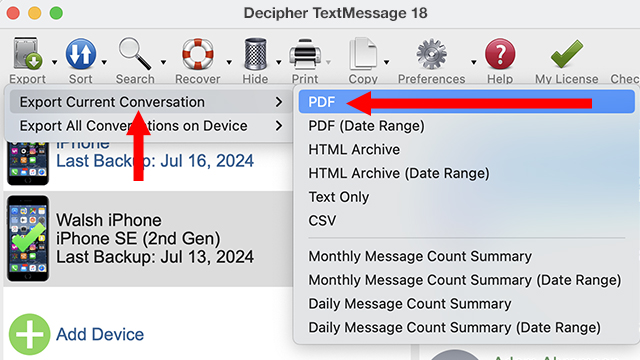
High-Quality How To Save Iphone Messages To Pc Scene Photography
Transform your screen with this vivid how to save iphone messages to pc artwork, a true masterpiece of digital design.
Amazing How To Save Iphone Messages To Pc Picture Illustration
Experience the crisp clarity of this stunning how to save iphone messages to pc image, available in high resolution for all your screens.
High-Quality How To Save Iphone Messages To Pc Landscape Photography
Transform your screen with this vivid how to save iphone messages to pc artwork, a true masterpiece of digital design.
Lush How To Save Iphone Messages To Pc Artwork Illustration
A captivating how to save iphone messages to pc scene that brings tranquility and beauty to any device.
Gorgeous How To Save Iphone Messages To Pc Artwork Art
Find inspiration with this unique how to save iphone messages to pc illustration, crafted to provide a fresh look for your background.

Artistic How To Save Iphone Messages To Pc Picture Concept
A captivating how to save iphone messages to pc scene that brings tranquility and beauty to any device.
Serene How To Save Iphone Messages To Pc Background Concept
Discover an amazing how to save iphone messages to pc background image, ideal for personalizing your devices with vibrant colors and intricate designs.
Breathtaking How To Save Iphone Messages To Pc Capture Nature
Transform your screen with this vivid how to save iphone messages to pc artwork, a true masterpiece of digital design.
Download these how to save iphone messages to pc wallpapers for free and use them on your desktop or mobile devices.