Stop Panicking: The Definitive Guide on How To Move Everything From One iPhone To Another
Getting a shiny new iPhone is exciting—until you realize you have to deal with the inevitable data migration. The thought of potentially losing years of photos, messages, or custom settings can cause serious anxiety. Relax, you're in the right place.
As a seasoned user and technical expert, I can tell you that Apple has made the process incredibly smooth, provided you know which method to choose and how to prepare properly. This comprehensive guide will walk you through exactly How To Move Everything From One iPhone To Another using the three main methods: Quick Start, iCloud, and Finder/iTunes.
Forget fragmented advice; follow these steps to ensure a seamless, complete transfer, so that your new iPhone feels exactly like your old one—just faster and better.
Preparation is Key: The Essential Checklist Before You Begin
The biggest reason migrations fail or encounter snags is poor preparation. Before you even unbox the new device, complete this short checklist.
1. Update Your Devices
Ensure both your old iPhone (the source) and your new iPhone (the destination, even if it's brand new out of the box) are running the latest version of iOS. This guarantees compatibility, especially when using the Quick Start feature.
2. Check Your Battery and Power Source
Migration takes time and power. Data transfer should ideally be done while both phones are connected to a power source. Transfer interruptions due to a dead battery are the number one cause of headaches.
3. Verify Your Backup (The Safety Net)
Even if you plan to use Quick Start, having a recent backup to iCloud or your computer is non-negotiable insurance. Check when your last automatic backup ran.
Pro Tip on Health Data: If you use Apple Watch or store Health data, your backup must be encrypted. iCloud backups are automatically encrypted. If backing up via a computer, you MUST check the 'Encrypt Local Backup' box.
For more detailed requirements on secure backups, refer to Apple's official support documents: Apple Support: About Encrypted Backups.
4. Disable Find My iPhone
If you plan to erase or trade in your old phone immediately after migration, you must turn off Find My iPhone on the old device. Go to Settings > Your Name > Find My > Find My iPhone, and toggle it off. You will need your Apple ID password.
Method 1: The Magic of Quick Start (The Easiest Way)
Quick Start is the modern, direct-transfer method introduced with iOS 12.4+. It transfers data directly from the old phone to the new one over a secure, temporary Wi-Fi connection. It is the fastest and most comprehensive method for most people.
Step-by-Step Quick Start
- Power On: Turn on your new iPhone (keep it close to the old one).
- Quick Start Screen: The Quick Start prompt will appear on your OLD iPhone, asking if you want to set up the new one. Tap "Continue."
- Scan the Pattern: An animation will appear on the new phone. Use the camera on the old phone to scan this pattern.
- Authentication: Enter the passcode from your OLD iPhone onto the new one.
- Transfer Choice: This is the critical step. Select "Transfer Directly from iPhone." This initiates the peer-to-peer wireless migration, ensuring all app data, settings, and media are copied bit-for-bit.
- Wait: The process can take anywhere from 15 minutes to over an hour, depending on data size. Do not separate the phones until the transfer is complete.
Quick Start doesn't require a prior cloud backup and is generally more reliable than restoring from a computer backup, especially for large volumes of data.
[Baca Juga: How to Secure Your iPhone with 2FA]
Method 2: Relying on the Cloud (iCloud Backup)
This method is ideal if your old iPhone is damaged, lost, or if you received your new iPhone days after selling the old one. It relies entirely on having a recent, full backup stored on Apple's servers.
The iCloud Process
- Ensure Latest Backup: On the old phone, go to Settings > Your Name > iCloud > iCloud Backup, and tap "Back Up Now." Wait for the upload to finish (requires strong Wi-Fi).
- Set Up New iPhone: Start the setup process on the new iPhone until you reach the "Apps & Data" screen.
- Choose Restore: Select "Restore from iCloud Backup."
- Sign In: Log in with your Apple ID and password.
- Select Backup: Choose the most recent backup file from the list.
The phone will download the core settings and data immediately, allowing you to start using it quickly, but app downloads (especially large games or media) will continue in the background using Wi-Fi.
Method 3: The Traditional Approach (Finder or iTunes)
For users who prefer local control, or those with very limited iCloud storage/slow internet, using a computer remains a robust option. On macOS Catalina (or later), you use Finder. On Windows or older macOS, you use iTunes.
A Note on Encrypted Local Backups
This cannot be stressed enough: If you want to move everything—including saved passwords, Wi-Fi network settings, and crucial Health/Activity data—you MUST create an encrypted local backup. Unencrypted backups do not transfer this sensitive information.
Transfer Steps (Using Computer)
- Create Backup: Connect your OLD iPhone to the computer. In Finder or iTunes, select the device summary. Check the "Encrypt local backup" box, set a memorable password, and click "Back Up Now."
- Restore New iPhone: Disconnect the old phone and connect the NEW iPhone.
- Select Restore: When prompted, choose "Restore from this backup." Select the backup you just created.
- Enter Password: Enter the encryption password you created in step 1.
Because the data is transferred over a high-speed USB cable, this method can often be faster than iCloud restoration for truly massive amounts of data (e.g., 512GB worth of photos and videos).
Learn more about the history and technical specifications of encryption standards used in iOS: Wikipedia: iOS Security.
Comparison: Which iPhone Migration Method is Right for You?
Deciding how to move everything from one iPhone to another largely depends on your specific circumstances (internet speed, presence of a computer, and condition of the old phone). Use this table to quickly assess the best choice.
| Method | Pros | Cons | Best For |
|---|---|---|---|
| Quick Start (Direct Transfer) | Zero computer required. Fastest for large data sets. Most complete transfer. | Requires old phone to be functional and nearby. | New phone setup, both phones working. |
| iCloud Backup/Restore | Transfer from anywhere. Ideal if the old phone is damaged or gone. | Highly dependent on Wi-Fi speed. Requires adequate iCloud storage space. | Old phone unavailable; slow internet speeds for Finder/iTunes. |
| Finder/iTunes (Local Backup) | Fastest transfer speed for huge data volumes (using USB). No reliance on internet speed. | Requires a computer (Mac or PC) and a cable. Requires manual encryption for full data transfer. | Tech-savvy users; massive data files; very slow Wi-Fi access. |
Conclusion: Success is in the Preparation
Migrating your digital life shouldn't be stressful. Whether you choose the seamless modern approach of Quick Start, the flexibility of iCloud, or the control of a local Finder backup, success hinges entirely on the preparation steps: ensuring both devices are updated, charged, and that you have a verified, encrypted backup ready as a safety net.
Follow the steps outlined for your chosen method, and you will find that moving everything from one iPhone to another is easier than setting up your email the first time!
[Baca Juga: Optimize iPhone Battery Health]
Frequently Asked Questions (FAQ)
1. How long does the transfer process usually take?
A standard 64GB transfer using Quick Start usually takes about 15–30 minutes. A 256GB or 512GB transfer using iCloud can take several hours, depending on your internet upload/download speeds. Local transfer via Finder/cable is often the fastest, averaging 30–60 minutes for large files.
2. Do I need to re-download all my apps?
No. When you restore from a backup (iCloud, Finder, or Quick Start), the transfer includes information about every app you have. The apps will appear on your new home screen, but they will download the actual application code in the background automatically. You may need to log back into some third-party apps for security reasons.
3. Will my WhatsApp history transfer over?
Yes, provided you created an encrypted backup (for Finder/iTunes) or used iCloud/Quick Start. WhatsApp also recommends linking its in-app settings to its own iCloud backup feature, which acts as a secondary layer of protection for message history.
4. Do my passwords move to the new iPhone?
Yes. Passwords stored in iCloud Keychain and Wi-Fi networks will transfer successfully, but only if the backup was encrypted. If you used Finder, you must select "Encrypt Local Backup." iCloud and Quick Start backups are automatically encrypted, covering this data.
5. Can I use the new iPhone while the transfer is still happening in the background?
If you used Quick Start, you must keep both devices near each other until the data migration is 100% complete and you see the "Transfer Complete" screen. If you restored via iCloud, you can typically start using the device once the core setup is done, but apps will continue to download in the background.
Iphone 12 Trade In Value T Mobile
Iphone 12 Trade In Value T Mobile Wallpapers
Collection of iphone 12 trade in value t mobile wallpapers for your desktop and mobile devices.
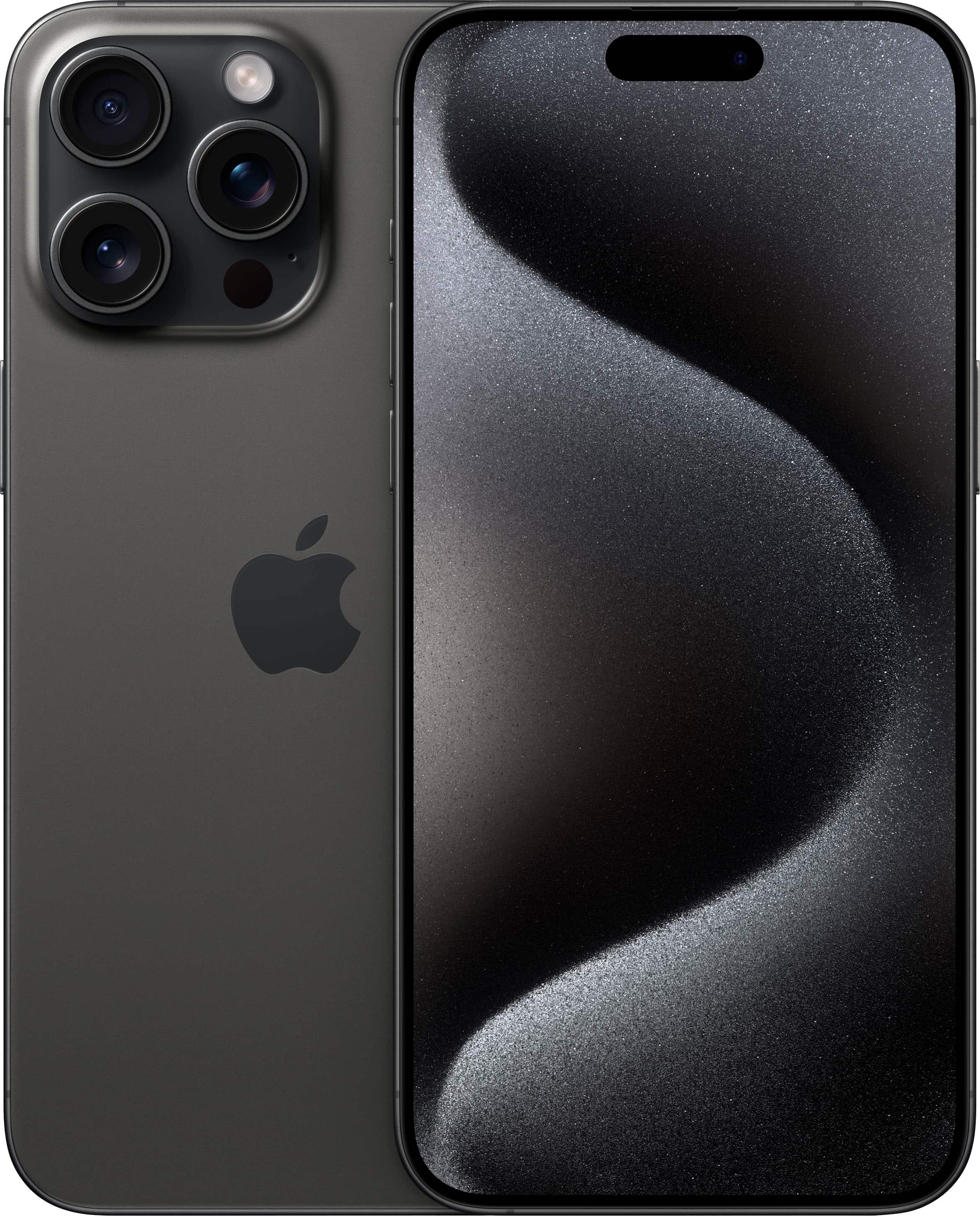
Breathtaking Iphone 12 Trade In Value T Mobile Artwork Digital Art
Transform your screen with this vivid iphone 12 trade in value t mobile artwork, a true masterpiece of digital design.
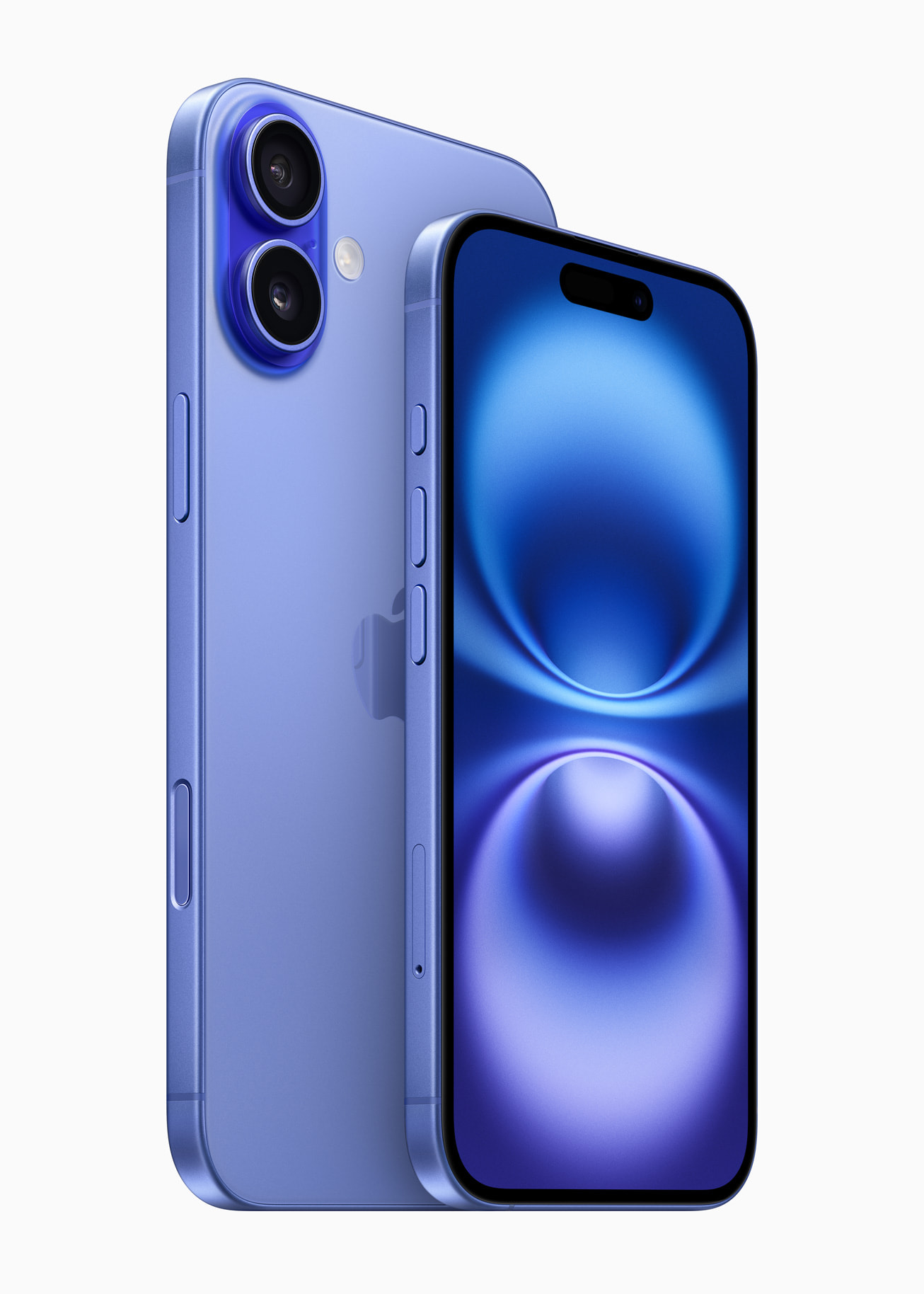
Stunning Iphone 12 Trade In Value T Mobile Image Nature
A captivating iphone 12 trade in value t mobile scene that brings tranquility and beauty to any device.
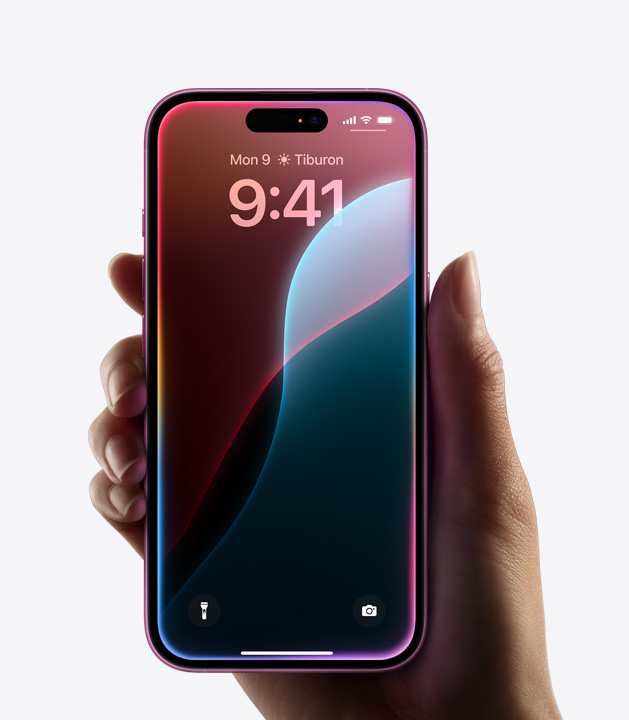
High-Quality Iphone 12 Trade In Value T Mobile Image Illustration
Explore this high-quality iphone 12 trade in value t mobile image, perfect for enhancing your desktop or mobile wallpaper.
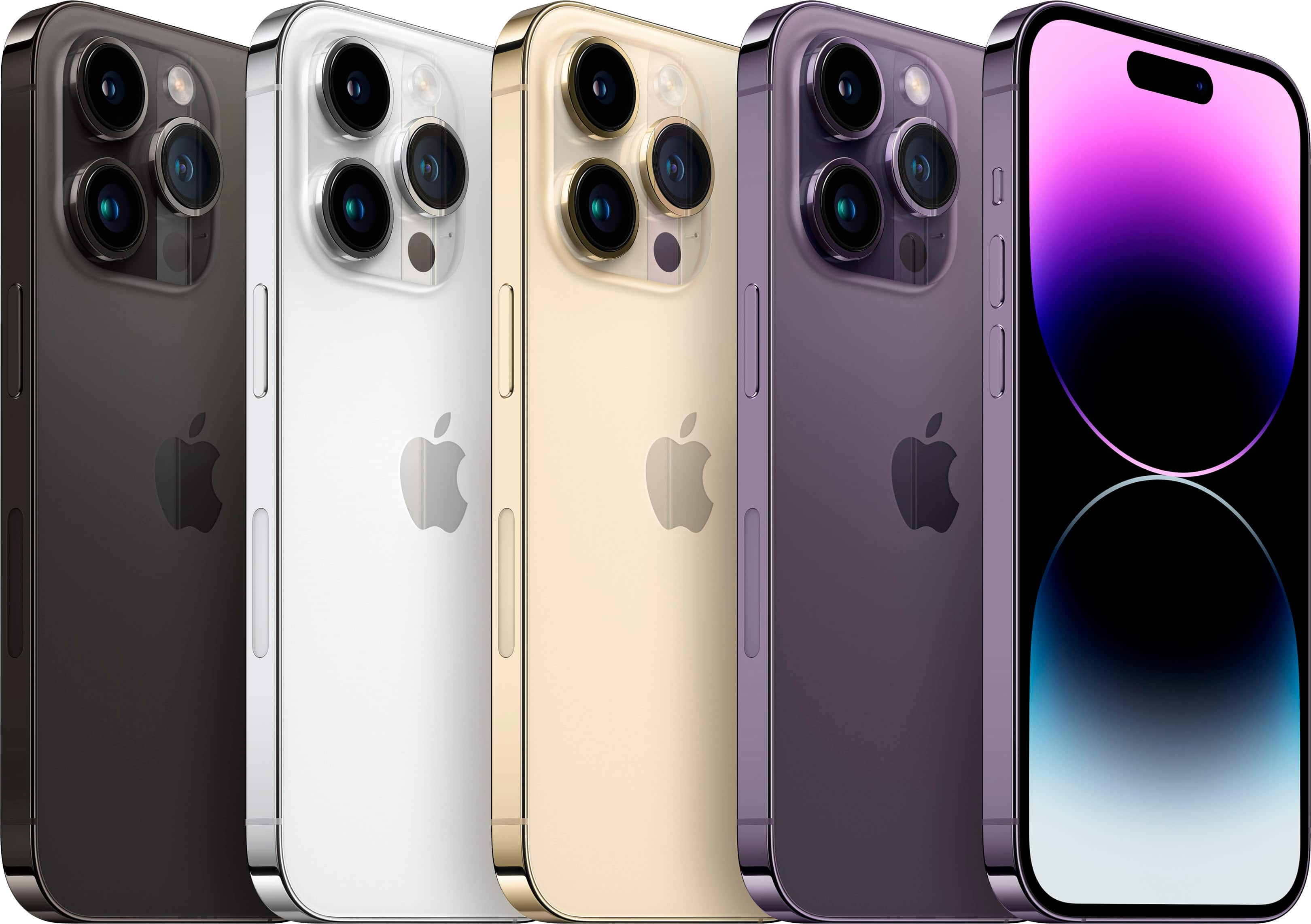
Vivid Iphone 12 Trade In Value T Mobile Abstract for Mobile
Experience the crisp clarity of this stunning iphone 12 trade in value t mobile image, available in high resolution for all your screens.
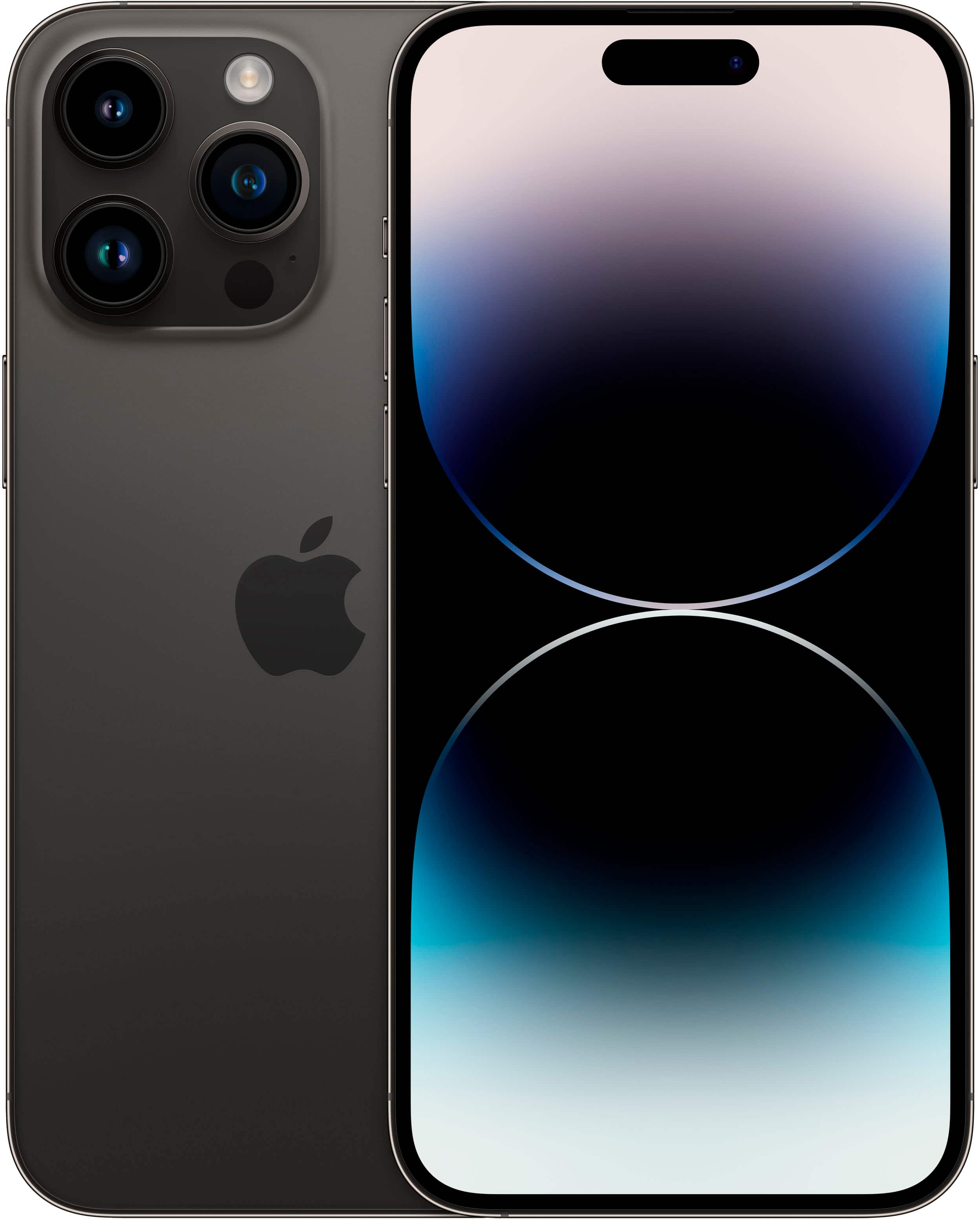
Vibrant Iphone 12 Trade In Value T Mobile Picture Photography
Discover an amazing iphone 12 trade in value t mobile background image, ideal for personalizing your devices with vibrant colors and intricate designs.
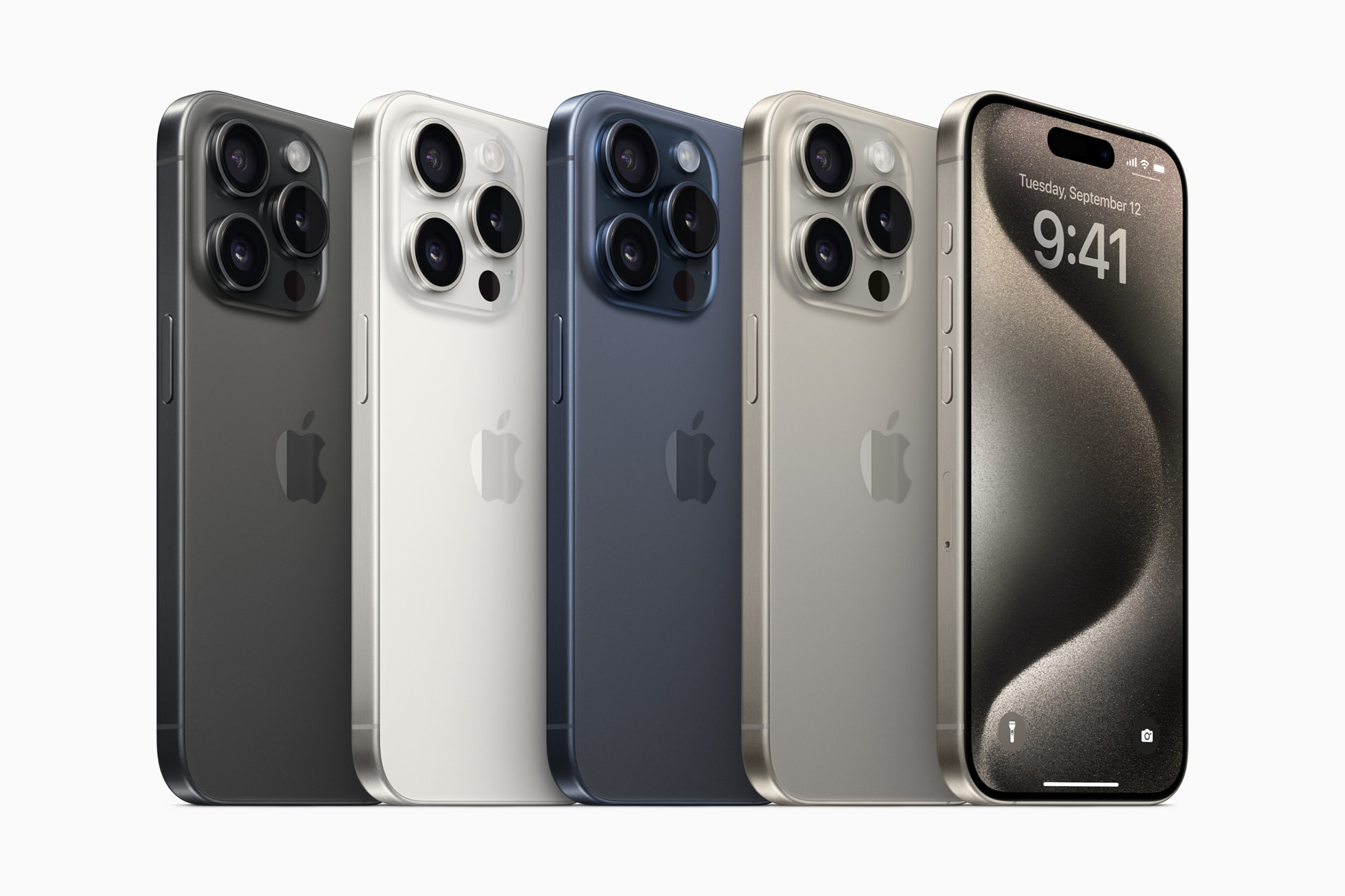
Amazing Iphone 12 Trade In Value T Mobile Landscape Concept
Transform your screen with this vivid iphone 12 trade in value t mobile artwork, a true masterpiece of digital design.

Beautiful Iphone 12 Trade In Value T Mobile Capture for Mobile
Transform your screen with this vivid iphone 12 trade in value t mobile artwork, a true masterpiece of digital design.
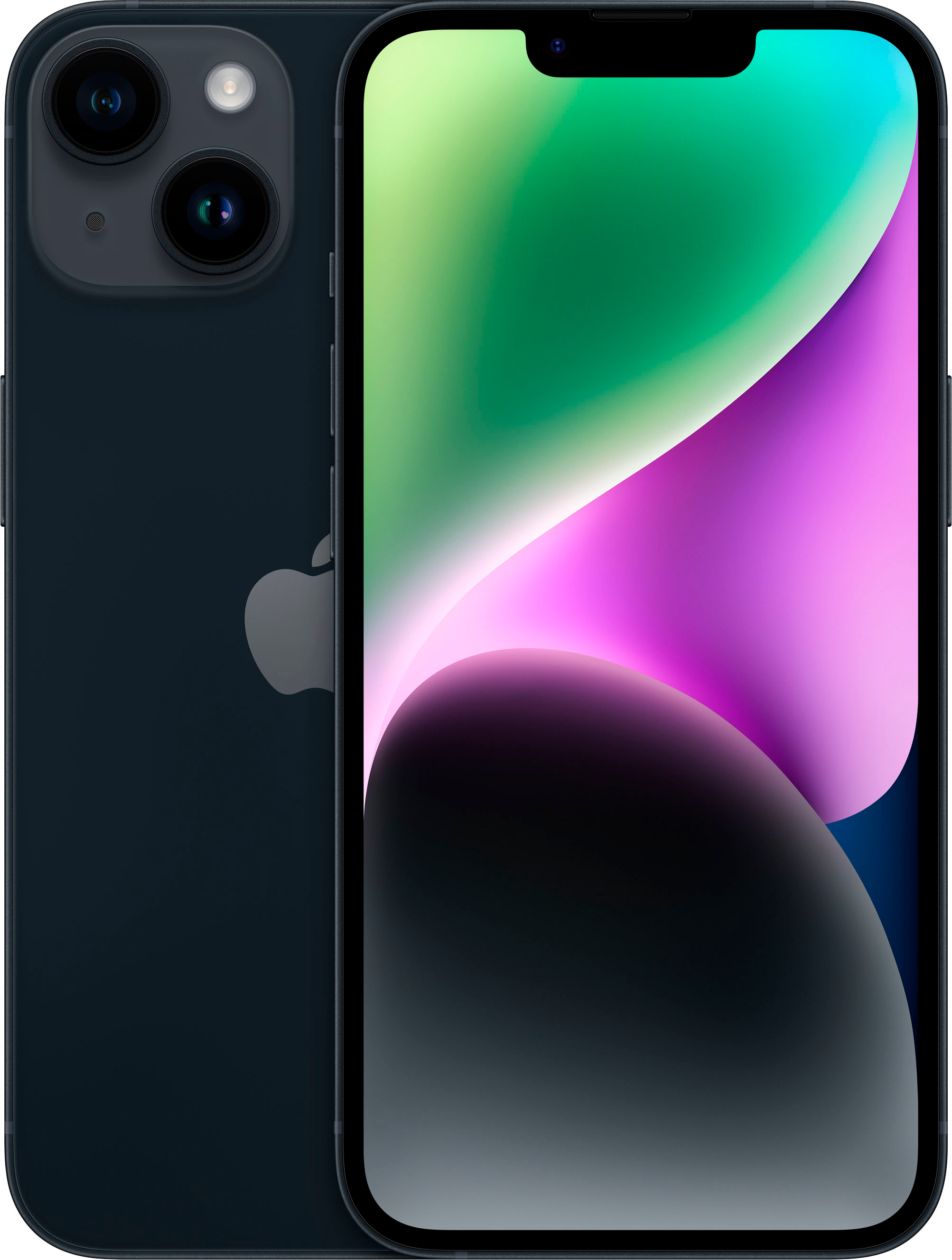
Stunning Iphone 12 Trade In Value T Mobile Wallpaper for Your Screen
Find inspiration with this unique iphone 12 trade in value t mobile illustration, crafted to provide a fresh look for your background.
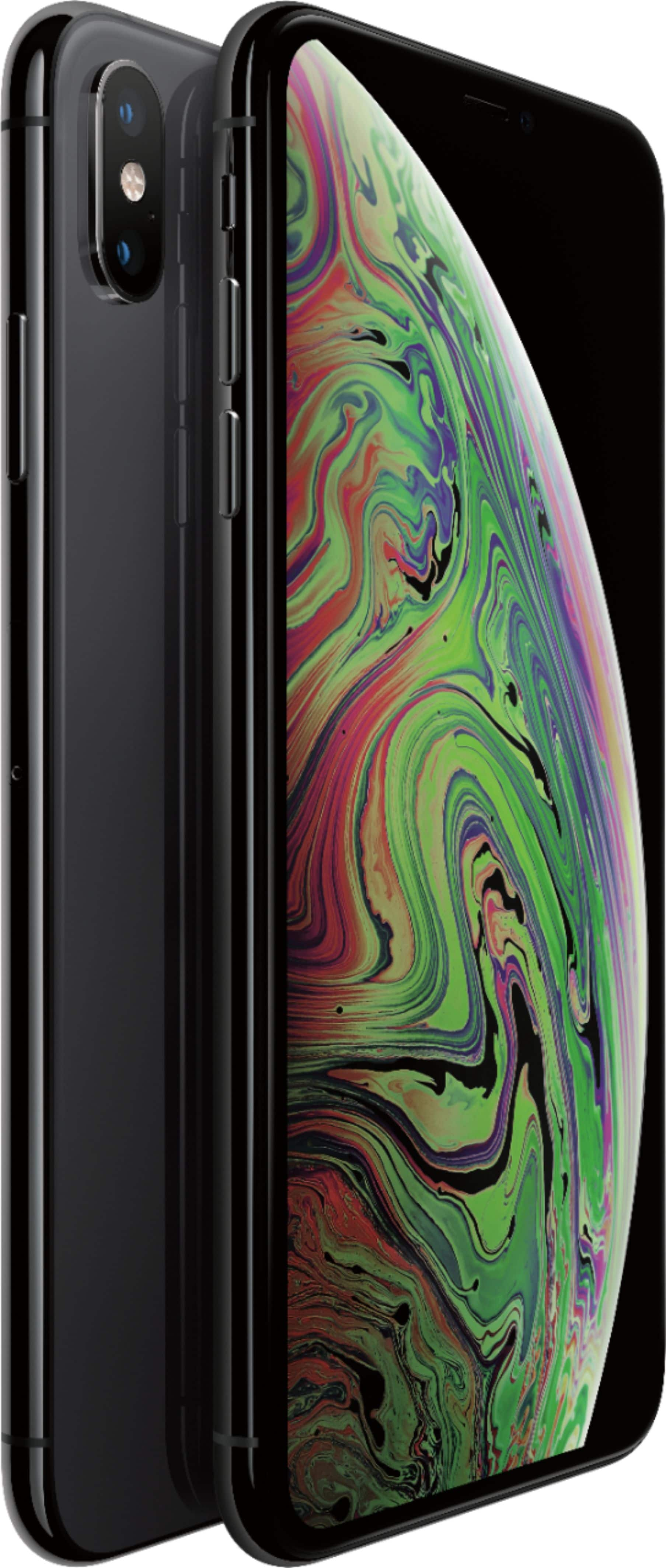
Artistic Iphone 12 Trade In Value T Mobile Image Art
This gorgeous iphone 12 trade in value t mobile photo offers a breathtaking view, making it a perfect choice for your next wallpaper.
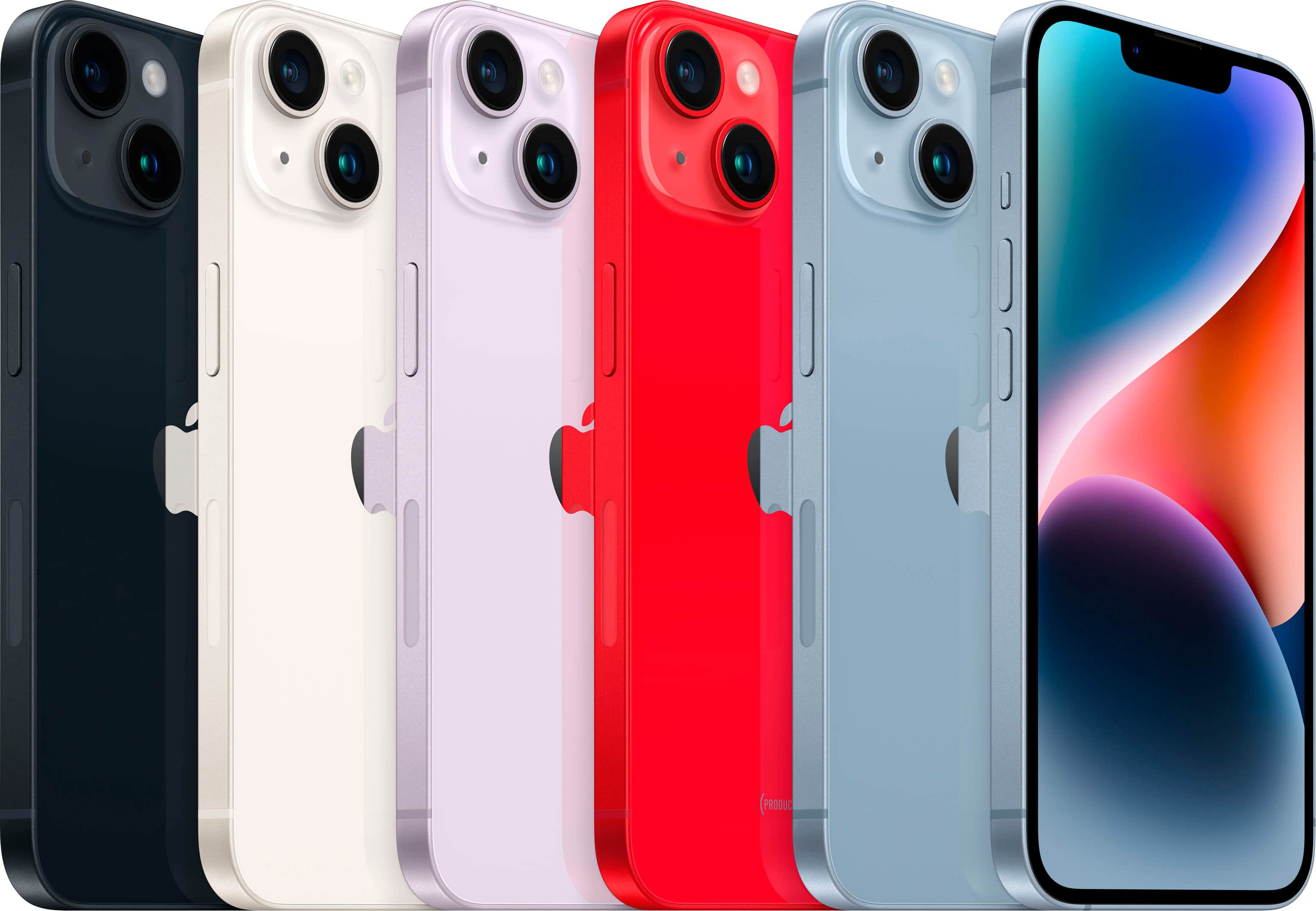
Vibrant Iphone 12 Trade In Value T Mobile Photo in HD
Explore this high-quality iphone 12 trade in value t mobile image, perfect for enhancing your desktop or mobile wallpaper.

Mesmerizing Iphone 12 Trade In Value T Mobile Scene Nature
Transform your screen with this vivid iphone 12 trade in value t mobile artwork, a true masterpiece of digital design.

Breathtaking Iphone 12 Trade In Value T Mobile Scene for Desktop
Discover an amazing iphone 12 trade in value t mobile background image, ideal for personalizing your devices with vibrant colors and intricate designs.

Dynamic Iphone 12 Trade In Value T Mobile Scene Art
Immerse yourself in the stunning details of this beautiful iphone 12 trade in value t mobile wallpaper, designed for a captivating visual experience.

Vivid Iphone 12 Trade In Value T Mobile Photo Art
Experience the crisp clarity of this stunning iphone 12 trade in value t mobile image, available in high resolution for all your screens.

Breathtaking Iphone 12 Trade In Value T Mobile Wallpaper Collection
Discover an amazing iphone 12 trade in value t mobile background image, ideal for personalizing your devices with vibrant colors and intricate designs.

Captivating Iphone 12 Trade In Value T Mobile Scene for Your Screen
This gorgeous iphone 12 trade in value t mobile photo offers a breathtaking view, making it a perfect choice for your next wallpaper.

Detailed Iphone 12 Trade In Value T Mobile Picture for Desktop
Transform your screen with this vivid iphone 12 trade in value t mobile artwork, a true masterpiece of digital design.
Vivid Iphone 12 Trade In Value T Mobile Landscape Digital Art
Discover an amazing iphone 12 trade in value t mobile background image, ideal for personalizing your devices with vibrant colors and intricate designs.
Spectacular Iphone 12 Trade In Value T Mobile Picture Collection
This gorgeous iphone 12 trade in value t mobile photo offers a breathtaking view, making it a perfect choice for your next wallpaper.