Transfer Files iPhone To PC Without iTunes: The Ultimate Guide
Are you tired of fighting with iTunes just to move a few photos or documents from your iPhone to your Windows PC? You are definitely not alone! iTunes can often be slow, clunky, and unnecessarily complicated, especially when all you need is a simple, direct file transfer.
The good news is that you absolutely do not need Apple's proprietary software anymore. There are multiple efficient and straightforward methods available to **Transfer Files iPhone To PC Without iTunes**, making your digital life much smoother. This comprehensive guide will walk you through the best alternatives, from simple cable tricks to advanced wireless solutions.
Why Ditch iTunes? Understanding the Limitations
For many years, iTunes was the only officially supported tool for managing data on iOS devices. However, its primary focus is synchronization and media management, not straightforward file storage access. This often leads to unnecessary complications.
Many users complain that iTunes is resource-heavy, causing slow performance on their PCs. Furthermore, the risk of accidental data deletion or synchronization errors makes many people nervous about using it for simple transfers. Fortunately, modern technology offers far better, less intrusive ways to manage your data.
Method 1: The Simple Cable Transfer (Photos & Videos Only)
The fastest and most direct way to get your pictures and videos off your iPhone is by simply plugging it into your computer. Windows recognizes the iPhone as a digital camera, which allows direct access to the Camera Roll folder. This method requires no additional software and is completely reliable for media files.
This approach works best when you have large amounts of media data that would take too long to upload via Wi-Fi. However, note that this method generally does not allow you to access application data or other document types stored outside the Camera Roll.
Steps for Direct USB Connection
- Connect your iPhone to your PC using a reliable Lightning or USB-C cable.
- If prompted, unlock your iPhone and tap "Trust This Computer."
- On your PC, open File Explorer (Windows Key + E).
- Look for your iPhone listed under "This PC" or "Portable Devices."
- Navigate to the internal storage, then usually to the "DCIM" folder. This is where all your photos and videos are stored.
- Select the files you wish to transfer, then drag and drop or copy/paste them to a folder on your PC.
Once the transfer is complete, safely eject your iPhone from the computer. This simple drag-and-drop process is a fantastic way to **Transfer Files iPhone To PC Without iTunes** when dealing primarily with media.
Method 2: Cloud Services (The Wireless Lifesaver)
Cloud services provide the ultimate freedom from cables and proprietary software. By utilizing apps like Google Drive, Dropbox, or OneDrive, you can upload files from your iPhone and immediately access them on your PC, provided both devices have an internet connection.
This method is excellent for all types of files, including documents, PDFs, and even smaller video clips. It's perfect for those who frequently switch between devices or need access to files remotely.
Using Google Drive/Dropbox
Both Google Drive and Dropbox operate almost identically for this purpose. You simply need the respective app installed on your iPhone and the corresponding desktop application or web access on your PC.
Steps involved:
- Open the cloud app (Drive or Dropbox) on your iPhone.
- Tap the 'Upload' or '+' button.
- Select the files or photos you want to move.
- Once uploaded, simply open the Google Drive or Dropbox folder on your PC. The files will automatically sync and appear ready for use.
This seamless synchronization ensures your files are always updated across all platforms.
Leveraging Microsoft OneDrive
If you are a Windows user, OneDrive is particularly integrated into the Windows operating system, making it an incredibly convenient option. The OneDrive app on your iPhone can automatically back up your photos, similar to iCloud, but with immediate accessibility on your Windows machine.
Setting up the automatic Camera Upload feature on the OneDrive iPhone app means your newest photos and videos are almost instantaneously available on your PC's OneDrive folder. It's an efficient, native solution for Windows enthusiasts.
Method 3: Third-Party Transfer Software (Maximum Control)
Sometimes, cloud storage limits or the inability to transfer non-media files (like ringtones, contact lists, or specific app data) become hurdles. This is where dedicated third-party iPhone management software shines. Tools like iMazing, EaseUS MobiMover, or AnyTrans act as powerful, superior alternatives to iTunes.
These applications provide a complete file browser for your iPhone, allowing you to selectively backup and manage various types of data. They are designed specifically for the task of helping you **Transfer Files iPhone To PC Without iTunes** efficiently.
Key Features to Look For in Transfer Tools
When selecting a reliable third-party tool, make sure it offers the following functionalities:
- Ability to transfer music, videos, and photos bidirectionally (PC to iPhone and vice versa).
- Management of contacts, messages, and call logs.
- Selective backup and restoration capabilities.
- A user-friendly interface that clearly displays iPhone storage categories.
- Support for the latest iOS versions and Windows operating systems.
While most of these professional tools require a one-time purchase, the investment is often worthwhile for heavy iPhone users who need robust data control.
Method 4: Email & Messaging Apps (Small Files Solution)
For those quick, one-off file transfers—like a PDF document or a single screenshot—emailing the file to yourself or using a cross-platform messaging app is incredibly fast and efficient.
This method is limited by the file size restrictions of the email provider (usually around 25MB) but requires absolutely zero setup or specialized accounts. Simply attach the file in your iPhone email app and download it from the same inbox on your PC.
Alternatively, messaging platforms like Telegram or WhatsApp (using the desktop app) often allow you to send documents to yourself or to a dedicated "draft" chat, which you can then download to your PC instantly.
Conclusion
You no longer need to feel chained to iTunes just to manage your iOS data. Whether you prefer the raw speed of a USB cable for media, the convenience of the cloud for wireless syncing, or the comprehensive control of dedicated third-party software, there is a perfect alternative for you.
The goal is always simplicity and speed. By adopting one of these alternative methods, you can seamlessly **Transfer Files iPhone To PC Without iTunes**, freeing up your time and minimizing frustration. Say goodbye to sync errors and hello to efficient file management!
Frequently Asked Questions (FAQ)
- Can I transfer apps directly using these methods?
- No. iOS apps themselves are encrypted and can only be downloaded directly from the Apple App Store. Third-party software can back up app data, but not the installation files themselves.
- Is it safe to trust my data with third-party transfer software?
- Reputable third-party software (like those mentioned above) is generally safe. Always download these programs directly from the official developer websites to avoid malware or compromised versions.
- Will transferring files via USB damage my iPhone or PC?
- No, using the USB cable method to access the DCIM folder is completely safe and standard practice. Just ensure you "safely eject" the iPhone from the PC before physically unplugging it.
- What is the best way to transfer large video files (over 4GB)?
- For very large files, the USB cable transfer (Method 1) is usually the fastest, as it avoids slow upload speeds associated with cloud services. If wireless is essential, using a third-party tool that supports Wi-Fi transfer capabilities would be the next best option.
- How do I transfer contacts and messages without iTunes?
- The most effective way to transfer data like contacts, messages, and call history is by using dedicated third-party transfer software (Method 3), as cloud services and direct USB access generally don't handle these system files.
Transfer Files Iphone To Pc Without Itunes
Transfer Files Iphone To Pc Without Itunes Wallpapers
Collection of transfer files iphone to pc without itunes wallpapers for your desktop and mobile devices.

Dynamic Transfer Files Iphone To Pc Without Itunes Design for Your Screen
Immerse yourself in the stunning details of this beautiful transfer files iphone to pc without itunes wallpaper, designed for a captivating visual experience.
Vibrant Transfer Files Iphone To Pc Without Itunes View in 4K
Discover an amazing transfer files iphone to pc without itunes background image, ideal for personalizing your devices with vibrant colors and intricate designs.
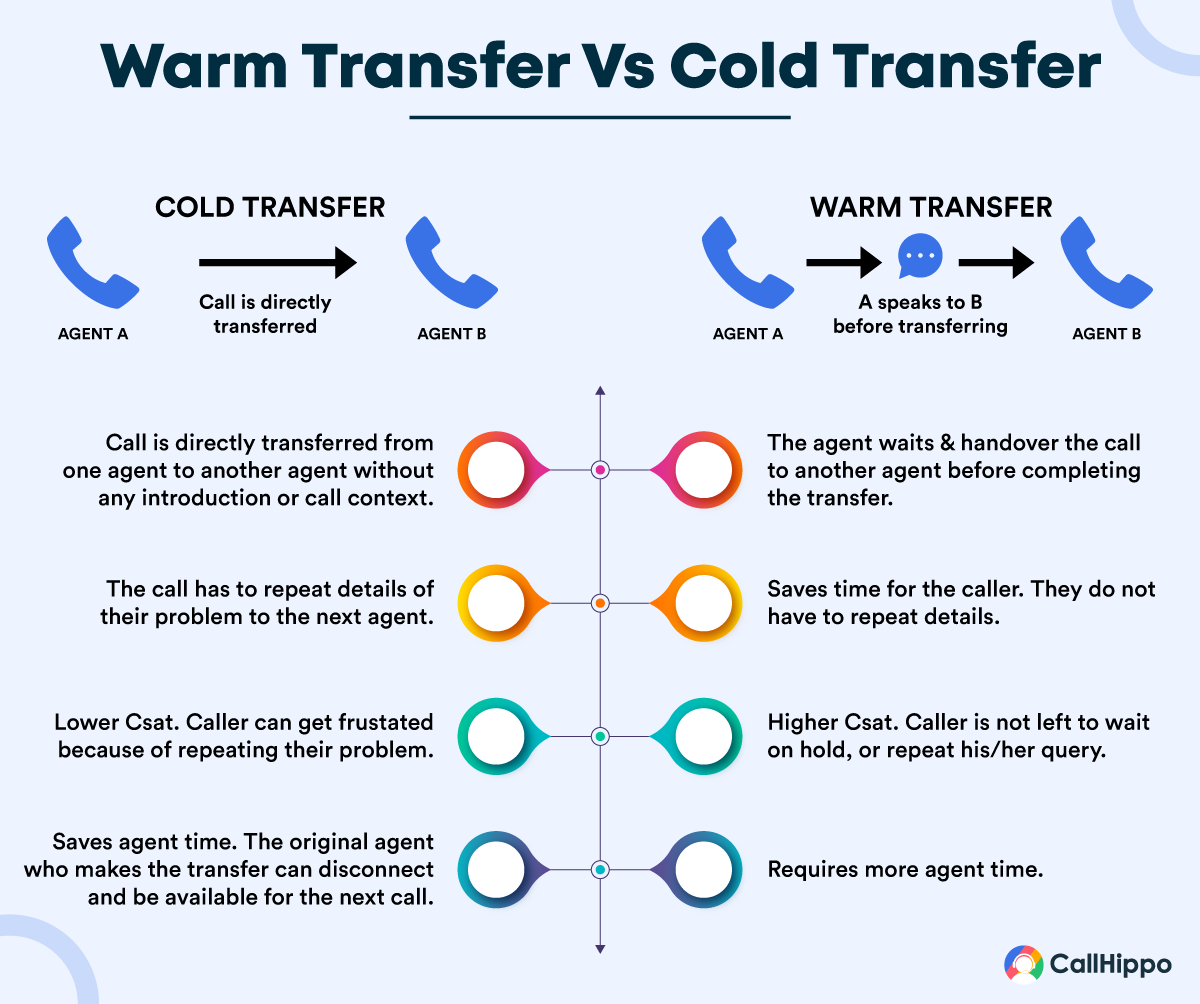
Beautiful Transfer Files Iphone To Pc Without Itunes Photo Art
Transform your screen with this vivid transfer files iphone to pc without itunes artwork, a true masterpiece of digital design.

Captivating Transfer Files Iphone To Pc Without Itunes Scene Art
This gorgeous transfer files iphone to pc without itunes photo offers a breathtaking view, making it a perfect choice for your next wallpaper.
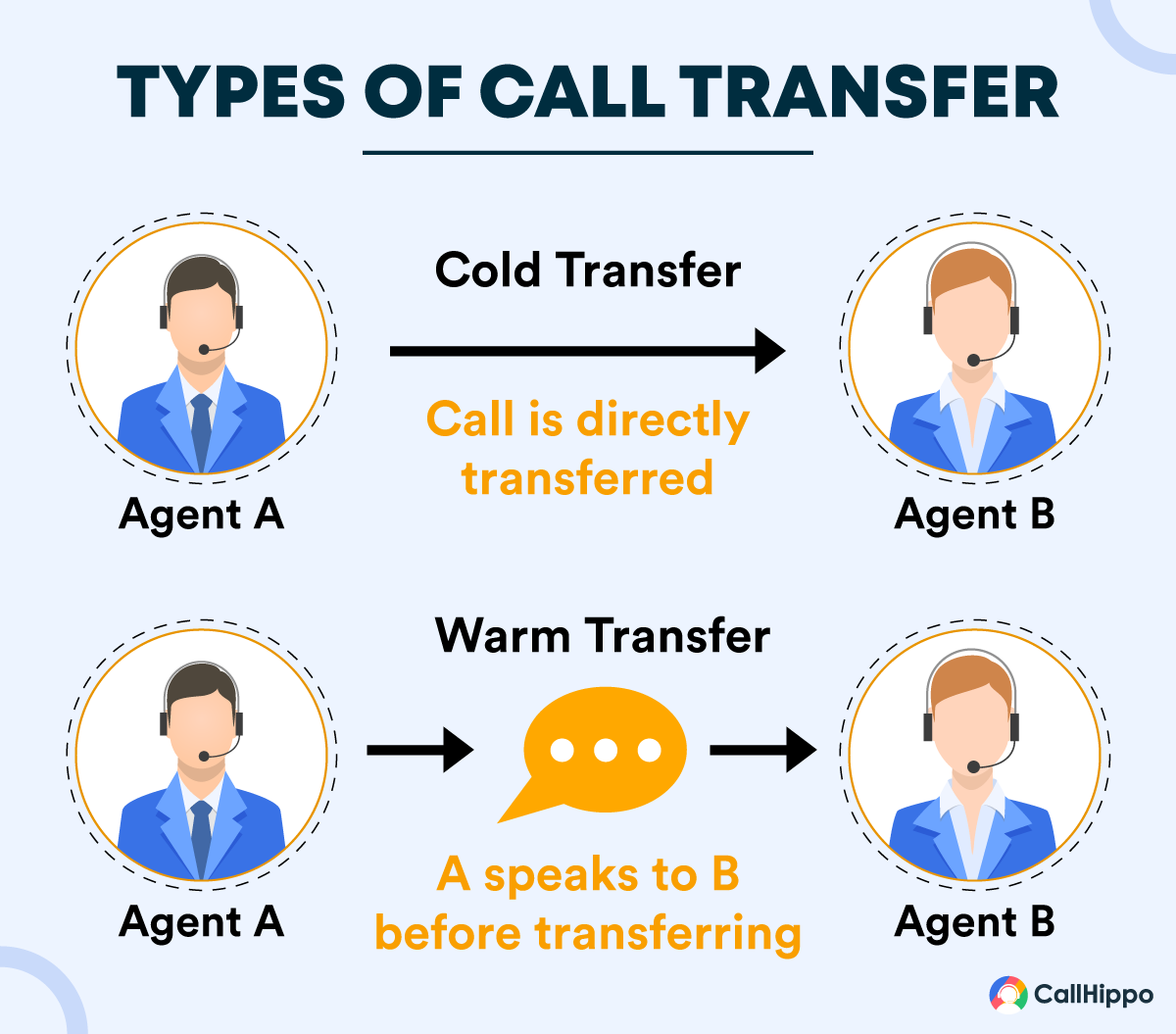
Amazing Transfer Files Iphone To Pc Without Itunes Moment in HD
Explore this high-quality transfer files iphone to pc without itunes image, perfect for enhancing your desktop or mobile wallpaper.
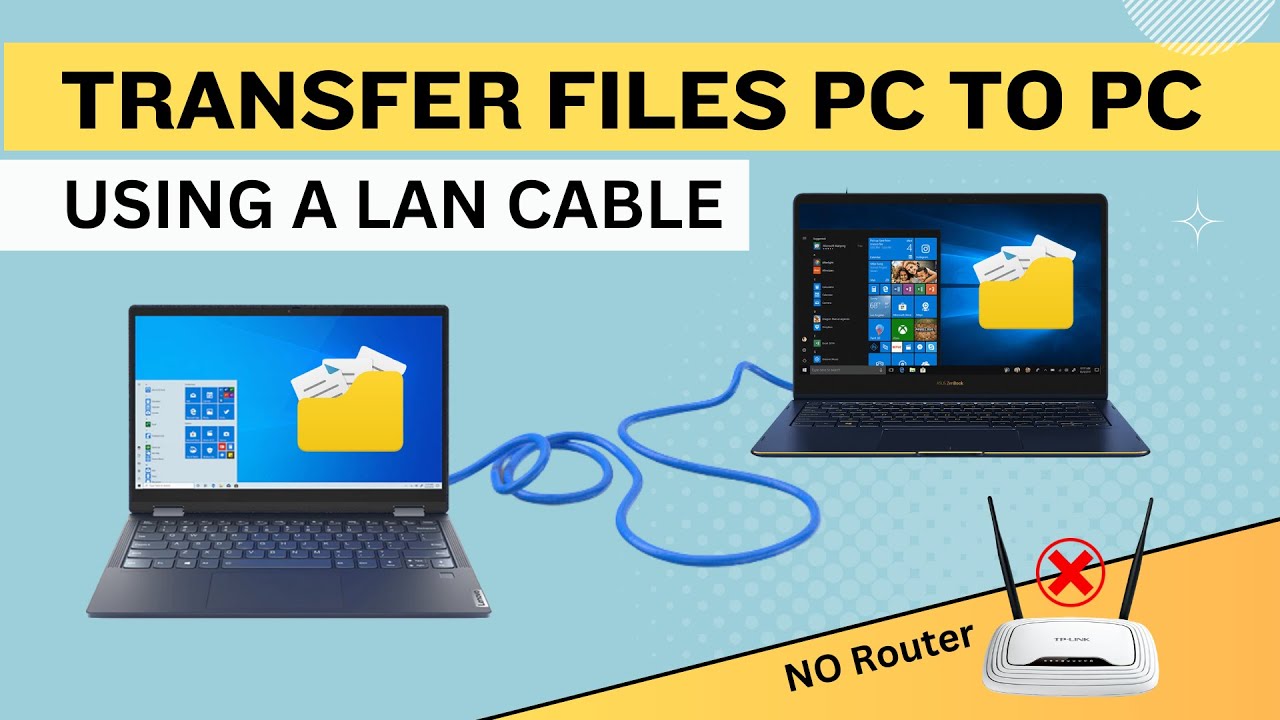
Spectacular Transfer Files Iphone To Pc Without Itunes Scene Illustration
Immerse yourself in the stunning details of this beautiful transfer files iphone to pc without itunes wallpaper, designed for a captivating visual experience.

Vivid Transfer Files Iphone To Pc Without Itunes Background for Your Screen
Transform your screen with this vivid transfer files iphone to pc without itunes artwork, a true masterpiece of digital design.
Serene Transfer Files Iphone To Pc Without Itunes Design for Desktop
Explore this high-quality transfer files iphone to pc without itunes image, perfect for enhancing your desktop or mobile wallpaper.

Mesmerizing Transfer Files Iphone To Pc Without Itunes Landscape for Mobile
Transform your screen with this vivid transfer files iphone to pc without itunes artwork, a true masterpiece of digital design.

Beautiful Transfer Files Iphone To Pc Without Itunes Landscape Digital Art
Experience the crisp clarity of this stunning transfer files iphone to pc without itunes image, available in high resolution for all your screens.

Serene Transfer Files Iphone To Pc Without Itunes Moment Photography
Discover an amazing transfer files iphone to pc without itunes background image, ideal for personalizing your devices with vibrant colors and intricate designs.
Beautiful Transfer Files Iphone To Pc Without Itunes Background Digital Art
Experience the crisp clarity of this stunning transfer files iphone to pc without itunes image, available in high resolution for all your screens.
Mesmerizing Transfer Files Iphone To Pc Without Itunes Picture Photography
Transform your screen with this vivid transfer files iphone to pc without itunes artwork, a true masterpiece of digital design.

Beautiful Transfer Files Iphone To Pc Without Itunes Capture Digital Art
Discover an amazing transfer files iphone to pc without itunes background image, ideal for personalizing your devices with vibrant colors and intricate designs.

Spectacular Transfer Files Iphone To Pc Without Itunes Photo in HD
This gorgeous transfer files iphone to pc without itunes photo offers a breathtaking view, making it a perfect choice for your next wallpaper.

Detailed Transfer Files Iphone To Pc Without Itunes Background Photography
Experience the crisp clarity of this stunning transfer files iphone to pc without itunes image, available in high resolution for all your screens.
Vivid Transfer Files Iphone To Pc Without Itunes Moment Collection
Transform your screen with this vivid transfer files iphone to pc without itunes artwork, a true masterpiece of digital design.

Dynamic Transfer Files Iphone To Pc Without Itunes Picture Nature
This gorgeous transfer files iphone to pc without itunes photo offers a breathtaking view, making it a perfect choice for your next wallpaper.
Gorgeous Transfer Files Iphone To Pc Without Itunes Image in 4K
Immerse yourself in the stunning details of this beautiful transfer files iphone to pc without itunes wallpaper, designed for a captivating visual experience.

Stunning Transfer Files Iphone To Pc Without Itunes Moment for Mobile
Find inspiration with this unique transfer files iphone to pc without itunes illustration, crafted to provide a fresh look for your background.
Download these transfer files iphone to pc without itunes wallpapers for free and use them on your desktop or mobile devices.