iPhone Turned Off And Won't Turn On? Here's How To Fix It!
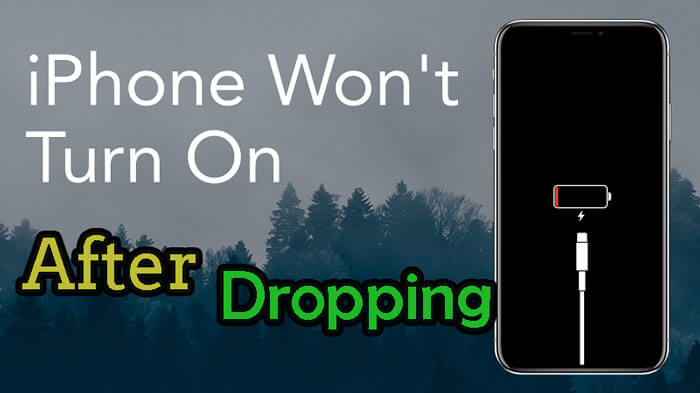
There are few things more frustrating than reaching for your trusted device only to find a lifeless, black screen. If your iPhone turned off and won't turn on, don't panic! This is a very common issue, and often, the solution is much simpler than you think.
Whether your phone died unexpectedly overnight, or perhaps froze during an update, we understand the immediate dread that sets in. Before you start searching for expensive repair services, follow this step-by-step guide. We'll walk you through the simplest troubleshooting steps right up to the advanced fixes to get your iPhone back in action.
Don't Panic Yet: Diagnosing the Problem
When your iPhone refuses to power up, the problem usually falls into one of two categories: a battery/charging issue or a software crash. Identifying the cause will determine the best fix. First, we need to eliminate the possibility of a simple low battery.
Did the phone die immediately after running a heavy app or was it powered off for several hours? If you experienced an immediate shutdown without warning, it is more likely a critical software issue. However, always start with the simplest solution first.
Solution 1: The Classic Fix – Force Restart
The number one reason an iPhone turns off and won't turn on is a software glitch. Even if the screen is completely black, the hardware might still be frozen. A force restart (sometimes called a hard reset) often clears these temporary errors without affecting your data.
If you've never done this before, don't worry—it's safe and highly effective. The method varies slightly depending on your iPhone model. Follow the instructions for your specific device.
Step-by-Step Force Restart Instructions
Perform these steps quickly and precisely. You are pressing and releasing buttons in rapid succession.
For iPhone 8, SE (2nd generation and later), X, 11, 12, 13, 14, or 15:
- Press and quickly release the Volume Up button.
- Press and quickly release the Volume Down button.
- Press and hold the Side (Power) button. Keep holding it even if the screen remains black.
- Release the Side button when the Apple logo appears. This might take up to 30 seconds.
For iPhone 7 or iPhone 7 Plus:
- Press and hold both the Volume Down button and the Sleep/Wake (Power) button at the same time.
- Keep holding until you see the Apple logo, then release both buttons.
For iPhone 6s, iPhone 6, or iPhone SE (1st generation):
- Press and hold both the Home button and the Sleep/Wake (Power) button simultaneously.
- Release both buttons when the Apple logo appears.
Solution 2: Is It Just the Battery? Charging Troubleshooting
If the force restart failed, the most likely culprit is now power deprivation. If your iPhone battery completely depletes, the phone requires a small charge buffer before it can even display the charging indicator or Apple logo. If your iPhone turned off and won't turn on due to low battery, patience is key.
Plug your device into a wall outlet (not a computer USB port) using a known good charging cable and adapter. Leave it charging for at least one hour. After a few minutes, you should see the charging screen or the Apple logo. If not, proceed to check your equipment.
Checking Your Charger and Accessories
Faulty cables and adapters are very common causes of charging failure. Ensure that your charging equipment is working properly by testing it with another device or trying different components. Here is a checklist of items to verify:
- Wall Outlet: Try a different electrical outlet.
- Charging Cable: Use an official Apple cable or a MFi-certified cable. Inspect the cable for fraying or damage.
- USB Adapter: Ensure the power adapter is functioning. Try swapping it out for a different one.
- Lightning/USB-C Port: Shine a light into the charging port on your iPhone. Use a clean, dry toothbrush or a wooden toothpick (carefully!) to gently remove any lint, dust, or debris that might be blocking the connection.
Solution 3: Advanced Troubleshooting: When Software Fails
If you've tried force restarting and charging, but your phone still shows a black screen, it's possible the operating system itself is corrupted. This often happens after a bad iOS update or due to system file damage. At this stage, you need a computer (Mac or PC running iTunes/Finder) to perform a restore.
We will attempt to put the phone into Recovery Mode. Note that restoring your iPhone will erase all data if you don't have a recent backup, so proceed with caution.
Entering Recovery Mode Using iTunes/Finder
Connect your iPhone to your computer using a USB cable. Then, repeat the force restart steps for your specific model, but instead of releasing the Side button when the Apple logo appears, keep holding it until you see the Recovery Mode screen (a computer icon and cable).
Once you are in Recovery Mode, your computer will display a prompt asking you to "Update" or "Restore" the device. Try "Update" first. This attempts to reinstall iOS without erasing your data. If Update fails, you must select "Restore."
Understanding DFU Mode (The Last Resort)
DFU (Device Firmware Update) mode is the deepest kind of restore you can perform. Unlike Recovery Mode, which still relies on some internal iOS components, DFU bypasses the current OS entirely and allows the firmware to be rewritten. This is only necessary if Recovery Mode fails completely.
Entering DFU mode is complex and model-dependent. It should only be attempted if your iPhone turned off and won't turn on even after trying all the previous steps. Look up specific DFU instructions for your model if you reach this critical stage.
Solution 4: When All Else Fails: Hardware and Professional Help
If none of the above software or charging methods revive your phone, the issue is almost certainly hardware-related. This could involve a failed display, a severed battery connection, or damage to the logic board.
Think back to the moments before your phone died. Did you drop it recently? Did it come into contact with water or excessive heat? Physical trauma or liquid damage are often the causes of a complete shutdown that cannot be fixed by a simple reboot.
At this point, it is time to contact the experts. You have two main options:
- Apple Support or Genius Bar: If your phone is under warranty or you have AppleCare+, this is the best option. They can diagnose the exact component failure and offer repair or replacement.
- Authorized Service Provider: If you don't have AppleCare+, an authorized third-party provider might offer more cost-effective repair options, especially if only the battery or screen requires replacement.
Remember to clearly explain the steps you have already taken (force restart, charging checks, recovery mode) to save them diagnostic time.
Conclusion: Getting Your iPhone Back to Life
It's unnerving when your iPhone turned off and won't turn on, but patience and systematic troubleshooting are key. Start by performing a force restart, which solves the majority of black screen issues caused by software freezing. If that fails, thoroughly check your charging setup, ensuring the phone is plugged in with a reliable cable for at least an hour.
Only move to advanced software restores (Recovery Mode or DFU) if basic checks fail, as these carry the risk of data loss. If even a full restore doesn't work, unfortunately, you are facing a hardware fault that requires professional attention. Good luck, and we hope your Apple logo reappears soon!
Frequently Asked Questions (FAQ)
- What does it mean if my iPhone shows a black screen but vibrates?
- If your iPhone vibrates, rings, or responds to certain button presses (like the mute switch), the phone itself is likely working. This strongly suggests a hardware failure of the display component. Try a force restart anyway, but be prepared for a screen repair.
- Will forcing a restart erase my data?
- No. A force restart is a safe procedure designed to interrupt power and reboot the system kernel. It does not erase apps, photos, or settings. Only a full system restore (in Recovery or DFU mode) will erase your data.
- How long should I leave a dead iPhone plugged in before trying to turn it on?
- If the battery was completely drained, leave it plugged into a reliable wall outlet for at least 30 minutes before attempting a force restart. For extremely old batteries, you might need to wait an hour or more.
- Why did my iPhone turn off and won't turn on immediately after an iOS update?
- A failed or corrupted update can cause the system to crash or enter a permanent boot loop, resulting in a black screen. In this scenario, you must connect the phone to a computer and use Recovery Mode to restore or update the iOS software.
Iphone Turned Off And Won'T Turn On
Iphone Turned Off And Won'T Turn On Wallpapers
Collection of iphone turned off and won't turn on wallpapers for your desktop and mobile devices.
:max_bytes(150000):strip_icc()/fix-iphone-wont-turn-of-4134989-c32a35004ac44747bcd25bd5db7ef4dc.png "Captivating Iphone Turned Off And Won't Turn On Picture in HD")
Captivating Iphone Turned Off And Won't Turn On Picture in HD
Immerse yourself in the stunning details of this beautiful iphone turned off and won't turn on wallpaper, designed for a captivating visual experience.

Crisp Iphone Turned Off And Won't Turn On Abstract Collection
This gorgeous iphone turned off and won't turn on photo offers a breathtaking view, making it a perfect choice for your next wallpaper.
Vibrant Iphone Turned Off And Won't Turn On Wallpaper for Mobile
Explore this high-quality iphone turned off and won't turn on image, perfect for enhancing your desktop or mobile wallpaper.
Detailed Iphone Turned Off And Won't Turn On Moment Digital Art
Transform your screen with this vivid iphone turned off and won't turn on artwork, a true masterpiece of digital design.
Crisp Iphone Turned Off And Won't Turn On Wallpaper for Desktop
Immerse yourself in the stunning details of this beautiful iphone turned off and won't turn on wallpaper, designed for a captivating visual experience.

Amazing Iphone Turned Off And Won't Turn On Artwork in HD
Discover an amazing iphone turned off and won't turn on background image, ideal for personalizing your devices with vibrant colors and intricate designs.

Exquisite Iphone Turned Off And Won't Turn On Scene Photography
Immerse yourself in the stunning details of this beautiful iphone turned off and won't turn on wallpaper, designed for a captivating visual experience.

Dynamic Iphone Turned Off And Won't Turn On Wallpaper for Desktop
Find inspiration with this unique iphone turned off and won't turn on illustration, crafted to provide a fresh look for your background.
High-Quality Iphone Turned Off And Won't Turn On Capture Illustration
Explore this high-quality iphone turned off and won't turn on image, perfect for enhancing your desktop or mobile wallpaper.
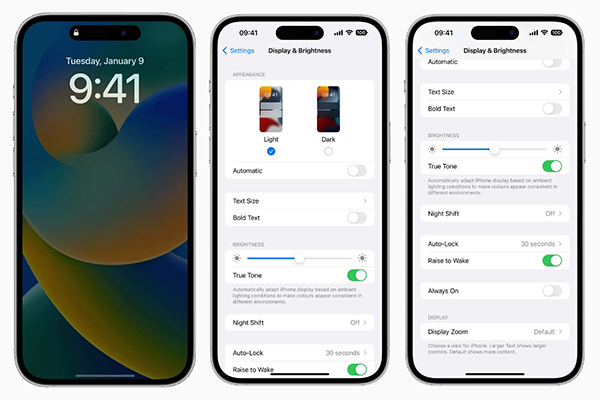
High-Quality Iphone Turned Off And Won't Turn On Capture in HD
Experience the crisp clarity of this stunning iphone turned off and won't turn on image, available in high resolution for all your screens.
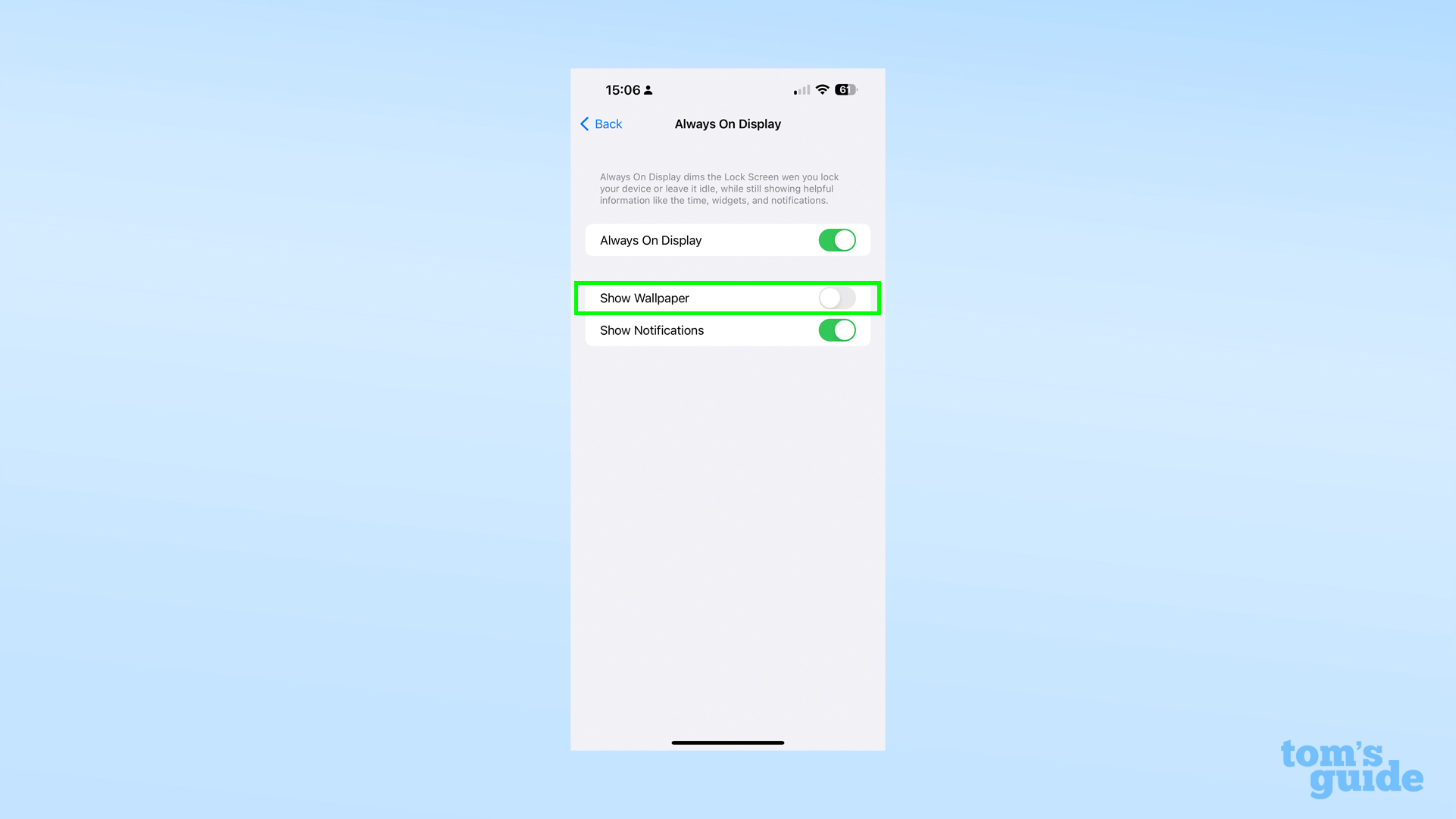
Lush Iphone Turned Off And Won't Turn On Capture Illustration
This gorgeous iphone turned off and won't turn on photo offers a breathtaking view, making it a perfect choice for your next wallpaper.
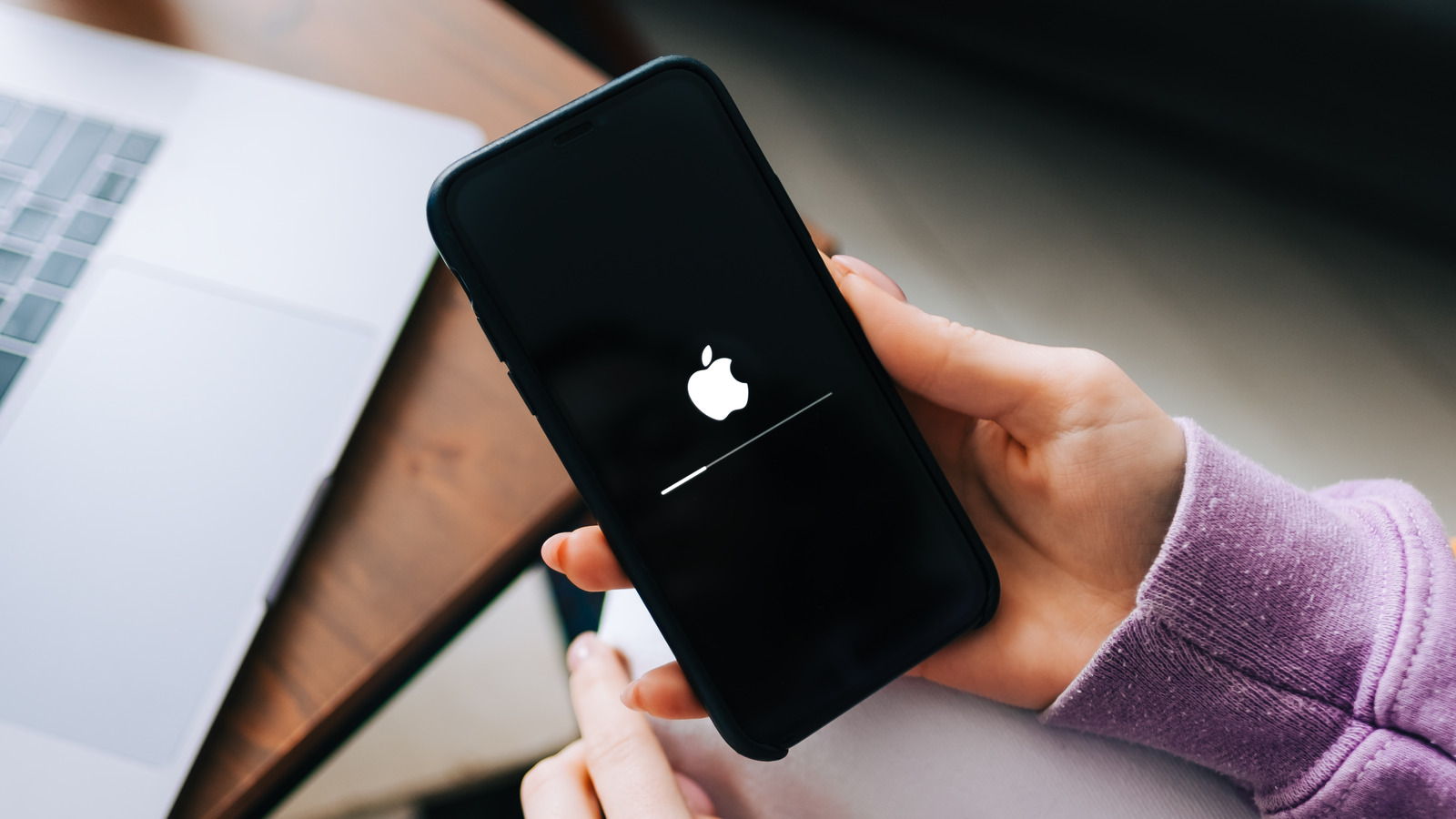
Serene Iphone Turned Off And Won't Turn On Moment Art
Discover an amazing iphone turned off and won't turn on background image, ideal for personalizing your devices with vibrant colors and intricate designs.

Exquisite Iphone Turned Off And Won't Turn On Photo Illustration
Find inspiration with this unique iphone turned off and won't turn on illustration, crafted to provide a fresh look for your background.

Mesmerizing Iphone Turned Off And Won't Turn On Landscape Illustration
Explore this high-quality iphone turned off and won't turn on image, perfect for enhancing your desktop or mobile wallpaper.
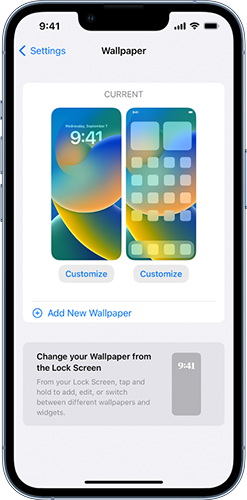
Detailed Iphone Turned Off And Won't Turn On Capture Digital Art
Transform your screen with this vivid iphone turned off and won't turn on artwork, a true masterpiece of digital design.
Breathtaking Iphone Turned Off And Won't Turn On Abstract Illustration
Experience the crisp clarity of this stunning iphone turned off and won't turn on image, available in high resolution for all your screens.

Serene Iphone Turned Off And Won't Turn On Photo Illustration
Experience the crisp clarity of this stunning iphone turned off and won't turn on image, available in high resolution for all your screens.
Vivid Iphone Turned Off And Won't Turn On Wallpaper in HD
Discover an amazing iphone turned off and won't turn on background image, ideal for personalizing your devices with vibrant colors and intricate designs.
Beautiful Iphone Turned Off And Won't Turn On Moment Concept
Experience the crisp clarity of this stunning iphone turned off and won't turn on image, available in high resolution for all your screens.

Mesmerizing Iphone Turned Off And Won't Turn On Scene in HD
Discover an amazing iphone turned off and won't turn on background image, ideal for personalizing your devices with vibrant colors and intricate designs.
Download these iphone turned off and won't turn on wallpapers for free and use them on your desktop or mobile devices.