How To Transfer From Old Iphone To New Iphone: The Ultimate Easy Guide
Getting a brand new iPhone is exciting! That sleek new device promises better battery life, a fantastic camera, and all the latest features. However, that excitement often comes with a small dose of anxiety: How To Transfer From Old Iphone To New Iphone without losing any precious photos, messages, or apps? Don't worry, the process is far simpler than it used to be.
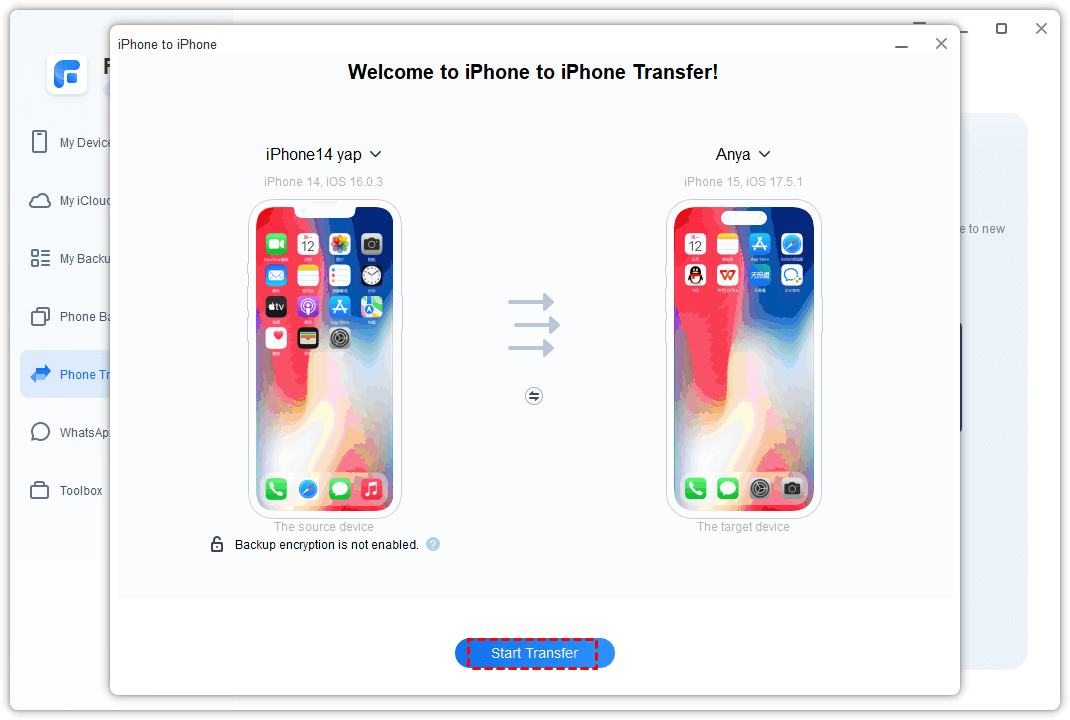
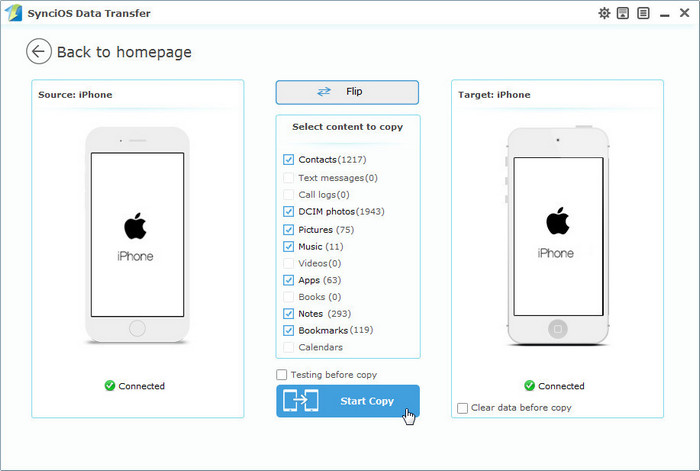
Apple has streamlined the data migration process significantly, offering several straightforward methods. Whether you prefer a speedy, direct transfer or relying on the cloud, we've got you covered. This comprehensive, step-by-step guide will walk you through the three best ways to move everything safely and seamlessly to your new device.
Preparation is Key: Before You Start the Transfer
Before you even power on your new gadget, a little preparation goes a long way toward ensuring a smooth transfer. Skipping these preliminary steps can lead to frustrating delays or incomplete transfers, especially when dealing with large amounts of data.
Check Software Updates and Backups
The number one reason transfers fail is outdated software. Your old iPhone needs to be running the latest possible version of iOS or iPadOS to ensure compatibility with your new phone's software. Take a moment to check and update before beginning the transfer process.
Here's your quick checklist for the old iPhone:
- Update the operating system: Go to Settings > General > Software Update.
- Create a fresh backup: A recent backup is your safety net. You can do this via iCloud or connect to a computer using Finder (Mac) or iTunes (PC).
- Deactivate specific services: If you have an Apple Watch, unpair it from your old iPhone.
- Disable Find My iPhone: You might need to temporarily turn this off, especially if you plan to factory reset your old phone later.
Ensure Both iPhones are Charged
Data migration can take a significant amount of time, sometimes hours if you have hundreds of gigabytes of information. You absolutely do not want the battery dying mid-transfer. Keep both devices plugged in throughout the entire process.
Also, ensure you have stable Wi-Fi connectivity. Most modern methods for transferring data rely heavily on a strong, consistent Wi-Fi signal to move data quickly between the two devices.
Method 1: The Quick Start Way (Direct Transfer)
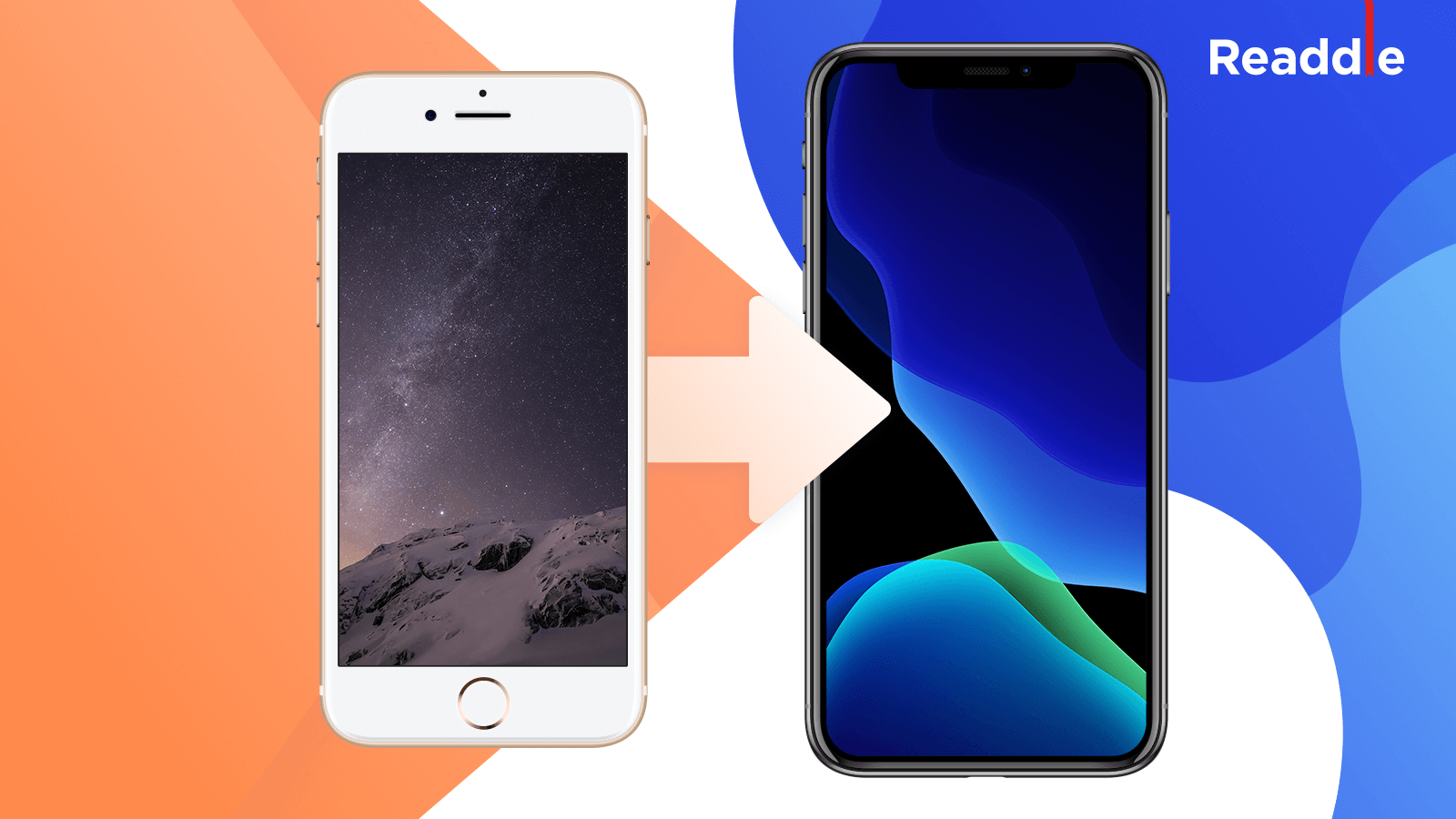
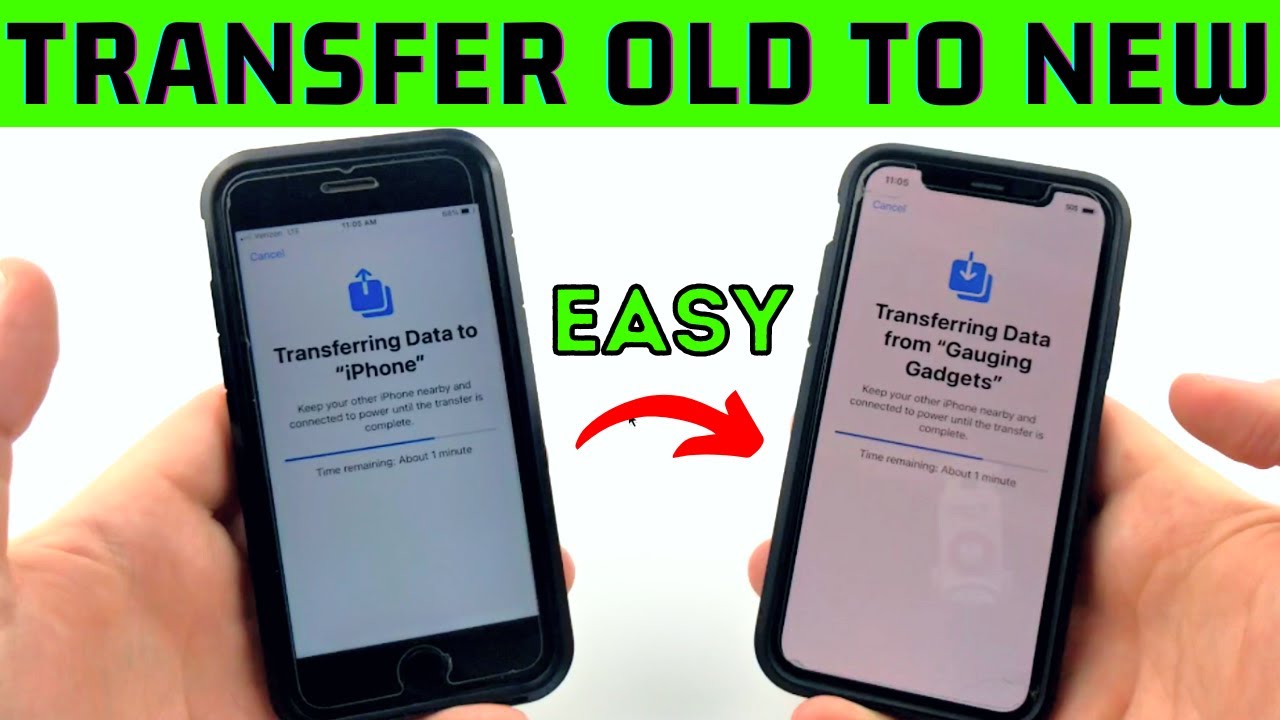
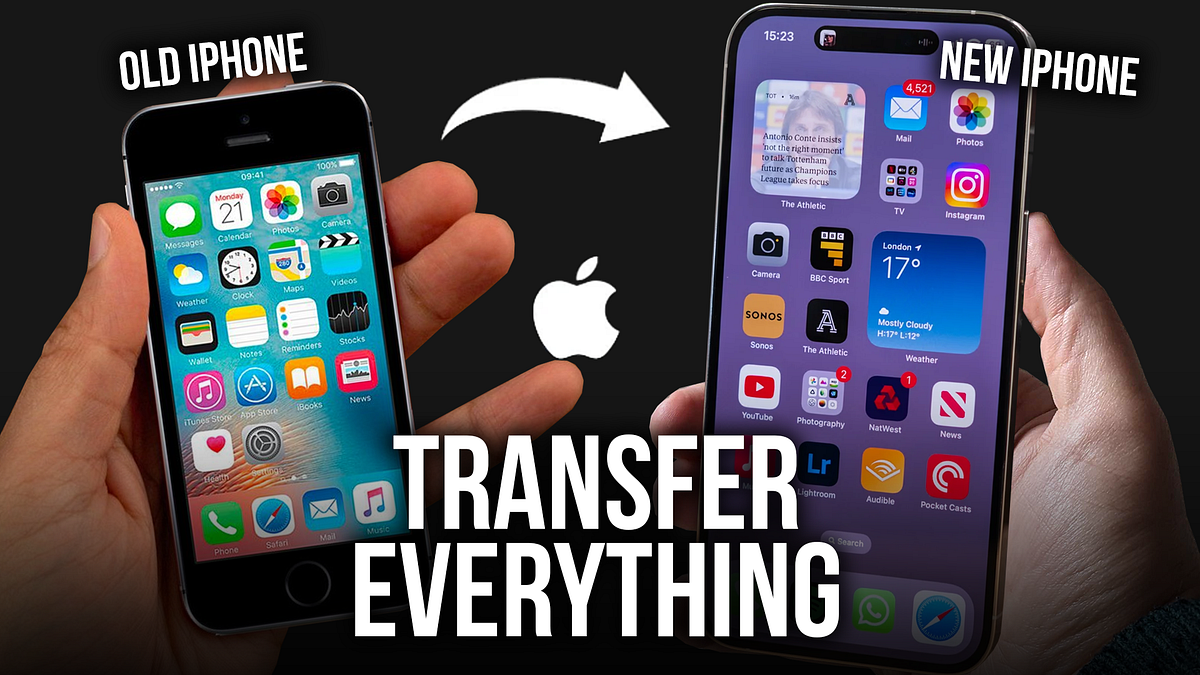
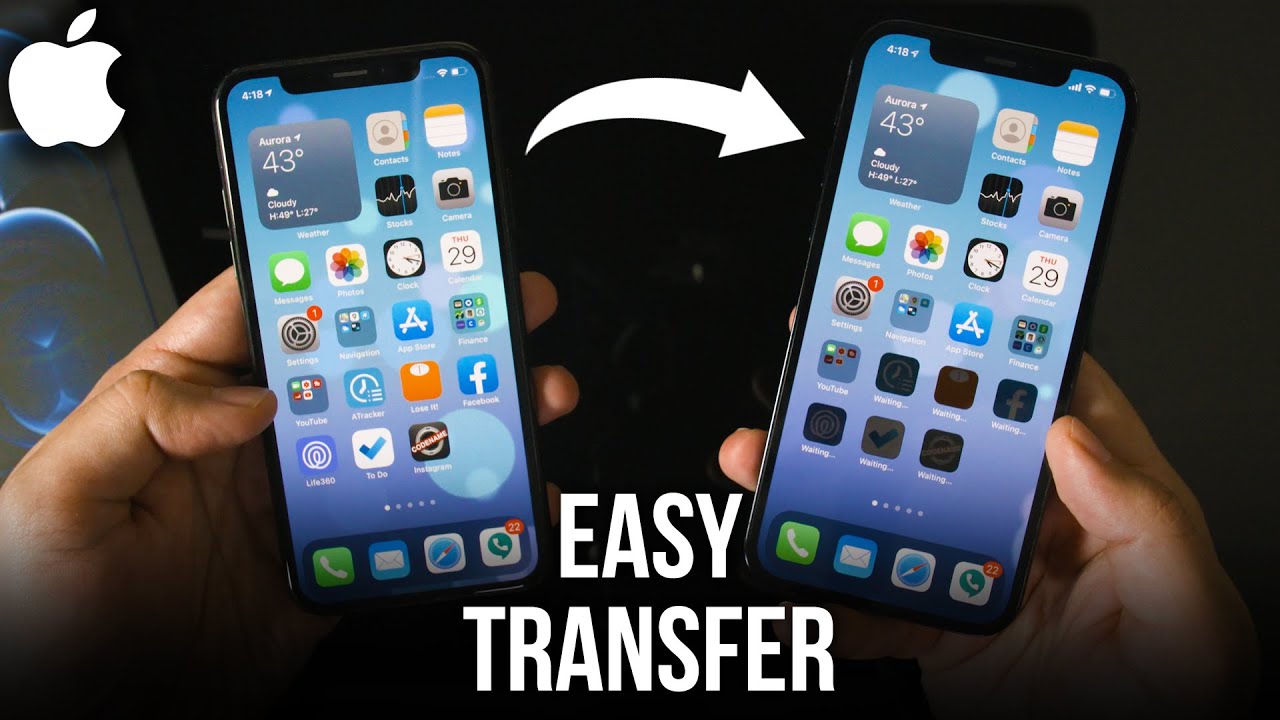
If you are looking for the absolute fastest and easiest way to transfer from old iPhone to new iPhone, Quick Start is your answer. Introduced in iOS 11, Quick Start allows you to set up your new phone automatically using the information from your old phone, often bypassing the need for a cloud backup.
Quick Start utilizes a direct peer-to-peer connection (sometimes called iPhone Migration) to move data, meaning it can be much faster than downloading everything from iCloud, assuming your devices are placed close together.
Steps for Using Quick Start
This process is highly intuitive and requires very little interaction once it begins. Remember, keep both devices plugged in and close to each other.
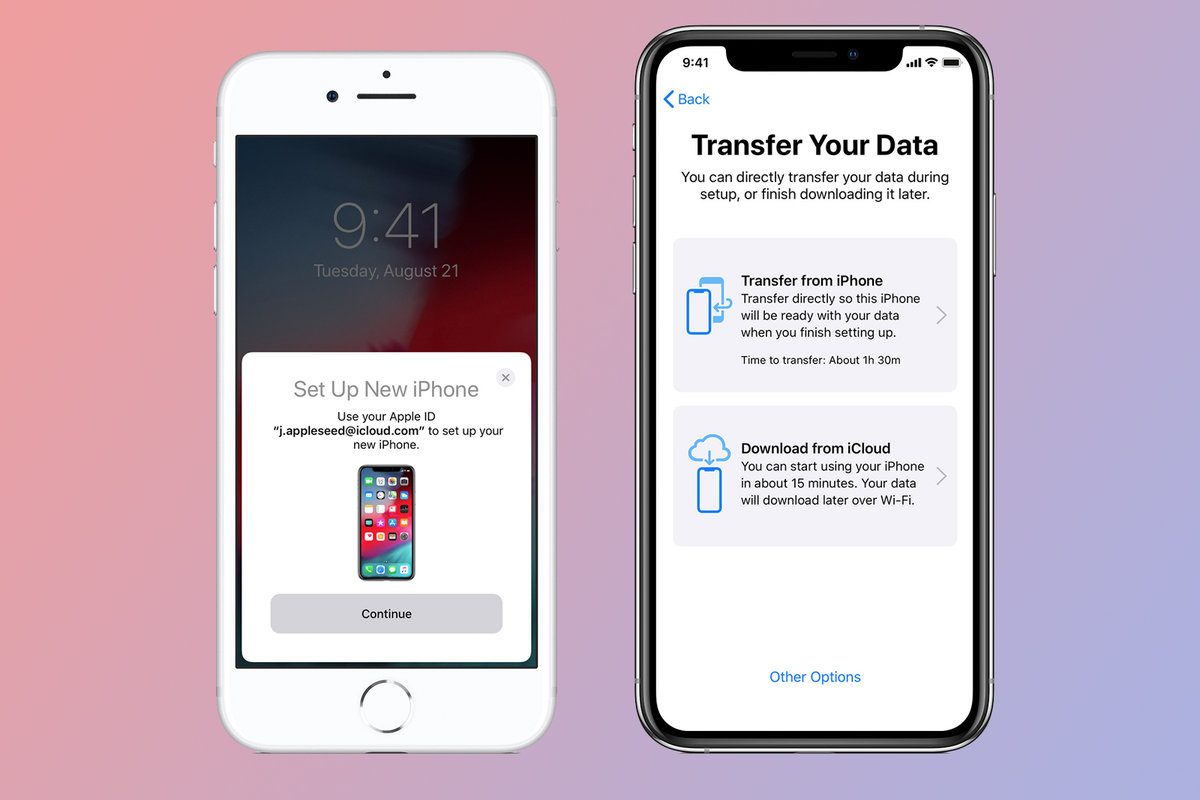
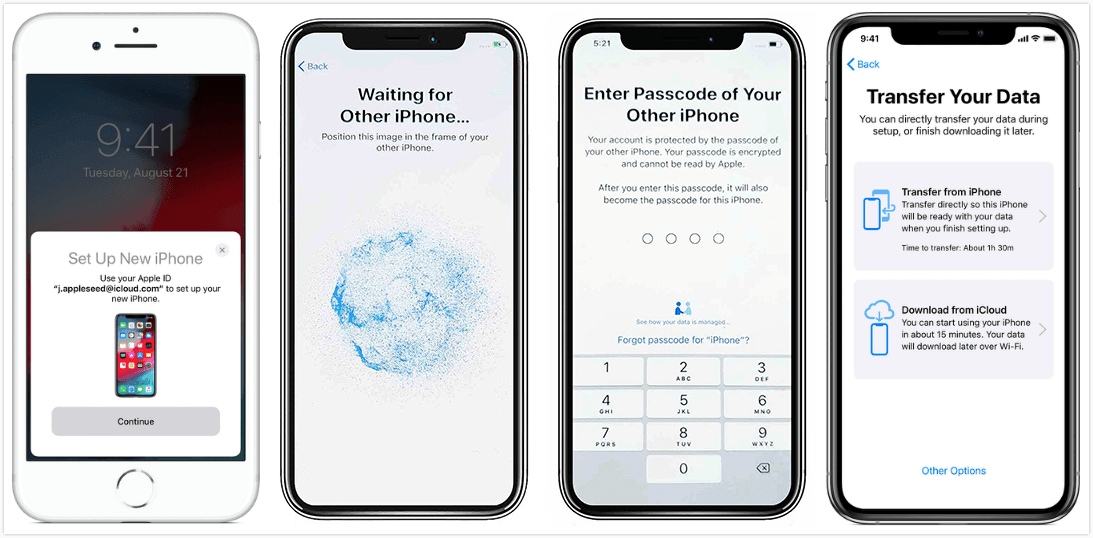
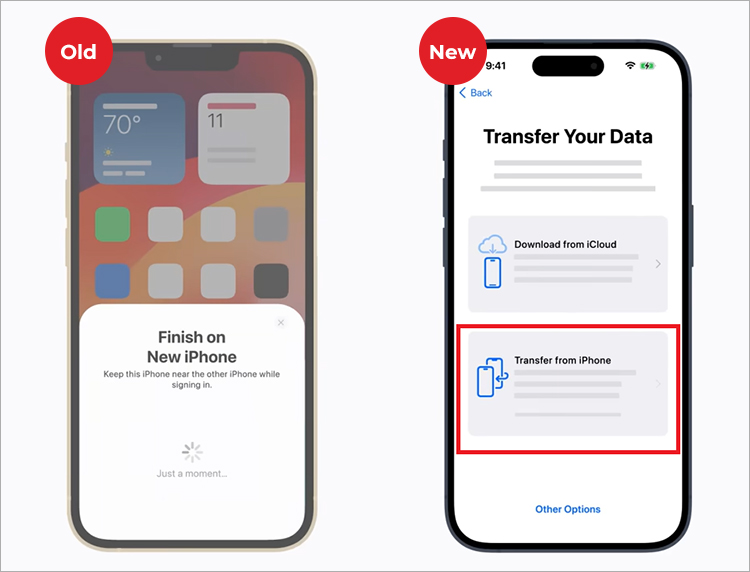
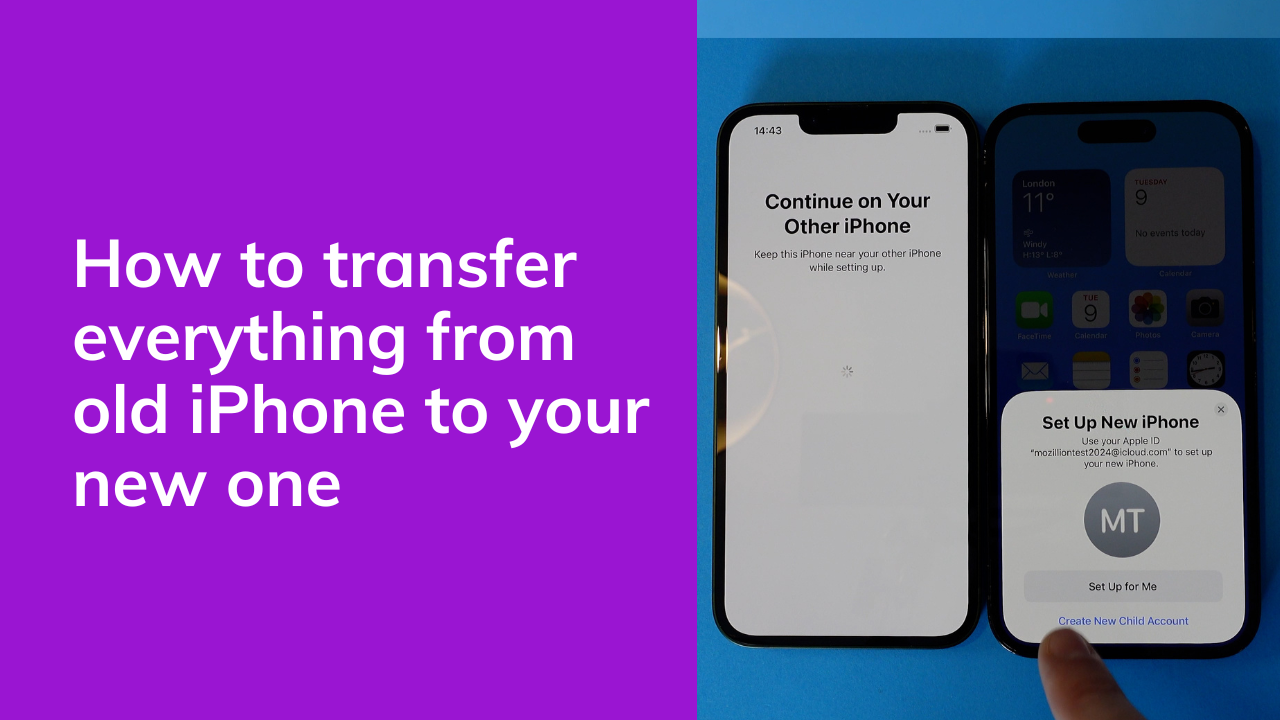
- Activate the New iPhone: Turn on your new iPhone. A Quick Start screen should appear on your old iPhone, prompting you to set up the new device.
- Authenticate: Tap "Continue" on the Quick Start screen. An animation will appear on the new phone. Use the camera of your old phone to scan this animation.
- Enter Passcode: Enter your old iPhone's passcode on the new iPhone when prompted.
- Set Up Face ID/Touch ID: Follow the instructions to set up your biometric security features.
- Select Data Transfer Method: When asked how you want to transfer data, select "Transfer from iPhone."
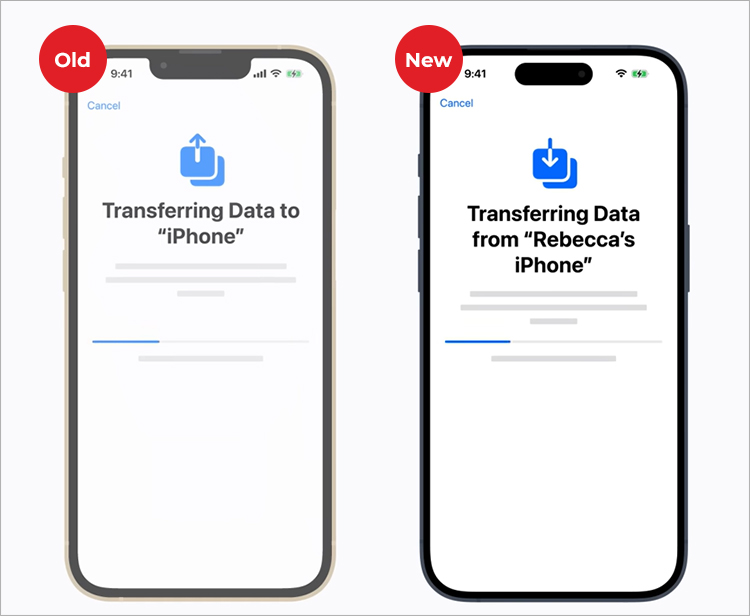
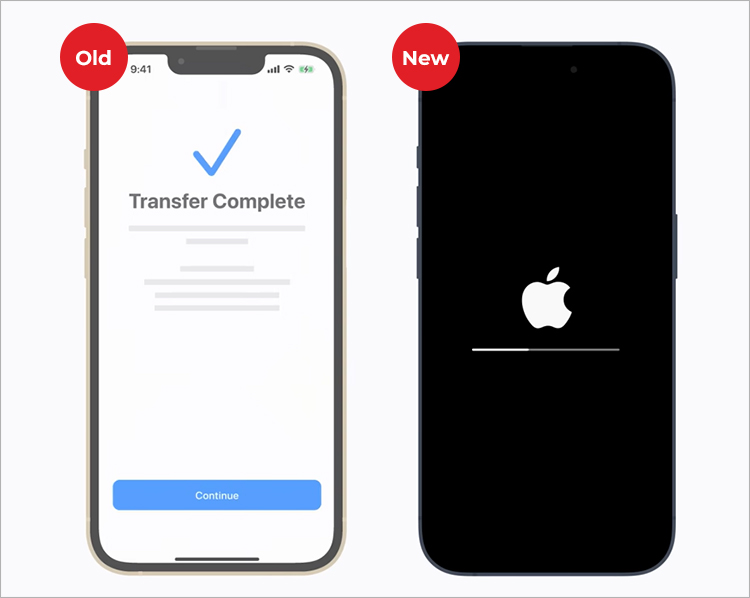
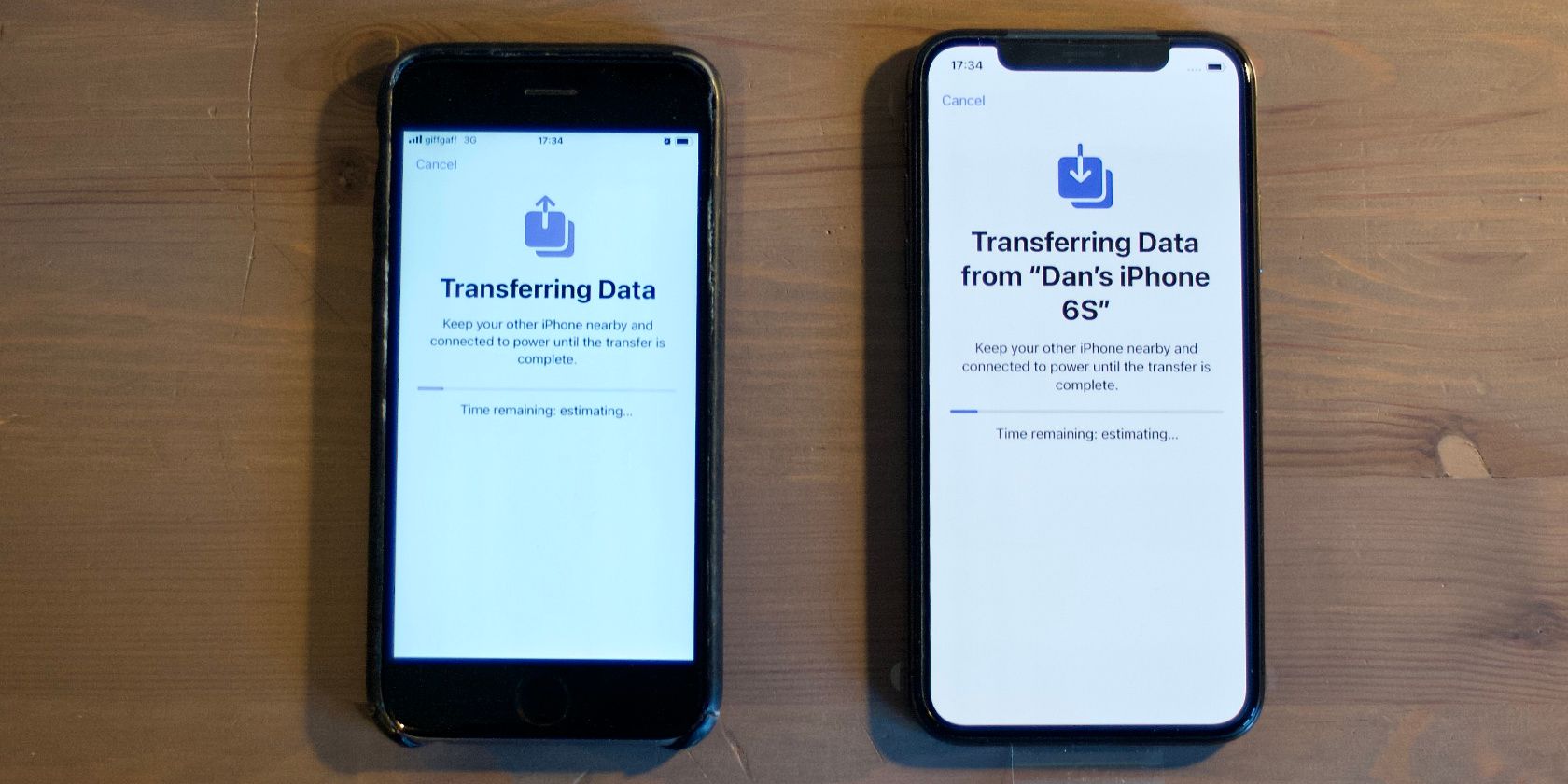
- Wait for Transfer: Keep the two devices side-by-side. The transfer time will vary based on the size of your data. Once complete, your new iPhone will reboot, and all your content will be waiting for you!
Method 2: The Cloud Route (iCloud Backup)
If you don't have your old iPhone physically available right when you set up the new one, or if you prefer the reliability of a cloud backup, using iCloud is a fantastic alternative for data migration. This method is crucial for those who trade in their old device before the new one arrives.
Backing Up Your Old iPhone to iCloud
First, ensure your old iPhone has a current backup stored in the cloud. If you haven't backed up recently, do it now:
- Go to Settings, tap your name at the top.
- Select iCloud > iCloud Backup.
- Tap "Back Up Now." Wait until the process is fully complete and verify the timestamp of the last backup.
Remember that if your backup exceeds the free 5GB iCloud limit, you may need to purchase temporary storage space or an ongoing plan.
Restoring Your New iPhone from iCloud Backup
When you power on your new iPhone and reach the Apps & Data screen, follow these steps:
- Select "Restore from iCloud Backup."
- Sign in with your Apple ID and password.
- Choose the most recent backup file from your old iPhone.
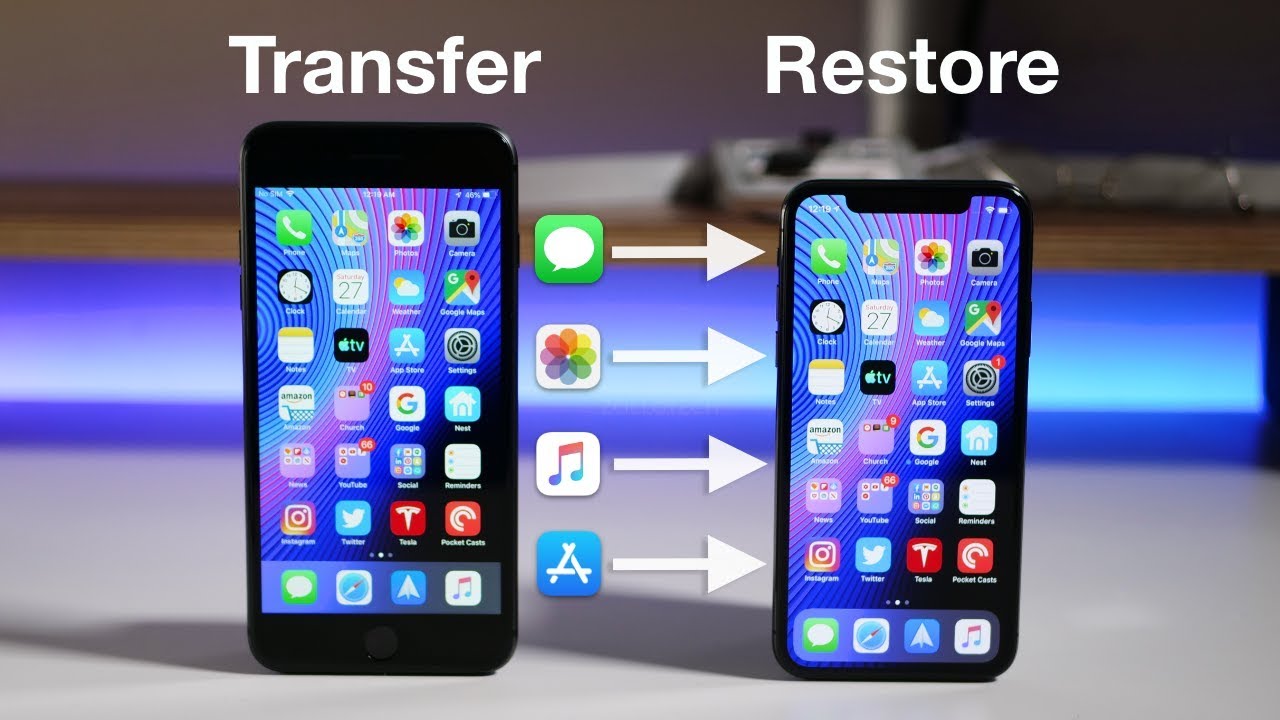
- Wait for the restore process. The phone will download the backup structure, and then begin downloading all your apps, photos, and media in the background.
The time this takes depends entirely on your Wi-Fi speed and the size of your backup. You are now well on your way to understanding How To Transfer From Old Iphone To New Iphone successfully!
Method 3: The Traditional Route (Finder/iTunes)
For those who prefer a local, secure backup, or if you have limited iCloud storage and a very large amount of data, using a computer (Mac or PC) is the classic solution. This method often ensures that all local app data and media files are perfectly preserved.
Creating an Encrypted Backup on Your Computer
You must use an encrypted backup to ensure all your sensitive information, such as stored passwords and Health data, is successfully transferred. Encryption is key!
- Connect your old iPhone to your computer using a USB cable.
- Open Finder (on macOS Catalina or later) or iTunes (on Windows/older macOS).
- Select your device when it appears.
- Under Backups, select "Back up all of the data on your iPhone to this Mac/PC."
- Crucially, check the box labeled "Encrypt local backup" and create a strong, memorable password.
- Click "Back Up Now" and wait for the process to complete.
Restoring the Backup to Your New iPhone
After your new iPhone is initialized, choose the "Restore from Mac or PC" option on the Apps & Data screen. Then, connect the new iPhone to the same computer you used for the backup.
Finder or iTunes will prompt you to restore from a backup. Select the most recent encrypted backup you just created. You will need to enter the encryption password you set earlier. The transfer will then commence, moving all data directly from your computer to your new phone.
Post-Transfer Checklist: What to Check After Migration
Once the transfer completes and your new phone restarts, you're almost done! Take a few moments to verify that everything looks correct.
- Messages and Photos: Open your Messages app and Photos app to ensure your history and entire library are present.
- Apps: Check that all your apps are downloading and reinstalling correctly. You may need to sign back into a few banking or secure applications.
- Digital Wallet: For security reasons, your credit and debit cards in Apple Pay will not transfer. You must manually re-add your cards to your new iPhone.
- SIM Card: If you use a physical SIM card, remember to move it from your old iPhone to the new one. If you have an eSIM, you'll need to contact your carrier to activate it on the new device.
Congratulations! You have successfully mastered How To Transfer From Old Iphone To New Iphone.
Conclusion
Moving your digital life from an old device to a shiny new one doesn't have to be complicated. Whether you choose the speed and simplicity of Quick Start, the flexibility of an iCloud restore, or the robustness of a local Finder/iTunes backup, Apple provides reliable options for every user scenario. The most important step in How To Transfer From Old Iphone To New Iphone is proper preparation—making sure both phones are updated and fully charged.
Now that your data is safe and sound on your new iPhone, you can finally enjoy all the amazing features without worrying about lost contacts or memories. Enjoy your new device!
Frequently Asked Questions (FAQ)
- What is the fastest way to transfer data between iPhones?
- The Quick Start method (direct iPhone migration) is generally the fastest, as it transfers data directly over a peer-to-peer connection rather than relying on an internet download speed like iCloud.
- Do I need an internet connection to use Quick Start?
- While the direct data transfer uses a local connection, Quick Start requires a stable Wi-Fi connection during the initial setup phase to verify your Apple ID and set up core services.
- Will my WhatsApp chat history transfer automatically?
- Yes, generally, if you use the iCloud or Quick Start method, WhatsApp data will transfer as long as you have enabled WhatsApp to back up to iCloud on your old device. The transfer relies on the backup being comprehensive.
- Do encrypted computer backups transfer more data than iCloud?
- Yes. Encrypted Finder or iTunes backups transfer most secure data, including saved passwords, Wi-Fi settings, and Health data, which a standard, unencrypted computer backup might skip. iCloud also transfers this sensitive data if iCloud Keychain is enabled.
How To Transfer From Old Iphone To New Iphone
How To Transfer From Old Iphone To New Iphone Wallpapers
Collection of how to transfer from old iphone to new iphone wallpapers for your desktop and mobile devices.
Gorgeous How To Transfer From Old Iphone To New Iphone Scene Digital Art
Immerse yourself in the stunning details of this beautiful how to transfer from old iphone to new iphone wallpaper, designed for a captivating visual experience.
Breathtaking How To Transfer From Old Iphone To New Iphone Moment for Desktop
Experience the crisp clarity of this stunning how to transfer from old iphone to new iphone image, available in high resolution for all your screens.
Vibrant How To Transfer From Old Iphone To New Iphone Image for Mobile
Transform your screen with this vivid how to transfer from old iphone to new iphone artwork, a true masterpiece of digital design.
Lush How To Transfer From Old Iphone To New Iphone Capture Concept
Immerse yourself in the stunning details of this beautiful how to transfer from old iphone to new iphone wallpaper, designed for a captivating visual experience.
Dynamic How To Transfer From Old Iphone To New Iphone Artwork for Your Screen
Find inspiration with this unique how to transfer from old iphone to new iphone illustration, crafted to provide a fresh look for your background.
Dynamic How To Transfer From Old Iphone To New Iphone Background Concept
A captivating how to transfer from old iphone to new iphone scene that brings tranquility and beauty to any device.
Vibrant How To Transfer From Old Iphone To New Iphone Moment in 4K
Experience the crisp clarity of this stunning how to transfer from old iphone to new iphone image, available in high resolution for all your screens.

Crisp How To Transfer From Old Iphone To New Iphone Photo for Your Screen
This gorgeous how to transfer from old iphone to new iphone photo offers a breathtaking view, making it a perfect choice for your next wallpaper.

Detailed How To Transfer From Old Iphone To New Iphone Abstract for Desktop
Explore this high-quality how to transfer from old iphone to new iphone image, perfect for enhancing your desktop or mobile wallpaper.
Spectacular How To Transfer From Old Iphone To New Iphone Image Nature
This gorgeous how to transfer from old iphone to new iphone photo offers a breathtaking view, making it a perfect choice for your next wallpaper.

Exquisite How To Transfer From Old Iphone To New Iphone Artwork Collection
Immerse yourself in the stunning details of this beautiful how to transfer from old iphone to new iphone wallpaper, designed for a captivating visual experience.
Exquisite How To Transfer From Old Iphone To New Iphone Image Art
A captivating how to transfer from old iphone to new iphone scene that brings tranquility and beauty to any device.
Amazing How To Transfer From Old Iphone To New Iphone Scene in HD
Discover an amazing how to transfer from old iphone to new iphone background image, ideal for personalizing your devices with vibrant colors and intricate designs.
High-Quality How To Transfer From Old Iphone To New Iphone Background in HD
Experience the crisp clarity of this stunning how to transfer from old iphone to new iphone image, available in high resolution for all your screens.
Gorgeous How To Transfer From Old Iphone To New Iphone Wallpaper Illustration
This gorgeous how to transfer from old iphone to new iphone photo offers a breathtaking view, making it a perfect choice for your next wallpaper.
/article-new/2021/09/set-up-iphone-13.jpg "Serene How To Transfer From Old Iphone To New Iphone Background Art")
Serene How To Transfer From Old Iphone To New Iphone Background Art
Discover an amazing how to transfer from old iphone to new iphone background image, ideal for personalizing your devices with vibrant colors and intricate designs.
Crisp How To Transfer From Old Iphone To New Iphone Photo Nature
This gorgeous how to transfer from old iphone to new iphone photo offers a breathtaking view, making it a perfect choice for your next wallpaper.
Captivating How To Transfer From Old Iphone To New Iphone Artwork Digital Art
Find inspiration with this unique how to transfer from old iphone to new iphone illustration, crafted to provide a fresh look for your background.

Exquisite How To Transfer From Old Iphone To New Iphone View Nature
Find inspiration with this unique how to transfer from old iphone to new iphone illustration, crafted to provide a fresh look for your background.
Serene How To Transfer From Old Iphone To New Iphone Abstract in 4K
Experience the crisp clarity of this stunning how to transfer from old iphone to new iphone image, available in high resolution for all your screens.
Download these how to transfer from old iphone to new iphone wallpapers for free and use them on your desktop or mobile devices.