Transfer Iphone To Iphone App: The Ultimate Guide to Seamless Setup
Excitement is running high—you just unboxed a brand new iPhone! But then reality hits: how do you get all your precious data, apps, photos, and messages from your old phone to the new one? If you're looking for the fastest, safest, and easiest way to execute a smooth transition, you need to understand the best methods available. This guide will walk you through the top ways to execute a perfect data migration, minimizing downtime and ensuring you don't lose a single memory. While many people search specifically for a third-party Transfer Iphone To Iphone App, Apple actually provides incredible built-in tools that often do the job better than anything else.
Switching phones used to be a headache, involving hours of syncing and hoping everything transferred correctly. Thanks to modern iOS advancements, transferring data between two iPhones has become incredibly streamlined. Whether your phones are running iOS 12 or the latest iOS 17, the process is mostly effortless, provided you know which method to pick.
The Quick Start Method: Apple's Built-in Transfer Tool
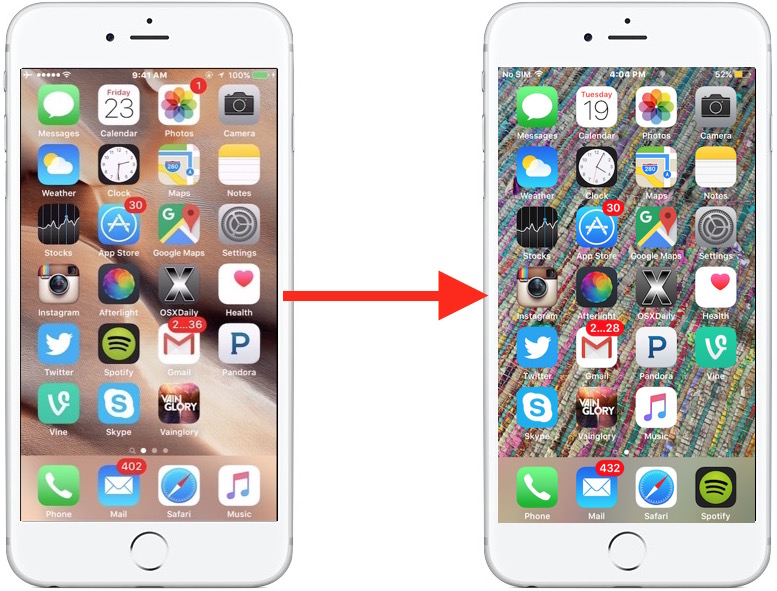
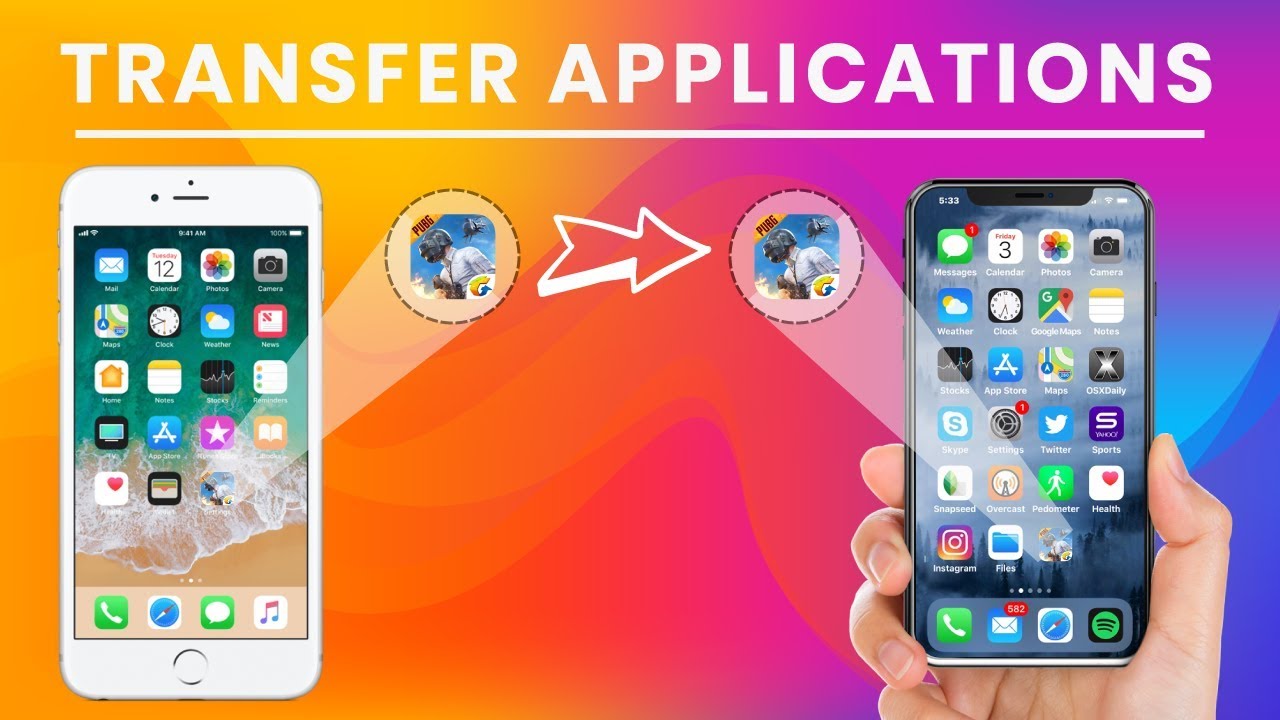
For most users, the Quick Start feature is the holy grail of iPhone data transfer. Introduced in iOS 11, Quick Start allows you to set up a new device instantly using the information from your current device. It's a magic bullet that makes the need for a dedicated external Transfer Iphone To Iphone App almost completely unnecessary.
This method works best when both iPhones are side-by-side and have sufficient battery power. It uses a combination of Bluetooth and Wi-Fi to establish a direct connection, securely moving your entire digital life from the old device to the new one.
Quick Start Requirements and Preparation
Before initiating Quick Start, a little preparation goes a long way toward ensuring a flawless transfer. You want to make sure the environment is optimized for speed and security. Furthermore, check that both phones are compatible with the process.
- **Charge Both Devices:** Ensure both the source and destination iPhones have at least 50% battery or, ideally, are plugged into power.
- **Enable Bluetooth and Wi-Fi:** Both phones must have Bluetooth turned on to recognize each other and Wi-Fi enabled for the bulk data transfer.
- **Proximity:** Keep the devices right next to each other throughout the entire process.
- **Latest iOS:** Make sure your old iPhone is running the latest version of iOS possible, as this ensures the most compatible data format.
Executing Quick Start: The Simple Steps
Once prepared, the process is remarkably simple. You simply place the new iPhone near the old one and wait for the magic prompt to appear.
- Turn on your new iPhone (it must be at the "Hello" screen).
- Place your old iPhone next to the new one. A pop-up will appear on the old device offering to set up the new one.
- Tap "Continue" on the old iPhone.
- A unique, swirling blue pattern will appear on the new phone. Use the old phone's camera to scan this pattern.
- Enter your old phone's passcode on the new phone when prompted.
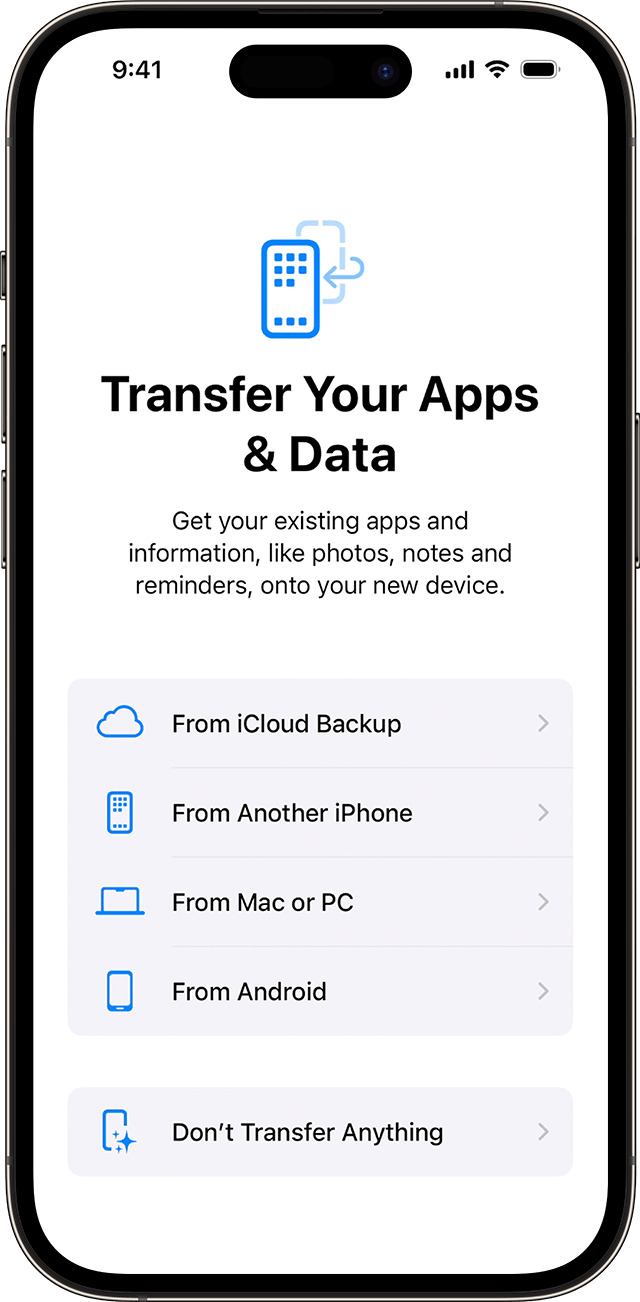
- Choose "Transfer from iPhone" to move all data directly. This is often faster than restoring from the cloud if you have a lot of data.
Using iCloud Backup for Your Data Migration
What if your old iPhone is damaged, or maybe you sold it before your new one arrived? In these cases, the direct "Transfer Iphone To Iphone App" method (Quick Start) is out. Luckily, iCloud provides a powerful, cloud-based alternative.
iCloud backup is an essential strategy for any iPhone owner, serving as a safety net and a robust method for migration. Remember, you must ensure your last backup was recent before resetting your old device or starting the new one.
Step-by-Step: Restoring from iCloud Backup
This method requires a stable and fast internet connection, as it pulls all your data—including photos, application data, and settings—down from Apple's servers.
- On your old iPhone, go to Settings > [Your Name] > iCloud > iCloud Backup, and tap "Back Up Now."
- Turn on your new iPhone and proceed through the setup screens (language, region, etc.).
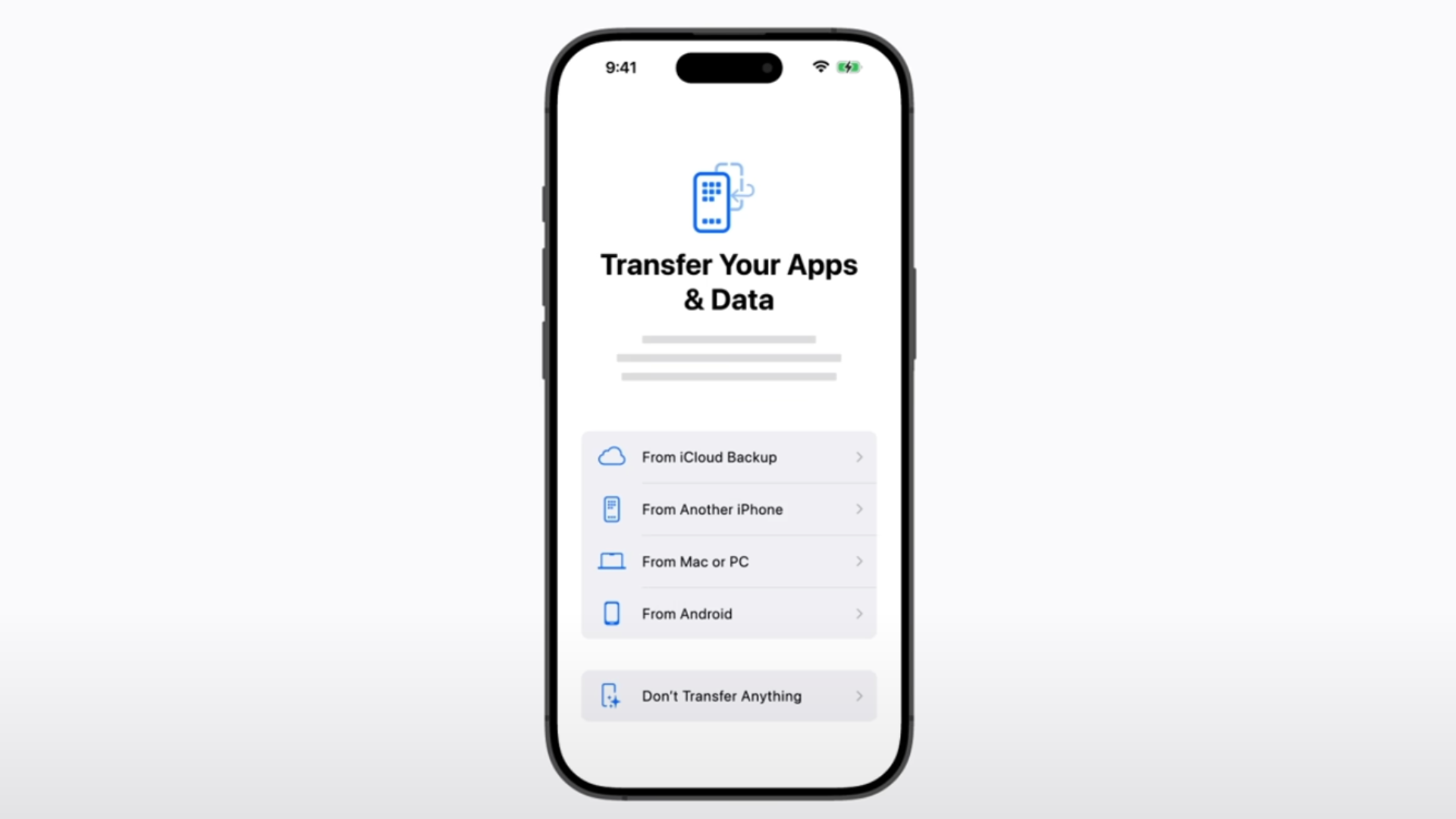
- When you reach the "Apps & Data" screen, select "Restore from iCloud Backup."
- Sign in with your Apple ID and password.
- Choose the most recent backup from the list.
- Wait for the restoration process to complete. The core settings and apps will load quickly, but photos and media may take longer to download in the background.
The Classic iTunes/Finder Approach
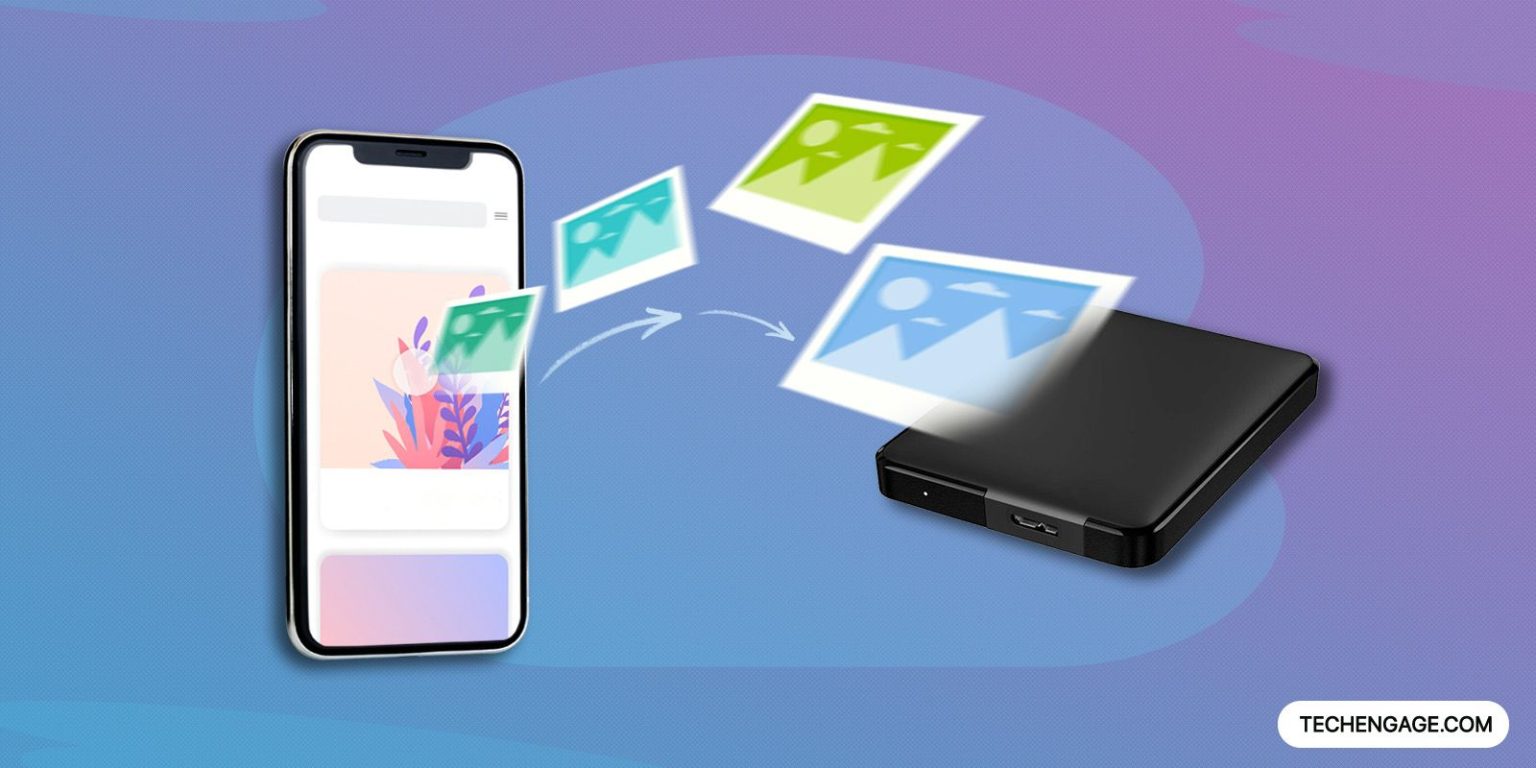
For those who are wary of cloud services or have massive data volumes (think 512GB of stored media), a hard-wired connection to your computer via iTunes (Windows/Older macOS) or Finder (Newer macOS) remains a reliable option. It creates a full, encrypted local copy of your device.
While this method is slightly more involved than Quick Start, it is often the fastest way to physically transfer gigabytes of data. Crucially, ensure you check the box for "Encrypt local backup" to save critical data like saved passwords and Health information.
Why Choose the Wired Transfer?
A wired transfer bypasses slow home Wi-Fi speeds and provides a level of data integrity that many users prefer for maximum security. This method guarantees that every piece of data is moved without relying on external server access.
- Maximum Speed: Transfers are limited only by the speed of your USB connection.
- Full Control: You know exactly where the backup file is located.
- Data Security: Ideal for highly sensitive business or personal files that you don't want stored in the cloud.
When Should You Use a Third-Party Transfer Iphone To Iphone App?
Given the excellent capabilities of Quick Start, iCloud, and Finder, why would anyone still look for a dedicated Transfer Iphone To Iphone App? The primary reason is often cross-platform migration (e.g., Android to iPhone), or specific scenarios where you only want to move certain types of data, like only WhatsApp chats or only call history, without doing a full restore.
Features to Look for in a Third-Party Transfer Iphone To Iphone App
If you decide that a specialized tool is necessary, make sure it meets these criteria for safety and efficiency.
- **Selective Transfer:** The ability to choose specific files (e.g., only contacts and messages) rather than the whole device.
- **Cross-Platform Support:** Essential if you need to manage Android or PC backups as well.
- **Encryption:** Ensure the software provides strong encryption to protect your backup files.
- **Good Reviews:** Check user reviews to confirm reliability and performance speed.
Conclusion
Moving your data to a new iPhone is easier than ever, thanks to Apple's thoughtful integration of tools. For 99% of users, the Quick Start method provides the most direct and effortless transition, eliminating the need to search for a separate Transfer Iphone To Iphone App. However, iCloud and the wired Finder/iTunes method offer fantastic, robust alternatives for scenarios where the devices aren't physically present or when you need maximum backup security.
By using one of these three methods, you can ensure your new iPhone feels exactly like your old one—only faster, newer, and ready for all your adventures! Just remember to backup first, choose your method, and enjoy your upgraded experience.
FAQ About iPhone Data Transfer
- What is the fastest way to transfer everything to a new iPhone?
- The fastest method is usually Quick Start, especially if you select the direct "Transfer from iPhone" option (available on iOS 12.4 and later). This utilizes a local Wi-Fi connection between the two phones, which is generally quicker than downloading from iCloud or using a computer connection.
- Do I need to download a special Transfer Iphone To Iphone App?
- No, you typically do not need a special third-party app. Apple's built-in Quick Start feature and the use of iCloud or Finder/iTunes backups cover almost every transfer scenario effectively and securely.
- Will transferring data erase the data on my old iPhone?
- No. The transfer process only copies data to the new iPhone; it does not erase the contents of your old device. Once the new phone is set up, you can manually wipe your old phone via Settings > General > Transfer or Reset iPhone > Erase All Content and Settings.
- Do my apps automatically download onto the new iPhone?
- Yes. During the restoration process (whether via Quick Start or iCloud), the data for the apps is transferred, and the new iPhone will automatically begin redownloading the associated applications from the App Store.
- What happens if my Wi-Fi disconnects during an iCloud restore?
- iCloud restores are designed to be resilient. If the Wi-Fi disconnects, the restore process will pause and usually resume automatically once the Wi-Fi connection is re-established. However, it's best to perform the restoration on a stable network connection.
Transfer Iphone To Iphone App
Transfer Iphone To Iphone App Wallpapers
Collection of transfer iphone to iphone app wallpapers for your desktop and mobile devices.
Serene Transfer Iphone To Iphone App Scene Art
Transform your screen with this vivid transfer iphone to iphone app artwork, a true masterpiece of digital design.

Exquisite Transfer Iphone To Iphone App Artwork Collection
Immerse yourself in the stunning details of this beautiful transfer iphone to iphone app wallpaper, designed for a captivating visual experience.
Stunning Transfer Iphone To Iphone App Photo Photography
Immerse yourself in the stunning details of this beautiful transfer iphone to iphone app wallpaper, designed for a captivating visual experience.

Stunning Transfer Iphone To Iphone App Moment for Mobile
Find inspiration with this unique transfer iphone to iphone app illustration, crafted to provide a fresh look for your background.
Mesmerizing Transfer Iphone To Iphone App Photo Collection
Explore this high-quality transfer iphone to iphone app image, perfect for enhancing your desktop or mobile wallpaper.
Beautiful Transfer Iphone To Iphone App Photo Collection
Discover an amazing transfer iphone to iphone app background image, ideal for personalizing your devices with vibrant colors and intricate designs.
Amazing Transfer Iphone To Iphone App Background for Mobile
Discover an amazing transfer iphone to iphone app background image, ideal for personalizing your devices with vibrant colors and intricate designs.
Detailed Transfer Iphone To Iphone App Picture for Desktop
Discover an amazing transfer iphone to iphone app background image, ideal for personalizing your devices with vibrant colors and intricate designs.

Vibrant Transfer Iphone To Iphone App Moment Concept
Explore this high-quality transfer iphone to iphone app image, perfect for enhancing your desktop or mobile wallpaper.

Crisp Transfer Iphone To Iphone App Moment Concept
Find inspiration with this unique transfer iphone to iphone app illustration, crafted to provide a fresh look for your background.
Serene Transfer Iphone To Iphone App Scene Collection
Transform your screen with this vivid transfer iphone to iphone app artwork, a true masterpiece of digital design.

Crisp Transfer Iphone To Iphone App Artwork Concept
Find inspiration with this unique transfer iphone to iphone app illustration, crafted to provide a fresh look for your background.
Spectacular Transfer Iphone To Iphone App Artwork Digital Art
This gorgeous transfer iphone to iphone app photo offers a breathtaking view, making it a perfect choice for your next wallpaper.

Captivating Transfer Iphone To Iphone App Artwork Nature
Find inspiration with this unique transfer iphone to iphone app illustration, crafted to provide a fresh look for your background.
Stunning Transfer Iphone To Iphone App Wallpaper Art
Immerse yourself in the stunning details of this beautiful transfer iphone to iphone app wallpaper, designed for a captivating visual experience.
High-Quality Transfer Iphone To Iphone App Background for Desktop
Explore this high-quality transfer iphone to iphone app image, perfect for enhancing your desktop or mobile wallpaper.
Breathtaking Transfer Iphone To Iphone App Moment Collection
Transform your screen with this vivid transfer iphone to iphone app artwork, a true masterpiece of digital design.
Mesmerizing Transfer Iphone To Iphone App Photo Art
Experience the crisp clarity of this stunning transfer iphone to iphone app image, available in high resolution for all your screens.
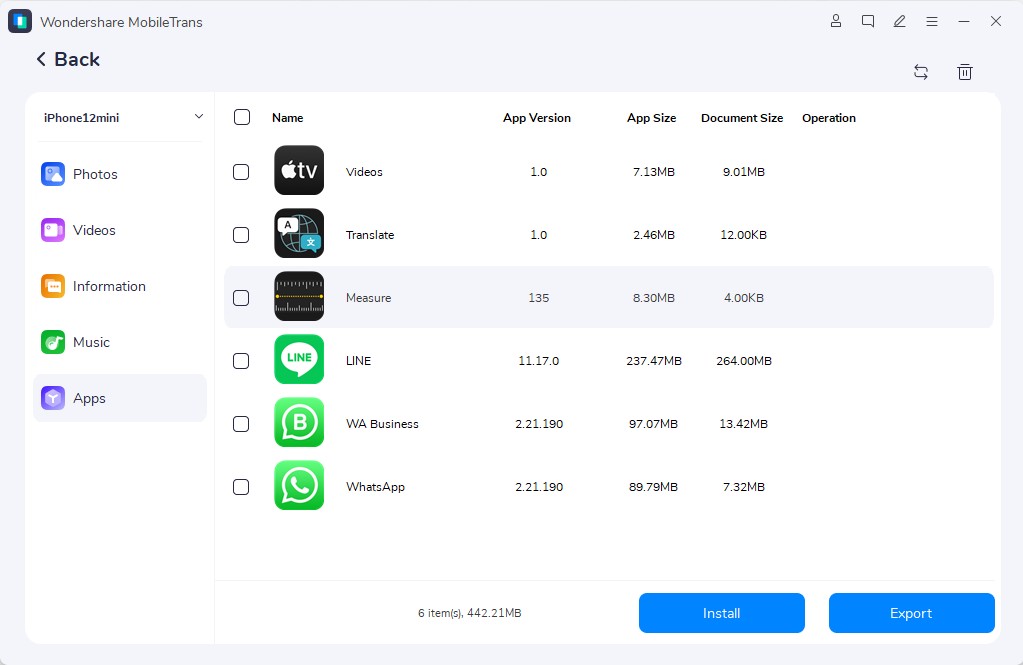
Gorgeous Transfer Iphone To Iphone App Design Collection
Find inspiration with this unique transfer iphone to iphone app illustration, crafted to provide a fresh look for your background.

Captivating Transfer Iphone To Iphone App Design for Your Screen
A captivating transfer iphone to iphone app scene that brings tranquility and beauty to any device.
Download these transfer iphone to iphone app wallpapers for free and use them on your desktop or mobile devices.