Mastering Macro Control iPhone: Unlock Ultimate Automation and Precision
Hey there! If you've ever felt like your iPhone could be doing more—way more—with less effort from you, you're in the right place. We are diving deep into the powerful world of "Macro Control iPhone." This isn't just about simple Siri commands; it's about harnessing hidden capabilities to create complex, multi-step actions that run flawlessly, often with a single tap or voice command.
Many users think macro control is exclusive to professional software or high-end computers. Spoiler alert: your iPhone is incredibly capable, thanks to robust accessibility features and the amazing Shortcuts app. Learning these tricks can save you hours every week. Ready to take complete control? Let's get started.
What Exactly is Macro Control on Your iPhone?
When we talk about "macro control" on your iPhone, we are referring to the ability to define a sequence of inputs or commands and execute them automatically. Think of a macro as a script. Instead of manually tapping five different buttons in three different apps, your macro performs all those steps instantly for you.
This level of precision and automation fundamentally relies on two key systems built right into iOS: the powerful accessibility suite and the versatile Shortcuts application. These tools allow even non-developers to build intricate routines that cater perfectly to their specific needs. It's all about efficiency and minimizing repetitive tasks.
The Hidden Power of Accessibility Features
Apple's accessibility features are true game-changers for macro creation. They aren't just for users with specific needs; they are powerful tools for anyone seeking deeper control. Features like Switch Control and Voice Control can be adapted to execute pre-recorded sequences of screen taps, swipes, and button presses.
Switch Control, in particular, allows you to create "Custom Gestures." You literally record the movements you want the iPhone to repeat. Imagine setting up a sequence of taps to quickly skip annoying ads or execute a complicated move in a mobile game. This is true, hardware-level Macro Control iPhone capability.
Shortcuts App: Your Personal Automation Maestro
The Shortcuts app is the software backbone of automation on iOS. While Accessibility handles the physical screen input aspect, Shortcuts handles the logical flow. It connects different apps and system functions, allowing them to communicate and trigger actions based on conditions.
A simple shortcut might change your device settings, send a specific message, and start a playlist all at once. A complex macro uses conditional logic ("If the sun is setting, then enable Dark Mode and text my spouse I'm leaving work"). This tool is indispensable for achieving high-level Macro Control iPhone goals.
Deep Dive into the Setup: Getting Started with Macro Control
Setting up your first macro control sequence might seem complicated, but we can break it down into manageable steps. The key is understanding which tool (Switch Control or Shortcuts) best fits the task you want to automate. Often, you'll use both in tandem.
Before diving in, make sure your iPhone is running the latest iOS version. Newer versions of iOS introduce enhanced features and better integration between system apps, making macro creation smoother and more reliable.
Setting Up Switch Control for Advanced Input
If your goal is to automate repetitive taps or gestures within an application—especially one that doesn't have native Shortcut support—Switch Control is your best bet. This technique is often used for gaming macros or navigating complex menus quickly.
Here is how you set up a custom gesture macro:
- Go to Settings > Accessibility > Switch Control.
- Select "Switches" and then "Add New Switch." Choose "Screen" and then "Full Screen."
- Navigate back and select "Recipes." Choose "Create New Recipe."
- Give your recipe a name (e.g., "Game Combo Macro").
- Tap "Assign A Switch" and select the switch you just created (e.g., Full Screen).
- Choose "Custom Gesture." Now, record the sequence of taps and swipes you want to automate. Be precise!
- Save the gesture and then link the recipe to the "Triple-click Home/Side Button" option in Accessibility Shortcut.
Now, activating the macro is as simple as clicking your side button three times. That is the essence of true Macro Control iPhone setup.
Creating Complex Routines with the Shortcuts App
For routines that involve data processing, communication, or changing system settings, the Shortcuts app is paramount. This is where you connect the dots between various iPhone functions.
Start by opening the Shortcuts app and tapping the plus icon to create a new shortcut. You will be adding "Actions" sequentially. Remember to use transition actions like "Wait" if you need the system to process data before moving on to the next step.
Building a Time-Saving Daily Macro
Let's build a simple, yet powerful "Morning Routine" macro. This type of Macro Control iPhone setup ensures your day starts organized. This is what the sequence of actions might look like:
- Get Current Weather.
- Read Aloud (the weather summary).
- Set Focus Mode to "Work."
- Play specific Morning Playlist on Apple Music.
- Open the Calendar app to show today's schedule.
By grouping these actions, you can trigger five different operations simply by tapping one button on your Home Screen or telling Siri to "Start my Morning."
Automating App Interactions
The real magic happens when you use Automations within the Shortcuts app. Automations are macros that run automatically based on triggers like time of day, location, connecting to a specific Wi-Fi network, or even when you open a certain app.
For example, you could set an automation to run when you plug your iPhone into charging. The macro could instantly optimize your device by turning off Low Power Mode, running a photo backup, and sending a status update to a family member. This hands-off approach makes the Macro Control iPhone system incredibly useful.
Real-World Scenarios: Maximizing Your Macro Control iPhone Experience
Thinking creatively about your daily digital tasks is the first step to macro mastery. What actions do you repeat multiple times a day? Those are prime targets for optimization.
Consider the professional user. A marketing specialist might set up a macro that grabs the latest tweet, summarizes it using a text action, and drafts an email to their team for approval. All of that happens without leaving the Shortcuts app interface.
For the traveler, a "Landing Macro" could automatically disable Wi-Fi, enable cellular data, change the time zone, and send a pre-written "I landed safely" text message. This ensures you transition smoothly without fumbling through various settings menus the moment you step off the plane.
Using the power of Macro Control iPhone solutions fundamentally changes how you interact with your device. It moves your iPhone from a reactive tool to a proactive assistant, always ready to handle complex tasks instantly.
Conclusion
You now have the tools and the knowledge to unlock serious automation capabilities hidden within your device. Macro Control iPhone features, leveraging both the robust Accessibility settings (like Switch Control) and the powerful Shortcuts app, offer a level of precision and efficiency previously thought impossible on a mobile operating system.
Start small, perhaps by automating your morning routine or creating a simple game gesture. As you become more comfortable, you can combine these tools to build incredibly sophisticated, time-saving macros. Embrace the future of automation—your iPhone is waiting to become your most powerful productivity tool.
Frequently Asked Questions About Macro Control iPhone
- Can I use Macro Control iPhone features to automate tasks across different applications?
- Yes, absolutely. The Shortcuts app excels at task automation across apps, provided those apps support the Shortcuts framework. For automating taps or gestures in apps without Shortcut support, Switch Control is the go-to method.
- Is creating macros complicated or does it require coding knowledge?
- No, it does not require coding knowledge. Both Shortcuts and Switch Control are designed with graphical user interfaces. Shortcuts uses a drag-and-drop system for "Actions," and Switch Control requires you to simply record the gestures you want to repeat.
- Will using Macro Control drain my iPhone battery faster?
- Generally, no more than performing the tasks manually. Since macros execute tasks very quickly, the overall time the phone spends actively processing is often reduced, potentially saving battery life compared to slower manual input.
- Are iPhone macros reliable?
- When built correctly, yes. Shortcuts are highly reliable, as they run natively within iOS. Switch Control gestures are reliable, but require that the app screen remains exactly the same every time the macro runs, as they rely on precise screen coordinates.
- What is the difference between a Shortcut and an Automation?
- A Shortcut is a sequence of actions that must be manually initiated (tapped or asked via Siri). An Automation is a specific type of macro that runs automatically when a predefined trigger occurs (like arriving at a specific location or connecting to a charger).
Macro Control Iphone
Macro Control Iphone Wallpapers
Collection of macro control iphone wallpapers for your desktop and mobile devices.

Lush Macro Control Iphone Artwork Nature
A captivating macro control iphone scene that brings tranquility and beauty to any device.

Beautiful Macro Control Iphone Artwork in 4K
Discover an amazing macro control iphone background image, ideal for personalizing your devices with vibrant colors and intricate designs.
Dynamic Macro Control Iphone Image for Your Screen
Find inspiration with this unique macro control iphone illustration, crafted to provide a fresh look for your background.

Spectacular Macro Control Iphone Picture for Desktop
A captivating macro control iphone scene that brings tranquility and beauty to any device.

Stunning Macro Control Iphone Image in 4K
This gorgeous macro control iphone photo offers a breathtaking view, making it a perfect choice for your next wallpaper.

Serene Macro Control Iphone Image Nature
Experience the crisp clarity of this stunning macro control iphone image, available in high resolution for all your screens.
Lush Macro Control Iphone Design Illustration
This gorgeous macro control iphone photo offers a breathtaking view, making it a perfect choice for your next wallpaper.
Stunning Macro Control Iphone Moment Illustration
This gorgeous macro control iphone photo offers a breathtaking view, making it a perfect choice for your next wallpaper.
Breathtaking Macro Control Iphone Wallpaper Art
Experience the crisp clarity of this stunning macro control iphone image, available in high resolution for all your screens.

Crisp Macro Control Iphone Scene Collection
This gorgeous macro control iphone photo offers a breathtaking view, making it a perfect choice for your next wallpaper.

Serene Macro Control Iphone Capture Concept
Explore this high-quality macro control iphone image, perfect for enhancing your desktop or mobile wallpaper.
Vivid Macro Control Iphone Design for Mobile
Explore this high-quality macro control iphone image, perfect for enhancing your desktop or mobile wallpaper.
Vibrant Macro Control Iphone View for Mobile
Discover an amazing macro control iphone background image, ideal for personalizing your devices with vibrant colors and intricate designs.
Gorgeous Macro Control Iphone Landscape in HD
This gorgeous macro control iphone photo offers a breathtaking view, making it a perfect choice for your next wallpaper.

Dynamic Macro Control Iphone Background for Mobile
Find inspiration with this unique macro control iphone illustration, crafted to provide a fresh look for your background.
Captivating Macro Control Iphone Abstract Concept
Find inspiration with this unique macro control iphone illustration, crafted to provide a fresh look for your background.
:max_bytes(150000):strip_icc()/Automacro-b662694ad1ca46b292155b5a826693ba.jpg "High-Quality Macro Control Iphone Scene Nature")
High-Quality Macro Control Iphone Scene Nature
Discover an amazing macro control iphone background image, ideal for personalizing your devices with vibrant colors and intricate designs.
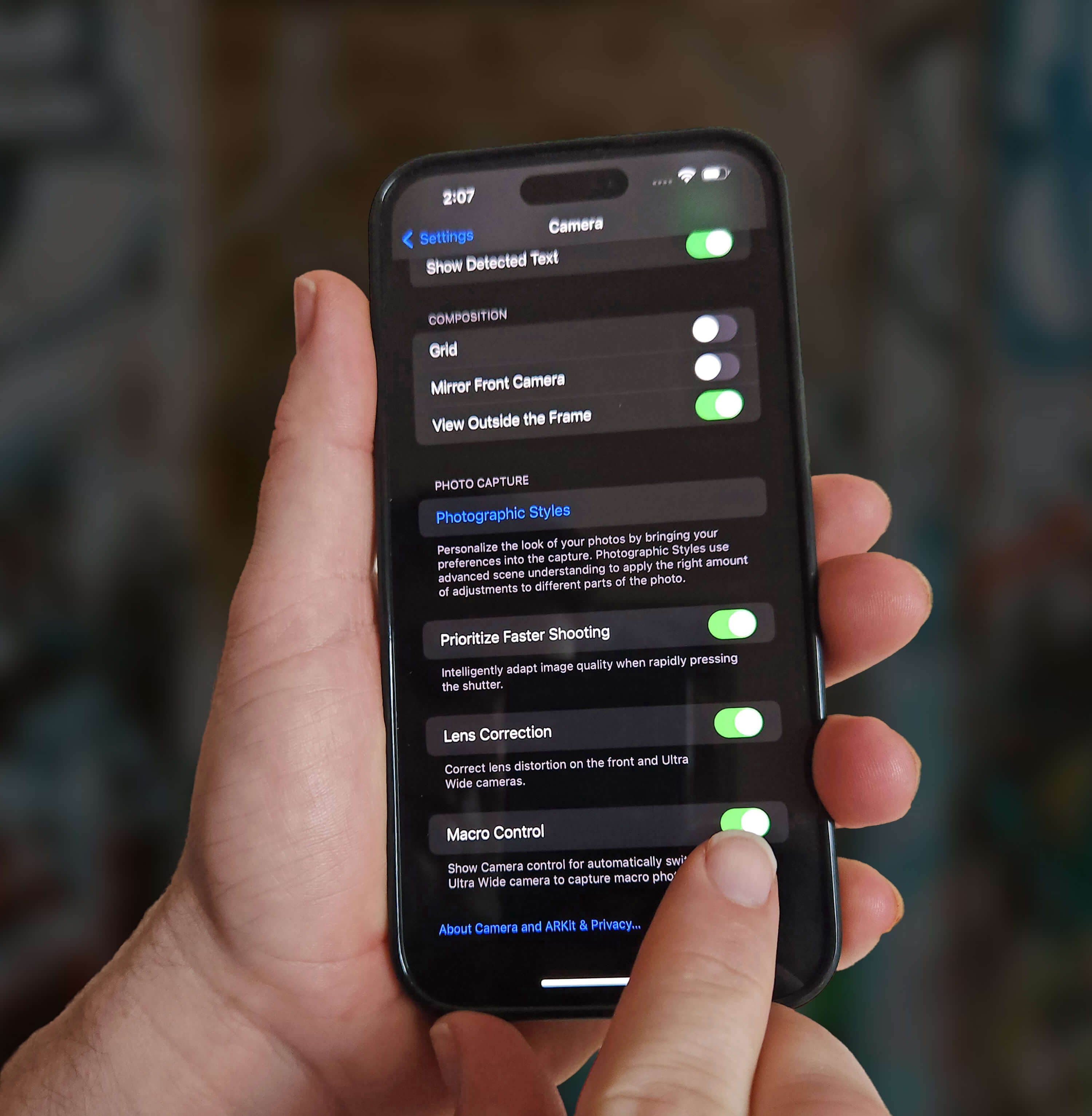
Exquisite Macro Control Iphone Photo Collection
Immerse yourself in the stunning details of this beautiful macro control iphone wallpaper, designed for a captivating visual experience.
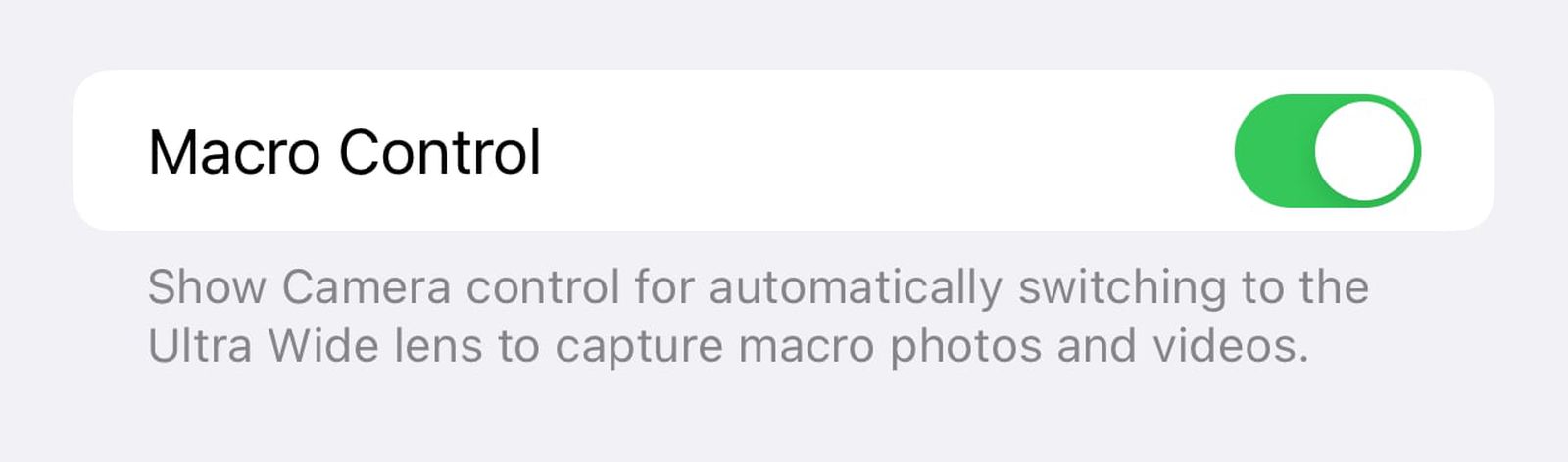
Beautiful Macro Control Iphone View Art
Explore this high-quality macro control iphone image, perfect for enhancing your desktop or mobile wallpaper.

High-Quality Macro Control Iphone View Concept
Experience the crisp clarity of this stunning macro control iphone image, available in high resolution for all your screens.
Download these macro control iphone wallpapers for free and use them on your desktop or mobile devices.