Unlock the Magic: Your Comprehensive Guide to Iphone Scan Text (Live Text Feature)
Tired of manually typing out phone numbers from business cards or copying lengthy paragraphs from a physical textbook? We totally get it! It's tedious, slow, and prone to mistakes. Thankfully, Apple introduced a game-changing feature that makes this struggle a thing of the past. It's often referred to simply as Iphone Scan Text, but you might know it by its official name: Live Text.
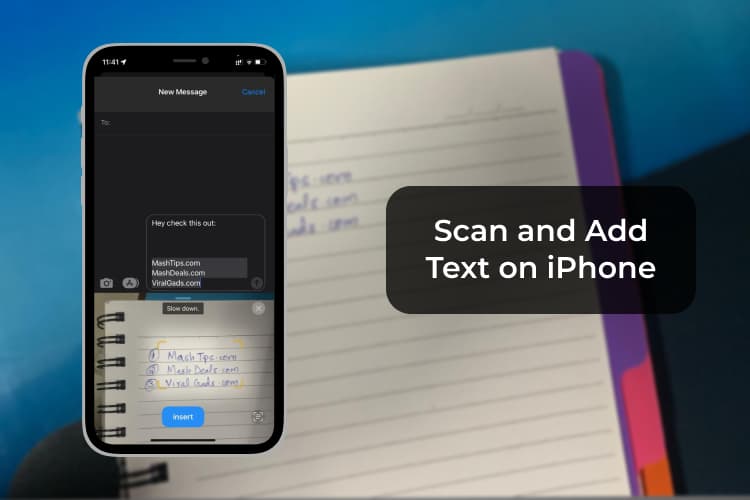
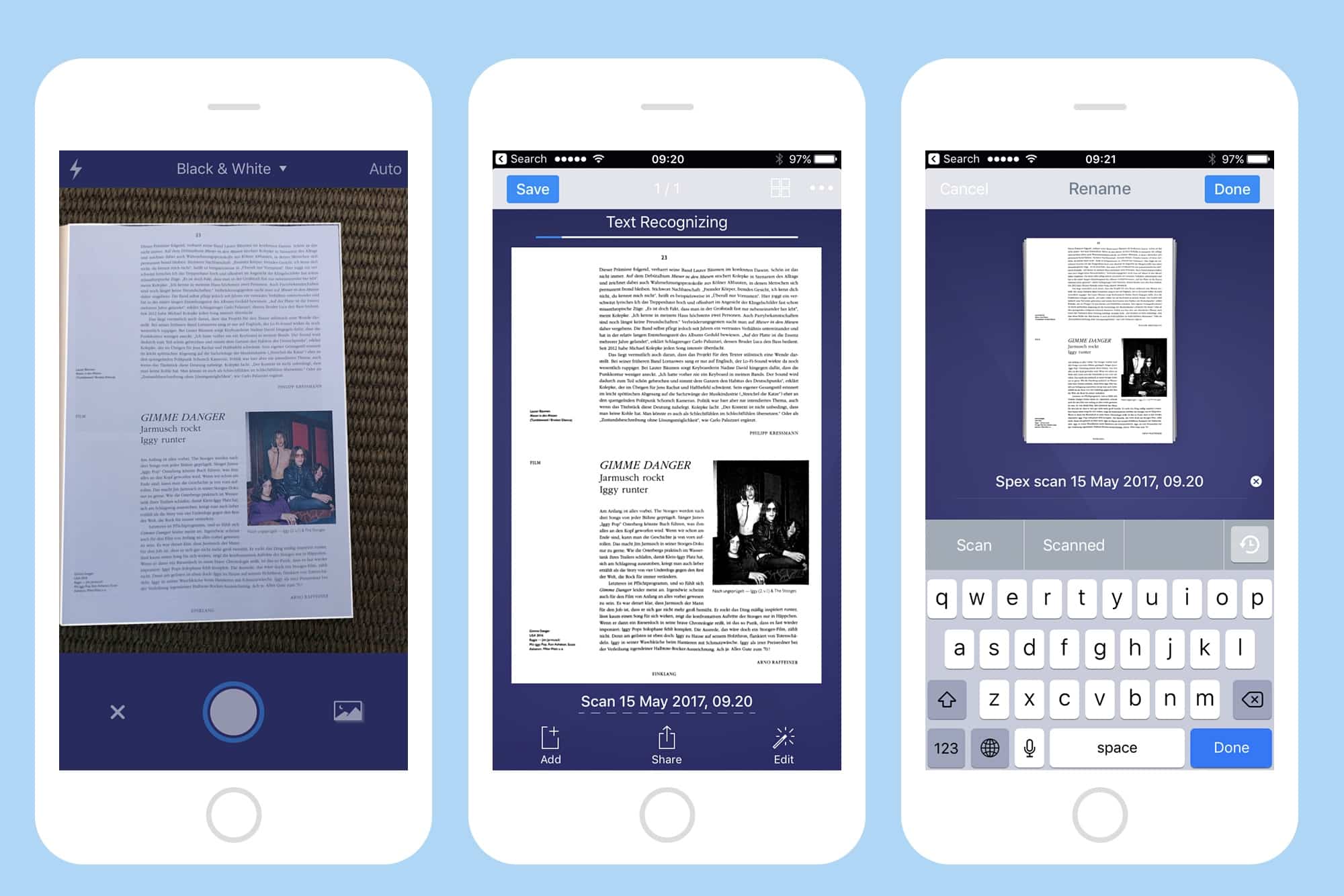
This powerful optical character recognition (OCR) feature integrated right into your iPhone camera and Photos app allows you to instantly interact with text found in images. Whether it's a receipt, a sign on the street, or handwritten notes, your iPhone can read it, select it, copy it, and even translate it. Ready to revolutionize the way you manage information? Let's dive into everything you need to know about setting up and mastering this incredible tool.
What Exactly is Iphone Scan Text?
Iphone Scan Text, or Live Text, is an intelligent feature that detects text within any visual context. It's built into the core iOS experience, meaning you don't need to download any third-party apps. It uses sophisticated machine learning to identify text, understand its language, and make it actionable.
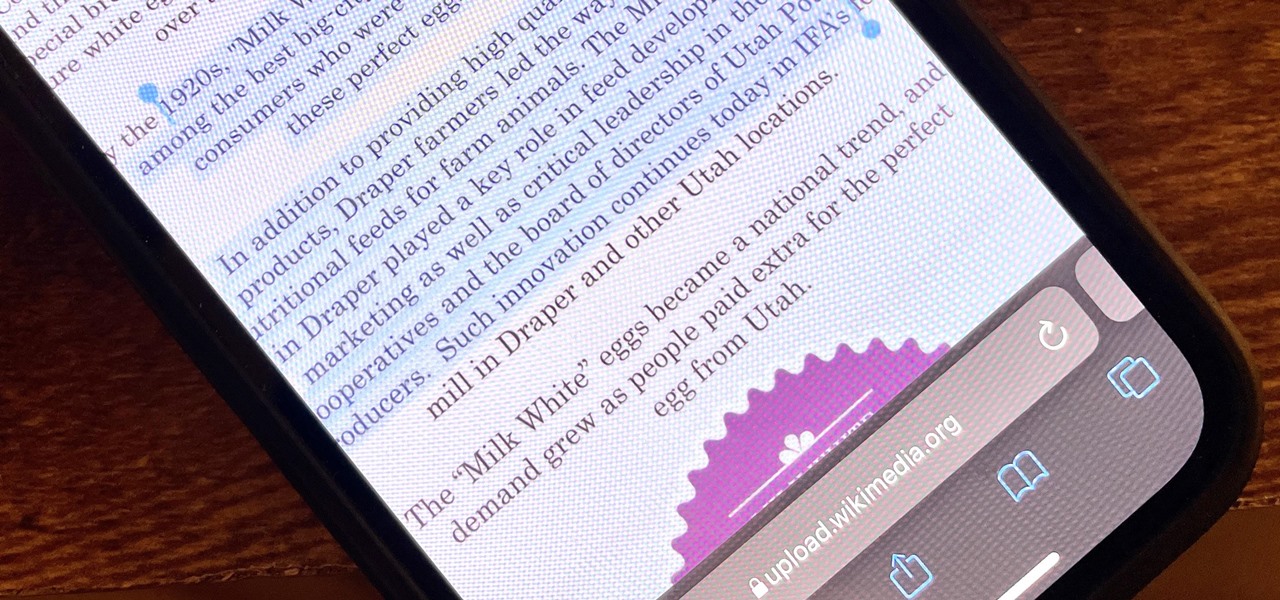
This functionality doesn't just work on clearly typed text; it can handle complex situations like stylized fonts, text written at an angle, and even fairly legible handwriting. Once the text is detected, you can simply tap and hold it, just as you would with text on a webpage, to access options like copying, looking up definitions, sharing, or making a call if it's a phone number.
The beauty of the Iphone Scan Text system is its seamless integration. It works directly within the Camera app, Photos, Safari, and even in the native Quick Look feature when previewing documents. It's constantly running in the background, ready to assist whenever text appears on your screen.
Prerequisites: Ensuring Your iPhone is Ready
Before you jump into scanning every piece of paper around you, you need to ensure your device meets the minimum requirements. Unfortunately, this feature relies on specific hardware capabilities, especially the faster Neural Engine in newer chips.
Supported Devices and iOS Versions
The Live Text feature was introduced with iOS 15, but you must also have an iPhone equipped with the A12 Bionic chip or later. This means older models won't be able to utilize this feature, even if they run iOS 15 or newer.
Here's a quick list of the minimum supported hardware:
- iPhone XS / XS Max
- iPhone XR
- iPhone 11 series (all models)
- iPhone 12 series (all models)
- iPhone 13 series and newer (all models)
- iPhone SE (2nd generation or later)
If your device is on that list, great! Now, you just need to ensure the feature is actually enabled. While Live Text is usually on by default, it's always good to double-check in your settings.
- Go to Settings.
- Scroll down and tap on "General."
- Select "Language & Region."
- Ensure the "Live Text" toggle is switched to the green 'On' position. If it's off, switch it on and restart the Camera app if it was open.
How to Use Iphone Scan Text: A Step-by-Step Tutorial
Using the Live Text feature is surprisingly intuitive, designed to feel like an extension of your normal iPhone operations. There are two primary ways you will utilize this function: scanning text in real-time and extracting text from pre-existing photos.
Scanning Text in Real-Time (Using Camera)
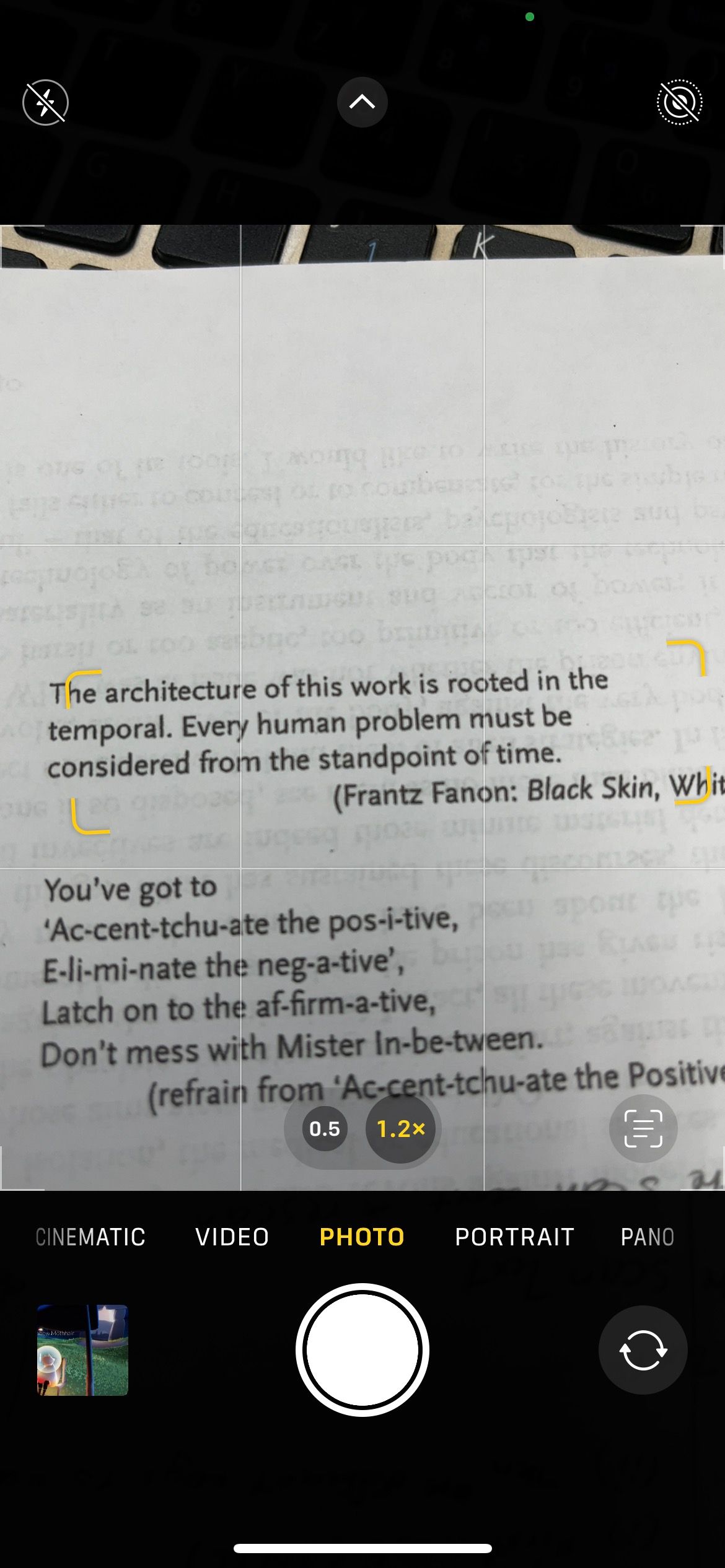
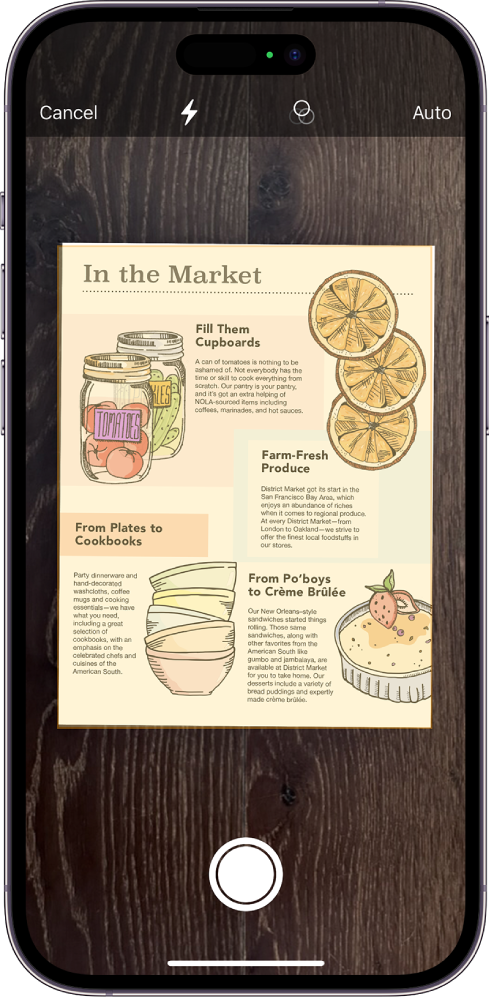
This is arguably the fastest way to use the Iphone Scan Text feature. If you have a document or a sign right in front of you, skip the picture-taking step entirely.
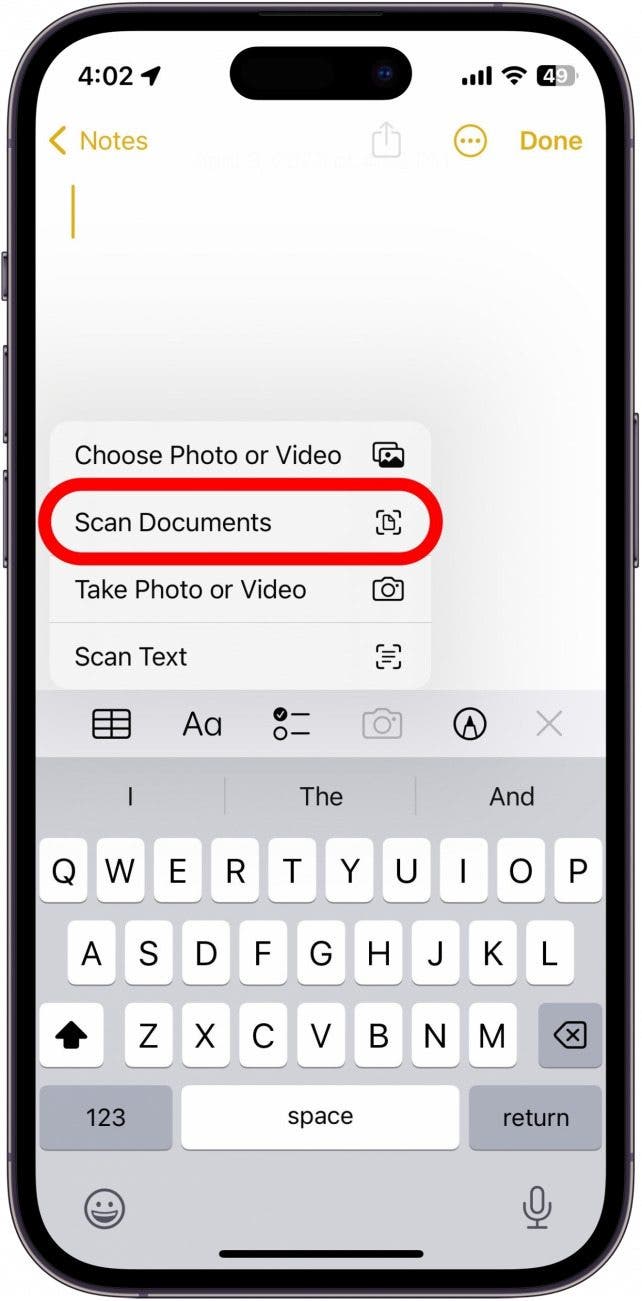
- Open your Camera app.
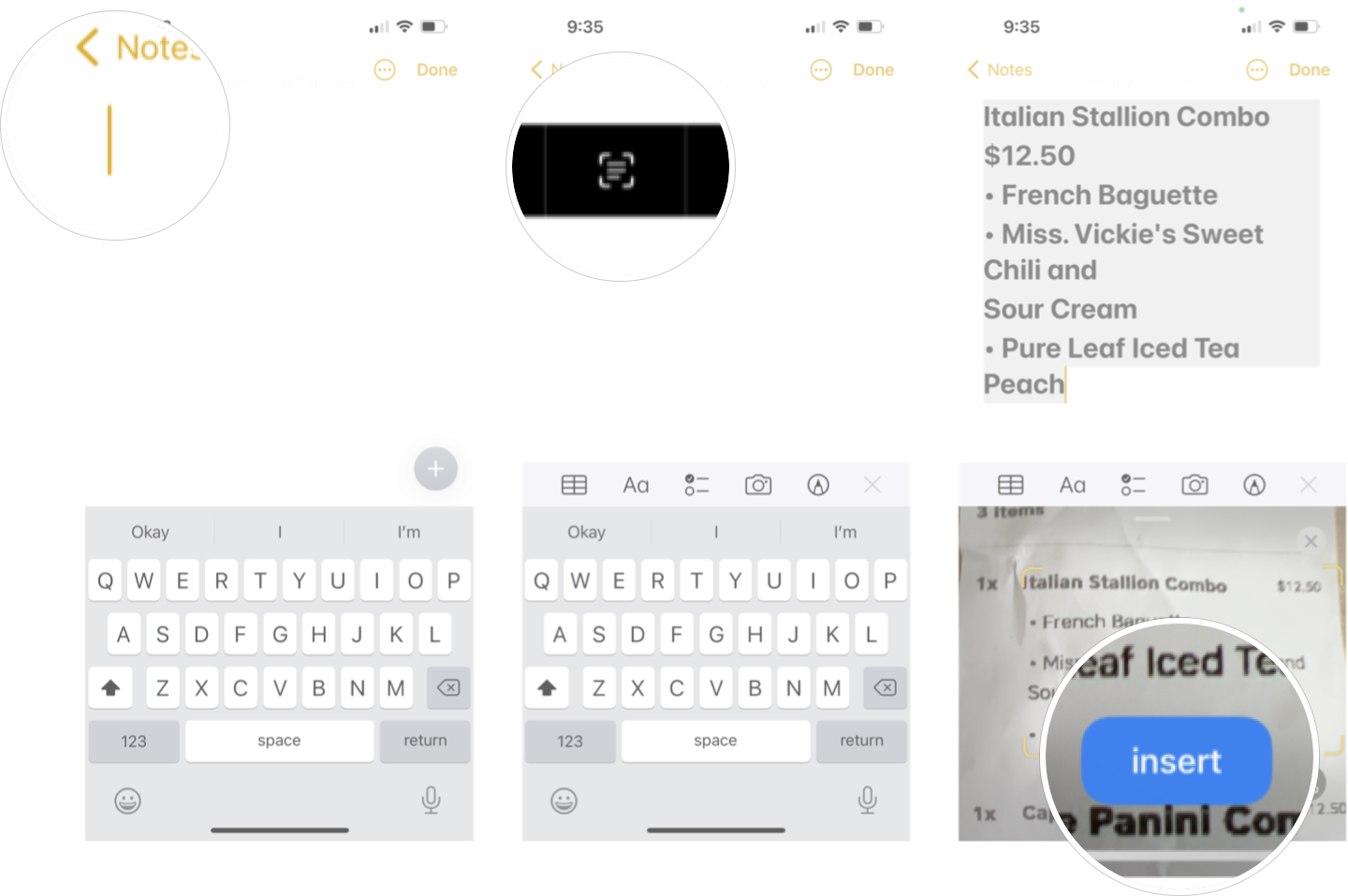
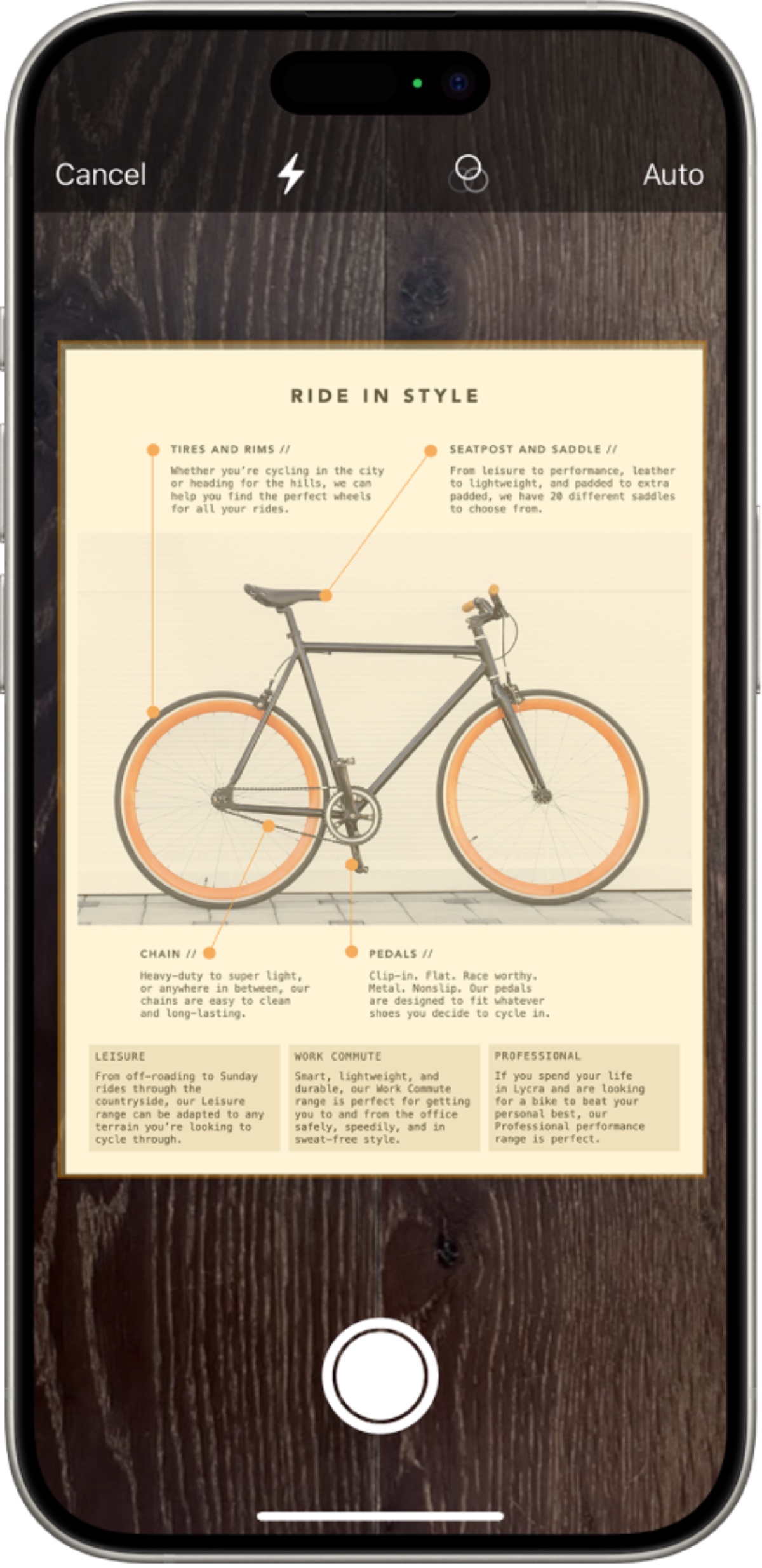
- Point the camera at the text you wish to scan (e.g., a recipe card).
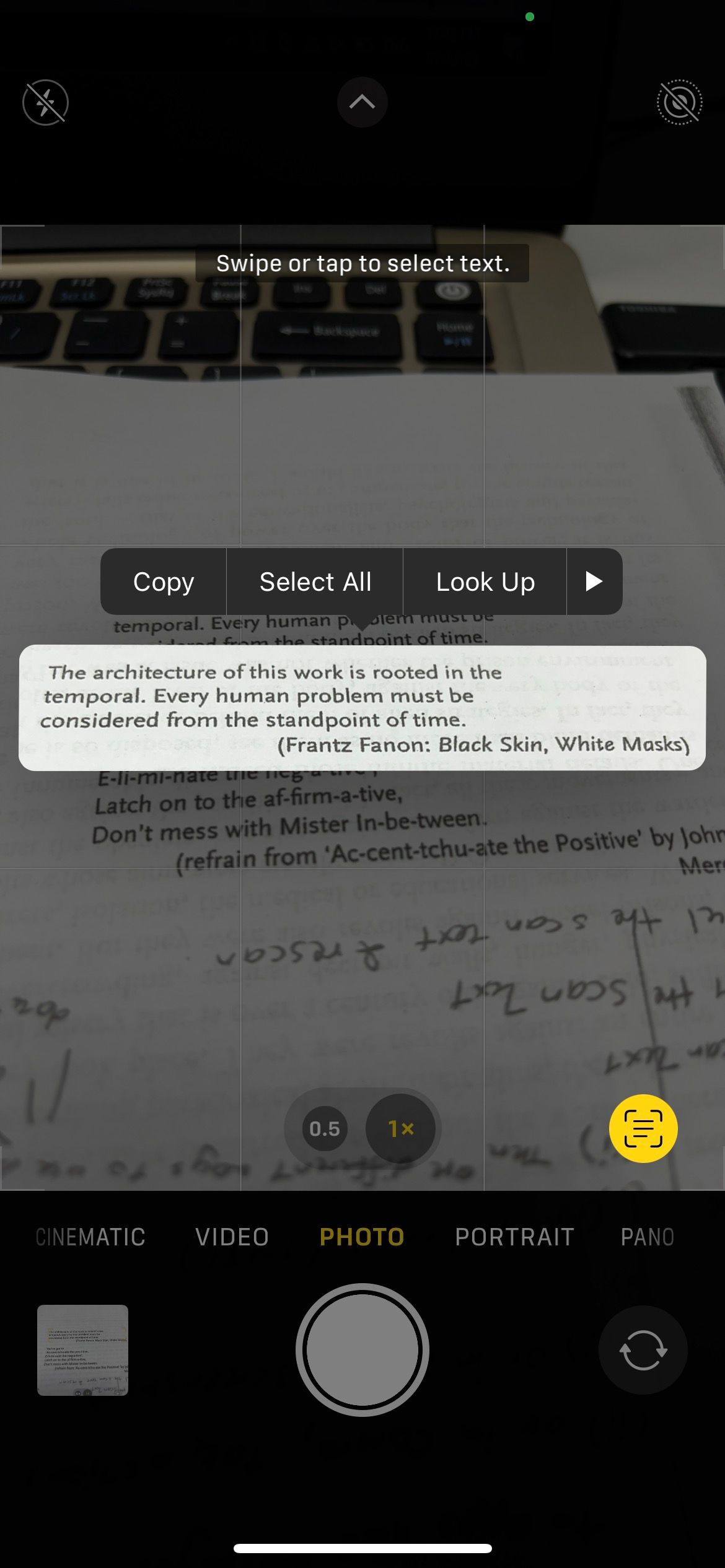
- Wait a moment for the iPhone to recognize the text. You will see a small Live Text icon (a square with three lines inside) appear in the bottom right corner of the viewfinder.
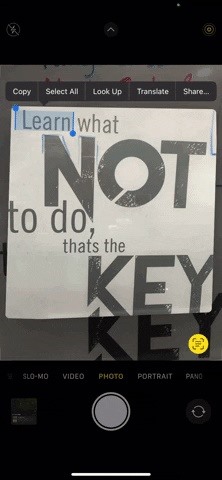
- Tap the Live Text icon. The camera view will freeze, and the recognized text will be highlighted in yellow.
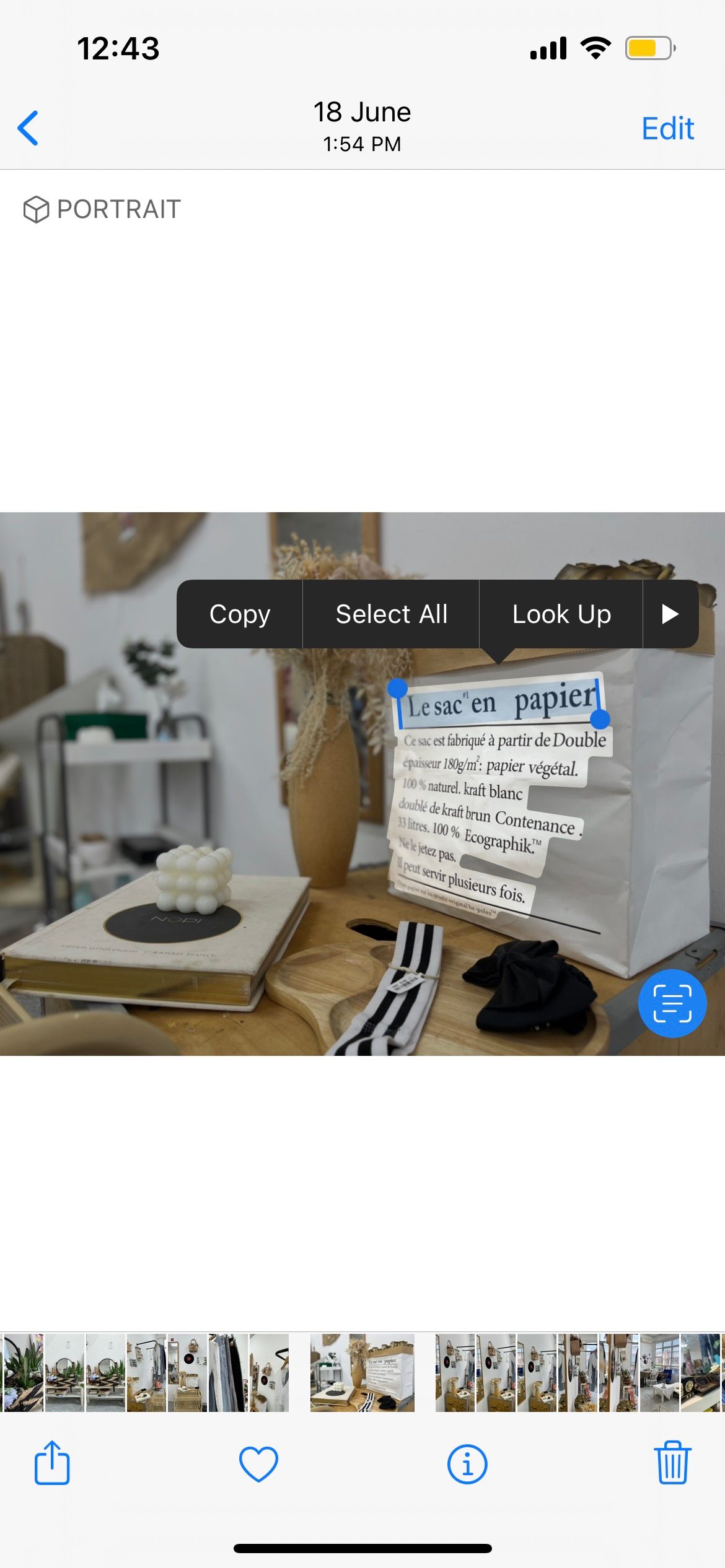
- Now, you can interact with the highlighted text. Tap and hold to select specific words, then choose Copy, Select All, Look Up, or Translate from the pop-up menu.
If you tap on an actionable piece of information—like a web address or a phone number—you will see a shortcut option appear immediately, such as "Call" or "Open in Safari."
Extracting Text from Existing Photos
What if you already took a picture of a menu last week, or someone sent you a screenshot of vital information? Live Text works retrospectively on any photo in your library.
- Open your Photos app and select the image containing the desired text.
- Look for the Live Text icon in the bottom right corner, similar to the one in the Camera app. If the iPhone detects text, this icon will appear automatically.
- Alternatively, simply tap and hold on any word in the photo.
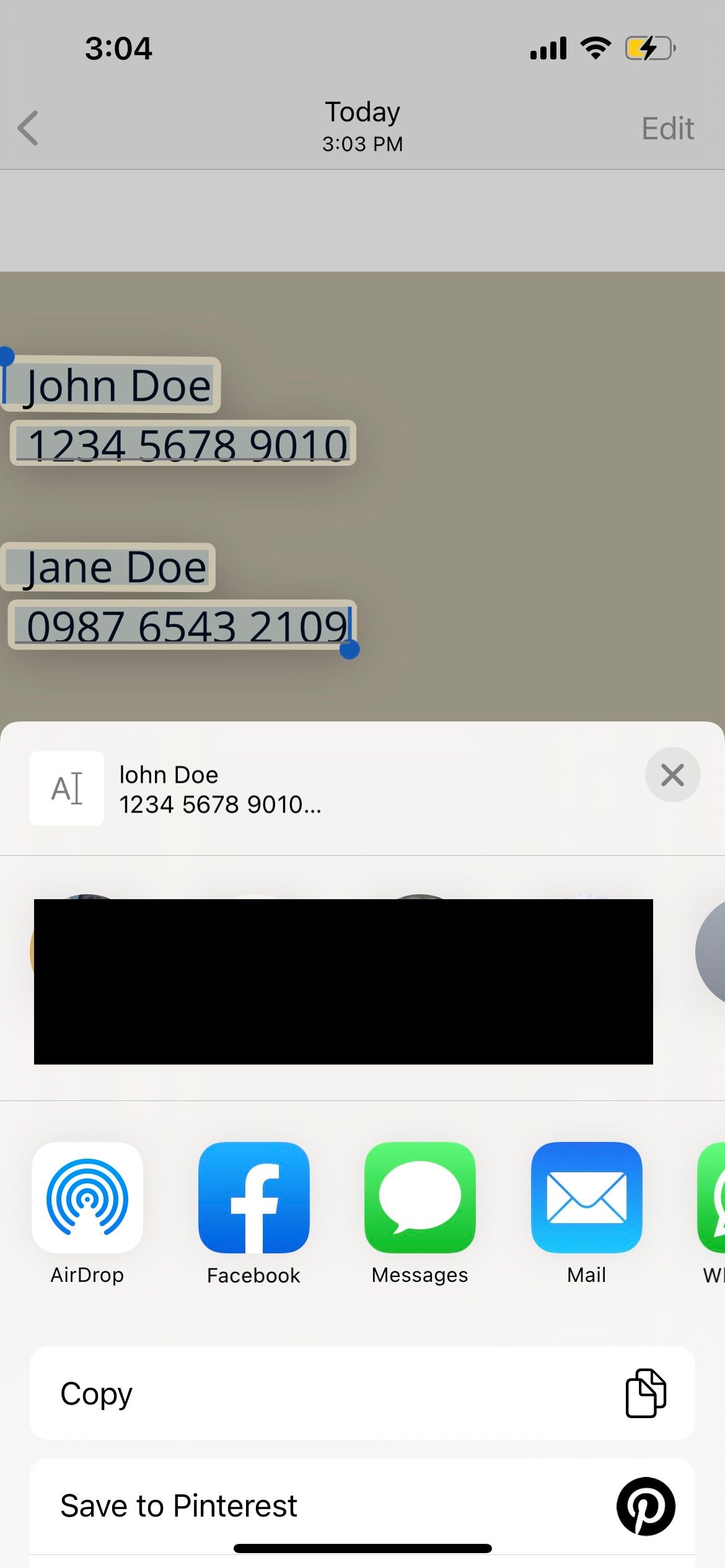
- The phone will highlight the recognized text, and the familiar text selection tools will pop up, allowing you to copy the information and paste it wherever you need it—a truly efficient application of Iphone Scan Text.
Advanced Tips and Tricks for Live Text
Live Text is more than just a copy/paste tool. Its intelligence opens up several doors for quick productivity boosts that often go unnoticed. Let's look at some ways to maximize its utility.
Quick Actions: Translation, Lookup, and More
Once you've highlighted the text, the resulting menu isn't limited to just copying. If you scroll through the options, you'll find powerful shortcuts:
- Translate: This is a lifesaver when traveling. Simply highlight the foreign text, tap "Translate," and your iPhone uses the built-in translation engine to provide an immediate equivalent.
- Look Up: Need context for a word or phrase? Tapping "Look Up" pulls up dictionary definitions, Siri suggested websites, and related articles.
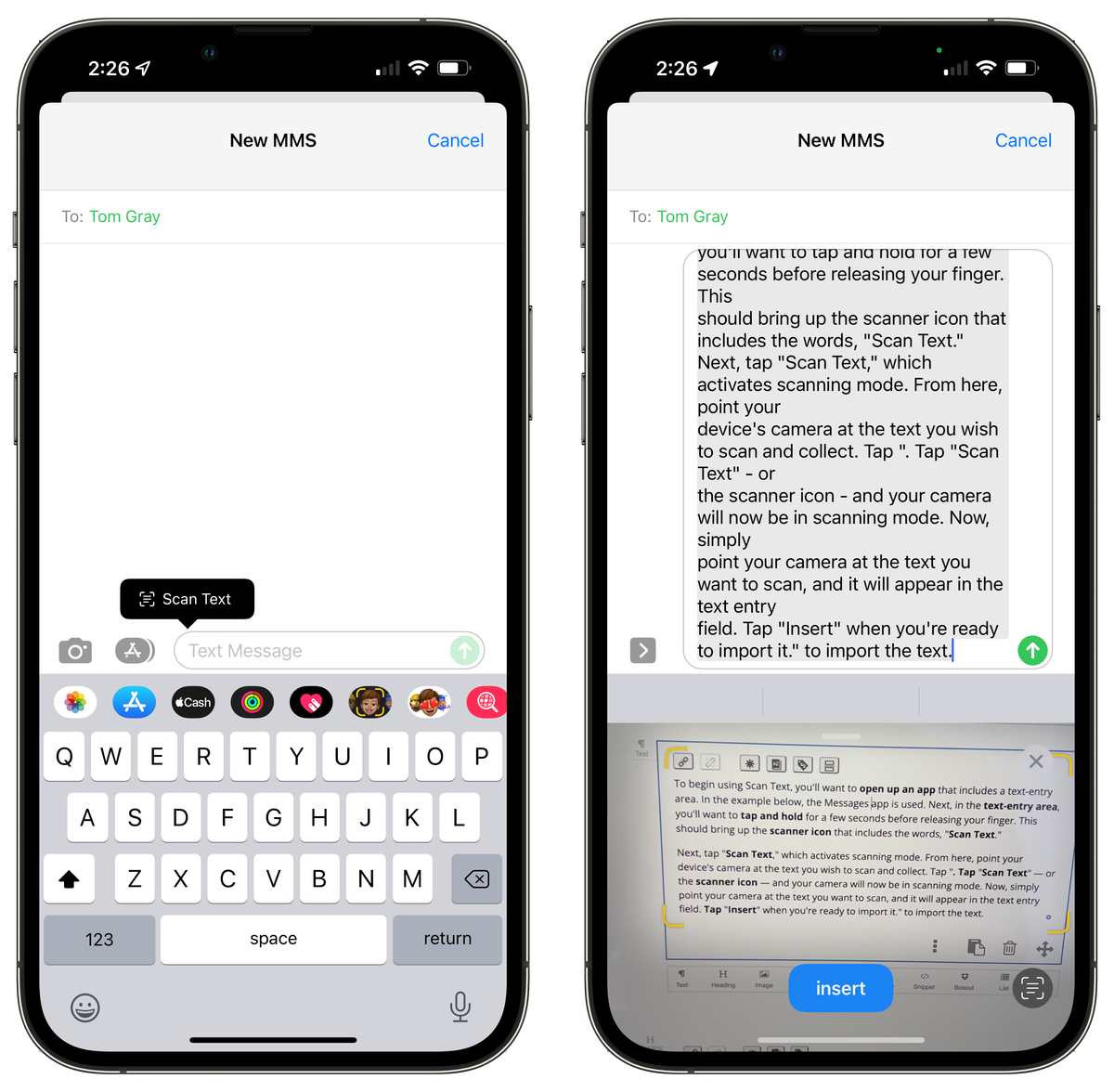
- Share: Send the selected text directly via Messages, Mail, or any other sharing extension.
- Calendar/Maps Integration: If the text contains a specific date, time, or address, Live Text will offer to create a Calendar event or open the location in Maps instantly.
These quick actions save you the hassle of copying, switching apps, pasting, and manually searching—making Iphone Scan Text a true productivity powerhouse.
Using Live Text with Safari and Screenshots
Did you know Live Text is also active on static images displayed in your browser? If you are viewing a complex infographic or a protected image on a website, simply tapping and holding the text within the image displayed in Safari will often allow you to select it, even if the website prevents traditional text selection.
Similarly, when you take a screenshot, the resulting image file immediately supports Live Text. This is perfect for capturing error messages, ephemeral social media posts, or text from non-copyable application windows. Just open the screenshot in the Photos app, and you can instantly pull the information you need.
Troubleshooting Common Live Text Issues
While the feature is excellent, sometimes the Iphone Scan Text tool doesn't work perfectly. Here are a few quick fixes if you run into trouble:
- Check Lighting and Clarity: Live Text requires clear contrast. Make sure the text is well-lit and not blurry. Blurry photos or extreme shadows will prevent accurate recognition.
- Verify Language Support: While Live Text supports many languages, extremely rare or specialized fonts and scripts might not be recognized optimally. Ensure your region settings match the expected language.
- Handwriting Limitations: While Live Text can read handwriting, it must be neat and reasonably legible. Messy scribbles won't work!
- Restart the App: If the Live Text icon isn't appearing in the Camera or Photos app, simply close the app completely (swipe up from the Home Screen) and reopen it.
Conclusion
The Iphone Scan Text feature, known as Live Text, is easily one of the most underrated productivity tools available on modern iPhones. By integrating optical character recognition directly into the operating system, Apple has eliminated the friction between the physical world and your digital notes.
From instantly copying complicated Wi-Fi passwords printed on routers to translating street signs while traveling, mastering Live Text will save you significant time and effort every day. So next time you encounter text that needs transferring, remember that your iPhone is ready to do the heavy lifting for you!
Frequently Asked Questions (FAQ) About Iphone Scan Text
- Can I use Iphone Scan Text on my older iPhone?
- No. The feature requires the A12 Bionic chip or newer (iPhone XS, XR, and later) to process the complex calculations required for OCR in real-time. Simply having the latest iOS version is not enough.
- Does Live Text work with handwritten notes?
- Yes, it generally supports handwriting, provided the script is relatively neat and legible. Extremely cursive or messy writing may not be recognized reliably by the Iphone Scan Text feature.
- How do I know if Live Text is active?
- When viewing an image or pointing your camera at text, look for the small Live Text icon (a square frame with three horizontal lines inside) in the lower right or lower middle of the screen. Tapping this icon will activate the text selection mode.
- Can I use Live Text to scan text in languages other than English?
- Absolutely! Live Text supports dozens of languages, including Spanish, German, Chinese, French, and Portuguese. Furthermore, it offers built-in translation capabilities for quickly understanding foreign text.
- Do I need an internet connection to use Iphone Scan Text?
- No. The Live Text processing happens locally on your device thanks to the Neural Engine. You only need an internet connection if you choose an action that requires online data, such as "Look Up" or "Translate" (for certain languages).
Iphone Scan Text
Iphone Scan Text Wallpapers
Collection of iphone scan text wallpapers for your desktop and mobile devices.

Vibrant Iphone Scan Text Artwork Nature
Discover an amazing iphone scan text background image, ideal for personalizing your devices with vibrant colors and intricate designs.
Vivid Iphone Scan Text Landscape Collection
Transform your screen with this vivid iphone scan text artwork, a true masterpiece of digital design.
Captivating Iphone Scan Text Image in 4K
Find inspiration with this unique iphone scan text illustration, crafted to provide a fresh look for your background.

Mesmerizing Iphone Scan Text Photo in 4K
Transform your screen with this vivid iphone scan text artwork, a true masterpiece of digital design.

Dynamic Iphone Scan Text Picture Art
Immerse yourself in the stunning details of this beautiful iphone scan text wallpaper, designed for a captivating visual experience.
Vivid Iphone Scan Text Scene Collection
Transform your screen with this vivid iphone scan text artwork, a true masterpiece of digital design.
Artistic Iphone Scan Text Picture Digital Art
This gorgeous iphone scan text photo offers a breathtaking view, making it a perfect choice for your next wallpaper.
Artistic Iphone Scan Text Photo for Your Screen
A captivating iphone scan text scene that brings tranquility and beauty to any device.
High-Quality Iphone Scan Text View Art
Explore this high-quality iphone scan text image, perfect for enhancing your desktop or mobile wallpaper.

Dynamic Iphone Scan Text Picture Digital Art
This gorgeous iphone scan text photo offers a breathtaking view, making it a perfect choice for your next wallpaper.
Gorgeous Iphone Scan Text Scene for Your Screen
This gorgeous iphone scan text photo offers a breathtaking view, making it a perfect choice for your next wallpaper.
Dynamic Iphone Scan Text Capture Digital Art
This gorgeous iphone scan text photo offers a breathtaking view, making it a perfect choice for your next wallpaper.
Detailed Iphone Scan Text Moment Photography
Experience the crisp clarity of this stunning iphone scan text image, available in high resolution for all your screens.
Stunning Iphone Scan Text Artwork Photography
Immerse yourself in the stunning details of this beautiful iphone scan text wallpaper, designed for a captivating visual experience.
Spectacular Iphone Scan Text Wallpaper in 4K
This gorgeous iphone scan text photo offers a breathtaking view, making it a perfect choice for your next wallpaper.
Spectacular Iphone Scan Text Artwork Digital Art
This gorgeous iphone scan text photo offers a breathtaking view, making it a perfect choice for your next wallpaper.
Vivid Iphone Scan Text Design Concept
Discover an amazing iphone scan text background image, ideal for personalizing your devices with vibrant colors and intricate designs.
Stunning Iphone Scan Text Image in 4K
This gorgeous iphone scan text photo offers a breathtaking view, making it a perfect choice for your next wallpaper.

Captivating Iphone Scan Text Scene in 4K
A captivating iphone scan text scene that brings tranquility and beauty to any device.
Serene Iphone Scan Text View Art
Explore this high-quality iphone scan text image, perfect for enhancing your desktop or mobile wallpaper.
Download these iphone scan text wallpapers for free and use them on your desktop or mobile devices.