Your Ultimate Iphone 15 Tutorial: Tips and Tricks You Need to Know
Hey there, and congratulations on snagging the incredible iPhone 15! We know that getting a new device, even one as sleek as this, can sometimes feel overwhelming. You have new features, new ports, and totally new ways to interact with your phone.
That's exactly why we put together this comprehensive Iphone 15 Tutorial. We're going to walk you through everything, from the initial setup to mastering the revolutionary camera and the slick Dynamic Island. Think of this as your friendly guide to unlocking the full potential of your new daily driver. Let's dive in!
Setting Up Your New iPhone 15 Seamlessly
The first step in any great tech journey is the setup process. Apple has refined this significantly over the years, making it incredibly straightforward. However, there are a few key decisions you'll make during this phase that matter.
When you first power on your iPhone 15, the "Hello" screen greets you. Follow the on-screen prompts, selecting your language and region. If you are coming from an older iPhone or iPad, the Quick Start feature will be your best friend.
If you are switching from Android, don't worry! Apple provides the "Move to iOS" app, which simplifies the transfer of contacts, messages, photos, and calendar accounts directly to your new device.
Transferring Data Like a Pro
Quick Start is the fastest, easiest way to move everything. It uses a secure, direct Wi-Fi connection between your old and new phones. Make sure both devices are charged and close together.
Here is the simple process for utilizing Quick Start:
- Place your old iPhone near the new iPhone 15 when the "Hello" screen appears.
- A card will pop up on your old phone asking if you want to set up the new one. Tap "Continue."
- A swirling animation will appear on the new phone; use the old phone's camera to scan this pattern.
- Enter your old phone's passcode on the new iPhone 15.
- Choose "Transfer Directly from iPhone." This method is usually faster than restoring from an iCloud backup.
The entire transfer process can take anywhere from 15 minutes to over an hour, depending on how much data you have. Keep both phones connected to power while the transfer is ongoing.
Mastering the Dynamic Island: More Than Just a Notch
The iPhone 15 brings the Dynamic Island to all models, replacing the traditional notch. This isn't just a static piece of hardware; it's an interactive hub that transforms based on what you are doing. It's truly a cornerstone feature, and understanding it is key to this Iphone 15 Tutorial.
The Dynamic Island is designed to give you quick access to background tasks without interrupting your current activity. Whether you are listening to music, timing an egg, or tracking a flight, the Island keeps you informed.
Interacting with Live Activities
When an app starts a "Live Activity," the Dynamic Island expands slightly to show the activity. If two activities are running, the Island splits, showing the primary one large and the secondary one small.
To interact with the Island, you have two primary gestures:
- Tap: A quick tap on the Island launches you directly into the corresponding app (e.g., tapping the music icon opens the Music app).
- Tap and Hold: Pressing and holding the Island expands the activity into a mini-card, allowing you to access controls (like pausing music or viewing turn-by-turn directions) without leaving your current screen.
Try running the Timer app and playing a podcast simultaneously. You will see both seamlessly displayed and accessible right at the top of your screen.
Exploring the Enhanced Camera System (Iphone 15 Tutorial Focus)
The iPhone 15 features a massive upgrade to its main camera, jumping to a 48MP sensor. Don't worry, though; you won't need giant files for every photo. By default, the phone uses "pixel binning," combining four pixels into one large super-pixel to capture stunning 24MP photos.
This new 24MP standard offers double the resolution of previous iPhones, meaning your everyday photos are sharper and more vibrant. If you really want a full 48MP photo, you can shoot in HEIF Max or ProRAW (on Pro models), but for most users, the standard 24MP is perfect.
Revolutionary Portrait Mode: Shoot First, Focus Later
Perhaps the coolest camera trick in this Iphone 15 Tutorial is the automatic depth information capture. Your iPhone 15 no longer requires you to manually switch to Portrait mode when photographing people, cats, or dogs. The phone automatically senses when a subject is present and captures depth data.
What does this mean for you? You can take a standard photo, and later, if you decide you want that nice blurry background (bokeh), you can apply it retroactively in the Photos app!
Adjusting Focus After Taking the Shot
If you want to adjust the focus point or the intensity of the blur after capturing the image, follow these steps:
- Open the photo in the Photos app.
- Tap "Edit" in the top right corner.
- If the photo has depth information, you will see a "Portrait" option at the bottom. Tap this.
- You can now tap on different objects in the frame to change the focus point.
- Use the slider at the bottom to adjust the depth (f-stop) for a stronger or weaker background blur effect.
This flexibility ensures you never miss a perfect shot just because you forgot to swipe over to Portrait mode.
Embracing USB-C: Charging, Data, and External Displays
The switch from Lightning to USB-C is a major hardware change, offering incredible convenience and cross-device compatibility. This change means you can now use the same cable for your MacBook, iPad, and iPhone 15.
For standard iPhone 15 models, the port supports USB 2.0 speeds (480 Mbps), which is similar to Lightning. However, the connectivity benefits are huge.
Key advantages of the new USB-C port include:
- Universal Charging: Use virtually any standard USB-C charger, cable, or power bank you already own.
- Reverse Charging: You can plug in your Apple Watch or AirPods case into the iPhone 15 and use the phone's battery to charge your accessories. This is super handy in a pinch!
- Display Output: Easily connect your iPhone to an external monitor or TV using a USB-C to HDMI or USB-C to USB-C cable. This allows for mirroring or even extended desktop views (especially useful for gaming or presentations).
While the Pro models boast faster USB 3 speeds, the standard iPhone 15 still benefits greatly from the shift to the universal USB-C standard.
Conclusion
The iPhone 15 is a phenomenal device, packed with powerful updates that truly enhance your daily digital life. By following this detailed Iphone 15 Tutorial, you should now feel much more comfortable navigating its new features.
We covered the seamless setup process, the transformative utility of the Dynamic Island, the revolutionary ability to edit depth in photos retroactively, and the fantastic versatility of the new USB-C port. Enjoy exploring your new phone—it's ready to make your experience better than ever!
Frequently Asked Questions (FAQ)
- Can I use my old Lightning cable with the iPhone 15?
- No, the iPhone 15 uses a USB-C port and requires a USB-C cable for charging and data transfer. However, Apple sells a USB-C to Lightning adapter if you absolutely need to connect specific older accessories.
- How do I force restart the iPhone 15?
- To force restart: quickly press and release the Volume Up button, quickly press and release the Volume Down button, and then press and hold the Side button until the Apple logo appears.
- Does the iPhone 15 support 5G?
- Yes, the iPhone 15 supports 5G cellular connectivity, allowing for high-speed downloads and streaming where 5G networks are available.
- What is the benefit of the 24MP default photo setting?
- The 24MP setting, achieved through pixel binning of the 48MP sensor, provides significantly more detail and clarity than the previous 12MP standard, without creating excessively large files associated with full 48MP images.
- How do I customize the default Zoom level on the camera?
- The iPhone 15 now offers 0.5x (Ultra Wide), 1x (Main), and 2x (Telephoto equivalent, achieved digitally via the main sensor) optical zoom options. Simply tap the 1x or 2x icons in the Camera app to switch between them.
Iphone 15 Tutorial
Iphone 15 Tutorial Wallpapers
Collection of iphone 15 tutorial wallpapers for your desktop and mobile devices.

Vivid Iphone 15 Tutorial Scene Digital Art
Explore this high-quality iphone 15 tutorial image, perfect for enhancing your desktop or mobile wallpaper.

Breathtaking Iphone 15 Tutorial Capture Illustration
Explore this high-quality iphone 15 tutorial image, perfect for enhancing your desktop or mobile wallpaper.

Amazing Iphone 15 Tutorial Scene Illustration
Discover an amazing iphone 15 tutorial background image, ideal for personalizing your devices with vibrant colors and intricate designs.

Serene Iphone 15 Tutorial Scene for Your Screen
Experience the crisp clarity of this stunning iphone 15 tutorial image, available in high resolution for all your screens.

Spectacular Iphone 15 Tutorial Picture for Your Screen
Immerse yourself in the stunning details of this beautiful iphone 15 tutorial wallpaper, designed for a captivating visual experience.

Crisp Iphone 15 Tutorial View Collection
A captivating iphone 15 tutorial scene that brings tranquility and beauty to any device.

Lush Iphone 15 Tutorial Artwork Art
Find inspiration with this unique iphone 15 tutorial illustration, crafted to provide a fresh look for your background.
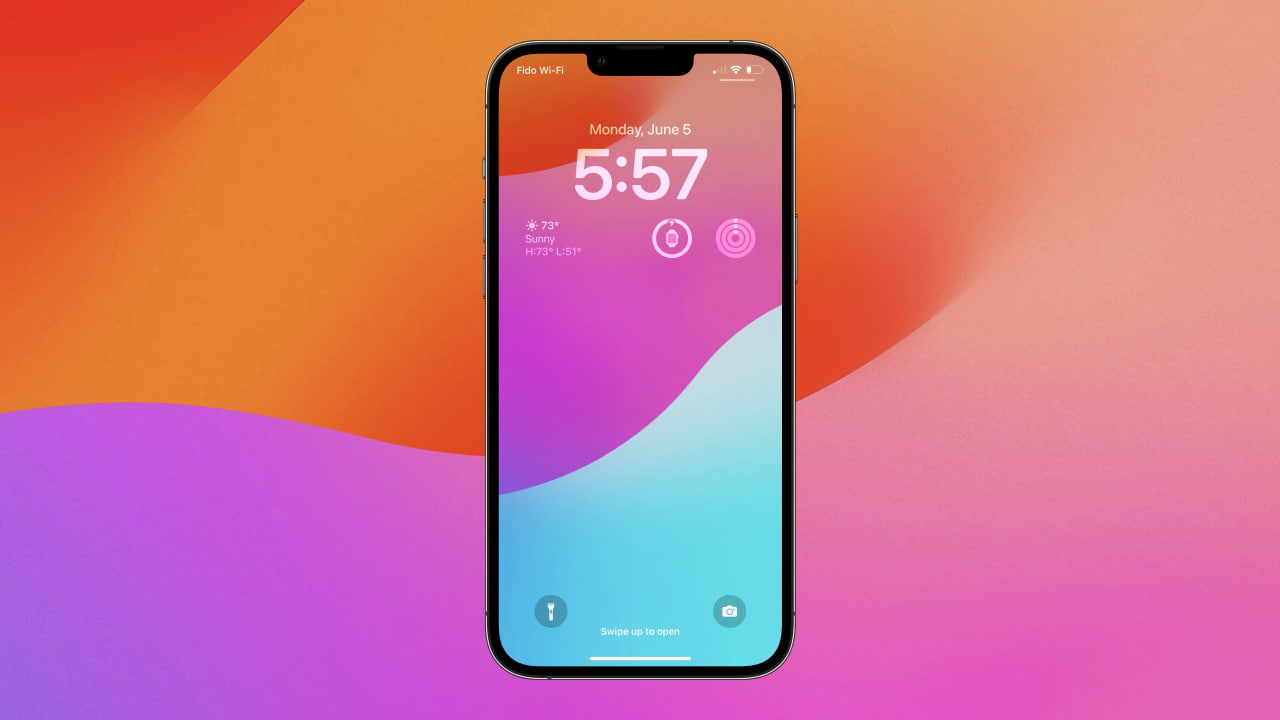
Crisp Iphone 15 Tutorial Artwork Nature
A captivating iphone 15 tutorial scene that brings tranquility and beauty to any device.
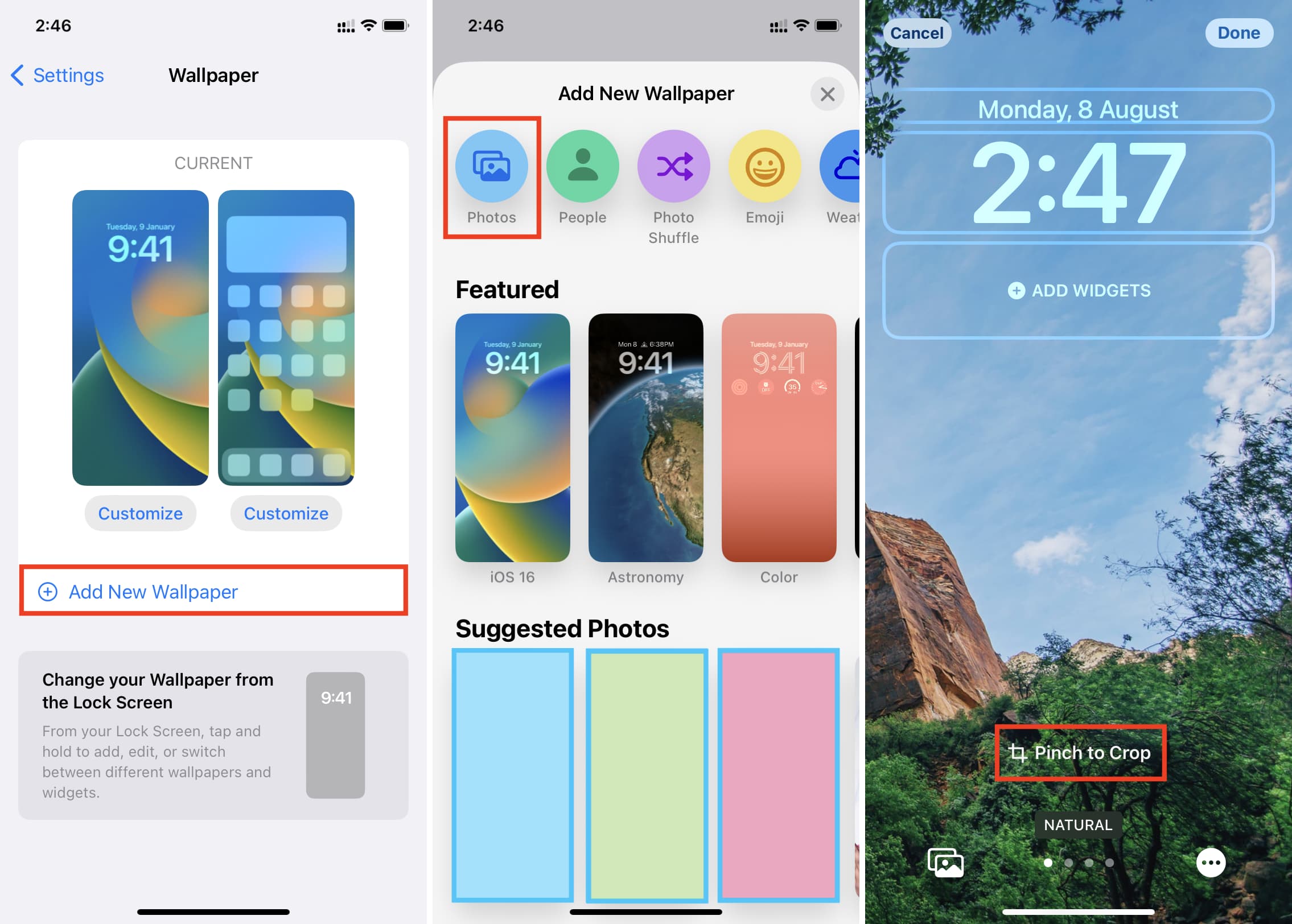
Spectacular Iphone 15 Tutorial Artwork Digital Art
This gorgeous iphone 15 tutorial photo offers a breathtaking view, making it a perfect choice for your next wallpaper.

Exquisite Iphone 15 Tutorial Capture for Desktop
A captivating iphone 15 tutorial scene that brings tranquility and beauty to any device.

Stunning Iphone 15 Tutorial Moment Digital Art
This gorgeous iphone 15 tutorial photo offers a breathtaking view, making it a perfect choice for your next wallpaper.

Detailed Iphone 15 Tutorial Abstract Art
Discover an amazing iphone 15 tutorial background image, ideal for personalizing your devices with vibrant colors and intricate designs.

Beautiful Iphone 15 Tutorial Landscape Photography
Transform your screen with this vivid iphone 15 tutorial artwork, a true masterpiece of digital design.

Lush Iphone 15 Tutorial Picture for Mobile
A captivating iphone 15 tutorial scene that brings tranquility and beauty to any device.
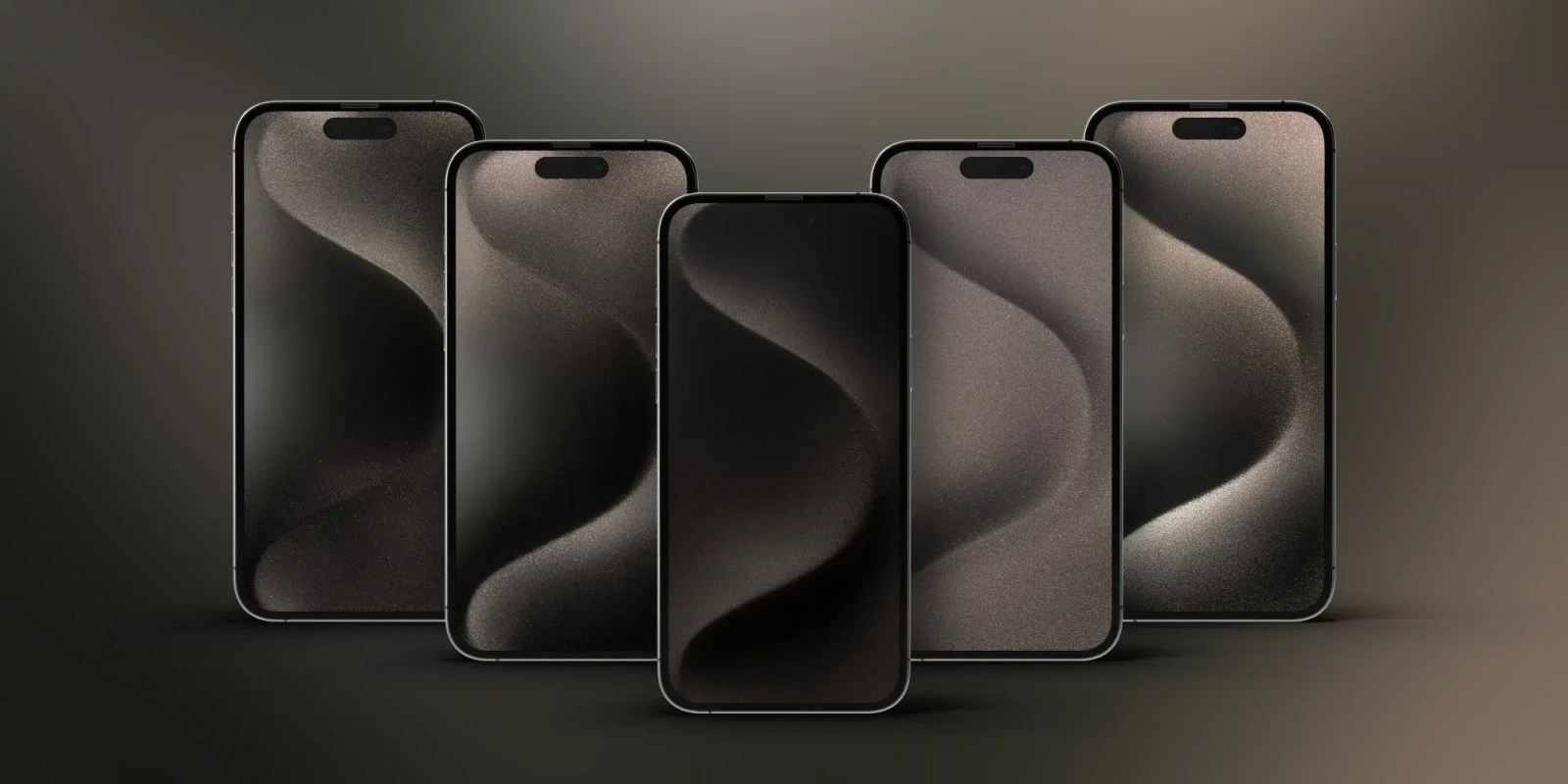
Mesmerizing Iphone 15 Tutorial Design for Desktop
Discover an amazing iphone 15 tutorial background image, ideal for personalizing your devices with vibrant colors and intricate designs.

Crisp Iphone 15 Tutorial Image Digital Art
This gorgeous iphone 15 tutorial photo offers a breathtaking view, making it a perfect choice for your next wallpaper.

Amazing Iphone 15 Tutorial Capture Concept
Transform your screen with this vivid iphone 15 tutorial artwork, a true masterpiece of digital design.

Spectacular Iphone 15 Tutorial Landscape for Mobile
A captivating iphone 15 tutorial scene that brings tranquility and beauty to any device.
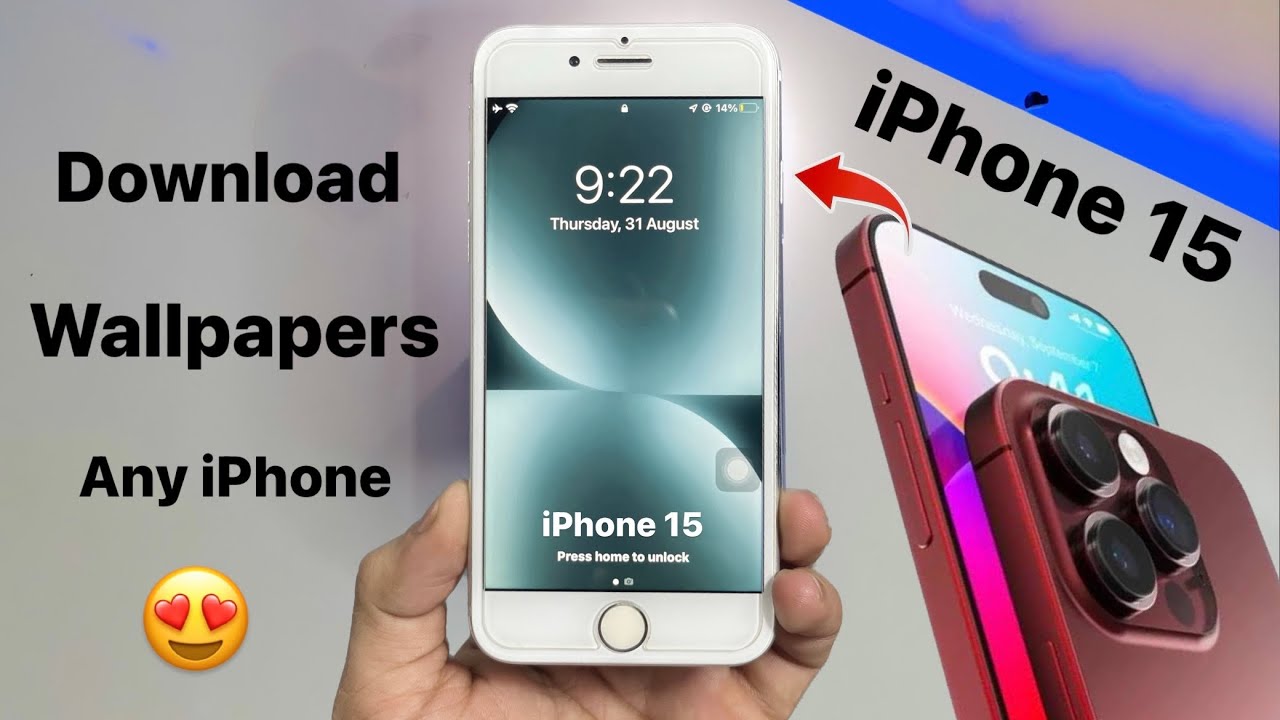
Dynamic Iphone 15 Tutorial Image Illustration
Find inspiration with this unique iphone 15 tutorial illustration, crafted to provide a fresh look for your background.

Vivid Iphone 15 Tutorial Photo Nature
Transform your screen with this vivid iphone 15 tutorial artwork, a true masterpiece of digital design.
Download these iphone 15 tutorial wallpapers for free and use them on your desktop or mobile devices.