How To Translate Page On iPhone: Your Ultimate Guide
If you love browsing the internet but constantly run into websites in languages you don't speak, you are definitely not alone! This can be frustrating, especially when you need crucial information. Luckily, Apple has made learning how to translate a page on iPhone incredibly straightforward.
Whether you're traveling abroad, researching international markets, or just stumbling across a cool foreign blog, your iPhone has powerful built-in tools ready to help. We'll walk you through the simplest native options using Safari, and then dive into some powerful third-party solutions for those tricky pages. Let's get translating!
Using the Built-in Safari Translator for Instant Results
The easiest and fastest way to translate a webpage on your iPhone is by utilizing Apple's native translation feature within the Safari browser. This feature was introduced in iOS 14 and has become a game-changer for international browsing.
The beauty of this method is that it requires no extra downloads or sign-ups. It integrates seamlessly into your browsing experience, ensuring you know exactly how to translate a page on iPhone without hassle.
It's important to note that while Safari supports many popular languages, it might not cover every single dialect. However, for major languages like Spanish, French, German, and Chinese, it works like a charm.
Step-by-Step: Activating Safari's Translate Feature
Here is the simple process to instantly translate any foreign webpage while you are browsing in Safari:
- Open Safari and Navigate: Launch the Safari app on your iPhone and go to the webpage written in the foreign language you need translated.
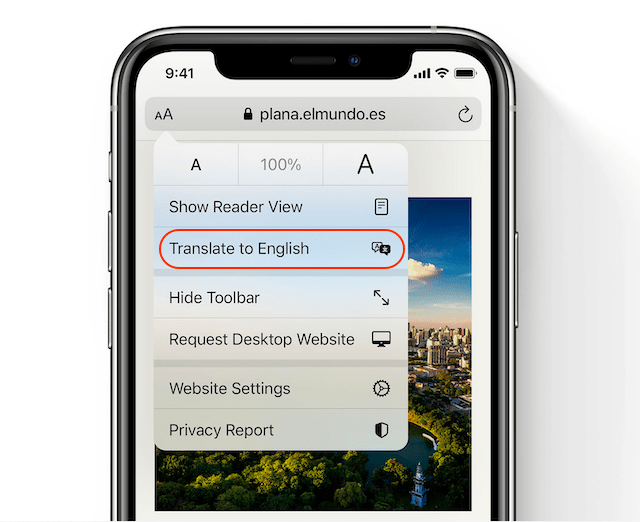
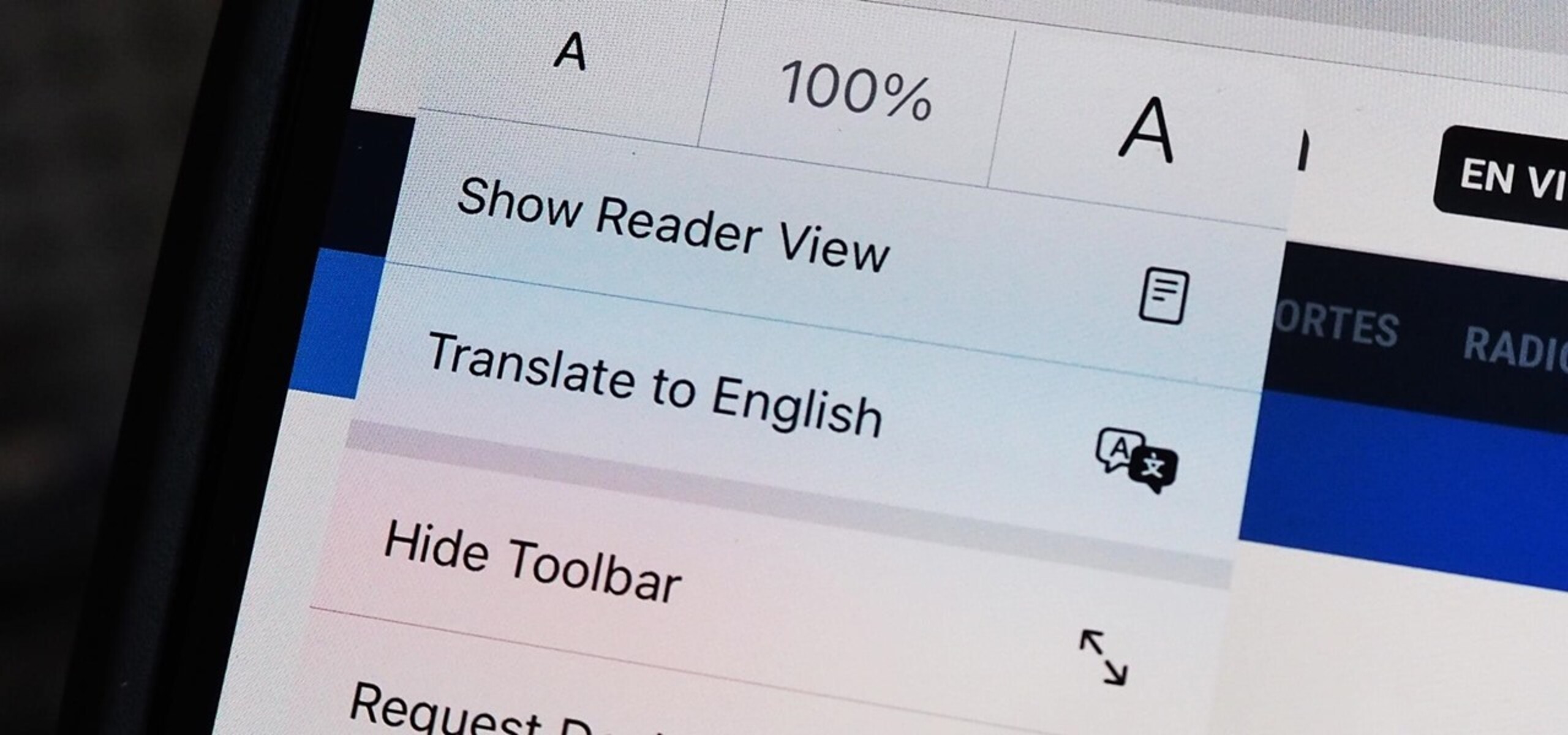
- Locate the 'aA' Icon: Look for the two small 'a's (one large, one small) located in the address bar at the bottom or top of your screen (depending on your iOS settings). This is the Website View menu.
- Tap 'Translate Website': A menu will pop up with options like "Request Desktop Website" and "Reader View." Select the option labeled "Translate Website."
- Confirm Translation: If it's your first time translating this language, Safari might ask you to confirm that you want to enable the translation service. Tap "Enable Translation."
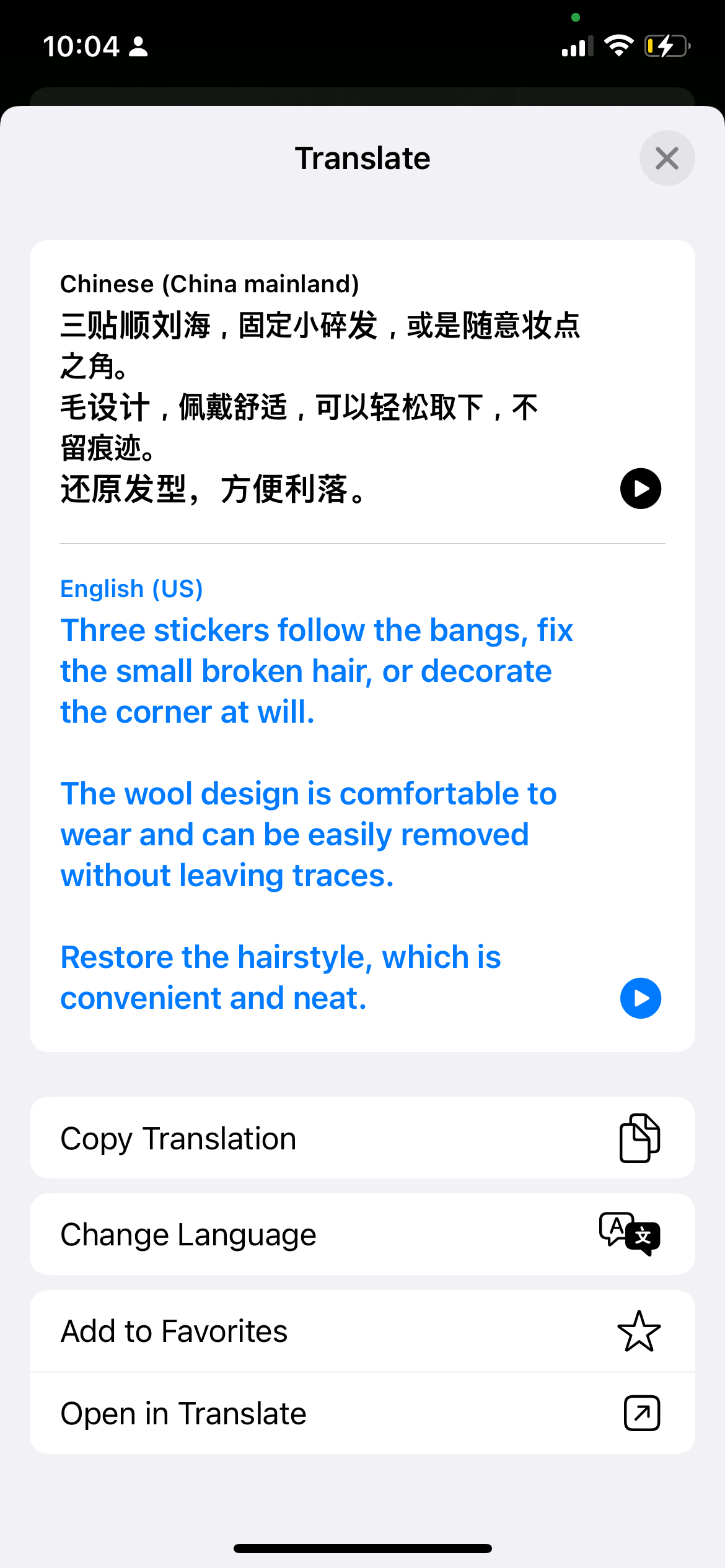
- Review the Translated Page: Safari will instantly convert the entire webpage text into your primary iPhone language.
To switch back to the original language, simply tap the 'aA' icon again and select "View Original." It's that easy to translate whole pages!
When Safari Isn't Enough: Third-Party Apps
While the native Safari feature is fantastic, there are times when you might need something more robust. Perhaps you are running an older iOS version, or the language you need translated is niche and unsupported by Apple. In these cases, dedicated third-party translation apps come to the rescue.
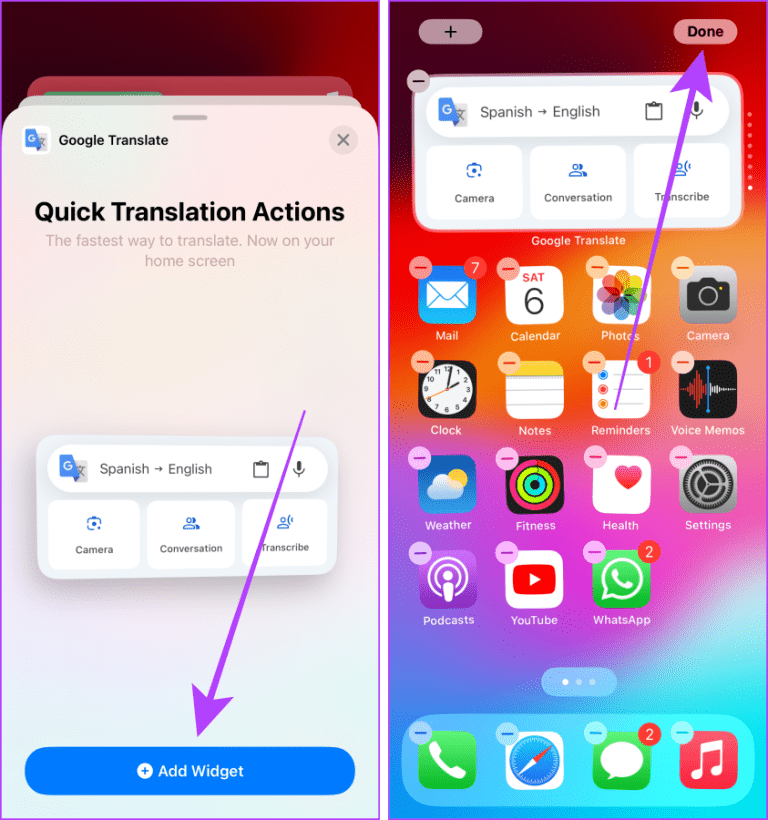
Google Translate is arguably the most popular and comprehensive tool for this job. It offers support for a massive array of languages and provides multiple translation methods, going far beyond basic text conversion.
Translating via Google Translate App (For Complex Pages)
If you prefer using the Google Translate application, you can use the simple copy-and-paste method. This is a manual but reliable way to get an accurate translation.
Here's how you can use Google Translate to handle text translation from a webpage:
- Select and Copy: On the webpage in Safari, tap and hold on a section of the foreign text, then drag the selectors to highlight the text you want to translate. Tap "Copy."
- Open Google Translate: Launch the Google Translate app on your iPhone.
- Paste the Text: Tap into the input field and choose "Paste."
- Get the Result: The translated text will immediately appear below the source text. You can repeat this process for different sections of the page.
This method is great for translating specific paragraphs or headers without changing the entire webpage layout.
Using the Shared Extension for Quick Translation
Did you know you can integrate Google Translate directly into your Safari Share Sheet? This allows you to bypass copying and pasting entirely, giving you a smooth way to learn how to translate a page on iPhone using external apps.
Follow these steps to set up and use the extension:
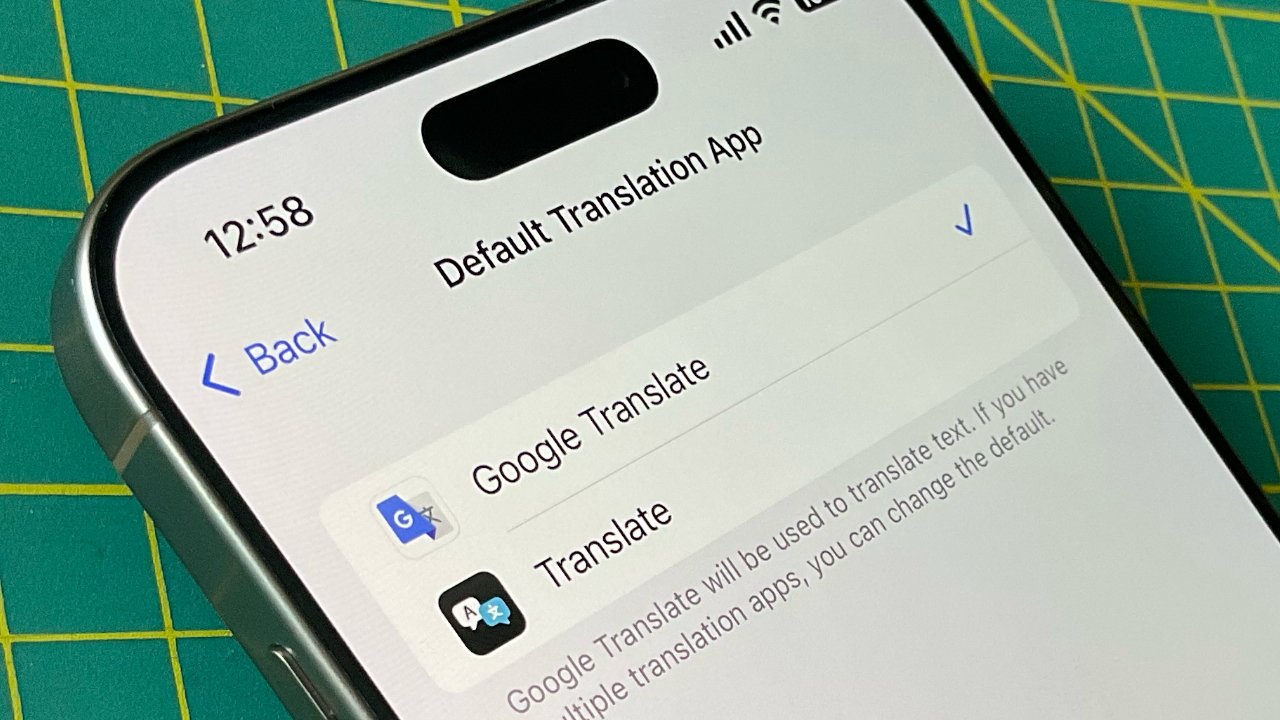
- Install and Set Up: Make sure the Google Translate app is installed on your iPhone.
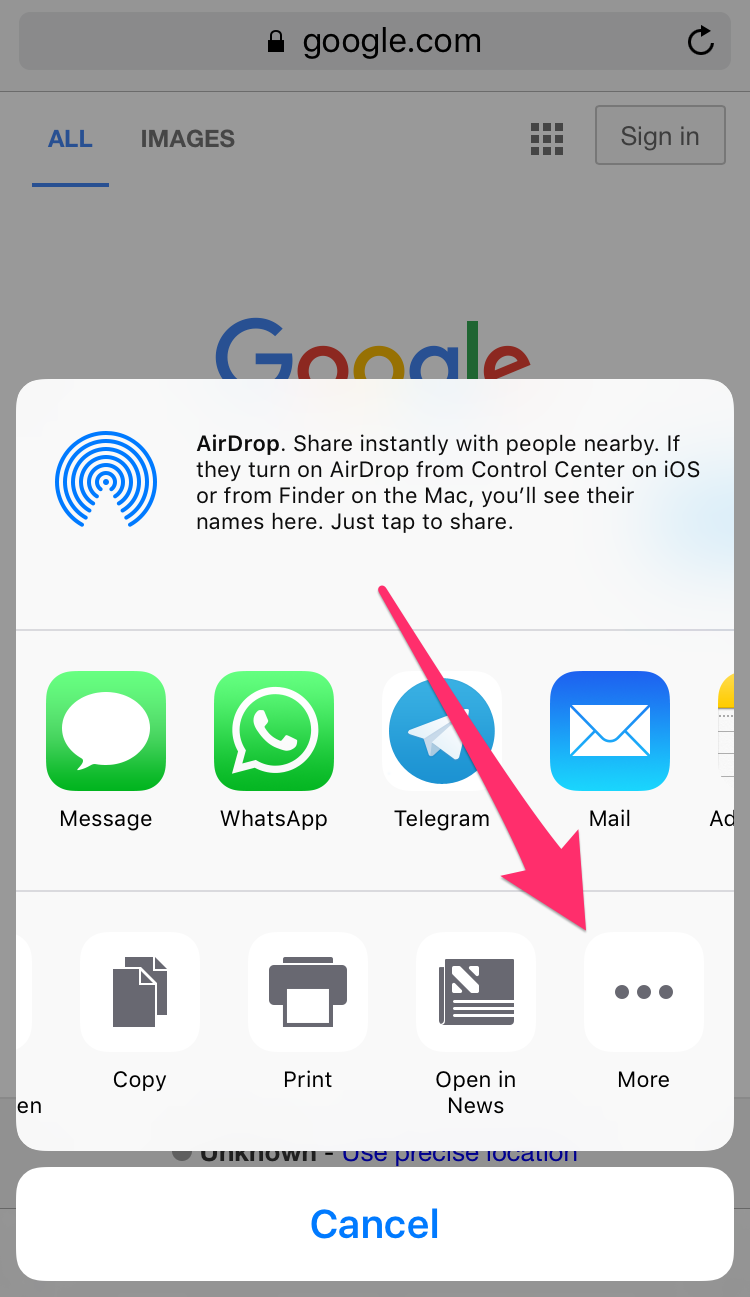
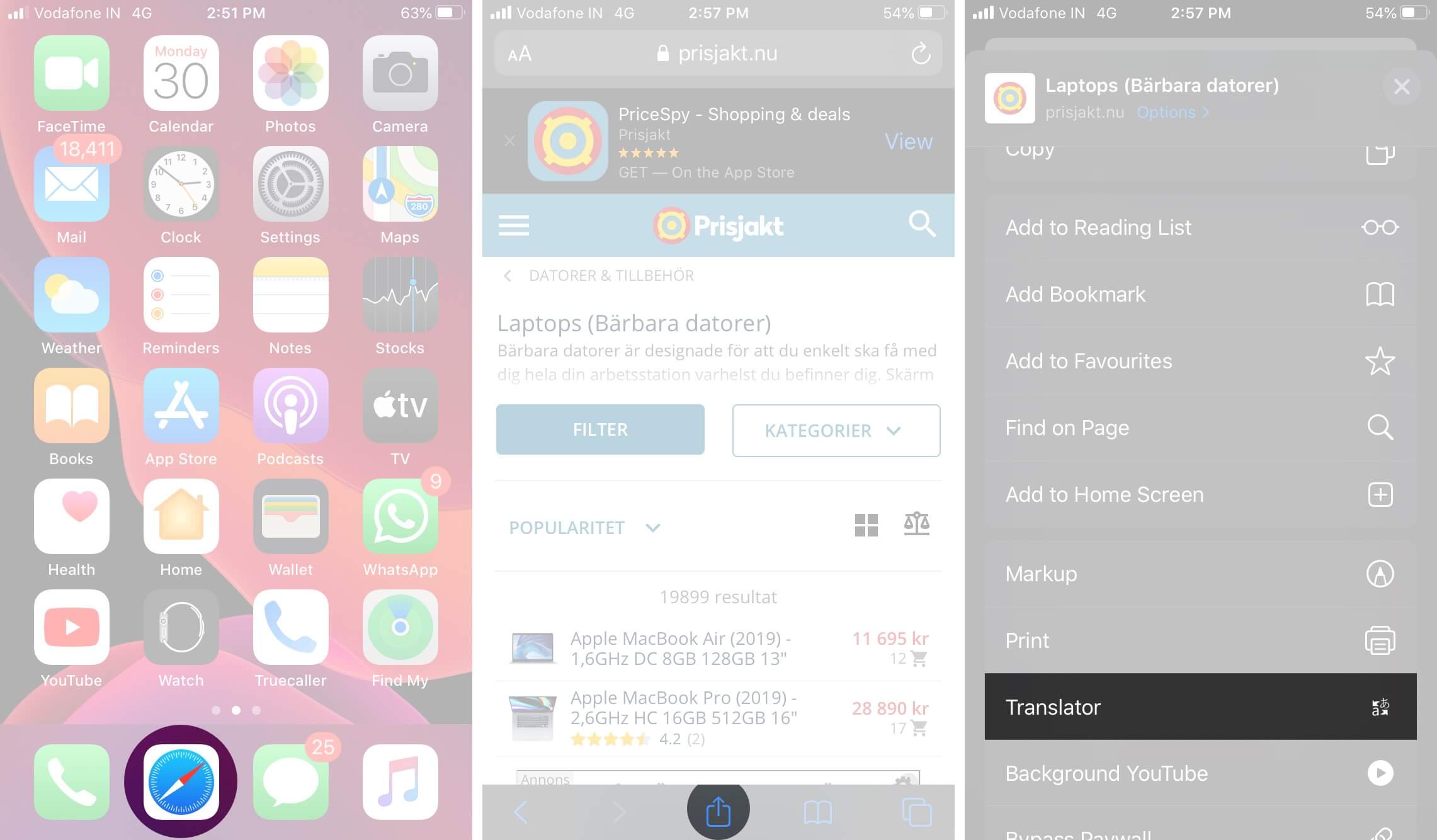
- Go to Share Sheet: Open the foreign webpage in Safari and tap the Share icon (the square with an arrow pointing up).
- Enable the Extension: Scroll right on the bottom row of icons (the list of apps) and tap "More" (the three dots). Find "Translate" in the list of activities, and ensure the toggle is switched on. You might want to drag it near the top for easy access.
- Translate the Page: Now, when you are on a foreign page, tap the Share icon, and select the Google Translate extension. It will quickly process the content and display the translated text.
This extension streamlines the translation process significantly, making foreign content instantly accessible.
Managing Translation Settings on Your iPhone
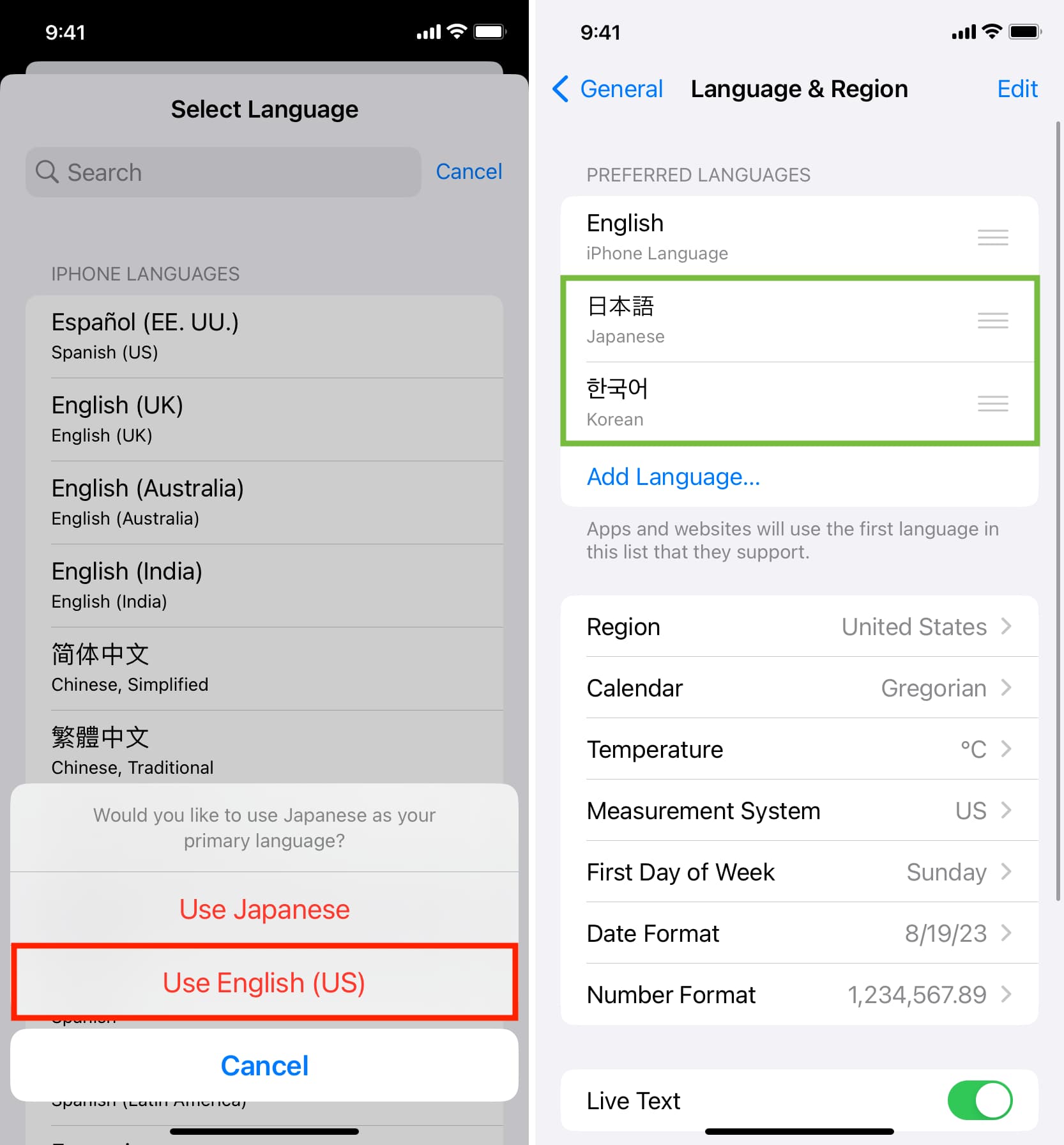
To get the best experience when you translate a page on iPhone, it helps to customize your translation preferences. Your iPhone automatically translates pages into the primary language you set up during phone activation, but you can add other languages or change the settings for auto-translation.
Understanding these settings ensures that the translation feature works precisely how you want it to, minimizing manual adjustments every time you encounter a new foreign site.
Handling Language Preferences and Auto-Translate
You can manage which languages Safari is allowed to automatically translate by adjusting the Language settings on your iPhone. This prevents you from being asked for permission every time you translate a known language.
Go to your iPhone Settings to configure these preferences:
- Go to Settings and scroll down to find Safari.
- Scroll further down until you find the Translation menu.
- Under "Preferred Translation Languages," you will see your primary language.
- You can tap Add Language to include other languages you frequently use.
- If you want Safari to stop prompting you and automatically translate a page from a specific language (e.g., German) to your native tongue, tap the language and choose "Auto-Translate."
By customizing these settings, you streamline the process and ensure that learning how to translate a page on iPhone leads to faster, more efficient browsing globally.
Remember that Apple is continuously improving its translation capabilities, so always keep your iOS updated for the latest language support and translation quality.
Conclusion
Learning how to translate a page on iPhone is a critical skill in today's globalized digital world. Thankfully, your device provides powerful and accessible tools right out of the box. The native Safari translator (found under the 'aA' icon) is the quickest method for most users, instantly converting foreign content with a couple of taps.
For more complex needs or unsupported languages, reliable third-party options like the Google Translate app and its useful Share Sheet extension offer excellent alternatives. By mastering both the built-in and external methods, you can confidently browse any website, regardless of the language, making your iPhone truly a window to the world.
Frequently Asked Questions (FAQ)
- Can I translate a page on my iPhone if I have an older iOS version?
- The built-in Safari translation feature requires iOS 14 or later. If you are using an older version, you will need to rely on third-party apps like Google Translate, often using the copy-and-paste method or a browser that has built-in translation features (like the Chrome app).
- Is the iPhone translation feature secure?
- Yes. Apple states that the translation feature processes text on Apple servers, but the company does not store or log the text. If you have "iCloud Private Relay" enabled, the content of the translation is also masked from Apple.
- Why is the "Translate Website" option grayed out?
- If the "Translate Website" option is grayed out, it typically means one of two things: either the webpage is already written in your iPhone's primary language, or the specific language of the webpage is not currently supported by Apple's translation service.
- Can I translate text on my iPhone outside of the Safari browser?
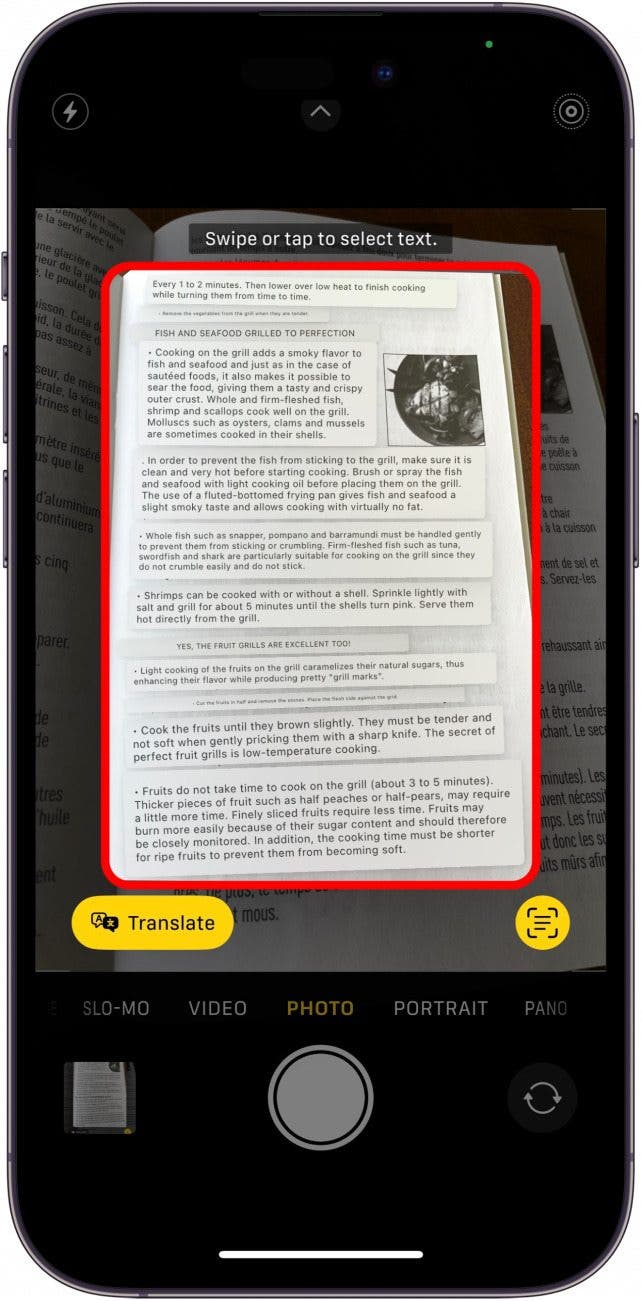
- Absolutely! iOS also includes a dedicated Translate app. Furthermore, if you select text in almost any app (Messages, Mail, Notes), tapping "Look Up" often reveals a built-in translation option for the highlighted words.
- Does translating a page use cellular data?
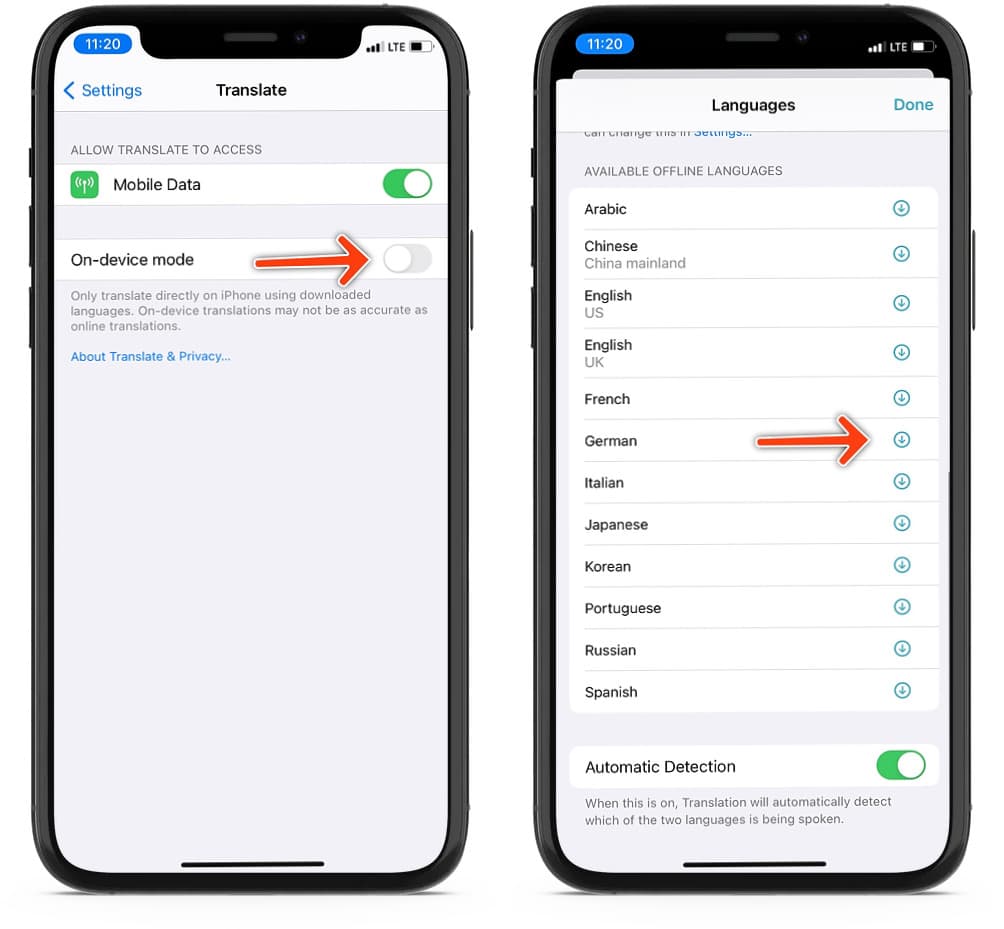
- Yes, since the translation engine (whether Apple's or Google's) requires connecting to a server to process the language conversion, using the translation feature will consume a small amount of cellular data if you are not connected to Wi-Fi.
How To Translate Page On Iphone
How To Translate Page On Iphone Wallpapers
Collection of how to translate page on iphone wallpapers for your desktop and mobile devices.

Detailed How To Translate Page On Iphone View Collection
Explore this high-quality how to translate page on iphone image, perfect for enhancing your desktop or mobile wallpaper.

Crisp How To Translate Page On Iphone Scene in HD
A captivating how to translate page on iphone scene that brings tranquility and beauty to any device.
Spectacular How To Translate Page On Iphone Picture Digital Art
Immerse yourself in the stunning details of this beautiful how to translate page on iphone wallpaper, designed for a captivating visual experience.

High-Quality How To Translate Page On Iphone Image in 4K
Experience the crisp clarity of this stunning how to translate page on iphone image, available in high resolution for all your screens.
Serene How To Translate Page On Iphone Moment in 4K
Transform your screen with this vivid how to translate page on iphone artwork, a true masterpiece of digital design.

Spectacular How To Translate Page On Iphone Wallpaper Illustration
Find inspiration with this unique how to translate page on iphone illustration, crafted to provide a fresh look for your background.

Crisp How To Translate Page On Iphone Landscape for Mobile
Immerse yourself in the stunning details of this beautiful how to translate page on iphone wallpaper, designed for a captivating visual experience.
Vivid How To Translate Page On Iphone Wallpaper in HD
Discover an amazing how to translate page on iphone background image, ideal for personalizing your devices with vibrant colors and intricate designs.
Captivating How To Translate Page On Iphone Photo Art
Find inspiration with this unique how to translate page on iphone illustration, crafted to provide a fresh look for your background.
Vibrant How To Translate Page On Iphone Moment Photography
Explore this high-quality how to translate page on iphone image, perfect for enhancing your desktop or mobile wallpaper.

Spectacular How To Translate Page On Iphone Wallpaper Illustration
Immerse yourself in the stunning details of this beautiful how to translate page on iphone wallpaper, designed for a captivating visual experience.

Detailed How To Translate Page On Iphone View Collection
Explore this high-quality how to translate page on iphone image, perfect for enhancing your desktop or mobile wallpaper.

Vivid How To Translate Page On Iphone Scene for Desktop
Discover an amazing how to translate page on iphone background image, ideal for personalizing your devices with vibrant colors and intricate designs.
High-Quality How To Translate Page On Iphone Abstract in 4K
Discover an amazing how to translate page on iphone background image, ideal for personalizing your devices with vibrant colors and intricate designs.
Serene How To Translate Page On Iphone Moment Photography
Discover an amazing how to translate page on iphone background image, ideal for personalizing your devices with vibrant colors and intricate designs.

Serene How To Translate Page On Iphone Landscape in HD
Explore this high-quality how to translate page on iphone image, perfect for enhancing your desktop or mobile wallpaper.
Crisp How To Translate Page On Iphone Moment Digital Art
A captivating how to translate page on iphone scene that brings tranquility and beauty to any device.
Breathtaking How To Translate Page On Iphone Design Digital Art
Transform your screen with this vivid how to translate page on iphone artwork, a true masterpiece of digital design.

Captivating How To Translate Page On Iphone Capture in HD
This gorgeous how to translate page on iphone photo offers a breathtaking view, making it a perfect choice for your next wallpaper.
Serene How To Translate Page On Iphone Picture Art
Discover an amazing how to translate page on iphone background image, ideal for personalizing your devices with vibrant colors and intricate designs.
Download these how to translate page on iphone wallpapers for free and use them on your desktop or mobile devices.