How To Transfer Pics From Iphone To Computer: The Ultimate Guide
Hey there, digital shutterbug! Are you staring mournfully at that "Storage Almost Full" warning on your iPhone? We've all been there. Modern iPhones take incredible photos, but those high-resolution snaps quickly eat up precious space. If you're ready to declutter your device and save those memories safely on your PC or Mac, you've come to the right place.
Learning How To Transfer Pics From Iphone To Computer is a crucial skill for any iPhone user. Whether you prefer the simplicity of a cable, the convenience of the cloud, or the power of specialized software, we've broken down the easiest methods available. Let's dive in and free up that storage!
The Easiest Way: Using Windows File Explorer or Finder (Wired Method)
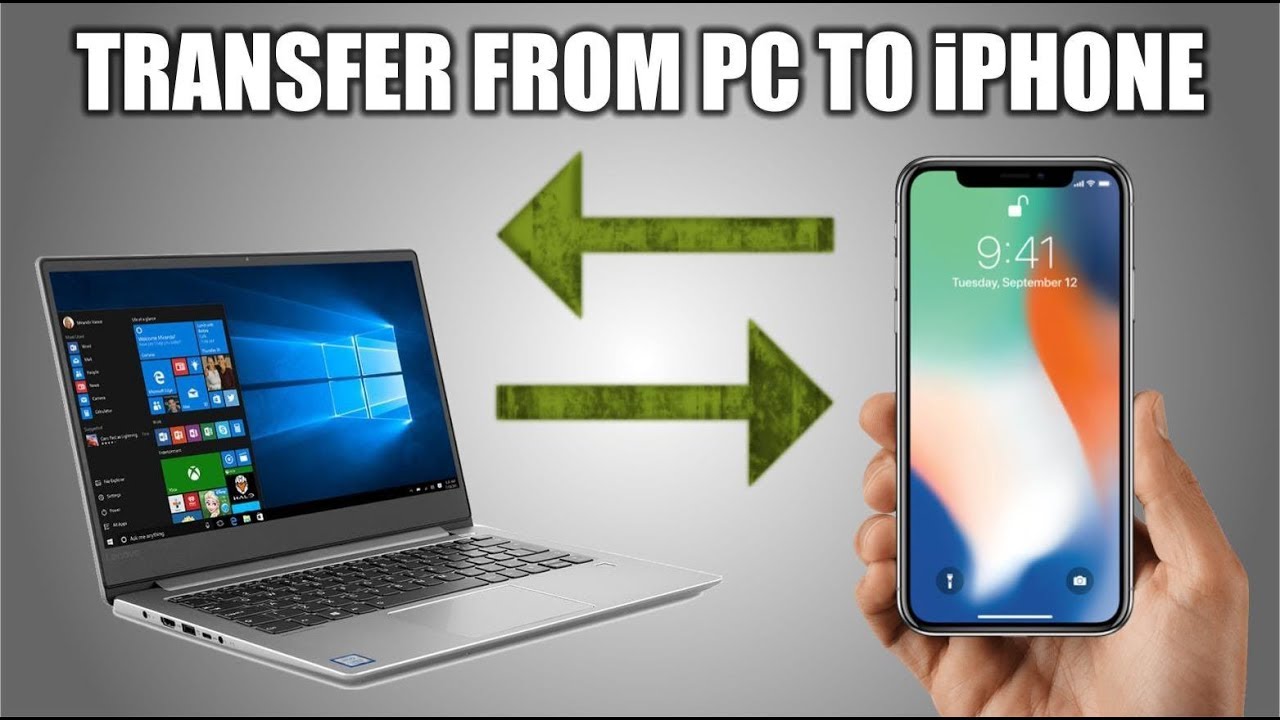
The simplest, most reliable, and often fastest method to transfer a large volume of photos is by connecting your iPhone directly to your computer using a USB cable. This method bypasses internet speeds and relies purely on physical connection, making it perfect for huge photo dumps.
Transferring Photos from iPhone to Windows PC
If you are a Windows user, the process is incredibly straightforward. Your iPhone acts just like a regular digital camera when plugged in.
Follow these quick steps:
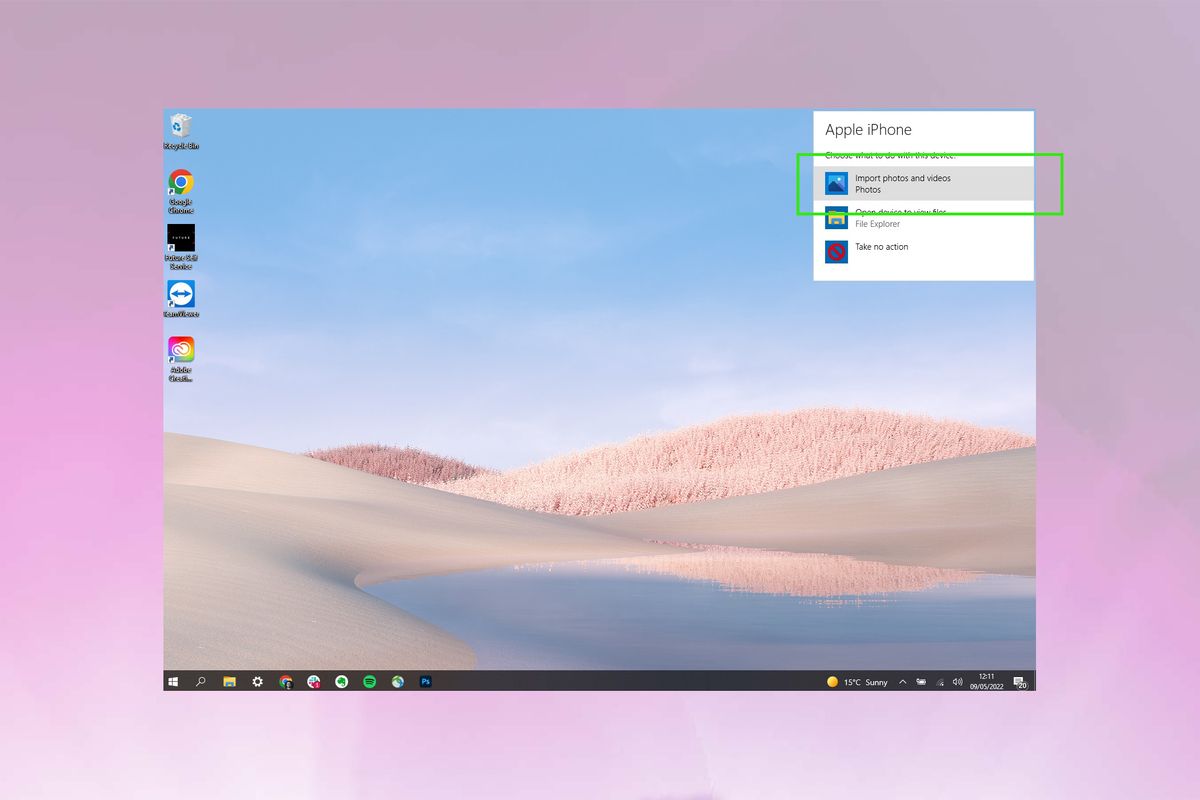
- Connect your devices: Use a Lightning cable to connect your iPhone to your PC.
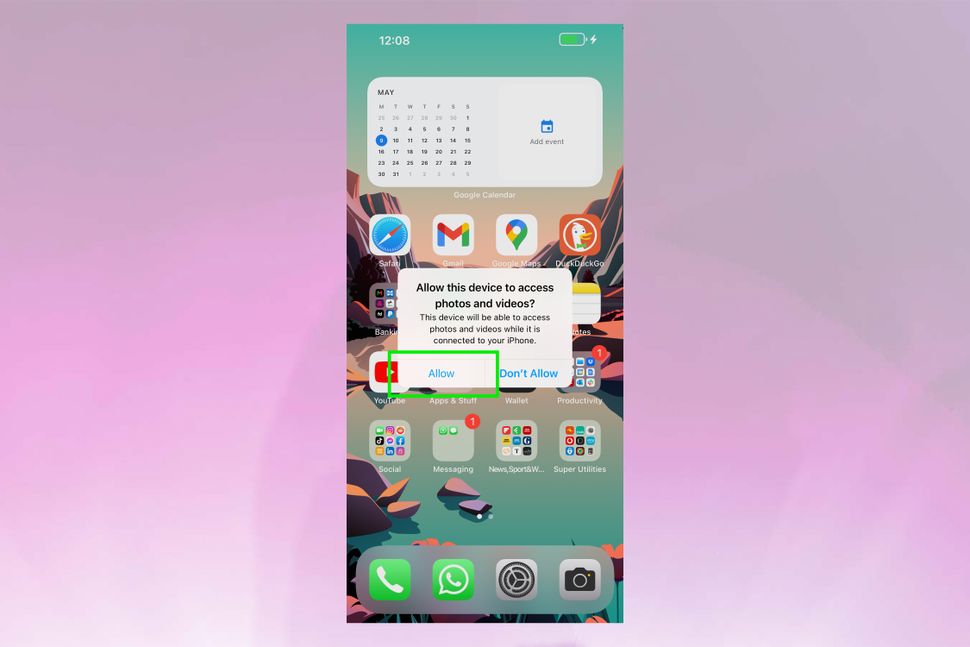
- Trust the connection: Your iPhone screen might display a "Trust This Computer?" prompt. Tap "Trust" and enter your passcode.
- Open File Explorer: On your PC, open File Explorer and look for your iPhone under "This PC." It will usually appear as a digital camera device.
- Locate your photos: Navigate to the internal storage folder (usually labeled DCIM). Inside, you will find several subfolders filled with your photos and videos (these names are based on date/time).
- Copy the files: Select the photos you want to transfer, right-click, and choose "Copy." Then, paste them into a folder on your computer (like your Pictures folder or an external drive).
Remember that if you have iCloud Photos enabled, not all original, full-resolution images might be stored locally on your phone. You may need to download them first, or use the dedicated iCloud method mentioned later.
Moving Photos from iPhone to Mac (Using Photos App or Finder)
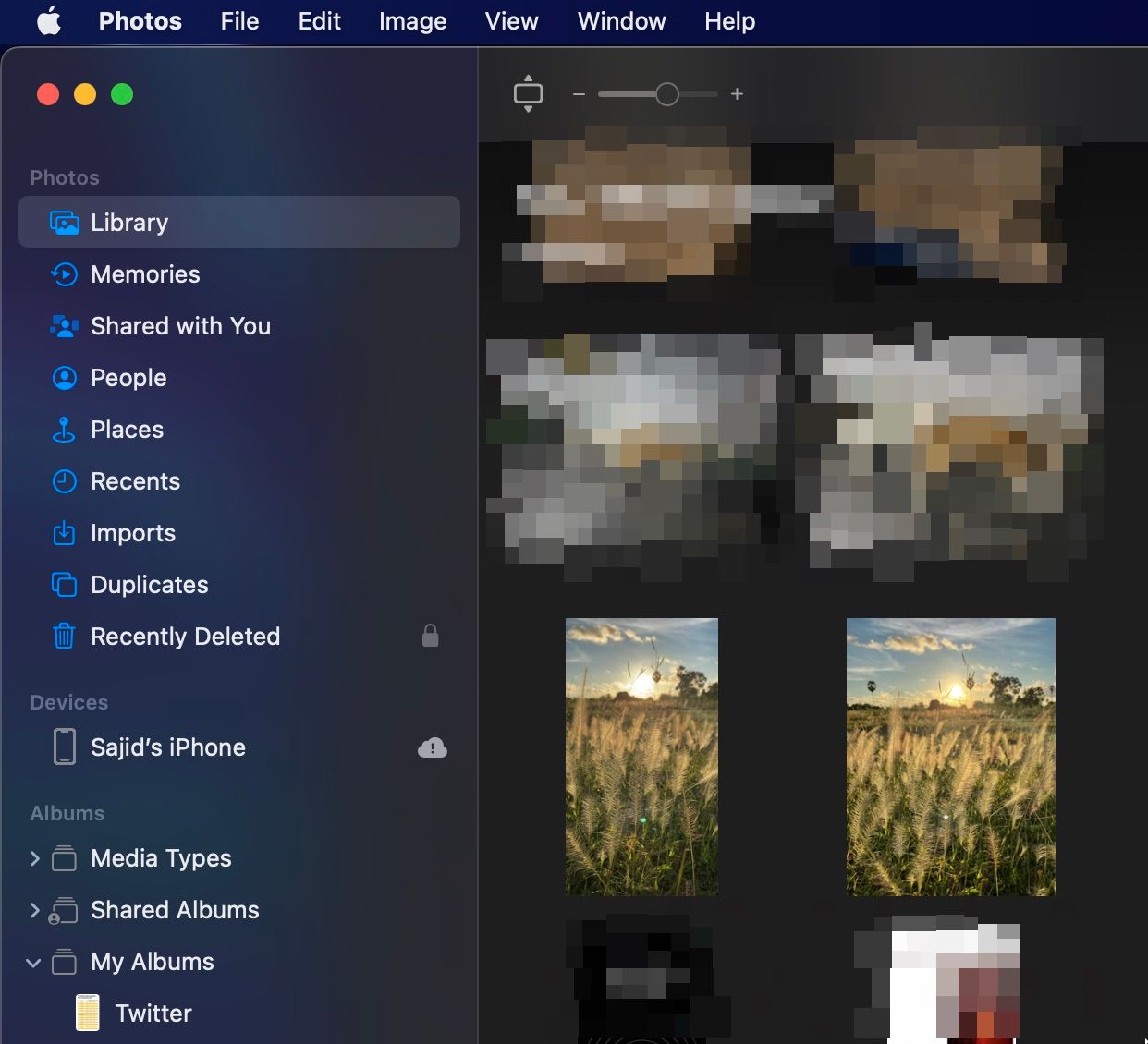
For those using a Mac, Apple has integrated the photo transfer process seamlessly using the built-in Photos application.
Here's how the Mac process works:
- Connect: Plug your iPhone into your Mac using the appropriate cable.
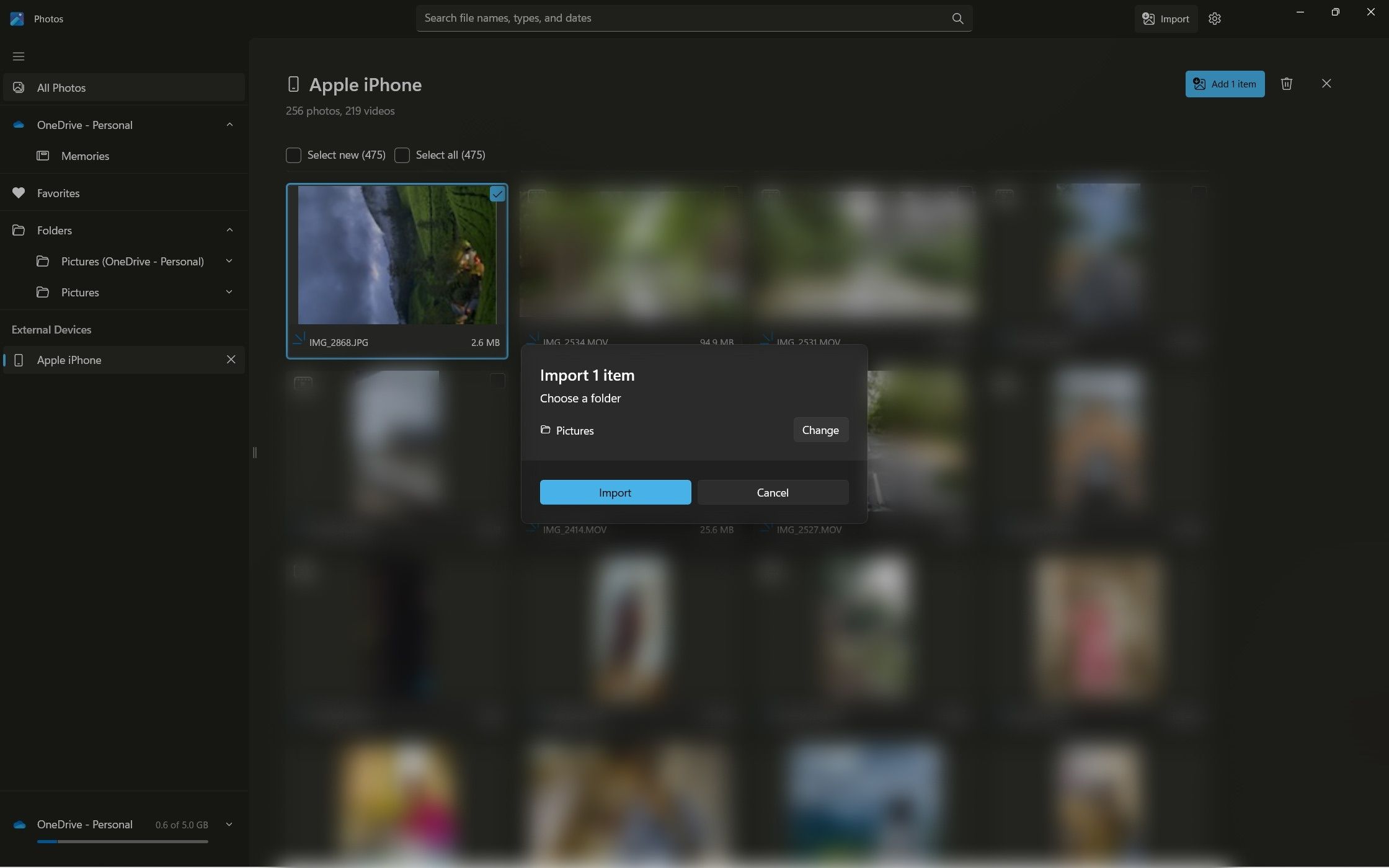
- Open Photos: The Photos app should automatically launch and display the Import screen. If it doesn't, open Photos manually from your Applications folder.
- Select your device: Your iPhone name will appear in the sidebar under "Devices." Click on it.
- Choose and Import: You will see all the photos currently on your phone. You can choose to "Import All New Items" or select specific photos and click "Import Selected."
An alternative method for newer macOS versions is using Finder. When you connect your iPhone, it appears in the Finder sidebar. Click on it, and you can manage files directly, though the Photos app remains the easiest way for picture management.
Going Wireless: Cloud Services for Photo Transfer
Cables are great, but sometimes you just want the freedom of wireless transfer. Cloud services are the perfect solution for continuous backup and accessing your photos from any device, anywhere. This is a fantastic way to handle How To Transfer Pics From Iphone To Computer without getting physically plugged in.
Using iCloud Photos (The Seamless Apple Way)
iCloud Photos is Apple's native solution for keeping all your photos and videos stored securely in the cloud. If you have enough iCloud storage, this is the most hands-off option.
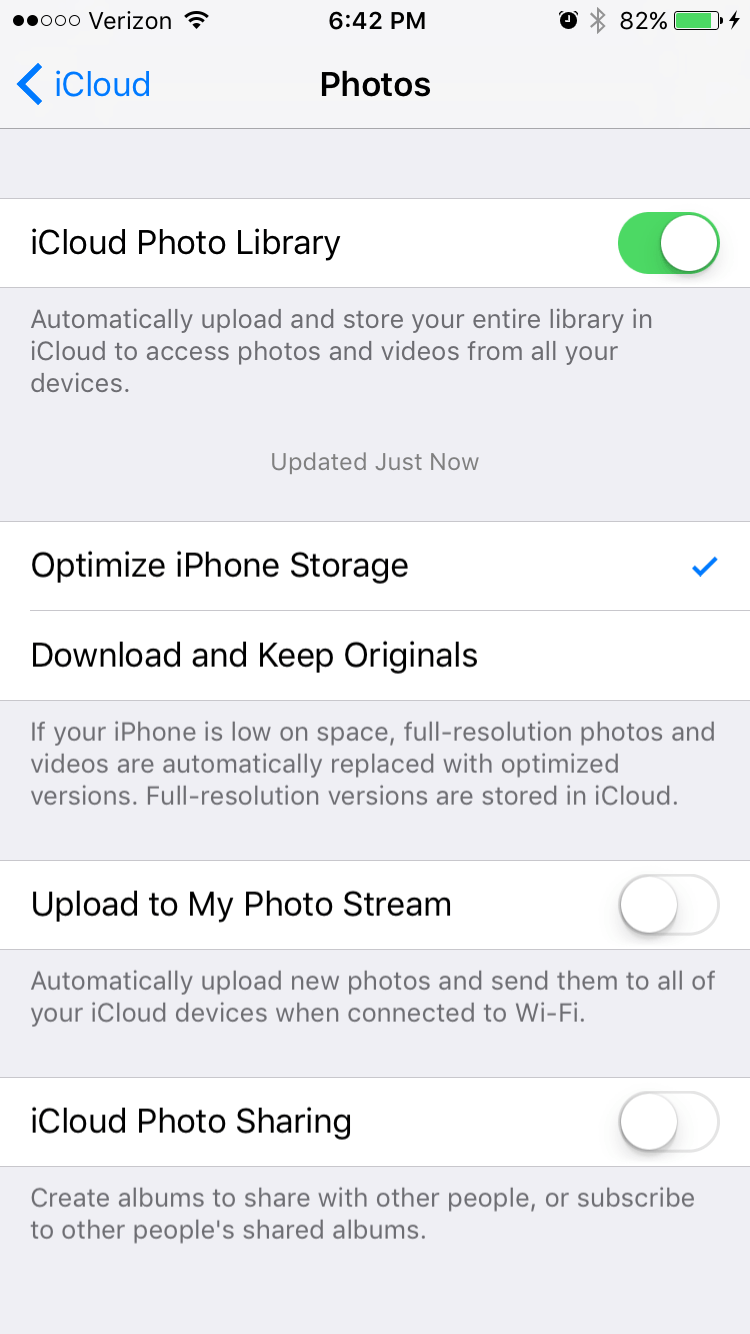
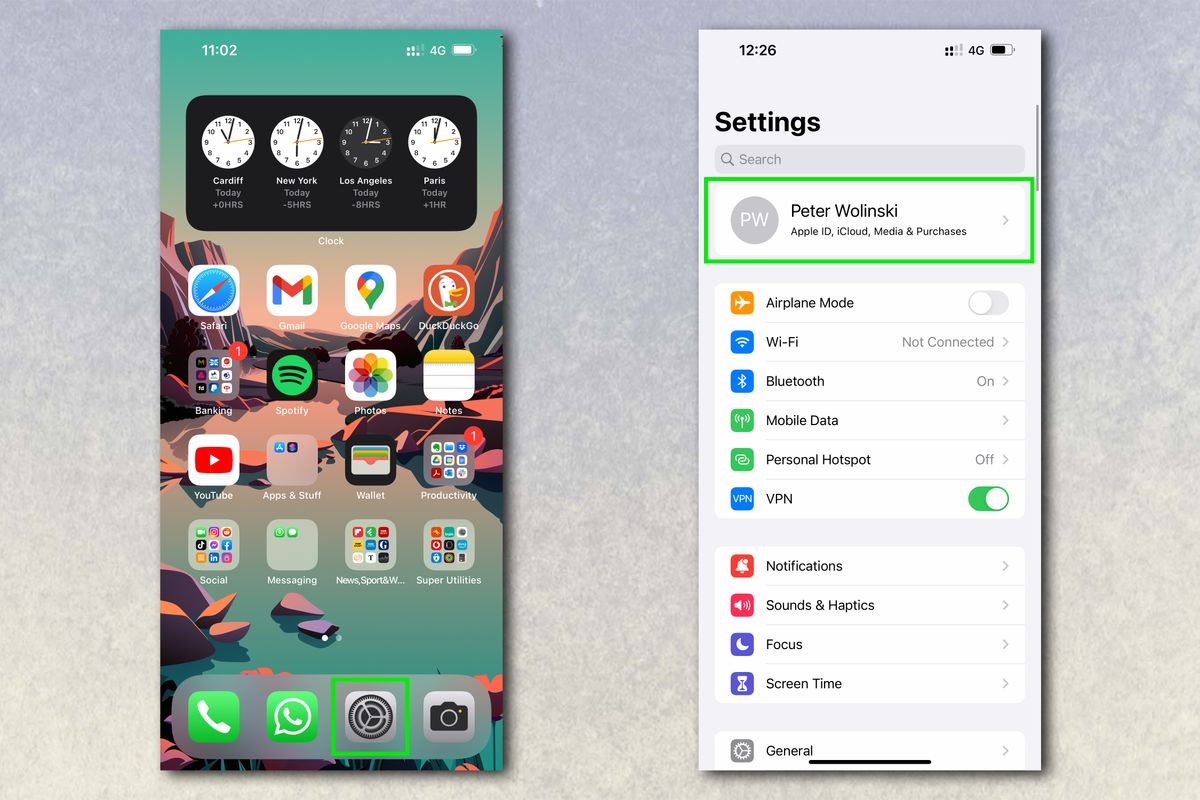
To enable this, go to Settings > [Your Name] > iCloud > Photos on your iPhone and toggle on "iCloud Photos." Once enabled, your photos automatically sync.
To access them on your computer:
- On a Mac: Ensure you are logged into the same Apple ID. Your Photos app will automatically display your entire iCloud library.
- On a Windows PC: Download and install the iCloud for Windows app. Sign in with your Apple ID, and enable the "Photos" option. You can then access and download your photos through the designated iCloud Photos folder in File Explorer.
Utilizing Google Drive or Dropbox (Cross-Platform Power)
If you frequently switch between iOS, Android, and Windows, or if you simply prefer a non-Apple cloud service, Google Drive and Dropbox offer robust photo backup options.
These services operate similarly:
- Download the corresponding app (Google Photos/Drive or Dropbox) onto your iPhone.
- Enable the automatic camera upload or backup feature within the app settings.
- Ensure the app is running (or set to background refresh) so the upload completes.
- On your computer (Mac or PC), you can either access the photos via the web browser interface or install the desktop application to sync the files directly to a folder on your computer.
The beauty of this method is its versatility and the ease of accessing your photos across multiple operating systems.
Advanced Techniques: Third-Party Tools and Specialized Software
Sometimes the built-in methods don't offer enough control, or perhaps you want to manage other iPhone data simultaneously. That's where third-party software steps in. These programs often provide more refined sorting, selective backup, and faster transfer speeds.
Why Use Third-Party Apps?
Why bother with extra software when Apple provides solutions? It usually boils down to specific needs:
- The ability to quickly transfer only HEIC files or specific video formats.
- Better organization features than standard File Explorer.
- The need to transfer photos from an iPhone that is having connectivity issues with iTunes/Finder.
- Bulk management of other media (music, contacts, messages) along with photos.
Recommended Software Options
Popular tools designed specifically for managing and transferring iOS data include:
- iMazing: Excellent for deep dives into iPhone backups and exporting specific photo albums without relying on the cloud.
- DearMob iPhone Manager: Known for its fast transfer speeds and security features, offering great control over media types.
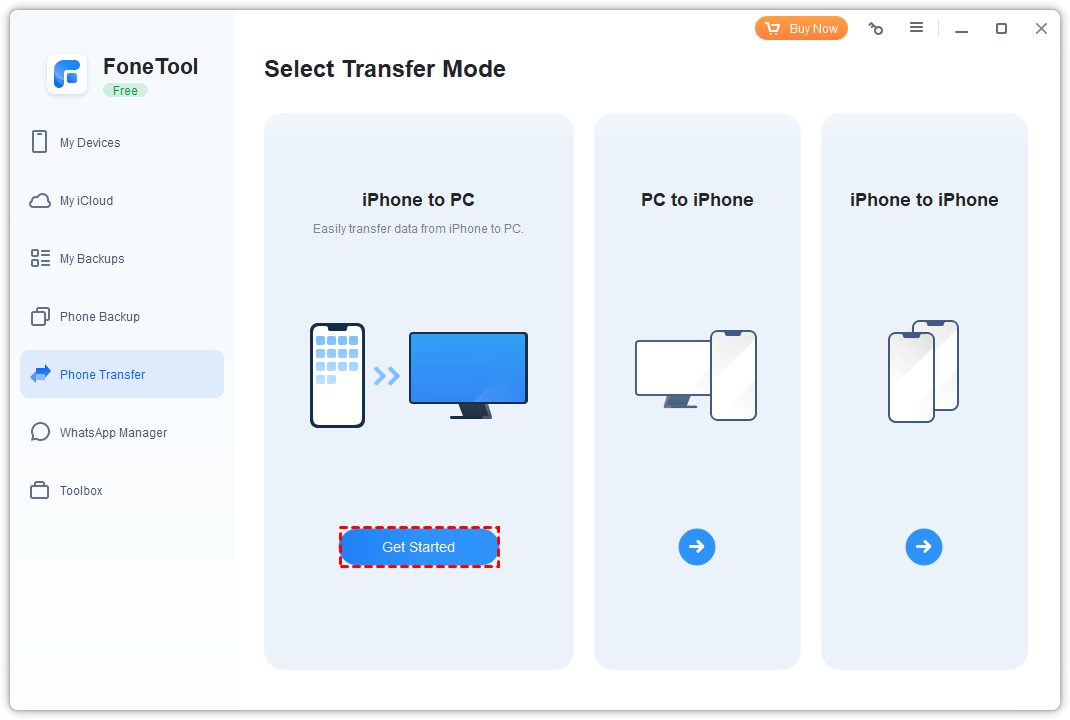
- FoneTool (AOMEI Manger): A solid option for backing up photos, videos, and music, particularly praised by Windows users for its intuitive interface.
These applications usually require you to download and install the program on your computer, connect your iPhone via USB, and then follow the on-screen prompts to select and export your desired photo collections.
Conclusion
Freeing up space on your iPhone and securing your precious memories doesn't have to be complicated! We've explored the three main ways How To Transfer Pics From Iphone To Computer—the direct cable method via File Explorer or Photos app, the hands-off convenience of cloud services like iCloud and Google Photos, and the enhanced control offered by third-party management tools.
Whether you're doing a massive annual backup or just moving a handful of recent shots, choose the method that best fits your workflow. For speed and reliability, stick to the cable. For ongoing backup, the cloud is king. Now go ahead, transfer those pictures, delete them from your phone, and enjoy that sweet, sweet empty storage space!
Frequently Asked Questions (FAQ)
- Can I transfer photos from my iPhone to my computer without a cable?
- Yes, absolutely! The best way to transfer photos wirelessly is by using cloud services such as iCloud Photos, Google Drive, or Dropbox, which sync your photos automatically over Wi-Fi.
- Why are my photos showing up as HEIC files on my Windows PC?
- HEIC is Apple's high-efficiency image format. Windows doesn't natively support HEIC viewing without a special codec. To avoid this, you can change your iPhone settings (Settings > Camera > Formats) to "Most Compatible" to shoot in JPEG, or download a free HEIC viewer extension for Windows.
- How do I select only specific albums to transfer?
- When using the Photos app on a Mac, you can select specific photos before clicking "Import." If using Windows File Explorer, you need to manually navigate through the DCIM folders. Third-party management software usually offers the best control for selecting specific albums.
- Do transferred photos remain on my iPhone?
- Yes, transferring photos (copying them) does not automatically delete them from your iPhone. After a successful transfer to your computer, you must manually delete the pictures from the Photos app on your iPhone to free up space.
- What if my computer doesn't recognize my iPhone?
- First, ensure you have the latest version of iTunes installed (even if you're not using it for the transfer, it installs the necessary drivers). Make sure the cable is MFi-certified and working, and ensure you have tapped "Trust This Computer" on your iPhone screen.
How To Transfer Pics From Iphone To Computer
How To Transfer Pics From Iphone To Computer Wallpapers
Collection of how to transfer pics from iphone to computer wallpapers for your desktop and mobile devices.
Artistic How To Transfer Pics From Iphone To Computer Artwork Art
This gorgeous how to transfer pics from iphone to computer photo offers a breathtaking view, making it a perfect choice for your next wallpaper.
Amazing How To Transfer Pics From Iphone To Computer Photo Concept
Discover an amazing how to transfer pics from iphone to computer background image, ideal for personalizing your devices with vibrant colors and intricate designs.
Mesmerizing How To Transfer Pics From Iphone To Computer Capture Concept
Experience the crisp clarity of this stunning how to transfer pics from iphone to computer image, available in high resolution for all your screens.

Crisp How To Transfer Pics From Iphone To Computer Photo Concept
A captivating how to transfer pics from iphone to computer scene that brings tranquility and beauty to any device.
Crisp How To Transfer Pics From Iphone To Computer Image for Your Screen
Immerse yourself in the stunning details of this beautiful how to transfer pics from iphone to computer wallpaper, designed for a captivating visual experience.
Dynamic How To Transfer Pics From Iphone To Computer Image Art
A captivating how to transfer pics from iphone to computer scene that brings tranquility and beauty to any device.
Stunning How To Transfer Pics From Iphone To Computer Capture Digital Art
This gorgeous how to transfer pics from iphone to computer photo offers a breathtaking view, making it a perfect choice for your next wallpaper.
Lush How To Transfer Pics From Iphone To Computer Artwork Concept
Find inspiration with this unique how to transfer pics from iphone to computer illustration, crafted to provide a fresh look for your background.
Crisp How To Transfer Pics From Iphone To Computer Design in HD
Immerse yourself in the stunning details of this beautiful how to transfer pics from iphone to computer wallpaper, designed for a captivating visual experience.

Gorgeous How To Transfer Pics From Iphone To Computer Abstract Digital Art
Immerse yourself in the stunning details of this beautiful how to transfer pics from iphone to computer wallpaper, designed for a captivating visual experience.
Captivating How To Transfer Pics From Iphone To Computer Artwork for Desktop
This gorgeous how to transfer pics from iphone to computer photo offers a breathtaking view, making it a perfect choice for your next wallpaper.

Exquisite How To Transfer Pics From Iphone To Computer Artwork Collection
Immerse yourself in the stunning details of this beautiful how to transfer pics from iphone to computer wallpaper, designed for a captivating visual experience.
Lush How To Transfer Pics From Iphone To Computer Abstract Concept
Find inspiration with this unique how to transfer pics from iphone to computer illustration, crafted to provide a fresh look for your background.
Crisp How To Transfer Pics From Iphone To Computer Abstract for Your Screen
Find inspiration with this unique how to transfer pics from iphone to computer illustration, crafted to provide a fresh look for your background.

Exquisite How To Transfer Pics From Iphone To Computer Wallpaper for Your Screen
A captivating how to transfer pics from iphone to computer scene that brings tranquility and beauty to any device.

Mesmerizing How To Transfer Pics From Iphone To Computer Background Collection
Discover an amazing how to transfer pics from iphone to computer background image, ideal for personalizing your devices with vibrant colors and intricate designs.
Detailed How To Transfer Pics From Iphone To Computer Artwork in 4K
Explore this high-quality how to transfer pics from iphone to computer image, perfect for enhancing your desktop or mobile wallpaper.
Artistic How To Transfer Pics From Iphone To Computer Image for Your Screen
Find inspiration with this unique how to transfer pics from iphone to computer illustration, crafted to provide a fresh look for your background.
Exquisite How To Transfer Pics From Iphone To Computer Landscape in 4K
Immerse yourself in the stunning details of this beautiful how to transfer pics from iphone to computer wallpaper, designed for a captivating visual experience.
Beautiful How To Transfer Pics From Iphone To Computer Landscape Illustration
Transform your screen with this vivid how to transfer pics from iphone to computer artwork, a true masterpiece of digital design.
Download these how to transfer pics from iphone to computer wallpapers for free and use them on your desktop or mobile devices.