How To Transfer Photos From One Phone To Another Iphone: The Easiest Guide
Upgrading to a new iPhone is exciting, but the thought of moving all your precious memories—your photos and videos—can feel daunting. Don't worry! Whether you're moving from an old iPhone to a brand new model, or just helping a friend transfer some snaps, figuring out How To Transfer Photos From One Phone To Another Iphone is surprisingly straightforward. Apple has built several fantastic tools to make this process painless.
We've broken down the best, easiest, and fastest methods available, ensuring your photo library arrives safely and quickly on your new device. This guide will walk you through the top four methods, so you can choose the one that perfectly fits your situation. Let's dive into the options!
Method 1: The Seamless Apple Way – Quick Start (For New Phones)
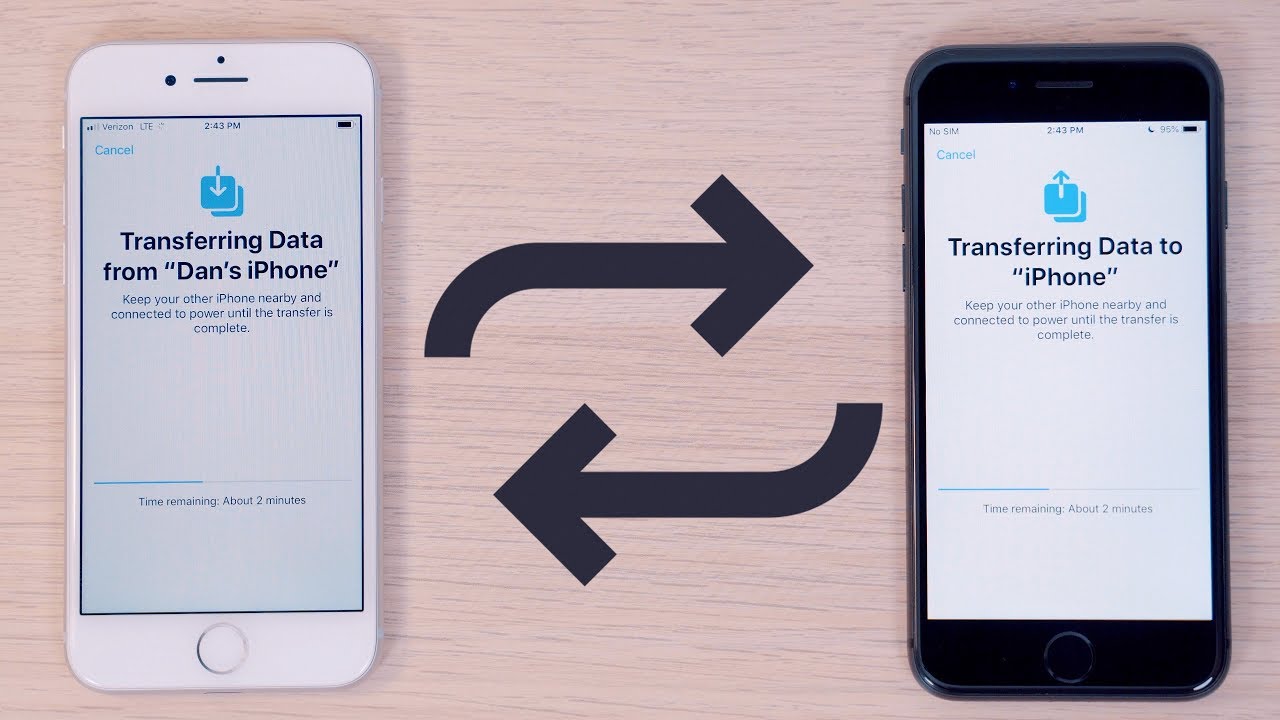
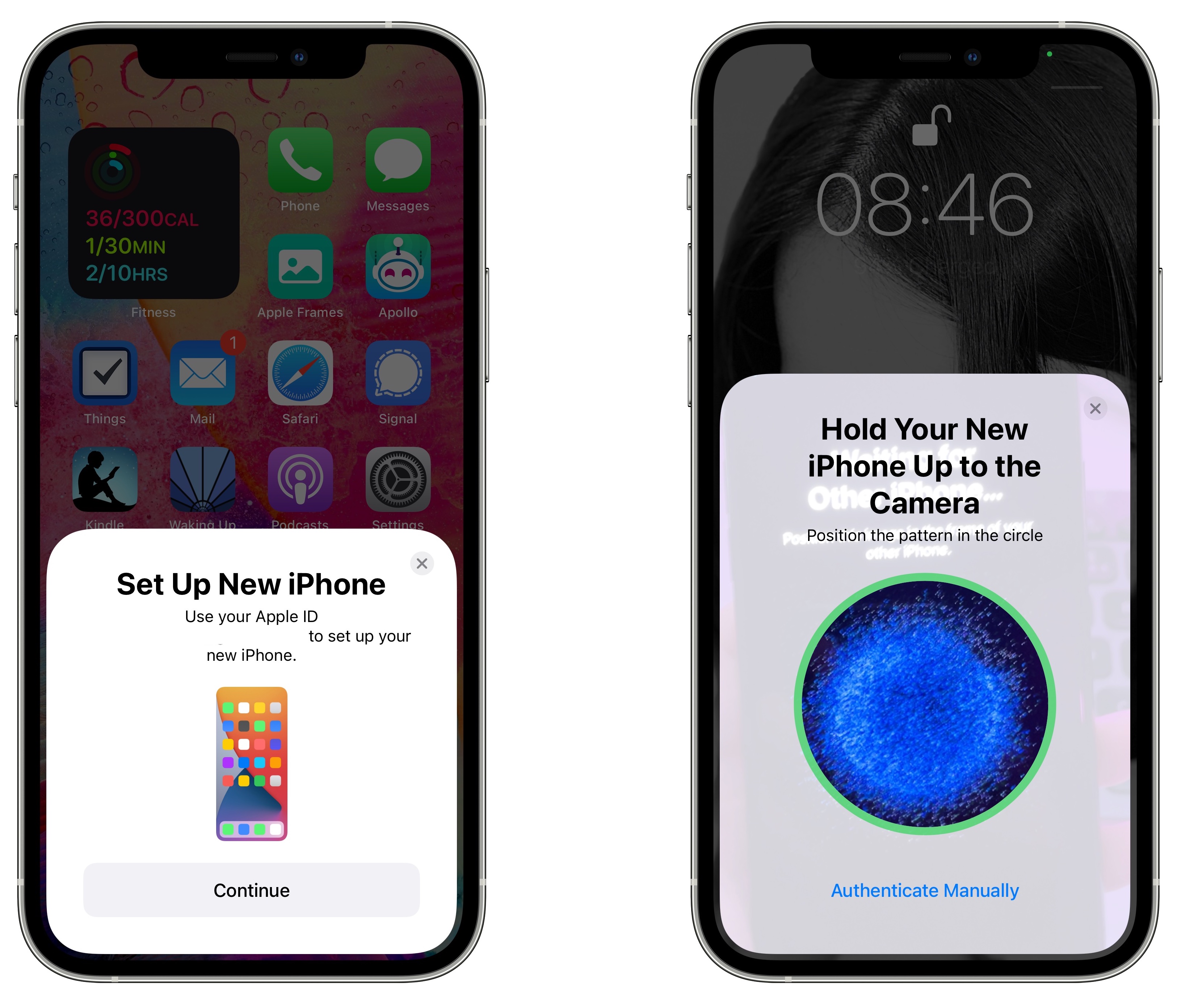
If you've just unboxed your new iPhone, Quick Start is arguably the most efficient and magical way to transfer everything, including your photos. This feature allows you to set up a new iOS device using information from your current one wirelessly, simply by placing them near each other.
Quick Start is designed for a full device migration, meaning it moves all your data, settings, apps, and naturally, all your photos. This is the top recommendation when you want a complete replica of your old device on the new one, minimizing setup time.
Prerequisites for Quick Start
Before you begin this seamless transfer, make sure both phones are ready to go. A little prep work saves a lot of time later, especially since a large photo transfer can drain batteries quickly.
- Your old iPhone must be running iOS 11 or later.
- Both devices need to be charged or plugged into power.
- Ensure Wi-Fi and Bluetooth are turned on for both devices.
- Keep the two iPhones close to each other throughout the entire process.
Steps to Use Quick Start
Follow these steps closely to initiate the direct phone-to-phone transfer. This process is highly automated, which is why users love it so much.
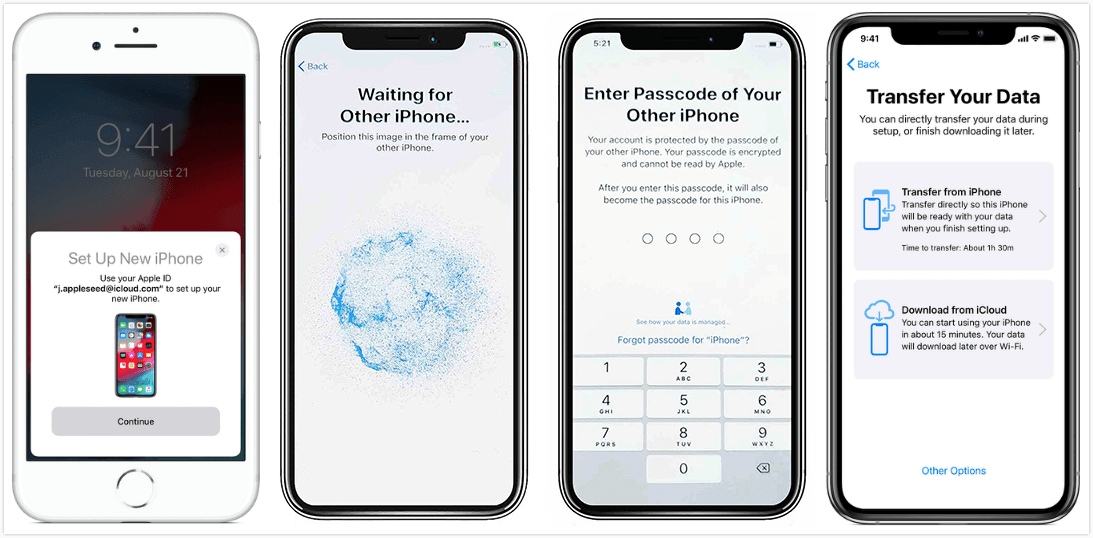
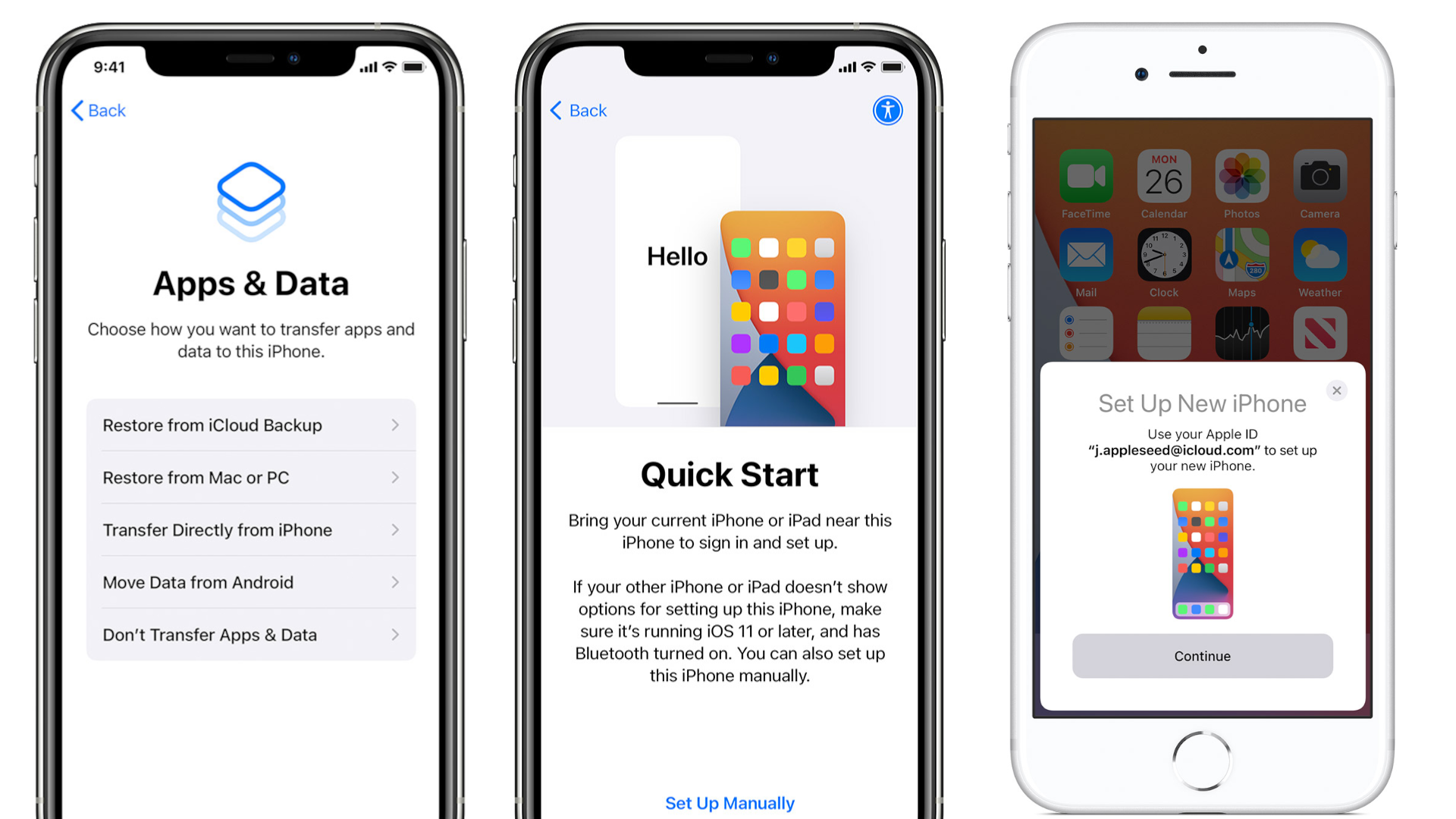
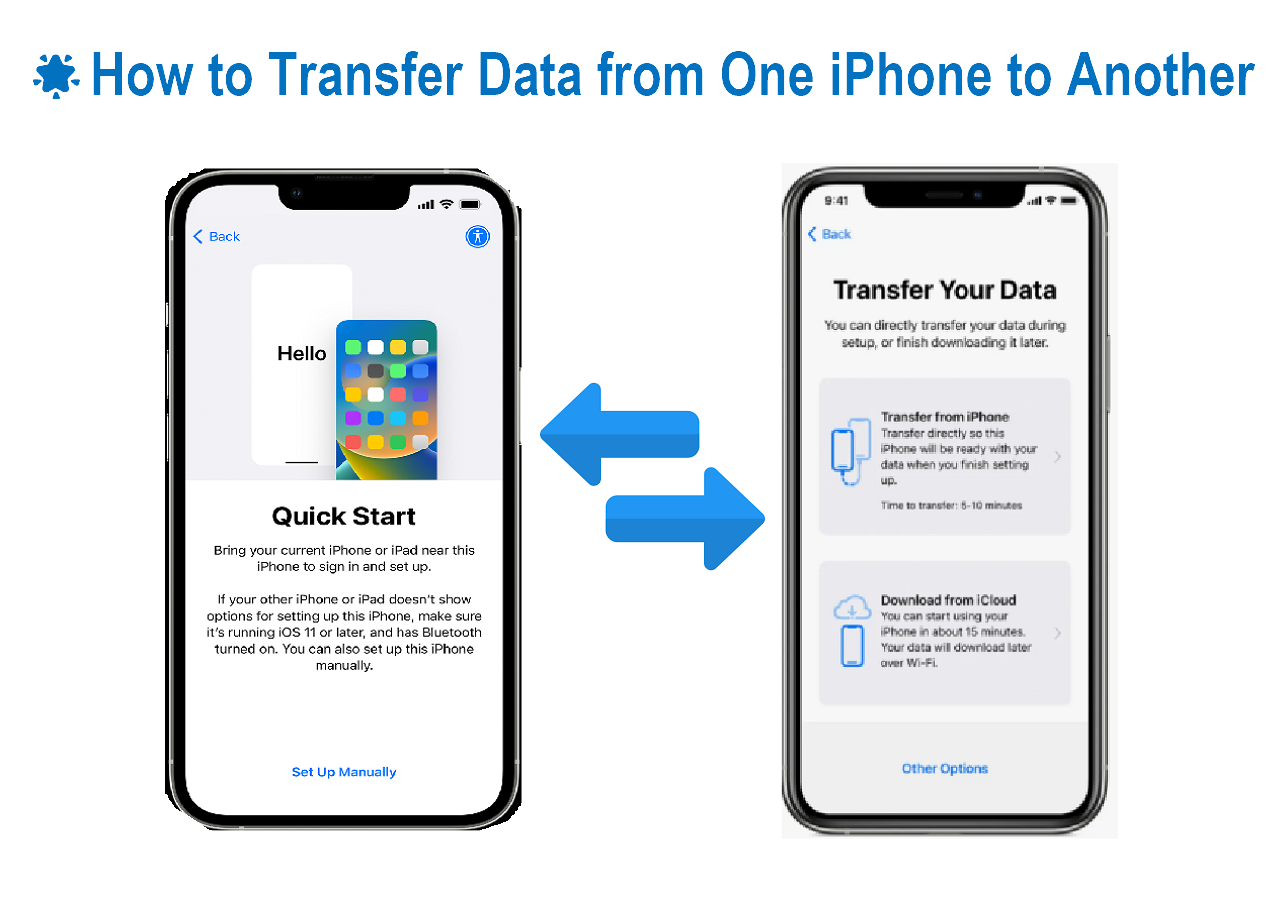
- Turn on your new iPhone (it should be showing the "Hello" screen) and place it near your current iPhone.
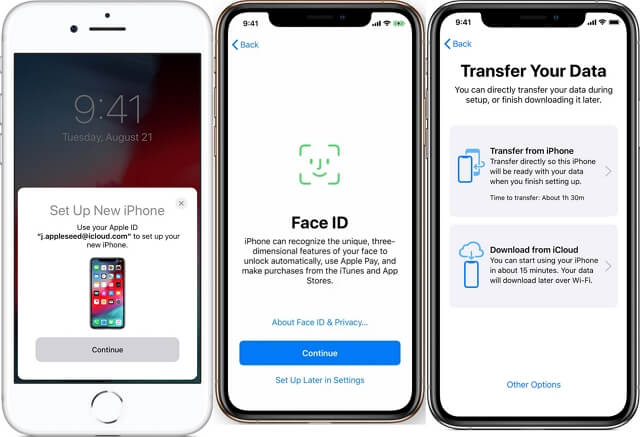
- A screen should pop up on your old iPhone asking if you want to use your Apple ID to set up the new phone. Tap "Continue."
- Wait for a blue, swirling animation to appear on the new phone. Use your old phone's camera to scan the animation.
- Enter your current phone's passcode on the new phone when prompted.
- When you reach the "Transfer Your Data" screen, select "Transfer from iPhone."
- The transfer process will begin. Depending on the size of your photo library (and other apps/data), this could take anywhere from 15 minutes to several hours.
Once the transfer is complete, your photo library will be exactly as it was on your old device. This is often the best answer to How To Transfer Photos From One Phone To Another Iphone when dealing with a full device upgrade.
Method 2: Relying on the Cloud – iCloud Photos
If you don't have both phones available at the same time, or if you prefer a background synchronization method, iCloud Photos is your best friend. This service keeps all your photos and videos backed up and synchronized across all your Apple devices automatically.
When you enable iCloud Photos, your camera roll is uploaded to the cloud. Then, when you sign into your new iPhone with the same Apple ID, those photos automatically download (or appear) on the new device, regardless of physical proximity.
Setting Up iCloud Photos
To ensure your photos are ready to move, follow these steps on your old iPhone first. Make sure your device is connected to a fast Wi-Fi network.
- Go to Settings and tap your name at the top of the menu.
- Select "iCloud," then tap "Photos."
- Toggle the switch next to "iCloud Photos" (or "iCloud Photo Library") to the green position.
- Ensure the old phone is connected to Wi-Fi and locked to initiate the background upload process.
Once the upload is finished, simply sign into your new iPhone using the same Apple ID. Navigate to the same Photos settings page on the new phone and ensure "iCloud Photos" is toggled on. The photos will begin syncing immediately.
Considerations for iCloud Storage
A crucial factor here is storage. Remember that Apple only provides 5GB of free iCloud storage. If your photo library exceeds this amount (which is highly likely if you take many videos!), you will need to purchase an iCloud+ plan before attempting this method.
You can check your current storage usage by navigating to Settings > [Your Name] > iCloud > Manage Storage. If you don't want to pay for storage, consider using Quick Start instead.
Method 3: The Speedy Local Solution – AirDrop
AirDrop is perfect if you only need to transfer a handful of photos, or perhaps one specific album, instead of the entire library. It's incredibly fast because it uses Bluetooth to connect the devices and Wi-Fi Direct for high-speed, local data transfer.
This is a great option if your new iPhone is already set up, or if you are moving photos from one iPhone that belongs to a friend or family member to your own device.
When to Use AirDrop
AirDrop shines in specific scenarios due to its convenience and speed:
- Transferring 50-100 high-resolution photos quickly between devices.
- Sending a few large video files without the quality loss associated with messaging apps.
- When both iPhones are physically next to each other and you want an instant result.
Step-by-Step AirDropping
Before starting, make sure both devices have Wi-Fi and Bluetooth enabled. You must also temporarily turn off the Personal Hotspot feature if it is active.
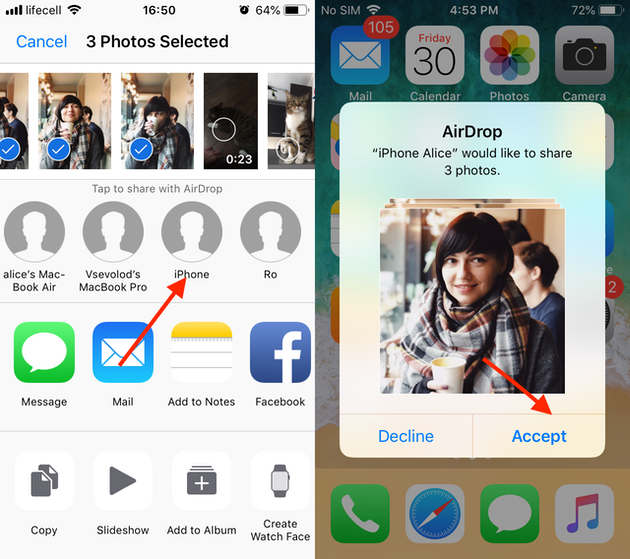
- On the receiving iPhone (the new one), open Control Center and ensure AirDrop receiving is set to either "Contacts Only" or "Everyone."
- On the sending iPhone (the old one), open the Photos app and select all the pictures and videos you wish to send.
- Tap the Share icon (the square with an arrow pointing up).
- Tap the AirDrop icon, then select the profile picture or name of the receiving iPhone from the list of nearby devices.
- The receiving iPhone will show a notification asking to Accept the files. Tap "Accept."
The photos will immediately appear in the camera roll of the new device. This method is incredibly fast, helping answer How To Transfer Photos From One Phone To Another Iphone without relying on internet speeds.
Method 4: Traditional Transfer – Using a Computer (PC/Mac)
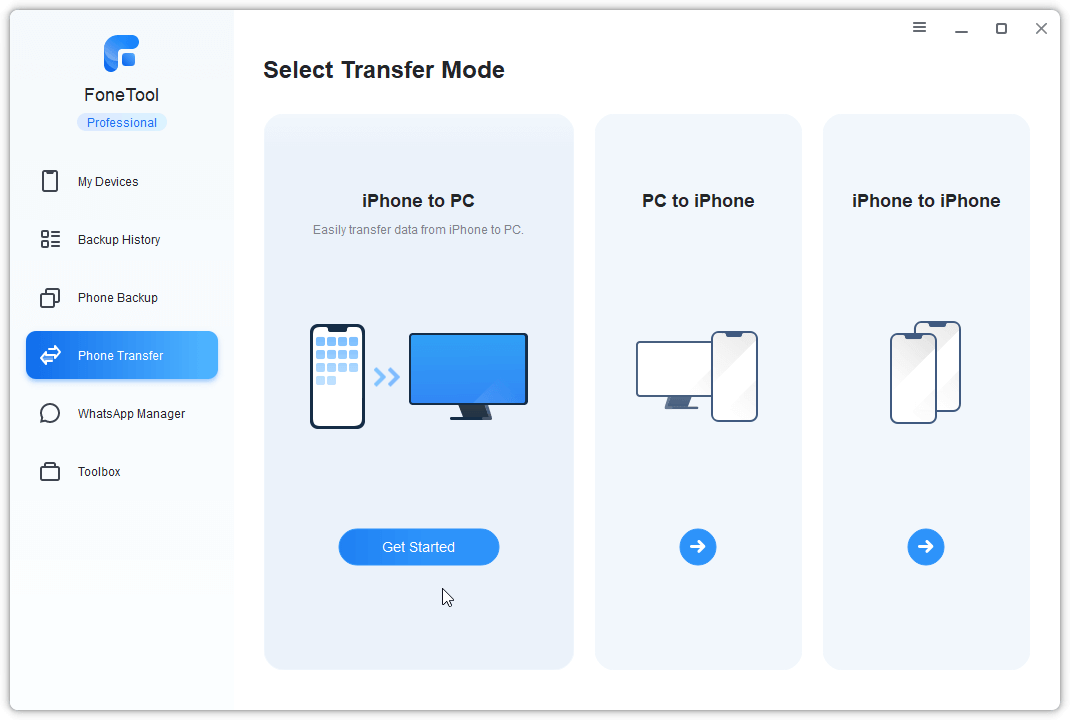
Sometimes the old-school, wired way is the most reliable, especially if you have connectivity issues or want a local backup first. You can use a computer (either Mac or Windows PC) as an intermediary step, essentially copying the photos off one phone and then syncing them back onto the other.
Transferring Photos Using a Mac
If you are using a Mac, the Photos application makes this process very streamlined:
- Connect your old iPhone to your Mac using a lightning or USB-C cable.
- Open the Photos application on your Mac (or Image Capture if you prefer raw files).
- Select your iPhone in the sidebar under 'Devices.'
- Import the desired photos from your iPhone to the Mac's Photos library.
- Once imported, disconnect the old phone and connect the new iPhone.
- If you imported the photos to your Mac's Photos library, you can sync them to the new iPhone using Finder (or iTunes on older macOS versions).
Transferring Photos Using a Windows PC
Windows users can treat the iPhone like a digital camera, but syncing them back requires Apple's software:
- Connect the old iPhone via USB cable and tap "Trust This Computer" on the phone.
- Open File Explorer and navigate to your iPhone's internal storage (DCIM folder).
- Copy the folders containing your photos to a temporary location on your PC (e.g., a desktop folder).
- Now, disconnect the old iPhone and connect the new one.
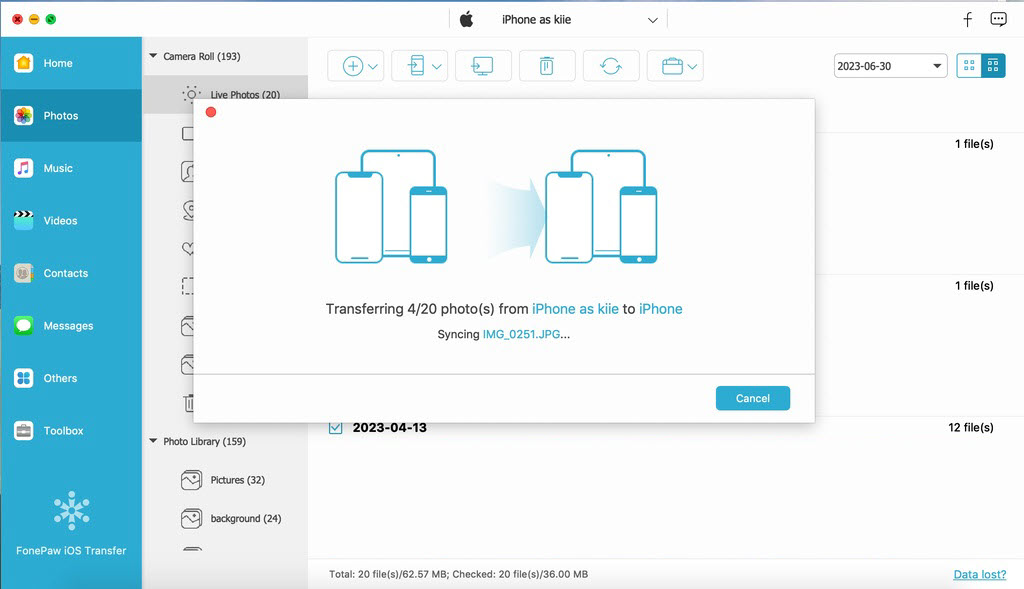
- Use iTunes or the dedicated Apple Devices app to synchronize the photos from the PC folder onto the new iPhone.
Although slightly slower than Quick Start, this method gives you maximum control over which files move and provides an extra backup copy on your computer for peace of mind.
Which Transfer Method Is Right For You?
Choosing the right method depends entirely on your current situation and the size of your photo library:
| Scenario | Recommended Method | Pros |
|---|---|---|
| New phone setup (moving everything) | Quick Start | Easiest, moves all settings and apps too. |
| Syncing continuously / long-term backup | iCloud Photos | Always up-to-date, accessible from anywhere. |
| Sharing a few files locally | AirDrop | Extremely fast, preserves original quality. |
| Need a local backup copy first | Computer Transfer | High control over files, reliable for very large libraries. |
No matter which path you choose, transferring your memories is easier than ever with Apple's ecosystem!
Conclusion: Transferring Your Precious Memories Seamlessly
We've covered four excellent ways to tackle the challenge of How To Transfer Photos From One Phone To Another Iphone. Apple has provided robust tools, whether you utilize the direct connection of Quick Start for a full migration, the convenience of iCloud for cloud-based synchronization, the lightning speed of AirDrop for select files, or the reliability of a computer transfer method.
The most important takeaway is preparation: ensure both phones are charged and you have adequate storage, whether it's local device storage or iCloud space. If you are moving your entire life's photo collection, Quick Start remains the gold standard for simplicity. With a little planning, your cherished photos will be waiting on your new iPhone in no time. Enjoy your new device and all those familiar memories!
Frequently Asked Questions (FAQ)
- Can I use AirDrop to transfer photos from Android to iPhone?
- No. AirDrop is an exclusive Apple feature and only works between iOS, iPadOS, and macOS devices. To move photos from an Android phone, you should use the official "Move to iOS" app or transfer the files via a computer.
- Does Quick Start delete photos from the old iPhone?
- Absolutely not. Quick Start only copies data from the old iPhone to the new iPhone. Your old device remains completely intact with all its data, including all your photos.
- I have thousands of photos. Which transfer method is fastest?
- For transferring a massive photo library, Quick Start (direct device-to-device transfer) is usually the fastest as it is optimized for high-volume data movement and doesn't rely on internet upload/download speeds like iCloud does. If Quick Start isn't an option, a direct wired transfer via a computer is often the next fastest.
- How To Transfer Photos From One Phone To Another Iphone if I don't have enough iCloud storage?
- If you don't want to pay for extra iCloud storage, you have two primary options: use the Quick Start direct transfer method (if setting up a new device) or use Method 4 and transfer them manually via a Mac or PC and then sync them to the new phone.
How To Transfer Photos From One Phone To Another Iphone
How To Transfer Photos From One Phone To Another Iphone Wallpapers
Collection of how to transfer photos from one phone to another iphone wallpapers for your desktop and mobile devices.
Dynamic How To Transfer Photos From One Phone To Another Iphone Photo Photography
This gorgeous how to transfer photos from one phone to another iphone photo offers a breathtaking view, making it a perfect choice for your next wallpaper.

Artistic How To Transfer Photos From One Phone To Another Iphone Image in 4K
Immerse yourself in the stunning details of this beautiful how to transfer photos from one phone to another iphone wallpaper, designed for a captivating visual experience.
Amazing How To Transfer Photos From One Phone To Another Iphone Scene in HD
Discover an amazing how to transfer photos from one phone to another iphone background image, ideal for personalizing your devices with vibrant colors and intricate designs.
Artistic How To Transfer Photos From One Phone To Another Iphone Capture Photography
Immerse yourself in the stunning details of this beautiful how to transfer photos from one phone to another iphone wallpaper, designed for a captivating visual experience.
Amazing How To Transfer Photos From One Phone To Another Iphone Artwork for Your Screen
Experience the crisp clarity of this stunning how to transfer photos from one phone to another iphone image, available in high resolution for all your screens.
Amazing How To Transfer Photos From One Phone To Another Iphone Scene Art
Discover an amazing how to transfer photos from one phone to another iphone background image, ideal for personalizing your devices with vibrant colors and intricate designs.
Mesmerizing How To Transfer Photos From One Phone To Another Iphone Artwork Art
Discover an amazing how to transfer photos from one phone to another iphone background image, ideal for personalizing your devices with vibrant colors and intricate designs.
Serene How To Transfer Photos From One Phone To Another Iphone Wallpaper in 4K
Transform your screen with this vivid how to transfer photos from one phone to another iphone artwork, a true masterpiece of digital design.
Vibrant How To Transfer Photos From One Phone To Another Iphone Capture Photography
Explore this high-quality how to transfer photos from one phone to another iphone image, perfect for enhancing your desktop or mobile wallpaper.
Beautiful How To Transfer Photos From One Phone To Another Iphone Capture for Your Screen
Discover an amazing how to transfer photos from one phone to another iphone background image, ideal for personalizing your devices with vibrant colors and intricate designs.
:max_bytes(150000):strip_icc()/002-transfer-photos-from-iphone-to-iphone-4161172-565dd6a89c494256a8e27c35fa393b7a.jpg "Dynamic How To Transfer Photos From One Phone To Another Iphone Background Photography")
Dynamic How To Transfer Photos From One Phone To Another Iphone Background Photography
Immerse yourself in the stunning details of this beautiful how to transfer photos from one phone to another iphone wallpaper, designed for a captivating visual experience.

Breathtaking How To Transfer Photos From One Phone To Another Iphone View for Your Screen
Transform your screen with this vivid how to transfer photos from one phone to another iphone artwork, a true masterpiece of digital design.
Lush How To Transfer Photos From One Phone To Another Iphone Background Photography
This gorgeous how to transfer photos from one phone to another iphone photo offers a breathtaking view, making it a perfect choice for your next wallpaper.
Mesmerizing How To Transfer Photos From One Phone To Another Iphone Photo Collection
Explore this high-quality how to transfer photos from one phone to another iphone image, perfect for enhancing your desktop or mobile wallpaper.

Mesmerizing How To Transfer Photos From One Phone To Another Iphone Artwork Digital Art
Discover an amazing how to transfer photos from one phone to another iphone background image, ideal for personalizing your devices with vibrant colors and intricate designs.
Stunning How To Transfer Photos From One Phone To Another Iphone Design for Desktop
A captivating how to transfer photos from one phone to another iphone scene that brings tranquility and beauty to any device.
Vivid How To Transfer Photos From One Phone To Another Iphone Moment Art
Experience the crisp clarity of this stunning how to transfer photos from one phone to another iphone image, available in high resolution for all your screens.
Captivating How To Transfer Photos From One Phone To Another Iphone View Illustration
This gorgeous how to transfer photos from one phone to another iphone photo offers a breathtaking view, making it a perfect choice for your next wallpaper.

Mesmerizing How To Transfer Photos From One Phone To Another Iphone Capture Nature
Discover an amazing how to transfer photos from one phone to another iphone background image, ideal for personalizing your devices with vibrant colors and intricate designs.
Spectacular How To Transfer Photos From One Phone To Another Iphone Landscape for Mobile
Immerse yourself in the stunning details of this beautiful how to transfer photos from one phone to another iphone wallpaper, designed for a captivating visual experience.
Download these how to transfer photos from one phone to another iphone wallpapers for free and use them on your desktop or mobile devices.