How To Transfer Photos From Iphone To Samsung: A Seamless Switch Guide
Making the leap from an iPhone to a new Samsung Galaxy device is exciting! You get new features, new customization options, and a shiny new phone. But then reality hits: how do you move years of precious memories—all those photos and videos—from your old Apple ecosystem to your new Android one? If you've been wondering How To Transfer Photos From Iphone To Samsung without losing quality or sanity, you've come to the right place.
The good news is that the process is far easier than it used to be. You don't need complicated third-party software or hours of manual dragging and dropping. We're going to walk you through the three best methods, from the official Samsung route to reliable cloud solutions, ensuring your memories make the switch safely.
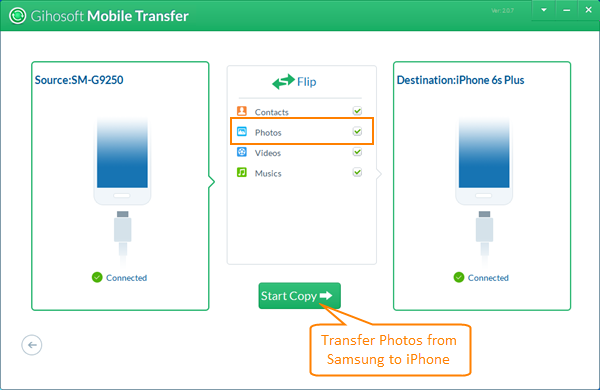
The Official Way: Using Samsung Smart Switch
If you want the simplest, most supported method, look no further than Samsung Smart Switch. This application is specifically designed to migrate data from old phones (including iPhones) to new Samsung devices. It handles photos, videos, contacts, messages, and more. It's the ultimate tool for a full data migration, making the question of How To Transfer Photos From Iphone To Samsung almost trivial.
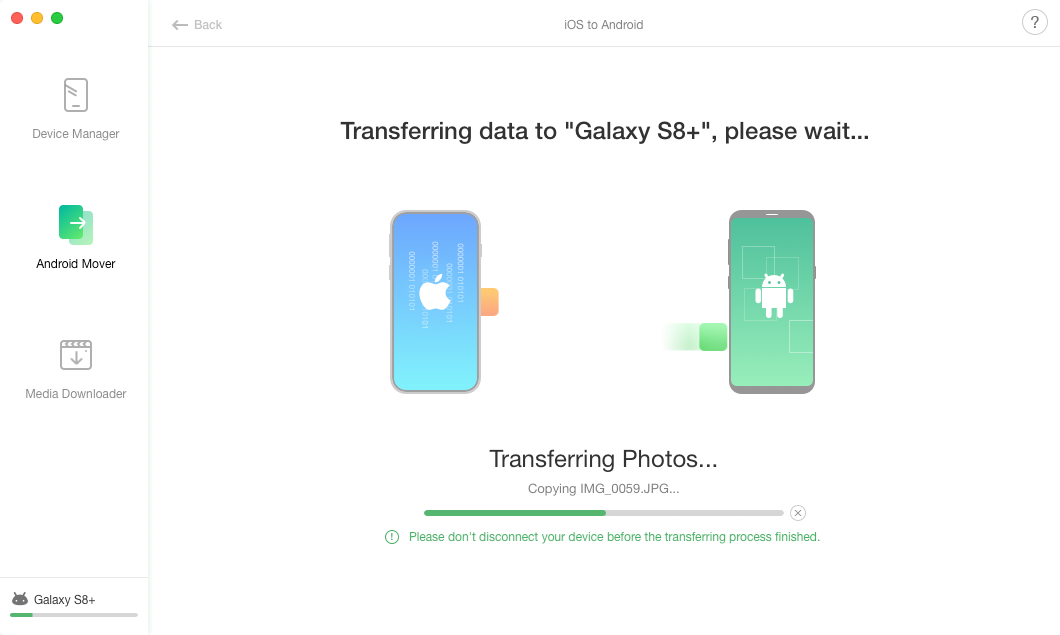
Smart Switch gives you two main ways to move your data: wirelessly (which is convenient) or wired (which is usually faster and more reliable for huge photo libraries).
Step-by-Step Guide for Wireless Transfer
This method utilizes iCloud backups to pull your data. Make sure your iPhone is backed up to iCloud before you begin.
- Start Smart Switch on Samsung: Open the Smart Switch app on your new Samsung Galaxy phone (it's often pre-installed or you can download it from the Galaxy Store).
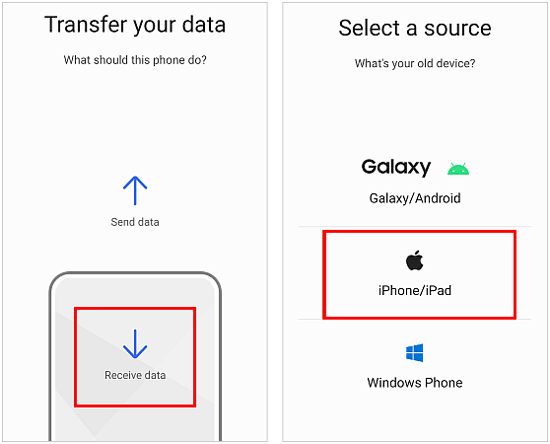
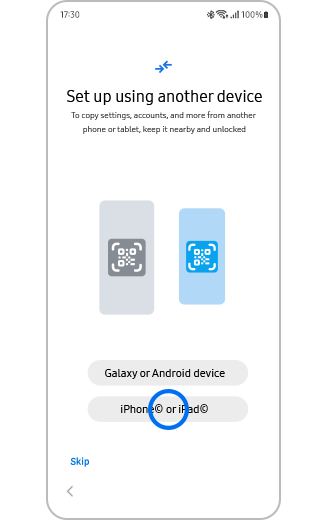
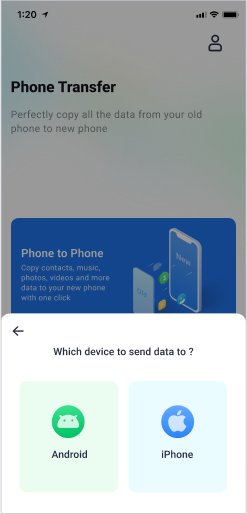
- Select Receive Data: Choose 'Receive data' on the Samsung phone, then select 'iPhone/iPad' as the source.
- Sign into iCloud: The app will prompt you to sign in using your Apple ID and password. You may need to enter a two-factor authentication code sent to your iPhone or other Apple device.
- Choose Your Data: After signing in, Smart Switch will analyze your latest iCloud backup. You can then select exactly what you want to move. Make sure to select 'Pictures' and 'Videos'.
- Initiate Transfer: Tap 'Transfer' and wait. The time taken depends entirely on the size of your photo library and your internet connection speed.
While convenient, remember that the wireless method relies on your iCloud backup being up-to-date, and the transfer speed is dictated by your Wi-Fi.
Wired Transfer with Smart Switch (The Faster Option)
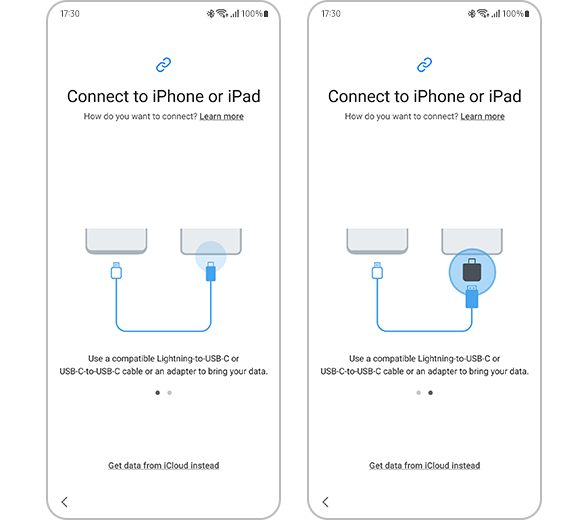
If you have massive photo archives—we're talking hundreds of gigabytes—the wired method is usually the better choice. It requires a Lightning cable and a USB-C adapter (which often comes with your new Samsung phone, or you can use the charging cable that came with the iPhone plugged into the USB-C adapter).
- Connect the Phones: Use the cables/adapter to connect your iPhone directly to your Samsung phone's USB-C port.
- Trust the Device: Your iPhone will ask, "Trust This Computer?" Tap 'Trust' and enter your iPhone passcode.
- Start Smart Switch: On the Samsung phone, open Smart Switch and select 'Receive data,' then choose 'iPhone/iPad.'
- Select Media: The Samsung device will instantly scan the iPhone. Select 'Image' and 'Video' from the list of transferable content.
- Start Copying: Hit 'Transfer.' Since this is a direct, wired connection, the transfer rate will be significantly faster than using Wi-Fi and iCloud.
Cloud Services: iCloud and Google Photos
Maybe you don't want to use the official Smart Switch, or maybe you prefer a method that doesn't require connecting the physical phones. Cloud services provide a fantastic, asynchronous solution. This is especially useful if you want to keep copies of your images accessible across multiple platforms.
Leveraging iCloud to Bridge the Gap
If all your photos are already in iCloud, you can use a computer to download them and then upload them to your preferred cloud storage for Samsung, or simply download them straight to the Samsung device if you prefer local storage.
The easiest route here is using a computer as an intermediary:
- Go to iCloud.com on your computer's web browser.
- Log in and navigate to the Photos app.
- Select the photos and videos you wish to transfer and download them to your computer's local hard drive.
- Connect your Samsung phone to the computer via a USB cable.
- Drag and drop the downloaded photo folders from your computer directly into the "DCIM" or "Pictures" folder on your Samsung Galaxy device.
While this involves a bit of manual work, it gives you complete control over which files move and where they land on your new phone.
The Universal Cloud Solution: Google Photos
Google Photos is arguably the best way to move photos between any two operating systems, especially when answering How To Transfer Photos From Iphone To Samsung. Since Samsung devices are Android-based, Google Photos is seamlessly integrated.
Here is the simple synchronization process:
- Install Google Photos on iPhone: Download and install the Google Photos app on your old iPhone.
- Enable Backup and Sync: Open the app and sign in with your Google account. Ensure that 'Backup and Sync' is turned on. Allow the app time (potentially several hours, depending on your library size) to upload all your photos and videos to Google's servers.
- Access on Samsung: On your new Samsung phone, open the pre-installed Google Photos app and log in using the exact same Google account.
- Enjoy Your Library: All your photos from the iPhone will instantly appear in the Google Photos app on your Samsung. You can then download them locally if needed, but they are already fully accessible and backed up in the cloud.
This method is fantastic because once the initial sync is complete, your photos are ready to view, regardless of which device you are using.
Manual Transfer (The Classic USB Way)
Sometimes the old ways are the best ways, particularly if you are troubleshooting and the cloud or Smart Switch is giving you trouble. This method uses your computer as the central storage hub.
Windows Explorer or macOS Finder Approach
The steps differ slightly depending on your computer's operating system, but the core principle remains: plug in the iPhone, copy the photos, unplug the iPhone, plug in the Samsung, and paste the photos.
For Windows users:
- Connect your iPhone to your Windows PC using a lightning cable.
- Open 'File Explorer' and locate the iPhone under 'This PC.' Navigate to the DCIM folder.
- Copy the desired folders or files to a temporary location on your PC (e.g., a new folder on your Desktop).
- Disconnect the iPhone, and connect your Samsung Galaxy phone using a USB cable.
- Open the Samsung device folder in File Explorer and navigate to the 'Pictures' or 'DCIM' folder.
- Paste the copied photos from your desktop folder into the Samsung folder.
Remember that iPhones sometimes save photos in the HEIC format, which might require conversion if you want maximum compatibility with other Android apps, though modern Samsung phones handle HEIC fine.
Using Image Capture on Mac
For macOS users, the process is streamlined via the native Image Capture application:
- Connect your iPhone to your Mac. Image Capture should launch automatically; if not, find it in your Applications folder.
- Select your iPhone from the list of devices.
- Choose a destination folder on your Mac where you want to temporarily save the photos.
- Click 'Import All' or select specific files to import.
- Once the photos are on your Mac, connect the Samsung phone (you might need the Android File Transfer app for seamless drag-and-drop capability on Mac).
- Drag the imported photos folder from your Mac desktop into the Samsung's internal storage, typically within the 'Pictures' folder.
This computer-based method is robust and ensures a complete copy of every photo, giving you peace of mind during your migration from iPhone to Samsung.
Conclusion: Seamless Photo Transfer Guaranteed
Switching phones shouldn't mean leaving your memories behind. Whether you choose the official route with Samsung Smart Switch, the convenience of Google Photos sync, or the reliability of a manual, wired connection, moving your entire photo library is definitely achievable.
The easiest and most comprehensive method for most users looking for How To Transfer Photos From Iphone To Samsung is definitely the Smart Switch app, especially the wired option for speed. But regardless of your choice, take a deep breath; your pictures are safe and ready to be enjoyed on your brand-new Samsung Galaxy device. Welcome to the Android world!
Frequently Asked Questions (FAQ)
- What happens to my Live Photos when I move them?
- When transferring via Smart Switch or manual USB connection, Live Photos are typically saved as two files: a standard JPEG image and a short accompanying MOV video file. Google Photos will usually recognize and maintain the Live Photo functionality within its app, but they will be viewed as separate photo and video files in the standard Samsung Gallery.
- Do I need to convert HEIC files before transferring photos from iPhone to Samsung?
- Not usually. Modern Samsung Galaxy phones (S10 and newer) and the latest Android versions can natively view HEIC files. However, if you are concerned about compatibility with third-party apps, you can use the Photos settings on your iPhone (Settings > Photos > Transfer to Mac or PC) to automatically convert files to JPEG before downloading them.
- Does the transfer method affect the photo quality?
- No. All methods described (Smart Switch, Google Photos sync, and manual transfer) move the original, full-resolution files. You will not lose quality during the migration process.
- Can I transfer my photos from iPhone to Samsung without a computer?
- Absolutely! Both the Smart Switch wireless method (via iCloud backup) and the Google Photos cloud sync method allow you to complete the entire How To Transfer Photos From Iphone To Samsung process using only the two phones and an internet connection.
How To Transfer Photos From Iphone To Samsung
How To Transfer Photos From Iphone To Samsung Wallpapers
Collection of how to transfer photos from iphone to samsung wallpapers for your desktop and mobile devices.
Serene How To Transfer Photos From Iphone To Samsung Photo Photography
Discover an amazing how to transfer photos from iphone to samsung background image, ideal for personalizing your devices with vibrant colors and intricate designs.
Crisp How To Transfer Photos From Iphone To Samsung Design in 4K
This gorgeous how to transfer photos from iphone to samsung photo offers a breathtaking view, making it a perfect choice for your next wallpaper.
Crisp How To Transfer Photos From Iphone To Samsung Wallpaper for Mobile
Find inspiration with this unique how to transfer photos from iphone to samsung illustration, crafted to provide a fresh look for your background.
Vivid How To Transfer Photos From Iphone To Samsung Landscape for Your Screen
Transform your screen with this vivid how to transfer photos from iphone to samsung artwork, a true masterpiece of digital design.
Spectacular How To Transfer Photos From Iphone To Samsung Wallpaper Photography
A captivating how to transfer photos from iphone to samsung scene that brings tranquility and beauty to any device.

Dynamic How To Transfer Photos From Iphone To Samsung Photo in HD
A captivating how to transfer photos from iphone to samsung scene that brings tranquility and beauty to any device.

Captivating How To Transfer Photos From Iphone To Samsung Photo in HD
Immerse yourself in the stunning details of this beautiful how to transfer photos from iphone to samsung wallpaper, designed for a captivating visual experience.
Artistic How To Transfer Photos From Iphone To Samsung Scene Nature
Find inspiration with this unique how to transfer photos from iphone to samsung illustration, crafted to provide a fresh look for your background.
Mesmerizing How To Transfer Photos From Iphone To Samsung Capture Nature
Discover an amazing how to transfer photos from iphone to samsung background image, ideal for personalizing your devices with vibrant colors and intricate designs.
Spectacular How To Transfer Photos From Iphone To Samsung Landscape for Mobile
Find inspiration with this unique how to transfer photos from iphone to samsung illustration, crafted to provide a fresh look for your background.

Vivid How To Transfer Photos From Iphone To Samsung Artwork Illustration
Transform your screen with this vivid how to transfer photos from iphone to samsung artwork, a true masterpiece of digital design.
Spectacular How To Transfer Photos From Iphone To Samsung Capture Art
A captivating how to transfer photos from iphone to samsung scene that brings tranquility and beauty to any device.
Exquisite How To Transfer Photos From Iphone To Samsung Capture for Your Screen
Immerse yourself in the stunning details of this beautiful how to transfer photos from iphone to samsung wallpaper, designed for a captivating visual experience.
Lush How To Transfer Photos From Iphone To Samsung Scene Nature
Find inspiration with this unique how to transfer photos from iphone to samsung illustration, crafted to provide a fresh look for your background.

Vivid How To Transfer Photos From Iphone To Samsung Design for Desktop
Experience the crisp clarity of this stunning how to transfer photos from iphone to samsung image, available in high resolution for all your screens.

Artistic How To Transfer Photos From Iphone To Samsung Photo for Mobile
A captivating how to transfer photos from iphone to samsung scene that brings tranquility and beauty to any device.
Detailed How To Transfer Photos From Iphone To Samsung Moment Illustration
Experience the crisp clarity of this stunning how to transfer photos from iphone to samsung image, available in high resolution for all your screens.

Mesmerizing How To Transfer Photos From Iphone To Samsung Artwork Digital Art
Discover an amazing how to transfer photos from iphone to samsung background image, ideal for personalizing your devices with vibrant colors and intricate designs.

Amazing How To Transfer Photos From Iphone To Samsung Capture for Your Screen
Discover an amazing how to transfer photos from iphone to samsung background image, ideal for personalizing your devices with vibrant colors and intricate designs.
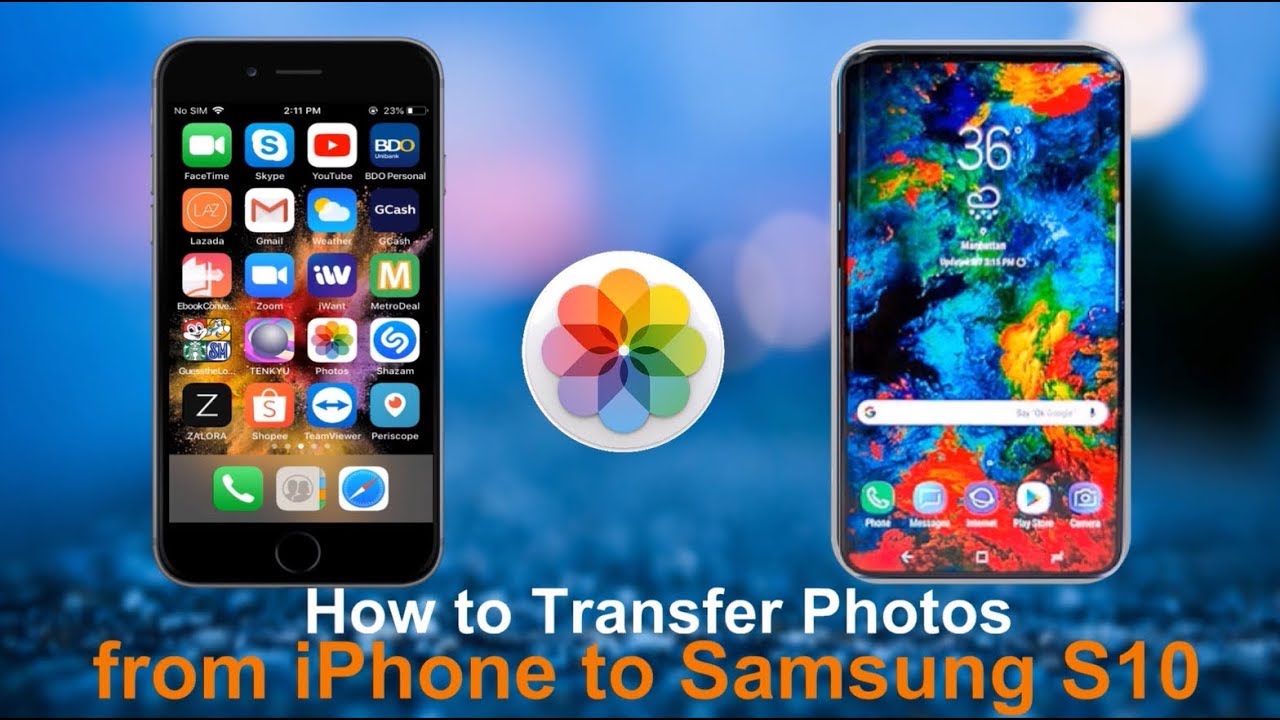
Mesmerizing How To Transfer Photos From Iphone To Samsung Photo Photography
Transform your screen with this vivid how to transfer photos from iphone to samsung artwork, a true masterpiece of digital design.
Download these how to transfer photos from iphone to samsung wallpapers for free and use them on your desktop or mobile devices.