How To Save Image From Google Drive To Iphone: The Easiest Step-by-Step Guide
If you're an iPhone user who relies on Google Drive for cloud storage, you probably find yourself needing to move photos from the cloud to your local storage often. Whether it's an important work file or a treasured family photo, knowing exactly how to save image from Google Drive to iPhone is essential for seamless digital life.
Good news: the process is surprisingly straightforward once you know where to look! This comprehensive guide will walk you through the simplest methods, troubleshoot common errors, and make sure those high-resolution images end up safely in your iPhone's Camera Roll.
Prerequisites: What You Need Before Starting
Before diving into the steps, let's quickly check to make sure you have everything necessary. Following these simple steps ensures a smooth downloading experience without unnecessary hiccups.
- A Stable Internet Connection: Downloading files, especially large images, requires reliable Wi-Fi or cellular data.
- Sufficient iPhone Storage: Always check your remaining storage capacity. If your phone is full, the images won't save.
- Your Google Credentials: Make sure you are logged into the correct Google account where your images are stored.
Ensuring Google Drive App is Installed and Updated
The easiest and most reliable way to perform this transfer is by using the official Google Drive app for iOS. While you can use a web browser, the app offers dedicated sharing and saving functionality tailored for your iPhone.
If you don't have it yet, head over to the App Store and download "Google Drive." If you already have it, quickly check for any pending updates to ensure you have the latest features and security patches.
Step-by-Step Guide: Direct Download Method
This is the primary method for how to save image from Google Drive to iPhone. It's fast and requires just a few taps inside the Google Drive application.
- Open the Google Drive App: Launch the app on your iPhone and make sure you are logged into the account holding the desired images.
- Navigate to Your File: Use the search bar or browse your folders to locate the image you wish to save.
Locating the Image in Google Drive
Once you see the image file (e.g., a .JPG or .PNG), tap on it to open a full preview. This step is crucial because you need to access the file options menu, not just the file listing.
For quicker access, if you recently uploaded the photo, check the "Recent" tab at the bottom of the screen. This often saves time navigating complex folder structures.
Initiating the Download to iPhone Camera Roll
With the image open in full-screen preview, follow these detailed steps to complete the transfer:
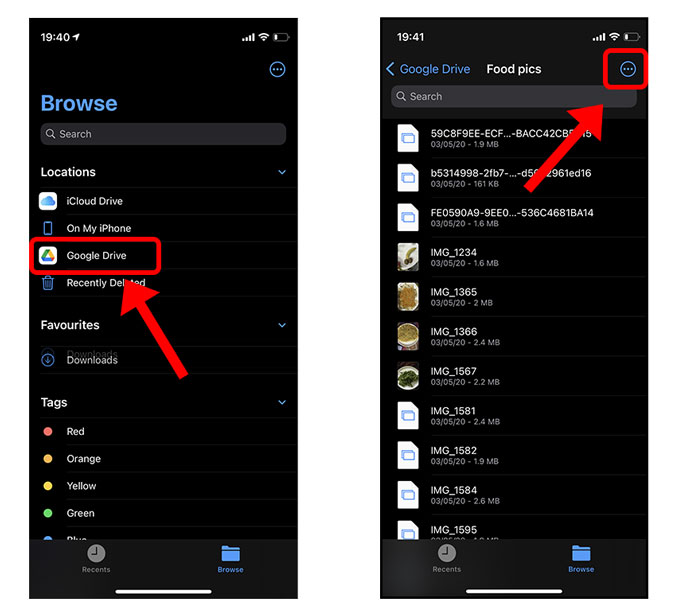
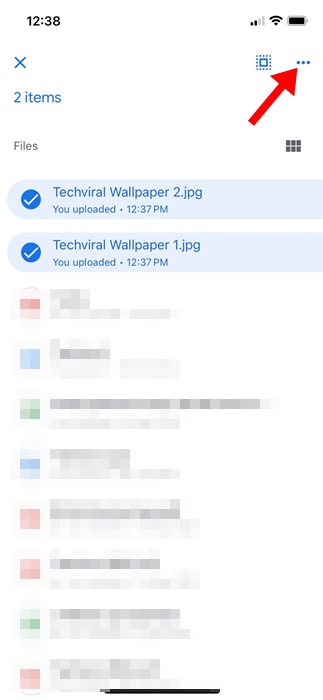
- Access the Options Menu: Look for the three dots (ellipsis menu) located in the top right corner of the screen. Tap this icon.
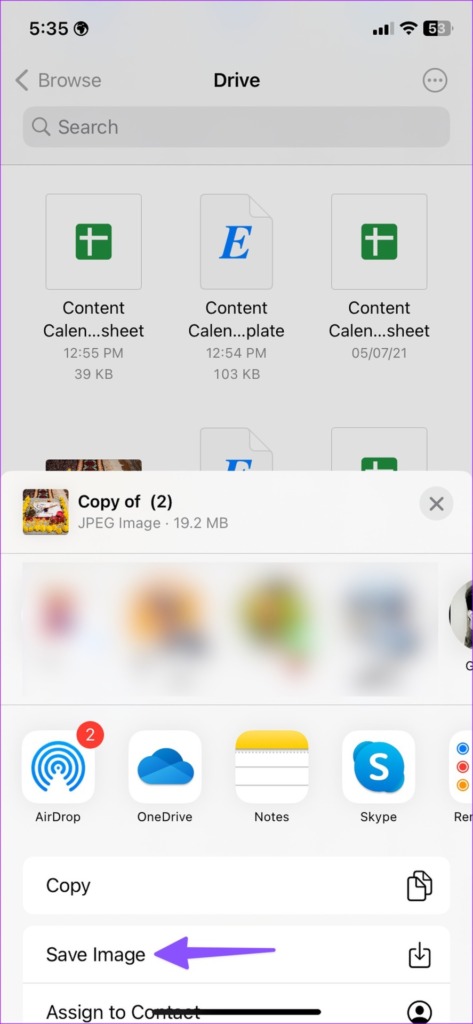
- Select 'Open in' or 'Send a copy': Scroll down the menu that appears. You might see an option titled "Send a copy" or "Open in." Tap this option.
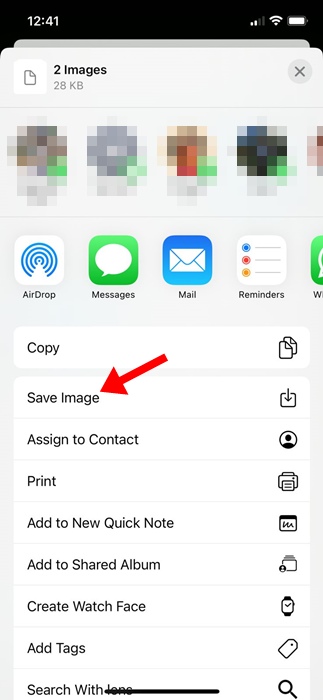
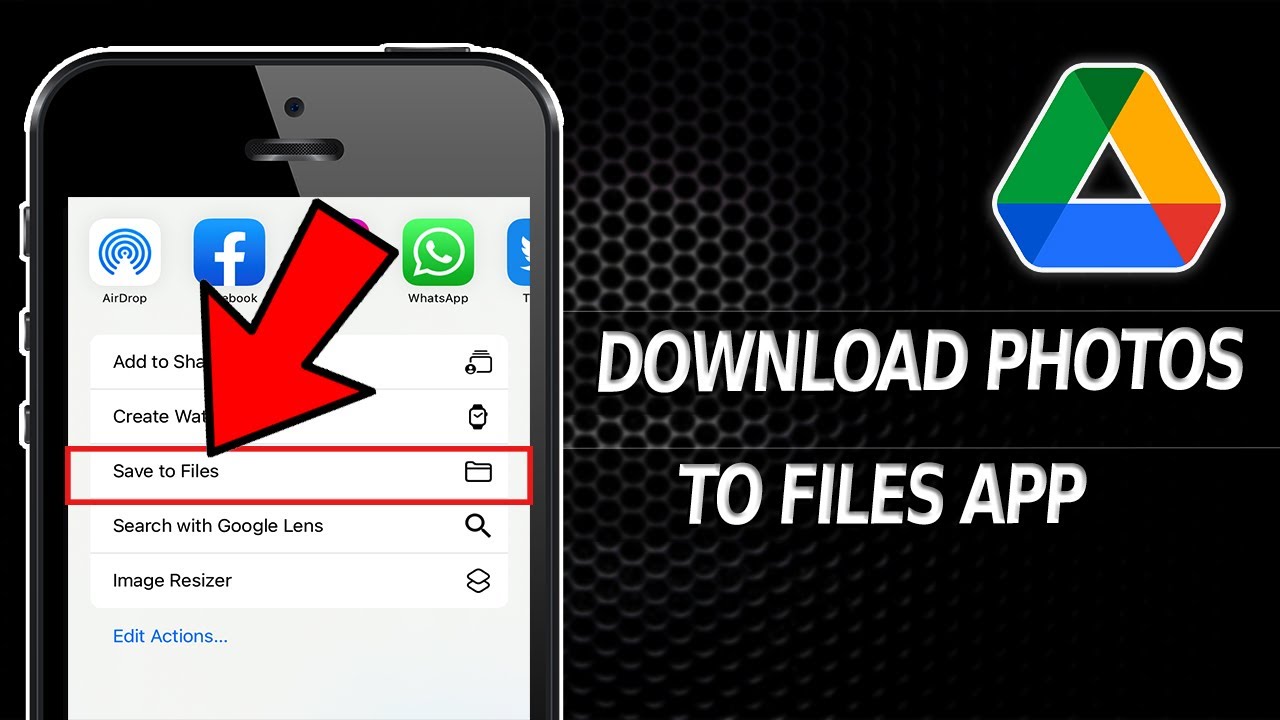
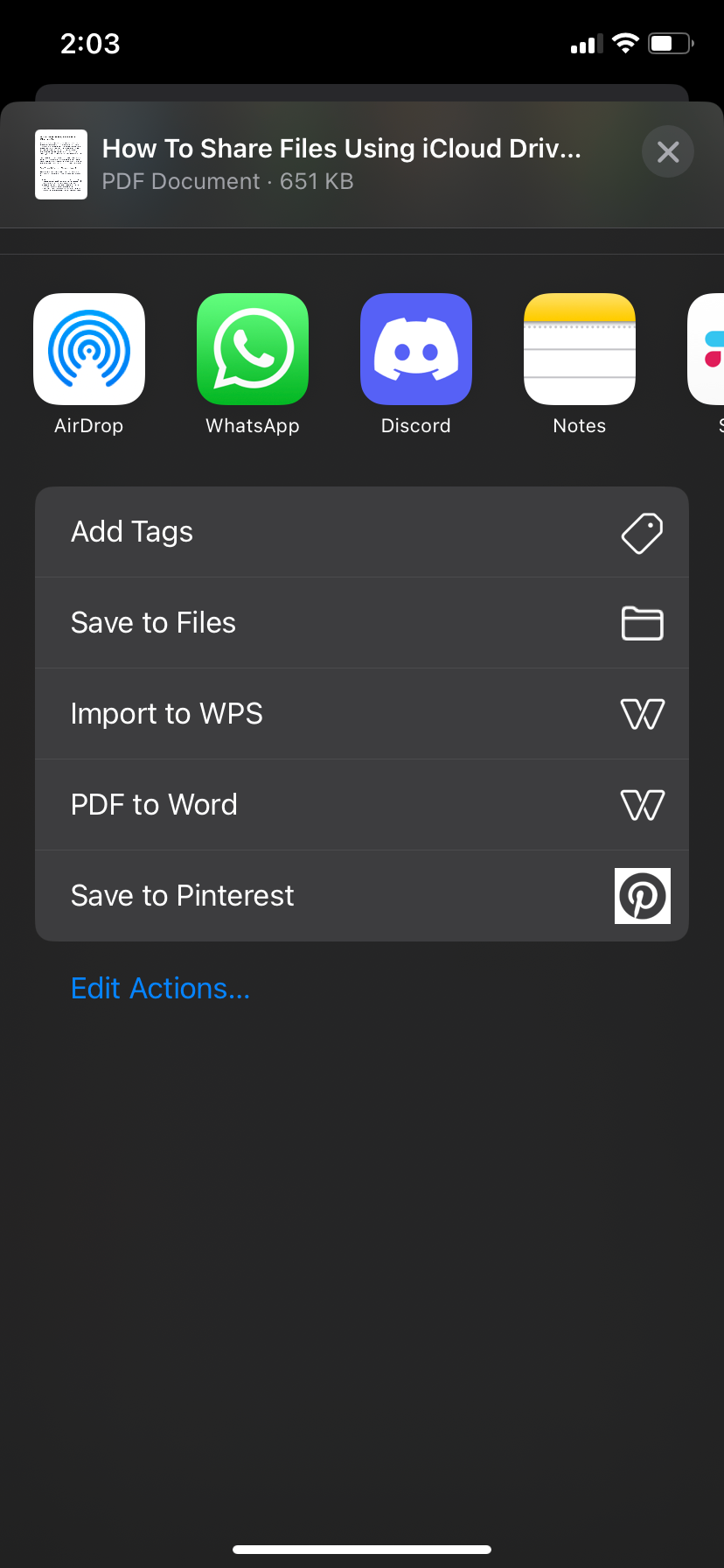
- Choose 'Save Image': A standard iOS sharing menu will pop up at the bottom of the screen. Scroll through the available icons until you find "Save Image" (it often has a small icon resembling a photo camera or a down arrow).
- Confirmation: Tap "Save Image." A small confirmation message will appear briefly at the top of your screen, indicating that the image has been successfully saved to your Camera Roll.
That's it! The photo is now locally stored on your device and accessible through your native Photos app. This method is the simplest way to learn how to save image from Google Drive to iPhone quickly.
Troubleshooting Common Issues
Sometimes, the process doesn't go smoothly. If the "Save Image" option is greyed out, or if you get an error message, here are the two most common culprits and their solutions.
Storage Space and Permissions Checks
If your iPhone is low on storage, iOS will prevent new downloads. Always verify you have adequate space, especially for large image files.
More often, the issue relates to app permissions. For an application like Google Drive to add files to your Camera Roll, you must explicitly allow it access to your photos library.
Granting Photos Access to Google Drive
To fix permission issues, head straight to your iPhone's Settings application:
- Go to Settings: Tap the gear icon on your home screen.
- Scroll to Apps: Scroll down until you find the list of your installed apps and locate "Drive" or "Google Drive."
- Access Photo Permissions: Tap on Google Drive, then look for the "Photos" setting.
- Set Access: Change the setting from "Never" or "Ask Next Time" to "All Photos." This grants Google Drive the necessary permission to drop the image directly into your Camera Roll.
After granting full access, return to the Google Drive app and try the download process again. This almost always resolves the issue of the missing "Save Image" button.
Alternative Method: Using the Safari Browser
What if the Google Drive app is misbehaving, or you prefer not to use it? You can still learn how to save image from Google Drive to iPhone using a web browser like Safari or Chrome.
Be aware that this method can be slightly slower and might involve an extra step, but it serves as a reliable backup.
- Open Google Drive in Browser: Go to drive.google.com in Safari and ensure you log in to the desktop site (you may need to request the desktop version if viewing on mobile).
- Locate and Select Image: Find the file you wish to download.
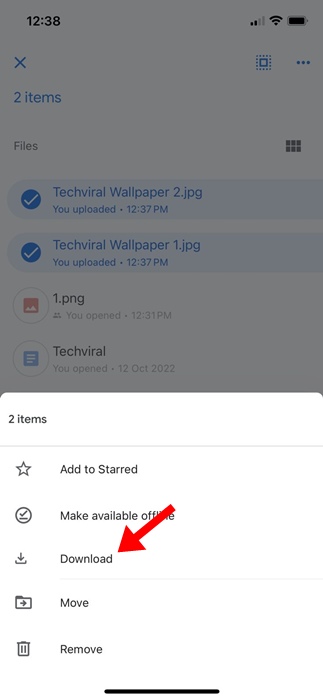
- Initiate Download: Select the image, tap the three dots (More Actions) in the toolbar, and choose "Download." The file will download to Safari's Downloads folder.
- Save from Downloads: A small downward arrow will appear in the Safari address bar. Tap this, then tap the downloaded file.
- Save to Camera Roll: Once the image opens in full view, tap the Share icon (the square with the upward arrow) and select "Save Image" to finalize the transfer to your iPhone's local storage.
This browser approach bypasses the need for the native app and can be extremely helpful when troubleshooting app-specific errors.
Conclusion: Mastering the Transfer
Saving images from Google Drive to your iPhone doesn't have to be a complicated task. By utilizing the built-in "Send a copy" feature within the Google Drive app, or by using the reliable browser download method, you can quickly transfer your essential photos.
Remember to always check your app permissions if the "Save Image" option isn't available. Following the detailed steps provided will ensure you know exactly how to save image from Google Drive to iPhone, keeping your most important memories and files accessible right when you need them.
Enjoy your newly downloaded photos!
Frequently Asked Questions (FAQ)
- Can I save multiple images simultaneously?
- Unfortunately, the Google Drive iOS app typically requires you to download images one by one using the "Send a copy" method. For bulk downloads, it is generally easier to use a computer or utilize the alternative browser method, which sometimes allows selecting multiple files before downloading them into a ZIP folder (which you would then need to unzip using a separate app).
- Why is my downloaded image blurry or low resolution?
- Google Drive stores the image in its original resolution. If the image quality is poor after saving, it is likely that the original file uploaded to Google Drive was already low resolution. Always check the file size and resolution within Google Drive before downloading.
- Does saving the image use up my Google Drive storage?
- No. The image already occupies space on Google Drive. Saving the image to your iPhone's Camera Roll only uses up space on your phone's internal storage. The original file remains untouched in the cloud.
- Can I use the same method to save videos?
- Yes, the process is very similar for videos! Instead of selecting "Save Image" in the Share menu, you will select "Save Video." Be aware that video files are much larger and will take significantly longer to download, depending on your internet speed and phone storage.
How To Save Image From Google Drive To Iphone
How To Save Image From Google Drive To Iphone Wallpapers
Collection of how to save image from google drive to iphone wallpapers for your desktop and mobile devices.
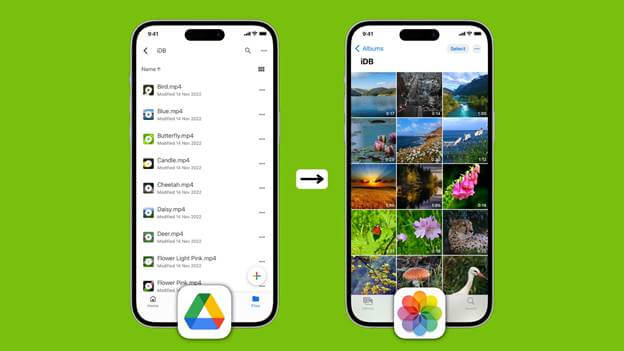
Beautiful How To Save Image From Google Drive To Iphone Artwork Nature
Discover an amazing how to save image from google drive to iphone background image, ideal for personalizing your devices with vibrant colors and intricate designs.
High-Quality How To Save Image From Google Drive To Iphone Moment Digital Art
Discover an amazing how to save image from google drive to iphone background image, ideal for personalizing your devices with vibrant colors and intricate designs.

Lush How To Save Image From Google Drive To Iphone Moment Art
Immerse yourself in the stunning details of this beautiful how to save image from google drive to iphone wallpaper, designed for a captivating visual experience.
Serene How To Save Image From Google Drive To Iphone Moment Nature
Explore this high-quality how to save image from google drive to iphone image, perfect for enhancing your desktop or mobile wallpaper.
High-Quality How To Save Image From Google Drive To Iphone Abstract for Your Screen
Transform your screen with this vivid how to save image from google drive to iphone artwork, a true masterpiece of digital design.
Breathtaking How To Save Image From Google Drive To Iphone Capture for Mobile
Experience the crisp clarity of this stunning how to save image from google drive to iphone image, available in high resolution for all your screens.
Detailed How To Save Image From Google Drive To Iphone Artwork Collection
Explore this high-quality how to save image from google drive to iphone image, perfect for enhancing your desktop or mobile wallpaper.
Gorgeous How To Save Image From Google Drive To Iphone Picture Nature
Immerse yourself in the stunning details of this beautiful how to save image from google drive to iphone wallpaper, designed for a captivating visual experience.
Crisp How To Save Image From Google Drive To Iphone Scene for Your Screen
Immerse yourself in the stunning details of this beautiful how to save image from google drive to iphone wallpaper, designed for a captivating visual experience.

Mesmerizing How To Save Image From Google Drive To Iphone Photo Collection
Explore this high-quality how to save image from google drive to iphone image, perfect for enhancing your desktop or mobile wallpaper.
Stunning How To Save Image From Google Drive To Iphone View for Your Screen
Find inspiration with this unique how to save image from google drive to iphone illustration, crafted to provide a fresh look for your background.

Gorgeous How To Save Image From Google Drive To Iphone Scene for Your Screen
This gorgeous how to save image from google drive to iphone photo offers a breathtaking view, making it a perfect choice for your next wallpaper.

Mesmerizing How To Save Image From Google Drive To Iphone View Nature
Transform your screen with this vivid how to save image from google drive to iphone artwork, a true masterpiece of digital design.
Mesmerizing How To Save Image From Google Drive To Iphone Moment for Mobile
Transform your screen with this vivid how to save image from google drive to iphone artwork, a true masterpiece of digital design.

Lush How To Save Image From Google Drive To Iphone Picture in 4K
Find inspiration with this unique how to save image from google drive to iphone illustration, crafted to provide a fresh look for your background.

Captivating How To Save Image From Google Drive To Iphone Artwork Collection
Immerse yourself in the stunning details of this beautiful how to save image from google drive to iphone wallpaper, designed for a captivating visual experience.
Amazing How To Save Image From Google Drive To Iphone Photo Nature
Transform your screen with this vivid how to save image from google drive to iphone artwork, a true masterpiece of digital design.

Crisp How To Save Image From Google Drive To Iphone Wallpaper Photography
Find inspiration with this unique how to save image from google drive to iphone illustration, crafted to provide a fresh look for your background.
Vibrant How To Save Image From Google Drive To Iphone Artwork for Desktop
Experience the crisp clarity of this stunning how to save image from google drive to iphone image, available in high resolution for all your screens.
Gorgeous How To Save Image From Google Drive To Iphone Landscape Digital Art
Immerse yourself in the stunning details of this beautiful how to save image from google drive to iphone wallpaper, designed for a captivating visual experience.
Download these how to save image from google drive to iphone wallpapers for free and use them on your desktop or mobile devices.