How To Reset Iphone That Won't Turn On: The Ultimate Fix Guide
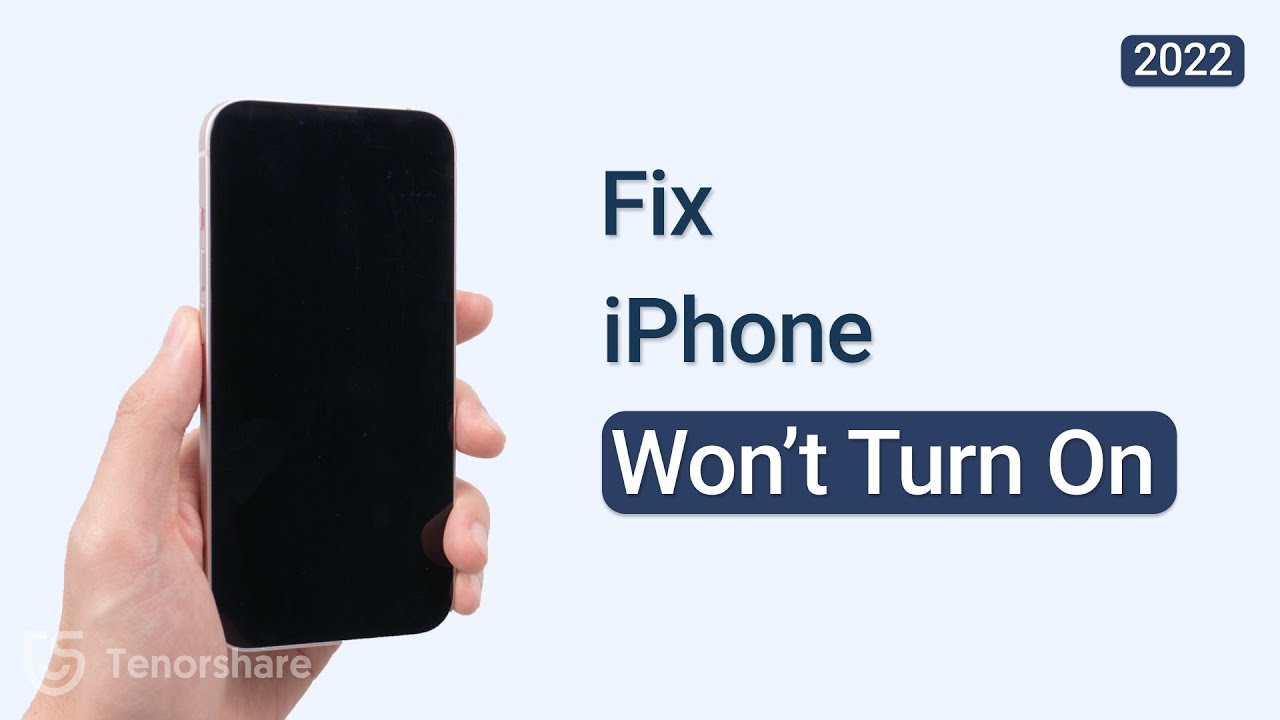
There are few things more frustrating than reaching for your trusted iPhone only to find it unresponsive, displaying nothing but a terrifying black screen. You tap the screen, hold the power button, maybe even shout at it a little—but nothing happens. Before panic sets in and you mentally calculate the cost of a new phone, take a deep breath.
This comprehensive guide is specifically designed to help you figure out How To Reset Iphone That Won't Turn On, guiding you through simple troubleshooting steps all the way up to advanced system resets. Usually, the phone isn't truly dead; it's just stuck in a deep, dark software glitch or simply out of juice. Let's get your device back to life!
Step 1: Rule Out the Obvious (Is It Just Dead?)
Before attempting any forceful resets, we must first confirm that the problem isn't just a depleted battery or a faulty cable. If your phone has been sitting unused for a while or was exposed to cold temperatures, the battery might be fully drained.
Check Your Charging Setup
A bad charging block or cable can make it look like your iPhone is broken when it's simply not receiving power. This is the easiest fix, so start here.
- Use Official Accessories: Ensure you are using an Apple-certified or MFi (Made for iPhone) cable and power adapter. Generic accessories might not deliver sufficient power to jumpstart a completely dead battery.
- Inspect the Ports: Look closely at the Lightning port on your iPhone. Use a flashlight to check for lint, dust, or debris. A clogged port prevents the charging connection. Use a wooden toothpick or a soft-bristled, clean toothbrush to gently clear any obstruction.
- Try a Different Outlet: Plug your charger into a known working wall outlet. Avoid charging via USB ports on computers initially, as they often charge slower.
The 30-Minute Wait Test
When an iPhone battery is completely zeroed out, it may need a minimum amount of power before it can even show the charging icon or power on. Connect your iPhone to the charger and leave it untouched for at least 30 minutes. Don't touch the screen or the buttons during this time.
After 30 minutes, you should see the charging screen (a battery icon) or the Apple logo appear. If you see neither, it's time to move on to the hard reset.
Step 2: The Mighty Forced Restart (Hard Reset)
If your iPhone still has a black screen despite charging, it's highly probable that the operating system has frozen. A "forced restart" (or hard reset) is designed to interrupt the power and software cycle without affecting your data. This is often the magic button combination people are looking for when asking How To Reset Iphone That Won't Turn On.
Forced Restart Steps for Different iPhone Models
The sequence depends on your iPhone model. Follow the steps exactly, pressing the buttons quickly and releasing them before holding the final button.
iPhone 8, iPhone SE (2nd/3rd Gen), iPhone X, and Later Models (including 11, 12, 13, 14, 15 series)
- Press and quickly release the Volume Up button.
- Press and quickly release the Volume Down button.
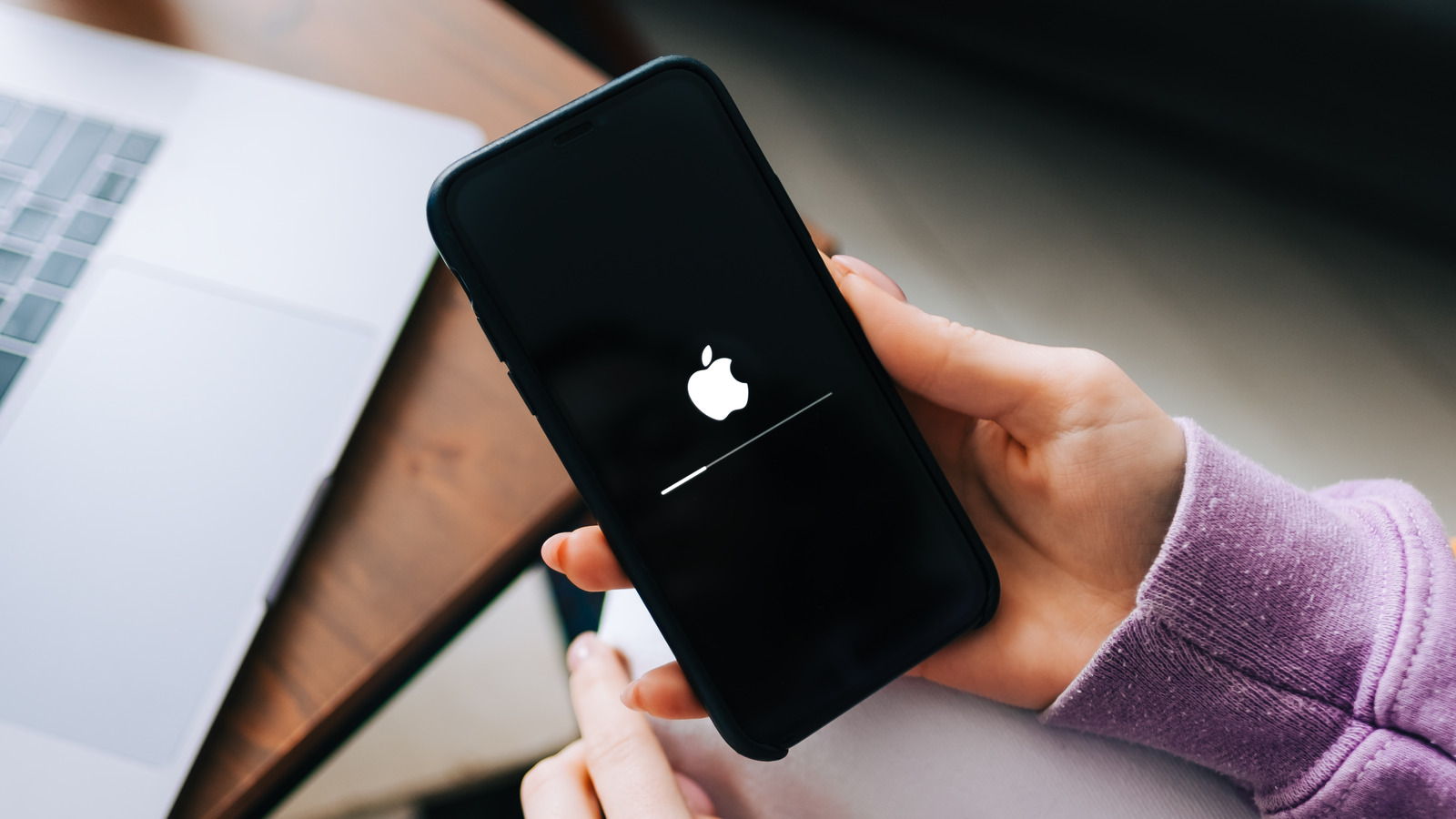
- Press and hold the Side button (Power button) until the Apple logo appears. This can take 15 to 20 seconds. Release the Side button once the logo shows up.
iPhone 7 and iPhone 7 Plus
- Press and hold both the Volume Down button and the Sleep/Wake (Power) button at the same time.
- Keep holding both buttons until the Apple logo appears.
iPhone 6s, iPhone 6s Plus, and iPhone SE (1st Gen)
- Press and hold both the Sleep/Wake (Power) button and the Home button simultaneously.
- Hold them until the Apple logo appears on the screen.
If the hard reset works, your phone will boot up normally. If the screen remains black, the issue is deeper, possibly related to corrupted software or firmware, and requires intervention from a computer.
Step 3: When the Hard Reset Fails (Recovery Mode)
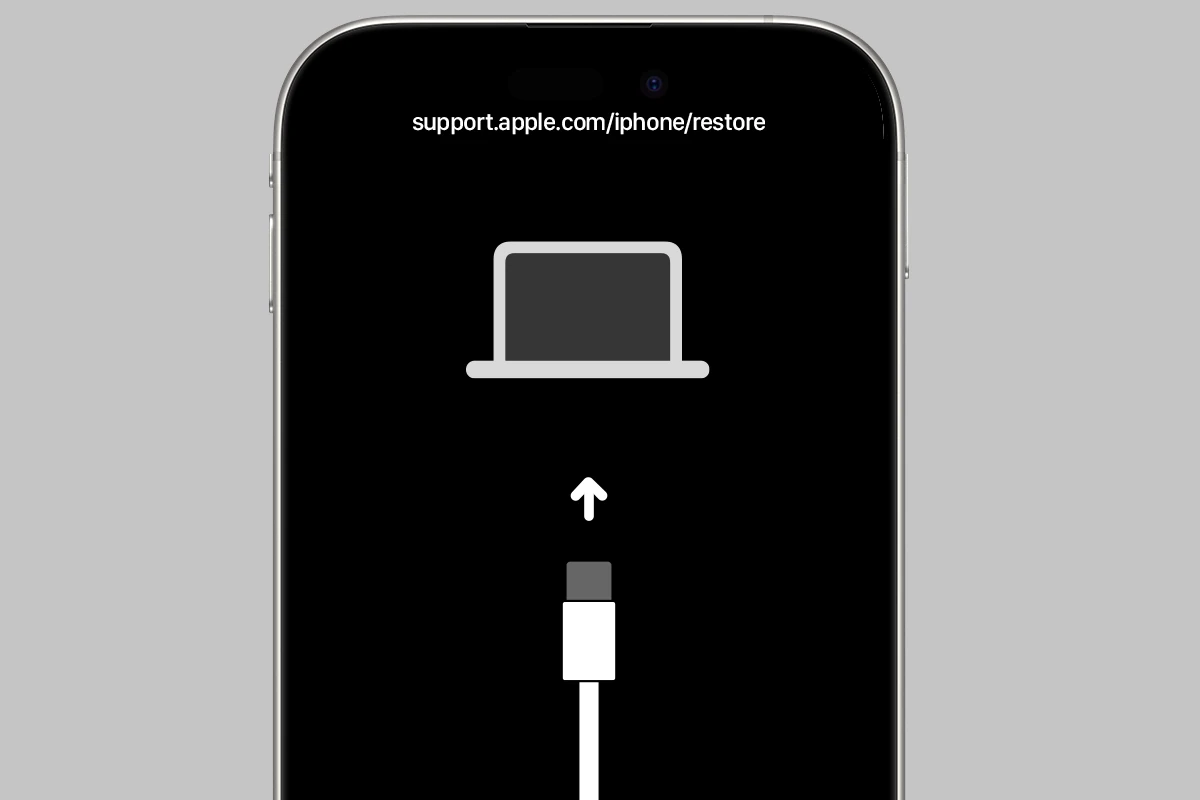
If your phone still won't turn on, you need to put it into Recovery Mode. This mode allows iTunes (or Finder on macOS Catalina and later) to interact with your iPhone's operating system, even if the screen is black. The goal here is usually to "Update" the software first, which attempts to fix the OS without erasing your data.
Entering Recovery Mode (The iTunes/Finder Connection)
You will need a computer (Mac or PC) with the latest version of iTunes installed (or macOS Finder). Make sure you have a reliable lightning cable.
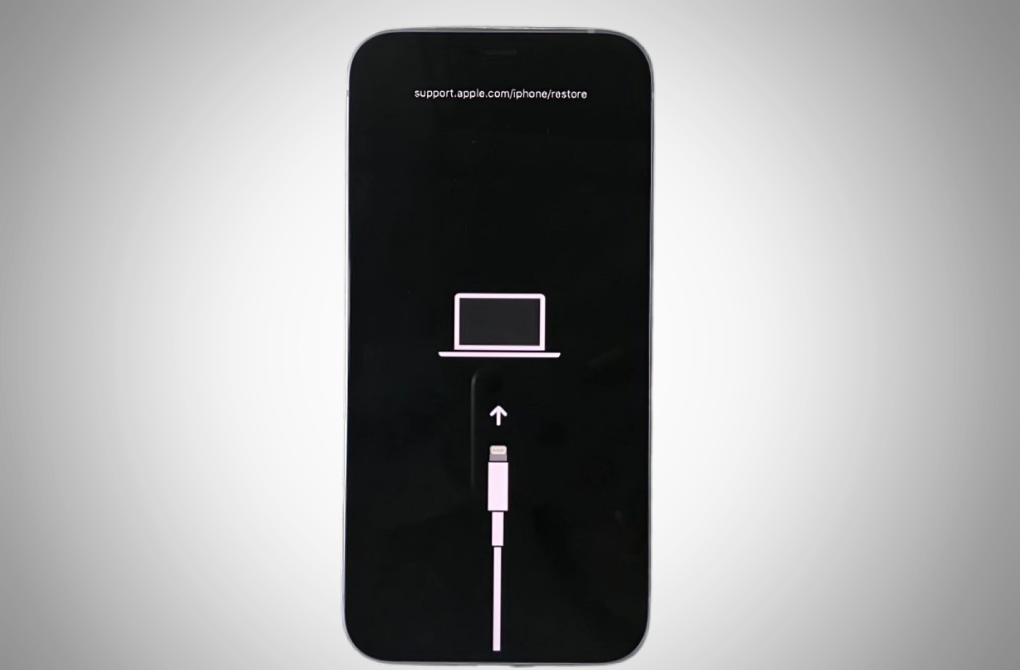
Follow the forced restart steps for your specific model, but instead of releasing the button(s) when the Apple logo appears, continue holding them until the Recovery Mode screen shows up (it usually displays an image of a computer and a cable).
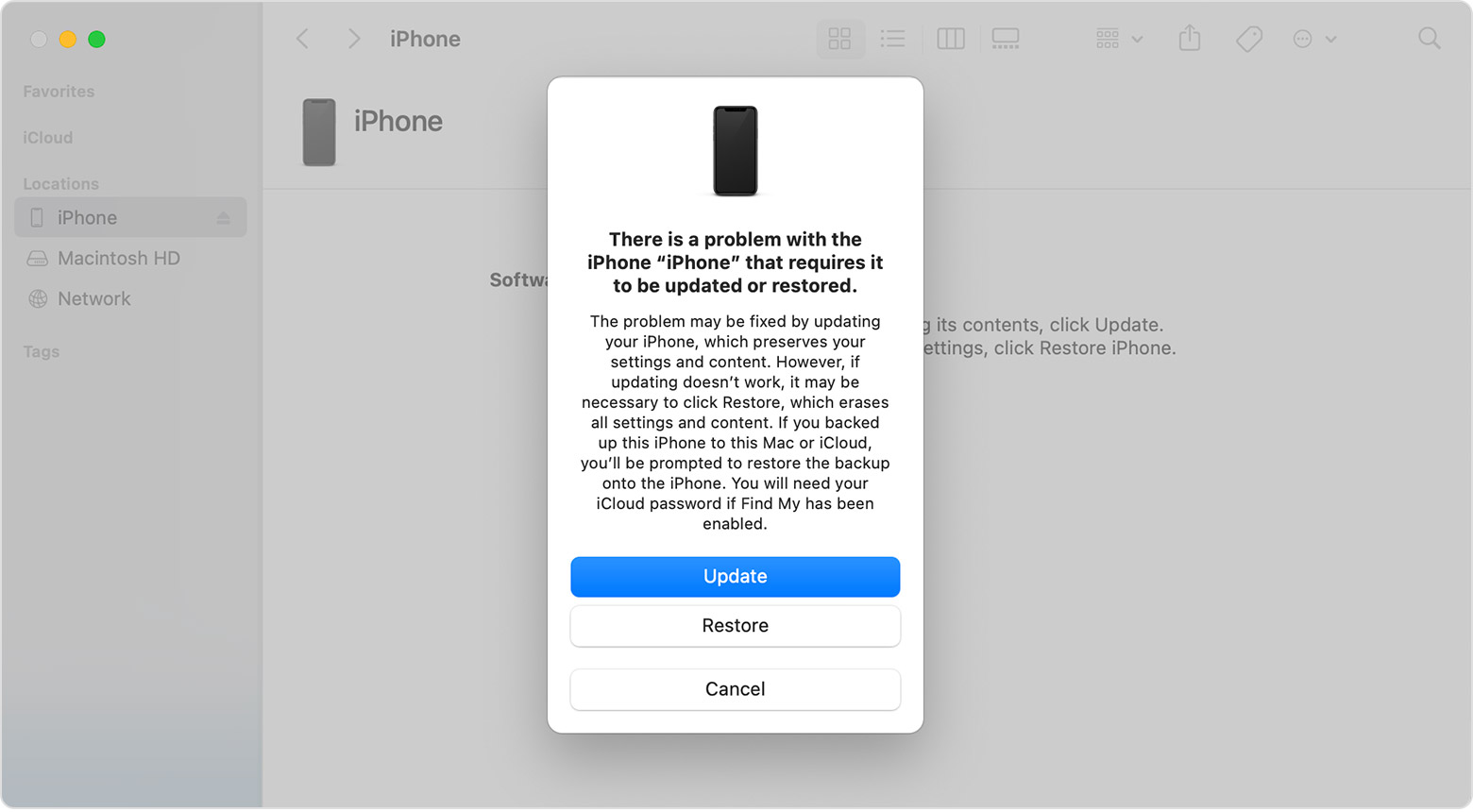
Once in Recovery Mode, your computer will prompt you with an option to Update or Restore:
- Choose "Update": This is the safer option. iTunes/Finder will try to reinstall iOS without touching your personal data. If a software bug was causing the black screen, this should fix it.
- If Update Fails, Choose "Restore": If updating doesn't work, you must choose Restore. This will erase all data and settings on your iPhone and install a fresh copy of iOS. This is a factory reset, but it's necessary if the operating system is heavily corrupted. You can recover your data later if you have an iCloud or computer backup.
Crucial Tip: If the download takes longer than 15 minutes, your iPhone will exit Recovery Mode. You will need to repeat the steps to enter Recovery Mode again.
Step 4: The Last Resort: DFU Mode (Deep Firmware Update)
If even Recovery Mode doesn't work, or if your iPhone shows signs of life but simply won't cooperate, DFU (Device Firmware Update) Mode is the deepest possible system reset. DFU mode allows the device to communicate with iTunes/Finder without loading the operating system or bootloader. It forces a complete rewrite of the firmware.
Be aware: Entering DFU mode requires precise timing and will result in a full Restore (data wipe).
How to Enter DFU Mode (Example for iPhone 8 and Newer)
- Connect your iPhone to your computer using a USB cable.
- Press and quickly release the Volume Up button.
- Press and quickly release the Volume Down button.
- Press and hold the Side button (Power button) for 10 seconds (the screen should remain black).
- While still holding the Side button, press and hold the Volume Down button.
- Hold both buttons for 5 seconds.
- Release the Side button but continue holding the Volume Down button for another 5 to 10 seconds.
If successful, your screen will remain completely black (unlike Recovery Mode, which shows an icon), but iTunes/Finder will display a message stating, "iTunes has detected an iPhone in recovery mode. You must restore this iPhone before it can be used." Click Restore to proceed with the firmware rewrite.
If you see the Apple logo at any point, you held the buttons too long and need to start over.
Conclusion: Getting Your iPhone Back on Track
Dealing with a black screen is definitely nerve-wracking, but hopefully, by following these methodical steps, you have solved the problem of How To Reset Iphone That Won't Turn On. For most users, a simple charging session or the quick hard reset resolves the issue. If you reached Recovery Mode or DFU Mode, you likely had a serious software crash, but the restore process should have corrected it.
If none of these steps work, and your device remains completely dead even after a DFU restore, the problem is almost certainly hardware related (like screen failure, logic board damage, or battery death) and requires professional assessment by Apple Support or an authorized service provider.
Frequently Asked Questions (FAQ)
- What causes an iPhone to turn off and not turn back on?
- The most common causes are a completely depleted battery, a severe software crash (which is fixed by a hard reset), or sometimes water or physical damage affecting the display connection or logic board.
- Does a hard reset erase my data?
- No. A hard reset (forced restart) only forces the operating system to shut down and reboot. It does not erase apps, photos, or settings. Data is only erased if you use the "Restore" option in Recovery Mode or DFU Mode.
- What is the difference between Recovery Mode and DFU Mode?
- Recovery Mode loads the bootloader but not the full iOS. DFU Mode (Device Firmware Update) bypasses the operating system and the bootloader entirely, allowing iTunes/Finder to install firmware directly onto the device. DFU is the deeper and riskier option, used only when Recovery Mode fails.
- My iPhone screen is black, but I feel vibrations and hear alerts. What does this mean?
- If your phone vibrates and makes sounds, it means the operating system and internal components are working, but the display itself has failed. The hard reset (Step 2) might fix a temporary display driver glitch. If it doesn't, the screen hardware likely needs replacement.
How To Reset Iphone That Won'T Turn On
How To Reset Iphone That Won'T Turn On Wallpapers
Collection of how to reset iphone that won't turn on wallpapers for your desktop and mobile devices.
Detailed How To Reset Iphone That Won't Turn On Moment Digital Art
Transform your screen with this vivid how to reset iphone that won't turn on artwork, a true masterpiece of digital design.
Vivid How To Reset Iphone That Won't Turn On Design Collection
Explore this high-quality how to reset iphone that won't turn on image, perfect for enhancing your desktop or mobile wallpaper.

Exquisite How To Reset Iphone That Won't Turn On Moment for Your Screen
Find inspiration with this unique how to reset iphone that won't turn on illustration, crafted to provide a fresh look for your background.
Breathtaking How To Reset Iphone That Won't Turn On Landscape for Your Screen
Experience the crisp clarity of this stunning how to reset iphone that won't turn on image, available in high resolution for all your screens.

Artistic How To Reset Iphone That Won't Turn On View Illustration
A captivating how to reset iphone that won't turn on scene that brings tranquility and beauty to any device.

Serene How To Reset Iphone That Won't Turn On Photo Illustration
Experience the crisp clarity of this stunning how to reset iphone that won't turn on image, available in high resolution for all your screens.

Lush How To Reset Iphone That Won't Turn On Abstract for Desktop
This gorgeous how to reset iphone that won't turn on photo offers a breathtaking view, making it a perfect choice for your next wallpaper.

Exquisite How To Reset Iphone That Won't Turn On Background in 4K
This gorgeous how to reset iphone that won't turn on photo offers a breathtaking view, making it a perfect choice for your next wallpaper.
Serene How To Reset Iphone That Won't Turn On Moment Art
Discover an amazing how to reset iphone that won't turn on background image, ideal for personalizing your devices with vibrant colors and intricate designs.
Detailed How To Reset Iphone That Won't Turn On Capture Digital Art
Transform your screen with this vivid how to reset iphone that won't turn on artwork, a true masterpiece of digital design.
Detailed How To Reset Iphone That Won't Turn On Design Concept
Transform your screen with this vivid how to reset iphone that won't turn on artwork, a true masterpiece of digital design.
Spectacular How To Reset Iphone That Won't Turn On Background Nature
Immerse yourself in the stunning details of this beautiful how to reset iphone that won't turn on wallpaper, designed for a captivating visual experience.
Dynamic How To Reset Iphone That Won't Turn On Scene for Your Screen
Immerse yourself in the stunning details of this beautiful how to reset iphone that won't turn on wallpaper, designed for a captivating visual experience.

Dynamic How To Reset Iphone That Won't Turn On Photo in HD
Find inspiration with this unique how to reset iphone that won't turn on illustration, crafted to provide a fresh look for your background.

Captivating How To Reset Iphone That Won't Turn On Moment in HD
Find inspiration with this unique how to reset iphone that won't turn on illustration, crafted to provide a fresh look for your background.
Dynamic How To Reset Iphone That Won't Turn On Image for Mobile
Immerse yourself in the stunning details of this beautiful how to reset iphone that won't turn on wallpaper, designed for a captivating visual experience.

Mesmerizing How To Reset Iphone That Won't Turn On Scene in HD
Discover an amazing how to reset iphone that won't turn on background image, ideal for personalizing your devices with vibrant colors and intricate designs.

Breathtaking How To Reset Iphone That Won't Turn On Image Art
Experience the crisp clarity of this stunning how to reset iphone that won't turn on image, available in high resolution for all your screens.
Amazing How To Reset Iphone That Won't Turn On Moment for Your Screen
Discover an amazing how to reset iphone that won't turn on background image, ideal for personalizing your devices with vibrant colors and intricate designs.

Spectacular How To Reset Iphone That Won't Turn On Artwork Digital Art
Find inspiration with this unique how to reset iphone that won't turn on illustration, crafted to provide a fresh look for your background.
Download these how to reset iphone that won't turn on wallpapers for free and use them on your desktop or mobile devices.