How To Move Photos In Iphone: The Ultimate Guide to Organizing Your Camera Roll
If you've ever felt overwhelmed by the sheer number of pictures cluttering your iPhone, you are definitely not alone. iPhones are fantastic tools for capturing memories, but managing those memories can quickly become a headache. Learning how to move photos in iPhone is key to maintaining sanity, freeing up valuable storage space, and making sure you can actually find that one perfect sunset picture when you need it.
Whether you need to organize existing photos into thematic albums, or you want to offload thousands of pictures to external storage or the cloud, we've got you covered. This comprehensive guide will walk you through the simplest and most effective methods for mastering photo management on your device, all in a friendly, easy-to-follow way.
Why Move Photos Within Your iPhone? Organizing Your Albums
Often, the first step in organization isn't moving photos off your device, but simply sorting them into logical groups. This helps declutter your main Camera Roll view without deleting anything permanently. Understanding this internal movement is fundamental to efficient photo management.
Creating New Albums for Better Organization
The best way to sort your collection is by creating specific albums—think "Vacation 2023," "Pet Photos," or "Work Receipts." Remember that when you "move" a photo into an album on your iPhone, you are essentially creating a shortcut or reference to that photo; it remains in your main Camera Roll until you specifically delete it.
Here's the simple process:
- Open the Photos app on your iPhone.
- Tap the Albums tab at the bottom.
- Tap the + icon (usually in the top left corner) and select New Album.
- Give your album a clear, descriptive name (e.g., "Birthday Party").
- Once the album is created, you will be prompted to select photos to add to it.
- Tap all the photos you want to include, and then tap Done.
Moving Photos Between Existing Albums
If you already have albums set up, moving photos between them is fast and intuitive. This is particularly helpful if you accidentally placed a picture in the wrong category or if a photo fits multiple themes.
You can quickly add photos from the Camera Roll to any existing album using these steps:
- Go to your main Library view or the album where the photo currently resides.
- Tap Select in the top right corner.
- Select the photo(s) you wish to move.
- Tap the Share icon (square with an arrow pointing up) in the bottom left corner.
- Scroll down and tap Add to Album.
- Choose the destination album from the list.
Pro Tip: You can select hundreds of photos at once by tapping the first one and then dragging your finger across the screen without lifting it. This makes large batch organization much faster!
How To Move Photos In Iphone To External Storage or Cloud
When you truly need to free up storage space, you need to physically move your photos off the device. This means transferring them to a secure external location like a cloud service or a physical hard drive. Knowing how to move photos in iPhone to external locations is essential for anyone with an older model or limited storage capacity.
Using iCloud Photos to Store and Sync
iCloud is the native and most seamless solution for offloading high-resolution images while still keeping optimized, smaller versions on your phone for viewing. This is highly recommended if you rely on other Apple devices.
To enable this, go to Settings > [Your Name] > iCloud > Photos. Turn on iCloud Photos. Below this option, you will see two choices:
- Download and Keep Originals: This keeps full-resolution photos on your iPhone (takes up maximum space).
- Optimize iPhone Storage: This is the key. It automatically replaces full-resolution photos with space-saving versions when storage is low. The originals are safely stored in iCloud and can be downloaded instantly if you need them.
Once you select "Optimize iPhone Storage," the system will gradually start moving your photos to the cloud, freeing up significant internal space.
Transferring Photos to a Computer (Mac/PC)
For those who prefer a physical backup or want to use a non-Apple cloud service, moving photos to a computer is the traditional method. The process differs slightly depending on your operating system.
Using Image Capture or Photos App on Mac
Macs have excellent built-in functionality for managing iPhone media.
If you prefer using the dedicated Photos app:
Connect your iPhone via USB. Open the Photos application. Your iPhone should appear under the "Devices" sidebar. Click on your device, select the photos you want to import, and then choose your import destination. You will usually be given an option to delete the originals from the iPhone after import, which is a key step to truly moving them off your phone.
Alternatively, the Image Capture application (found in your Utilities folder) offers more control over exactly where the files are saved and in what format.
Transferring via File Explorer on Windows
Windows PCs treat your iPhone like any other digital camera or external storage device, making the process very straightforward.
Follow these steps for a clean transfer:
Connect your iPhone to your PC using a USB cable and ensure you tap "Trust This Computer" on your phone. Open File Explorer (or My Computer) and navigate to "Apple iPhone" or "This PC > Devices and drives." Double-click on Internal Storage, then DCIM. Inside the DCIM folders, you will find all your photos and videos. Simply select the files you want, copy them, and paste them into a folder on your PC or external hard drive.
Once the transfer is verified, you can manually delete the originals from your iPhone's Photos app to complete the move.
Moving Photos Between iOS Devices (iPhone to iPhone)
Sometimes you don't want to move photos to a computer or the cloud, but directly to another iPhone or iPad. This is where Apple's ecosystem shines, thanks to seamless wireless transfer options.
The easiest method for device-to-device transfer is AirDrop, which works wirelessly and maintains the quality of the image.
Ensure both devices have Wi-Fi and Bluetooth turned on, and that AirDrop is set to "Everyone" or "Contacts Only" (depending on the recipient). Then, follow these steps:
- On the sending iPhone, open the Photos app and select the pictures you want to move.
- Tap the Share icon.
- Select the recipient iPhone under the AirDrop section.
- The receiving iPhone will prompt an acceptance screen. Tap Accept.
- The photos will instantly appear in the recipient's Camera Roll.
Alternatively, if you are moving all your photos to a brand new iPhone, the Quick Start feature during setup handles the entire migration process automatically, transferring everything, including photos, apps, and settings.
Master How To Move Photos In Iphone Today
Congratulations! You now have multiple reliable methods for tackling your photo organization challenges. Whether you need to simply sort your existing collection or learn how to move photos in iPhone to an external device to free up gigabytes of space, the iPhone offers powerful native tools to get the job done efficiently.
Remember that the best strategy often involves a combination of methods: use Albums for internal organization, enable iCloud Optimization for everyday storage relief, and use your PC or Mac for long-term archival backups. By consistently managing your camera roll, you ensure your iPhone remains fast, responsive, and ready to capture the next great moment.
Frequently Asked Questions (FAQ)
- Can I move photos out of my Camera Roll permanently without deleting them from the phone?
- No. When you move photos into a standard album, they remain in the main Camera Roll (Library). To truly remove them from the phone while keeping a copy, you must transfer them to a computer or cloud storage (like iCloud or Google Photos) and then manually delete the originals from your iPhone.
- Is there a difference between "moving" and "adding" photos to an album?
- Yes, on an iPhone, there is no true "move" function for internal albums. When you add a photo to an album, you are essentially creating a reference or link. The file itself only exists once in your main library. Deleting a photo from the main Library deletes it from all albums.
- How do I transfer photos from my iPhone to a flash drive?
- The easiest way is to use an adapter that supports a Lightning or USB-C connection and connect the flash drive directly to your iPhone. You can then use the iOS Files app to copy the photos from the Photos folder (once imported there) or directly from the Photos app using the Share menu and selecting "Save to Files," choosing your connected drive as the destination.
- Does using Google Photos or Dropbox help with how to move photos in iPhone?
- Absolutely. Third-party cloud services like Google Photos or Dropbox offer automatic backup features. Once the photos are confirmed uploaded to the cloud, you can safely use the app's option (e.g., "Free up space" in Google Photos) to delete the local copies from your iPhone, effectively moving them off the device and freeing up space.
How To Move Photos In Iphone
How To Move Photos In Iphone Wallpapers
Collection of how to move photos in iphone wallpapers for your desktop and mobile devices.
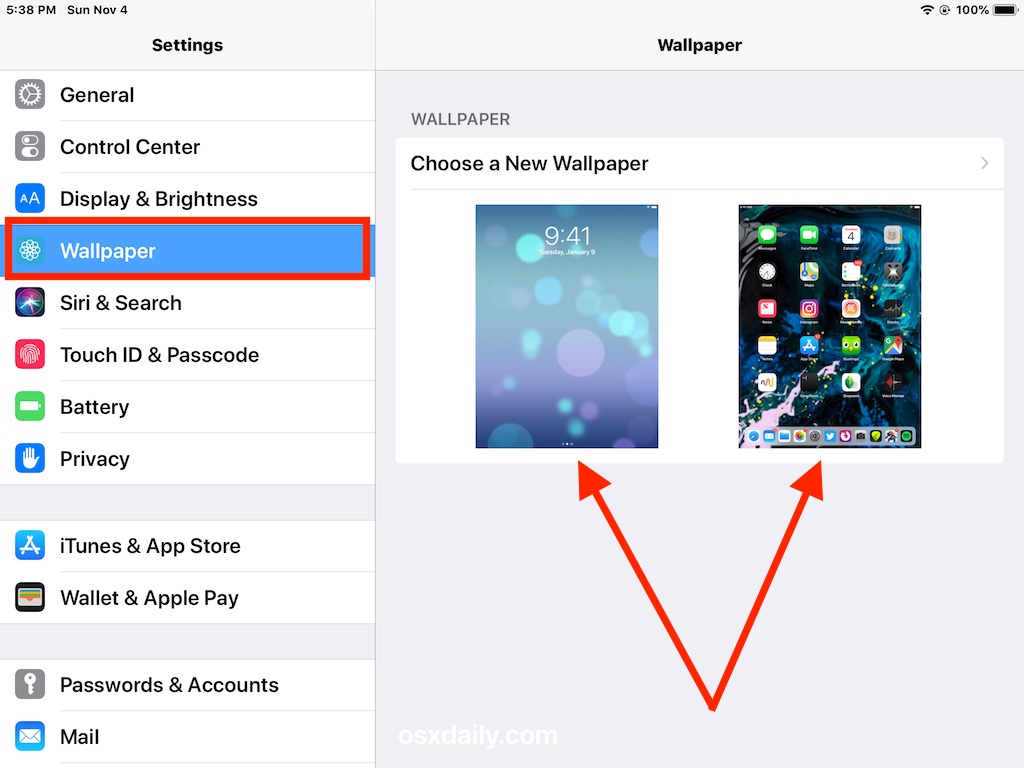
Breathtaking How To Move Photos In Iphone Abstract Illustration
Experience the crisp clarity of this stunning how to move photos in iphone image, available in high resolution for all your screens.

High-Quality How To Move Photos In Iphone Moment Nature
Discover an amazing how to move photos in iphone background image, ideal for personalizing your devices with vibrant colors and intricate designs.

Gorgeous How To Move Photos In Iphone Photo in HD
This gorgeous how to move photos in iphone photo offers a breathtaking view, making it a perfect choice for your next wallpaper.

Stunning How To Move Photos In Iphone Background Illustration
Immerse yourself in the stunning details of this beautiful how to move photos in iphone wallpaper, designed for a captivating visual experience.

Beautiful How To Move Photos In Iphone Scene for Desktop
Experience the crisp clarity of this stunning how to move photos in iphone image, available in high resolution for all your screens.

Vibrant How To Move Photos In Iphone Scene Concept
Explore this high-quality how to move photos in iphone image, perfect for enhancing your desktop or mobile wallpaper.
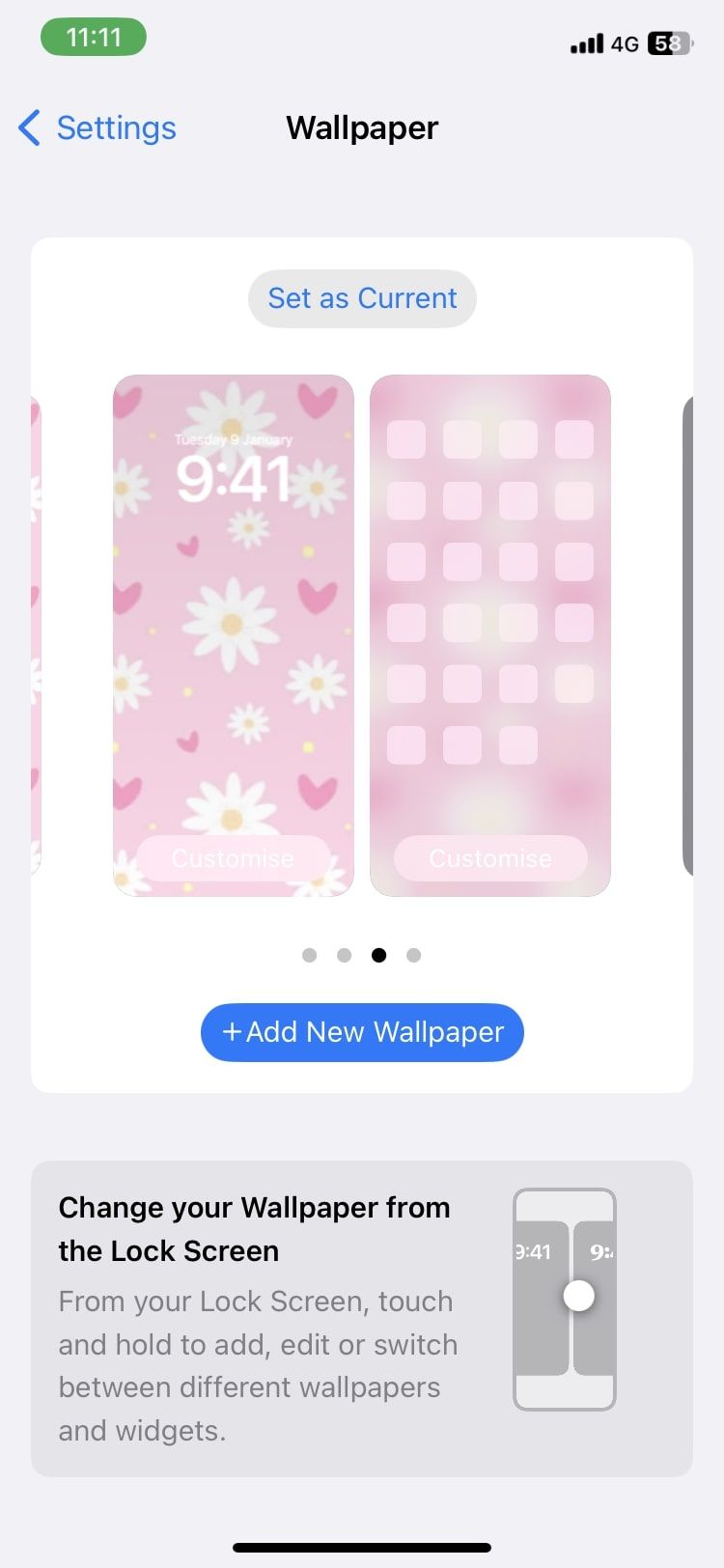
Mesmerizing How To Move Photos In Iphone Abstract Collection
Transform your screen with this vivid how to move photos in iphone artwork, a true masterpiece of digital design.

Exquisite How To Move Photos In Iphone Artwork Collection
Immerse yourself in the stunning details of this beautiful how to move photos in iphone wallpaper, designed for a captivating visual experience.
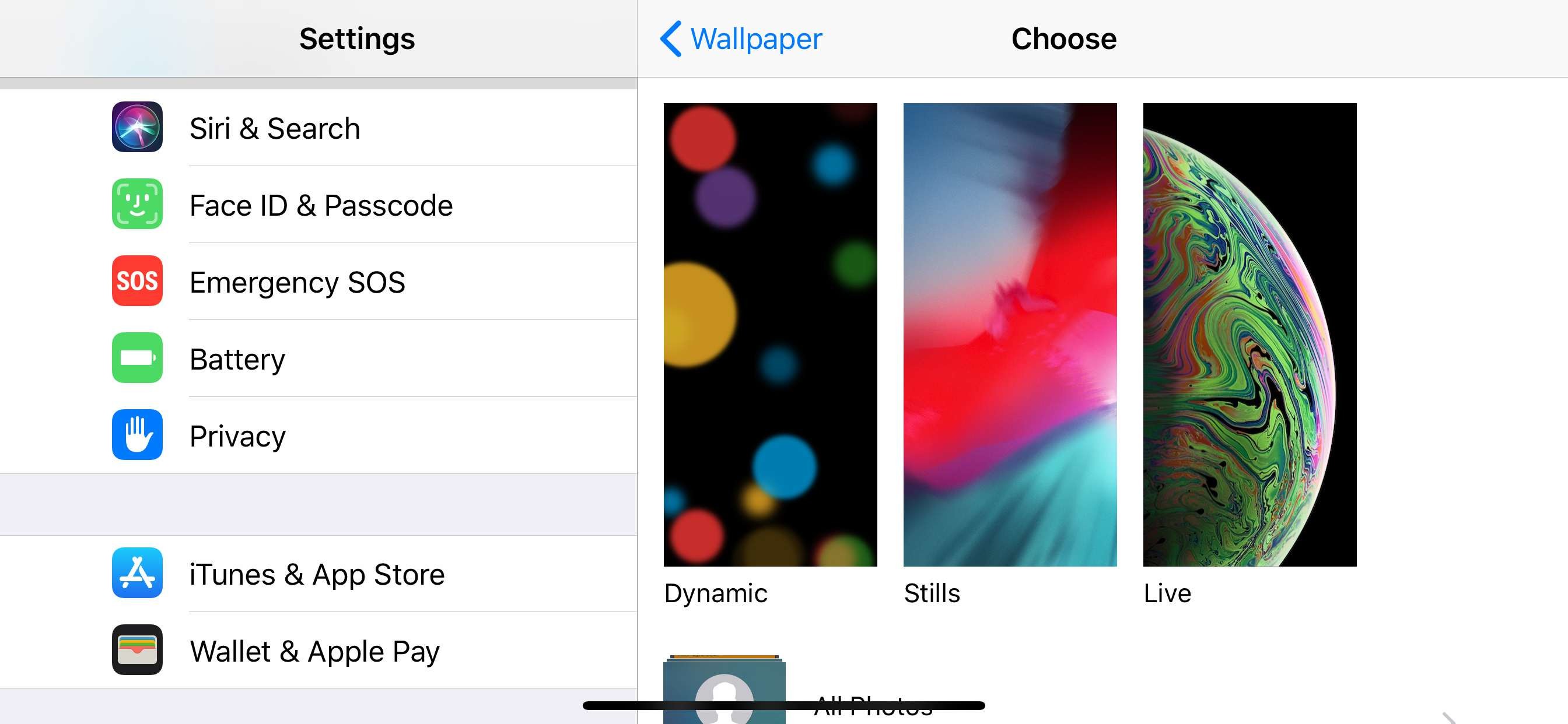
Artistic How To Move Photos In Iphone Image Collection
Find inspiration with this unique how to move photos in iphone illustration, crafted to provide a fresh look for your background.
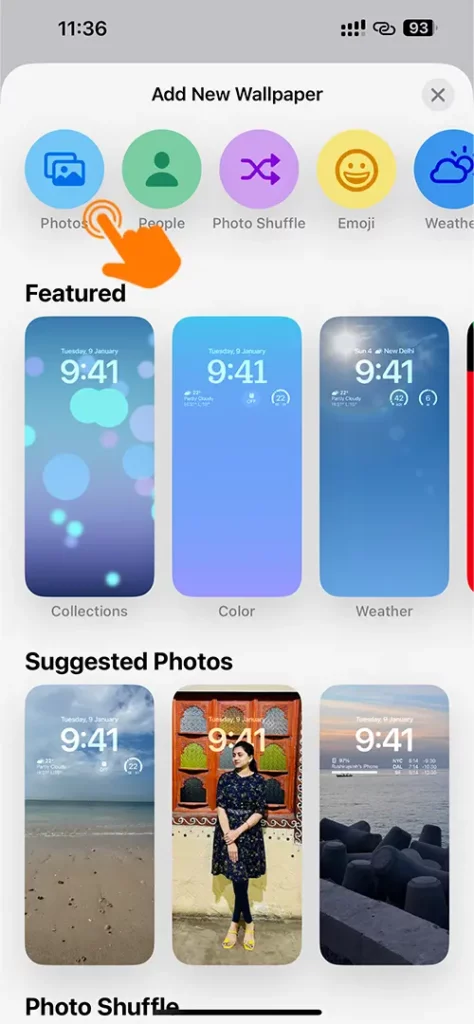
Captivating How To Move Photos In Iphone Background Concept
Immerse yourself in the stunning details of this beautiful how to move photos in iphone wallpaper, designed for a captivating visual experience.
Crisp How To Move Photos In Iphone View for Mobile
Find inspiration with this unique how to move photos in iphone illustration, crafted to provide a fresh look for your background.

Beautiful How To Move Photos In Iphone Scene Collection
Discover an amazing how to move photos in iphone background image, ideal for personalizing your devices with vibrant colors and intricate designs.
Spectacular How To Move Photos In Iphone Artwork Digital Art
This gorgeous how to move photos in iphone photo offers a breathtaking view, making it a perfect choice for your next wallpaper.
Breathtaking How To Move Photos In Iphone View Digital Art
Transform your screen with this vivid how to move photos in iphone artwork, a true masterpiece of digital design.

Breathtaking How To Move Photos In Iphone Moment for Mobile
Explore this high-quality how to move photos in iphone image, perfect for enhancing your desktop or mobile wallpaper.
Dynamic How To Move Photos In Iphone Capture Illustration
This gorgeous how to move photos in iphone photo offers a breathtaking view, making it a perfect choice for your next wallpaper.

Exquisite How To Move Photos In Iphone Moment for Your Screen
Immerse yourself in the stunning details of this beautiful how to move photos in iphone wallpaper, designed for a captivating visual experience.

Artistic How To Move Photos In Iphone Scene Illustration
A captivating how to move photos in iphone scene that brings tranquility and beauty to any device.
Dynamic How To Move Photos In Iphone Photo for Your Screen
This gorgeous how to move photos in iphone photo offers a breathtaking view, making it a perfect choice for your next wallpaper.

High-Quality How To Move Photos In Iphone Landscape Photography
Discover an amazing how to move photos in iphone background image, ideal for personalizing your devices with vibrant colors and intricate designs.
Download these how to move photos in iphone wallpapers for free and use them on your desktop or mobile devices.