How To Download Images On Iphone: A Complete Beginner's Guide
Are you struggling to save that perfect photo you saw online or received in a message? Whether you're new to the Apple ecosystem or just need a quick refresher, learning exactly How To Download Images On Iphone is a crucial skill for every smartphone user. The process is usually quick and straightforward, but sometimes different apps or settings can make it confusing.
Don't worry, we are here to walk you through every scenario. By the time you finish this guide, you will be downloading and organizing your favorite pictures like a pro, ensuring they all end up safely in your Photos app.
Let's dive into the easiest methods first, covering the web and your messaging apps.
Basic Methods: Downloading from Safari and Messages
The vast majority of photos you want to save will come from either a website or a direct message. Luckily, Apple standardized the way you interact with media in both these environments, making the process intuitive and fast.
Saving Images from the Web (Safari)
When you encounter a stunning photograph while browsing the internet using Safari or Chrome, the "long press" method is your best friend. This is the universal method for media interaction on iOS devices.
Step-by-Step Guide for Web Images
- Locate the Image: Open the webpage containing the photo you wish to save.
- Long Press: Tap and hold your finger on the image for a second or two until a menu pops up.
- Select "Add to Photos": From the action menu that appears, tap the option labeled "Add to Photos." This saves the image directly to your main Camera Roll.
- Check Your Album: Open your Photos app immediately to confirm that the image has been successfully downloaded and stored.
Occasionally, some websites try to prevent direct downloading, but this method bypasses most standard protections. If "Add to Photos" is greyed out, you might try taking a screenshot instead.
Downloading Photos Sent via iMessage or SMS
Messages is another primary source for photos. Whether your friend sent a picture through iMessage (blue bubble) or standard SMS (green bubble), the downloading technique is almost identical.
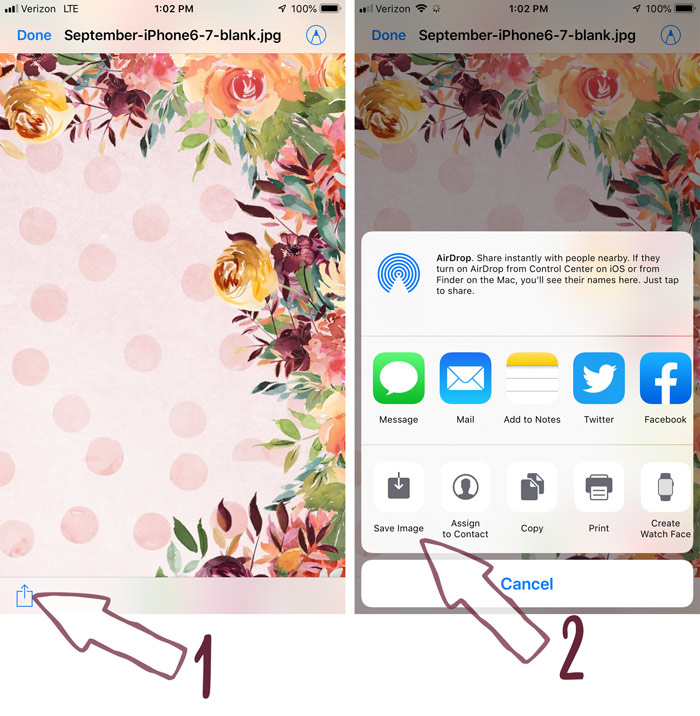
- Tap the Image: Open the Messages thread and tap on the photo you want to save so that it opens full-screen.
- Find the Share Button: Look in the bottom-left corner (or sometimes the top-right) for the "Share" icon (a square with an upward-pointing arrow).
- Save the Photo: Scroll down the list of options until you see "Save Image" or "Save." Tap this option.
Using this simple method guarantees that the image is saved in its original quality to your Photos app. This is the simplest way when considering How To Download Images On Iphone from direct communication.
Importing Photos from Apps and Services
Many of the images we want to save are hosted on third-party platforms like social media or cloud storage. These apps often require slightly different steps due to their integrated privacy and sharing protocols.
How To Download Images On Iphone from Social Media (e.g., Instagram/Facebook)
Social media platforms are notoriously tricky because they often prioritize viewing over downloading. Instagram, in particular, does not allow the standard long-press technique on feed images, though it is usually enabled for Stories.
For most social media apps, look for one of the following methods:
- The Three Dots (Menu): Tap the three horizontal or vertical dots (known as the kebab menu) usually located in the top-right corner of a post.
- Look for "Save": In the resulting menu, search for options like "Save," "Save Photo," or "Download."
- Grant Permissions: The first time you do this, the app will ask for permission to access your Photos. You must grant this access for the download to complete successfully.
If an image is heavily restricted, your only recourse may be to capture a screenshot. Remember that screenshots save as lower quality files, so always try the native download option first.
Getting Pictures from Cloud Storage (Google Drive & Dropbox)
Cloud services like Google Drive and Dropbox are excellent for backup, but you still need to actively download a file to use it locally on your iPhone or share it easily in your Photos library.
Follow these steps, which are generally consistent across most major cloud platforms:
- Open the App: Launch the cloud storage app (e.g., Google Drive, Dropbox, OneDrive).
- Find the File: Navigate to the folder where the image is stored.
- Access Options: Tap the three dots next to the image file name to open the actions menu.
- Select Export or Download: Look for the "Export" or "Download" option within the menu.
- "Save Image": Once you hit export, the system will prompt you with the standard iOS share sheet. Select "Save Image" to finalize the download to your local iPhone storage.
This method ensures you get the highest resolution version of the picture, directly downloaded from the cloud server.
Advanced Tips and Troubleshooting
Sometimes, your attempts to download images fail, or the photos don't appear in the quality you expected. This is usually due to your iPhone's storage settings, particularly how you manage iCloud Photos.
Understanding iPhone Storage Settings (iCloud Optimization)
If you have iCloud Photos enabled, your iPhone might be set to "Optimize iPhone Storage." This feature replaces high-resolution images with smaller placeholders (thumbnails) to save local space.
If you try to view or share one of these optimized images, your iPhone must first connect to the internet and download the full resolution file from iCloud. If you are offline or have slow Wi-Fi, the download will fail or take a very long time.
To ensure all your photos are locally available, you can change this setting:
- Go to Settings > [Your Name] > iCloud > Photos.
- Change the setting from "Optimize iPhone Storage" to "Download and Keep Originals."
Be warned: Choosing "Download and Keep Originals" will rapidly consume your local storage, so only use this if you have plenty of room available.
Checking Your Storage Space
A common reason for failed downloads is simply running out of storage. Your iPhone needs available free space to complete the saving process.
To check how much room you have:
Go to Settings > General > iPhone Storage.
If you are near your limit, you need to clear out some unused apps or videos before attempting to download images on iPhone successfully.
Fixing Common Download Issues
If you are connected to Wi-Fi and have plenty of storage but still can't save a picture, try these quick fixes:
- Restart the App: Force-close the app (Safari, Messages, etc.) and reopen it.
- Restart the Phone: A simple power cycle can fix temporary software glitches preventing file access.
- Check App Permissions: Go to Settings > Privacy & Security > Photos. Ensure the app you are downloading from (like Facebook or Dropbox) has "Add Photos Only" or "Full Access" permission.
By checking your storage and ensuring your permissions are set correctly, you eliminate the most frequent obstacles when trying to save media.
Conclusion
Learning how to download images on iPhone is fundamentally about mastering the "long press" technique and understanding the nuances of third-party apps and cloud services. We covered methods ranging from simple web saves to troubleshooting complex iCloud settings.
The key takeaway is that almost every image on your screen can be saved using the Share button or a long press, provided the source application allows it and you have granted the necessary photo library permissions. Keep your storage clear and your permissions current, and you'll never miss out on saving a favorite picture again.
Frequently Asked Questions (FAQ)
- Can I download multiple images at once on my iPhone?
- Yes, in the Messages app, you can sometimes tap and hold one image, then tap "Select" and choose multiple photos to save simultaneously using the Share sheet. In browsers, you generally have to save one by one.
- Why does my image look blurry after downloading?
- If your downloaded image is blurry, it is likely because your iPhone is set to "Optimize iPhone Storage" in iCloud Photos settings. It only downloaded a low-resolution placeholder. Ensure you have a stable internet connection so the device can pull the full-resolution file from iCloud.
- Where do downloaded images go on my iPhone?
- All images saved using the "Add to Photos" or "Save Image" option are automatically stored in the Photos app, specifically in the "Recents" album (or Camera Roll on older iOS versions).
- Can I download images from a private Instagram account?
- If you follow the private account, you can typically use the app's native download function (usually via the three dots menu in the post). However, if the download option is unavailable, you will need to rely on the screenshot method, as Instagram heavily restricts content access.
How To Download Images On Iphone
How To Download Images On Iphone Wallpapers
Collection of how to download images on iphone wallpapers for your desktop and mobile devices.
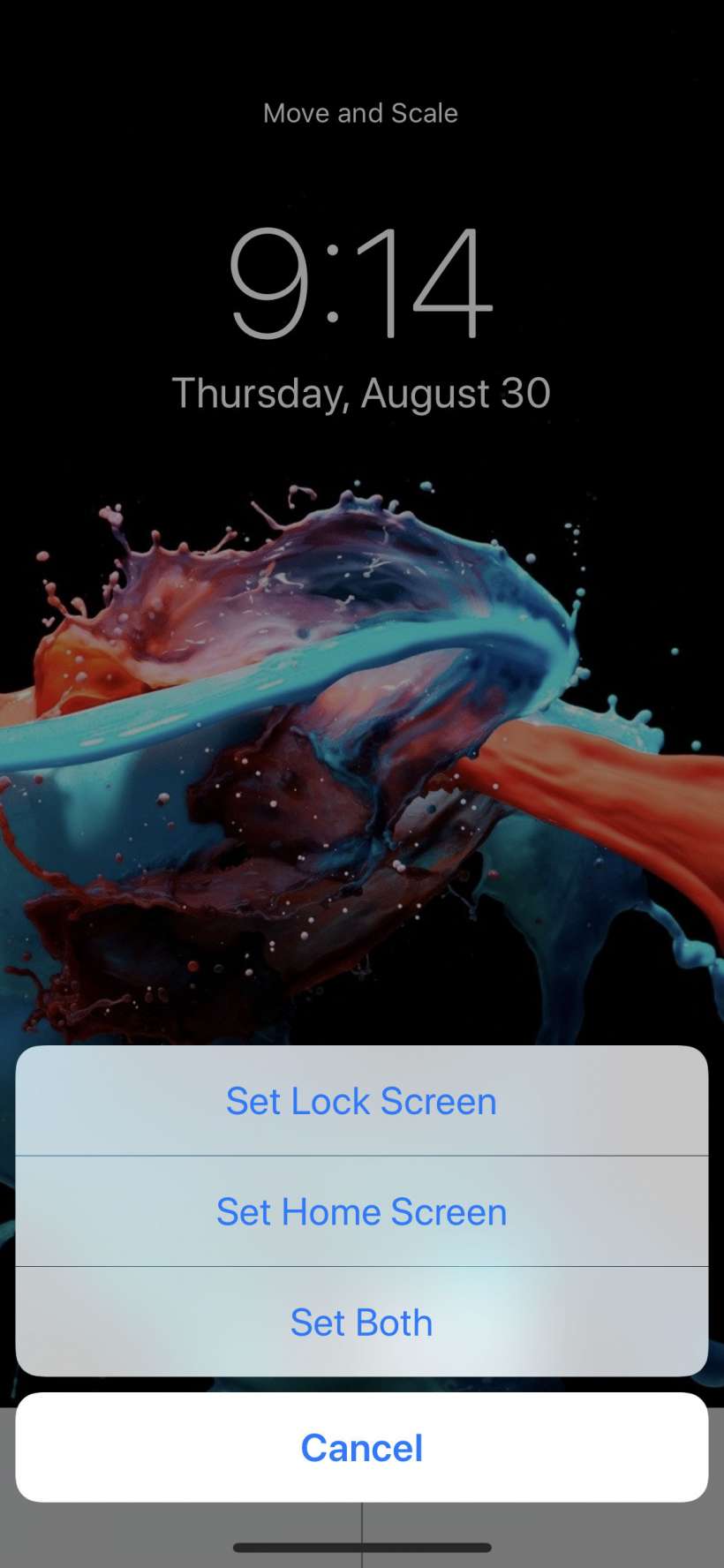
Breathtaking How To Download Images On Iphone Scene in 4K
Transform your screen with this vivid how to download images on iphone artwork, a true masterpiece of digital design.
Gorgeous How To Download Images On Iphone Photo Digital Art
A captivating how to download images on iphone scene that brings tranquility and beauty to any device.

Vibrant How To Download Images On Iphone Landscape Art
Transform your screen with this vivid how to download images on iphone artwork, a true masterpiece of digital design.
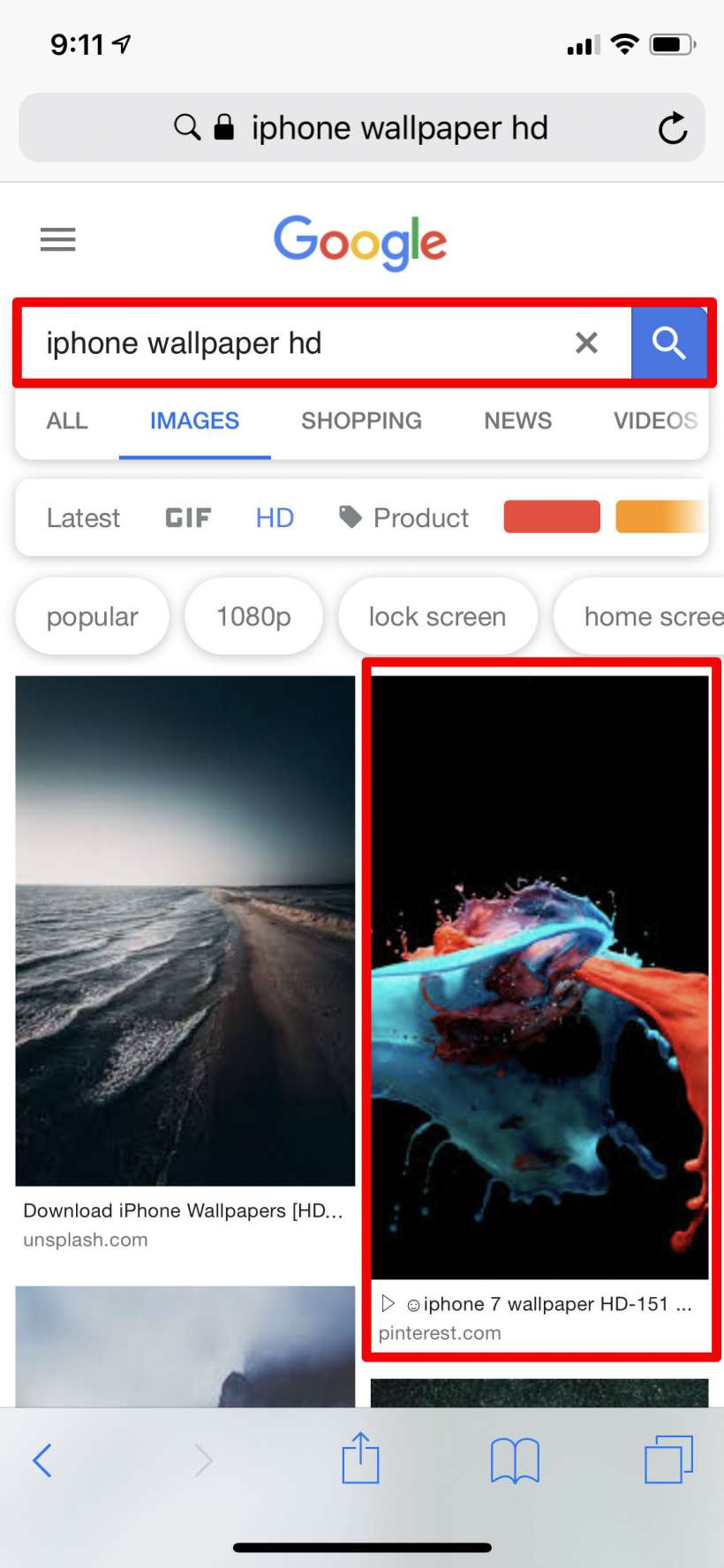
Amazing How To Download Images On Iphone Moment Collection
Explore this high-quality how to download images on iphone image, perfect for enhancing your desktop or mobile wallpaper.

Captivating How To Download Images On Iphone Landscape Concept
Find inspiration with this unique how to download images on iphone illustration, crafted to provide a fresh look for your background.

High-Quality How To Download Images On Iphone Abstract Illustration
Transform your screen with this vivid how to download images on iphone artwork, a true masterpiece of digital design.
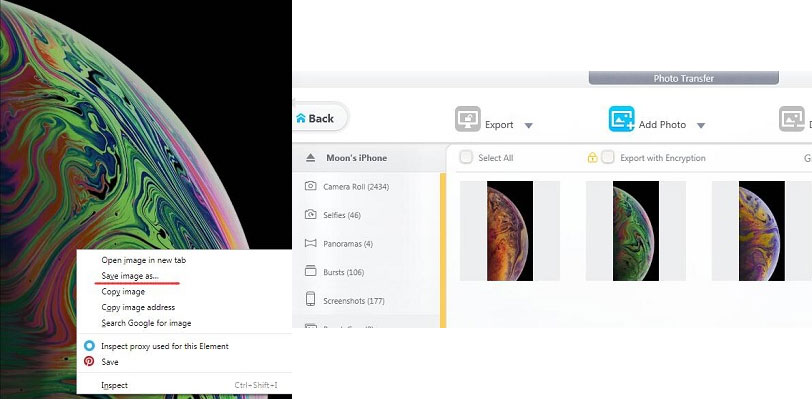
Stunning How To Download Images On Iphone Photo Photography
Immerse yourself in the stunning details of this beautiful how to download images on iphone wallpaper, designed for a captivating visual experience.
Stunning How To Download Images On Iphone Artwork Concept
A captivating how to download images on iphone scene that brings tranquility and beauty to any device.
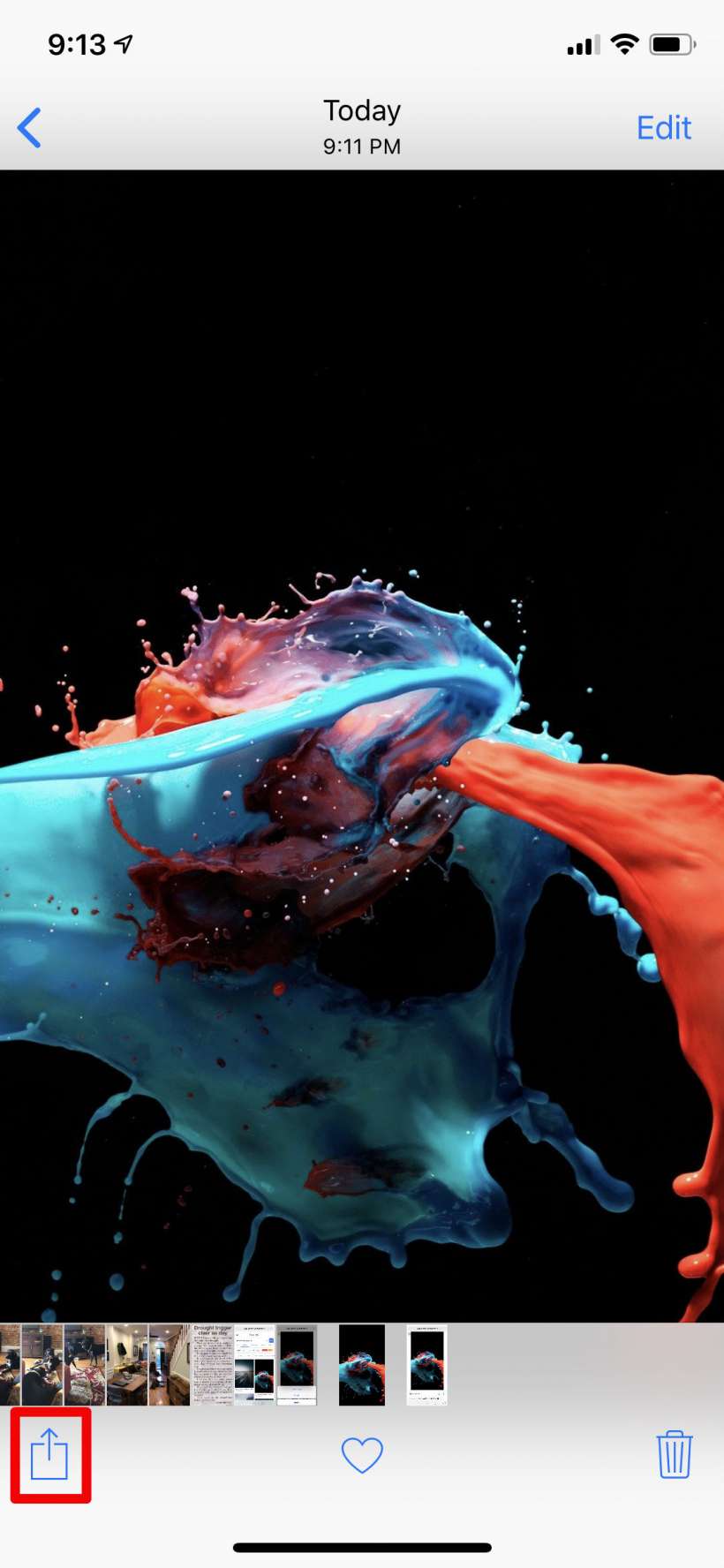
Artistic How To Download Images On Iphone Background Photography
Immerse yourself in the stunning details of this beautiful how to download images on iphone wallpaper, designed for a captivating visual experience.

Crisp How To Download Images On Iphone Moment Concept
Find inspiration with this unique how to download images on iphone illustration, crafted to provide a fresh look for your background.
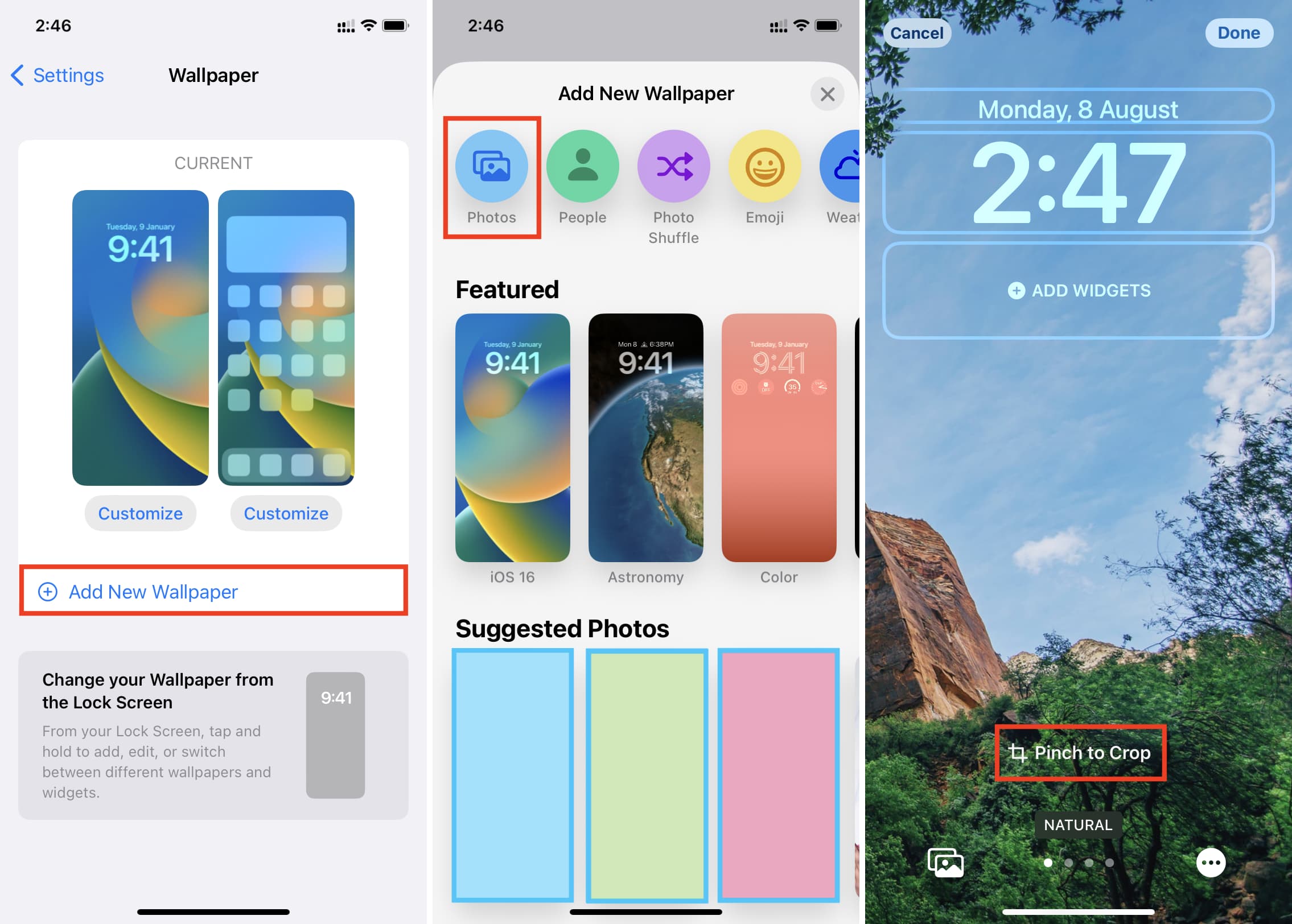
Spectacular How To Download Images On Iphone Artwork Digital Art
This gorgeous how to download images on iphone photo offers a breathtaking view, making it a perfect choice for your next wallpaper.
Exquisite How To Download Images On Iphone Artwork Collection
Immerse yourself in the stunning details of this beautiful how to download images on iphone wallpaper, designed for a captivating visual experience.
Artistic How To Download Images On Iphone Photo Illustration
Find inspiration with this unique how to download images on iphone illustration, crafted to provide a fresh look for your background.
Amazing How To Download Images On Iphone Background for Mobile
Discover an amazing how to download images on iphone background image, ideal for personalizing your devices with vibrant colors and intricate designs.

Serene How To Download Images On Iphone Picture Art
Discover an amazing how to download images on iphone background image, ideal for personalizing your devices with vibrant colors and intricate designs.
Beautiful How To Download Images On Iphone Landscape Collection
Discover an amazing how to download images on iphone background image, ideal for personalizing your devices with vibrant colors and intricate designs.

Beautiful How To Download Images On Iphone Moment Concept
Transform your screen with this vivid how to download images on iphone artwork, a true masterpiece of digital design.
Crisp How To Download Images On Iphone Background Photography
Find inspiration with this unique how to download images on iphone illustration, crafted to provide a fresh look for your background.
Detailed How To Download Images On Iphone Abstract in HD
Discover an amazing how to download images on iphone background image, ideal for personalizing your devices with vibrant colors and intricate designs.
Breathtaking How To Download Images On Iphone Moment Collection
Transform your screen with this vivid how to download images on iphone artwork, a true masterpiece of digital design.
Download these how to download images on iphone wallpapers for free and use them on your desktop or mobile devices.