How To Delete Multiple Messages In Iphone: The Ultimate Guide to Clearing Clutter
Do you ever feel like your iPhone is drowning under a mountain of old, irrelevant text messages? If your Messages app is sluggish, or you keep getting warnings about low storage, it's time for a digital clean-up. Trying to delete messages one by one is painful and inefficient. Luckily, there are simple, effective ways on How To Delete Multiple Messages In Iphone quickly and efficiently.
This comprehensive guide will walk you through the easiest methods to reclaim your phone storage, improve performance, and keep your inbox tidy. Let's dive in and learn how to get rid of that digital clutter once and for all!
Why You Need to Delete Old iPhone Messages (Storage and Privacy)
While text messages seem small, conversations packed with photos, videos, and large attachments can quickly consume Gigabytes of valuable space. Over time, these unnecessary files accumulate, slowing down your device and hogging memory that could be used for new apps or files.
Beyond storage, deleting old threads is crucial for privacy. Whether you are selling your phone or simply handing it over for a repair, minimizing the amount of personal history stored locally is always a good security practice.
The Standard Way: Selecting Threads to Delete
Before we explore the bulk methods, it's helpful to know the standard procedure for deleting entire conversation threads right from the main Messages screen. This method is great if you only have a few specific conversations you want to wipe out.
- Open the Messages app on your iPhone.
- Locate the conversation thread you wish to delete.
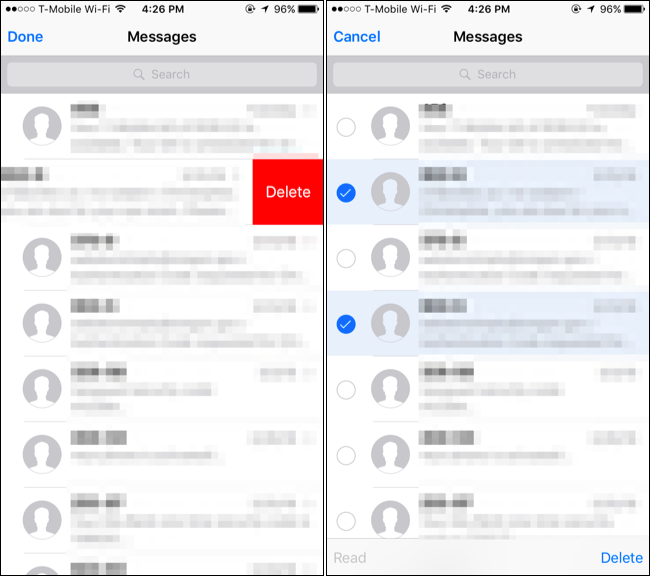
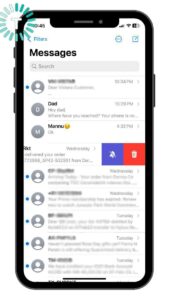
- Swipe left on the conversation thread.
- A red "Delete" option (or trash can icon) will appear. Tap it to permanently remove the entire conversation history.
If you prefer a visual selection method, the "Edit" function, which we will detail later, works even better for simultaneously deleting multiple entire threads.
The Essential Techniques: How To Delete Multiple Messages In Iphone Simultaneously
When you have dozens of old spam messages, one-time verification codes, or short, forgotten chats cluttering your inbox, you need powerful tools. We are focusing on two distinct scenarios here: deleting several individual messages *within* one thread, and deleting several *entire* threads at once.
Method 1: Deleting Individual Messages within a Conversation
Sometimes you want to keep the conversation thread with a person but delete a few specific messages—perhaps a large attachment or a sensitive piece of information. The iPhone allows you to select multiple items inside a single thread for deletion.
This process is very handy for cleaning up those massive media files without losing the context of the overall chat history.
Step-by-Step Guide for Bulk Selection
Follow these steps closely to select and delete groups of messages inside one ongoing conversation:
- Open the Messages app and tap the specific conversation you want to clean up.
- Tap and hold (long press) on the first message you wish to delete.
- A menu will pop up. Select "More..." (It usually has three dots).
- You will now see a small circle next to every single message in the conversation.
- Tap the circle next to every message you want to select for deletion. You can scroll up and down and tap as many as you need.
- Once all unwanted messages are selected, tap the Trash icon located at the bottom right corner of the screen.
- Confirm the action by tapping "Delete Message(s)."
That's it! The selected messages are gone, but the rest of the conversation remains intact. This is the most precise way to handle How To Delete Multiple Messages In Iphone without erasing everything.
Method 2: Mass Deletion of Entire Conversations
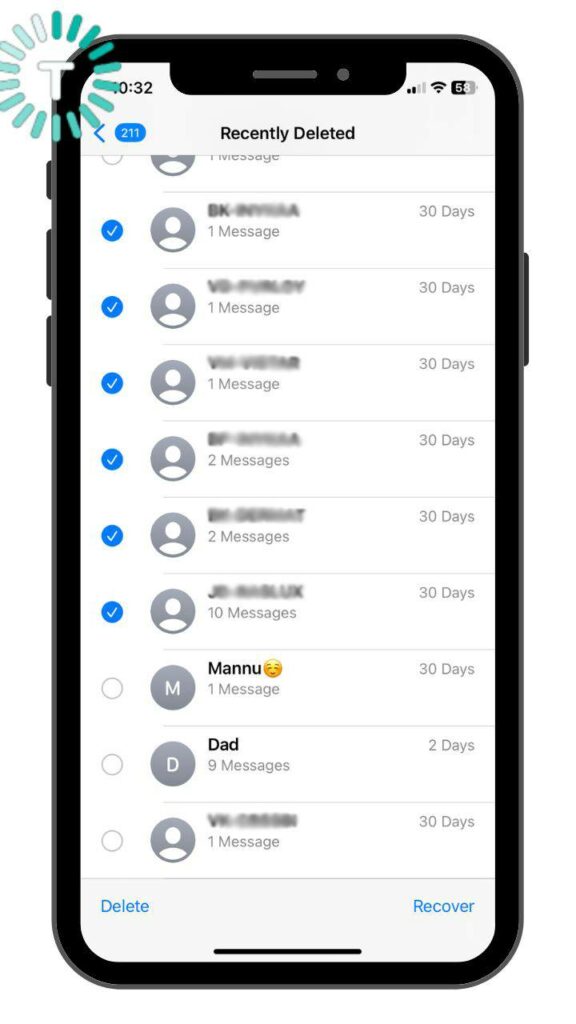
If you are tackling a huge backlog of conversations—say, old group chats you no longer need or hundreds of promotional texts—the swipe-left method is simply too slow. For true bulk deletion of entire threads, we utilize the "Edit" function available on the main Messages screen.
This technique is perfect for clearing out dozens of threads in seconds, offering the fastest solution for mass text removal.
Using the Edit Feature for Quick Wipes
Follow these steps to quickly select and delete multiple message threads:
- Open your Messages app and make sure you are on the main list of conversations.
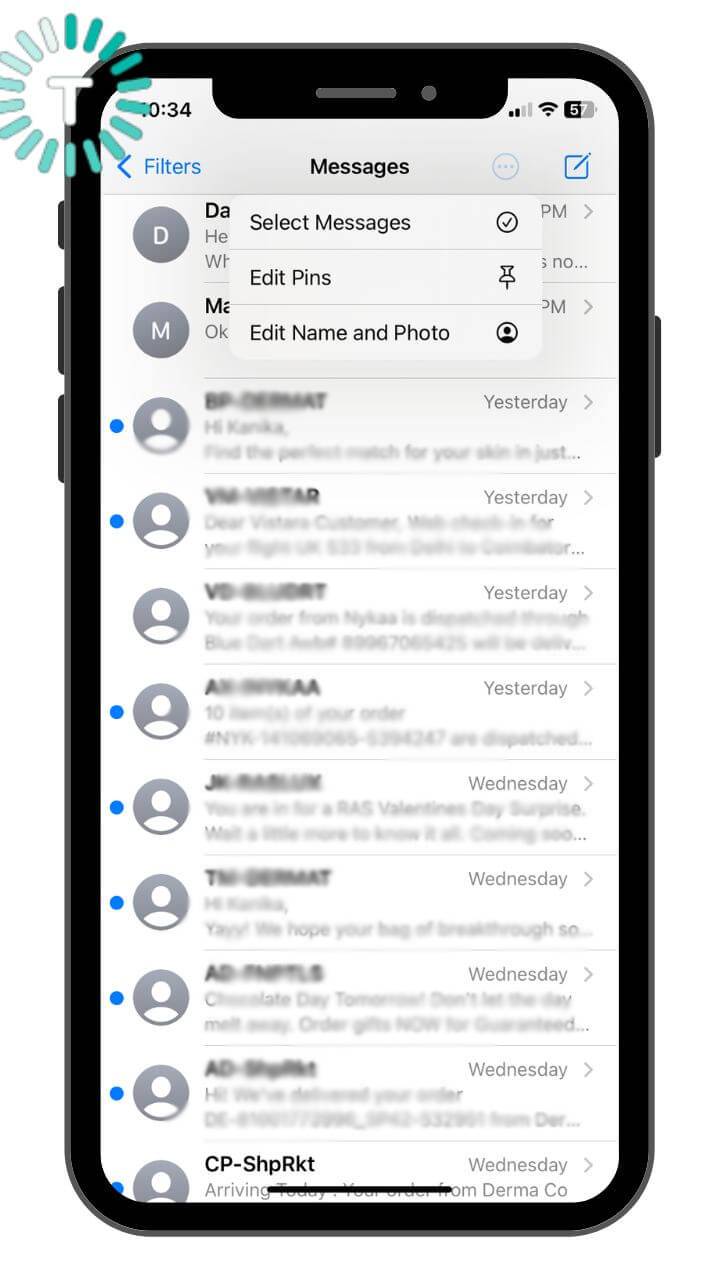
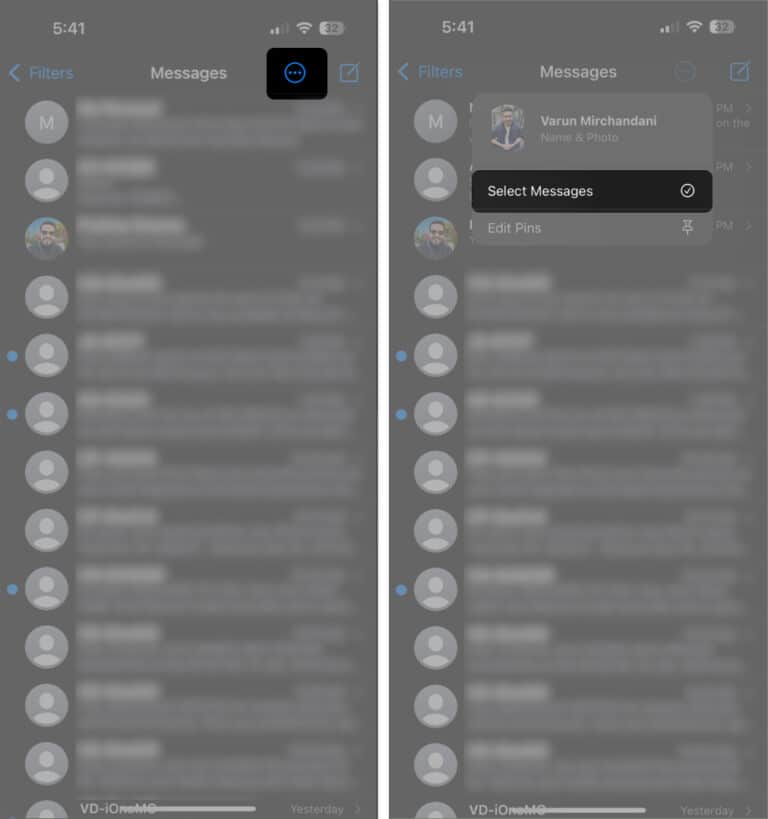
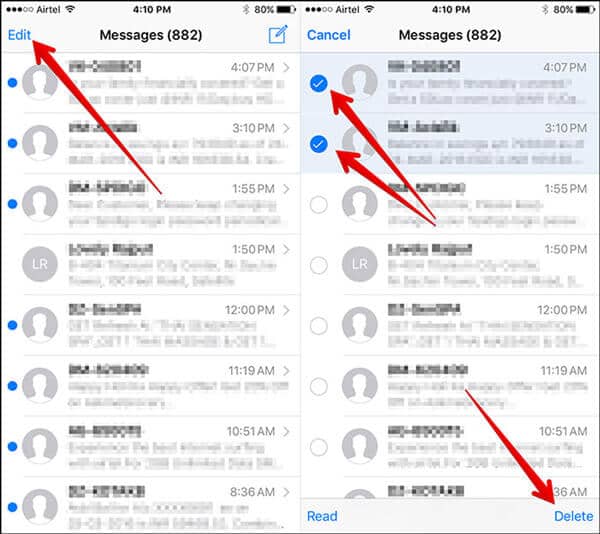
- Look for the "Edit" button, usually located in the top-left corner of the screen (or sometimes a three-dot menu, depending on your iOS version). Tap "Edit."
- Select "Select Messages" from the menu that appears.
- Circles will now appear next to all your conversation threads.
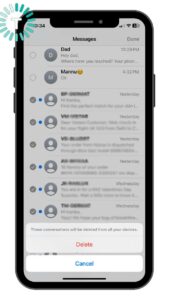
- Tap the circle next to every conversation you want to delete. Scroll quickly through your list and mark the unwanted threads.
- Once you have selected all the conversations, tap the "Delete" button (often a trash can icon) in the bottom-right corner.
- Confirm the deletion. All selected threads, along with every message and attachment they contain, will be permanently removed.
Using the "Select Messages" option is undoubtedly the most efficient way to achieve How To Delete Multiple Messages In Iphone when dealing with entire conversation histories.
Advanced Strategy: Setting Auto-Delete Limits (Preventative Maintenance)
Instead of waiting for your phone to get completely full before you delete messages, why not set up your iPhone to clean itself up automatically? This feature is a fantastic way to prevent future storage issues without you having to lift a finger.
By default, your iPhone is set to keep messages "Forever." Changing this setting is highly recommended for anyone struggling with storage space.
Here's how to enable message auto-deletion:
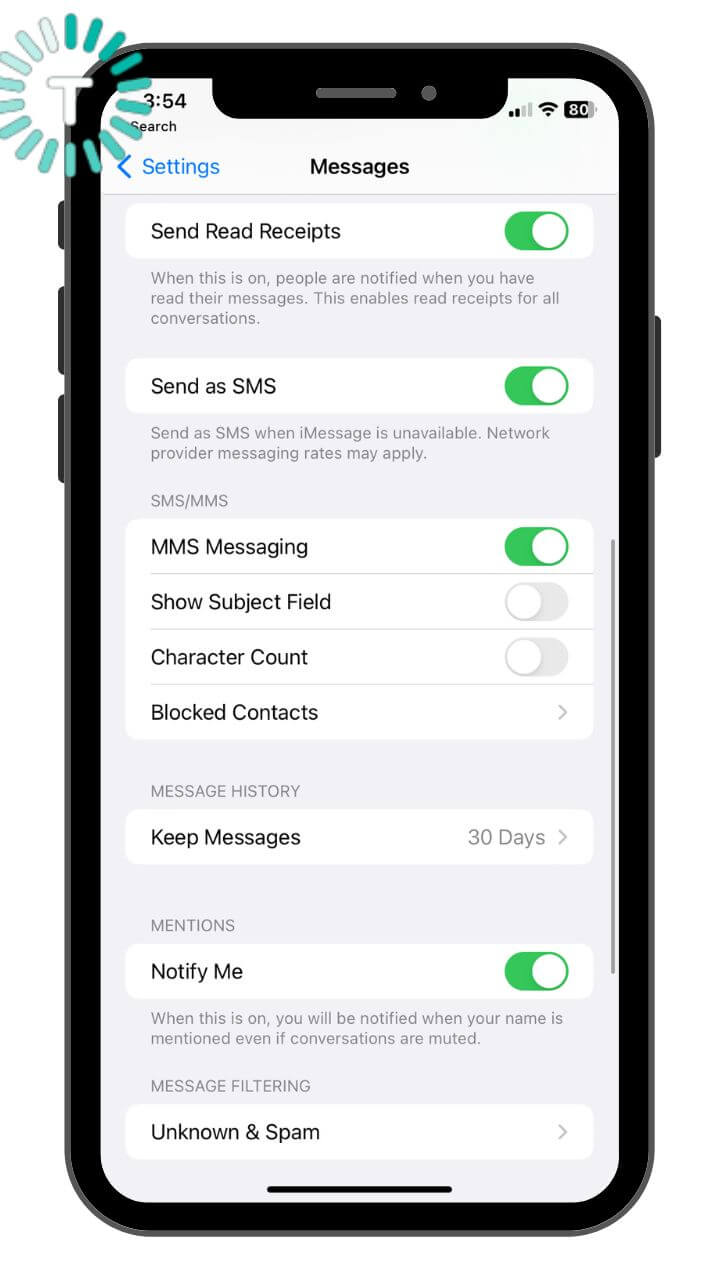
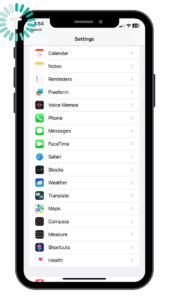
- Go to your iPhone's main "Settings" app.
- Scroll down and tap on "Messages."
- Under the "Message History" section, tap on "Keep Messages."
- You will see three options: "30 Days," "1 Year," or "Forever."
- Choose "30 Days" or "1 Year."
When you select a time limit, your iPhone will automatically and permanently delete all text messages and attachments older than that period. For most users, setting it to "1 Year" is a safe bet, as it retains recent history while deleting older, space-consuming threads.
Remember that this setting applies to all conversations, including those you might want to keep forever. Make sure you back up any critical threads before changing this setting, just in case.
Conclusion
Taming a messy iPhone inbox is easier than you think, provided you know the right techniques. We covered three main strategies to master How To Delete Multiple Messages In Iphone: the precise individual message selection within a thread, the speedy mass deletion of entire threads via the Edit menu, and the crucial preventative measure of setting auto-deletion limits in your Messages settings.
By implementing these tips, you not only free up valuable storage space but also ensure a smoother, faster overall iPhone experience. Take a few minutes today to clean out those old texts, and enjoy your clutter-free device!
Frequently Asked Questions (FAQ)
- Can I recover messages after I delete them?
- Once you tap "Delete Message(s)," the texts are generally permanently removed from your iPhone and cannot be recovered unless you restore your device from an iCloud or iTunes backup that was created before the deletion occurred.
- Does deleting messages free up storage immediately?
- Yes, deleting messages, especially those containing large media files (photos, videos), immediately frees up storage space. You can verify this by checking your iPhone Storage settings before and after a mass deletion.
- Is there a way to select ALL messages on my iPhone and delete them at once?
- There is no one-click "Delete All" button for messages across all threads. The closest methods are using the "Select Messages" feature on the main list to mark every thread manually, or activating the auto-delete feature to wipe out old messages based on the time limit you set.
- Will deleting messages delete my contact's messages too?
- No. Deleting a conversation on your iPhone only removes the history from your device. The person you were messaging will still have the entire conversation history on their phone.
How To Delete Multiple Messages In Iphone
How To Delete Multiple Messages In Iphone Wallpapers
Collection of how to delete multiple messages in iphone wallpapers for your desktop and mobile devices.
Spectacular How To Delete Multiple Messages In Iphone Artwork in 4K
Immerse yourself in the stunning details of this beautiful how to delete multiple messages in iphone wallpaper, designed for a captivating visual experience.

Breathtaking How To Delete Multiple Messages In Iphone Wallpaper Photography
Experience the crisp clarity of this stunning how to delete multiple messages in iphone image, available in high resolution for all your screens.

Spectacular How To Delete Multiple Messages In Iphone Design Illustration
A captivating how to delete multiple messages in iphone scene that brings tranquility and beauty to any device.

Mesmerizing How To Delete Multiple Messages In Iphone Artwork Digital Art
Discover an amazing how to delete multiple messages in iphone background image, ideal for personalizing your devices with vibrant colors and intricate designs.
High-Quality How To Delete Multiple Messages In Iphone Abstract Digital Art
Discover an amazing how to delete multiple messages in iphone background image, ideal for personalizing your devices with vibrant colors and intricate designs.
Amazing How To Delete Multiple Messages In Iphone Artwork Digital Art
Explore this high-quality how to delete multiple messages in iphone image, perfect for enhancing your desktop or mobile wallpaper.

Amazing How To Delete Multiple Messages In Iphone Artwork for Your Screen
Experience the crisp clarity of this stunning how to delete multiple messages in iphone image, available in high resolution for all your screens.
Amazing How To Delete Multiple Messages In Iphone Artwork for Desktop
Explore this high-quality how to delete multiple messages in iphone image, perfect for enhancing your desktop or mobile wallpaper.
Vivid How To Delete Multiple Messages In Iphone Abstract Illustration
Transform your screen with this vivid how to delete multiple messages in iphone artwork, a true masterpiece of digital design.
Serene How To Delete Multiple Messages In Iphone Image Collection
Explore this high-quality how to delete multiple messages in iphone image, perfect for enhancing your desktop or mobile wallpaper.

High-Quality How To Delete Multiple Messages In Iphone Background Digital Art
Discover an amazing how to delete multiple messages in iphone background image, ideal for personalizing your devices with vibrant colors and intricate designs.
Captivating How To Delete Multiple Messages In Iphone Image Art
This gorgeous how to delete multiple messages in iphone photo offers a breathtaking view, making it a perfect choice for your next wallpaper.
Breathtaking How To Delete Multiple Messages In Iphone Background Concept
Discover an amazing how to delete multiple messages in iphone background image, ideal for personalizing your devices with vibrant colors and intricate designs.
Lush How To Delete Multiple Messages In Iphone Photo in HD
Immerse yourself in the stunning details of this beautiful how to delete multiple messages in iphone wallpaper, designed for a captivating visual experience.
Vibrant How To Delete Multiple Messages In Iphone Abstract Illustration
Discover an amazing how to delete multiple messages in iphone background image, ideal for personalizing your devices with vibrant colors and intricate designs.
Stunning How To Delete Multiple Messages In Iphone Scene for Mobile
Find inspiration with this unique how to delete multiple messages in iphone illustration, crafted to provide a fresh look for your background.
Artistic How To Delete Multiple Messages In Iphone Artwork Digital Art
Immerse yourself in the stunning details of this beautiful how to delete multiple messages in iphone wallpaper, designed for a captivating visual experience.
Amazing How To Delete Multiple Messages In Iphone View for Desktop
Explore this high-quality how to delete multiple messages in iphone image, perfect for enhancing your desktop or mobile wallpaper.
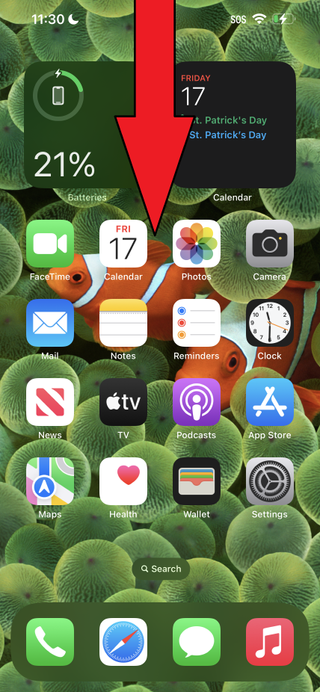
Crisp How To Delete Multiple Messages In Iphone Image Collection
A captivating how to delete multiple messages in iphone scene that brings tranquility and beauty to any device.
Vibrant How To Delete Multiple Messages In Iphone Image Illustration
Discover an amazing how to delete multiple messages in iphone background image, ideal for personalizing your devices with vibrant colors and intricate designs.
Download these how to delete multiple messages in iphone wallpapers for free and use them on your desktop or mobile devices.