How To Change Your Location On Find My Iphone: The Ultimate Guide to Spoofing and Privacy
Are you looking for ways to control the location data broadcasted by your iPhone? Whether you are testing an app, seeking better privacy, or just trying to pull a harmless prank, knowing how to change your location on Find My iPhone is a hot topic for many iOS users. It is important to realize that truly changing your device's GPS location requires different methods than simply adjusting settings.
This comprehensive guide will walk you through the legitimate methods available within the Apple ecosystem and explore the more technical methods used for location spoofing. We will cover everything you need to know, from switching reporting devices to using specialized software, ensuring you have the information necessary to proceed safely.
Why Would You Want to Change Your Find My Location?
The Find My app relies on accurate GPS data, but sometimes, broadcasting your real location isn't ideal. There are several common reasons why users seek to alter or hide their location data.
- Privacy Concerns: You may not want family or friends (who you share location with) knowing your exact whereabouts 24/7.
- Accessing Geo-Restricted Content: While less common for the Find My app itself, changing your location can sometimes help access regionally locked services or games.
- App Testing and Development: Developers often need to simulate different geographical locations to test how their applications behave in various regions.
- Pranking or Surprising Others: Sometimes, people simply want to appear somewhere they are not for fun or to avoid uncomfortable questions.
Whatever your motivation, understanding the mechanisms behind location tracking is the first step toward successfully changing your reported location.
Method 1: The Legitimate Way (Switching Devices)
It's crucial to understand that Apple does not offer a direct setting that allows you to manually type in a fake location for your iPhone. However, if you possess multiple Apple devices (like an iPhone and an iPad or Apple Watch), you can decide which device reports your location in the Find My app.
This is the only sanctioned way to essentially "change" your location without using external software. If you leave your reporting iPad at home, and then go out with your iPhone, your Find My location will stay put at your home address.
Here's how to ensure the correct device is reporting your whereabouts:
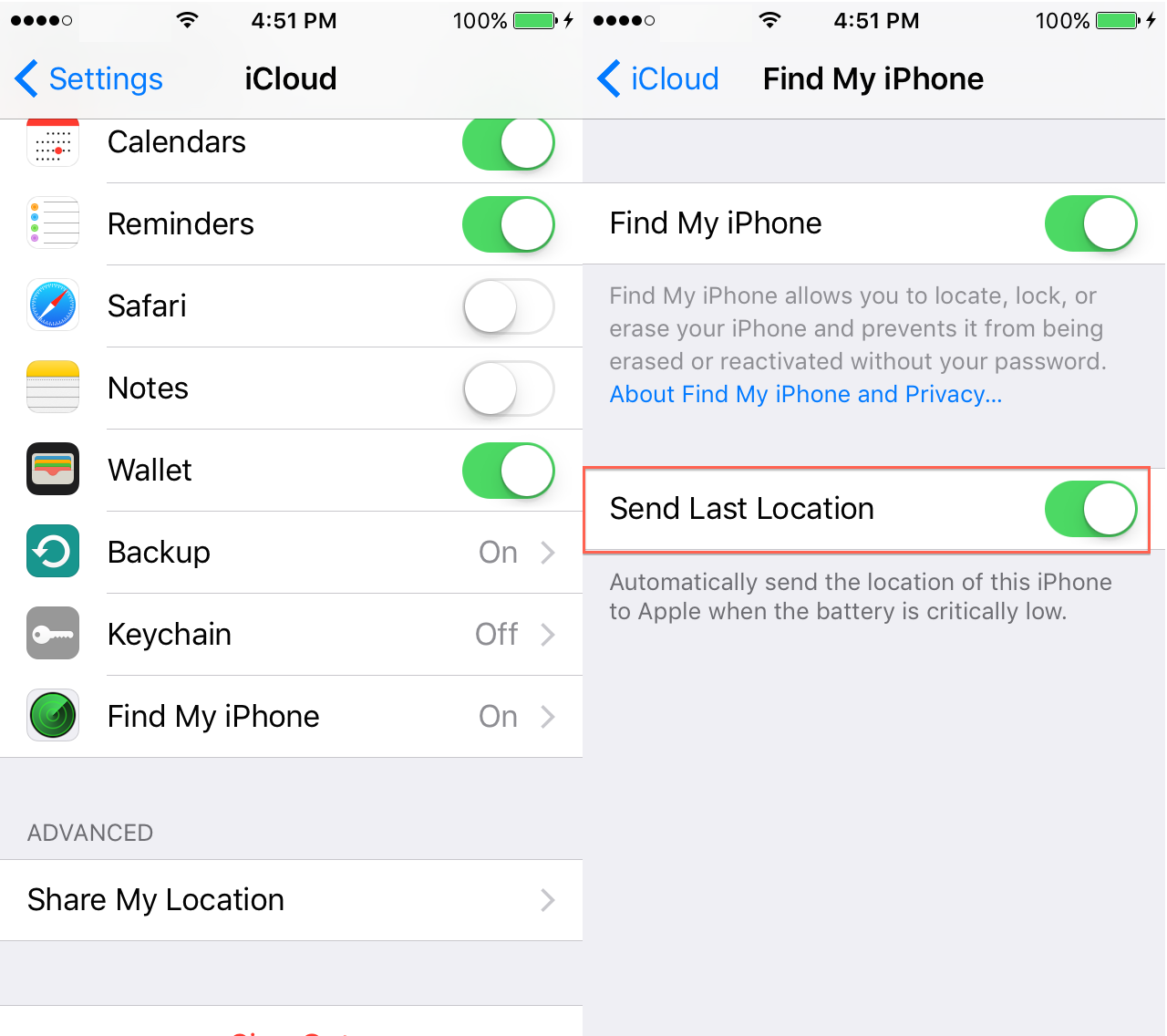
- On the device you want to use for location sharing (the one whose location you want to be visible), open the Settings app.
- Tap your name/Apple ID profile at the very top.
- Navigate to 'Find My'.
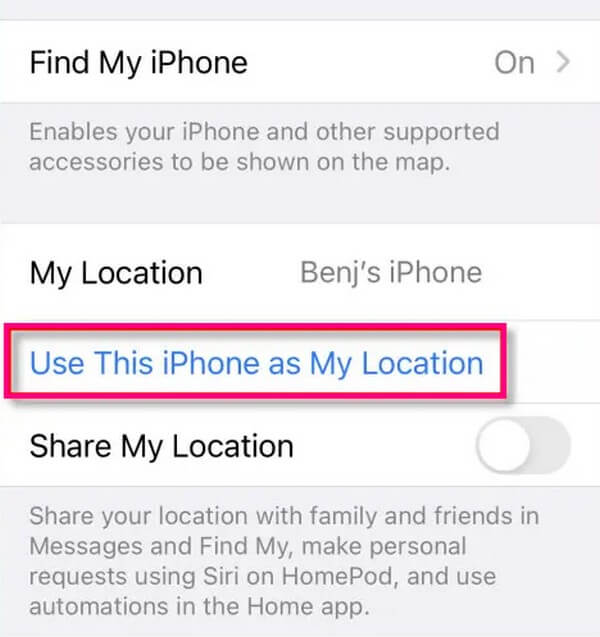
- Look for the option 'Use This [Device Name] as My Location'.
- Toggle this switch on. This device will now be the primary reporting source for everyone you share your location with.
By simply leaving your primary reporting device at a static location, anyone checking Find My will see that device's location, effectively allowing you to mask your actual travel with your other devices.
Method 2: The Technical Approach (Location Spoofing)
If you genuinely want your iPhone to report a location that it is currently not physically occupying—meaning, you want to trick the GPS chip and all location services like Find My, Maps, and weather apps—you need to use location spoofing. This usually requires connecting your iPhone to a computer running specialized software.
This method directly modifies the GPS data transmitted by your iPhone to the iOS system. When done correctly, the Find My app will genuinely believe your device is located in Paris, Tokyo, or anywhere else you choose.
Using a Reliable Third-Party Tool
Dedicated GPS location spoofers are the most effective solution for those who want to know how to change your location on Find My iPhone precisely and easily. These tools typically work via a desktop application (for Mac or Windows) and require you to connect your iPhone via USB.
While we cannot recommend a specific brand, the process generally follows these steps. Remember, always use reputable software to avoid security risks.
- Download and install a trusted location spoofing application on your computer.
- Launch the application and connect your iPhone to the computer using a lightning cable.
- Follow the on-screen prompts to trust the computer on your iPhone.
- In the spoofing software, select the 'Teleport Mode' or 'Modify Location' option.
- Use the map interface within the software to select your desired fake location (e.g., input coordinates or search an address).
- Confirm the selection. Your iPhone's GPS data will now be overridden, and Find My will display the new, fake location.
Note that this change is often temporary. If you disconnect your phone or restart it, the iPhone usually reverts to its true geographical location. Some advanced tools, however, allow the spoofed location to persist for longer periods.
Utilizing VPNs and Proxies (A Clarification)
Many users mistakenly believe that activating a VPN (Virtual Private Network) will change their location displayed on Find My iPhone. This is a common misunderstanding that needs clarification.
A VPN changes your IP address, making it appear as if your internet connection is coming from a different region. This is useful for accessing websites or streaming services. However, Find My iPhone relies on your device's internal GPS hardware and nearby Wi-Fi/cellular tower triangulation, not just your IP address.
Therefore, running a VPN will successfully change your IP location, but it will have absolutely no effect on the GPS coordinates reported by the Find My app. If your goal is to change the GPS location itself, you must use hardware modification or dedicated spoofing software.
Important Considerations Before Location Spoofing
While changing your iPhone's location can be useful, it is not without risks. Before downloading any third-party software to modify your GPS data, consider these important precautions.
- Warranty Voidance and Security: Using unverified software can introduce malware or viruses to your system. Furthermore, Apple does not support location spoofing, and excessive manipulation could potentially lead to issues that void your warranty.
- App Detection: Some advanced applications, particularly high-security games or financial apps, have detection mechanisms that can spot when GPS spoofing is active. Being caught using spoofing tools in these environments can lead to permanent bans.
- Battery Drain: Continuous GPS manipulation and the communication required between the iPhone and the desktop spoofing software can significantly increase battery consumption.
- Jailbreaking (Often Unnecessary): In the past, location spoofing required 'jailbreaking' the iPhone. Modern software tools have largely eliminated this requirement, but be wary of any tool that still demands you jailbreak your device, as this opens up huge security holes.
Always prioritize your device's safety. If you are experimenting with how to change your location on Find My iPhone, stick to reputable tools with positive user reviews.
Conclusion
Successfully controlling how to change your location on Find My iPhone comes down to two main strategies. For a simple, legitimate switch, you can change which Apple device reports your location, allowing you to leave a stationary device behind while you move freely with another.
However, if your goal is true GPS manipulation—to make your iPhone report a fake address while it's still in your hand—you will require specialized third-party location spoofing software connected to a computer. Remember that this technical method carries inherent risks, so proceed with caution and use only trusted tools.
Whether for privacy, testing, or fun, having control over your digital footprint is powerful. Choose the method that best aligns with your needs and security tolerances.
Frequently Asked Questions (FAQ)
- Can I manually enter a fake location in the iPhone Settings?
- No. Apple does not allow users to manually type in arbitrary GPS coordinates to override the location services in the Find My app. You must either use a separate reporting device or third-party spoofing software.
- Is it safe to use location spoofing software?
- It depends on the software. While the act of changing the GPS data itself is generally safe for the phone, using unreliable or pirated software can expose your device to malware. Always research tools thoroughly before installing them.
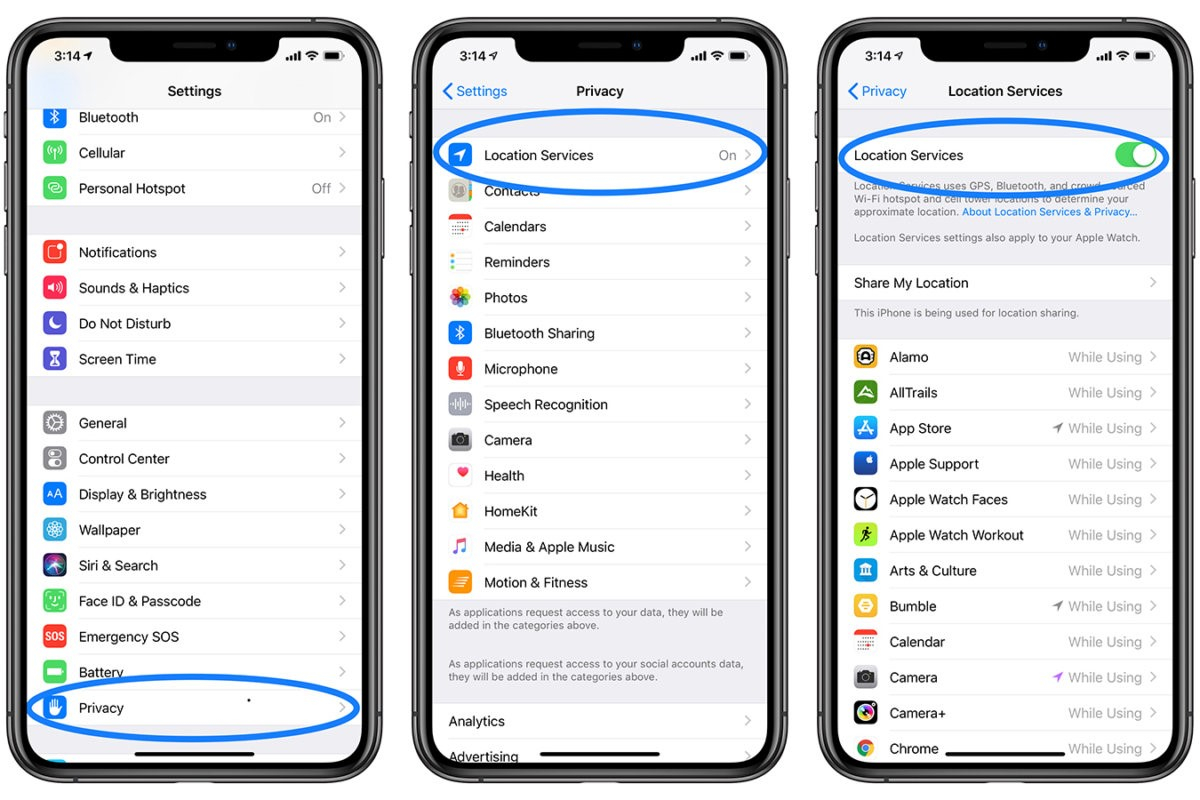
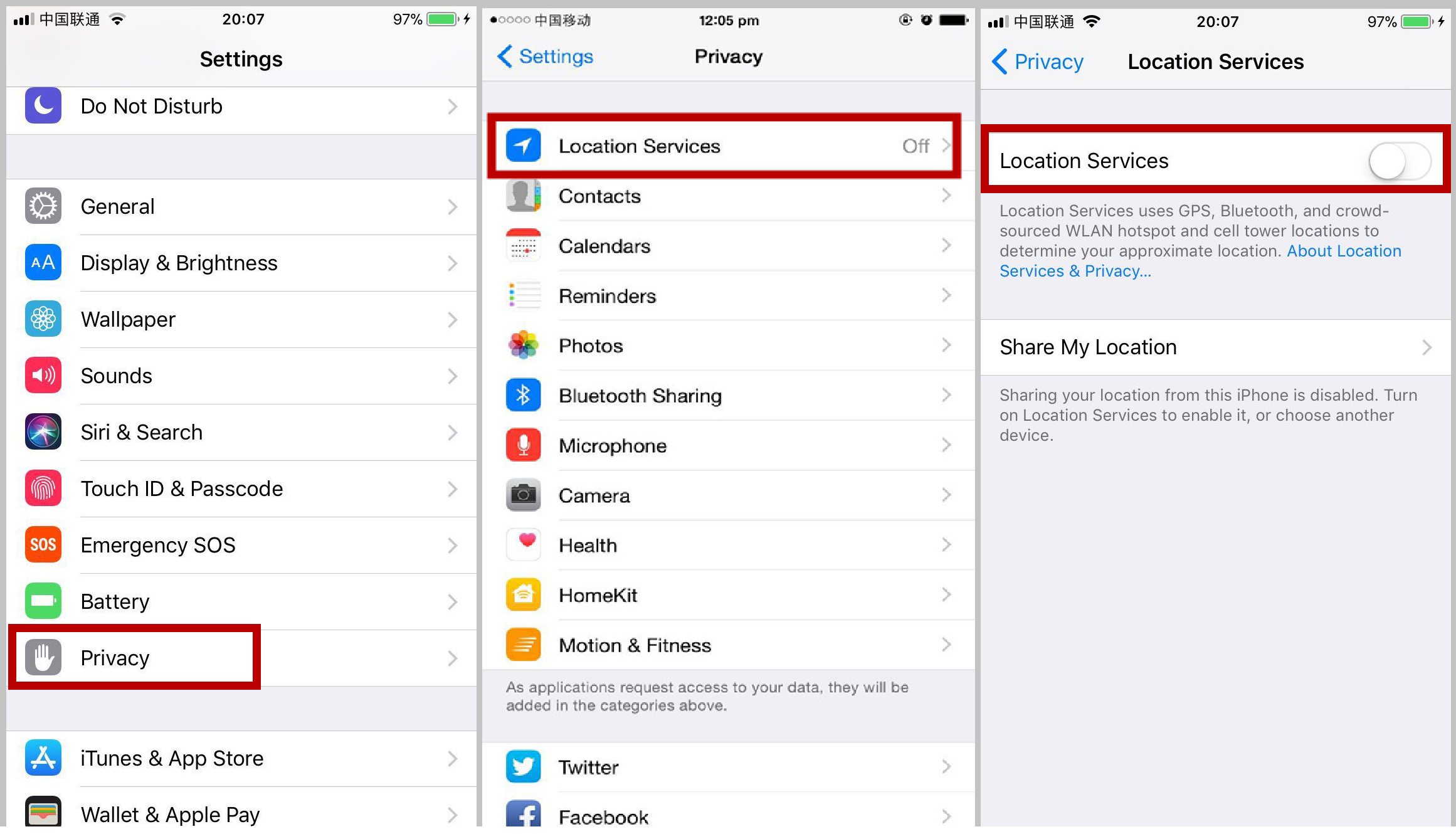
- Does turning off my iPhone location services hide me on Find My?
- Yes, turning off Location Services completely will make your device disappear from the Find My network. However, the app will usually display a message like "Location Not Available" or report the last known location before it was turned off. This doesn't change the location; it just hides it.
- Will my location revert to the real one after I stop spoofing?
- In most cases, yes. Once you disconnect your iPhone from the spoofing software or restart the device, the GPS system will automatically recalibrate and report your true, current physical location.
How To Change Your Location On Find My Iphone
How To Change Your Location On Find My Iphone Wallpapers
Collection of how to change your location on find my iphone wallpapers for your desktop and mobile devices.

High-Quality How To Change Your Location On Find My Iphone Design Illustration
Discover an amazing how to change your location on find my iphone background image, ideal for personalizing your devices with vibrant colors and intricate designs.
Lush How To Change Your Location On Find My Iphone Artwork for Mobile
A captivating how to change your location on find my iphone scene that brings tranquility and beauty to any device.
Lush How To Change Your Location On Find My Iphone Moment Illustration
This gorgeous how to change your location on find my iphone photo offers a breathtaking view, making it a perfect choice for your next wallpaper.

Crisp How To Change Your Location On Find My Iphone Wallpaper Art
Find inspiration with this unique how to change your location on find my iphone illustration, crafted to provide a fresh look for your background.
/images/2022/09/09/turnlocationservicesoff3_1.jpg "Crisp How To Change Your Location On Find My Iphone Design Collection")
Crisp How To Change Your Location On Find My Iphone Design Collection
This gorgeous how to change your location on find my iphone photo offers a breathtaking view, making it a perfect choice for your next wallpaper.
Amazing How To Change Your Location On Find My Iphone Picture Nature
Explore this high-quality how to change your location on find my iphone image, perfect for enhancing your desktop or mobile wallpaper.

Lush How To Change Your Location On Find My Iphone Wallpaper Photography
This gorgeous how to change your location on find my iphone photo offers a breathtaking view, making it a perfect choice for your next wallpaper.
Spectacular How To Change Your Location On Find My Iphone Wallpaper in HD
A captivating how to change your location on find my iphone scene that brings tranquility and beauty to any device.
Captivating How To Change Your Location On Find My Iphone Design for Desktop
Immerse yourself in the stunning details of this beautiful how to change your location on find my iphone wallpaper, designed for a captivating visual experience.

Vibrant How To Change Your Location On Find My Iphone Photo for Your Screen
Transform your screen with this vivid how to change your location on find my iphone artwork, a true masterpiece of digital design.
Stunning How To Change Your Location On Find My Iphone Artwork Illustration
Immerse yourself in the stunning details of this beautiful how to change your location on find my iphone wallpaper, designed for a captivating visual experience.

Serene How To Change Your Location On Find My Iphone Capture in 4K
Experience the crisp clarity of this stunning how to change your location on find my iphone image, available in high resolution for all your screens.
Breathtaking How To Change Your Location On Find My Iphone Moment Collection
Transform your screen with this vivid how to change your location on find my iphone artwork, a true masterpiece of digital design.
Dynamic How To Change Your Location On Find My Iphone Picture Collection
A captivating how to change your location on find my iphone scene that brings tranquility and beauty to any device.
Vibrant How To Change Your Location On Find My Iphone Image Concept
Transform your screen with this vivid how to change your location on find my iphone artwork, a true masterpiece of digital design.
Stunning How To Change Your Location On Find My Iphone View in HD
Immerse yourself in the stunning details of this beautiful how to change your location on find my iphone wallpaper, designed for a captivating visual experience.
Gorgeous How To Change Your Location On Find My Iphone Wallpaper in HD
Find inspiration with this unique how to change your location on find my iphone illustration, crafted to provide a fresh look for your background.
Crisp How To Change Your Location On Find My Iphone Landscape Art
Immerse yourself in the stunning details of this beautiful how to change your location on find my iphone wallpaper, designed for a captivating visual experience.
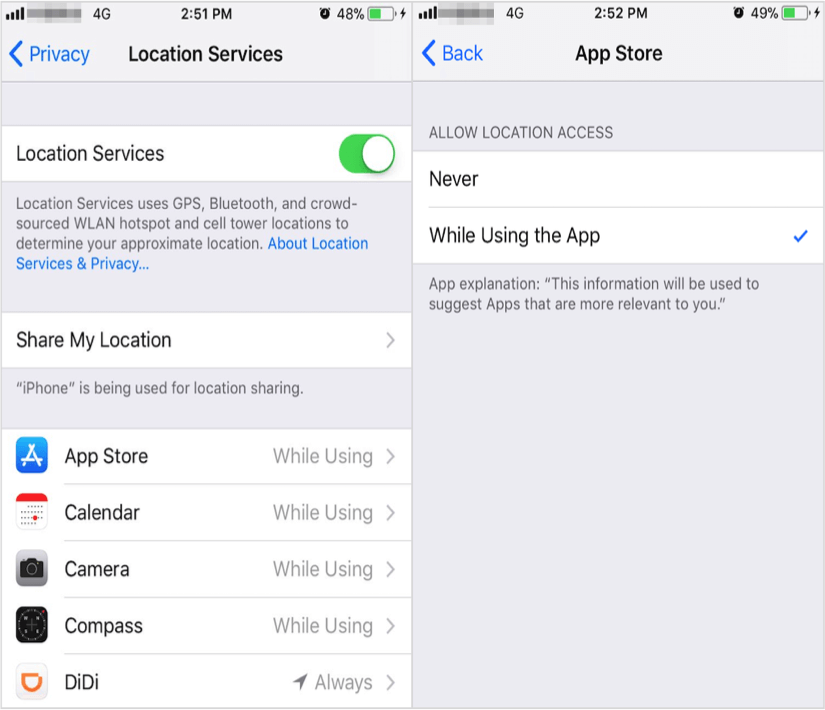
Amazing How To Change Your Location On Find My Iphone Background Art
Transform your screen with this vivid how to change your location on find my iphone artwork, a true masterpiece of digital design.
Crisp How To Change Your Location On Find My Iphone Abstract for Your Screen
Immerse yourself in the stunning details of this beautiful how to change your location on find my iphone wallpaper, designed for a captivating visual experience.
Download these how to change your location on find my iphone wallpapers for free and use them on your desktop or mobile devices.