The Ultimate Guide to Copy Messages From iPhone To iPhone (Naturally and Seamlessly)
Hey there! Just got a shiny new iPhone, but dreading the thought of leaving all your precious chats behind? We get it. Your message history holds important memories, contacts, and maybe even crucial work details. Thankfully, learning how to Copy Messages From iPhone To iPhone isn't complicated at all—in fact, Apple has made the process incredibly smooth.
This guide will walk you through the most reliable methods, ensuring every text, iMessage, and attachment makes the jump successfully. We'll cover everything from the simplest cloud method to the most robust local backup strategy. Ready to transfer those valuable conversations? Let's dive in!
Method 1: The Easiest Way - Using iCloud Backup
For most users, iCloud is the simplest, most hands-off solution to Copy Messages From iPhone To iPhone. This method involves backing up your old device and then restoring that backup onto your new one. It's totally wireless and very convenient, provided you have enough iCloud storage space.
We highly recommend this method if you are moving from one recent iPhone model to another. It preserves app arrangements, settings, and of course, all your messaging history.
Setting Up iCloud Backup on the Old iPhone
Before you transfer anything, you need to make sure your old iPhone has a recent, complete backup stored in the cloud. Remember, this requires a stable Wi-Fi connection and sufficient iCloud storage.
Here's the quick checklist to ensure your messages are included in the backup correctly:
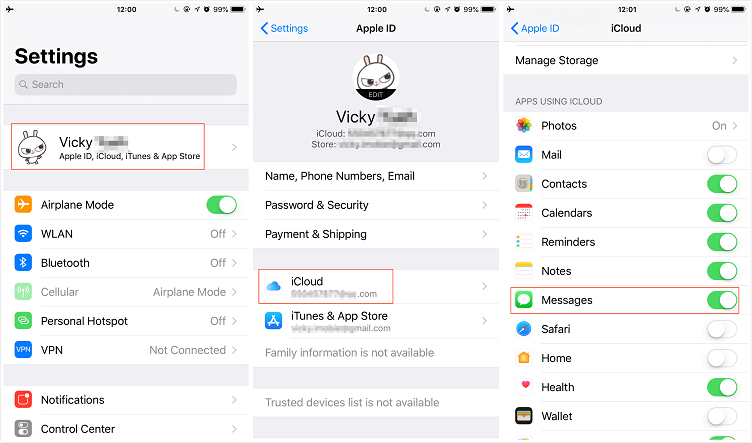
- Go to Settings on your old iPhone.
- Tap your name/Apple ID banner at the very top.
- Select "iCloud."
- Ensure "Messages" is toggled ON under the "Apps Using iCloud" section. This specifically syncs messages instantly across devices logged into the same Apple ID.
- Go back and select "iCloud Backup." Tap "Back Up Now" to create a fresh snapshot.
Wait until the backup process is fully completed. Depending on how much data you have, this could take anywhere from a few minutes to an hour.
Restoring Messages to the New iPhone
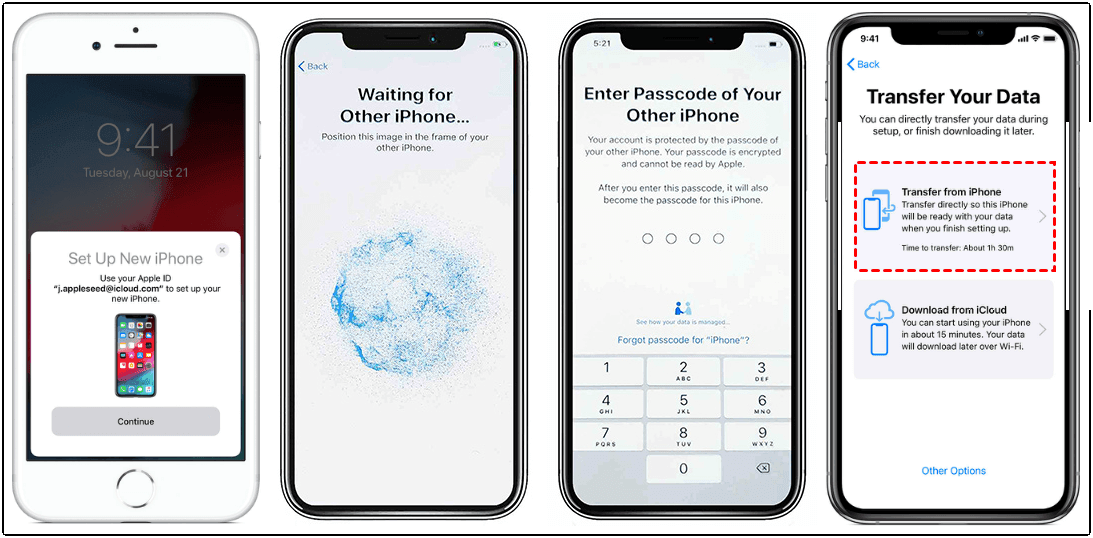
Now, let's get those messages onto your brand new device! If your new phone is already set up, you might need to factory reset it first to access the setup screen (Settings > General > Transfer or Reset iPhone > Erase All Content and Settings). If it's fresh out of the box, you're good to go.
Follow the on-screen prompts until you reach the data transfer options:
- Start the setup process (Hello screen).
- Connect to Wi-Fi.
- When you reach the "Apps & Data" screen, choose "Restore from iCloud Backup."
- Sign in with your Apple ID and select the most recent backup you just created from your old phone.
The restoration process will begin. Your new iPhone will download all the data, settings, and most importantly, your messages. Your goal to Copy Messages From iPhone To iPhone is almost complete!
Method 2: The iTunes/Finder Route (When iCloud Isn't Enough)
Sometimes, iCloud storage is limited, or perhaps you just prefer keeping a physical, local copy of your data on your computer. This method uses either iTunes (for Windows and older Macs) or Finder (for newer Macs running macOS Catalina or later).
This approach creates a full, comprehensive snapshot of your entire phone. Crucially, if you want your messages, stored passwords, and health data to transfer, you MUST encrypt the local backup.
Creating an Encrypted Backup
Connect your old iPhone to your computer using a USB cable. Open iTunes or Finder and select your device when it appears in the sidebar. Trust the computer if prompted.
The encryption step is absolutely vital for a successful message transfer. Unencrypted backups skip over key data needed to effectively Copy Messages From iPhone To iPhone.
- Under the "Backups" section, select "This Computer" or "Back up all the data on your iPhone to this Mac/PC."
- IMPORTANT: Check the box labeled "Encrypt local backup."
- Create a memorable password. Write this down! You cannot restore the backup without it.
- Click "Back Up Now" and wait for the status bar to indicate the backup is complete.
Transferring the Backup
Once the local encrypted backup is saved, disconnect the old phone and connect the new iPhone. Remember, the new phone should be at the "Hello" setup screen or factory reset to accept the data transfer.
In iTunes/Finder, choose the option to "Restore from this backup." Select the backup you just created and enter the encryption password when prompted. Your new iPhone will restart and sync all the data, including those crucial messages and attachments.
Method 3: Using Third-Party Tools (For Selective Transfers)
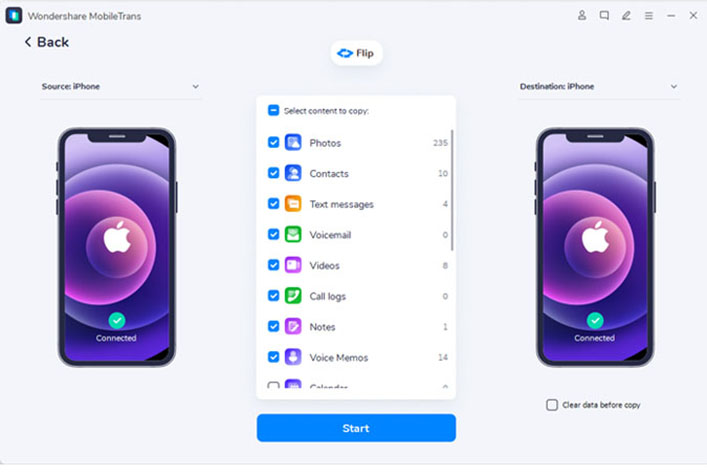
While the Apple-native methods (iCloud and local backups) work great for transferring *everything*, sometimes you only want to Copy Messages From iPhone To iPhone without moving all the other data, like old apps or huge photo libraries. This is where specialized third-party software shines.
These tools typically allow for much more granular control over what gets moved. They interface directly with your phone's memory to pull specific data.
Why Choose a Third-Party App?
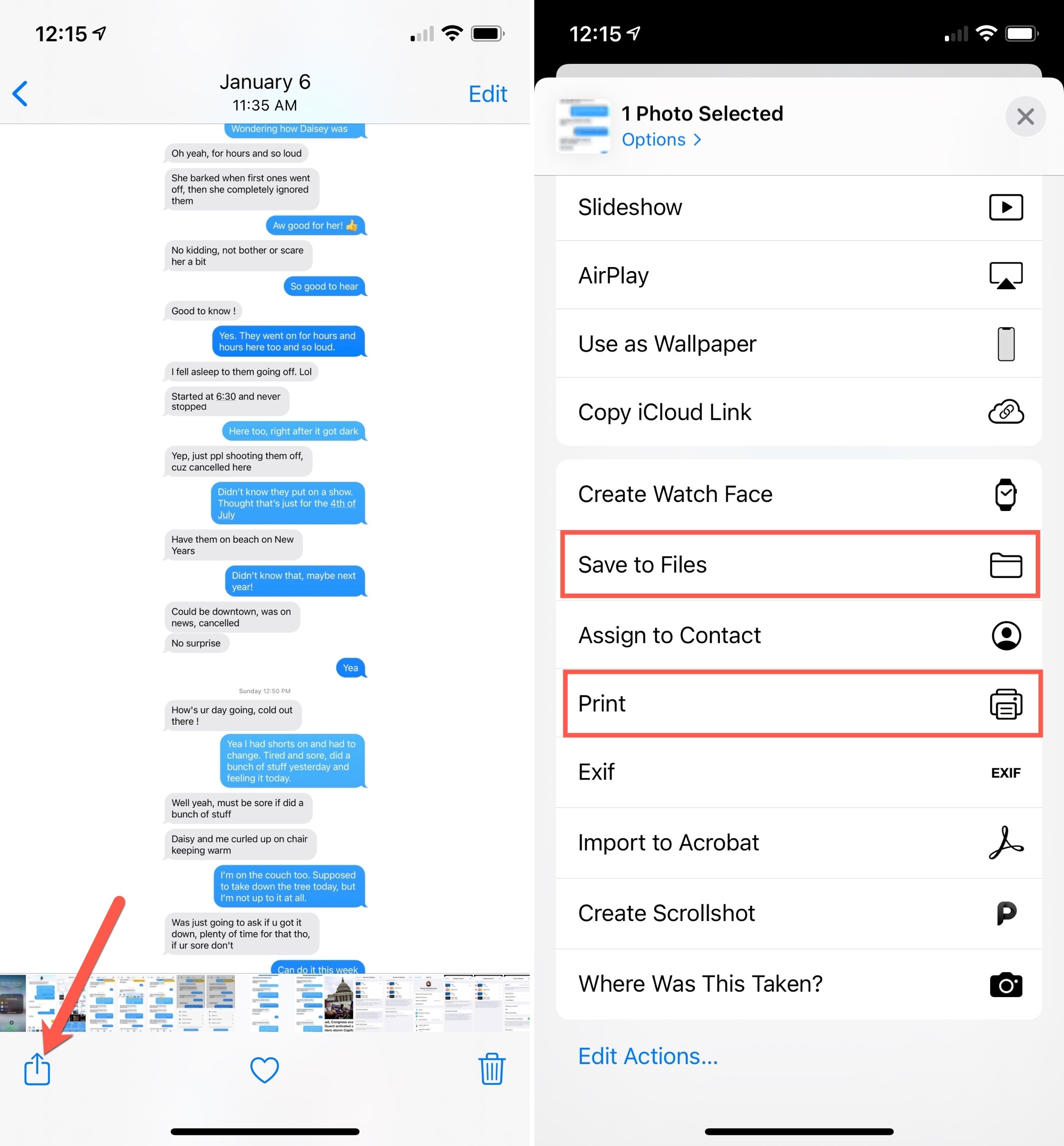
You might opt for a third-party app if you are migrating data between iPhones running vastly different iOS versions, or if you simply need to export messages as a printable file (like PDF or text documents) for legal or archival purposes. They offer flexibility that the standard system sometimes lacks.
A quick warning: always research and select a well-reviewed, reputable tool before granting it access to your sensitive device data.
Troubleshooting: Common Hiccups When Copying Messages
It can be frustrating when you follow all the steps perfectly and still find that some messages are missing or delayed. Don't panic! There are a few key areas to check if your transfer didn't go exactly as planned.
Messages Not Syncing via iCloud
If you used the iCloud backup method, sometimes the actual Message syncing is separate from the full device backup. If you find gaps in your chats, specifically iMessages, this setting is usually the culprit.
How to Check Messages in iCloud Status:
On both iPhones, go to Settings > [Your Name] > iCloud. Scroll down and ensure "Messages" is enabled. If it's enabled, but still not working, try toggling it OFF and then ON again. This forces a re-sync from Apple's servers.
Additionally, make sure both devices are updated to the latest iOS version, as version mismatches can sometimes prevent seamless data sharing.
Dealing with Storage Limits
Large message history, especially those containing tons of high-resolution photos and videos, can quickly eat up storage. If your free iCloud plan (5GB) is maxed out, your message backup will fail.
If you encounter this issue, you have two options: either purchase more iCloud storage temporarily to allow the backup, or switch to the encrypted iTunes/Finder method, as your computer likely has plenty of storage capacity.
Wrapping Up: Copy Messages From iPhone To iPhone Success!
Congratulations! By following these detailed steps, you should have successfully managed to Copy Messages From iPhone To iPhone, ensuring your entire conversation history moved smoothly to your new device. Whether you chose the convenience of iCloud or the robustness of a local encrypted backup, the most important thing is that your memories are safe and sound.
Moving forward, always double-check that "Messages in iCloud" is enabled on your primary device. This makes future phone upgrades exponentially easier, as your chats are constantly backed up and synchronized independently of your full phone backup, ready for the next transfer.
Frequently Asked Questions (FAQ)
- Q: Can I transfer only specific text messages instead of everything?
- A: Apple's built-in tools (iCloud/Finder) transfer the entire Messages app history as a unit. To selectively transfer only certain chats or conversations, you would typically need to use a dedicated third-party data management tool.
- Q: Does the 'Messages in iCloud' feature count against my iCloud storage limit?
- A: Yes, it absolutely does. While standard device backups only count toward the limit if Messages in iCloud is OFF, if you enable the feature, all the data stored within the Messages app (including large media attachments) will consume your available iCloud storage space.
- Q: Why didn't my MMS/SMS messages transfer, only my iMessages?
- A: SMS/MMS messages are part of the full device backup, while iMessages also rely on the 'Messages in iCloud' setting. If you used the local backup method, ensure you selected "Encrypt local backup"—unencrypted local backups do not contain your SMS history.
- Q: Do I need to keep the SIM card in the old phone during the backup process?
- A: No, the SIM card's presence is not strictly required for the Wi-Fi or local backup process, as data transfer relies on your Apple ID login. However, you will need the SIM card moved to the new phone once the transfer is complete to receive new texts.
Copy Messages From Iphone To Iphone
Copy Messages From Iphone To Iphone Wallpapers
Collection of copy messages from iphone to iphone wallpapers for your desktop and mobile devices.
Breathtaking Copy Messages From Iphone To Iphone Abstract Collection
Explore this high-quality copy messages from iphone to iphone image, perfect for enhancing your desktop or mobile wallpaper.
Detailed Copy Messages From Iphone To Iphone Scene in HD
Transform your screen with this vivid copy messages from iphone to iphone artwork, a true masterpiece of digital design.

Vibrant Copy Messages From Iphone To Iphone Photo in HD
Explore this high-quality copy messages from iphone to iphone image, perfect for enhancing your desktop or mobile wallpaper.

Beautiful Copy Messages From Iphone To Iphone Scene Illustration
Discover an amazing copy messages from iphone to iphone background image, ideal for personalizing your devices with vibrant colors and intricate designs.
Vibrant Copy Messages From Iphone To Iphone Wallpaper for Desktop
Transform your screen with this vivid copy messages from iphone to iphone artwork, a true masterpiece of digital design.
:max_bytes(150000):strip_icc()/ExportiOSMessages3-3c279bcb50c5480ba03fd5a1bed3bf03-a35f59276c4844049a657ba11e79075d.jpg "Lush Copy Messages From Iphone To Iphone Design Art")
Lush Copy Messages From Iphone To Iphone Design Art
This gorgeous copy messages from iphone to iphone photo offers a breathtaking view, making it a perfect choice for your next wallpaper.

Artistic Copy Messages From Iphone To Iphone Photo Collection
This gorgeous copy messages from iphone to iphone photo offers a breathtaking view, making it a perfect choice for your next wallpaper.

High-Quality Copy Messages From Iphone To Iphone Background for Mobile
Transform your screen with this vivid copy messages from iphone to iphone artwork, a true masterpiece of digital design.
Captivating Copy Messages From Iphone To Iphone Design Collection
A captivating copy messages from iphone to iphone scene that brings tranquility and beauty to any device.
Dynamic Copy Messages From Iphone To Iphone Photo Photography
This gorgeous copy messages from iphone to iphone photo offers a breathtaking view, making it a perfect choice for your next wallpaper.
Stunning Copy Messages From Iphone To Iphone Image for Mobile
Find inspiration with this unique copy messages from iphone to iphone illustration, crafted to provide a fresh look for your background.
Mesmerizing Copy Messages From Iphone To Iphone Background for Your Screen
Explore this high-quality copy messages from iphone to iphone image, perfect for enhancing your desktop or mobile wallpaper.

Mesmerizing Copy Messages From Iphone To Iphone Image Nature
Discover an amazing copy messages from iphone to iphone background image, ideal for personalizing your devices with vibrant colors and intricate designs.
Gorgeous Copy Messages From Iphone To Iphone Artwork in 4K
A captivating copy messages from iphone to iphone scene that brings tranquility and beauty to any device.
Dynamic Copy Messages From Iphone To Iphone View for Your Screen
This gorgeous copy messages from iphone to iphone photo offers a breathtaking view, making it a perfect choice for your next wallpaper.
Spectacular Copy Messages From Iphone To Iphone Artwork Nature
This gorgeous copy messages from iphone to iphone photo offers a breathtaking view, making it a perfect choice for your next wallpaper.
Vivid Copy Messages From Iphone To Iphone Wallpaper for Your Screen
Experience the crisp clarity of this stunning copy messages from iphone to iphone image, available in high resolution for all your screens.
:max_bytes(150000):strip_icc()/Transfer_Messages_02-9bc7bc254f4a4d11ba08b4e7a8504d54.jpg "Vibrant Copy Messages From Iphone To Iphone Background in 4K")
Vibrant Copy Messages From Iphone To Iphone Background in 4K
Discover an amazing copy messages from iphone to iphone background image, ideal for personalizing your devices with vibrant colors and intricate designs.
Spectacular Copy Messages From Iphone To Iphone Artwork Digital Art
This gorgeous copy messages from iphone to iphone photo offers a breathtaking view, making it a perfect choice for your next wallpaper.
Beautiful Copy Messages From Iphone To Iphone Landscape in HD
Transform your screen with this vivid copy messages from iphone to iphone artwork, a true masterpiece of digital design.
Download these copy messages from iphone to iphone wallpapers for free and use them on your desktop or mobile devices.