Converting Image To Pdf On Iphone: Your Ultimate Guide
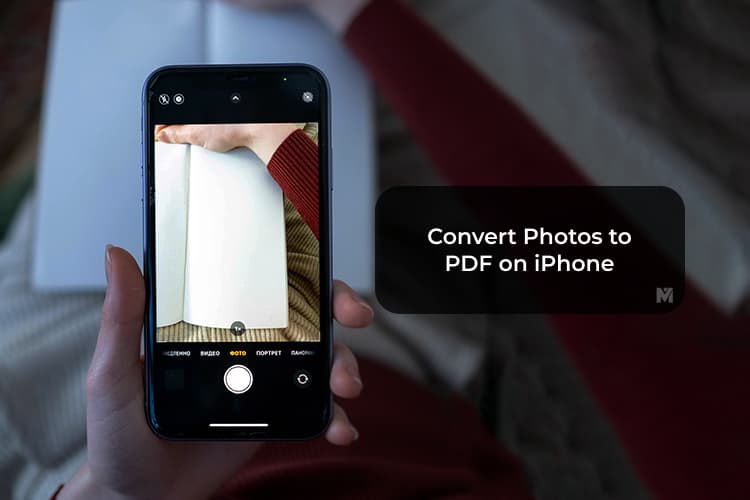
Let's face it: in today's digital world, PDFs are the gold standard for sharing documents. Whether you need to send receipts, sign forms, or submit homework, having the ability to quickly and easily convert images into a professional PDF format right on your iPhone is essential. You might think this requires a complicated third-party app, but we have fantastic news!
Your iPhone is incredibly capable, and there are several built-in, seamless ways for converting image to PDF on iPhone without downloading anything extra. This guide will walk you through the easiest, fastest, and most efficient methods so you can master file conversion instantly.
Get ready to simplify your digital life. We're going to dive deep into the native tools Apple provides, making the process of creating high-quality PDF documents from your pictures a breeze!
The Easiest Built-in Method: Using the Photos App
The simplest way to convert a single photo (or even several photos) into a PDF file on your iPhone utilizes the standard Print function. Don't worry, you don't actually need a printer connected! This method uses the "Print" dialogue box to create a digital file instead of a physical printout.
This technique is fast, reliable, and available on almost all modern versions of iOS. It works flawlessly for converting JPEG or PNG images straight into a crisp PDF format ready for sharing or saving.
Step-by-Step Guide: Printing to PDF
Follow these quick steps to convert your image using the Photos App and the clever 'Print' trick:
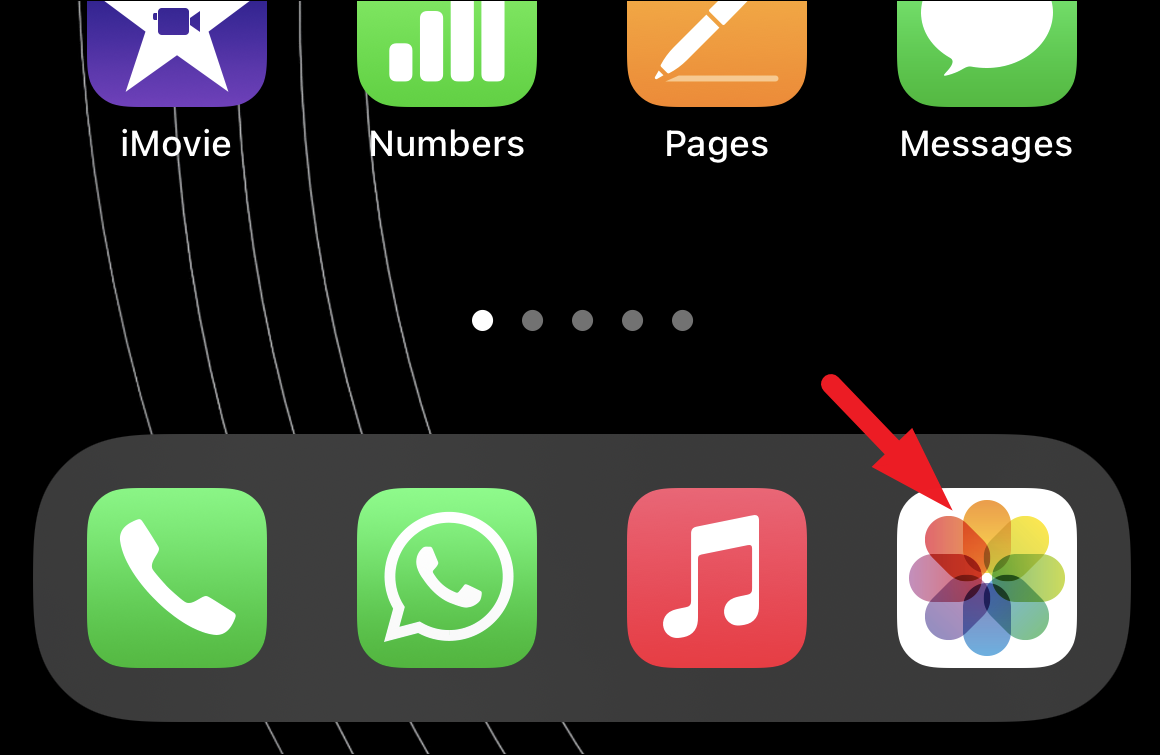
- Open the Photos App: Locate the image (or images) you wish to convert to PDF.
- Select Your Image(s): Tap the 'Select' button in the top right corner and choose the specific images you need. If you only have one image, just open it.
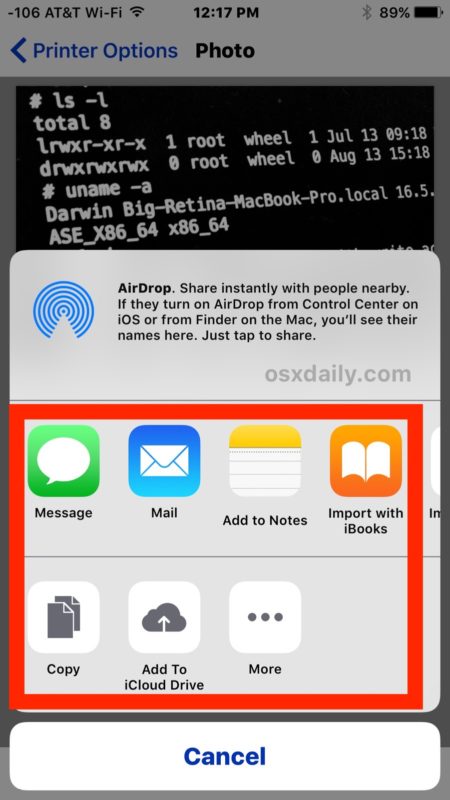
- Tap the Share Icon: This is the box with the upward arrow, located usually in the bottom left corner.
- Scroll Down to "Print": In the list of sharing options, scroll all the way down until you see the "Print" option. Tap it.
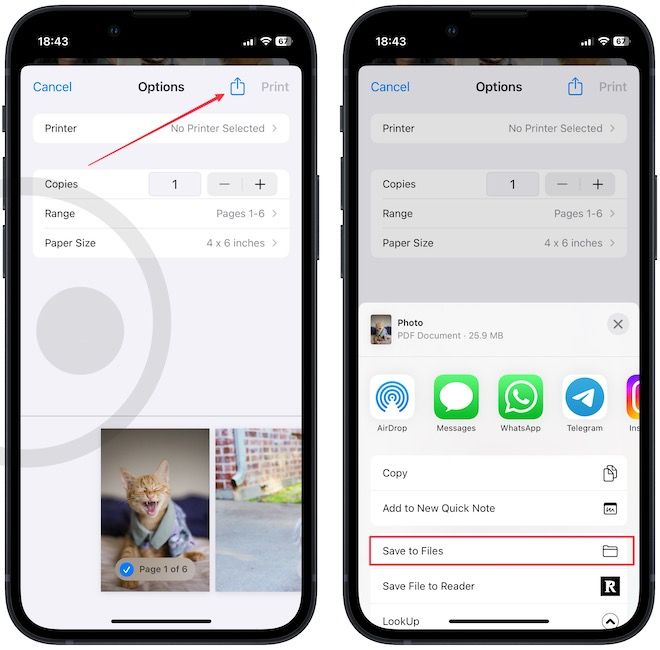
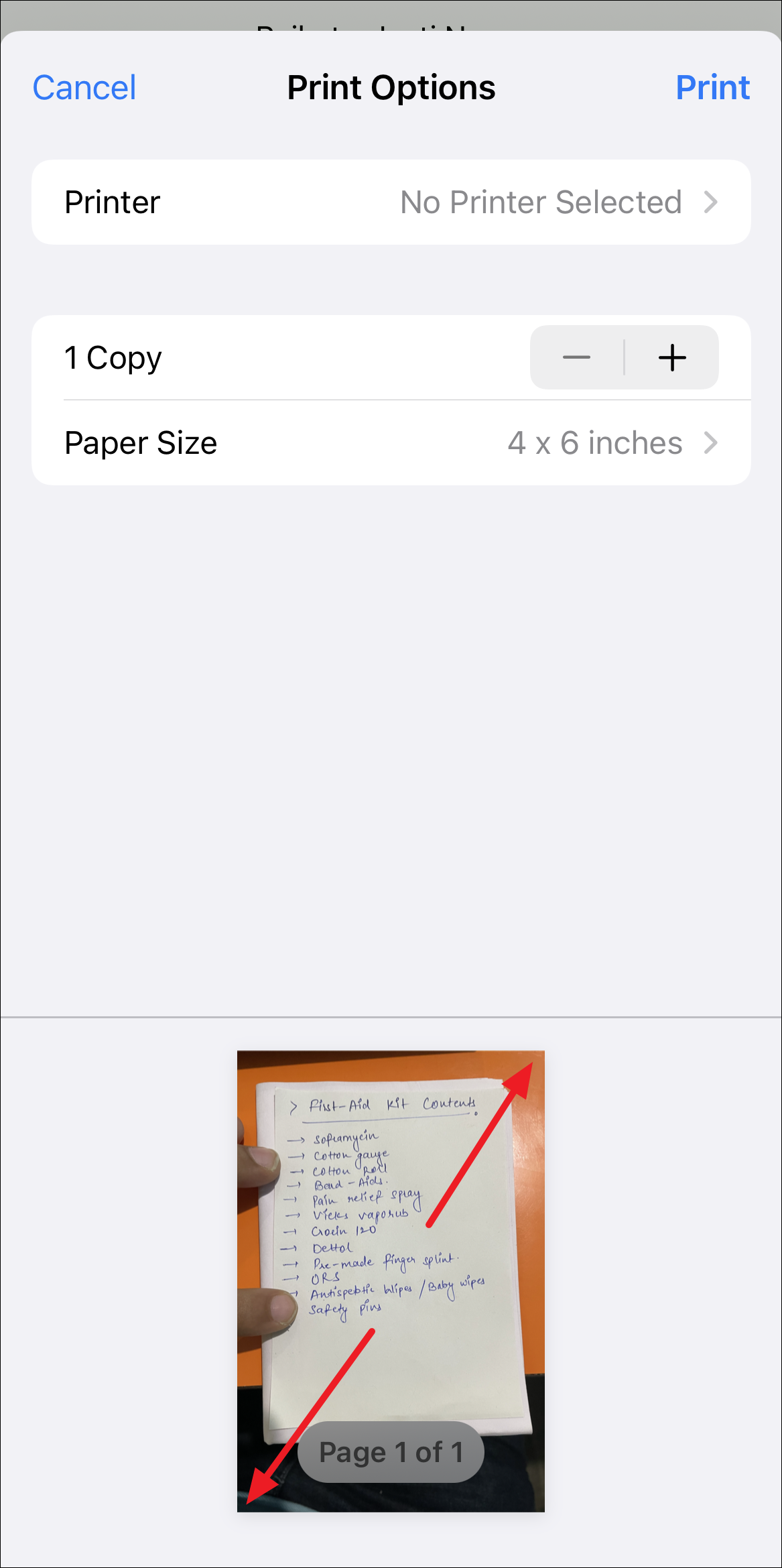
- Perform the Zoom Gesture: On the Print Options screen, you will see a preview of your photo. Here's the magic trick: use two fingers and 'Pinch out' or Zoom in on the image preview.
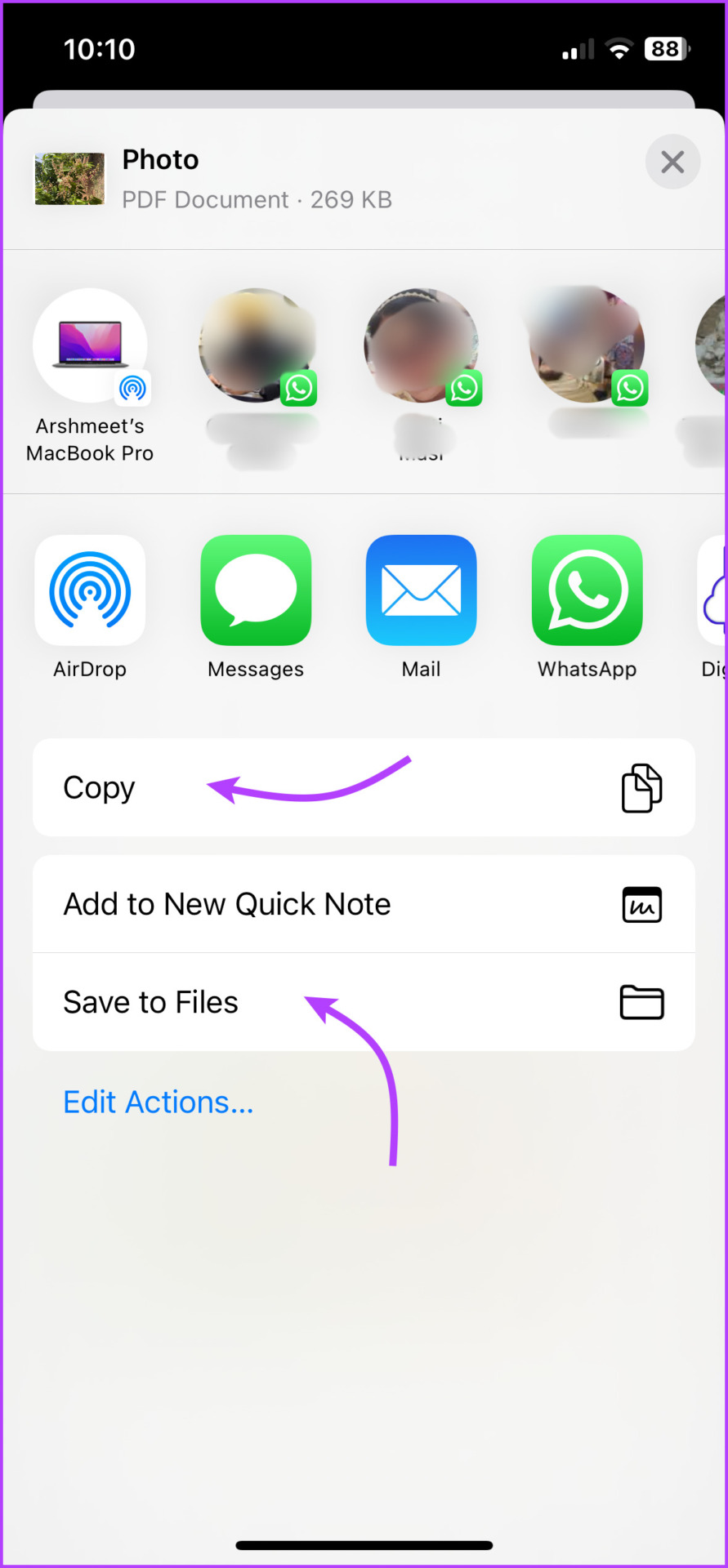
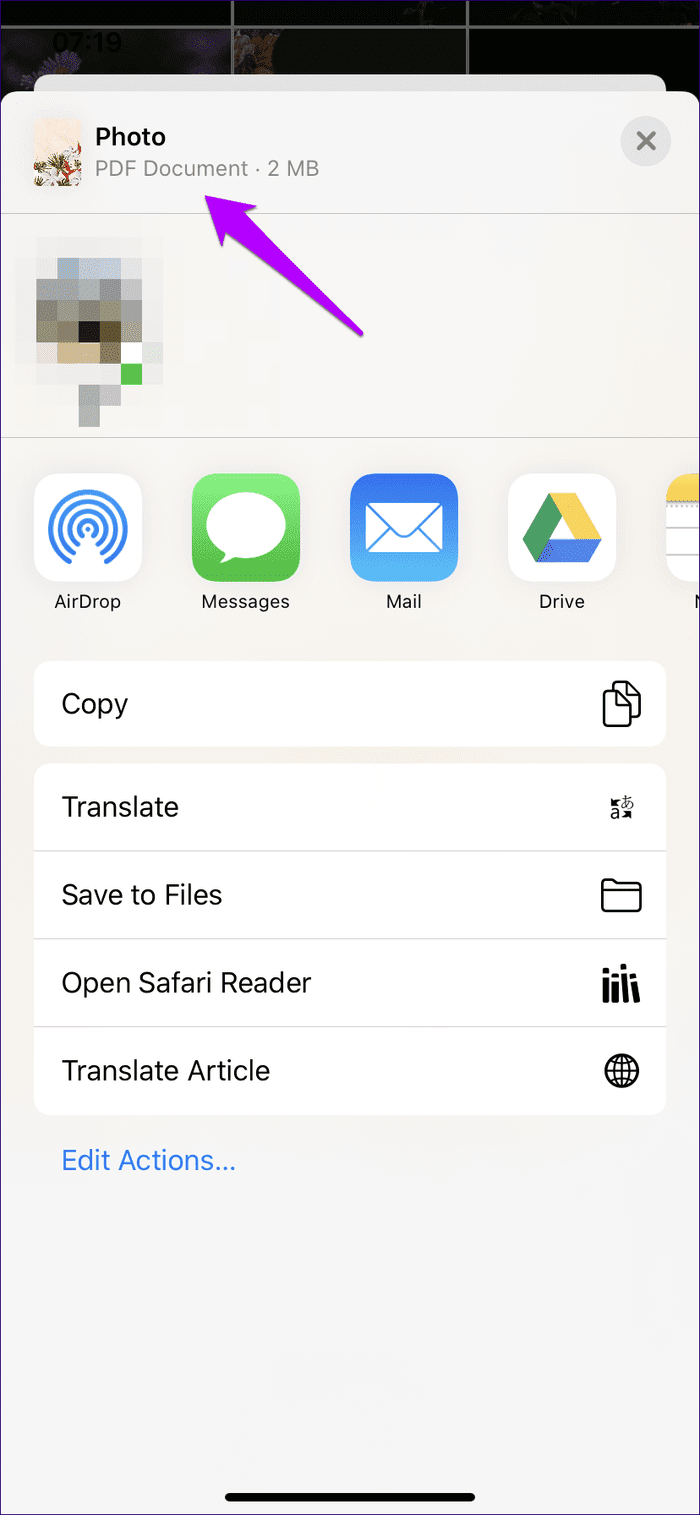
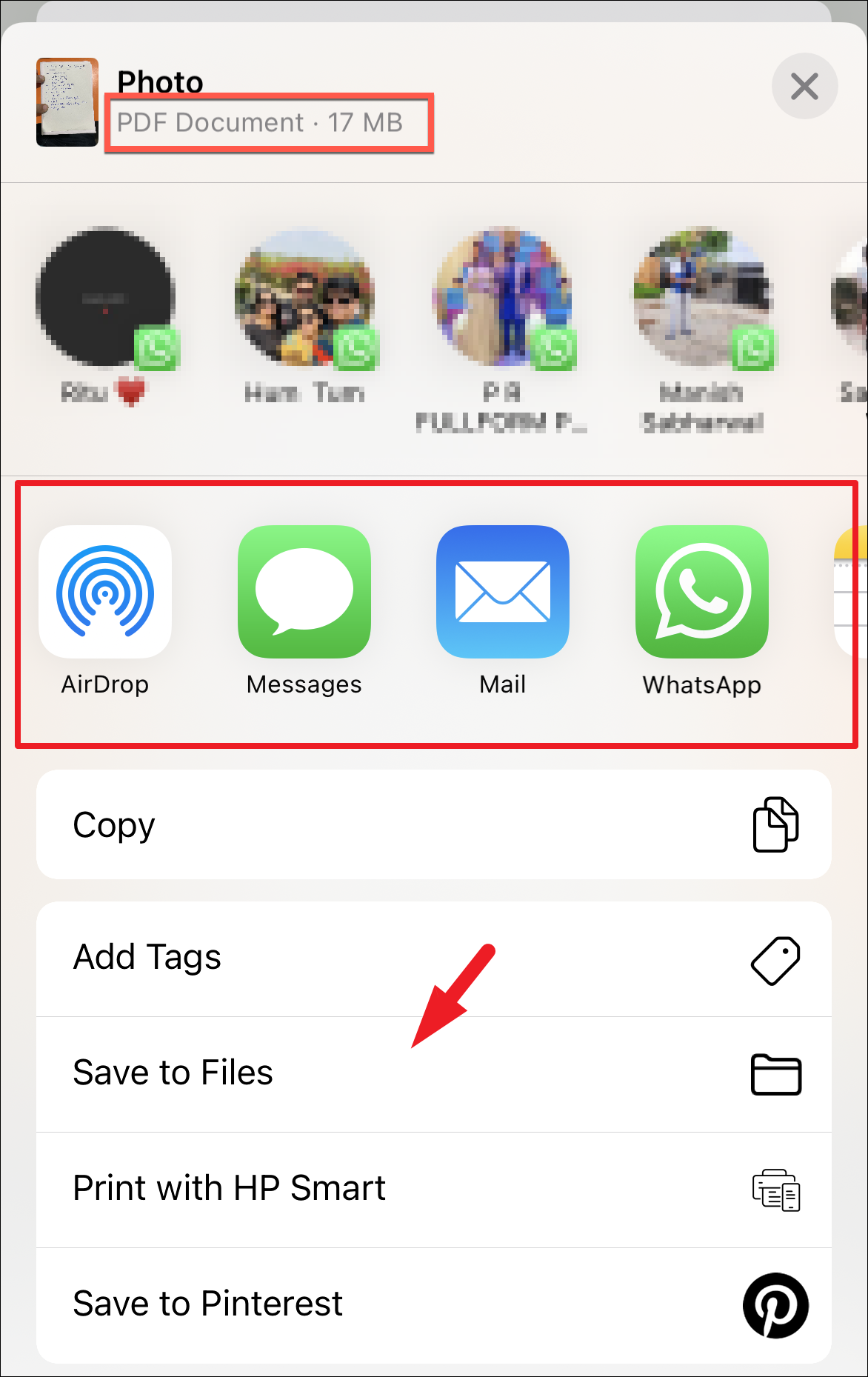
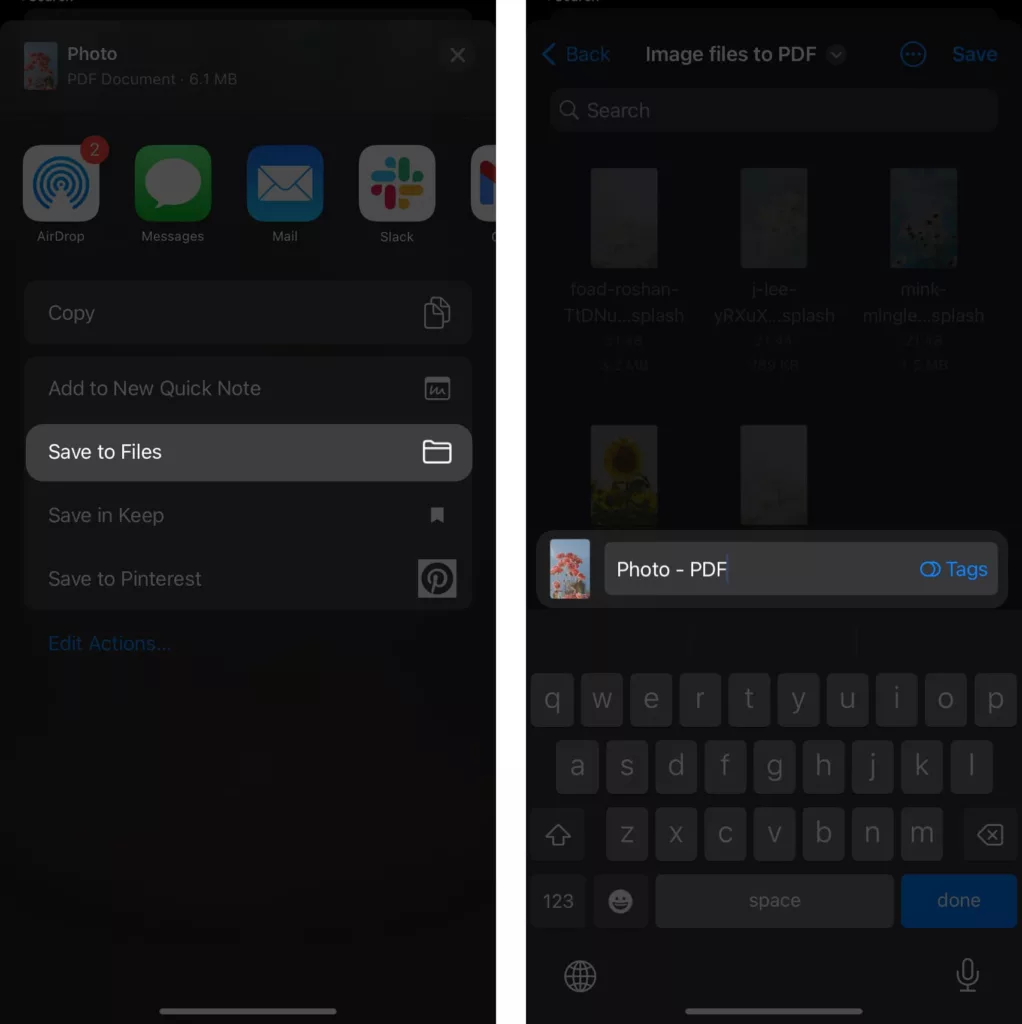
- Save the PDF: The preview will transform into a full-screen PDF document. Now, tap the Share icon again in the top right corner.
- Choose Destination: You can now select "Save to Files" to store the new PDF in your iCloud or on your iPhone, or you can send it directly via Mail or Messages.
See how easy that was? You've successfully managed the core task of converting image to PDF on iPhone without any extra hassle. For multiple images, they will automatically be compiled into a single PDF document in the order they were selected.
Harnessing the Power of the Files App and Markup
The Files app is Apple's central hub for document management, and it offers sophisticated tools for handling image files. If your images are already saved in the Files app (perhaps you downloaded them or moved them from Photos), this method is lightning fast.
This approach is especially useful when you need to sign or annotate the document before converting it. The Markup feature allows you to draw, highlight, or add text right onto the image before finalizing the PDF.
Combining Multiple Images into One PDF
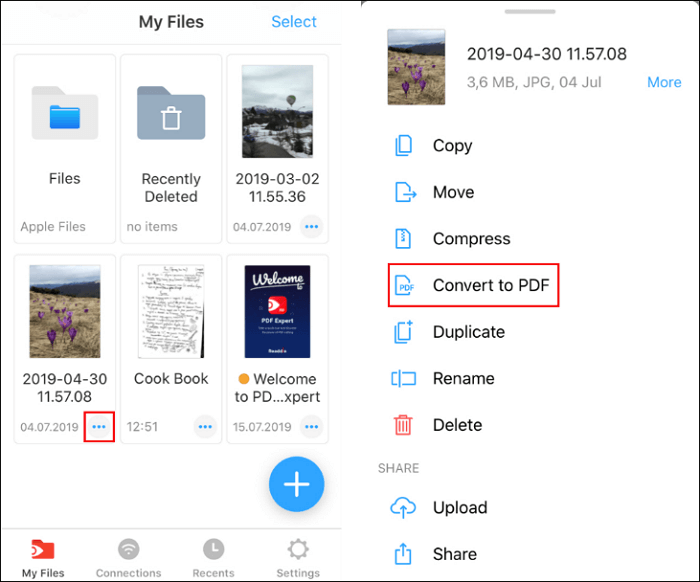
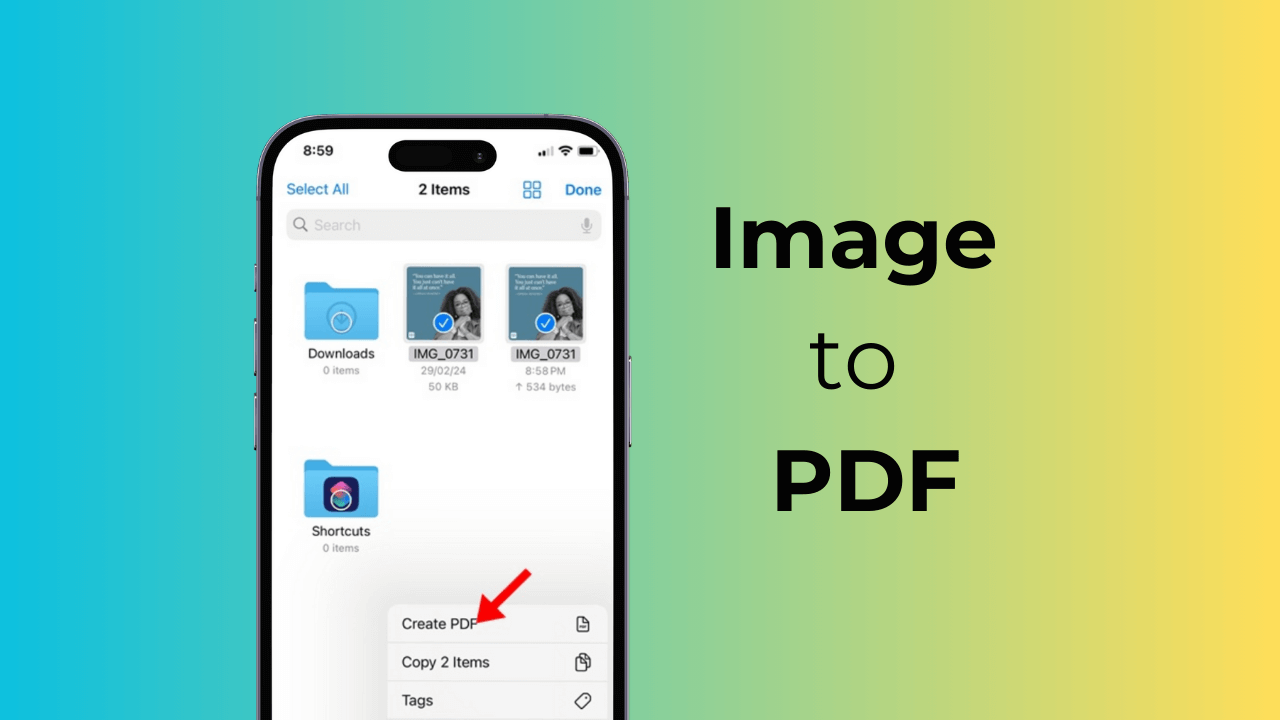
If you have several separate images in the same folder and want them compiled into one sequential PDF file, the Files app has a specific command for this:
- Move Images to Files: Ensure all the images you want to combine are located in the same folder within the Files app (e.g., on your iPhone or in iCloud Drive).
- Select the Images: Tap the three dots (More) icon in the top right corner of the folder, and then tap "Select." Choose all the images you need.
- Create PDF: Once selected, tap the three dots icon again in the bottom right corner (or sometimes the top right, depending on the iOS version).
- Tap "Create PDF": Instantly, your iPhone will stitch these images together into a single, cohesive PDF document.
This method is excellent for processing large batches of scanned pages or photos that need to be grouped as a single document for submission. It simplifies the process significantly compared to converting them individually.
Using Shortcuts for Batch Converting Image To Pdf On Iphone
For the power user, the Shortcuts app offers the most flexibility and automation. You can create a dedicated shortcut that takes images, converts them, and saves or shares the resulting PDF with just one tap. This is the ultimate tool for frequently converting image to PDF on iPhone.
While building a custom shortcut can take a few minutes, the payoff is huge for efficiency. Look for pre-built "Convert to PDF" shortcuts in the Shortcut Gallery, or search online for a community-shared recipe to handle your batch conversions easily.
Third-Party Apps: When You Need More Power
While the native iOS features cover 99% of user needs, sometimes you require advanced functionality that goes beyond simple conversion. This is where third-party applications shine.
If you need features like Optical Character Recognition (OCR), highly specialized compression, or complex PDF editing (rearranging pages, merging different file types), a dedicated app might be necessary.
Highly rated options available in the App Store often include specialized PDF editors and dedicated scanner apps. These apps usually provide built-in tools for enhancing image quality before conversion, which is great for scanning faded receipts.
Key features third-party apps often offer:
- Advanced compression options to reduce file size significantly.
- OCR (Text Recognition) capabilities, turning image text into searchable text within the PDF.
- Password protection for sensitive documents.
- Cloud synchronization across multiple platforms (not just iCloud).
For most everyday tasks, sticking with the Photos and Files app methods will be your best bet, saving you storage and maintaining simplicity.
Conclusion: Mastering Conversion on Your iPhone
You now have several robust strategies for converting image to PDF on iPhone, whether you are dealing with a single photo or a large batch of documents. The beauty of the iPhone ecosystem lies in its powerful, yet often hidden, native functionalities.
Remember that the fastest and most accessible method is always the Print-to-PDF technique within the Photos app. For combining many files into one, the Files app's "Create PDF" feature is unbeatable. By utilizing these simple, built-in tools, you can ensure all your documents are shared professionally and efficiently, keeping your workflow smooth and clutter-free.
Start practicing these techniques today, and you'll find that manual file conversion stress is a thing of the past!
Frequently Asked Questions About Converting Image To Pdf On Iphone
- Can I convert a live photo to PDF?
- Yes, absolutely. When you use the Print-to-PDF method, the iPhone treats the Live Photo just like a standard still image (JPEG) during the conversion process. The "live" aspect is discarded, leaving you with a standard static PDF page.
- Does converting image to PDF on iPhone reduce the quality?
- When using the native Apple methods (Photos app or Files app), the conversion process generally maintains a high quality, though it is technically re-encoded. If the original image was high resolution, the resulting PDF will also be high resolution. If you use a third-party app with high compression settings, the quality may decrease to achieve a smaller file size.
- How do I combine images that are in different albums?
- The easiest way is to use the Files app method. First, move all the desired images from their different locations (e.g., different albums in Photos) into a single, dedicated folder within the Files app. Once they are grouped, you can use the "Select" and "Create PDF" commands to stitch them together.
- Is the Print-to-PDF method secure?
- Yes. Since the entire conversion process happens locally on your device using native operating system features, there is no risk of data being uploaded to external servers, unlike some online conversion tools.
Converting Image To Pdf On Iphone
Converting Image To Pdf On Iphone Wallpapers
Collection of converting image to pdf on iphone wallpapers for your desktop and mobile devices.
Beautiful Converting Image To Pdf On Iphone Capture for Desktop
Transform your screen with this vivid converting image to pdf on iphone artwork, a true masterpiece of digital design.
Stunning Converting Image To Pdf On Iphone Artwork in 4K
This gorgeous converting image to pdf on iphone photo offers a breathtaking view, making it a perfect choice for your next wallpaper.
Breathtaking Converting Image To Pdf On Iphone Wallpaper in 4K
Discover an amazing converting image to pdf on iphone background image, ideal for personalizing your devices with vibrant colors and intricate designs.
Crisp Converting Image To Pdf On Iphone Image in 4K
This gorgeous converting image to pdf on iphone photo offers a breathtaking view, making it a perfect choice for your next wallpaper.

Mesmerizing Converting Image To Pdf On Iphone Capture Concept
Experience the crisp clarity of this stunning converting image to pdf on iphone image, available in high resolution for all your screens.

Lush Converting Image To Pdf On Iphone Wallpaper in HD
Find inspiration with this unique converting image to pdf on iphone illustration, crafted to provide a fresh look for your background.

Gorgeous Converting Image To Pdf On Iphone View Nature
Immerse yourself in the stunning details of this beautiful converting image to pdf on iphone wallpaper, designed for a captivating visual experience.

Exquisite Converting Image To Pdf On Iphone Wallpaper Collection
This gorgeous converting image to pdf on iphone photo offers a breathtaking view, making it a perfect choice for your next wallpaper.

Amazing Converting Image To Pdf On Iphone Photo Digital Art
Explore this high-quality converting image to pdf on iphone image, perfect for enhancing your desktop or mobile wallpaper.
Stunning Converting Image To Pdf On Iphone Abstract Art
A captivating converting image to pdf on iphone scene that brings tranquility and beauty to any device.
Beautiful Converting Image To Pdf On Iphone Wallpaper Concept
Explore this high-quality converting image to pdf on iphone image, perfect for enhancing your desktop or mobile wallpaper.
High-Quality Converting Image To Pdf On Iphone Landscape Illustration
Discover an amazing converting image to pdf on iphone background image, ideal for personalizing your devices with vibrant colors and intricate designs.

Beautiful Converting Image To Pdf On Iphone Scene Photography
Discover an amazing converting image to pdf on iphone background image, ideal for personalizing your devices with vibrant colors and intricate designs.
Spectacular Converting Image To Pdf On Iphone Photo Nature
This gorgeous converting image to pdf on iphone photo offers a breathtaking view, making it a perfect choice for your next wallpaper.
Amazing Converting Image To Pdf On Iphone Moment Digital Art
Transform your screen with this vivid converting image to pdf on iphone artwork, a true masterpiece of digital design.
Artistic Converting Image To Pdf On Iphone Photo Photography
Immerse yourself in the stunning details of this beautiful converting image to pdf on iphone wallpaper, designed for a captivating visual experience.
Beautiful Converting Image To Pdf On Iphone Abstract for Your Screen
Discover an amazing converting image to pdf on iphone background image, ideal for personalizing your devices with vibrant colors and intricate designs.
Captivating Converting Image To Pdf On Iphone Abstract Art
This gorgeous converting image to pdf on iphone photo offers a breathtaking view, making it a perfect choice for your next wallpaper.
Artistic Converting Image To Pdf On Iphone Picture for Mobile
A captivating converting image to pdf on iphone scene that brings tranquility and beauty to any device.
Stunning Converting Image To Pdf On Iphone Background for Your Screen
This gorgeous converting image to pdf on iphone photo offers a breathtaking view, making it a perfect choice for your next wallpaper.
Download these converting image to pdf on iphone wallpapers for free and use them on your desktop or mobile devices.