How To Take 360 Photo On Iphone: A Comprehensive Guide
Are you looking to capture more than just a slice of the moment? Standard photos are great, but sometimes you need to show the entire environment—that's where 360-degree photography comes in! Learning How To Take 360 Photo On Iphone might seem like a complicated task reserved for professional gear, but your iPhone is actually perfectly capable of creating stunning immersive images.
Whether you want to capture a breathtaking landscape or document an indoor space for a virtual tour, your iPhone offers two primary methods to achieve this effect. We'll walk you through the built-in panoramic function and dive into the powerful world of third-party apps to help you create truly spherical content.
Ready to upgrade your photography game? Let's explore the step-by-step process.
Method 1: The Built-in iPhone Panorama Feature (The Quickest Way)
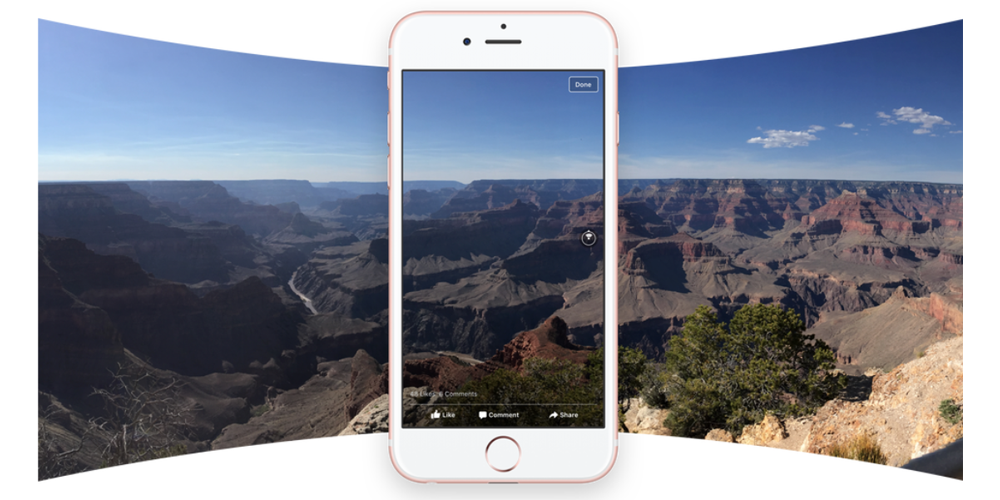
The simplest answer to How To Take 360 Photo On Iphone often involves the Camera app you already use every day. While the iPhone's native "Pano" feature doesn't produce a true 360-degree spherical photo (it typically stops at about 240 degrees), it's excellent for wide, ultra-immersive shots of horizons and large spaces.
This method is quick, reliable, and requires zero additional downloads, making it the perfect starting point for any beginner.
Setting Up Your Shot
Before you start swiping, it's essential to set the stage correctly. Follow these simple steps to prepare your iPhone for a panoramic capture:
- Open the Camera App: Launch the standard Camera application on your iPhone.
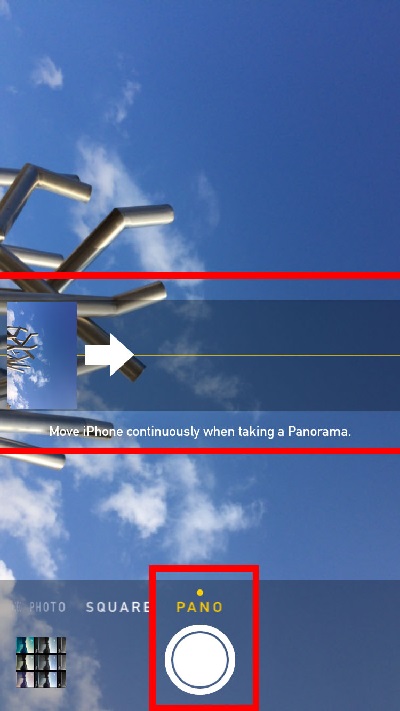
- Select Pano Mode: Swipe through the modes (Video, Photo, Portrait) until you land on "Pano."
- Check Direction: By default, the Pano mode starts from left to right. If you want to start on the right and move left, simply tap the arrow in the center of the screen to reverse the direction.
- Determine Your Arc: Look at the entire scene you want to capture. You can typically capture about two-thirds of a full circle using this method.
Executing the Panorama
The key to a successful panorama is steady movement. Jerky motions lead to distortion and unsightly seams in your final image.
Here is how you capture the shot smoothly:
- Tap the shutter button once to start recording.
- Slowly and steadily rotate your phone while keeping the center arrow aligned precisely on the guide line.
- Keep the phone level and avoid tilting up or down too much.
- Once you have covered your desired area, tap the shutter button again to stop the capture.
The resulting image will be a very wide, immersive photo saved directly to your Photos app. Remember, this method is fantastic for wide shots but does not create the 'sphere' necessary for uploading to platforms that require full 360 VR compatibility.
Method 2: Using Third-Party 360 Photo Apps (For True Spherical Results)
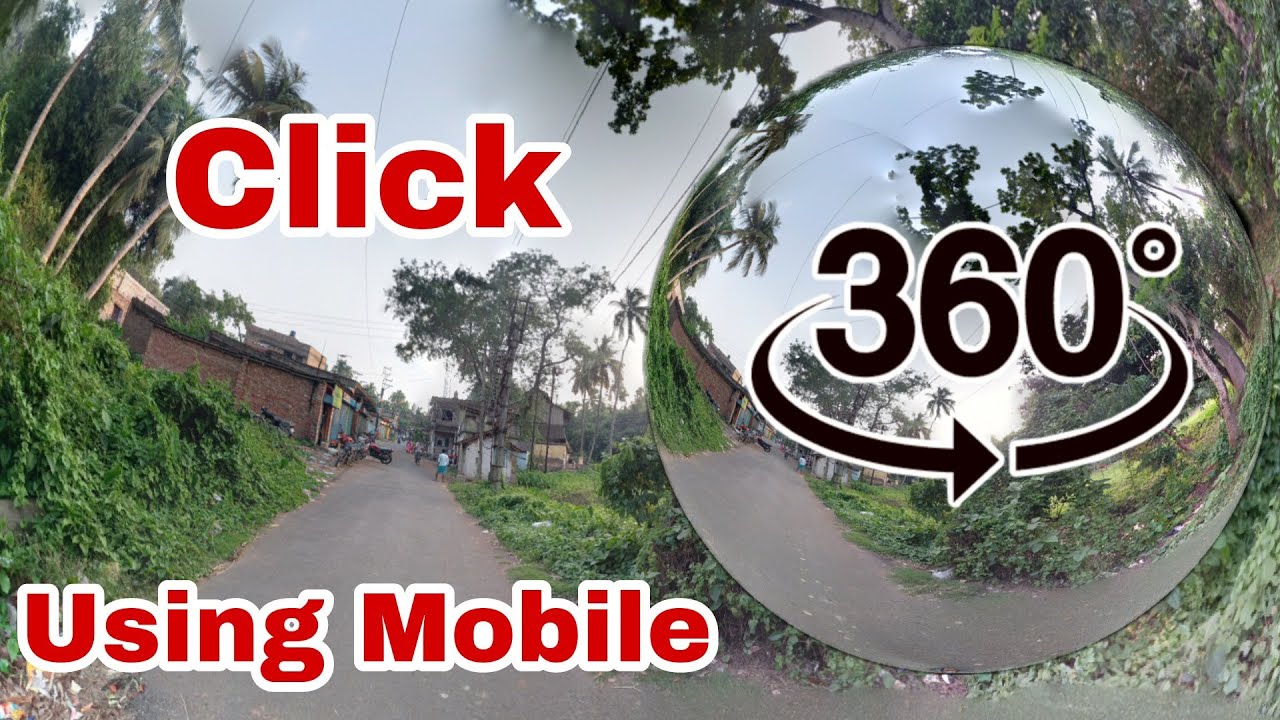
If you want a truly interactive, spherical image—the kind you can upload to Facebook, view in a VR headset, or embed in a virtual tour—you'll need dedicated software. These apps stitch together dozens of individual photos into a seamless spherical image, fully answering the question of How To Take 360 Photo On Iphone.
These applications use complex algorithms to ensure the final result is a perfect sphere, allowing you to capture everything above, below, and around you.
Popular App Recommendations
The iOS App Store hosts several powerful tools specifically designed for 360 photography. Choosing the right one depends on your needs, but here are a couple of highly recommended options:
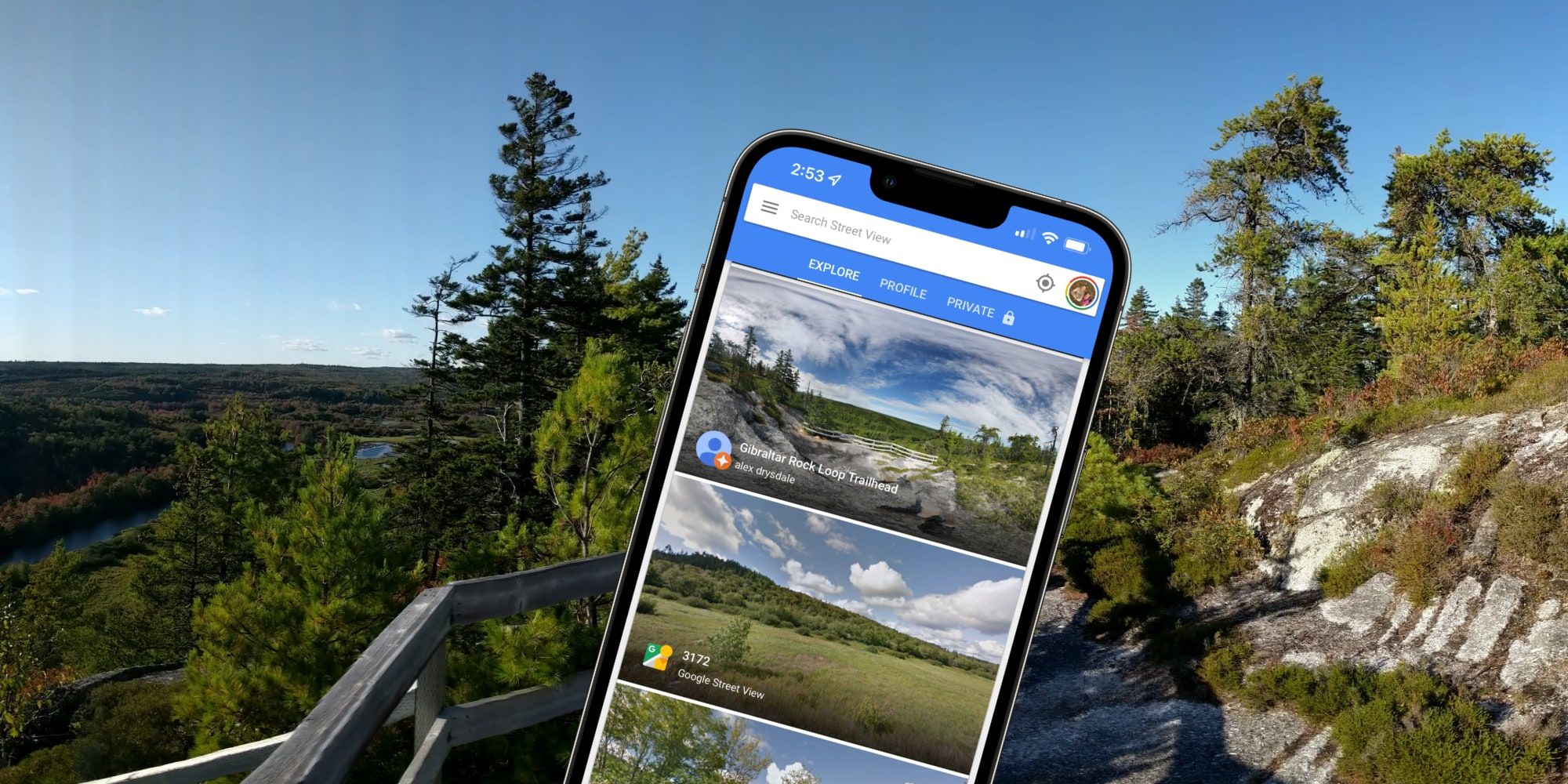
- Google Street View (Free): This app is fantastic because it provides the guidance needed to capture a perfect sphere by snapping multiple overlapping images. It automatically stitches them together and applies the necessary metadata for sharing.
- Panorama 360 Camera: While many apps exist with similar names, dedicated panorama apps often offer more advanced editing and stitching features, sometimes requiring a subscription for premium features.
Step-by-Step App Usage
We will use the Google Street View app as an example, as it is widely available and very effective for spherical photography.
- Download and Launch: Install the Google Street View app and grant it access to your camera and location services.
- Start Camera Mode: Tap the camera icon (usually marked by a '+' or a camera symbol) and select the "Camera" option.
- Follow the Dots: The app will display an orange circle in the center of the screen. You must align your phone's camera view with the first white circle that appears on the screen.
- Capture Continuously: Once aligned, the app automatically takes a photo. Slowly rotate the phone to align with the next white circle. Continue this process until you have covered every white dot, including those above and below your starting point.
- Stitching: The app will notify you when the capture is complete. It will then automatically stitch all the individual shots into a single 360-degree image.
The resulting image will contain the necessary metadata (EXIF data) to be recognized as a true 360-degree spherical photo by social media and viewing platforms.
Tips for Stunning 360 Photography on iPhone
Even with the best software, technique matters greatly. Taking a quality 360 photo requires patience and a careful approach to stability and lighting. These tips will help you maximize the quality when you learn How To Take 360 Photo On Iphone.
Consistency is the secret ingredient. Try to keep the phone at the exact same distance from the rotation center throughout the entire capture process.
Stabilizing Your Device
Movement and shaky hands are the biggest enemies of panoramic and 360 photography. Even a slight vertical shift can ruin the stitching process, resulting in blurry or misaligned lines.
The Role of a Tripod
For the absolute best results, especially when using third-party spherical apps, invest in a small, portable tripod designed for smartphones. A tripod guarantees smooth rotation and keeps the camera sensor in the same focal plane for every shot.
If you don't have a tripod, try leaning against a wall or resting your elbow on a stable surface. This minimizes the natural wobble in your hands, leading to cleaner images that stitch together seamlessly.
Handling Lighting and Exposure
Lighting is another crucial factor. When you rotate 360 degrees, you move through different light conditions (bright windows, dark corners, direct sun). If the camera changes its exposure settings throughout the capture, the stitched image will have noticeable, ugly shifts in brightness.
To avoid this, lock the exposure and focus before you begin. In the iPhone's native camera app, tap and hold on the screen until you see "AE/AF Lock" (Auto Exposure/Auto Focus Lock). In third-party apps, look for similar exposure lock controls.
Conclusion
Mastering How To Take 360 Photo On Iphone opens up entirely new creative avenues. Whether you choose the quick native Pano feature for super wide landscapes or opt for a dedicated app like Google Street View for true spherical virtual reality photos, your iPhone is a powerful tool.
Remember that stability is the key to high-quality 360 images. Take your time, lock your exposure, and practice your rotation technique. Now go out there and start capturing the whole world around you!
Frequently Asked Questions About 360 Photos on iPhone
- Can the standard iPhone Camera app create a true spherical 360 photo?
- No, the native iPhone Pano feature typically captures up to 240 degrees, which is a very wide image but not a full spherical 360-degree photo required for VR platforms. You must use a third-party app (like Google Street View) for true spherical images.
- Why does my 360 photo have visible lines or seams?
- Visible seams usually indicate inconsistencies during capture. This can be caused by quick, jerky rotations, poor alignment during stitching, or the camera changing its exposure settings while you were rotating. Always lock your exposure (AE/AF Lock) and move slowly and steadily.
- How do I share a 360 photo I took on my iPhone?
- If you used a third-party app that created a spherical image with proper metadata, you can typically share it directly to platforms like Facebook, specialized 360 hosting sites, or Google Maps. These platforms automatically recognize the metadata and display the image as an interactive 360 view.
- Do I need special lenses to take 360 photos on iPhone?
- While dedicated 360 camera attachments (like Insta360 or Ricoh Theta devices) can instantly capture a full sphere, you do not need special lenses to use the software methods described above. The apps rely on stitching together multiple images taken sequentially by the standard iPhone lens.
- Is it better to shoot 360 photos indoors or outdoors?
- Both are possible, but outdoor shooting is often easier because the distance to objects is greater, reducing parallax errors (where nearby objects shift too much between frames). If shooting indoors, ensure the space is well-lit and move your phone around the central pivot point carefully to minimize stitching issues.
How To Take 360 Photo On Iphone
How To Take 360 Photo On Iphone Wallpapers
Collection of how to take 360 photo on iphone wallpapers for your desktop and mobile devices.

High-Quality How To Take 360 Photo On Iphone Artwork Collection
Discover an amazing how to take 360 photo on iphone background image, ideal for personalizing your devices with vibrant colors and intricate designs.
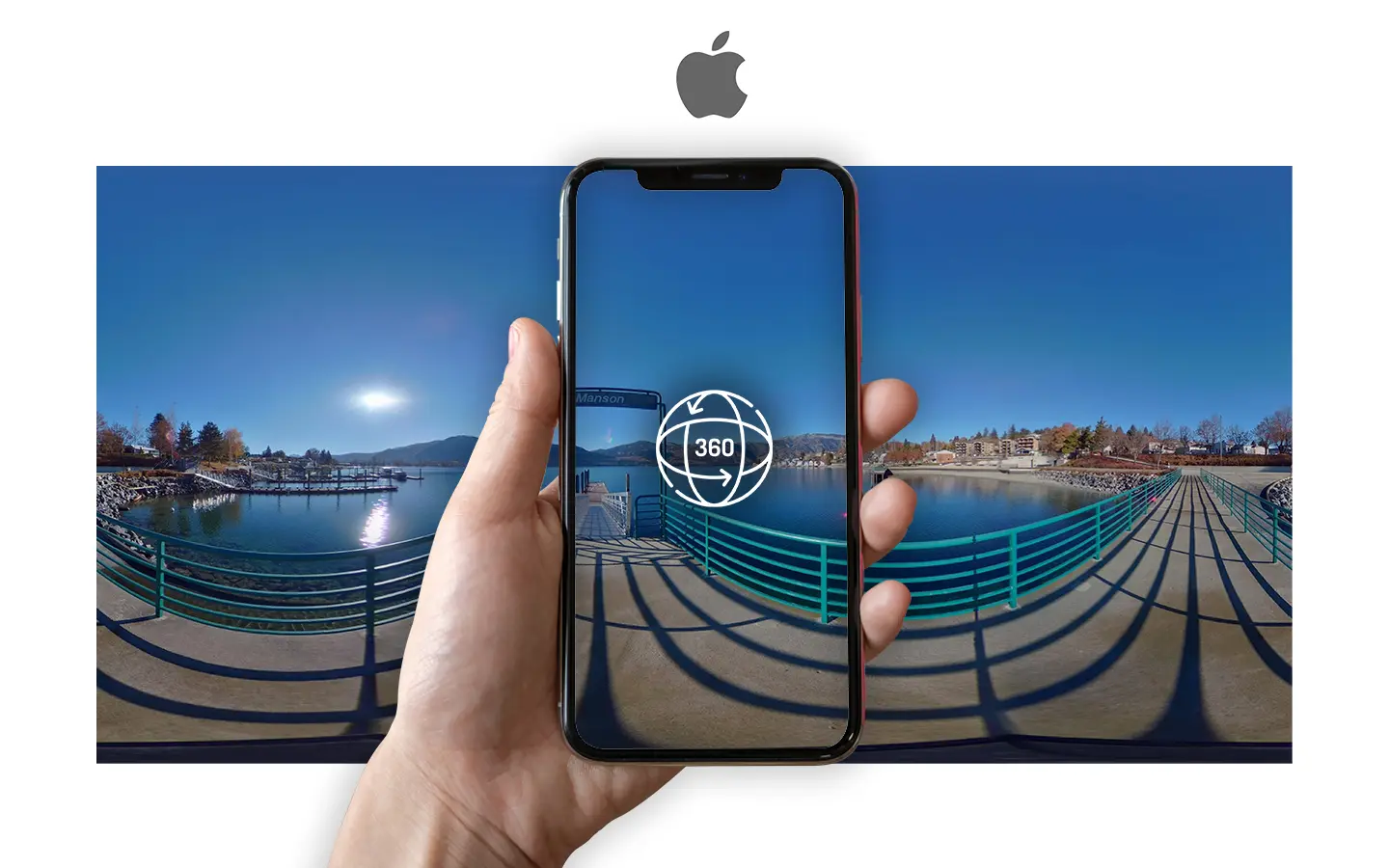
Exquisite How To Take 360 Photo On Iphone Scene for Desktop
This gorgeous how to take 360 photo on iphone photo offers a breathtaking view, making it a perfect choice for your next wallpaper.
Detailed How To Take 360 Photo On Iphone Abstract Nature
Transform your screen with this vivid how to take 360 photo on iphone artwork, a true masterpiece of digital design.
Breathtaking How To Take 360 Photo On Iphone Image Photography
Explore this high-quality how to take 360 photo on iphone image, perfect for enhancing your desktop or mobile wallpaper.
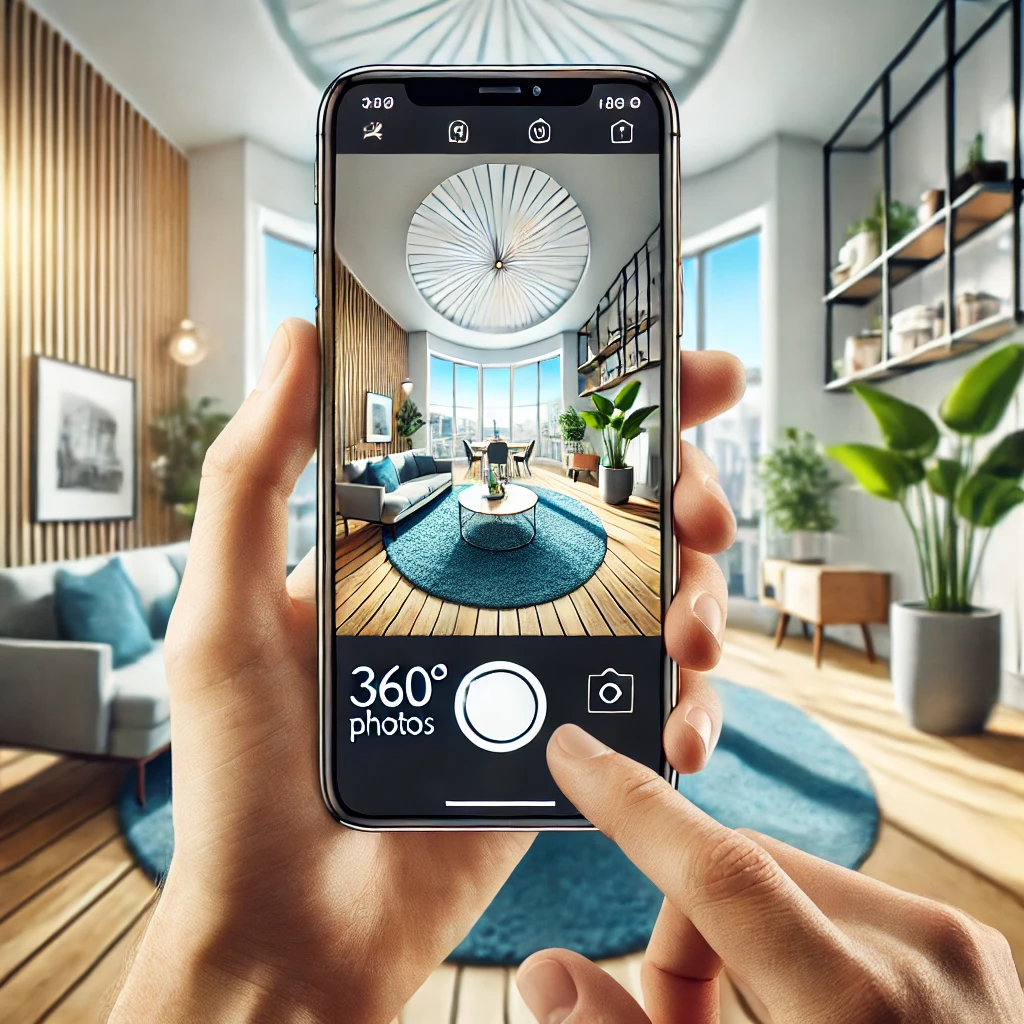
Serene How To Take 360 Photo On Iphone Image Illustration
Experience the crisp clarity of this stunning how to take 360 photo on iphone image, available in high resolution for all your screens.

High-Quality How To Take 360 Photo On Iphone Artwork for Desktop
Experience the crisp clarity of this stunning how to take 360 photo on iphone image, available in high resolution for all your screens.
Serene How To Take 360 Photo On Iphone Moment Collection
Transform your screen with this vivid how to take 360 photo on iphone artwork, a true masterpiece of digital design.
Vibrant How To Take 360 Photo On Iphone Design in 4K
Experience the crisp clarity of this stunning how to take 360 photo on iphone image, available in high resolution for all your screens.
Stunning How To Take 360 Photo On Iphone Image Photography
Find inspiration with this unique how to take 360 photo on iphone illustration, crafted to provide a fresh look for your background.
Lush How To Take 360 Photo On Iphone Artwork Digital Art
Immerse yourself in the stunning details of this beautiful how to take 360 photo on iphone wallpaper, designed for a captivating visual experience.

Spectacular How To Take 360 Photo On Iphone Scene Concept
This gorgeous how to take 360 photo on iphone photo offers a breathtaking view, making it a perfect choice for your next wallpaper.

Crisp How To Take 360 Photo On Iphone Moment for Mobile
This gorgeous how to take 360 photo on iphone photo offers a breathtaking view, making it a perfect choice for your next wallpaper.

Vibrant How To Take 360 Photo On Iphone Picture Concept
Experience the crisp clarity of this stunning how to take 360 photo on iphone image, available in high resolution for all your screens.
Serene How To Take 360 Photo On Iphone Moment for Your Screen
Experience the crisp clarity of this stunning how to take 360 photo on iphone image, available in high resolution for all your screens.

Lush How To Take 360 Photo On Iphone Capture Photography
A captivating how to take 360 photo on iphone scene that brings tranquility and beauty to any device.

Vivid How To Take 360 Photo On Iphone Scene for Your Screen
Explore this high-quality how to take 360 photo on iphone image, perfect for enhancing your desktop or mobile wallpaper.
Exquisite How To Take 360 Photo On Iphone Artwork for Desktop
A captivating how to take 360 photo on iphone scene that brings tranquility and beauty to any device.
Serene How To Take 360 Photo On Iphone Photo Collection
Experience the crisp clarity of this stunning how to take 360 photo on iphone image, available in high resolution for all your screens.

Breathtaking How To Take 360 Photo On Iphone Wallpaper Nature
Discover an amazing how to take 360 photo on iphone background image, ideal for personalizing your devices with vibrant colors and intricate designs.

High-Quality How To Take 360 Photo On Iphone Landscape Nature
Discover an amazing how to take 360 photo on iphone background image, ideal for personalizing your devices with vibrant colors and intricate designs.
Download these how to take 360 photo on iphone wallpapers for free and use them on your desktop or mobile devices.