How Do I Transfer My Apps To My New Iphone: The Ultimate Guide
Congratulations on your new iPhone! Unboxing a shiny new device is exciting, but the next logical—and slightly daunting—question is always: How do I transfer my apps to my new iPhone smoothly and efficiently? Nobody wants to spend hours manually downloading hundreds of apps and logging back into everything.
The good news is that Apple has made this process incredibly straightforward, often taking just a few minutes of setup time before the phone does all the heavy lifting. This guide breaks down the three best methods, ensuring your transition from old phone to new phone is seamless, keeping all your data, settings, and precious apps intact.
Let's dive into the easiest methods available to make sure you spend less time transferring and more time enjoying your new device!
Quick Start: The Easiest Way to Transfer Apps
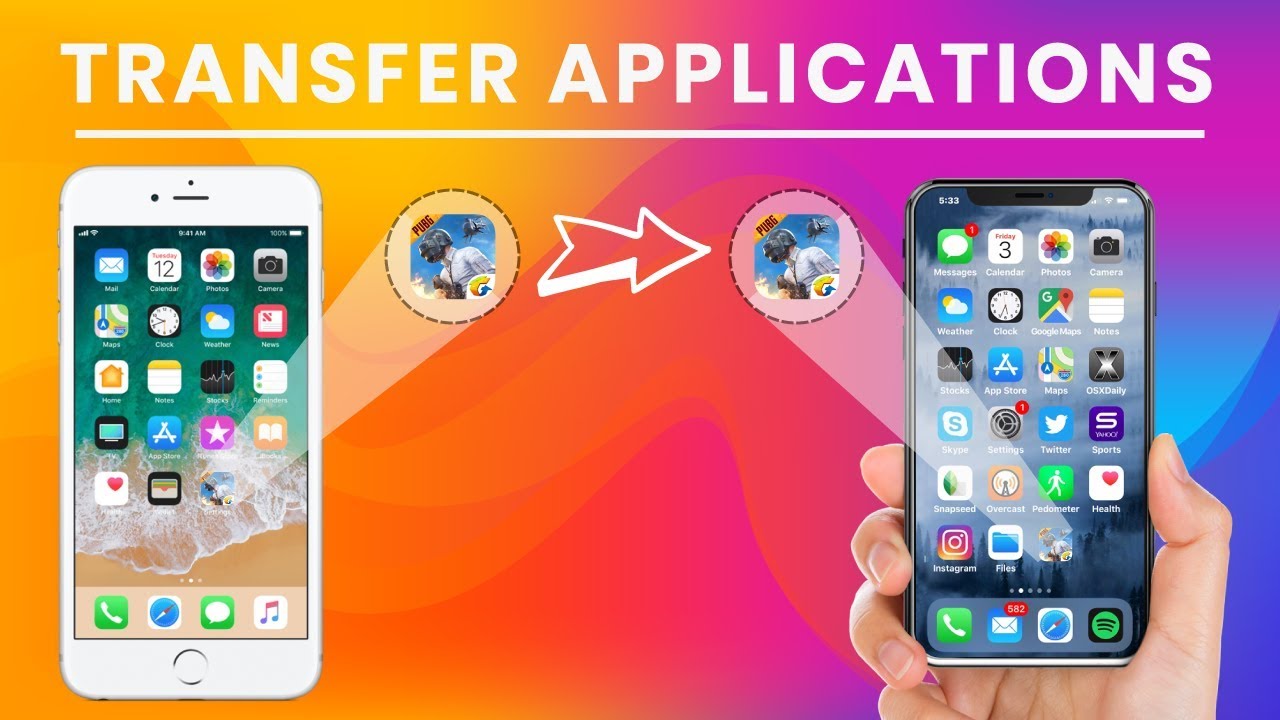
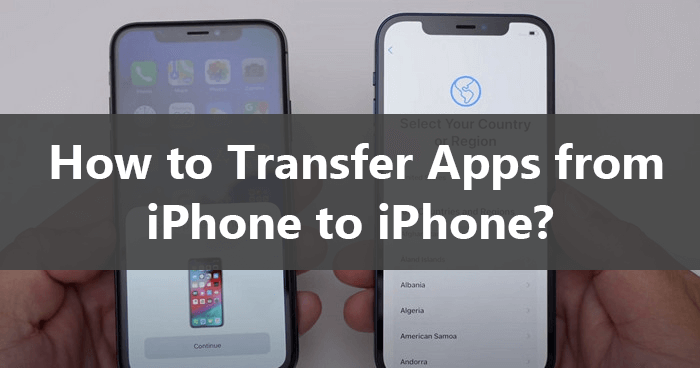
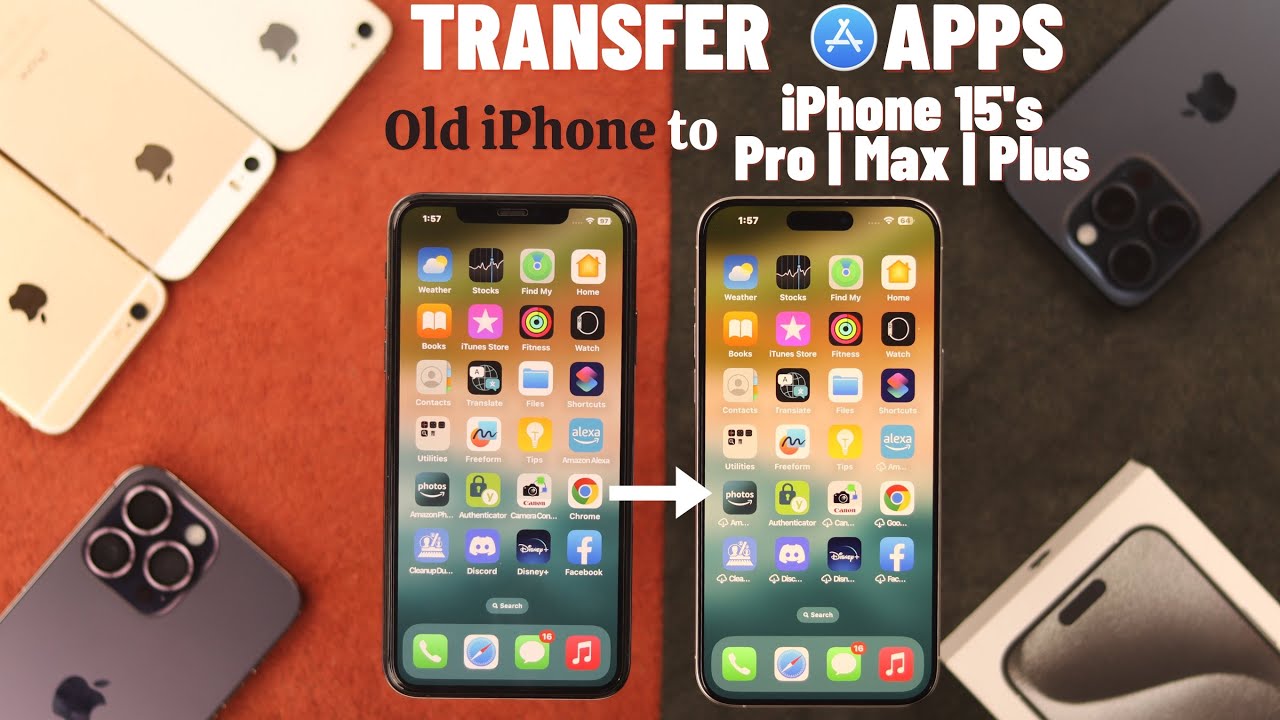
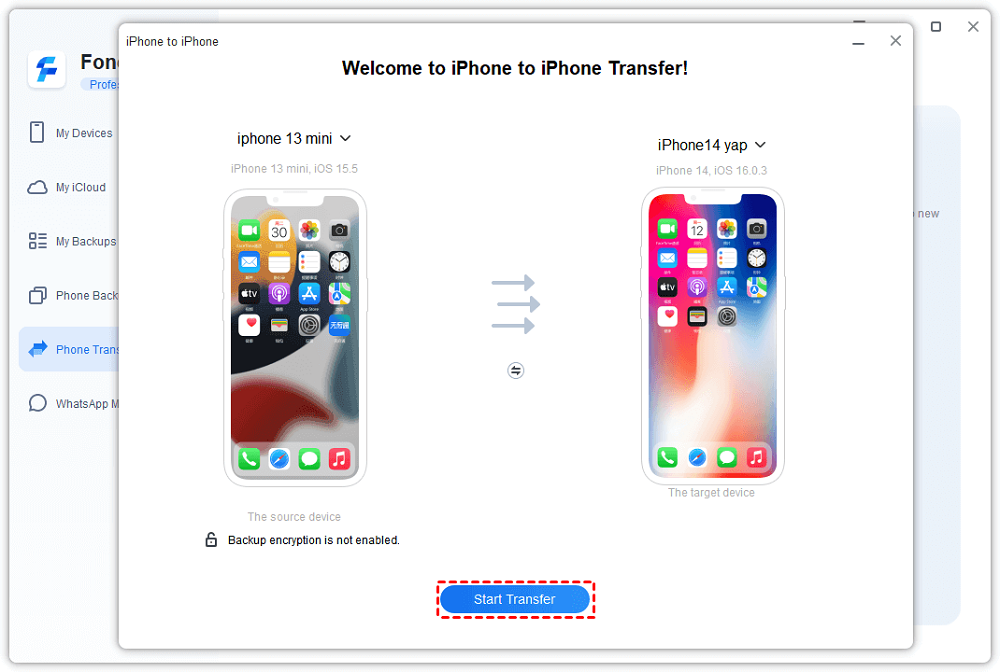
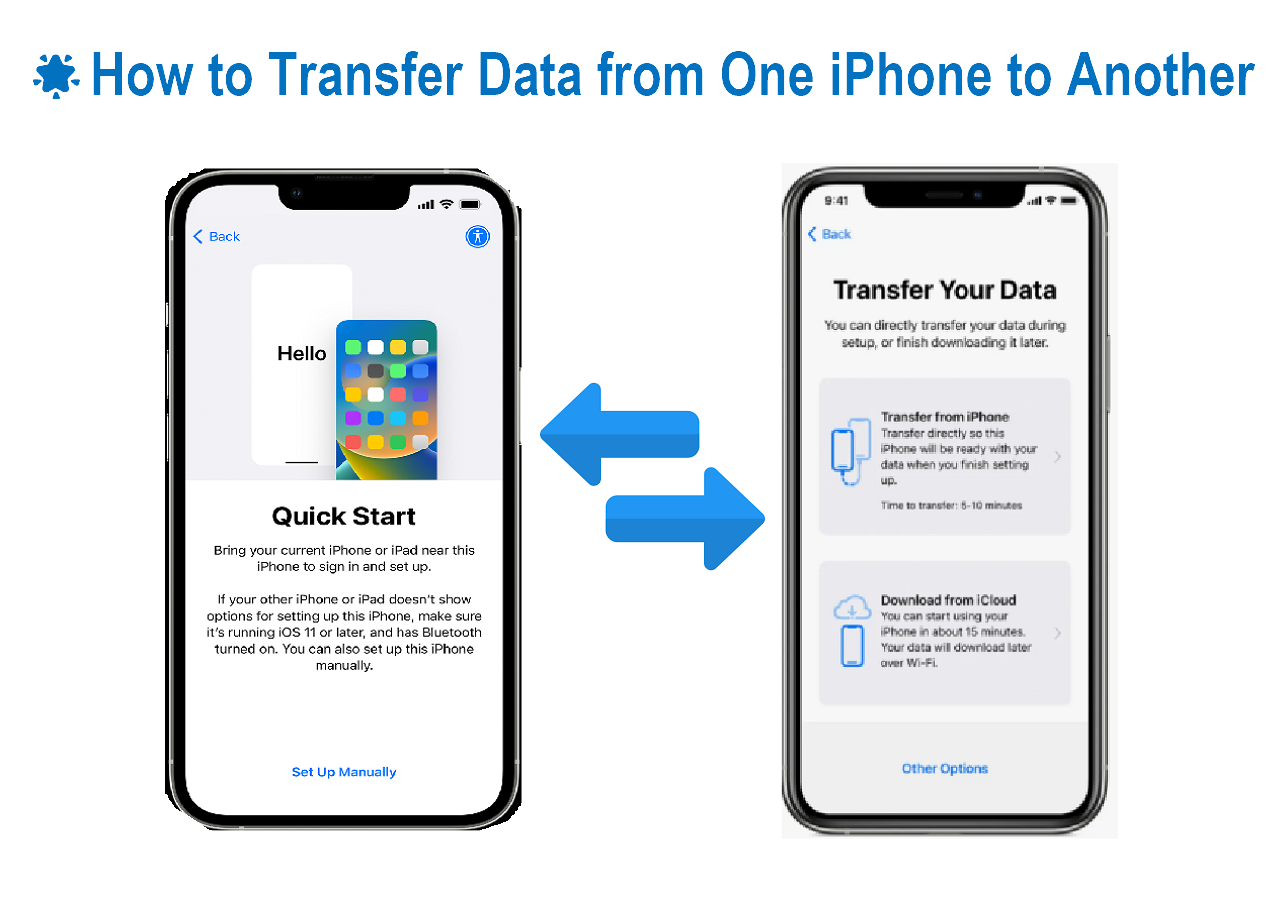
Quick Start is, without a doubt, the fastest and most direct answer to How do I transfer my apps to my new iPhone. This method allows you to wirelessly transfer almost everything from your old iPhone to your new one during the initial setup process. It truly is the magical modern solution.
The beauty of Quick Start is that it uses proximity to link the two devices, avoiding the need for iCloud backups or messy cables (though a Wi-Fi connection is still necessary). It transfers not just your apps, but also your Apple Watch pairing, saved passwords, and device settings.
Prerequisites for Using Quick Start
Before you begin, make sure both devices meet these simple requirements:
- Both the old and new iPhone must be running iOS 11 or later.
- Both phones must have Bluetooth enabled.
- Keep both devices plugged into power, as the transfer can take a significant amount of time depending on the data size.
- Ensure you have a reliable Wi-Fi connection.
Step-by-Step Quick Start Transfer
Follow these steps immediately after unboxing and turning on your new iPhone:
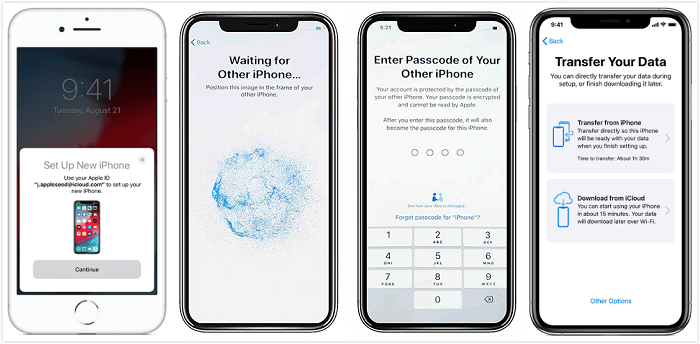
- Turn on your new iPhone and place it near your old iPhone.
- Wait for the Quick Start screen to appear on your old iPhone. It will ask if you want to use your Apple ID to set up your new phone. Tap "Continue."
- An animation will appear on the new phone. Use your old phone's camera to scan the animation. This links the two devices securely.
- Enter your old phone's passcode on the new phone when prompted.
- You will be asked to set up Face ID or Touch ID on the new phone. Follow the on-screen instructions.
- The crucial step: Choose the "Transfer Directly from iPhone" option. This will initiate the direct transfer of all your data, including all your apps and app settings.
- Keep the devices close together and plugged in until the transfer is complete. This may take anywhere from 15 minutes to over an hour.
Once the transfer finishes, your new phone will restart, and all your apps will begin automatically downloading and restoring in the background.
Using iCloud Backup to Restore Your Apps
If you don't have your old iPhone physically present, or if you prefer to set up your phone later rather than immediately, iCloud backup is the perfect reliable alternative. It ensures all your data, including app organization and saved game progress, is safely stored in the cloud.
Backing Up Your Old iPhone
Before restoring, you need a recent backup. If your old iPhone is still available, perform a manual backup:
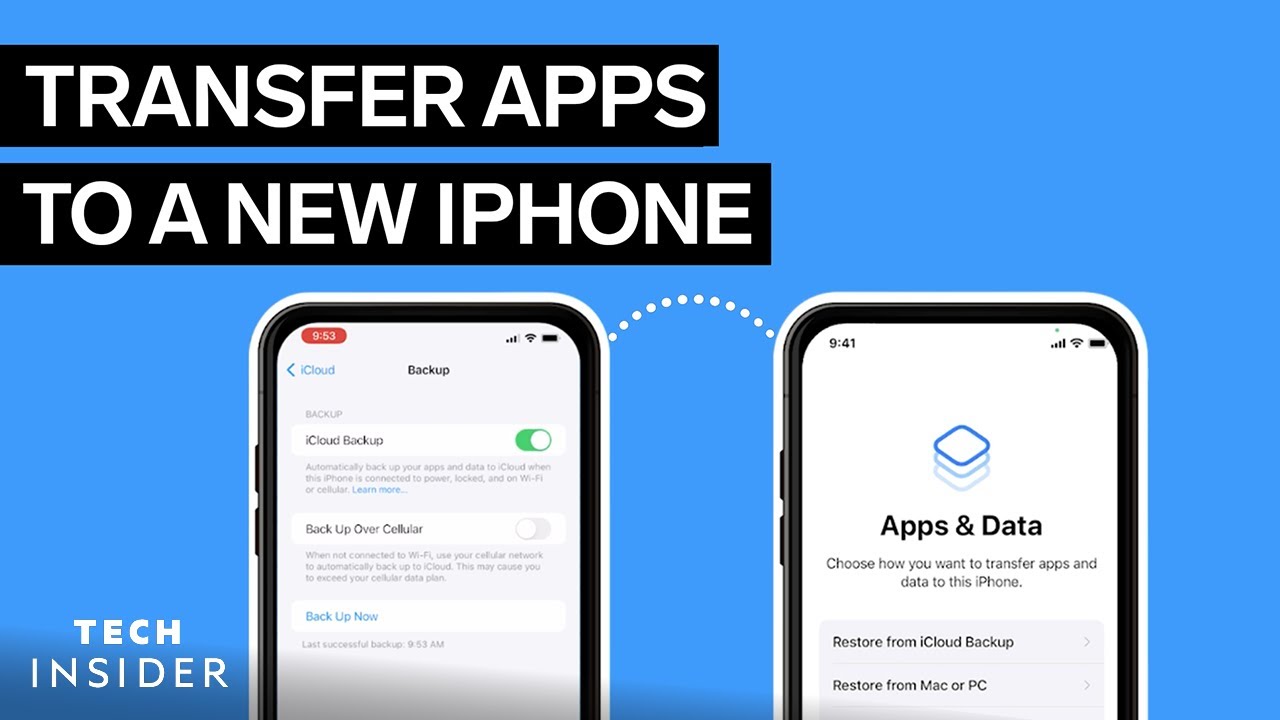
- Go to Settings > [Your Name] > iCloud.
- Scroll down and select "iCloud Backup."
- Tap "Back Up Now." Ensure you wait until the backup finishes and note the time it was completed.
This process copies all the necessary configuration files, ensuring when you ask yourself "How do I transfer my apps to my new iPhone using the cloud?" the answer is simple: just restore the full package.
Restoring to Your New iPhone
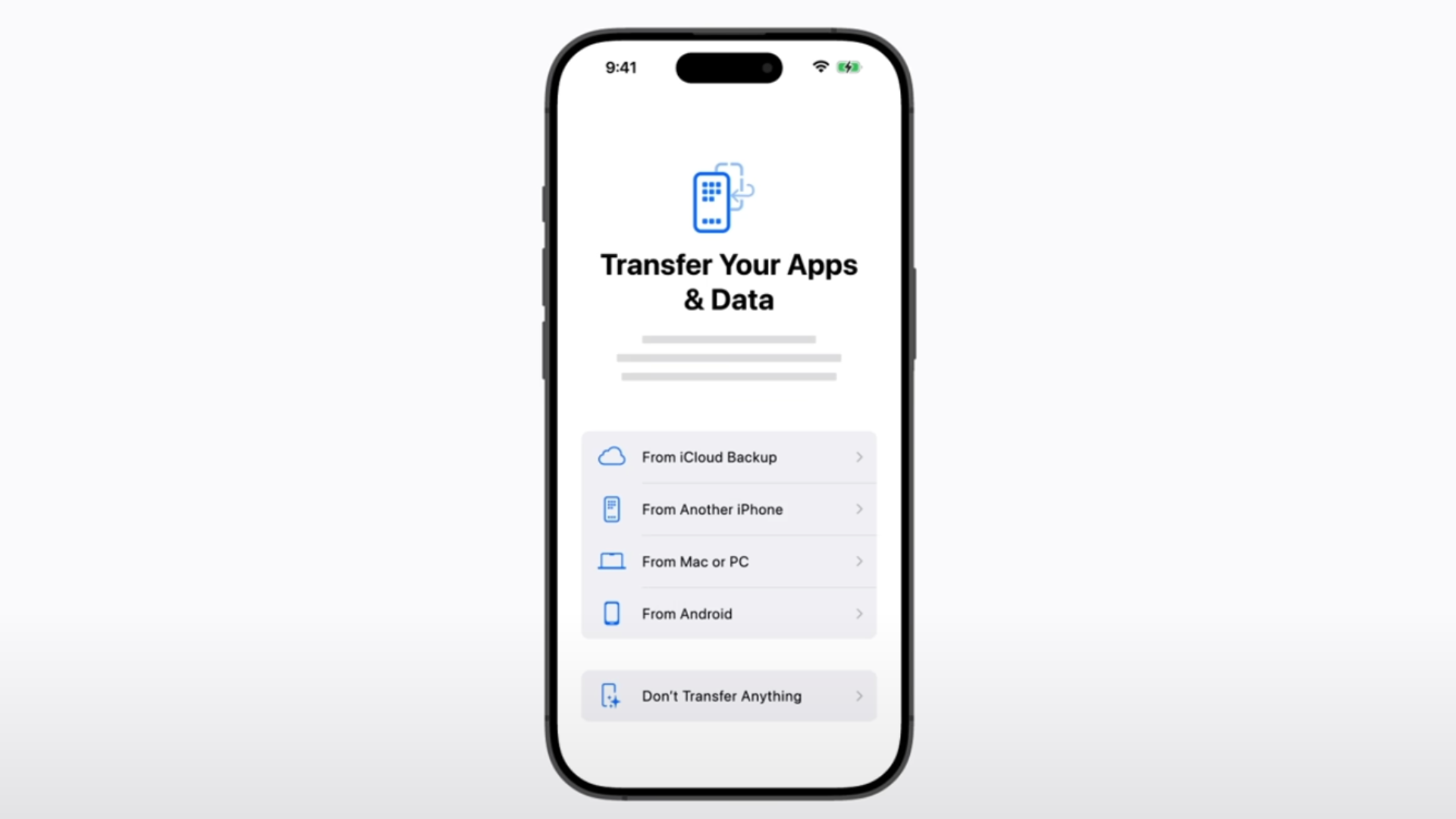
During the setup process of your new iPhone, you will reach the "Apps & Data" screen. Here's what to do:
- Select "Restore from iCloud Backup."
- Sign in using your Apple ID and password.
- Choose the most recent backup you just created.
- Your iPhone will start downloading the data. Once the core setup is done, your apps will appear as greyed-out icons and begin downloading one by one.
Transferring Apps with iTunes/Finder (For those who prefer wires)
While wireless transfer is now dominant, some users prefer the security and speed of a wired connection. This method uses your computer (iTunes for Windows/Older macOS, or Finder for macOS Catalina and later) to create a full, encrypted local backup.
The benefit of this method is that local backups are often faster than cloud backups, and if you encrypt the backup, it saves sensitive data like account passwords and Health data that iCloud sometimes leaves out.
Ensuring Your Backup is Complete
- Connect your old iPhone to your computer.
- Open iTunes (Windows/Older Mac) or Finder (New Mac).
- Select your device when it appears in the sidebar.
- Under the "Backups" section, check the box that says "Encrypt local backup" (this is essential for transferring saved passwords). Create a password you won't forget.
- Click "Back Up Now" and wait for the process to complete.
Once you have this complete local backup, you can disconnect the old phone and start setting up your new device.
Restoring from Computer Backup
Connect your new iPhone to the computer and open Finder/iTunes. When you reach the "Apps & Data" screen during the setup on the phone, select "Restore from Mac or PC." Then, on the computer:
- Select "Restore Backup" and choose the backup file you just created.
- Enter the encryption password if prompted.
- The data transfer will begin. This usually takes less time than a wireless transfer.
What If Some Apps Don't Transfer? Troubleshooting Tips
While the transfer process is usually flawless, sometimes you might find greyed-out icons that never finish downloading, or certain apps missing. If you are struggling with "How do I transfer my apps to my new iPhone when the transfer fails partially?", here are common culprits:
First, ensure you are connected to strong Wi-Fi. Apps require an internet connection to download from the App Store, even if the settings data was restored from a backup.
Common Causes for Missing Apps
- App Compatibility: Very old 32-bit apps may not run on newer iOS versions. If the app hasn't been updated by the developer, it won't be available for download.
- Different Apple ID: Apps are linked to the Apple ID that purchased them. If you used a different Apple ID on your old phone for certain purchases, those apps won't download automatically on the new phone unless you sign into the original ID.
- Purchased Content Restrictions: Check Settings > Screen Time > Content & Privacy Restrictions. Ensure that restrictions are not preventing app downloads or purchases.
- Pause Status: If an app icon is greyed out, tap it. Sometimes the download is simply paused and needs manual resumption.
Conclusion: Seamless App Migration Awaits
The days of tediously setting up a new phone are long gone. Whether you opt for the lightning-fast, direct "Quick Start" transfer, the reliable "iCloud Backup," or the secure "iTunes/Finder" wired method, the process of migrating your digital life is simpler than ever.
If you were wondering, How do I transfer my apps to my new iPhone? remember these three key steps: ensure your backup is current, keep both phones charged, and choose the transfer method that suits your immediate needs. Within minutes, your new iPhone will feel just like home, with every single app right where you left it.
Frequently Asked Questions (FAQ)
- Can I choose which apps to transfer?
- No, when restoring from a backup (iCloud, Finder, or Quick Start), you restore the entire device image. However, once the restore is complete, you can manually delete any unwanted apps afterward.
- Does transferring my apps also transfer all my saved data and logins?
- Yes, in most cases. If you use an encrypted backup (either iCloud or a local backup with a password), most saved data, game progress, and passwords stored in your Keychain will transfer successfully. Always verify important accounts after the transfer.
- How long does the entire transfer process take?
- The time varies significantly based on how much data you have (photos, videos, apps). A transfer under 64GB might take 20–40 minutes. Transfers over 200GB can easily take 1–3 hours, especially if using a wireless connection.
- Do I need to keep my old iPhone powered on during the Quick Start transfer?
- Yes, absolutely. For Quick Start to work, both the sending and receiving iPhones must remain powered on, unlocked, and near each other for the duration of the data transfer.
How Do I Transfer My Apps To My New Iphone
How Do I Transfer My Apps To My New Iphone Wallpapers
Collection of how do i transfer my apps to my new iphone wallpapers for your desktop and mobile devices.
Beautiful How Do I Transfer My Apps To My New Iphone Design for Your Screen
Explore this high-quality how do i transfer my apps to my new iphone image, perfect for enhancing your desktop or mobile wallpaper.
Vibrant How Do I Transfer My Apps To My New Iphone Background Digital Art
Discover an amazing how do i transfer my apps to my new iphone background image, ideal for personalizing your devices with vibrant colors and intricate designs.
Serene How Do I Transfer My Apps To My New Iphone Scene Art
Transform your screen with this vivid how do i transfer my apps to my new iphone artwork, a true masterpiece of digital design.

Crisp How Do I Transfer My Apps To My New Iphone Moment Illustration
This gorgeous how do i transfer my apps to my new iphone photo offers a breathtaking view, making it a perfect choice for your next wallpaper.
Dynamic How Do I Transfer My Apps To My New Iphone Picture Collection
A captivating how do i transfer my apps to my new iphone scene that brings tranquility and beauty to any device.
Mesmerizing How Do I Transfer My Apps To My New Iphone Photo Collection
Explore this high-quality how do i transfer my apps to my new iphone image, perfect for enhancing your desktop or mobile wallpaper.
Mesmerizing How Do I Transfer My Apps To My New Iphone Moment in HD
Experience the crisp clarity of this stunning how do i transfer my apps to my new iphone image, available in high resolution for all your screens.
Spectacular How Do I Transfer My Apps To My New Iphone Wallpaper Art
This gorgeous how do i transfer my apps to my new iphone photo offers a breathtaking view, making it a perfect choice for your next wallpaper.

Captivating How Do I Transfer My Apps To My New Iphone Image in HD
This gorgeous how do i transfer my apps to my new iphone photo offers a breathtaking view, making it a perfect choice for your next wallpaper.

Dynamic How Do I Transfer My Apps To My New Iphone Photo for Your Screen
Immerse yourself in the stunning details of this beautiful how do i transfer my apps to my new iphone wallpaper, designed for a captivating visual experience.

Serene How Do I Transfer My Apps To My New Iphone Capture in 4K
Experience the crisp clarity of this stunning how do i transfer my apps to my new iphone image, available in high resolution for all your screens.
Dynamic How Do I Transfer My Apps To My New Iphone Capture for Desktop
A captivating how do i transfer my apps to my new iphone scene that brings tranquility and beauty to any device.
Gorgeous How Do I Transfer My Apps To My New Iphone Wallpaper Photography
A captivating how do i transfer my apps to my new iphone scene that brings tranquility and beauty to any device.
Serene How Do I Transfer My Apps To My New Iphone Capture for Desktop
Transform your screen with this vivid how do i transfer my apps to my new iphone artwork, a true masterpiece of digital design.
Mesmerizing How Do I Transfer My Apps To My New Iphone Design Digital Art
Discover an amazing how do i transfer my apps to my new iphone background image, ideal for personalizing your devices with vibrant colors and intricate designs.
Beautiful How Do I Transfer My Apps To My New Iphone Photo Collection
Discover an amazing how do i transfer my apps to my new iphone background image, ideal for personalizing your devices with vibrant colors and intricate designs.

Serene How Do I Transfer My Apps To My New Iphone Scene Art
Transform your screen with this vivid how do i transfer my apps to my new iphone artwork, a true masterpiece of digital design.
Mesmerizing How Do I Transfer My Apps To My New Iphone Picture Digital Art
Discover an amazing how do i transfer my apps to my new iphone background image, ideal for personalizing your devices with vibrant colors and intricate designs.
Detailed How Do I Transfer My Apps To My New Iphone Background for Desktop
Discover an amazing how do i transfer my apps to my new iphone background image, ideal for personalizing your devices with vibrant colors and intricate designs.
Spectacular How Do I Transfer My Apps To My New Iphone Landscape for Mobile
Immerse yourself in the stunning details of this beautiful how do i transfer my apps to my new iphone wallpaper, designed for a captivating visual experience.
Download these how do i transfer my apps to my new iphone wallpapers for free and use them on your desktop or mobile devices.